How to Fix Selenium Connection Failures on Port 7055
The 7055 timeout usually means Firefox and its driver never connected. Diagnose launch errors, outdated setup, custom profiles, and package isolation step by step.
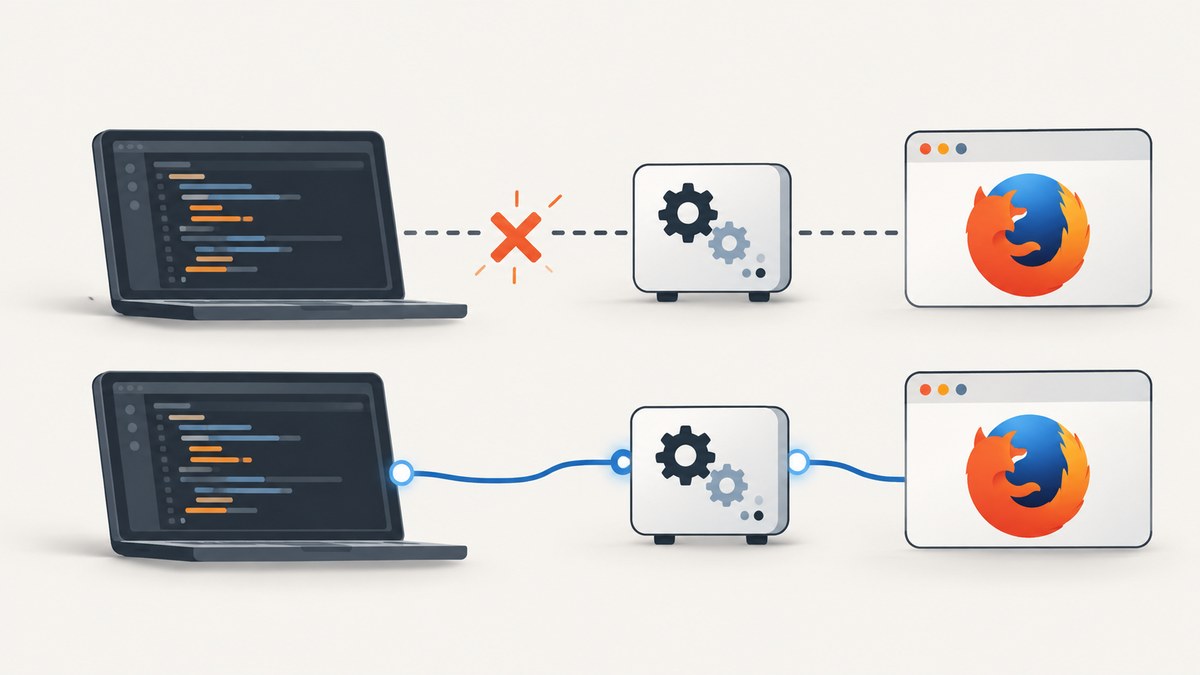
Direct answer: “Unable to connect to host 127.0.0.1 on port 7055 after 45000 ms” means Selenium expected a Firefox driver connection that did not come up. It does not prove that port 7055 is blocked. That port number is associated with an older FirefoxDriver-era connection path; current geckodriver-managed sessions choose a free Marionette port. Start by finding the earliest Firefox or geckodriver startup error, then check the executable, Selenium and geckodriver setup, profiles, and filesystem access.
Mozilla’s historical report for this exact symptom shows one concrete cause: Firefox failed to launch because its wrapper could not find the which command. That is an example, not a universal explanation. The connection timeout can be a downstream symptom of a missing binary, launcher failure, incompatible setup, or browser process that cannot use its profile.
1. Understand which connection is failing
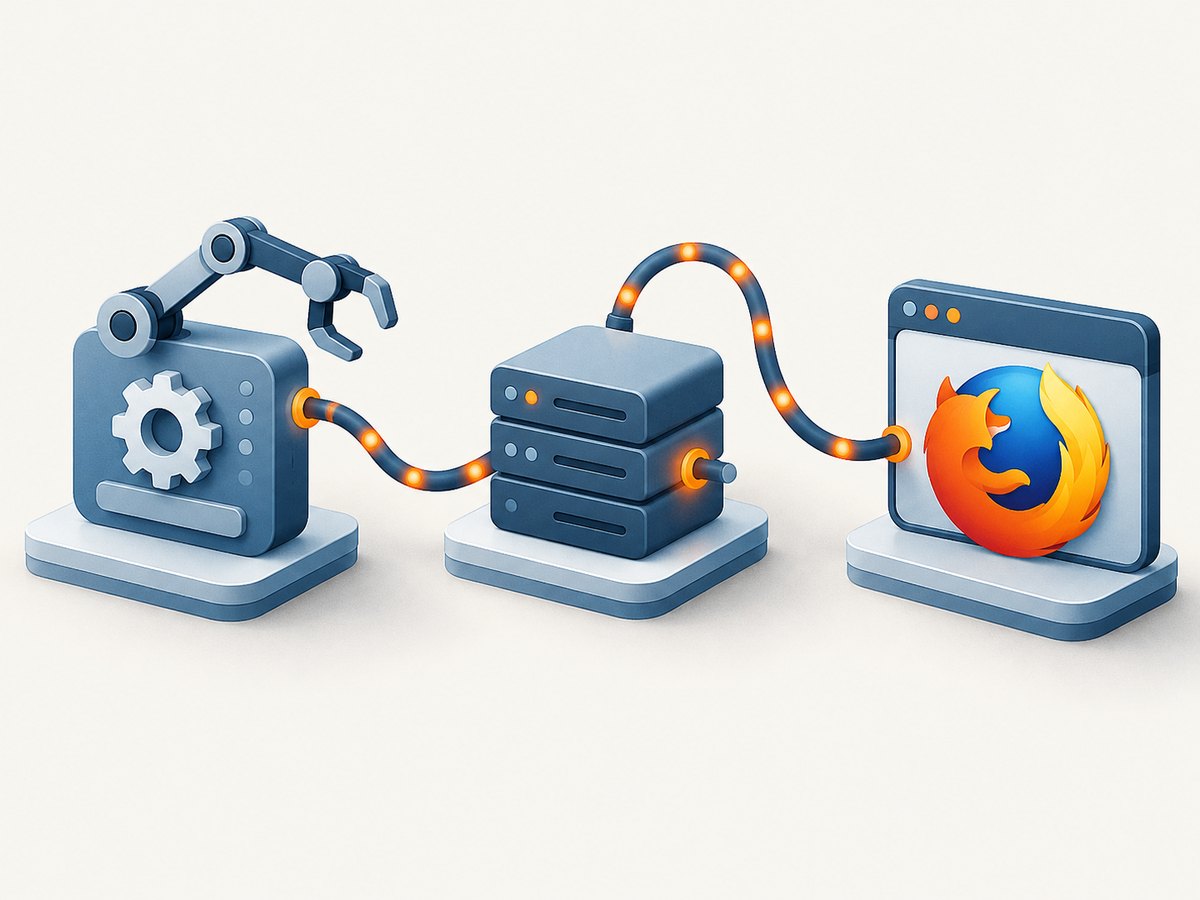
In a current Selenium Firefox session, the client talks WebDriver to geckodriver, and geckodriver starts and manages Firefox. Firefox then communicates with geckodriver through Marionette. These are distinct connections. The Selenium-to-WebDriver server port is not necessarily the Firefox-to-geckodriver Marionette port.
| Setup | Port behavior | What to check |
|---|---|---|
| Legacy FirefoxDriver-era setup | May assume port 7055 | Old APIs, old client and driver assumptions |
| Managed geckodriver session | Geckodriver selects a free system port for Marionette and records it in the profile | Firefox launch, driver logs, profile access |
| WebDriver server | Geckodriver’s documented server default is 4444 | Client-to-driver URL and server configuration |
| Attach to an existing Firefox | Marionette is commonly on 2828 unless configured otherwise | Marionette enabled and matching port |
Mozilla documents that managed geckodriver sessions select a free port. Do not make “open 7055” the default fix. If you deliberately attach to an existing browser or use a custom profile, follow that specific workflow’s port settings.
2. Collect the first useful error
- Re-run the failing session with geckodriver debug or trace logging.
- Keep Firefox stdout and stderr along with the Selenium exception.
- Find the earliest error before the 45-second connection timeout. Look for “binary not found,” a wrapper error, permission denial, profile creation failure, or Firefox crash.
- Record operating system, Selenium, geckodriver, and Firefox versions, plus whether Firefox is installed through Snap, Flatpak, or a container.
For geckodriver’s command line, use --log debug or --log trace as appropriate for your installed version. If Selenium launches the driver for you, enable the binding’s driver logging or run geckodriver directly with the relevant logging option. Preserve the full startup output; the final timeout alone often omits the root cause.
3. Verify Firefox and geckodriver are the binaries you expect
Check the actual executable visible to the process running Selenium. Mozilla says geckodriver searches PATH for Firefox by default; you can provide an explicit Firefox binary through geckodriver’s option or the Selenium capability. Likewise, geckodriver itself must be available on PATH or configured explicitly in the language binding.
# Linux/macOS: inspect what the current shell resolves
command -v firefox
command -v geckodriver
firefox --version
geckodriver --version
These checks only describe the shell where you run them. A CI service, IDE, container, or system service may have a different PATH. If Firefox resolves to a wrapper script, inspect that wrapper and the executable it invokes. The historical Bugzilla example reported /usr/bin/firefox: which: not found, so confirm dependencies used by launcher scripts are installed and callable.
Use a supported Firefox driver path rather than old FirefoxDriver APIs. Mozilla’s Selenium guidance says geckodriver through Selenium requires Selenium 3.11 or later and describes protocol migration incompatibilities in older setups. For a current project, use a maintained Selenium binding and compatible geckodriver, and consult their official release/setup guidance rather than assuming a historical 7055 configuration still applies.
4. Try a managed temporary profile
A clean geckodriver-managed profile is a useful isolation step. Remove custom profile arguments and preferences temporarily, then let Selenium create a temporary profile for one run. If that works, add profile customization back incrementally. Profile extensions, locked profile directories, stale preferences, and port overrides can each change startup behavior.
Mozilla documents a custom --profile case that can cause a Marionette port mismatch. In that case, use --marionette-port <port> so the browser and driver agree. Setting only the marionette.port preference is not sufficient when geckodriver overrides it. Apply this to the documented custom-profile situation, not as a blanket 7055 fix.
# Example shape for a deliberate custom-profile geckodriver launch:
geckodriver --log debug --marionette-port 2828
The port above is an example of explicitly coordinating a configured workflow; do not expose Marionette to a network. Keep diagnostic and browser-control ports local. For ordinary Selenium sessions, allow geckodriver to manage Firefox and its profile.
5. Check package and container filesystem access
Snap, Flatpak, and container packaging can give Firefox a different view of the filesystem from geckodriver. Mozilla specifically notes this concern for packaged Firefox, including the default Firefox shipped with Ubuntu 22.04 and later. A driver may create a temporary profile in a location the packaged browser cannot read, or the browser may be unable to write where expected.
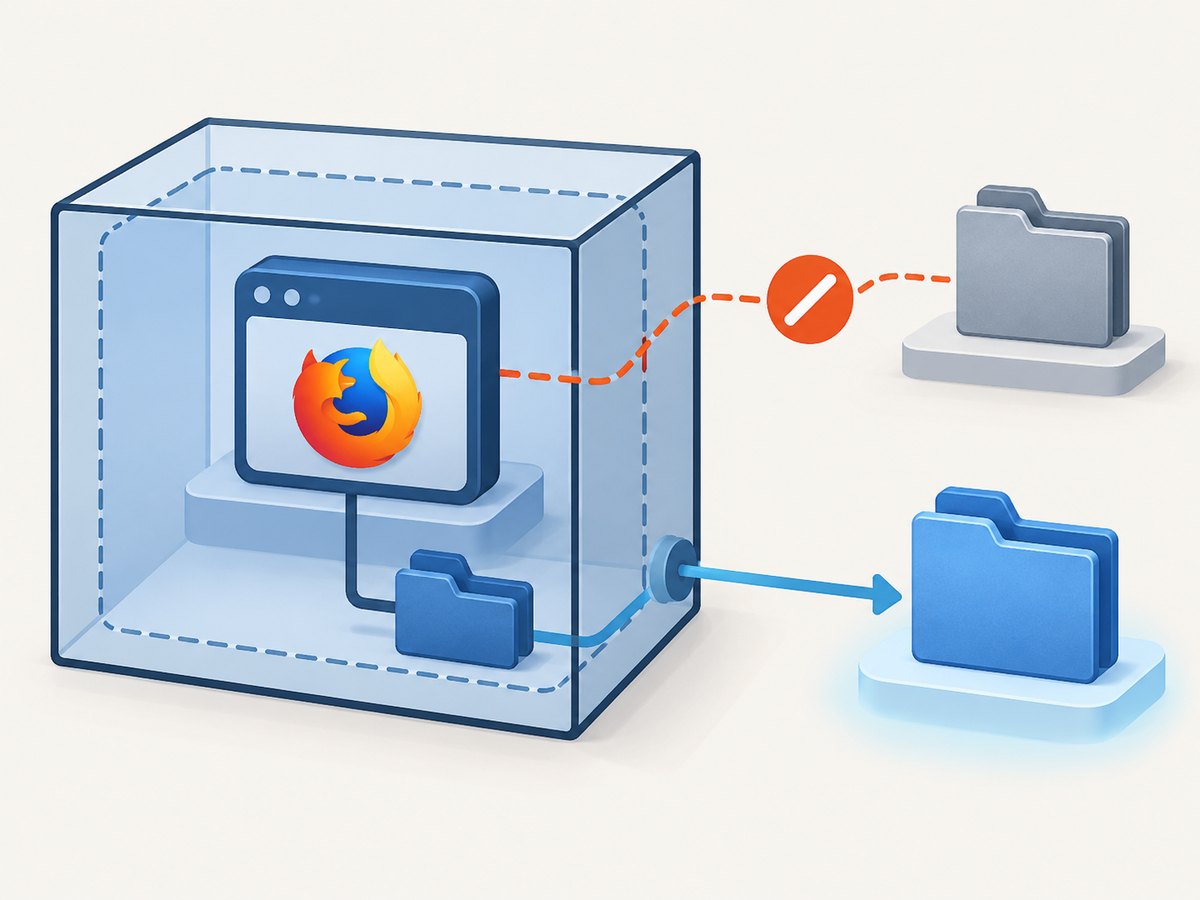
- Run Firefox and geckodriver in compatible environments.
- Confirm both processes can read and write the profile root.
- Where needed, configure an accessible geckodriver
--profile-root. - For packaged Firefox, consider the geckodriver supplied for the same package environment.
- Do not solve an access mismatch by running everything with broader privileges without understanding the cause.
In CI, verify the effective user, mounted directories, temporary-directory permissions, and browser package path. A local desktop run can succeed while a container run fails because the two processes do not share the same filesystem view.
6. Minimal Selenium examples
These examples use Selenium’s Firefox WebDriver entry point and allow the driver to manage a new browser process. Install Selenium and geckodriver in the same environment, and make sure Firefox is installed and resolvable there. Exact driver-log APIs vary by Selenium version.
Python
from selenium import webdriver
from selenium.webdriver.firefox.options import Options

options = Options()
# If Firefox is not on PATH, set the real executable path:
# options.binary_location = "/path/to/firefox"

driver = webdriver.Firefox(options=options)
try:
    driver.get("https://example.com")
    print(driver.title)
finally:
    driver.quit()
Node.js
const { Builder } = require('selenium-webdriver');
const firefox = require('selenium-webdriver/firefox');

(async () => {
  const options = new firefox.Options();
  // If Firefox is not on PATH, set its actual executable:
  // options.setBinary('/path/to/firefox');

  const driver = await new Builder()
    .forBrowser('firefox')
    .setFirefoxOptions(options)
    .build();
  try {
    await driver.get('https://example.com');
    console.log(await driver.getTitle());
  } finally {
    await driver.quit();
  }
})();
Java
import org.openqa.selenium.WebDriver;
import org.openqa.selenium.firefox.FirefoxDriver;
import org.openqa.selenium.firefox.FirefoxOptions;

public class FirefoxCheck {
  public static void main(String[] args) {
    FirefoxOptions options = new FirefoxOptions();
    // If Firefox is not on PATH:
    // options.setBinary("/path/to/firefox");
    WebDriver driver = new FirefoxDriver(options);
    try {
      driver.get("https://example.com");
      System.out.println(driver.getTitle());
    } finally {
      driver.quit();
    }
  }
}
When using Selenium Manager or another driver manager, check its output and the versions it resolved. Avoid mixing a stale manually installed geckodriver with an automatically managed one without confirming which executable actually launches.
7. Troubleshooting by symptom
| Symptom | Likely area | Next action |
|---|---|---|
| “Failed to connect to binary Firefox” | Firefox path, launcher, missing dependency, or immediate crash | Inspect Firefox stdout/stderr and resolve the exact executable; verify wrapper dependencies such as which. |
| Connection timeout only after 45 seconds | Browser process never reached a usable Marionette connection | Read earlier geckodriver logs and check launch and profile errors. |
| Works without custom profile | Profile port mismatch, permissions, stale profile, or profile lock | Use a generated profile, then reintroduce settings; use --marionette-port when the documented mismatch applies. |
| Works outside container, fails inside | Filesystem visibility, package confinement, or environment PATH | Use compatible packaged components and a shared accessible profile root. |
| Client cannot reach geckodriver server | WebDriver server address/port, separate from Marionette | Check the configured server URL and port; the documented server default is 4444. |
| Trying to attach to an already-running Firefox | Marionette is disabled or its port differs | Enable Marionette and configure the matching port; the common default is 2828 unless changed. |
Selenium’s troubleshooting guide notes that some apparent Selenium errors originate in the underlying browser driver. If practical, comparing with another browser driver can help determine whether the issue is specific to Firefox startup or more general client infrastructure. Synchronization problems are common Selenium errors generally, but adding sleeps does not repair a browser that never started or connected during session creation.
8. Reliability, performance, and cost
For repeatable automation, pin or deliberately manage browser and driver versions, capture driver logs on session creation failures, and use an isolated profile per parallel session. Reusing a writable profile across concurrent Firefox sessions can create collisions. Clean up sessions with quit() even when navigation or assertions fail.
Startup timeouts can reflect slow machines, but increasing the timeout should come after verifying that Firefox launches and the driver is configured correctly. A longer wait does not fix a missing executable, incompatible protocol setup, mismatched profile port, or inaccessible profile directory. For cost, account for the machine time and CI minutes spent on retries: retry only transient failures after collecting logs, and avoid retry loops that repeat deterministic launch errors.
Or skip the browser setup
If your task is to capture a website image rather than run an interactive Selenium test, ScreenshotNeo provides a one-request screenshot API. It is separate from Selenium and does not diagnose or repair a WebDriver session. It can avoid maintaining a browser driver for screenshot-only jobs.
curl -G "https://api.screenshotneo.com/v1/shot" \
  -d access_key=YOUR_API_KEY \
  --data-urlencode url=https://example.com \
  -o shot.webp
See the ScreenshotNeo API documentation for request options. Cookie banners, popups, and chat widgets are removed before the shot. Bot checks, blank pages, and failed loads are never billed. An MCP server lets AI agents take screenshots. The free plan includes 1,000 screenshots a month with no card; paid plans start at $5 for 3,000.
Sign up free and get 1,000 screenshots a month with no card.
FAQ
Does geckodriver still use port 7055?
Do not assume so. In the default managed mode, current geckodriver selects a free system-assigned Marionette port and writes it into the profile. The literal 7055 message is associated with an older FirefoxDriver-era path.
Should I open port 7055 in my firewall?
Not as a general fix. First establish which process failed and which connection is involved. The managed browser-to-driver port is selected dynamically; a firewall rule cannot make a missing or crashing Firefox executable start.
Why does Firefox fail to start in Selenium?
Common causes include a wrong binary path, a broken launcher, incompatible Selenium/driver setup, profile port or permission problems, and package isolation. The earliest startup log is the best next clue.
What information helps someone diagnose my case?
Share your OS and package type, Selenium/Firefox/geckodriver versions, launch code and capabilities, whether you use a custom profile, and the first relevant driver or Firefox log error. Remove secrets and private URLs before sharing logs.
Official references
- Mozilla geckodriver flags: ports, binary selection, and profile options.
- Mozilla geckodriver usage: Selenium setup and packaged-browser filesystem considerations.
- Mozilla geckodriver profiles: profile behavior and configuration.
- Selenium troubleshooting: identifying driver-originated errors.
- Mozilla Bugzilla 1312696: a historical instance of the port 7055 symptom.


