How to Take Selenium Screenshots at a Consistent Window Size in Python
Set Selenium’s browser size, verify the page viewport, and check the saved PNG so screenshot dimensions stay predictable across runs.
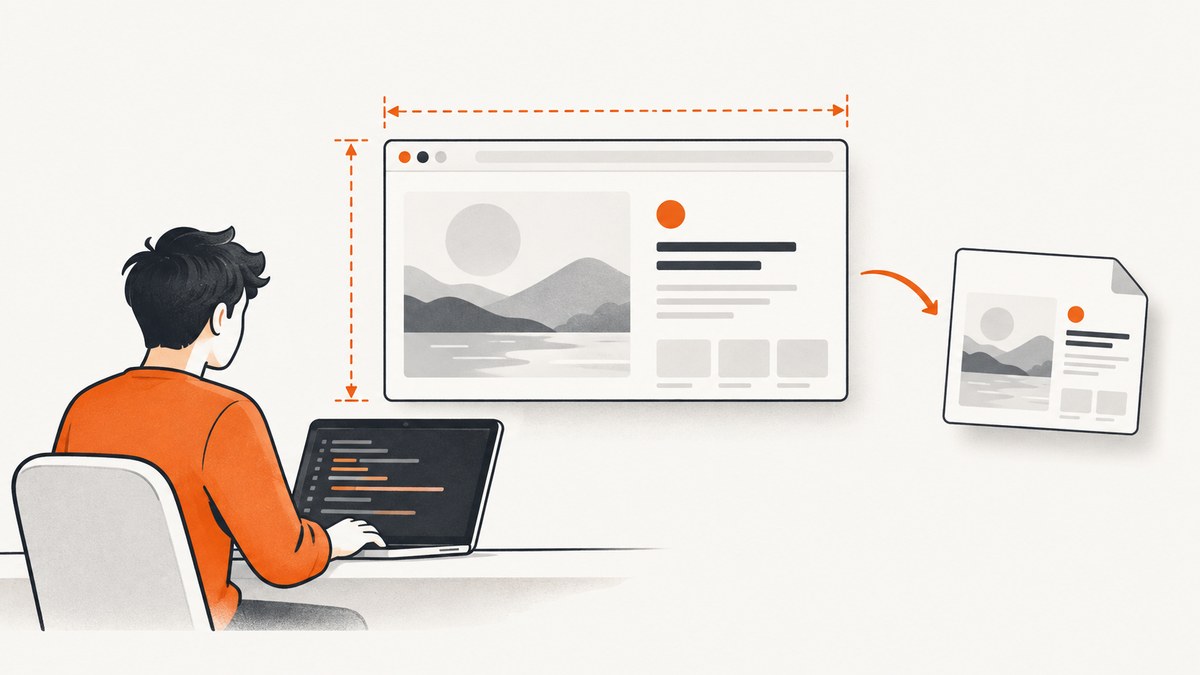
To take Selenium screenshots at a consistent size in Python, set the browser window dimensions explicitly with driver.set_window_size(width, height), check what WebDriver reports, and inspect the page’s CSS viewport when responsive layout matters. Then save the screenshot and verify the image’s pixel dimensions if the output file must meet an exact size requirement.
For example, use driver.set_window_size(1280, 900) for a 1280-by-900-pixel browser window request. That request does not, by itself, prove that the CSS viewport or saved PNG will be exactly 1280 by 900 pixels in every browser and environment. The three measurements are different: the WebDriver window dimensions, the page viewport dimensions, and the screenshot file’s pixel dimensions.
1. Set a fixed window size and save a screenshot
This complete example uses Selenium’s Chrome WebDriver. It sets the window before navigation so the page loads at the intended width, reports both the WebDriver window and JavaScript viewport dimensions, waits for the document to load, and saves a PNG.
from selenium import webdriver
from selenium.webdriver.support.ui import WebDriverWait

URL = "https://example.com"
OUTPUT = "screenshot.png"
WIDTH = 1280
HEIGHT = 900

options = webdriver.ChromeOptions()
# Add browser options here if needed for your environment.

driver = webdriver.Chrome(options=options)
try:
    driver.set_window_size(WIDTH, HEIGHT)

    # WebDriver's reported browser window dimensions.
    print("Window:", driver.get_window_size())
    print("Window rectangle:", driver.get_window_rect())

    # Load the page at the selected window size.
    driver.get(URL)
    WebDriverWait(driver, 20).until(
        lambda d: d.execute_script("return document.readyState") == "complete"
    )

    # The CSS viewport seen by page JavaScript and responsive CSS.
    viewport = driver.execute_script(
        "return {width: window.innerWidth, height: window.innerHeight}"
    )
    print("CSS viewport:", viewport)

    if not driver.save_screenshot(OUTPUT):
        raise RuntimeError(f"Could not save screenshot to {OUTPUT}")
    print(f"Saved {OUTPUT}")
finally:
    driver.quit()
Install Selenium with python -m pip install selenium. The example uses Selenium Manager through webdriver.Chrome(); the browser and its driver still need to be available in the runtime environment. For current API details, see the Selenium Python Chromium WebDriver API and the Selenium window guide.
Why set the size before navigation?
Responsive pages can choose layout rules while loading and running their scripts. Setting the target size before calling get() makes the initial page load happen with the intended browser dimensions. If you resize after navigation, the page may respond to the resize, but scripts or layout decisions made earlier can make the resulting page state differ. When you change dimensions for a screenshot, reload the page if the test requires a clean load at the new viewport.
The Selenium API describes set_window_size(width, height) as setting the current window’s width and height in pixels. It also provides get_window_size() and get_window_rect() to inspect the resulting window dimensions. These methods help confirm the browser-side request; they do not establish the final screenshot file dimensions.
2. Understand window size, viewport size, and PNG size
“Screenshot size” can refer to three measurements. Check the one that matches your requirement instead of assuming they are interchangeable.
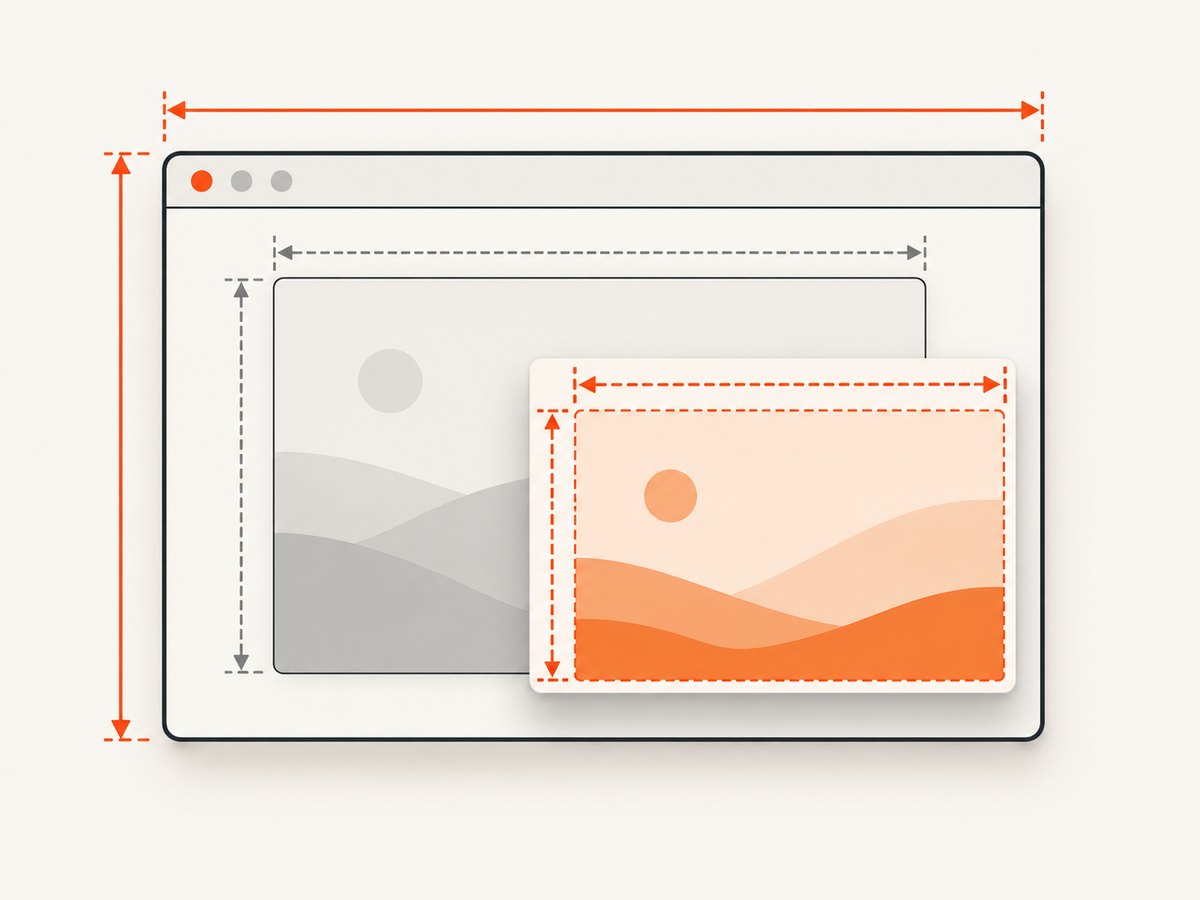
| Measurement | How to inspect or control it | What it tells you |
|---|---|---|
| WebDriver window dimensions | set_window_size(), then get_window_size() or get_window_rect() |
The browser window dimensions reported by WebDriver. |
| CSS viewport | Run JavaScript for window.innerWidth and window.innerHeight |
The viewport dimensions page JavaScript and responsive CSS can observe. |
| Screenshot file dimensions | Inspect the saved PNG or its image metadata | The pixel width and height of the output file. |
The WebDriver standard defines a screenshot as capturing the visual viewport of the top-level browsing context. A browser’s outer window, its page viewport, and the pixels in the resulting PNG are not guaranteed to match one another. Browser chrome, the operating system, headless behavior, device scale, browser version, and runtime environment can affect the relationship. See the W3C WebDriver specification for screenshot semantics.
If the page’s responsive breakpoints are the important part, validate window.innerWidth and window.innerHeight. If the output image must have exact pixel dimensions, inspect the file itself. Treat any mismatch as something to diagnose in the environment, not as proof that Selenium ignored the requested dimensions.
3. Make the capture repeatable
A fixed window request is a useful starting point, but consistent dimensions alone do not guarantee identical pixels. For a dependable capture workflow, specify and record the full rendering environment.
- Choose the target dimensions. Decide whether the requirement concerns the browser window, CSS viewport, or output image. Record the target in the test or capture configuration.
- Choose the browser and mode. Keep the browser, browser version, and headed or headless mode consistent between runs.
- Set dimensions explicitly. Call
set_window_size()instead of relying on the desktop’s current resolution or a maximize operation. - Check the reported window. Log
get_window_size()orget_window_rect()so a runtime that did not apply the expected size is visible. - Navigate and wait for the page state you need. Waiting for
document.readyStateto becomecompleteis a basic document-load check; it does not guarantee that every image, font, animation, or application request has finished. - Check the CSS viewport. Read
innerWidthandinnerHeightafter navigation when responsive behavior matters. - Save and validate the file. Confirm that the screenshot was written and inspect its dimensions if they are part of the requirement.
- Record environment details. Include operating system or container, browser and driver versions, headless mode, requested window size, viewport, and any device-scale settings.
Wait for visual readiness, not just document readiness
A page can reach document.readyState == "complete" while content is still changing. A single-page app may render after its initial document load; images may load lazily; a web font may change line wrapping; and animations may be in progress. Wait for a page-specific condition when possible, such as a known element becoming visible or a loading indicator disappearing.
from selenium.webdriver.common.by import By
from selenium.webdriver.support import expected_conditions as EC
from selenium.webdriver.support.ui import WebDriverWait

# After driver.get(URL):
WebDriverWait(driver, 20).until(
    EC.visibility_of_element_located((By.CSS_SELECTOR, "main .ready"))
)
# Capture only after the page-specific ready state is present.
driver.save_screenshot("ready-page.png")
Replace the selector with a condition that actually represents a stable state on your page. A fixed sleep can be useful for diagnosing a timing issue, but it can be unnecessarily slow on fast runs and insufficient on slow ones. A condition-based wait makes the intended readiness check explicit.
4. Save screenshots as a file or bytes
save_screenshot(path) writes a PNG and returns whether it succeeded. get_screenshot_as_file(path) is another file-saving method. If a later step needs to upload or process the image in memory, use get_screenshot_as_png(), which returns PNG bytes.
# Save to a path and check the result.
if not driver.get_screenshot_as_file("artifacts/page.png"):
    raise RuntimeError("Screenshot file could not be written")

# Or keep PNG data in memory.
png_bytes = driver.get_screenshot_as_png()
with open("artifacts/page-from-bytes.png", "wb") as output:
    output.write(png_bytes)
Create the output directory before saving if it may not exist. In a CI job or container, confirm the process has permission to write there and that the artifact collection step uses the same path. Selenium’s Python Remote WebDriver API documents the screenshot methods.
5. Chromium-only viewport and device emulation
For workflows that need direct control over Chromium device metrics, Chrome DevTools Protocol (CDP) provides Emulation.setDeviceMetricsOverride. Its parameters include width, height, mobile emulation, and device scale factor. The protocol documentation says the command overrides values such as window.innerWidth, window.innerHeight, and related CSS media query results.
In Selenium Python with Chromium, a CDP command can be sent through the Chrome driver’s command interface. The exact integration surface can vary across Selenium versions, so keep this browser-specific code isolated and check the Selenium version in your project.
from selenium import webdriver

options = webdriver.ChromeOptions()
driver = webdriver.Chrome(options=options)
try:
    driver.execute_cdp_cmd(
        "Emulation.setDeviceMetricsOverride",
        {
            "width": 1280,
            "height": 900,
            "deviceScaleFactor": 1,
            "mobile": False,
        },
    )
    driver.get("https://example.com")
    print(driver.execute_script(
        "return [window.innerWidth, window.innerHeight]"
    ))
    driver.save_screenshot("chromium-viewport.png")
finally:
    driver.quit()
Use CDP only when you need Chromium-specific device or viewport emulation and can accept that dependency. It is not a portable WebDriver command for Firefox or other browser implementations. For ordinary window sizing, prefer Selenium’s standard set_window_size(). See the Chrome DevTools Protocol Emulation reference for the current command parameters.
6. Common problems and fixes
| Symptom | Likely cause | What to do |
|---|---|---|
| The viewport is smaller than the requested window. | Window dimensions and CSS viewport dimensions measure different things; browser or environment behavior may affect their relationship. | Print get_window_size() and JavaScript viewport dimensions separately. If responsive layout is the target, tune and verify the viewport in the actual runtime. |
| The saved PNG is not the requested width and height. | The request sets browser window dimensions, not a universal promise about screenshot pixel dimensions. | Inspect the PNG’s actual dimensions. Record browser, mode, operating system or container, and device scale settings. Consider CDP emulation for Chromium when it fits the use case. |
| The screenshot uses a desktop layout even though a mobile-like image was expected. | The page may be responding to a wider CSS viewport, or the browser is not using mobile device emulation. | Check window.innerWidth and responsive breakpoints. For Chromium-only device metrics, use CDP emulation and verify the resulting layout. |
| The screenshot is blank, incomplete, or shows a loading state. | The capture happened before the app or important visual assets were ready. | Wait for a meaningful page-specific element or loading-state change. Check console errors and network availability in the test environment. |
| The screenshot changes between runs at the same size. | Content, fonts, animations, browser versions, device scale, or environment may have changed. | Pin and record the browser/runtime setup where practical. Wait for stable content and fonts; disable or wait out animation when your test permits it. |
save_screenshot() returns false or no file appears. |
The destination path may be invalid, the directory may not exist, or the process may lack write access. | Create the directory, use a known writable path, check the return value, and ensure CI collects the same artifact path. |
| Chrome does not start in a headless or CI environment. | The installed browser, driver, or runtime configuration may be incompatible or incomplete. | Check browser and Selenium setup for that environment. Use the headless option syntax supported by the installed Chrome version; avoid copying flags without checking version compatibility. |
7. Performance, reliability, and cost considerations
For local automation, screenshot capture itself is only one part of run time. Starting a browser, loading the page, waiting for application state, and fetching assets can take longer. Reuse a driver for a sequence of captures when appropriate, but make each capture’s size and page state explicit. Always call quit() in a finally block so failures do not leave browser processes running.
Fixed dimensions improve repeatability by reducing one source of layout variation. They do not make a page’s content static or guarantee bit-for-bit identical files across different browser builds and host environments. If exact visual comparisons matter, keep the environment stable and validate the rendered output rather than inferring it from the window request.
In CI, save screenshots only when they are useful artifacts—for example, on test failure or for a defined visual check—if storage and execution time are concerns. The research sources provide no general benchmark for capture speed or cost, so measure those in your own application and runtime. Selenium itself is a browser automation approach; infrastructure, browser execution, and artifact storage costs depend on where and how you run it.
8. Or skip the browser setup
If you need a website screenshot without managing a Selenium browser, ScreenshotNeo provides a screenshot API and MCP server for developers. Its API accepts one GET request with a URL and returns a PNG, JPEG, WebP, or PDF. See the ScreenshotNeo API documentation for request options.
curl -G "https://api.screenshotneo.com/v1/shot" \
  -d access_key=YOUR_API_KEY \
  --data-urlencode url=https://example.com \
  -o shot.webp
import requests
r = requests.get(
"https://api.screenshotneo.com/v1/shot",
params={"access_key": "YOUR_API_KEY", "url": "https://example.com"},
timeout=90,
)
r.raise_for_status()
open("shot.webp", "wb").write(r.content)const q = new URLSearchParams({
access_key: 'YOUR_API_KEY',
url: 'https://example.com'
});
const res = await fetch(`https://api.screenshotneo.com/v1/shot?${q}`);
if (!res.ok) throw new Error(`Screenshot request failed: ${res.status}`);
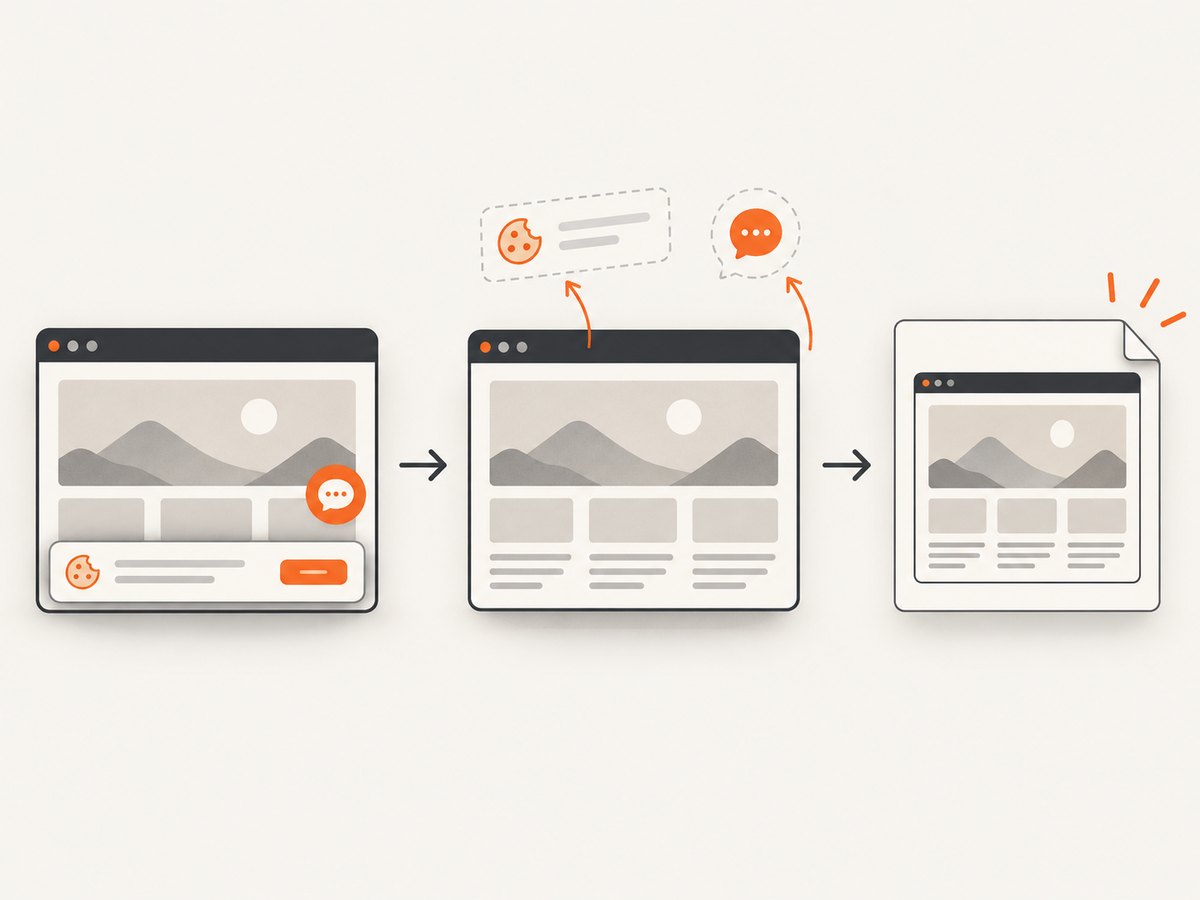
await Bun.write('shot.webp', res);ScreenshotNeo accepts cookie or consent banners like a visitor and removes more than 60 known consent platforms, newsletter popups, and chat widgets before the shot; each step can be turned off. Bot checks, blank pages, timeouts, failed loads, and cache hits are not billed, and response headers identify the page verdict and billing status. Its MCP server exposes screenshot, page-info, and PDF tools to Claude, Cursor, and other MCP clients. The free plan includes 1,000 screenshots per month with no card; paid plans start at $5 for 3,000 shots. Sign up for ScreenshotNeo’s free plan.
9. Frequently asked questions
Does set_window_size(1280, 900) guarantee a 1280-by-900 PNG?
No. It requests browser window dimensions. Check the CSS viewport and the actual screenshot file separately when those exact dimensions matter.
Should I maximize the browser instead?
For repeatable captures, request explicit dimensions rather than relying on the current desktop size or maximizing. A maximize operation depends on the available screen or environment.
Can I use the same CDP emulation code in Firefox?
No. The CDP command shown here is Chromium-specific. Use standard WebDriver sizing for portable window control, and consult the relevant browser tooling if you need browser-specific emulation elsewhere.
Does document.readyState == "complete" mean all page content is visually settled?
No. It is a document loading check. For dynamic pages, wait for an application-specific ready condition and any visual assets that matter to the screenshot.
How do I capture the whole page?
The standard WebDriver screenshot command captures the current visual viewport. Full-page capture is a separate requirement and may need browser-specific tooling or a service that supports full-page screenshots.


