How to Click Specific Coordinates with Selenium WebDriver in C#
Click a viewport point, an offset inside a canvas, or a point relative to the pointer with Selenium’s C# Actions API. Learn how to choose coordinates, avoid common failures, and verify the result.
To click a viewport coordinate in Selenium WebDriver for C#, build an Actions chain with MoveToLocation(x, y), then call Click() and Perform(). These are CSS pixel coordinates measured from the upper-left corner of the current browser viewport—not desktop screen coordinates. For an offset within an element, use MoveToElement(element, offsetX, offsetY); for movement from the current pointer, use MoveByOffset(deltaX, deltaY). Keep the destination inside the viewport and verify the page state after the click. [Selenium mouse actions]
1. Use viewport coordinates in C#
The direct coordinate method is MoveToLocation. It moves the pointer to an absolute location relative to the current viewport, then Click presses and releases the primary mouse button at that location.
using OpenQA.Selenium;
using OpenQA.Selenium.Chrome;
using OpenQA.Selenium.Interactions;

using IWebDriver driver = new ChromeDriver();
try
{
    driver.Manage().Window.Size = new System.Drawing.Size(1280, 900);
    driver.Navigate().GoToUrl("https://example.com/app");

    int x = 420;
    int y = 310;
    new Actions(driver)
        .MoveToLocation(x, y)
        .Click()
        .Perform();

    // Replace this with an assertion that proves the intended effect.
    Console.WriteLine($"Clicked viewport point ({x}, {y})");
}
finally
{
    driver.Quit();
}
The example assumes a Selenium .NET project with the Selenium.WebDriver package and a compatible Chrome browser/driver available. Selenium Manager can manage drivers for supported browsers in current Selenium releases; in locked-down environments, provision a matching driver through your normal build or CI setup. The Actions API reference documents the C# Actions(IWebDriver) constructor and chained methods. [Actions .NET API]
Set the browser window deliberately for repeatability, but do not treat its outer window size as the viewport size: browser chrome occupies some of that space. If a coordinate depends on a particular viewport, read window.innerWidth and window.innerHeight through IJavaScriptExecutor, and ensure both the target and your test assumptions fit. A click near the bottom edge can become invalid when the viewport is shorter than expected.
2. Choose the right coordinate origin
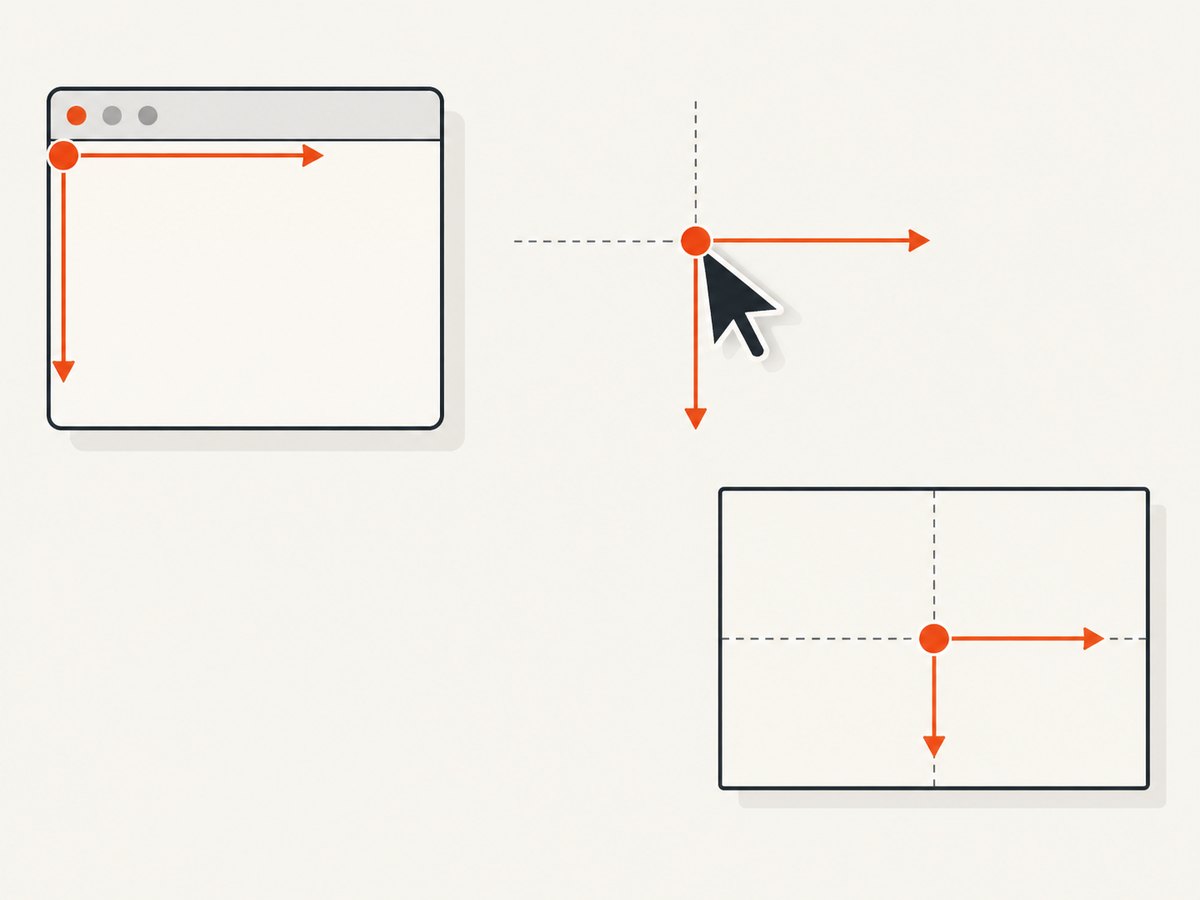
There are three useful origins. Pick the one that matches how the target is represented. The Selenium mouse API describes MoveByOffset as relative to the current pointer; if the pointer has not moved, its initial position is the viewport’s upper-left corner. Positive X moves right and positive Y moves down. Scrolling the document does not itself move the pointer. [Mouse actions: offsets and viewport]
| Method | Origin | Best fit | Typical risk |
|---|---|---|---|
MoveToLocation(x,y) |
Viewport upper-left | Known viewport point, canvas coordinate | Layout, viewport, or scroll changes invalidate point |
MoveByOffset(dx,dy) |
Current pointer | Small follow-up movement or relative gesture | Stateful starting position can be surprising |
MoveToElement(el,dx,dy) |
Element’s in-view center | Point within a canvas or positioned widget | Element moves, resizes, or is obscured |
element.Click() |
Element center, after scroll/interactability checks | Normal buttons, links, form controls | Center is covered by an overlay |
Relative offsets with MoveByOffset
// Start from an explicit location so this does not depend on prior pointer state.
new Actions(driver)
    .MoveToLocation(100, 120)
    .MoveByOffset(40, 25)
    .Click()
    .Perform();
The destination in this example is approximately (140, 145) in viewport coordinates. Be careful when splitting the movement and click into separate Perform() calls: the pointer position persists in the input-device state for that session. A test that assumes the pointer starts at (0,0) can become order-dependent if an earlier action moved it.
Offsets inside an element
IWebElement canvas = driver.FindElement(By.CssSelector("canvas"));
new Actions(driver)
    .MoveToElement(canvas, 15, -10)
    .Click()
    .Perform();
In current Selenium .NET documentation, the element offset is measured from the element’s in-view center (the behavior associated with Selenium 4.3), not its top-left. Verify the binding version and API you use before converting a design coordinate into offsets. [Selenium .NET Actions API]
If you have coordinates from the canvas’s top-left, get its rectangle and convert them to center-relative offsets. This sample rounds to integer offsets and assumes the element is not transformed by CSS:
IWebElement canvas = driver.FindElement(By.CssSelector("canvas"));
var rect = canvas.Rect;
int offsetX = targetFromLeft - rect.Width / 2;
int offsetY = targetFromTop - rect.Height / 2;
new Actions(driver)
    .MoveToElement(canvas, offsetX, offsetY)
    .Click()
    .Perform();
For a high-DPI canvas, distinguish its CSS display size from its internal drawing-buffer dimensions. WebDriver pointer actions use CSS viewport coordinates. If the application maps pointer coordinates into a scaled canvas buffer, apply the application’s scale factor when interpreting what a click means; do not multiply WebDriver coordinates by the device pixel ratio unless the page’s own event logic requires it.
3. When coordinate clicks make sense
Prefer IWebElement.Click() whenever a stable DOM locator identifies the control. Selenium’s element click scrolls an offscreen element into view, checks that it is interactable, and clicks its center. If something covers that center, Selenium can report an element-click-intercepted error. [Selenium element interactions]
Coordinates are useful when the meaningful target has no separate DOM node: drawing on a canvas, selecting a point on a map, interacting with a custom chart, or clicking a deliberate region of a game-like surface. They are also useful when testing hit detection itself. They are a poor substitute for a locator when a button or link is available, because coordinates describe a layout position rather than user intent.
Canvas or map example with a result assertion
using OpenQA.Selenium;
using OpenQA.Selenium.Interactions;
using OpenQA.Selenium.Support.UI;

IWebElement canvas = driver.FindElement(By.CssSelector("canvas#map"));
new WebDriverWait(driver, TimeSpan.FromSeconds(10)).Until(_ =>
    (bool)((IJavaScriptExecutor)driver).ExecuteScript(
        "return arguments[0].getBoundingClientRect().width > 0", canvas));

new Actions(driver)
    .MoveToElement(canvas, 30, 20)
    .Click()
    .Perform();

// Example assertion: adapt the expected state to the application.
var selected = driver.FindElement(By.CssSelector("[data-testid='selected-point']"));
if (!selected.Displayed)
    throw new InvalidOperationException("The map did not show a selected point.");
A completed action chain means WebDriver performed the input sequence; it does not prove the application accepted the intended point. Assert a changed URL, selected marker, dialog, state label, or other observable outcome. For canvas-only applications, the app may expose state through accessible labels, a status region, or a test hook; use the strongest observable result available.
4. Make coordinates repeatable
- Stabilize the page. Wait for the canvas, map, or target element to exist and for relevant data to finish loading. Avoid arbitrary sleeps when an explicit condition is possible.
- Fix the viewport assumptions. Use a consistent browser window and check
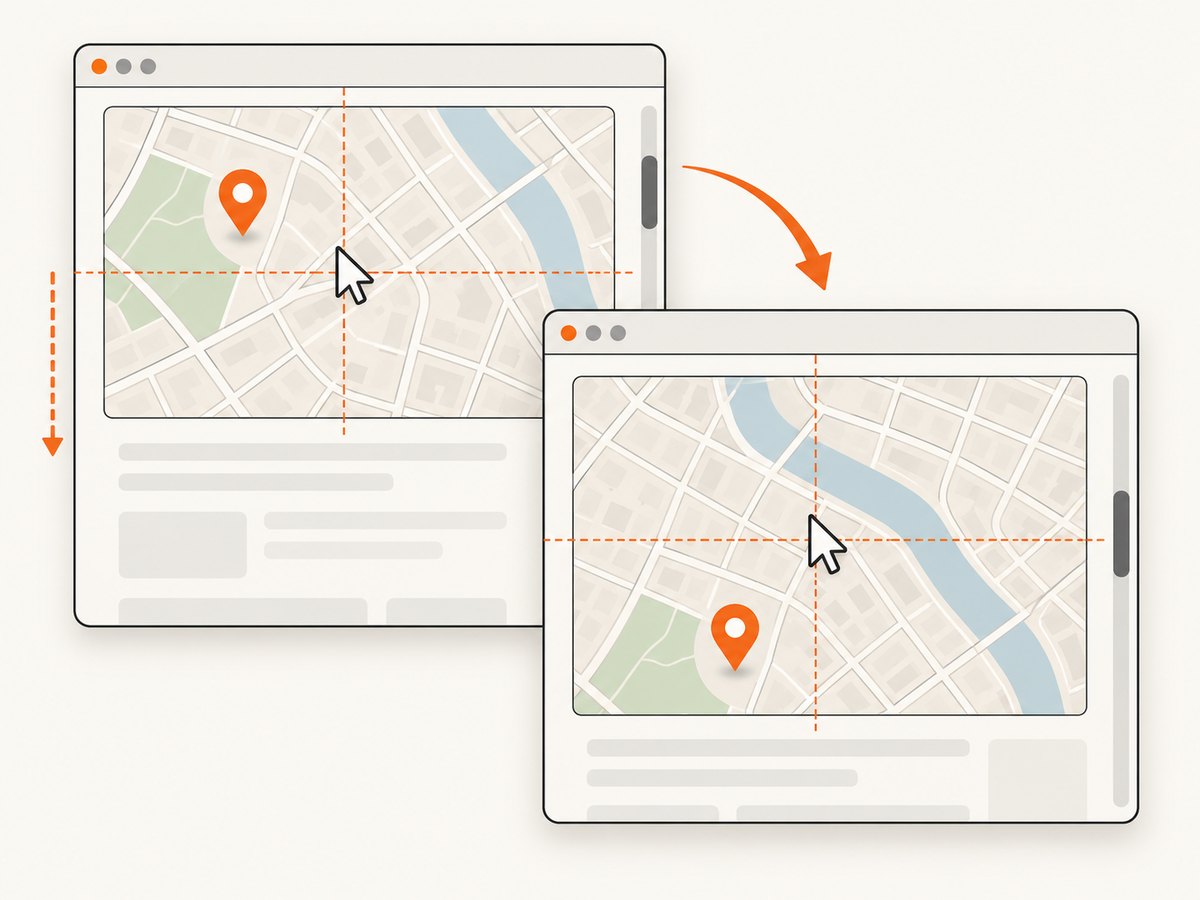
innerWidth/innerHeight. Responsive breakpoints can change the target’s location. - Handle scrolling deliberately. A viewport coordinate always addresses the current viewport. Scroll first, then recalculate the point. A page scroll changes the document content under the pointer even though the pointer’s viewport position does not change.
- Wait for motion to stop. Animations, sticky headers, lazy content, and layout shifts can move or cover the target between measuring it and clicking.
- Record useful diagnostics. Log the requested x/y, viewport size, scroll offsets, browser, and the post-click assertion result when a failure occurs.
- Prefer element-relative targeting when possible. If a surface has a stable element boundary but the click location varies with layout, calculate the point from that element rather than hard-coding the page.
Viewport coordinates are not operating-system screen coordinates. Window placement, browser controls, remote desktop scaling, and physical monitor pixels are outside this WebDriver coordinate model. Do not take a desktop screenshot coordinate and pass it directly as x/y without mapping it into the browser’s CSS viewport.
5. Common errors and fixes
| Symptom | Likely cause | Fix |
|---|---|---|
| Move is outside bounds / invalid coordinates | Destination is outside the active viewport, possibly after a resize. | Read viewport dimensions immediately before the action; constrain the target to an in-view point. |
| Click succeeds but nothing happens | Wrong coordinate origin, stale layout measurement, or the app ignores that region. | Recompute after scroll/layout changes, verify coordinate mapping, and assert an application state change. |
| Click lands on a header, popup, or unrelated control | Overlay or sticky UI covers the intended point. | Wait for or dismiss the overlay when appropriate; inspect the hit target; use an element locator for ordinary controls. |
| Test passes alone but fails in the suite | MoveByOffset relies on pointer state from previous actions. |
Use MoveToLocation to establish an origin in the same chain, or target relative to a located element. |
| Target shifts after scrolling | Coordinates were calculated for a different viewport/document alignment. | Scroll first, then measure and click; do not reuse document coordinates as viewport coordinates. |
| Element click intercepted | The element center is obscured. | Wait for the covering UI to disappear, or use a deliberate coordinate only when the intended interaction is genuinely point-based. |
| Element not interactable / missing canvas | Target is hidden, detached, not loaded, or in another frame. | Wait for visibility, reacquire stale elements, and switch to the correct frame before locating and clicking. |
| Offset example hits the wrong spot | Code assumes top-left offsets, but this binding uses the in-view center. | Check Selenium .NET version semantics and convert top-left coordinates to center-relative offsets. |
When the failure is intermittent, capture diagnostics near the action rather than adding a large fixed delay. A screenshot can help show visual overlap, but it does not establish the exact pointer coordinate model. Keep the browser and page state available long enough to collect the failure evidence.
6. Performance, reliability, and cost
A pointer action is usually a small part of test runtime; browser startup, page navigation, application rendering, and explicit waits often dominate. Avoid repeatedly launching a new browser for every coordinate click. Reuse a driver within a test where appropriate, isolate tests that share mutable page state, and always quit the driver in cleanup so a failed assertion does not leak browser processes.
Hard-coded coordinates are inherently sensitive to viewport dimensions, responsive CSS, content insertion, zoom, and animation. Element-relative offsets reduce some layout coupling, while semantic element clicks reduce it further. For visual regression or map hit-testing, make the viewport and test data deterministic and assert the action’s effect. A screenshot is useful as a debugging artifact, but it should not replace an assertion about behavior.
7. Or skip the browser setup
If your goal is to inspect or save a page rather than test an interactive coordinate, ScreenshotNeo can return a screenshot or PDF through one request. It does not simulate a mouse click: use Selenium for canvas, map, or gesture interaction. ScreenshotNeo is useful when you simply need the rendered page image without managing browser setup. See the API documentation for parameters.
curl -G "https://api.screenshotneo.com/v1/shot" \
  -d access_key=YOUR_API_KEY \
  --data-urlencode url=https://stripe.com \
  -o shot.webp
import requests
r = requests.get(
"https://api.screenshotneo.com/v1/shot",
params={"access_key": "YOUR_API_KEY", "url": "https://stripe.com"},
timeout=90,
)
r.raise_for_status()
open("shot.webp", "wb").write(r.content)const q = new URLSearchParams({
access_key: 'YOUR_API_KEY',
url: 'https://stripe.com'
});
const res = await fetch(`https://api.screenshotneo.com/v1/shot?${q}`);
if (!res.ok) throw new Error(`Screenshot request failed: ${res.status}`);
await Bun.write('shot.webp', res);ScreenshotNeo accepts cookie and consent banners like a visitor and removes 60+ known consent platforms, newsletter popups, and chat widgets before capture; each cleanup step can be turned off. Bot checks/CAPTCHAs, blank pages, timeouts, failed loads, and cache hits cost nothing, and each response identifies the result with X-Page-Verdict and X-Billed headers. Its MCP server provides take_screenshot, get_page_info, and capture_pdf for Claude, Cursor, and other MCP clients. The free plan includes 1,000 shots each month with no card; paid plans start at $5 for 3,000 shots.
Create a free ScreenshotNeo account for 1,000 screenshots a month, with no card required.
8. FAQ
Are x and y measured from the whole screen?
No. They refer to the browser’s current CSS viewport. Browser chrome, window position, and operating-system display scaling do not define the origin.
Should I use JavaScript to dispatch a click instead?
For testing user input, prefer WebDriver’s Actions API so the browser receives a pointer action. A page-script event dispatch is a different interaction path and may not reproduce pointer behavior expected by the application.
Can I click a point after switching tabs or frames?
Make the intended window and frame current first, then locate or measure the target in that context. Coordinates apply to the active browsing context’s viewport.
How do I click and drag to a coordinate?
Use an Actions chain with MoveToLocation, ClickAndHold, a move to the destination, and Release; ensure every intermediate and final point remains in bounds, then assert the drop result.


