How to Capture Browser Screenshots with Selenium C# in Internet Explorer and Chrome
Capture the current browser view or an element with Selenium C#, save PNG files, and understand Chrome support versus legacy Internet Explorer.
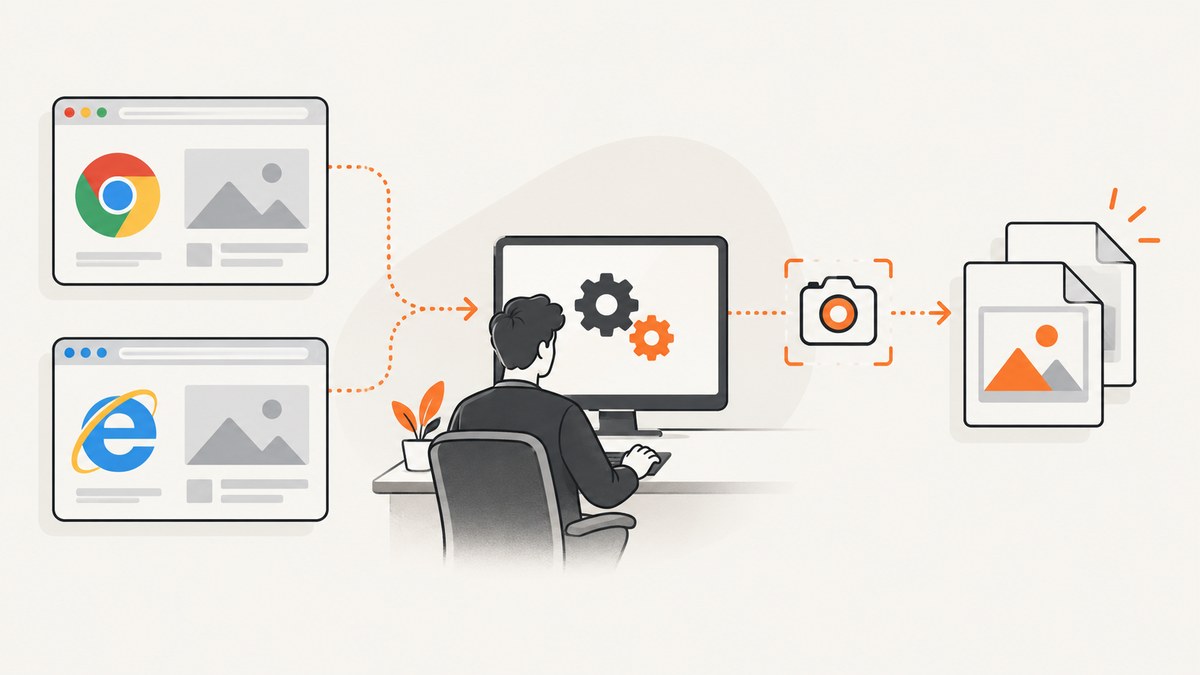
Short answer: In Selenium for .NET, navigate to the page or state you need, cast the driver (or an element) to ITakesScreenshot, call GetScreenshot(), and save the returned Screenshot as a PNG. Chrome is the current documented path. Standalone Internet Explorer has not been officially supported by Selenium since June 2022; current Selenium guidance covers running IE Driver with Microsoft Edge IE Compatibility Mode.
This guide shows a complete C# console example, element screenshots, browser setup, reliability details, troubleshooting, and an API alternative when you do not want to maintain a browser driver.
1. Capture a screenshot in Selenium C#
Install Selenium WebDriver and the browser driver package appropriate for your project. The following example opens a URL, captures the current browsing context, and writes a PNG file.
using OpenQA.Selenium;
using OpenQA.Selenium.Chrome;

var options = new ChromeOptions();
// options.AddArgument("--headless=new"); // enable for CI or servers without a desktop

using var driver = new ChromeDriver(options);
driver.Navigate().GoToUrl("https://example.com");

Screenshot screenshot = ((ITakesScreenshot)driver).GetScreenshot();
screenshot.SaveAsFile("screenshot.png", ScreenshotImageFormat.Png);
GetScreenshot() returns a Selenium Screenshot object. Selenium’s WebDriver screenshot endpoint returns image data encoded in Base64, while the .NET class provides SaveAsFile for writing the image. See the ITakesScreenshot .NET API reference and Selenium’s C# screenshot examples.
Wait for the page state before capturing
A screenshot is taken at the moment the command runs. Navigation returning does not guarantee that an SPA, image, chart, or animation has finished rendering. Wait for a document condition, a selector, or a known application state.
using OpenQA.Selenium;
using OpenQA.Selenium.Support.UI;
using OpenQA.Selenium.Chrome;

using var driver = new ChromeDriver();
driver.Navigate().GoToUrl("https://example.com/dashboard");

var wait = new WebDriverWait(driver, TimeSpan.FromSeconds(20));
wait.Until(d => ((IJavaScriptExecutor)d).ExecuteScript("return document.readyState")
    ?.ToString() == "complete");
wait.Until(d => d.FindElement(By.CssSelector("main.dashboard")).Displayed);

((ITakesScreenshot)driver).GetScreenshot()
    .SaveAsFile("dashboard.png", ScreenshotImageFormat.Png);
2. Capture one element instead of the browser view
Use a page screenshot when the intended artifact is the current browsing context. Use an element screenshot when you need one card, chart, invoice, or component. Selenium documents element screenshots separately; this does not automatically make a page screenshot a full-page scrolling capture.
using OpenQA.Selenium;
using OpenQA.Selenium.Chrome;

using var driver = new ChromeDriver();
driver.Navigate().GoToUrl("https://example.com");

IWebElement card = driver.FindElement(By.CssSelector(".pricing-card"));
Screenshot cardShot = ((ITakesScreenshot)card).GetScreenshot();
cardShot.SaveAsFile("pricing-card.png", ScreenshotImageFormat.Png);
If the element is below the fold, scroll it into view first and wait until it is displayed.
var element = driver.FindElement(By.Id("report"));
((IJavaScriptExecutor)driver).ExecuteScript(
    "arguments[0].scrollIntoView({block: 'center'});", element);

new WebDriverWait(driver, TimeSpan.FromSeconds(10))
    .Until(_ => element.Displayed);

((ITakesScreenshot)element).GetScreenshot()
    .SaveAsFile("report.png", ScreenshotImageFormat.Png);
3. Chrome setup and compatibility
Selenium’s Chrome documentation says Selenium 4 is compatible with Chrome 75 and later by default. The Chrome and ChromeDriver major versions must match; a mismatch commonly prevents the session from starting. Avoid hard-coding a driver download URL or version because the correct version changes.
Chrome in a local desktop
using OpenQA.Selenium.Chrome;

var options = new ChromeOptions();
options.AddArgument("--window-size=1440,1000");

using var driver = new ChromeDriver(options);
driver.Navigate().GoToUrl("https://example.com");
((ITakesScreenshot)driver).GetScreenshot()
    .SaveAsFile("chrome-view.png", ScreenshotImageFormat.Png);
Chrome in CI or a server
var options = new ChromeOptions();
options.AddArgument("--headless=new");
options.AddArgument("--window-size=1440,1000");
options.AddArgument("--no-sandbox");
options.AddArgument("--disable-dev-shm-usage");

using var driver = new ChromeDriver(options);
Use the smallest set of environment-specific flags required by your runner. Keep the viewport explicit when image diffs or reproducible output matter.
4. Internet Explorer: current support and the supported migration path
Selenium states: “As of June 2022, Selenium officially no longer supports standalone Internet Explorer.” The .NET API still contains an InternetExplorerDriver class implementing ITakesScreenshot, but that API presence does not restore official standalone IE support.
Selenium’s current IE guidance describes using IE Driver with Microsoft Edge in IE Compatibility Mode. Treat this as a legacy compatibility workflow, not an equivalent modern browser path. The IE-specific Selenium documentation notes that the 32-bit IE driver is recommended because of known limitations with the 64-bit driver. Its driver server page describes testing with IE 11 on Windows 10; older browser and Windows combinations are outside that documented context.
Legacy InternetExplorerDriver code
Use this only where your controlled Windows environment still requires the legacy driver and you accept its support limitations.
using OpenQA.Selenium;
using OpenQA.Selenium.IE;

var options = new InternetExplorerOptions();
// Configure legacy IE options required by your environment here.

using var driver = new InternetExplorerDriver(options);
driver.Navigate().GoToUrl("https://example.com");

((ITakesScreenshot)driver).GetScreenshot()
    .SaveAsFile("ie-legacy.png", ScreenshotImageFormat.Png);
For Edge IE Compatibility Mode, follow the version-specific capabilities and machine configuration in Selenium’s official IE documentation. Do not assume that a standalone IE session and an Edge IE-mode session have identical rendering, security-zone, or driver behavior.
5. A reusable screenshot helper
Centralizing capture makes it easier to create directories, use consistent filenames, and include the current URL in diagnostics.
using OpenQA.Selenium;
using System.Text.RegularExpressions;

static string SafeName(string value)
{
    return Regex.Replace(value, "[^a-zA-Z0-9._-]", "_");
}

static string Capture(IWebDriver driver, string name)
{
    Directory.CreateDirectory("artifacts");
    var file = Path.Combine("artifacts", SafeName(name) + ".png");
    ((ITakesScreenshot)driver).GetScreenshot()
        .SaveAsFile(file, ScreenshotImageFormat.Png);
    return file;
}
6. Timing, viewport, and rendering details
- Viewport: Set a fixed window size for stable output. Browser chrome and operating-system scaling can still affect pixel dimensions.
- Fonts: Install the same fonts on local and CI machines. Missing fonts change line wrapping and screenshot diffs.
- Images: Wait for application-specific image or chart readiness. A document-ready event alone may finish before lazy assets render.
- Animations: Disable transitions in a test-only stylesheet or wait for the animation to finish before capture.
- Cookie dialogs: Dismiss consent banners when they obscure the intended content, but keep a separate test if the banner itself is what you are documenting.
- Downloads and redirects: Capture after the final URL and required state are reached; record
driver.Urlwith the artifact.
7. Troubleshooting
| Error or symptom | Likely cause | Fix |
|---|---|---|
SessionNotCreatedException on Chrome |
Chrome and ChromeDriver major versions do not match. | Install a compatible driver and browser pair; do not pin an obsolete major version. |
| Chrome starts locally but fails in CI | No display, restricted sandbox, or small shared memory mount. | Use headless mode and configure only the CI flags your runner requires, including a larger shared-memory setup where appropriate. |
| Blank or incomplete screenshot | Capture ran before application content or lazy resources rendered. | Wait for a selector or application-ready condition; verify image and chart readiness. |
| Element screenshot throws a stale-element error | The page re-rendered after the element was located. | Wait for the update to finish, find the element again, then capture immediately. |
| Element is not visible | It is hidden, outside the viewport, covered, or not yet loaded. | Wait for visibility, scroll it into view, and remove or dismiss overlays when appropriate. |
| IE driver cannot start | Legacy IE configuration, driver bitness, security zones, or unsupported environment. | Review Selenium’s IE-specific requirements, prefer the documented 32-bit driver context, and consider Edge IE Compatibility Mode. |
| Screenshot dimensions differ between machines | Different viewport, device scale factor, fonts, browser build, or OS rendering. | Standardize browser versions, viewport, fonts, scale settings, and execution environment. |
8. Performance and reliability practices
- Reuse one WebDriver session for related captures instead of starting a new browser for every image.
- Set explicit page-load and wait timeouts so a broken page does not consume an unbounded job.
- Capture only the element you need when a full browser view is unnecessary.
- Keep screenshots as build artifacts and include the URL, browser version, viewport, and timestamp in surrounding test logs.
- Use retries only for known transient failures. Retrying deterministic selector or version errors increases run time without improving reliability.
- Dispose the driver with
usingso ChromeDriver or IE Driver processes do not accumulate.
Browser screenshots consume CPU, memory, and startup time. Parallel sessions can reduce wall-clock time but increase resource pressure and may trigger rate limits or make shared test data race. Tune concurrency to the runner rather than assuming that more sessions are always faster.
9. Or skip the browser setup
ScreenshotNeo provides a website screenshot API and MCP server. One GET request returns a PNG, JPEG, WebP, or PDF, so you do not need to install Selenium, ChromeDriver, or IE Driver for a URL capture.
See the ScreenshotNeo API documentation for the available options.
cURL
curl -G "https://api.screenshotneo.com/v1/shot" -d access_key=YOUR_API_KEY --data-urlencode url=https://stripe.com -o shot.webpPython
import requests

r = requests.get("https://api.screenshotneo.com/v1/shot", params={"access_key": "YOUR_API_KEY", "url": "https://stripe.com"}, timeout=90)
r.raise_for_status()
open("shot.webp", "wb").write(r.content)
Node.js
const q = new URLSearchParams({ access_key: 'YOUR_API_KEY', url: 'https://stripe.com' });
const res = await fetch(`https://api.screenshotneo.com/v1/shot?${q}`);
if (!res.ok) throw new Error(`HTTP ${res.status}`);
const fs = await import('node:fs/promises');
await fs.writeFile('shot.webp', Buffer.from(await res.arrayBuffer()));
ScreenshotNeo can load lazy images for full-page captures, capture one CSS-selected element, use dark mode and device presets, set any viewport and retina scale, run custom CSS or JavaScript, click before capture, wait for a selector, delay, or network idle, block ads, trackers, requests, or resource types, provide headers, cookies, user agents, Authorization, timezone, and geolocation, make PDFs, resize images, cache with a chosen TTL, create signed image links, submit async jobs with signed webhooks, capture up to 100 URLs per bulk call, and expose usage and OpenAPI endpoints.
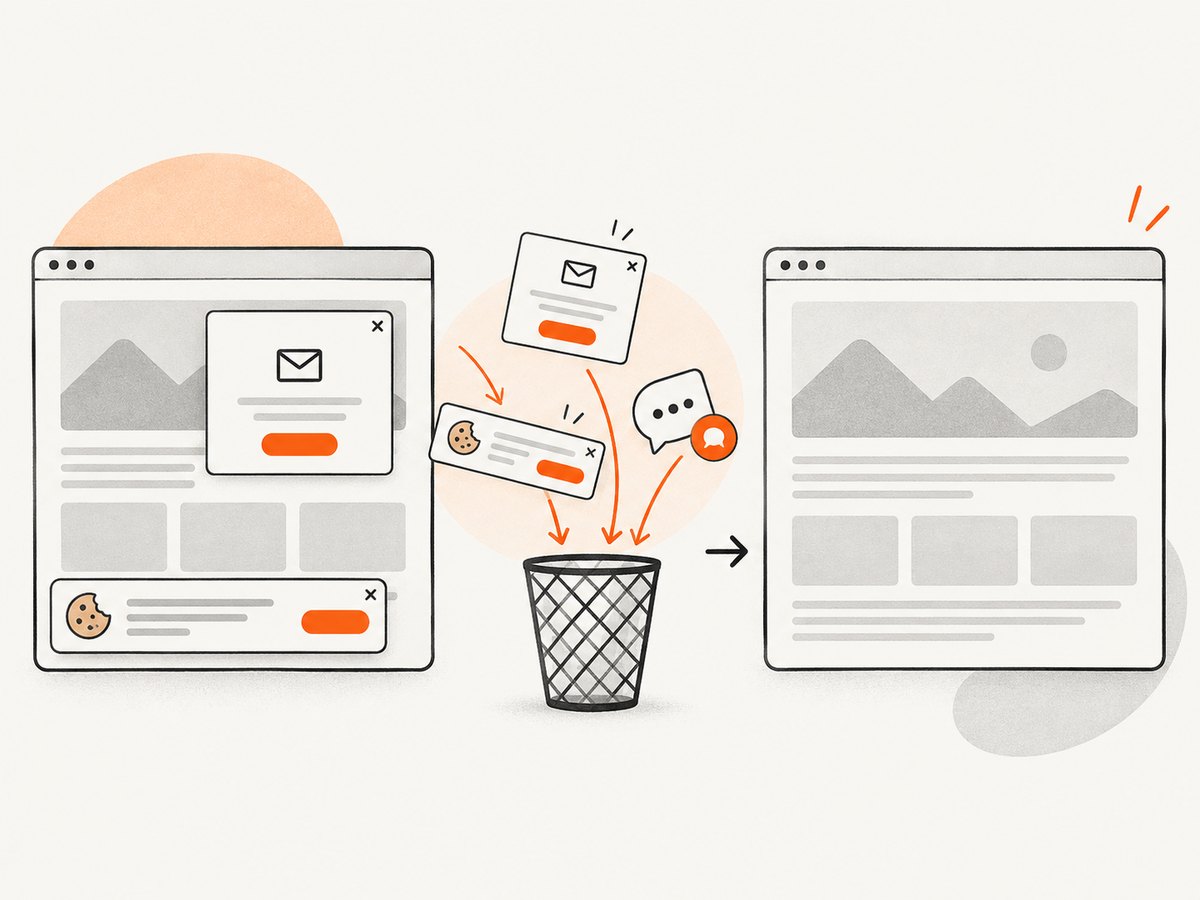
Before capture, cookie or consent banners are accepted and more than 60 known consent platforms, newsletter popups, and chat widgets can be removed; each step can be turned off. Bot checks or CAPTCHAs, blank pages, timeouts, failed loads, and cache hits are not billed. Response headers identify the page verdict and whether the response was billed (X-Page-Verdict and X-Billed).
Its MCP server includes take_screenshot, get_page_info, and capture_pdf tools for Claude, Cursor, and other MCP clients. The Free plan includes 1,000 shots per month with no card; paid plans start at $5 for 3,000 shots, and every feature is available on every plan. Create a free ScreenshotNeo account.
10. FAQ
Does GetScreenshot() capture the entire web page?
It captures the current browsing context. Use an element screenshot for one element, and do not assume the documented endpoint performs a full-page scrolling capture.
Can I use Selenium with standalone Internet Explorer?
The API class remains in the .NET reference, but Selenium officially stopped supporting standalone IE in June 2022. Use the documented Edge IE Compatibility Mode path for legacy compatibility requirements.
Why does a screenshot differ from what I see manually?
Viewport size, device scale, fonts, browser version, timing, animations, and overlays can all change pixels. Standardize those inputs and wait for the exact application state.
Should I capture a page or an element?
Capture the page when you need the current browser view. Capture an element when the deliverable is a specific component and surrounding content is irrelevant.
When is an API preferable to Selenium?
Use an API when you need repeatable URL captures without managing browser processes and drivers, or when you want built-in consent cleanup, billing verdicts, bulk jobs, PDFs, or MCP access.


