How to Fix Selenium WebDriver C# Timeouts When Printing PDFs With Headless Chrome
Diagnose Selenium C# PDF print timeouts in headless Chrome with the right waits, matching driver versions, logs, and a reliable fallback.
Short answer: identify which operation timed out before changing a timeout value. Selenium’s page-load timeout controls navigation, the script timeout controls asynchronous JavaScript, and the implicit wait controls element lookup. Selenium does not document those settings as a general timeout for the built-in PDF print command. For Chromium, run headless, use the documented PrintOptions and driver.Print() workflow, verify that Chrome and ChromeDriver major versions match, and collect ChromeDriver logs. If you call CDP directly, Selenium’s .NET PageAdapter exposes a millisecondsTimeout argument for PrintToPDF, but CDP is version-dependent.
What the timeout usually means
A timeout reported near PDF generation can originate in several different places:
- Navigation:
GoToUrlis still waiting for the page-load condition. - Application code: an asynchronous script or an explicit wait has not completed.
- Printing: the browser or driver is blocked while handling the print command.
- Session or transport: a Grid node, proxy, container, or remote connection stopped responding.
These cases need different fixes. Increasing PageLoad while the print command is stalled does not address the same operation. Start by recording the complete exception type, message, stack trace, and the last WebDriver call your code made.
Use Selenium’s built-in C# print API first
Selenium’s official print guide uses PrintOptions and driver.Print(). Chromium printing requires a headless browser. The returned PrintDocument contains the PDF as base64 data that you can validate and save.
using OpenQA.Selenium;
using OpenQA.Selenium.Chrome;
using System;
using System.IO;

var options = new ChromeOptions();
options.AddArgument("--headless");

using var driver = new ChromeDriver(options);
driver.Navigate().GoToUrl("https://example.com");

var printOptions = new PrintOptions();
PrintDocument pdf = driver.Print(printOptions);

string base64 = pdf.AsBase64EncodedString;
if (!base64.StartsWith("JVBER", StringComparison.Ordinal))
{
    throw new InvalidOperationException("The response does not look like a PDF.");
}

File.WriteAllBytes("page.pdf", Convert.FromBase64String(base64));
See Selenium’s Print Page documentation and the browser interaction guide for the documented workflow. The sample validates the PDF signature; it does not assume that one timeout value fixes every page or environment.
Set only the timeout that matches the work
Selenium documents three WebDriver timeout categories. The current Browser Options documentation lists new-session defaults of 300,000 ms for page load, 30,000 ms for asynchronous JavaScript, and 0 ms for implicit wait. Those are defaults, not a recommended PDF-print timeout.
var options = new ChromeOptions();
options.AddArgument("--headless");
using var driver = new ChromeDriver(options);

// Navigation timeout: only for page navigation.
driver.Manage().Timeouts().PageLoad = TimeSpan.FromSeconds(90);

// Script timeout: only for ExecuteAsyncScript and similar asynchronous scripts.
driver.Manage().Timeouts().AsynchronousJavaScript = TimeSpan.FromSeconds(30);

// Implicit wait: only for finding elements.
driver.Manage().Timeouts().ImplicitWait = TimeSpan.Zero;
If navigation is the operation that fails, choose a deliberate page-load value based on the page and network conditions. If an asynchronous script is waiting for your application, set the script timeout. Do not use implicit waits as a substitute for waiting on page rendering. The .NET ITimeouts API reference describes the scope of each property; it does not define a standard ITimeouts property for the built-in print command.
A diagnostic sequence that isolates the failure
- Capture the complete error. Keep the exception type, message, inner exception, stack trace, command, and elapsed time. A remote-session timeout has different evidence from a print-command exception.
- Prove headless mode. Chromium page printing requires headless mode. Use the supported Chrome option and confirm the same options are applied on the machine or Grid node that actually launches Chrome.
- Check versions. Record the
Selenium.WebDriverpackage version, Chrome version, ChromeDriver version, operating system, and whether execution is local or remote. Selenium’s Chrome documentation warns that Chrome and ChromeDriver major versions must match. - Turn on ChromeDriver logs. Driver logs show the browser/driver boundary and often reveal startup failures, rejected commands, crashes, or connection loss that the .NET exception hides.
- Try a minimal page. Print a small, known page, then the failing page. If the small page works, inspect the failing page’s scripts, fonts, images, cross-origin resources, redirects, and document size.
- Separate navigation from printing. Log immediately before and after
GoToUrl, and immediately before and afterPrint. This identifies which call stopped completing. - Only then change a timeout. Match the value to navigation, script execution, element lookup, or the remote transport. Do not increase every timeout at once because that removes useful diagnostic signals.
Enable ChromeDriver service logging
using OpenQA.Selenium.Chrome;

var service = ChromeDriverService.CreateDefaultService();
service.EnableVerboseLogging = true;
service.LogPath = Path.GetFullPath("chromedriver.log");

var options = new ChromeOptions();
options.AddArgument("--headless");

using var driver = new ChromeDriver(service, options);
Keep the log with the exception and version information when comparing local and CI runs. If the browser never starts, investigate the service log before changing print code.
Page-specific causes of slow or failed PDF printing
Resources that never settle
Some pages keep connections open for analytics, live updates, ads, or streaming data. A page can look complete while scripts or resources continue running. Navigation may therefore reach its condition while the browser still has substantial rendering work. Use a page-specific readiness signal in your application, such as a known element, before calling Print; avoid an arbitrary sleep as the only synchronization.
Large or complex documents
Very long pages, high-resolution images, web fonts, canvas content, and heavy client-side layout can increase rendering and PDF generation time. Compare a reduced page or a smaller viewport to determine whether document complexity is the trigger. If the page contains lazy content, scroll or otherwise use the application’s supported mechanism to load it before printing.
Fonts, sandboxing, and containers
Missing fonts can change layout or delay text rendering. Containers may also impose CPU, memory, shared-memory, or sandbox restrictions. Check container logs and Chrome startup arguments, and reproduce with the same resource limits as production. Avoid adding flags solely because they appear in an unrelated example; each flag changes browser behavior and should be justified by the environment.
Redirects, authentication, and remote sessions
A redirect chain or login flow can make the final document different from the URL you requested. Log the final URL and confirm that cookies and authorization are available in the same session. With Selenium Grid or another remote service, include node and network details because the request can fail between the client and browser even when the page itself is healthy.
Direct CDP Page.printToPDF: when and how
Use direct Chrome DevTools Protocol only when Selenium’s built-in print API does not expose an option you require and you can pin and test your Selenium and Chrome versions. Selenium’s versioned .NET PageAdapter documents a PrintToPDF method with an optional millisecondsTimeout parameter. The adapter version matters; verify that the package you use contains the matching class and method.
// Shape varies with the Selenium .NET version and generated CDP adapter.
// Verify the adapter namespace and method signature in your package.
var pdf = await driver.PrintToPDF(
    landscape: false,
    displayHeaderFooter: false,
    printBackground: true,
    scale: 1.0,
    paperWidth: null,
    paperHeight: null,
    marginTop: null,
    marginBottom: null,
    marginLeft: null,
    marginRight: null,
    pageRanges: null,
    ignoreInvalidPageRanges: null,
    preferCSSPageSize: true,
    transferMode: null,
    headerTemplate: null,
    footerTemplate: null,
    generateTaggedPDF: null,
    generateDocumentOutline: null,
    millisecondsTimeout: 90000);
This is an illustrative API shape because Selenium generates versioned CDP adapters. Consult the .NET API reference for your adapter version. Selenium’s CDP guidance warns that CDP is browser-version dependent and is not designed as a stable testing API. That compatibility cost is part of the decision.
| Concern | Built-in driver.Print |
Direct CDP |
|---|---|---|
| Normal Selenium workflow | Preferred documented path | Lower-level integration |
| Print-specific command timeout | No documented ITimeouts setting |
PageAdapter exposes millisecondsTimeout in documented versions |
| Compatibility | Managed by Selenium’s print API | Must track browser and adapter versions |
| Options | Use the options exposed by Selenium | Can expose CDP-specific fields |
Or skip the browser setup
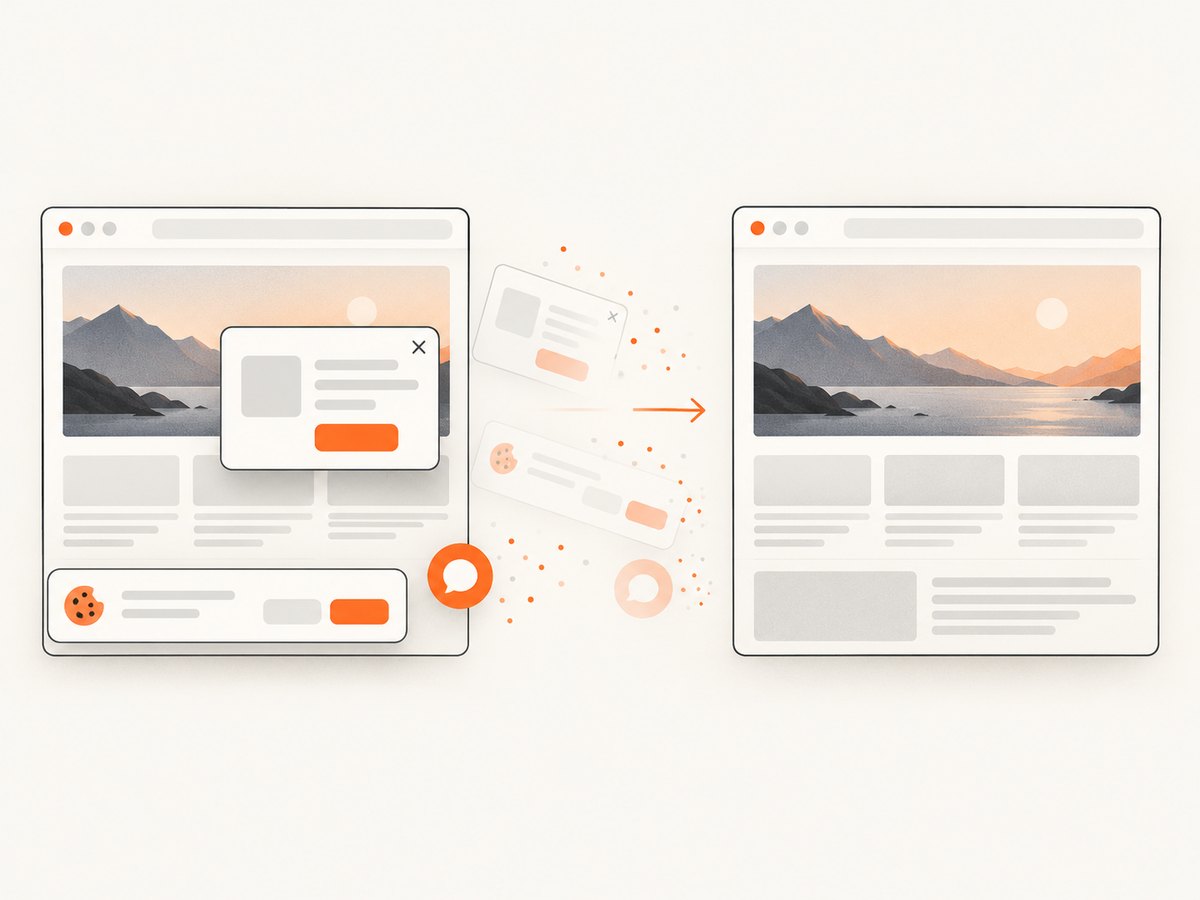
If your goal is a reliable page image or PDF rather than control of a local browser session, ScreenshotNeo provides a website capture API and MCP server. It accepts one GET request and returns a clean PNG, JPEG, WebP, or PDF. Cookie and consent banners, newsletter popups, and chat widgets are removed before capture; each step can be disabled when needed. Bot checks, blank pages, timeouts, failed loads, and cache hits are not billed, and response headers identify the page verdict and billing result.
Read the ScreenshotNeo API documentation for the complete option list, including PDF paper size, margins, landscape mode, page ranges, custom CSS and JavaScript, waits, blocking rules, authentication, caching, async jobs, and bulk capture.
cURL
curl -G "https://api.screenshotneo.com/v1/shot" -d access_key=YOUR_API_KEY --data-urlencode url=https://stripe.com -o shot.webpPython
import requests
r = requests.get("https://api.screenshotneo.com/v1/shot", params={"access_key": "YOUR_API_KEY", "url": "https://stripe.com"}, timeout=90)
open("shot.webp", "wb").write(r.content)
Node.js
const q = new URLSearchParams({ access_key: 'YOUR_API_KEY', url: 'https://stripe.com' });
const res = await fetch(`https://api.screenshotneo.com/v1/shot?${q}`);
ScreenshotNeo also has an MCP server with take_screenshot, get_page_info, and capture_pdf tools for Claude, Cursor, and other MCP clients. It supports 12 device presets, arbitrary viewports, retina scale, full-page and selector capture, dark mode, click actions, custom headers, cookies, user agents, authorization, timezone, geolocation, transparent backgrounds, resizing, TTL caching, signed links, signed webhooks, usage reporting, and an OpenAPI specification. Existing parameter names used by other screenshot APIs are accepted to make migration easier.
There is a free plan with 1,000 screenshots per month and no card. Paid plans start at $5 for 3,000 shots; every feature is included on every plan. Create a free ScreenshotNeo account.
Troubleshooting checklist
| Symptom | Likely cause | Action |
|---|---|---|
Timeout occurs in GoToUrl |
Navigation, redirect, or resource never completes | Set a deliberate page-load timeout, log the final URL, and test the page separately. |
Timeout occurs in Print |
Browser rendering, driver command, or transport problem | Do not assume page-load timeout applies; test a minimal page and collect driver logs. |
| Chrome fails to start | Version mismatch, executable path, permissions, or container limits | Match Chrome and ChromeDriver major versions and inspect ChromeDriver logs. |
| PDF is empty or invalid | Print ran before the document was ready, or the response was not a PDF | Wait for an application readiness signal and validate the JVBER prefix. |
| Works locally, fails on Grid | Remote node, proxy, session, or resource constraint | Record node details and compare browser, driver, limits, and network access. |
| CDP method is missing | Adapter version does not contain that generated method | Check the exact Selenium package and adapter version; avoid copying a different version’s signature. |
Reliability, performance, and cost considerations
- Reliability: pin compatible Chrome, ChromeDriver, and Selenium versions; keep a minimal print reproduction; preserve driver logs in CI artifacts.
- Performance: reduce unnecessary page resources, wait for a precise readiness condition, and avoid repeatedly launching browsers when a long-lived controlled session is appropriate for your architecture.
- Concurrency: size parallel sessions to available CPU and memory. More browser processes can increase contention and make a timeout appear intermittent.
- Cost: browser automation consumes compute and maintenance time. A capture API can remove browser provisioning and driver compatibility work. ScreenshotNeo bills only clean shots; failed loads, bot checks, blank pages, timeouts, and cache hits cost nothing.
- Evidence: keep the URL, operation name, elapsed time, browser versions, exception, and logs for every failure. This makes a timeout actionable instead of turning it into a larger arbitrary wait.
FAQ
Does increasing Selenium’s page-load timeout fix PDF print timeouts?
Only when navigation is the operation timing out. Selenium does not document page-load timeout as the timeout for the built-in print command.
Should I always use CDP for PDF output?
No. Start with driver.Print. Use CDP when you need an option the built-in API does not expose and can maintain browser-version compatibility.
Why is headless mode required?
Selenium’s Chromium print documentation specifies headless mode for page printing.
What details should I include in a bug report?
Include the full exception, the failing WebDriver call, Selenium.WebDriver version, Chrome and ChromeDriver versions, local or remote execution, page characteristics, and ChromeDriver logs.
Can I avoid maintaining ChromeDriver?
Yes. A hosted capture service such as ScreenshotNeo handles the browser capture path and can return images or PDFs through its API. Its free plan includes 1,000 screenshots each month with no card.


