How to Capture the Current URL in a Selenium Screenshot
Read Selenium’s current_url, save the matching window screenshot, and preserve the URL reliably with metadata, logs, or filenames.
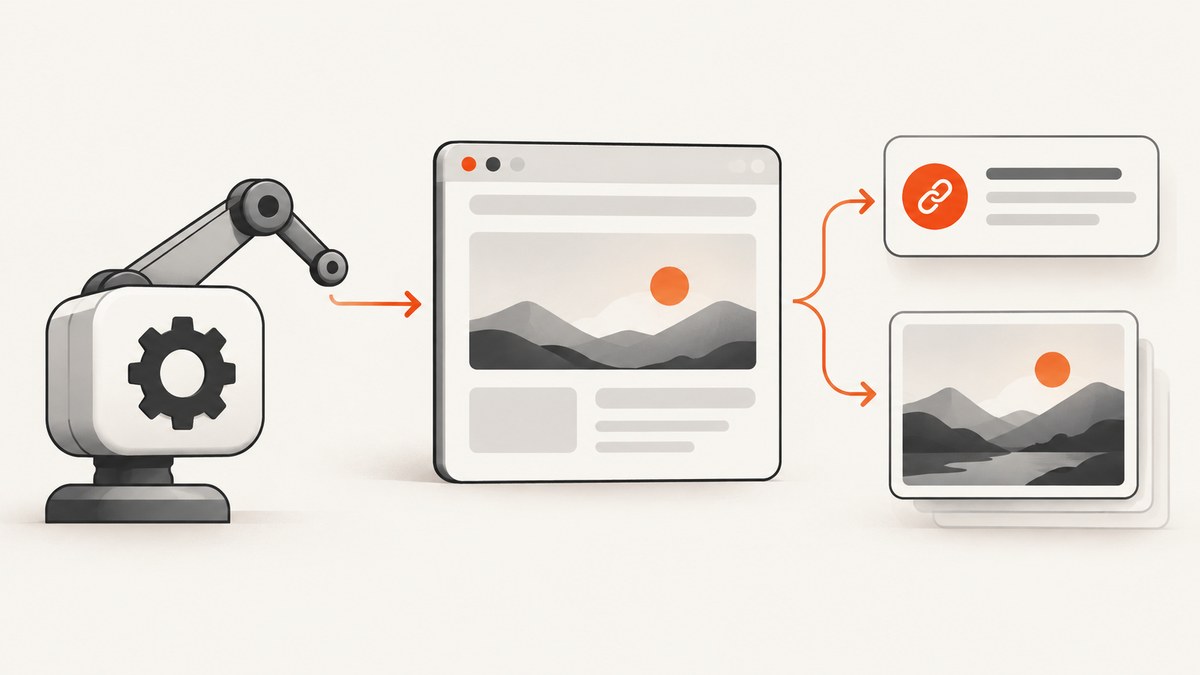
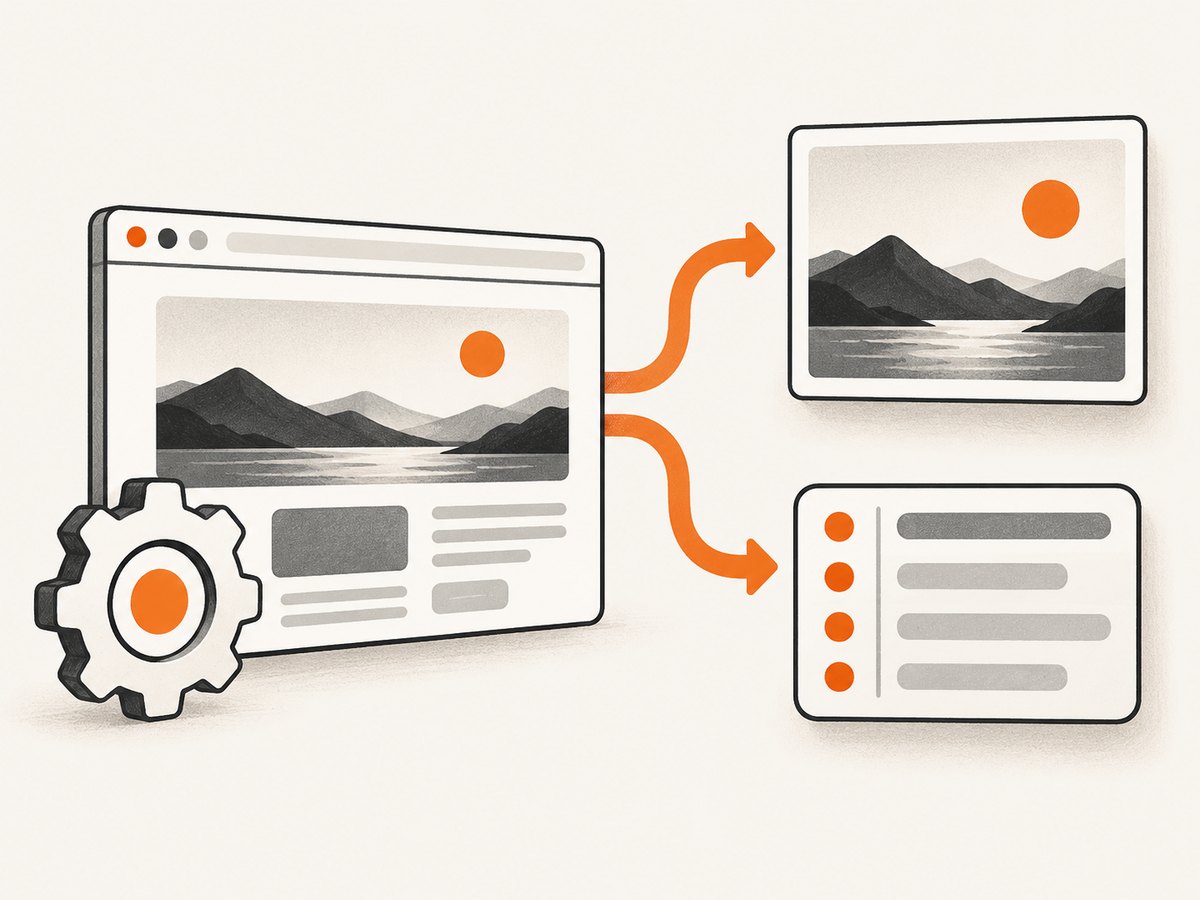
Short answer: Selenium gives you the active page address through driver.current_url. Save the current browser window with driver.save_screenshot("screenshot.png"). The URL and image are separate outputs, so write the URL to a log, metadata file, database record, or filename when you need them to stay together.
This distinction matters: Selenium documents a screenshot as the current browsing context or window. The documentation does not promise that browser interface chrome, including the address bar, appears in the image. Read the URL separately and persist it alongside the PNG.
1. The complete Python example
Install Selenium and make sure a compatible browser driver is available. Recent Selenium versions can manage drivers automatically in common setups; otherwise install the driver required by your browser and operating system.
from pathlib import Path
from selenium import webdriver

output_dir = Path("artifacts")
output_dir.mkdir(exist_ok=True)

url = "https://example.com"
screenshot_path = output_dir / "screenshot.png"
url_path = output_dir / "screenshot.url.txt"

driver = webdriver.Chrome()
try:
    driver.get(url)

    # This is the URL of the active WebDriver page after navigation.
    current_url = driver.current_url

    # save_screenshot returns True when Selenium reports a successful save.
    saved = driver.save_screenshot(str(screenshot_path))
    if not saved:
        raise OSError(f"Could not save {screenshot_path}")

    # Keep the URL beside the image so it can be retrieved later.
    url_path.write_text(current_url + "\n", encoding="utf-8")
    print(f"URL: {current_url}")
    print(f"Screenshot: {screenshot_path}")
finally:
    driver.quit()
The official Selenium Chromium WebDriver API documents current_url as the current page URL. The WebDriver API reference documents PNG file, bytes, and base64 screenshot methods. Selenium’s windows and tabs guide describes the screenshot as the current browsing context.
What happens in this sequence?
driver.get(url)navigates the controlled browser.driver.current_urlreads the address after navigation, including redirects that have completed.driver.save_screenshot()captures the current window and writes a PNG.- The URL is persisted separately, creating a durable association with the image.
driver.quit()closes the browser even if navigation or saving raises an exception.
Read the URL immediately before saving the image. This minimizes the chance that a redirect, timer, link click, or single-page application route change makes the URL and screenshot describe different states.
2. URL handling details developers commonly miss
Redirects
driver.get("https://example.com") can finish at a different address after HTTP redirects, a login flow, locale selection, or an application redirect. driver.current_url reports the active page, so record it after navigation rather than assuming it equals the input URL.
Single-page applications
Client-side routing can change the address without a full page load. If a click is expected to update the route, wait for the application state you need, then read current_url. A URL read too early may contain the previous route.
from selenium.webdriver.common.by import By
from selenium.webdriver.support.ui import WebDriverWait

# Example: click a link and wait until the URL contains the new route.
driver.find_element(By.CSS_SELECTOR, "a.next").click()
WebDriverWait(driver, 15).until(lambda d: "/next" in d.current_url)
current_url = driver.current_url
driver.save_screenshot("next-page.png")
The exact wait condition belongs to the application. You can wait for a URL substring, an exact URL, a visible element, or a JavaScript state marker.
New windows and tabs
Selenium controls a window through its current browsing context. If an action opens a new tab, switch to that tab before reading the URL or saving the screenshot.
from selenium.webdriver.support.ui import WebDriverWait

original = driver.current_window_handle
before = set(driver.window_handles)
driver.find_element(By.CSS_SELECTOR, "a[target='_blank']").click()

WebDriverWait(driver, 15).until(
    lambda d: len(d.window_handles) > len(before)
)
new_handle = next(handle for handle in driver.window_handles if handle not in before)
driver.switch_to.window(new_handle)

current_url = driver.current_url
driver.save_screenshot("new-tab.png")
print(current_url)

# Return to the original context when the workflow needs it.
driver.switch_to.window(original)
Fragments and query strings
The recorded URL can include query parameters and a fragment such as #pricing. Treat it as data. Avoid placing an untrusted URL directly into a filename; write it to a text or JSON sidecar file instead.
Browser chrome is not part of the page screenshot
A WebDriver screenshot represents the web content in the current window. Do not rely on it to show the browser’s address bar. If a reviewer must see the URL, add the URL as a separate report field or render it into an application-owned page before capture.
3. Wait for the page state you actually want
Navigation completion does not always mean that the visual state is ready. Modern pages may fetch data, animate components, lazy-load images, or display a consent dialog after the initial document load.
from selenium.webdriver.common.by import By
from selenium.webdriver.support import expected_conditions as EC
from selenium.webdriver.support.ui import WebDriverWait

wait = WebDriverWait(driver, 20)
driver.get("https://example.com/dashboard")

# Replace this selector with an element that proves the page is ready.
wait.until(EC.visibility_of_element_located((By.CSS_SELECTOR, "main.dashboard")))

current_url = driver.current_url
if not driver.save_screenshot("dashboard.png"):
    raise OSError("Screenshot save failed")
For a page that changes route after loading, combine a state wait with a URL wait. For a page whose important content is below the fold, a normal window screenshot may not include it; use a full-page technique supported by your browser and Selenium binding, or scroll and capture deliberately.
4. Save bytes or base64 instead of a file
Selenium also exposes screenshot data when you need to upload it, attach it to a test result, or send it to another service without creating a permanent local file.
current_url = driver.current_url
png_bytes = driver.get_screenshot_as_png()

with open("screenshot.png", "wb") as image_file:
    image_file.write(png_bytes)

png_base64 = driver.get_screenshot_as_base64()
record = {
    "url": current_url,
    "image_base64": png_base64,
}
print(record["url"])
Use bytes for binary uploads and base64 when the receiving format explicitly requires text. Keep the URL as a separate field in your JSON, test report, or database row.
5. A reusable helper for tests and crawlers
import json
from pathlib import Path
from selenium import webdriver

def capture_current_page(driver, directory="artifacts", name="page"):
    directory = Path(directory)
    directory.mkdir(parents=True, exist_ok=True)

    current_url = driver.current_url
    image_path = directory / f"{name}.png"
    metadata_path = directory / f"{name}.json"

    if not driver.save_screenshot(str(image_path)):
        raise OSError(f"Selenium could not save {image_path}")

    metadata_path.write_text(
        json.dumps({"url": current_url, "screenshot": str(image_path)}, indent=2),
        encoding="utf-8",
    )
    return current_url, image_path

with webdriver.Chrome() as driver:
    driver.get("https://example.com")
    url, image = capture_current_page(driver)
    print(url, image)
A structured metadata file is easier to process than a filename containing a URL. It also leaves room for viewport size, timestamp, test name, or application state that your own pipeline needs.
6. Troubleshooting checklist
| Symptom | Likely cause | Fix |
|---|---|---|
current_url is unexpected |
Redirect, login, locale routing, or SPA navigation | Read it after the final state wait and record the returned value instead of the requested URL. |
| Screenshot shows a loading shell | Application data arrived after navigation | Wait for a meaningful element or application-ready condition before reading the URL and capturing. |
| Screenshot is from the wrong tab | Another window became active or a new tab opened | Inspect driver.window_handles and call switch_to.window(). |
| File is missing | Relative path points somewhere unexpected, or save failed | Use an absolute or clearly defined output directory, check the boolean return value, and verify filesystem permissions. |
| Driver cannot start | Browser and driver mismatch, missing binary, or restricted runtime | Install a compatible browser/driver pair, use Selenium’s driver management where supported, and inspect the startup exception. |
| URL and image disagree | A timer, redirect, click, or route change occurred between operations | Stop interactions, read current_url, save immediately, and use a stable wait condition. |
| Address bar is not visible | WebDriver captures page content, not guaranteed browser chrome | Persist the URL separately or render it in a report owned by your application. |
| Only part of a long page appears | Viewport screenshot rather than full-page capture | Use a supported full-page capture strategy or capture the required scroll regions explicitly. |
7. Reliability and performance considerations
- Use one browser session for related pages. Starting Chrome is usually more expensive than reading
current_urlor saving one image. Reuse a session when isolation requirements allow it. - Wait for evidence, not arbitrary sleep. A selector or URL condition usually finishes sooner and is less flaky than a fixed delay. Use a timeout that matches the slowest legitimate page state.
- Close every driver. Put
quit()infinallyor use a context manager to avoid orphaned browser processes. - Control viewport and device scale. Consistent dimensions make visual comparisons meaningful. Set the window size before navigation when your test depends on responsive layout.
- Keep artifacts traceable. Store the requested URL, returned URL, screenshot path, and test identifier together. This makes redirects and intermittent failures diagnosable.
- Expect dynamic content. Ads, clocks, randomized recommendations, and animations can make otherwise identical captures differ. Disable or wait for those states when deterministic output matters.
A screenshot itself is a local operation; Selenium does not charge per image. Your practical costs are browser CPU and memory, page bandwidth, storage, and the runtime used to execute the automation. Full-page captures and pages with heavy JavaScript generally take more time and memory than a small viewport capture.
8. Or skip the browser setup
If your goal is simply to obtain a clean image of a URL and retain the address in your own request record, ScreenshotNeo provides a website screenshot API. The request returns an image or PDF, while your application already knows the URL it sent.
See the ScreenshotNeo API documentation for the complete parameter list. The basic calls are:
cURL
curl -G "https://api.screenshotneo.com/v1/shot" -d access_key=YOUR_API_KEY --data-urlencode url=https://stripe.com -o shot.webpPython
import requests

r = requests.get("https://api.screenshotneo.com/v1/shot", params={"access_key": "YOUR_API_KEY", "url": "https://stripe.com"}, timeout=90)
r.raise_for_status()
open("shot.webp", "wb").write(r.content)
Node.js
const q = new URLSearchParams({ access_key: 'YOUR_API_KEY', url: 'https://stripe.com' });
const res = await fetch(`https://api.screenshotneo.com/v1/shot?${q}`);
if (!res.ok) throw new Error(`Screenshot request failed: ${res.status}`);
const data = Buffer.from(await res.arrayBuffer());
await import('node:fs/promises').then(fs => fs.writeFile('shot.webp', data));
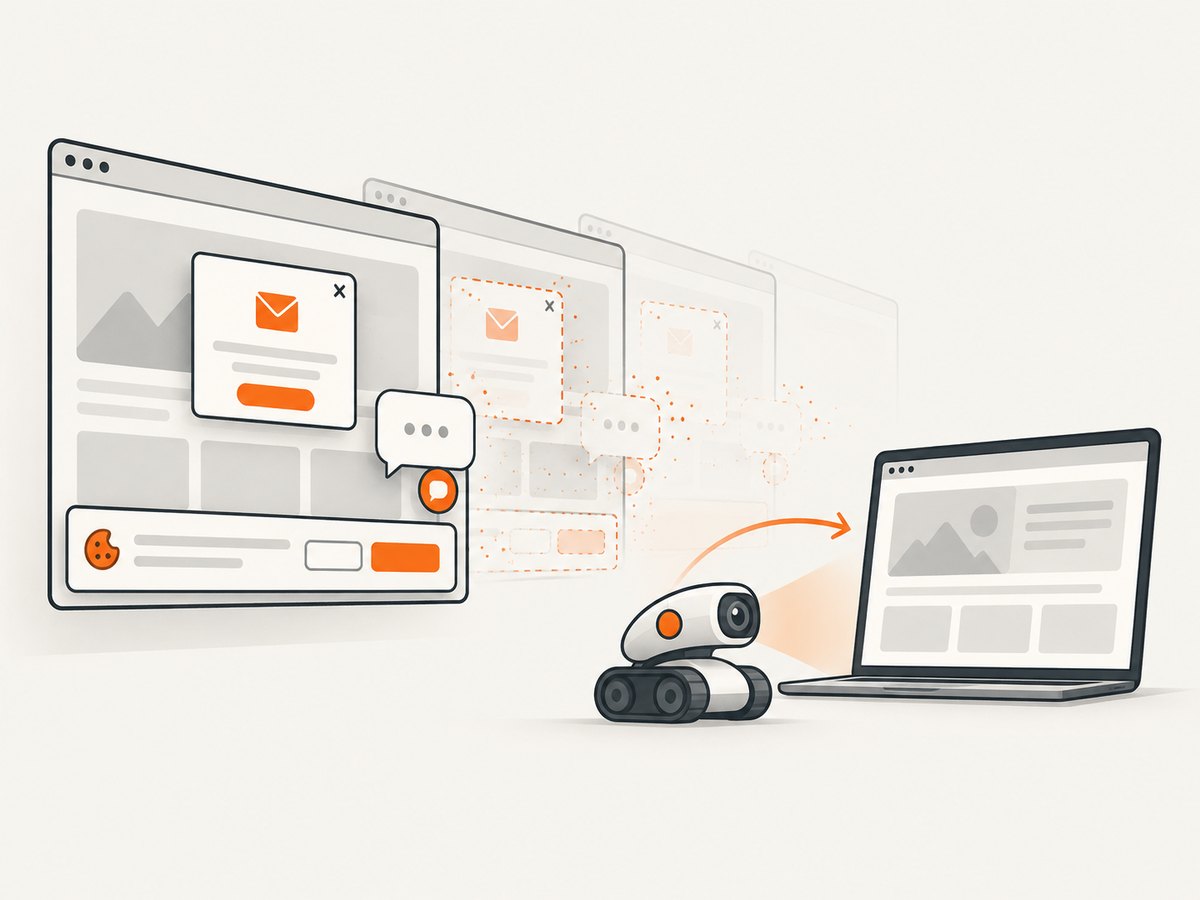
ScreenshotNeo can accept cookie and consent banners before capture and remove more than 60 known consent platforms, newsletter popups, and chat widgets. Each step can be turned off. Bot checks or CAPTCHAs, blank pages, timeouts, failed loads, and cache hits are not billed; response headers identify the page verdict and whether the request was billed with X-Page-Verdict and X-Billed.
For workflows that need more than a default viewport, options include full-page capture with lazy images loaded, CSS-selector element capture, dark mode, 12 device presets or a custom viewport, retina scale, PDF paper size and margins, custom CSS and JavaScript, clicks, selector or network-idle waits, request blocking, headers, cookies, user agent, Authorization, timezone, geolocation, transparent backgrounds, image resizing, chosen cache TTL, signed image links, asynchronous jobs with signed webhooks, bulk capture of up to 100 URLs per call, a usage API, and an OpenAPI specification. Parameter names used by other screenshot APIs also work, which can simplify migration.
An MCP server exposes take_screenshot, get_page_info, and capture_pdf to Claude, Cursor, and other MCP clients. That is useful when an AI agent needs to inspect a page without you maintaining a Selenium runtime.
Plans include 1,000 screenshots per month free with no card. Paid plans start at $5 for 3,000 shots; yearly billing provides two months free. Create a free ScreenshotNeo account and start with the included monthly screenshots.
9. Frequently asked questions
Does save_screenshot() include the URL?
No. It saves the screenshot image. Read driver.current_url and store that value beside the image.
Does Selenium capture the address bar?
The documented scope is the current browsing context or window. The reviewed documentation does not state that browser chrome is captured, so treat the address bar as unavailable.
Should I record the requested URL or current_url?
Record both when redirects matter. The requested URL explains the input; current_url identifies the page that Selenium actually displayed.
Can I attach the screenshot to a test report without writing a file?
Yes. Use get_screenshot_as_png() for bytes or get_screenshot_as_base64() for text, and include the URL as a separate report field.
Why is my URL correct but the screenshot visually stale?
The route may have changed before the data or images finished rendering. Wait for a page-specific element or state marker, then read the URL and capture in immediate succession.


