How to Take Screenshots in Dark Mode with Selenium
Use Chrome CDP to emulate prefers-color-scheme: dark, verify the theme, and capture reliable Selenium screenshots in Python.
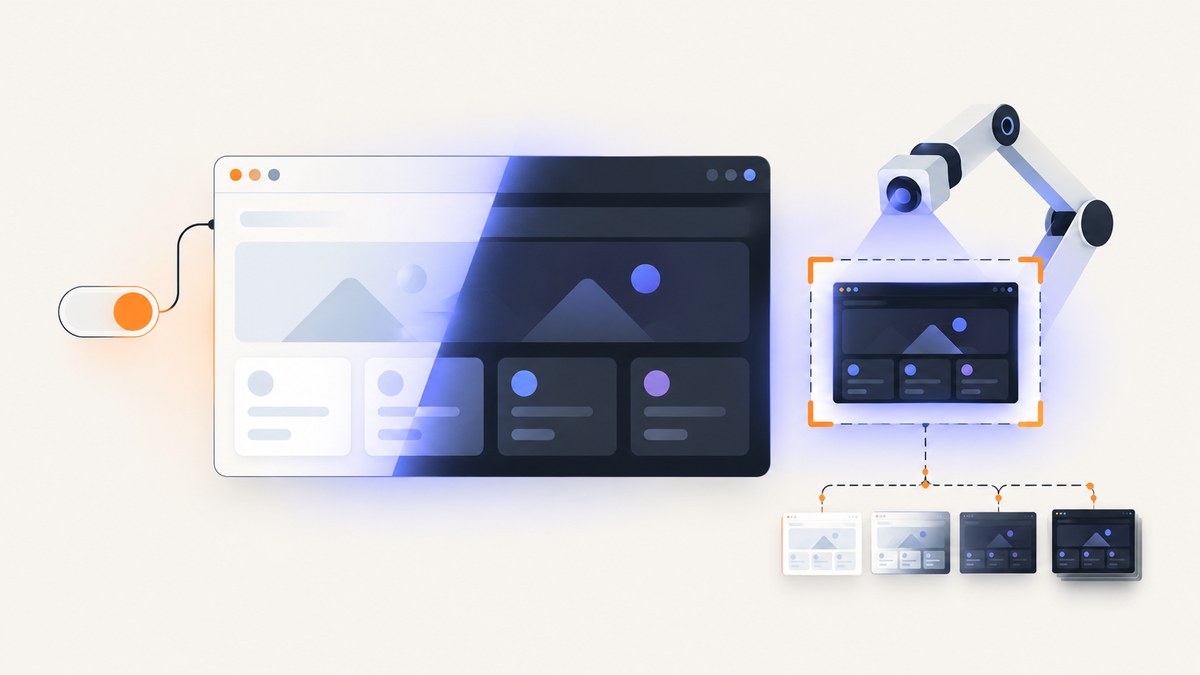
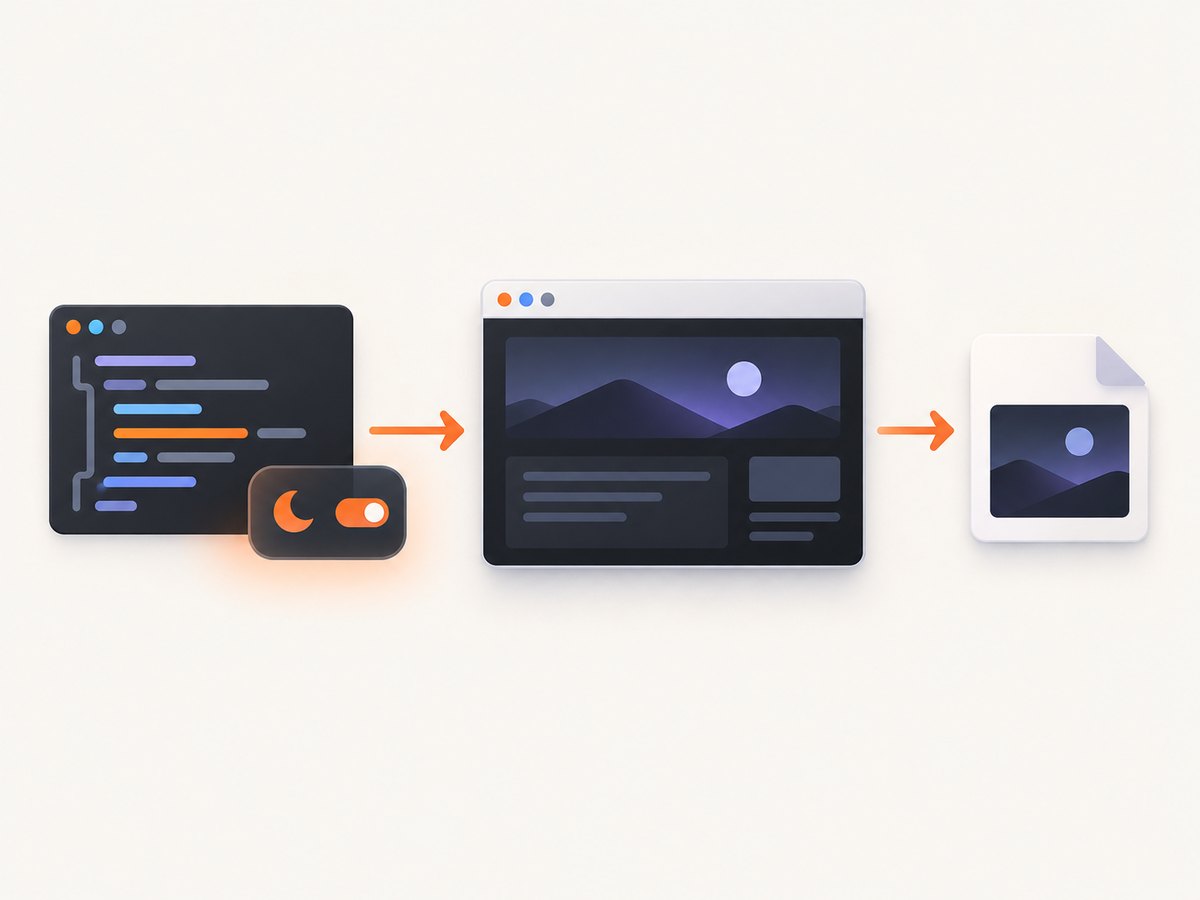
To take a screenshot in dark mode with Selenium, tell Chrome to emulate the prefers-color-scheme: dark media feature before loading the page, then use Selenium’s normal screenshot method. In Python, the essential sequence is execute_cdp_cmd('Emulation.setEmulatedMedia', ...), driver.get(), and driver.save_screenshot().
from selenium import webdriver

options = webdriver.ChromeOptions()
driver = webdriver.Chrome(options=options)

try:
    driver.execute_cdp_cmd(
        'Emulation.setEmulatedMedia',
        {'features': [{'name': 'prefers-color-scheme', 'value': 'dark'}]},
    )
    driver.get('https://example.com')
    driver.save_screenshot('dark-mode.png')
finally:
    driver.quit()
This method captures a site’s own dark theme when that theme responds to the CSS media query. Selenium captures pixels; it does not enable dark mode by itself. Chrome’s DevTools Protocol (CDP) controls the emulated preference, and Selenium writes the resulting page to an image file.
What the dark-mode setting actually changes
prefers-color-scheme is a CSS media feature. A page can use it directly:
@media (prefers-color-scheme: dark) {
  body {
    background: #111;
    color: #eee;
  }
}
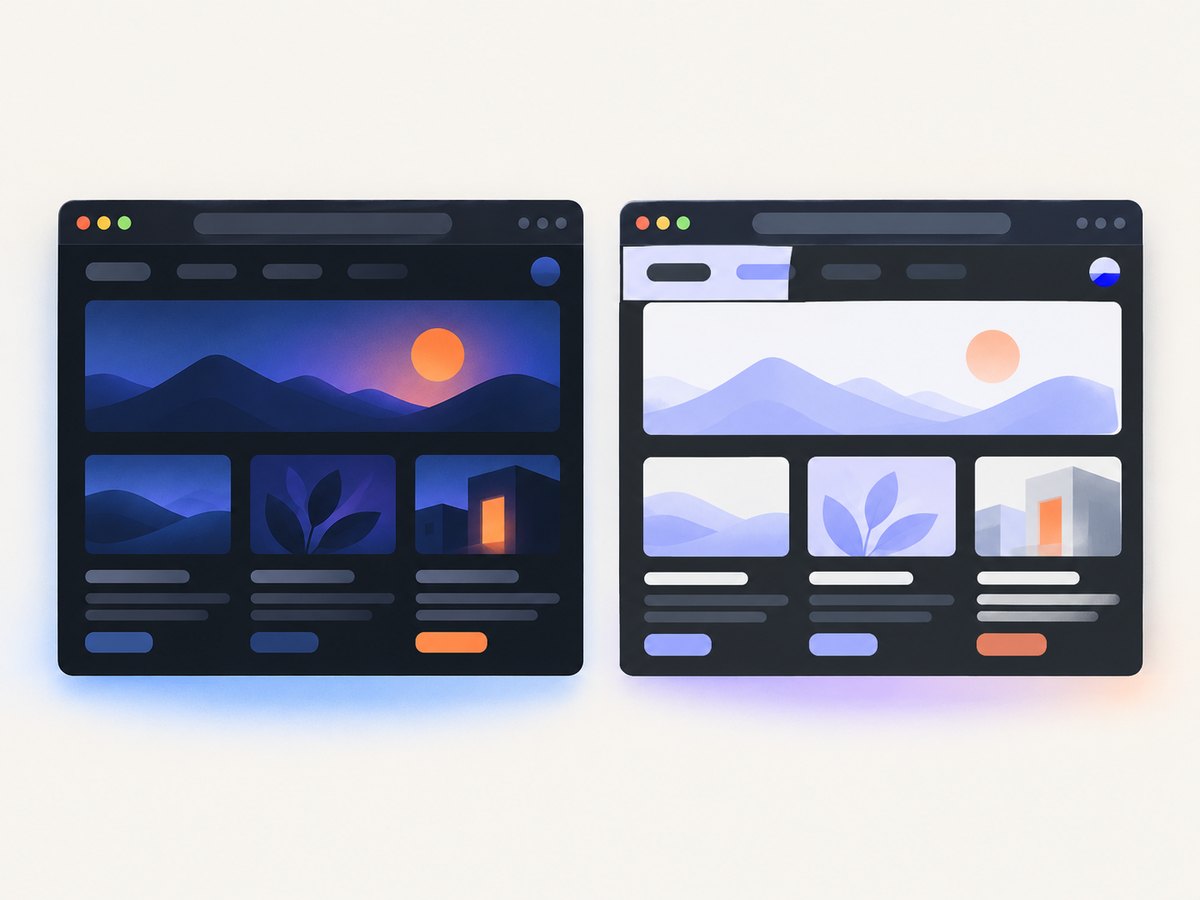
When Chrome reports a dark preference, JavaScript and CSS that read this preference can select the dark palette. The emulation must be active when the page evaluates its theme logic. Apply it before navigation whenever possible. If you change the preference after a page has loaded, reload the page so the application can respond to the new value.
There are two different dark screenshot goals:
| Goal | Technique | Use it when |
|---|---|---|
| Site-supported dark theme | Emulation.setEmulatedMedia with prefers-color-scheme: dark |
You want to test or document the theme the site intentionally provides. |
| Browser automatic dark rendering | Chrome CDP’s Emulation.setAutoDarkModeOverride |
You need to test Chrome’s force-dark transformation on content that has no dark theme. |
These conditions are not interchangeable. Automatic dark rendering can transform content even when the site has not implemented a dark palette. Prefer the media-feature override when your requirement is “capture the site’s dark mode.”
Prerequisites and setup
- Install Google Chrome or another Chromium browser supported by your Selenium setup.
- Install Selenium for Python:
python -m pip install selenium. - Make sure Selenium can obtain or locate a compatible ChromeDriver. Selenium Manager usually handles driver discovery in current Selenium releases.
- Use a URL that is reachable from the machine running the script.
CDP integration is Chromium-specific and version-sensitive. Selenium documents CDP as a temporary bridge while WebDriver BiDi support is implemented, so pin and review your browser and Selenium versions in repeatable CI jobs.
Complete Python example
The following script sets a viewport, emulates dark preference before navigation, waits for the document to load, checks the rendered preference, and saves a PNG.
from pathlib import Path
from selenium import webdriver
from selenium.webdriver.support.ui import WebDriverWait

url = 'https://example.com'
output = Path('dark-mode.png')

options = webdriver.ChromeOptions()
options.add_argument('--headless=new')
options.add_argument('--window-size=1440,1000')
driver = webdriver.Chrome(options=options)

try:
    driver.execute_cdp_cmd(
        'Emulation.setEmulatedMedia',
        {'features': [{'name': 'prefers-color-scheme', 'value': 'dark'}]},
    )
    driver.get(url)
    WebDriverWait(driver, 30).until(
        lambda browser: browser.execute_script('return document.readyState') == 'complete'
    )

    rendered_preference = driver.execute_script(
        "return window.matchMedia('(prefers-color-scheme: dark)').matches;"
    )
    if not rendered_preference:
        raise RuntimeError('The page did not report a dark color-scheme preference')

    if not driver.save_screenshot(str(output)):
        raise RuntimeError('Selenium did not save the screenshot')
finally:
    driver.quit()
The media-query check confirms that Chrome reports the emulated value. It does not prove that every component changed color. For visual regression tests, also inspect a known theme marker or computed style from your application.
Full-page, element, and viewport screenshots
A normal Selenium screenshot captures the current viewport. For a component, locate the element and use its screenshot method:
card = driver.find_element('css selector', '[data-testid="pricing-card"]')
card.screenshot('pricing-card-dark.png')
Element screenshots are useful when a test needs one control, card, chart, or navigation area. They avoid unrelated page changes and make visual diffs smaller.
For a tall page, Chrome can capture the full layout through CDP. One practical approach is to read the page dimensions, request a device-scale-aware screenshot, and write the returned base64 data.
import base64

metrics = driver.execute_cdp_cmd('Page.getLayoutMetrics', {})
content = metrics['contentSize']
driver.execute_cdp_cmd('Emulation.setDeviceMetricsOverride', {
    'width': 1440,
    'height': 900,
    'deviceScaleFactor': 1,
    'mobile': False,
    'scale': 1,
})
shot = driver.execute_cdp_cmd('Page.captureScreenshot', {
    'format': 'png',
    'captureBeyondViewport': True,
    'clip': {
        'x': 0,
        'y': 0,
        'width': content['width'],
        'height': content['height'],
        'scale': 1,
    },
})
with open('dark-mode-full-page.png', 'wb') as file:
    file.write(base64.b64decode(shot['data']))
Full-page CDP capture is more sensitive to layout metrics and browser versions than save_screenshot. If your test only needs the visible viewport, keep the simpler API.
Waiting for dark mode to finish rendering
Setting the preference does not guarantee that asynchronous application code has finished. A single-page application might fetch a theme configuration, hydrate after navigation, or replace a loading shell. Add an explicit wait for a stable condition:
from selenium.webdriver.support import expected_conditions as EC
from selenium.webdriver.common.by import By

WebDriverWait(driver, 30).until(
    EC.presence_of_element_located((By.CSS_SELECTOR, '[data-theme-ready="true"]'))
)
If there is no theme marker, wait for a selector that only appears after the application is ready, or wait for a known computed style:
WebDriverWait(driver, 30).until(
    lambda browser: browser.execute_script(
        "return getComputedStyle(document.body).backgroundColor !== 'rgba(0, 0, 0, 0)';"
    )
)
A fixed sleep can be useful for a simple diagnostic, but selector-based waits are usually less flaky because they finish as soon as the required state exists.
Changing the preference after navigation
If a test must navigate first, call the CDP command and then reload:
driver.get('https://example.com')
driver.execute_cdp_cmd(
    'Emulation.setEmulatedMedia',
    {'features': [{'name': 'prefers-color-scheme', 'value': 'dark'}]},
)
driver.refresh()
driver.save_screenshot('dark-after-refresh.png')
Without the reload, CSS may update immediately in some pages, while application code that ran only during startup remains in the old state. Reloading gives both CSS and startup JavaScript a chance to observe the preference.
Using automatic dark mode instead
Chrome’s protocol also exposes Emulation.setAutoDarkModeOverride. This asks the browser to render web content with an automatic dark transformation. It tests browser behavior rather than the site’s declared dark theme. Treat it as a separate test case and do not use its result to claim that the site supports prefers-color-scheme.
cURL, Python, and Node.js alternatives
If you do not need to manage a browser process, ScreenshotNeo can return a dark-mode screenshot through one API request. Its API accepts a dark-mode option along with viewport, device, full-page, selector, wait, blocking, and output options. See the ScreenshotNeo API documentation for the current parameter names and response details.
cURL
curl -G "https://api.screenshotneo.com/v1/shot" \
  -d access_key=YOUR_API_KEY \
  --data-urlencode url=https://stripe.com \
  -o shot.webp
Python
import requests

r = requests.get(
    'https://api.screenshotneo.com/v1/shot',
    params={'access_key': 'YOUR_API_KEY', 'url': 'https://stripe.com'},
    timeout=90,
)
r.raise_for_status()
open('shot.webp', 'wb').write(r.content)
Node.js
const q = new URLSearchParams({ access_key: 'YOUR_API_KEY', url: 'https://stripe.com' });
const res = await fetch(`https://api.screenshotneo.com/v1/shot?${q}`);
if (!res.ok) throw new Error(`Screenshot failed: ${res.status}`);
const buffer = Buffer.from(await res.arrayBuffer());
await import('node:fs/promises').then(fs => fs.writeFile('shot.webp', buffer));
For production calls, add the dark-mode parameter described in the documentation, select PNG, JPEG, or WebP as needed, and set an explicit wait condition for pages that hydrate after navigation. ScreenshotNeo also supports custom CSS and JavaScript, element capture, device presets, retina scale, cookies, headers, user agents, timezone, geolocation, caching, signed links, asynchronous jobs, webhooks, bulk capture, and PDF output.
Or skip the browser setup
ScreenshotNeo removes cookie and consent banners, newsletter popups, and chat widgets before the shot. Bot checks, blank pages, failed loads, timeouts, and cache hits are not billed; response headers identify the page verdict and whether it was billed. Its MCP server gives Claude, Cursor, and other MCP clients tools named take_screenshot, get_page_info, and capture_pdf. The Free plan includes 1,000 screenshots each month with no card, and paid plans start at $5 for 3,000 shots.
Create a free ScreenshotNeo account and make your first dark-mode capture.
Troubleshooting
| Symptom | Likely cause | Fix |
|---|---|---|
| The screenshot is still light | The page was loaded before emulation, or it ignores the media query. | Set emulation before get(); otherwise refresh. Check matchMedia and inspect the site’s theme implementation. |
execute_cdp_cmd is missing |
Old Selenium binding or a non-Chromium driver. | Upgrade Selenium and use Chrome or another Chromium browser. CDP is not a cross-browser API. |
| CDP command reports an unknown method | Browser and Selenium/CDP versions do not align. | Check installed versions, update them together, and consult the current protocol documentation. |
| Only part of the page is dark | Some widgets use independent styling, an iframe, or a canvas. | Inspect the iframe or component separately. Capture the element after its own ready signal. |
| Screenshot contains a loading shell | Capture happened before hydration or data loading. | Wait for a stable selector, document state, or computed style before saving. |
| Full-page image is clipped | Viewport metrics or page dimensions were stale. | Read layout metrics after the page settles, then call full-page capture. Prefer viewport capture when possible. |
| CI intermittently fails | Browser startup, network, fonts, or animations vary. | Pin versions, use explicit waits, disable animations with test CSS, and record browser logs and the URL on failure. |
Reliability and performance checklist
- Apply media emulation before navigation.
- Use a fixed viewport and device scale for reproducible pixels.
- Wait for a page-specific ready condition instead of relying only on a timeout.
- Freeze or disable animations before capture when visual diffs must be stable.
- Use element screenshots for component tests and full-page capture only when the entire document matters.
- Keep CDP calls isolated behind a small helper so browser-version changes are easy to update.
- Verify the theme with
matchMediaor a known computed style; a successful file write only proves that pixels were captured.
Browser automation has startup and rendering costs. Reuse one driver for a batch of URLs when isolation permits, but reset cookies, storage, viewport, and emulation between test cases. For large batches or server-side capture, an API can avoid maintaining ChromeDriver processes. ScreenshotNeo offers caching with a caller-selected TTL and bulk capture for up to 100 URLs per call; clean shots are billed while failed loads and cache hits are not.
FAQ
Does Selenium have a dark-mode screenshot option?
No. Selenium’s screenshot methods capture the current browser output. Use Chrome CDP to set the media preference first.
Will this work in Firefox?
The documented command is Chrome DevTools Protocol and is Chromium-specific. Use a browser-specific capability only after verifying support; CDP is not the standards-based cross-browser interface.
Should I use setAutoDarkModeOverride?
Use it only when you are testing Chrome’s automatic dark transformation. Use prefers-color-scheme: dark for a site’s own theme.
Why does a screenshot look dark but the application state say light?
CSS, JavaScript, and browser transformations can disagree. Check matchMedia, your application theme state, and computed styles independently.
Can I capture only one dark component?
Yes. Locate it with Selenium and call the element’s screenshot() method after the component is ready.


