How to Get Direct Element Text Without Descendant Text in Selenium
Use Selenium’s JavaScript execution and DOM text nodes to read an element’s own text while ignoring text inside nested elements.
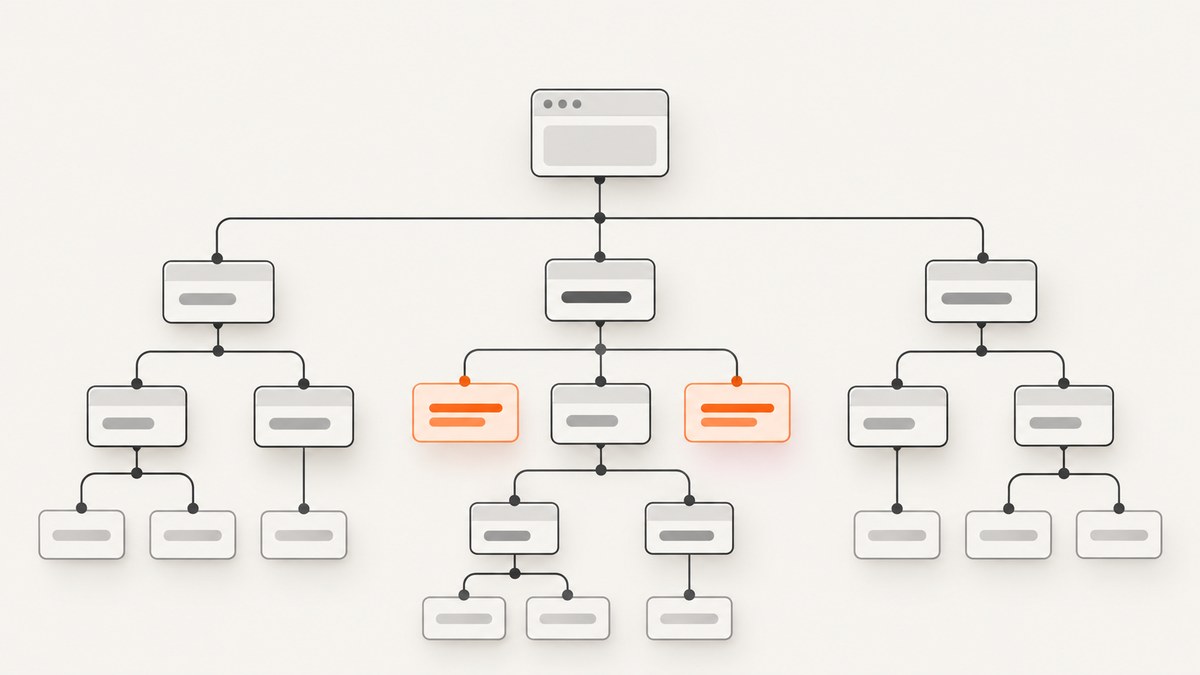
Direct answer: Selenium’s .text and Java getText() return visible text from the element and its descendants. To read only text directly inside the element, pass the located element to browser JavaScript, inspect its immediate childNodes, keep nodes whose nodeType is Node.TEXT_NODE, then normalize or preserve their values according to your needs.
For example, given <div>Alpha <span>nested</span> Omega</div>, the direct text is Alpha Omega (or the original fragments Alpha and Omega), while nested must be excluded.
Why Selenium .text includes nested text
Selenium’s text accessor is a rendered-text API. Its documented behavior includes text from sub-elements, so it is useful when you need what a user can read from a complete component. It is not a direct-child text accessor. The Selenium JavaScript WebElement documentation describes getText() as visible text “including sub-elements,” and the Java API uses the same model. Selenium’s element-information documentation also describes this as rendered text.

The DOM has a different structure. An element’s childNodes collection contains its immediate children, including text nodes, element nodes, comments and other node types. Filtering that collection for Node.TEXT_NODE keeps only text owned directly by the target element. Using children would do the opposite: it returns child elements and would miss the text nodes you need. Reading textContent on the parent also does not solve the problem because it aggregates descendant text.
Python: extract direct text with Selenium
This complete example starts a browser, locates an element, and returns normalized direct text. The script trims each text node, drops empty fragments and joins the remaining fragments with one space.
from selenium import webdriver
from selenium.webdriver.common.by import By
from selenium.webdriver.chrome.options import Options

options = Options()
options.add_argument("--headless=new")
driver = webdriver.Chrome(options=options)

try:
    driver.get("https://example.com")
    element = driver.find_element(By.CSS_SELECTOR, "div.example")

    direct_text = driver.execute_script(
        "return Array.from(arguments[0].childNodes)"
        ".filter(n => n.nodeType === Node.TEXT_NODE)"
        ".map(n => n.nodeValue.trim())"
        ".filter(Boolean)"
        ".join(' ')",
        element,
    )

    print(direct_text)
finally:
    driver.quit()
Replace the URL and selector with the page under test. Selenium serializes the WebElement argument into the browser context, so the JavaScript receives the actual DOM element rather than a selector string.
Preserve the original fragments
Normalization is convenient for assertions, but it changes whitespace. If spacing, line breaks or punctuation are significant, return the matching node values without trimming:
fragments = driver.execute_script(
    "return Array.from(arguments[0].childNodes)"
    ".filter(n => n.nodeType === Node.TEXT_NODE)"
    ".map(n => n.nodeValue)",
    element,
)

raw_direct_text = "".join(fragments)
Use fragments when you need to inspect exactly where text nodes occur. Use raw_direct_text when the source whitespace must remain unchanged. A page such as <div>Alpha <span>nested</span> Omega</div> produces two direct fragments, with the nested span omitted.
Java version
Java uses the same browser-side expression through JavascriptExecutor:
WebElement element = driver.findElement(By.cssSelector("div.example"));
String directText = (String) ((JavascriptExecutor) driver).executeScript(
    "return Array.from(arguments[0].childNodes)"
        + ".filter(n => n.nodeType === Node.TEXT_NODE)"
        + ".map(n => n.nodeValue.trim())"
        + ".filter(Boolean)"
        + ".join(' ')",
    element
);
System.out.println(directText);
Use the script-execution method supplied by the Selenium binding and version in your project. The returned JavaScript string is converted to a Java String.
JavaScript Selenium example
In Selenium’s JavaScript binding, execute the same expression against the located element. The exact asynchronous signature depends on the binding version, but the browser expression remains unchanged:
const element = await driver.findElement(By.css("div.example"));
const directText = await driver.executeScript(
  `return Array.from(arguments[0].childNodes)
    .filter(n => n.nodeType === Node.TEXT_NODE)
    .map(n => n.nodeValue.trim())
    .filter(Boolean)
    .join(' ')`,
  element
);
console.log(directText);
Choosing the right whitespace policy
| Goal | Expression | Result |
|---|---|---|
| Readable assertion | trim(), remove empty values, join with a space |
Stable normalized text |
| Exact source fragments | Return nodeValue for every text node |
Array preserving each fragment |
| Exact concatenation | Join raw nodeValue values with an empty separator |
Original text-node content |
| Ignore formatting-only gaps | Trim and filter empty values | Whitespace-only nodes removed |
Whitespace between tags can itself be a text node. For example, indentation in formatted HTML may produce entries containing only spaces or line breaks. Decide whether those entries matter before writing assertions. Selenium’s .text applies its own visible-text behavior; custom DOM extraction requires you to define the output rules explicitly.
Edge cases and reliable extraction
Hidden descendants
.text is based on rendered visibility. A direct DOM text-node read inspects nodes in the document and should not be described as a visibility check. A hidden direct text node can therefore be returned by the JavaScript filter even though Selenium’s rendered-text accessor would omit it. If visibility matters, add a separate check such as the element’s displayed state, computed styles or an application-specific rule.
Several direct text nodes
Text can appear before and after nested markup. The filter handles both sides because it examines every immediate child in order. It does not descend into a nested element, so text inside links, spans, icons or labels is excluded.
DOM mutation
childNodes is a live NodeList. Page scripts can mutate the DOM while your test runs. Array.from(...) snapshots the immediate children before filtering, making the operation predictable for that execution. If the application updates asynchronously, wait for a stable condition before reading the element.
Shadow DOM and iframes
The target must be in the current browsing context. Switch into an iframe before locating its element. Shadow DOM content requires locating the shadow root and then querying inside it; a light-DOM parent’s childNodes does not expose nodes rendered inside a separate shadow tree.
XPath and text-node selection
XPath expressions can describe text nodes, but Selenium’s ordinary element-finding APIs return WebElement references. Script execution is usually clearer when you need a language string. When locating descendants from a WebElement with XPath, use .// to scope the search below that element; a leading // begins from the document according to the Java API guidance.
Reusable Python helper
Centralize the policy so every test handles whitespace consistently:
from selenium.webdriver.remote.webdriver import WebDriver
from selenium.webdriver.remote.webelement import WebElement

def direct_text(driver: WebDriver, element: WebElement, *, normalize: bool = True):
    fragments = driver.execute_script(
        "return Array.from(arguments[0].childNodes)"
        ".filter(n => n.nodeType === Node.TEXT_NODE)"
        ".map(n => n.nodeValue)",
        element,
    )
    if not normalize:
        return fragments
    return " ".join(part.strip() for part in fragments if part.strip())

# direct_text(driver, element) returns a normalized string
# direct_text(driver, element, normalize=False) returns raw fragments
Returning an array first keeps the browser operation simple and lets Python own the final formatting policy. It also makes debugging easier when an assertion fails.
Common errors and fixes
| Error | Cause | Fix |
|---|---|---|
| The result contains nested text | You used .text, getText() or textContent. |
Execute the childNodes and TEXT_NODE filter. |
| The result is empty | The element has no direct text nodes, the selector found the wrong node, or content has not loaded. | Inspect the element’s HTML, verify the selector, and wait for the application’s ready condition. |
| Extra spaces or blank entries | Indentation and spacing between tags are text nodes. | Trim and filter for normalized output, or preserve raw fragments deliberately. |
StaleElementReferenceException |
The application replaced the element after you located it. | Wait for the update to finish, locate the element again, then execute the script. |
NoSuchElementException |
The selector does not match in the current page or frame. | Check the selector, wait for the element, and switch to the correct iframe or shadow root. |
| JavaScript execution fails | The argument is not a WebElement or the browser context was closed. | Pass the located element directly and keep the driver alive until the call completes. |

Performance and reliability
The extraction itself is small: one script call, one immediate-child snapshot and a linear pass over that element’s direct nodes. It avoids walking the entire descendant subtree. The expensive part of a Selenium test is usually browser startup, navigation, waiting and page JavaScript, so reuse a driver for related checks where your test isolation rules allow it.
For reliable assertions, wait on a meaningful application condition rather than an arbitrary sleep. Locate the element after navigation and after any framework re-render that could replace it. If the page intentionally changes the direct text, assert the state you need and capture the fragments at that point. Keep normalized and raw extraction as separate helpers so a formatting change does not silently alter a semantic assertion.
Or skip the browser setup
If your goal is to capture a page for review, documentation or an AI workflow rather than run an interactive Selenium test, ScreenshotNeo provides a single screenshot request. Its capture pipeline accepts cookie and consent banners like a visitor, then removes more than 60 known consent platforms, newsletter popups and chat widgets before the shot. Each step can be turned off. Bot checks, blank pages, timeouts, failed loads and cache hits are not billed, and the response identifies the result with X-Page-Verdict and X-Billed headers.
See the ScreenshotNeo API documentation for the complete option set, including full-page captures with lazy images loaded, CSS-selector element captures, dark mode, device presets, custom viewports, retina scale, PDF output, custom CSS and JavaScript, clicks, waits, request blocking, headers, cookies, user agents, authorization, timezone, geolocation, transparent backgrounds, resizing, caching, signed links, asynchronous jobs, bulk capture and usage reporting. An MCP server provides take_screenshot, get_page_info and capture_pdf tools for Claude, Cursor and other MCP clients.
cURL
curl -G "https://api.screenshotneo.com/v1/shot" \
  -d access_key=YOUR_API_KEY \
  --data-urlencode url=https://stripe.com \
  -o shot.webp
Python
import requests

r = requests.get(
    "https://api.screenshotneo.com/v1/shot",
    params={"access_key": "YOUR_API_KEY", "url": "https://stripe.com"},
    timeout=90,
)
r.raise_for_status()
open("shot.webp", "wb").write(r.content)
Node.js
const q = new URLSearchParams({
  access_key: 'YOUR_API_KEY',
  url: 'https://stripe.com'
});
const res = await fetch(`https://api.screenshotneo.com/v1/shot?${q}`);
if (!res.ok) throw new Error(`Screenshot failed: ${res.status}`);
const fs = await import('node:fs/promises');
await fs.writeFile('shot.webp', Buffer.from(await res.arrayBuffer()));
ScreenshotNeo includes 1,000 screenshots each month on the free plan with no card. Paid plans start at $5 for 3,000 shots, and every feature is available on every plan. Create a free ScreenshotNeo account to get an API key.
FAQ
Can I do this with a CSS selector alone?
No. A selector locates the element; it does not provide a direct-text-only accessor. Use script execution after locating the element.
Does innerText return only direct text?
No. Like Selenium’s rendered-text accessor, it includes descendant content and applies layout and visibility behavior. Filter immediate DOM text nodes instead.
Should I use textContent?
Only when descendant text is wanted. For direct text, textContent on the parent is too broad.
Why does my expected spacing differ?
HTML whitespace may be split across multiple text nodes. Choose normalized joining or raw concatenation explicitly, then assert the representation your application requires.
Can this read text inside a nested span selectively?
That is a different requirement. Locate the span itself, or write a traversal that includes the specific descendants you want. The direct-child filter intentionally excludes all nested element text.


