How to Change Download Locations in Selenium WebDriver for Chrome and Firefox
Configure Selenium downloads for Chrome and Firefox, wait for completion, and retrieve files safely from local or remote WebDriver sessions.
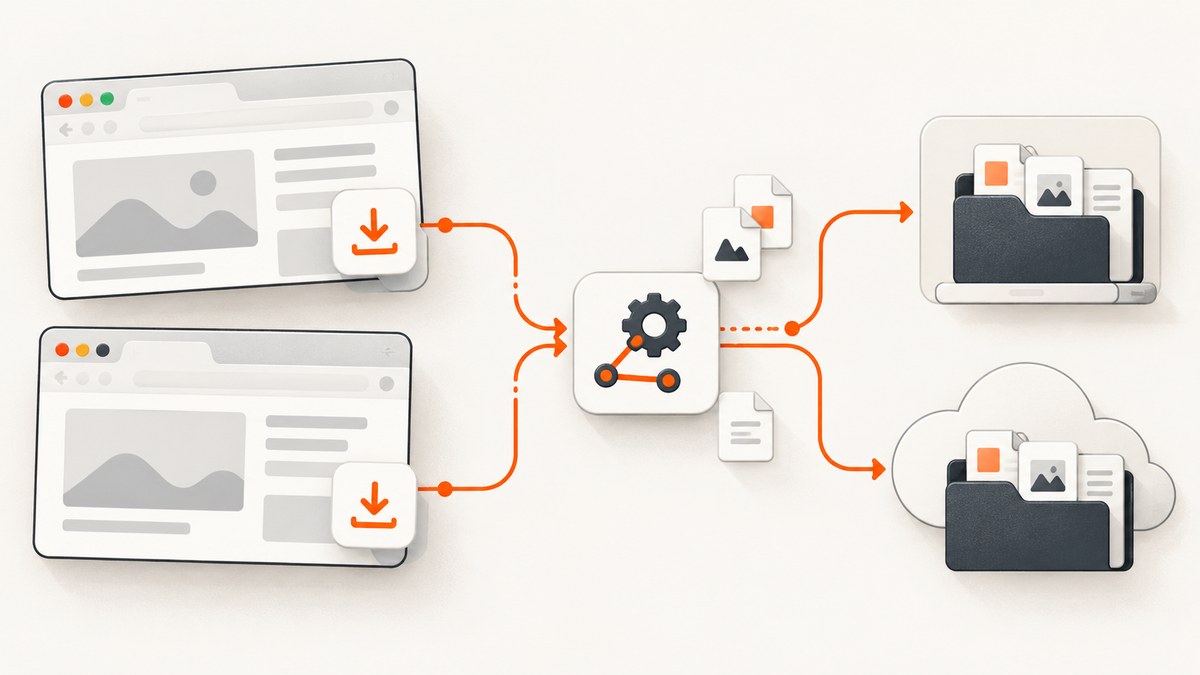
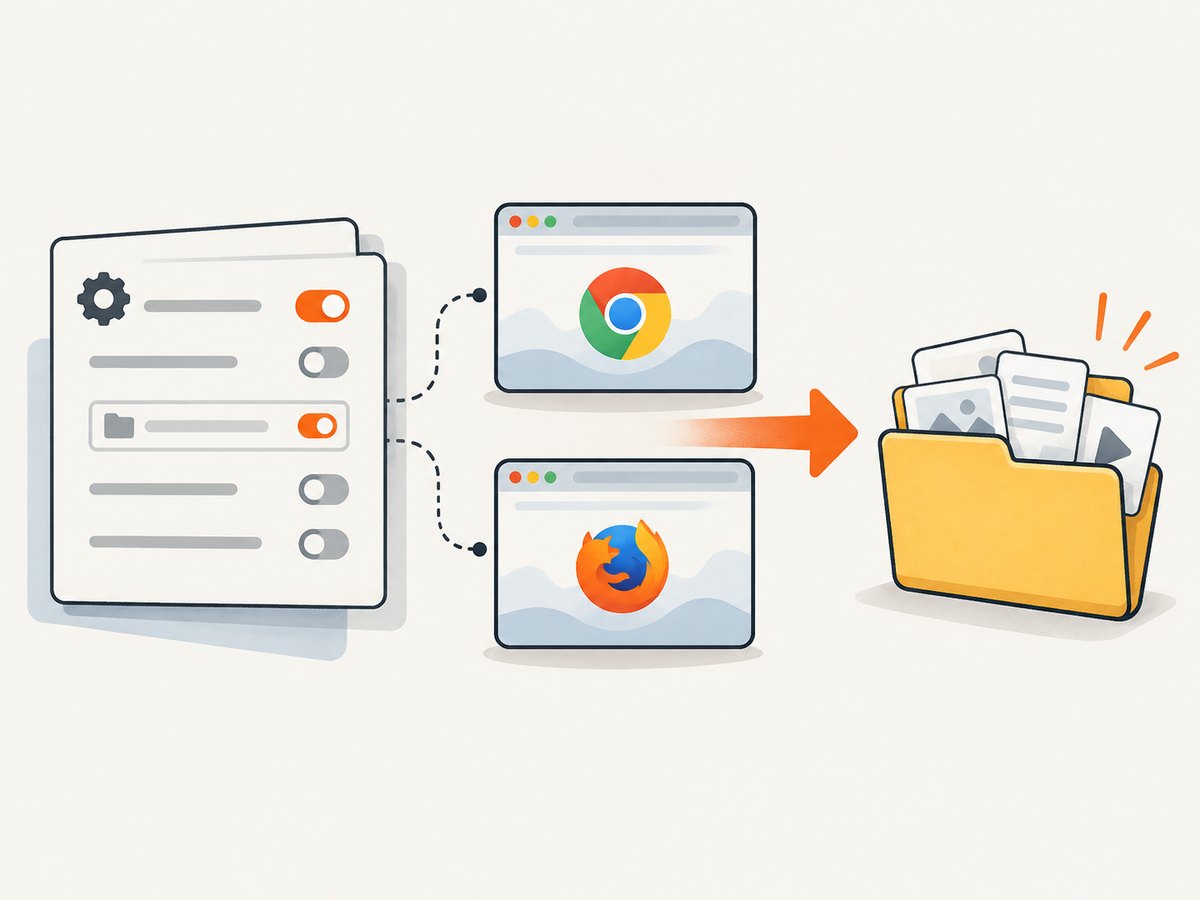
Set the download directory before creating the WebDriver session. Chrome uses the download.default_directory preference in ChromeOptions. Firefox uses profile preferences supplied through FirefoxOptions or a Firefox profile. With Remote WebDriver, the path belongs to the remote browser machine unless Selenium Grid managed downloads are enabled.
This guide shows complete Selenium 4 examples, explains how to wait for a download to finish, and covers local, remote, Chrome, Firefox, Java, Python, JavaScript, cURL, troubleshooting, and cost-conscious alternatives.
1. Set the download folder before starting WebDriver
Browser preferences are startup configuration. Build the options object, set the directory, and pass those options to the driver constructor. Changing a preference after the browser has started is unreliable and can affect only future downloads, if it works at all.
Chrome: Java
import org.openqa.selenium.WebDriver;
import org.openqa.selenium.chrome.ChromeDriver;
import org.openqa.selenium.chrome.ChromeOptions;

import java.nio.file.Files;
import java.nio.file.Path;
import java.util.HashMap;
import java.util.Map;

public class ChromeDownload {
    public static void main(String[] args) throws Exception {
        Path downloadDir = Files.createTempDirectory("selenium-downloads-");

        Map<String, Object> prefs = new HashMap<>();
        prefs.put("download.default_directory", downloadDir.toAbsolutePath().toString());
        prefs.put("download.prompt_for_download", false);
        prefs.put("download.directory_upgrade", true);
        prefs.put("safebrowsing.enabled", true);

        ChromeOptions options = new ChromeOptions();
        options.setExperimentalOption("prefs", prefs);

        WebDriver driver = new ChromeDriver(options);
        try {
            driver.get("https://example.com/file.zip");
            // Wait for your file and validate it before quitting.
        } finally {
            driver.quit();
        }
    }
}
Use an absolute path and make sure the account running the test can write to it. ChromeDriver’s documentation recommends a full path and warns that special directories are restricted; the desktop directory and, on Linux, the home directory are disallowed in current ChromeDriver behavior. The forbidden set can change, so a dedicated temporary or workspace directory is safer. On Windows, use backslashes in a Java string such as C:\\selenium\\downloads, or construct the path with Path.
Chrome: Python
from pathlib import Path
import tempfile
from selenium import webdriver
from selenium.webdriver.chrome.options import Options

with tempfile.TemporaryDirectory(prefix="selenium-downloads-") as directory:
    download_dir = str(Path(directory).resolve())

    options = Options()
    options.add_experimental_option("prefs", {
        "download.default_directory": download_dir,
        "download.prompt_for_download": False,
        "download.directory_upgrade": True,
        "safebrowsing.enabled": True,
    })

    driver = webdriver.Chrome(options=options)
    try:
        driver.get("https://example.com/file.zip")
        # Poll for the expected file and for temporary files to disappear.
    finally:
        driver.quit()
Chrome: Node.js
const fs = require('fs');
const os = require('os');
const path = require('path');
const { Builder } = require('selenium-webdriver');
const chrome = require('selenium-webdriver/chrome');

(async () => {
  const downloadDir = fs.mkdtempSync(path.join(os.tmpdir(), 'selenium-downloads-'));
  const options = new chrome.Options();
  options.setChromeอptions({
    prefs: {
      'download.default_directory': downloadDir,
      'download.prompt_for_download': false,
      'download.directory_upgrade': true,
      'safebrowsing.enabled': true
    }
  });

  const driver = await new Builder()
    .forBrowser('chrome')
    .setChromeOptions(options)
    .build();
  try {
    await driver.get('https://example.com/file.zip');
    // Wait for the completed file before calling quit().
  } finally {
    await driver.quit();
  }
})();
If your Selenium JavaScript binding version does not expose setChromeOptions in this form, pass the preferences through the current Chrome Options API for that release. The important detail is that the preferences are attached before build().
2. Configure Firefox download preferences
Firefox writes preferences into the profile before startup. Selenium’s Firefox Options API supports setPreference; Python also exposes FirefoxProfile.set_preference. Preference names and values can vary with Firefox versions and the file types your application serves, so verify them against the target browser.
Firefox: JavaScript
const { Builder } = require('selenium-webdriver');
const firefox = require('selenium-webdriver/firefox');

(async () => {
  const options = new firefox.Options()
    .setPreference('browser.download.folderList', 2)
    .setPreference('browser.download.dir', '/absolute/path/to/downloads')
    .setPreference('browser.download.useDownloadDir', true)
    .setPreference('browser.helperApps.neverAsk.saveToDisk', 'application/pdf,application/zip')
    .setPreference('pdfjs.disabled', true);

  const driver = await new Builder()
    .forBrowser('firefox')
    .setFirefoxOptions(options)
    .build();
  try {
    await driver.get('https://example.com/report.pdf');
  } finally {
    await driver.quit();
  }
})();
Firefox: Python
from selenium import webdriver
from selenium.webdriver.firefox.options import Options

options = Options()
options.set_preference("browser.download.folderList", 2)
options.set_preference("browser.download.dir", "/absolute/path/to/downloads")
options.set_preference("browser.download.useDownloadDir", True)
options.set_preference(
    "browser.helperApps.neverAsk.saveToDisk",
    "application/pdf,application/zip"
)
options.set_preference("pdfjs.disabled", True)

driver = webdriver.Firefox(options=options)
try:
    driver.get("https://example.com/report.pdf")
finally:
    driver.quit()
Firefox: Java
import org.openqa.selenium.WebDriver;
import org.openqa.selenium.firefox.FirefoxOptions;

FirefoxOptions options = new FirefoxOptions();
options.addPreference("browser.download.folderList", 2);
options.addPreference("browser.download.dir", "/absolute/path/to/downloads");
options.addPreference("browser.download.useDownloadDir", true);
options.addPreference(
    "browser.helperApps.neverAsk.saveToDisk",
    "application/pdf,application/zip"
);
options.addPreference("pdfjs.disabled", true);

WebDriver driver = new org.openqa.selenium.firefox.FirefoxDriver(options);
try {
    driver.get("https://example.com/report.pdf");
} finally {
    driver.quit();
}
The moz:firefoxOptions capability carries these preferences into the profile before Firefox starts. For a cloned profile, apply preferences to the profile used by the session and avoid relying on settings from a developer’s interactive profile.
3. Wait until the download is actually complete
Starting navigation or clicking a link does not mean the file is ready. ChromeDriver does not wait for downloads to finish, and quitting the driver early can terminate an active download. Use a unique directory and wait for the expected filename, size stability, and disappearance of browser temporary files such as .crdownload or .part.
import java.nio.file.*;
import java.time.Duration;
import java.time.Instant;

static Path waitForDownload(Path directory, String expectedName, Duration timeout)
        throws Exception {
    Instant deadline = Instant.now().plus(timeout);
    Path target = directory.resolve(expectedName);
    long previousSize = -1;
    int stableReads = 0;

    while (Instant.now().isBefore(deadline)) {
        boolean temporaryFileExists;
        try (DirectoryStream<Path> files = Files.newDirectoryStream(directory)) {
            temporaryFileExists = false;
            for (Path file : files) {
                String name = file.getFileName().toString();
                if (name.endsWith(".crdownload") || name.endsWith(".part")) {
                    temporaryFileExists = true;
                    break;
                }
            }
        }

        if (Files.isRegularFile(target) && !temporaryFileExists) {
            long size = Files.size(target);
            if (size > 0 && size == previousSize) {
                stableReads++;
                if (stableReads >= 2) return target;
            } else {
                stableReads = 0;
            }
            previousSize = size;
        }
        Thread.sleep(500);
    }
    throw new IllegalStateException("Download did not complete: " + target);
}
When the server chooses a dynamic filename, record the directory contents before the click, then identify the new file after the click. Do not treat a nonzero size alone as proof that the transfer is complete. For large files, use a longer timeout and a hash or content validation step.
4. Remote WebDriver and Selenium Grid
In a remote session, /tmp/downloads refers to the machine running the browser, not the machine running your test code. Selenium’s documentation states that Chrome, Edge, and Firefox can set a download directory, but remote execution places that directory on the remote computer.
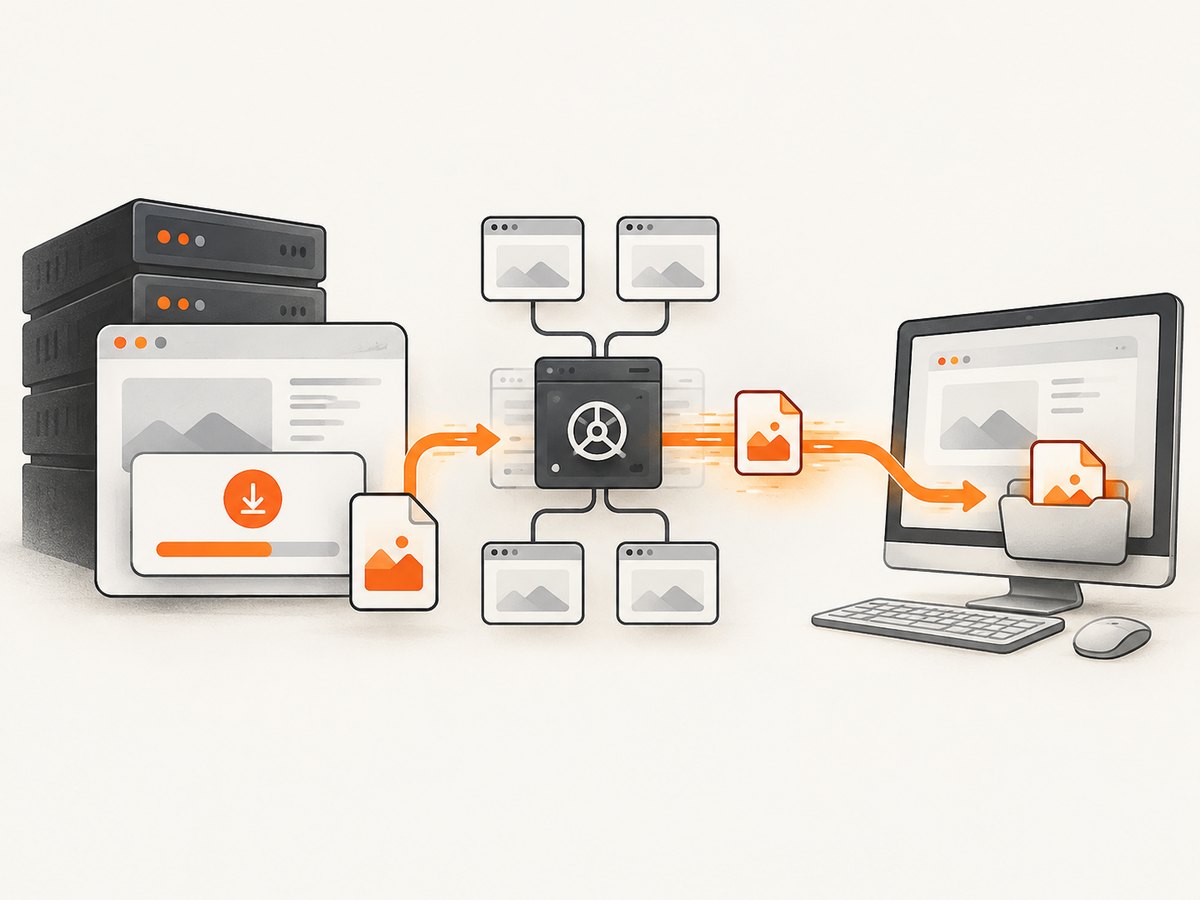
For Grid-managed retrieval, start the Grid node or standalone server with:
java -jar selenium-server.jar standalone --enable-managed-downloads trueEnable the client capability se:downloadsEnabled through your binding’s browser Options class. Grid then exposes downloadable files for the session. A file listing is an immediate snapshot; it is not a completion wait. Poll for the expected file, then retrieve it using the managed-download endpoint exposed by your Selenium binding.
For a containerized browser, mount a writable host volume to the configured directory. Check permissions inside the browser container, preserve the file before the container exits, and avoid sharing one directory between parallel sessions. A per-session directory prevents one test from accepting another test’s file.
5. Options that affect download behavior
| Concern | Chrome | Firefox |
|---|---|---|
| Directory | download.default_directory in the Chrome preferences map |
browser.download.dir with folder-list and use-download-directory preferences |
| Prompts | download.prompt_for_download: false |
Use MIME types in browser.helperApps.neverAsk.saveToDisk |
| PDF handling | Configure Chrome’s PDF behavior if a PDF should download instead of open | pdfjs.disabled: true commonly disables the built-in viewer |
| Path | Absolute, writable path; avoid restricted special directories | Absolute, writable path; verify behavior for the Firefox version |
| Completion | Wait for the file and temporary-file cleanup | Wait for the file and temporary-file cleanup |
Other browser settings can change the result: authentication redirects, content-disposition headers, MIME types, safe-browsing checks, enterprise policies, pop-up blockers, and a site opening a preview instead of downloading. Inspect the response headers and browser console when a link opens a tab rather than creating a file.
6. Troubleshooting common failures
Files still go to the default folder
Cause: the preference was attached after driver creation, the path is relative, or an existing profile policy overrides it. Fix: use an absolute path, create the directory first, attach options before constructing the driver, and print the resolved path inside the browser host.
Chrome reports an invalid or forbidden directory
Cause: the path is the desktop, Linux home, a special system directory, or a location ChromeDriver rejects. Fix: create a dedicated workspace directory under the test runner’s temporary directory and pass its full path.
Firefox asks where to save
Cause: the response MIME type is missing from browser.helperApps.neverAsk.saveToDisk, or a viewer is handling the file. Fix: capture the actual MIME type, add it to the comma-separated preference, and disable the relevant built-in viewer when the test requires a file.
The file is present but incomplete
Cause: the test checked too soon or quit the browser while the transfer was active. Fix: wait for the expected file, ensure .crdownload/.part files are gone, and require a stable size across multiple polls.
The test cannot find a file on a remote run
Cause: the file exists on the remote host. Fix: use a shared mounted directory, copy the artifact from the node, or enable Grid managed downloads with --enable-managed-downloads true and se:downloadsEnabled.
Parallel tests overwrite one another
Cause: every session uses one fixed directory or the application emits the same filename. Fix: allocate a unique directory per test, map it to a unique host directory, and identify files by the session that created them.
7. Reliability, performance, and cost notes
- Reliability: isolate each session’s directory, validate file contents, and preserve artifacts before remote workers are recycled.
- Performance: polling every 250–1,000 ms is usually sufficient; avoid repeatedly scanning very large directories. Use a known filename whenever possible.
- Timeouts: base the timeout on expected file size and network conditions. A browser page load timeout does not guarantee that a download has finished.
- Security: treat downloaded files as untrusted input. Restrict permissions, avoid executing them, and clean temporary directories after the test.
- Cost: local WebDriver has no API capture charge, but remote browser minutes, Grid infrastructure, storage, and bandwidth can be operational costs. Managed downloads simplify transfer but still require cleanup.
8. Or skip the browser setup
If your goal is a clean image or PDF of a URL rather than exercising a browser download workflow, ScreenshotNeo provides a single HTTP request. The API returns PNG, JPEG, WebP, or PDF, and its options include full-page capture, element selectors, custom CSS and JavaScript, waits, headers, cookies, user agents, geolocation, caching, signed links, asynchronous jobs, and bulk capture. See the ScreenshotNeo documentation for the complete parameter list.
curl -G "https://api.screenshotneo.com/v1/shot" -d access_key=YOUR_API_KEY --data-urlencode url=https://stripe.com -o shot.webpimport requests
r = requests.get("https://api.screenshotneo.com/v1/shot", params={"access_key": "YOUR_API_KEY", "url": "https://stripe.com"}, timeout=90)
open("shot.webp", "wb").write(r.content)const q = new URLSearchParams({ access_key: 'YOUR_API_KEY', url: 'https://stripe.com' });
const res = await fetch(`https://api.screenshotneo.com/v1/shot?${q}`);Cookie banners, newsletter popups, and chat widgets are removed before the shot. Bot checks, blank pages, failed loads, timeouts, and cache hits are not billed, and response headers identify the page verdict and billing status. An MCP server lets Claude, Cursor, and other MCP clients call take_screenshot, get_page_info, and capture_pdf. The free plan includes 1,000 screenshots per month with no card; paid plans start at $5 for 3,000 shots. Create a free ScreenshotNeo account.
9. FAQ
Does Selenium create the download directory?
Do not depend on it. Create the directory before starting the session and verify that the browser process can write there.
Can I change the folder for one download?
Browser preferences apply to the session. Start a separate session with a different directory when isolation is required.
Why does a remote path work locally but fail in CI?
The path may exist only on your laptop. Resolve and create it on the remote host or container, and transfer artifacts through a mounted volume or Grid managed downloads.
Is a directory listing enough to prove completion?
No. ChromeDriver does not wait automatically, and Grid’s downloadable-file listing is an immediate snapshot. Use an explicit completion check.
Which approach should I use for screenshots?
Use Selenium when the test must interact with a real browser and download a file. For URL-to-image or URL-to-PDF capture without browser setup, use ScreenshotNeo’s API or MCP server.


