How to Fix Selenium Opening Dropdown Menus in Multiple Rows
Fix Selenium dropdowns that open the wrong row by scoping locators, handling native and custom widgets correctly, and waiting for redraws.
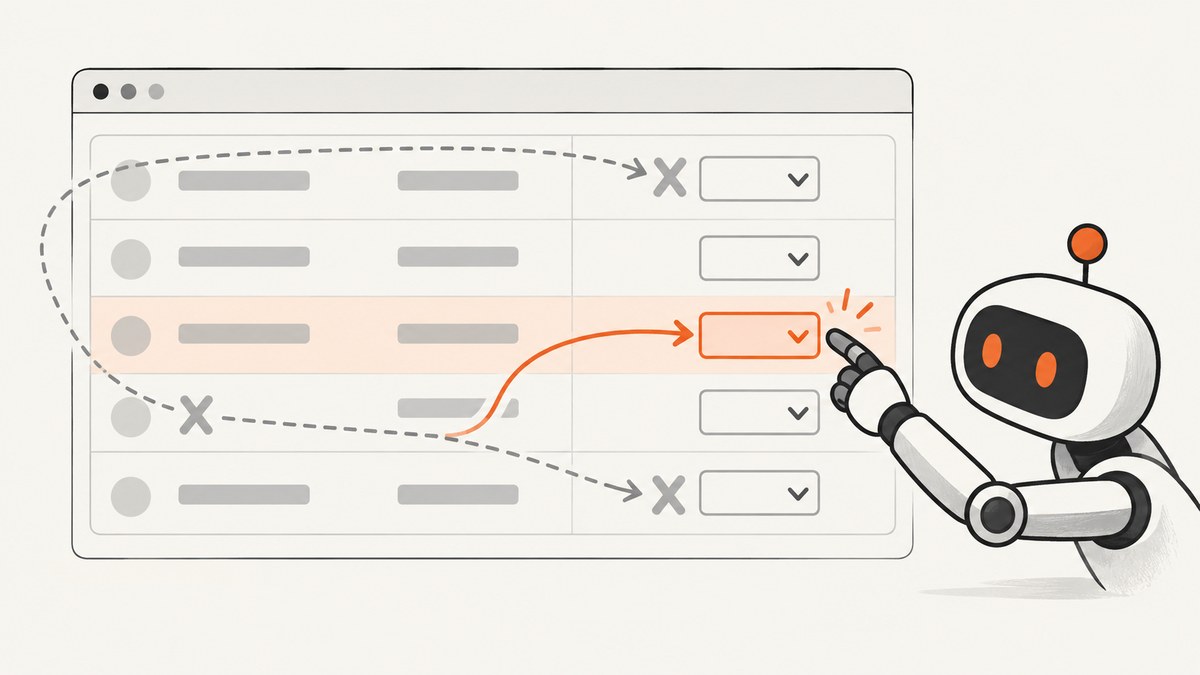
Short answer: locate the target table row first, then find and operate its dropdown. A page-wide selector such as driver.find_element(By.CSS_SELECTOR, "select.status") usually returns the first matching control, so every iteration changes row one. Also confirm whether the control is a real HTML <select>. Selenium’s Select helper works only with native select/option elements; custom widgets made from buttons, divs, inputs, or list items need normal click-and-option interactions.
This guide shows reliable patterns for native and JavaScript dropdowns, dynamic tables, overlays, redraws, multi-selects, verification, and common Selenium errors.
1. Diagnose the dropdown before changing code
- Open browser developer tools and inspect the control in the row you intend to change.
- Check the tag name. A native control looks like
<select><option>...</option></select>. A custom control is often abutton,div, input, or an ARIA listbox. - Inspect the row for a stable identifier such as
data-row-id, a database key, or a unique cell value. - Inspect what happens after selection. Some tables replace the entire row or redraw the body, which invalidates previously stored WebElement objects.
Selenium’s documentation confirms that the Select class “only works for HTML elements select and option.” JavaScript overlays built from div or li require ordinary element interactions (Selenium Select lists documentation).
2. The row-scoped pattern for native selects
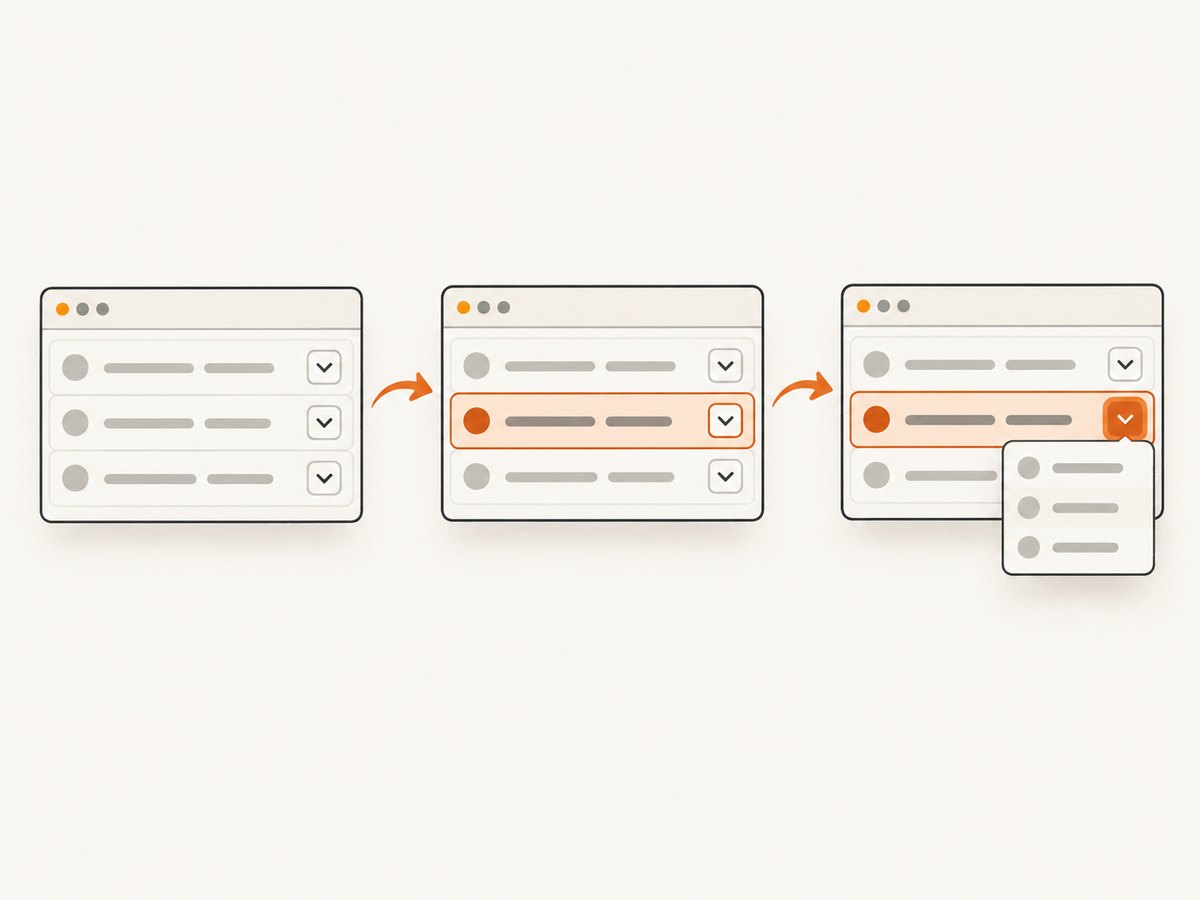
Find the intended tr first, then search within that row. The following complete Python example selects an option by stable row key, waits for the control to be enabled, and verifies the result in the same row.
from selenium import webdriver
from selenium.webdriver.common.by import By
from selenium.webdriver.support.ui import Select, WebDriverWait
from selenium.webdriver.support import expected_conditions as EC

URL = "https://example.test/orders"

driver = webdriver.Chrome()
wait = WebDriverWait(driver, 10)
try:
    driver.get(URL)

    wanted_rows = {"42": "Approved", "57": "On hold", "81": "Rejected"}

    for row_id, label in wanted_rows.items():
        # Re-locate the row on every iteration in case the table redraws.
        row = wait.until(EC.presence_of_element_located(
            (By.CSS_SELECTOR, f"tr[data-row-id='{row_id}']")
        ))
        select_element = row.find_element(By.CSS_SELECTOR, "select.status")
        wait.until(lambda d: select_element.is_enabled())

        Select(select_element).select_by_visible_text(label)

        # Verify the value in this row, rather than in the document globally.
        selected = Select(select_element).first_selected_option.text.strip()
        if selected != label:
            raise AssertionError(
                f"Row {row_id}: expected {label!r}, got {selected!r}"
            )
finally:
    driver.quit()
The critical operation is row.find_element(...). It changes the search context from the whole document to one row. A stable key is safer than an index because sorting, pagination, filtering, and live updates can move rows.
Selection methods and when to use them
| Method | Example | Use when |
|---|---|---|
| Visible text | select.select_by_visible_text("Approved") |
The displayed label is stable and user-facing. |
| Value | select.select_by_value("approved") |
The option’s value is a stable application key. |
| Index | select.select_by_index(2) |
The option order is guaranteed and documented. |
Selenium also exposes first_selected_option, all_selected_options, is_multiple, and deselection methods. The JavaScript API reference documents these operations (Select API).
Native multiple selects
An HTML select is multi-select only when it has the multiple attribute. Select each required option and inspect all selected options afterward:
multi = Select(row.find_element(By.CSS_SELECTOR, "select.tags"))
if not multi.is_multiple:
    raise ValueError("Expected a multiple select")

for value in ("python", "selenium"):
    multi.select_by_value(value)

actual = {option.get_attribute("value") for option in multi.all_selected_options}
assert actual == {"python", "selenium"}
HTML semantics for multiple, size, selected options, and submitted values are described by MDN’s select element reference.
3. Custom JavaScript dropdowns
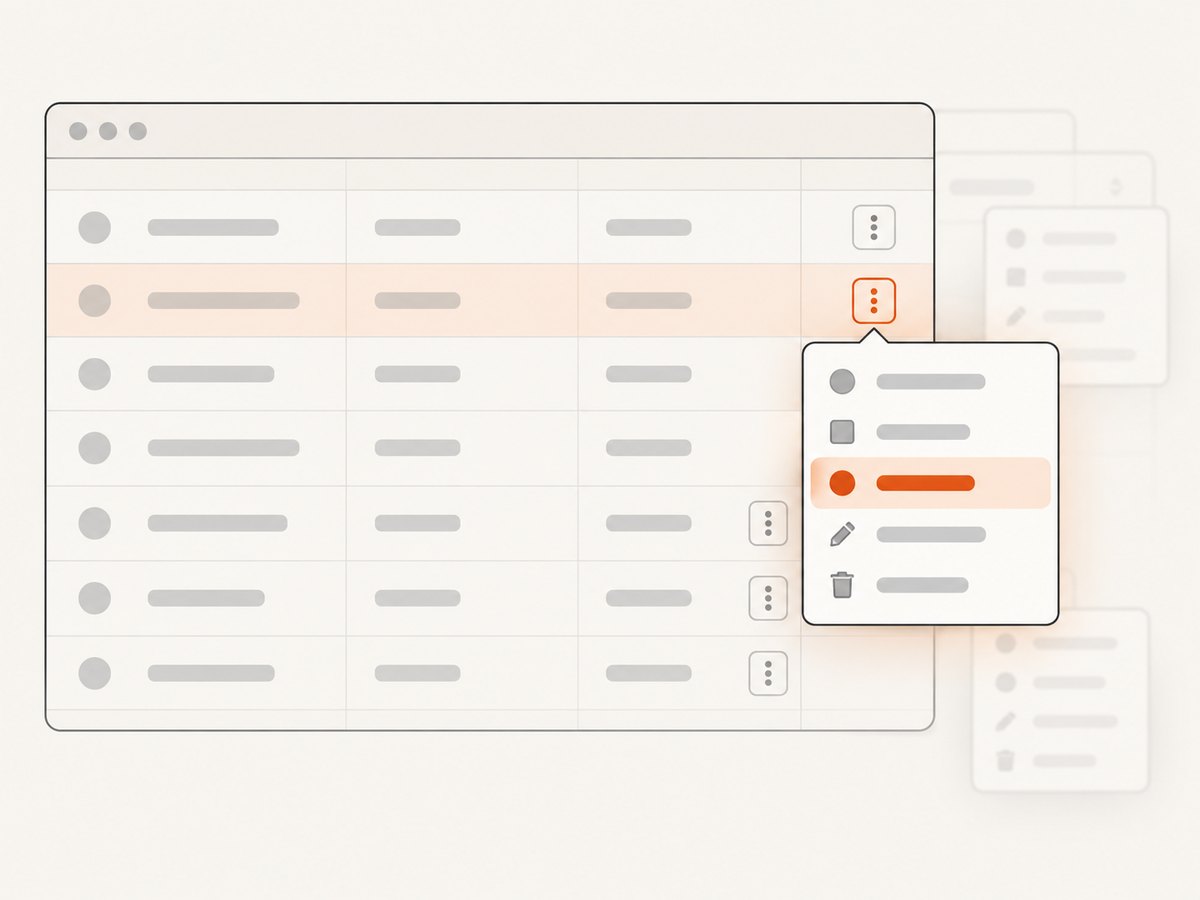
Do not pass a button or div to Select. Locate the trigger inside the target row, click it, then choose a visible option. Many component libraries append the popup to body, so the option may not be a descendant of the row.
from selenium.webdriver.common.by import By
from selenium.webdriver.support.ui import WebDriverWait
from selenium.webdriver.support import expected_conditions as EC

row = wait.until(EC.presence_of_element_located(
    (By.CSS_SELECTOR, "tr[data-row-id='42']")
))
trigger = row.find_element(By.CSS_SELECTOR, "button[aria-haspopup='listbox']")
wait.until(EC.element_to_be_clickable(trigger)).click()

# The popup is rendered outside the row. Restrict the search to visible options.
option = wait.until(EC.element_to_be_clickable(
    (By.XPATH, "//div[@role='option' and normalize-space()='Approved' and not(contains(@style, 'display: none'))]")
))
option.click()

# Re-find the row after a possible redraw and verify its visible label.
row_after = wait.until(EC.presence_of_element_located(
    (By.CSS_SELECTOR, "tr[data-row-id='42']")
))
assert row_after.find_element(By.CSS_SELECTOR, ".status-label").text.strip() == "Approved"
Prefer an attribute that ties the open listbox to its trigger, such as aria-controls, an ID, or a component-specific data attribute. If no relationship exists, select only the currently displayed listbox and avoid assumptions such as “the third option belongs to the third row.”
Keyboard interaction for accessible widgets
Some widgets are more reliable with keyboard events than with a fragile overlay click. After focusing the row-local trigger, send ARROWDOWN and ENTER, then verify the label. Use this only when the component’s documented keyboard behavior is known; keyboard order can change between releases.
4. Waiting, scrolling, and click interception
Selenium scrolls an element into view and checks whether it can be interacted with. If another element covers the click center, the operation can fail with an element click intercepted error (Selenium element interactions).
- Wait for loading masks, cookie banners, sticky headers, and animations to disappear.
- Scroll the row control to a safe viewport position before clicking.
- Wait for
element_to_be_clickable, not merely presence. - Use a normal user-like click first. A JavaScript click bypasses hit testing and should be reserved for a widget whose event handling you understand.
from selenium.webdriver.common.action_chains import ActionChains

trigger = row.find_element(By.CSS_SELECTOR, "button.status-menu")
driver.execute_script(
    "arguments[0].scrollIntoView({block: 'center', inline: 'nearest'});",
    trigger,
)
wait.until(EC.element_to_be_clickable(trigger))
ActionChains(driver).move_to_element(trigger).click().perform()
5. Dynamic tables, stale elements, and redraws
A selection may trigger an AJAX save that replaces the row. Holding a WebElement from before that replacement can produce StaleElementReferenceException. Keep each iteration independent: store the stable row key, re-find the row, perform one action, and wait for the expected new state.
def set_status(row_id, expected):
    row_locator = (By.CSS_SELECTOR, f"tr[data-row-id='{row_id}']")
    row = wait.until(EC.presence_of_element_located(row_locator))
    trigger = row.find_element(By.CSS_SELECTOR, "button.status-menu")
    wait.until(EC.element_to_be_clickable(trigger)).click()
    wait.until(EC.element_to_be_clickable(
        (By.XPATH, f"//*[@role='option' and normalize-space()={expected!r}]")
    )).click()
    wait.until(lambda d: d.find_element(
        *row_locator
    ).find_element(By.CSS_SELECTOR, ".status-label").text.strip() == expected)

for row_id, value in (("42", "Approved"), ("57", "On hold")):
    set_status(row_id, value)
For virtualized grids, a row may not exist in the DOM until you scroll it into view. Use the grid’s stable key or application search/filter controls, then wait for the row to be materialized. Do not rely on a document index that changes as rows are recycled.
6. Common errors and fixes
| Error or symptom | Likely cause | Fix |
|---|---|---|
| Every iteration changes the first row | Global locator returns the first match. | Locate the row by stable key, then call row.find_element. |
UnexpectedTagNameException |
Select received a button/div custom widget. |
Inspect the DOM and use trigger plus option interactions. |
ElementClickInterceptedException |
Overlay, header, animation, or mask covers the click point. | Wait for the blocker, scroll to center, and click after it is interactable. |
StaleElementReferenceException |
The table replaced the row after a selection. | Re-find the row by key after every redraw. |
| Option click works but value reverts | Selection was not committed, or an AJAX save failed. | Wait for the save indicator/result and assert the row’s final label or value. |
| Wrong custom option opens | Popup is global and the selector matches hidden or unrelated options. | Scope to the visible active listbox or use the trigger’s popup ID. |
| Element not interactable | Control is disabled, offscreen, hidden, or covered. | Wait for enabled and visible state; inspect CSS and overlays. |
7. Reliability and performance checklist
- Use explicit waits tied to a state change: presence, visibility, enabled, clickable, or expected text.
- Keep implicit waits consistent; mixing long implicit waits with explicit waits can make failures slow and unpredictable.
- Prefer stable IDs and data attributes over long XPath chains and numeric row positions.
- Verify each action in the same row before continuing, especially when updates are asynchronous.
- Capture diagnostic HTML or a screenshot on failure, including the row key and selected label.
- For large tables, filter or paginate in the application before automating; fewer live nodes make locators and redraws faster.
- Retry only transient operations such as a redraw race. Re-locate the row on each retry and cap attempts so a real validation error is visible.
- Run tests with a consistent browser viewport. Responsive layouts can replace a select with a different widget.
8. Or skip the browser setup
If your goal is collecting page images rather than testing an interactive dropdown, ScreenshotNeo provides a single HTTP request for a PNG, JPEG, WebP, or PDF. Its capture flow accepts cookie and consent banners and removes more than 60 known consent platforms, newsletter popups, and chat widgets before the shot. Bot checks, blank pages, timeouts, failed loads, and cache hits are not billed, and response headers identify the page verdict and billing status.
Read the full parameter list in the ScreenshotNeo API documentation. The same request can be made with cURL, Python, or Node.js:
curl -G "https://api.screenshotneo.com/v1/shot" -d access_key=YOUR_API_KEY --data-urlencode url=https://stripe.com -o shot.webpimport requests
r = requests.get("https://api.screenshotneo.com/v1/shot", params={"access_key": "YOUR_API_KEY", "url": "https://stripe.com"}, timeout=90)
open("shot.webp", "wb").write(r.content)const q = new URLSearchParams({ access_key: 'YOUR_API_KEY', url: 'https://stripe.com' });
const res = await fetch(`https://api.screenshotneo.com/v1/shot?${q}`);For browser automation workflows, ScreenshotNeo also offers an MCP server with take_screenshot, get_page_info, and capture_pdf tools for Claude, Cursor, and other MCP clients. Every feature is available on every plan: 1,000 shots per month are free with no card, and paid plans start at $5 for 3,000 shots. Create a free ScreenshotNeo account.
9. FAQ
Should I use XPath or CSS?
Either works when it expresses a stable relationship. CSS is usually shorter for row keys and descendants; XPath is useful for matching normalized visible text in custom options.
Can I select by row number?
Only when row order is guaranteed for the entire test. Sorting, pagination, filtering, and virtualization make stable keys safer.
Why does the menu open but the option click fail?
The popup may be appended outside the row, hidden behind another overlay, or duplicated in the DOM. Locate the active visible listbox and wait for its option to be clickable.
Is a JavaScript click a permanent fix?
No. It bypasses hit testing and can hide a real overlay or timing problem. Fix synchronization and viewport issues first.
How do I prove the correct row changed?
Re-locate the row by its stable key and assert its selected option or visible status label after the application finishes updating.


