How to Capture Selenium Screenshots Showing Dropdown Menus in Python
Open native and JavaScript dropdowns with Selenium, wait for the menu to render, and save reliable Python screenshots with troubleshooting tips.

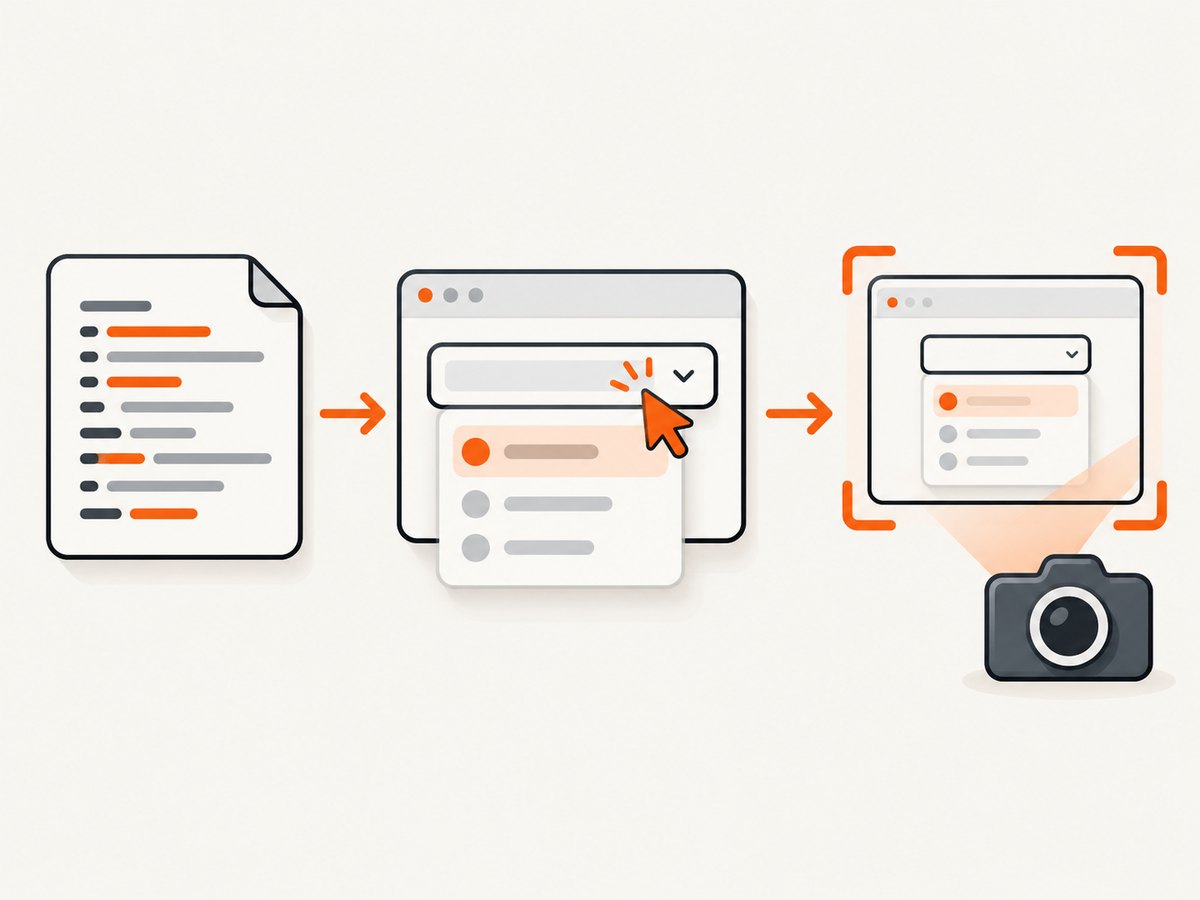
To capture a Selenium screenshot with a dropdown open, first identify the dropdown type. For a native HTML <select>, Selenium’s Select helper can choose an option, but it does not guarantee that the browser’s native expanded popup will appear in the image. For a custom JavaScript dropdown, click the page’s trigger, wait for the rendered menu to become visible, and then capture the page.
This distinction explains most “the dropdown is missing” reports. A custom menu is ordinary HTML that WebDriver can interact with and screenshot. A native select popup is drawn by the browser and operating system, so its appearance in a WebDriver screenshot depends on the exact browser, driver, operating system, and headed or headless mode.
1. Install Selenium and a browser driver
Use Python 3. Selenium 4, and install the package in a virtual environment:
python -m venv .venv
source .venv/bin/activate
python -m pip install -U selenium
Recent Selenium versions can manage compatible browser drivers through Selenium Manager. If your environment does not allow automatic driver management, install the driver required by your browser and put it on PATH. Record the browser, driver, Selenium, operating-system, and headless versions when screenshots need to be reproducible.
2. Capture a custom JavaScript dropdown
Custom dropdowns commonly use a button, a div, or an element with ARIA roles such as combobox and listbox. Selenium’s Select class is not intended for these controls; Selenium documents it for native <select> and <option> elements. Inspect the page and replace the selectors below with the site’s actual trigger and menu selectors.
from pathlib import Path

from selenium import webdriver
from selenium.webdriver.common.by import By
from selenium.webdriver.support.ui import WebDriverWait
from selenium.webdriver.support import expected_conditions as EC

URL = "https://example.com"
TRIGGER = (By.CSS_SELECTOR, "[data-testid='dropdown-trigger']")
MENU = (By.CSS_SELECTOR, "[role='listbox']")

options = webdriver.ChromeOptions()
# Uncomment for a server without a display:
# options.add_argument("--headless=new")
options.add_argument("--window-size=1440,1000")

with webdriver.Chrome(options=options) as driver:
    driver.get(URL)
    wait = WebDriverWait(driver, 10)

    trigger = wait.until(EC.element_to_be_clickable(TRIGGER))
    trigger.click()

    # Wait for the menu that the page actually renders.
    menu = wait.until(EC.visibility_of_element_located(MENU))
    driver.execute_script("arguments[0].scrollIntoView({block: 'center'});", menu)

    Path("dropdown-open.png").write_bytes(driver.get_screenshot_as_png())
get_screenshot_as_png() returns PNG bytes, which makes it convenient to write with Path.write_bytes. Selenium also provides get_screenshot_as_file("dropdown-open.png") for saving the current window directly. The screenshot is taken only after the menu is visible; a click alone does not prove that the animation, data request, or transition has finished.
Wait for the state, not an arbitrary sleep
Use an explicit wait for a meaningful condition. The menu might be present in the DOM while hidden, or it might be visible before its options have loaded.
wait.until(EC.visibility_of_element_located((By.CSS_SELECTOR, "[role='listbox']")))
wait.until(EC.visibility_of_element_located((By.CSS_SELECTOR, "[role='option']")))
If the component exposes an attribute such as aria-expanded="true", wait for that state:
from selenium.webdriver.support import expected_conditions as EC

EXPANDED = (By.CSS_SELECTOR, "[data-testid='dropdown-trigger'][aria-expanded='true']")
wait.until(EC.presence_of_element_located(EXPANDED))
For an animated menu, wait until its computed visibility and dimensions are stable, or wait for a class that the component adds after opening. A short, documented delay can be useful for a CSS transition, but it should supplement a state-based wait rather than replace one.
3. Capture a particular option highlighted or selected
Opening the menu and selecting an option are separate actions. If the screenshot should show a highlighted option, use the page’s option element and wait for its active state.
OPTION = (By.CSS_SELECTOR, "[role='option'][data-value='monthly']")
option = wait.until(EC.visibility_of_element_located(OPTION))
option.click()

# Reopen if the component closes after selection.
wait.until(EC.element_to_be_clickable(TRIGGER)).click()
wait.until(EC.visibility_of_element_located(OPTION))
Path("monthly-option.png").write_bytes(driver.get_screenshot_as_png())
Keyboard-driven widgets may require arrow keys instead of a mouse click. Selenium can send keys to the trigger:
from selenium.webdriver.common.keys import Keys

trigger = wait.until(EC.element_to_be_clickable(TRIGGER))
trigger.send_keys(Keys.ENTER)
trigger.send_keys(Keys.ARROW_DOWN)
wait.until(EC.visibility_of_element_located(MENU))
Path("keyboard-open.png").write_bytes(driver.get_screenshot_as_png())
4. Native HTML select controls
For a native control, import Selenium’s Select helper and choose by visible text, value, or zero-based index:

from selenium.webdriver.common.by import By
from selenium.webdriver.support.ui import Select

select_element = wait.until(
    EC.presence_of_element_located((By.NAME, "country"))
)
select = Select(select_element)
select.select_by_visible_text("Canada")
# Alternatives:
# select.select_by_value("ca")
# select.select_by_index(2)

Path("selected-value.png").write_bytes(driver.get_screenshot_as_png())
This reliably changes the selected value in the closed control. It does not promise that the expanded native option list will be included in the screenshot. Selenium’s screenshot APIs describe the current browsing context and element screenshots; they do not promise consistent capture of an operating-system popup. A Selenium issue reports a Chrome case where an expanded select list appeared offset in the screenshot, and that issue was closed as not planned. Treat that report as environment-specific evidence, not as a guarantee about every browser.
When the expanded native popup itself must be visible
- Test the exact browser and driver versions that your users or CI use.
- Test the same operating system. Native controls can be painted differently across platforms.
- Test headed and headless modes separately. A headless browser may not expose the same native popup surface.
- Click the select, capture immediately, and inspect the saved image rather than assuming the popup was included.
- If the popup is not reliable, capture the selected value, use a custom HTML test fixture, or redesign the test image so it verifies the state without depending on an OS popup.
Selenium’s element interaction guidance also means that clicking or focusing an element can scroll it into view. If the select is near the viewport edge, explicitly scroll it to a predictable position before taking the screenshot.
5. Full-page, element, and viewport screenshots
driver.get_screenshot_as_png() captures the current viewport. For a component-focused image, use an element screenshot:
menu = wait.until(EC.visibility_of_element_located(MENU))
menu.screenshot("menu-only.png")
Element screenshots are useful when surrounding content is distracting, but the menu can be clipped if it is positioned outside the element’s layout box. A viewport screenshot is usually safer for overlays because it preserves the trigger and the menu together.
For a tall page, set a deliberate window size and consider a full-page strategy supported by your target browser. Full-page capture can behave differently when the dropdown is fixed-positioned or rendered in a portal attached to body. Verify that the open menu remains visible after scrolling; some components close when focus or pointer position changes.
6. Make the screenshot deterministic
- Set a fixed viewport with
--window-size=1440,1000. - Use a stable test account and deterministic data.
- Disable animations in a test-only stylesheet when visual timing matters.
- Wait for the menu’s visible state and its options, not just document load.
- Freeze the timezone and locale if labels or date options change by region.
- Close cookie banners and other overlays before opening the dropdown, or handle them explicitly.
- Save browser and driver versions with the artifact.
You can inject CSS to disable transitions in a controlled test environment:
driver.execute_script("""
const style = document.createElement('style');
style.textContent = `*, *::before, *::after {
  animation: none !important;
  transition: none !important;
  caret-color: transparent !important;
}`;
document.head.appendChild(style);
""")
Only do this when removing animation is acceptable for the test. It changes the page presentation and can hide timing bugs that you intended to test.
7. Troubleshooting common failures
| Symptom | Likely cause | Fix |
|---|---|---|
UnexpectedTagNameException from Select |
The element is a div, button, or custom widget. |
Use the trigger’s locator, click it, and wait for the custom menu. |
| The click does nothing | An overlay covers the trigger, it is outside the viewport, or it is not interactable yet. | Dismiss overlays, wait for element_to_be_clickable, scroll into view, and inspect the DOM. |
TimeoutException waiting for the menu |
The selector is wrong, the menu is in an iframe, or opening requires another event. | Check the rendered DOM, switch to the correct iframe, and wait for the actual visible menu selector. |
| The menu is in the DOM but absent from the image | The element remains hidden, is transparent during animation, or opened in another browsing context. | Wait for visibility, wait for options or a completed class, and capture the correct frame. |
| Only the selected value appears | You used a native select_by_* method; it selects an option but does not open the native popup. |
Click the native control and validate the exact environment, or test a custom equivalent. |
| Native options are offset | Browser or operating-system popup rendering differs from the page viewport. | Record versions, test headed and headless modes, and avoid treating the popup as portable. |
| Screenshot is blank or stale | The page is still loading, a navigation occurred, or a new tab/window received focus. | Wait for the target page state, switch to the intended window handle, and confirm the URL before capture. |
| Menu closes before capture | Moving the pointer, scrolling, or clicking another element triggers blur or outside-click logic. | Capture immediately after the visible-state wait and avoid unnecessary interactions. |
| Works locally but fails in CI | Different browser, display, font, viewport, timing, or headless configuration. | Pin versions and dimensions, use explicit waits, and compare the CI artifact directly. |
8. Frames, portals, and shadow DOM
If the dropdown is inside an iframe, switch before locating it:
frame = wait.until(EC.presence_of_element_located((By.CSS_SELECTOR, "iframe.payment")))
driver.switch_to.frame(frame)
wait.until(EC.element_to_be_clickable(TRIGGER)).click()
wait.until(EC.visibility_of_element_located(MENU))
Path("frame-dropdown.png").write_bytes(driver.get_screenshot_as_png())
driver.switch_to.default_content()
A menu rendered through a portal may be attached near the document root rather than next to the trigger. Locate the menu globally after clicking. Shadow DOM components may require Selenium’s shadow-root APIs or JavaScript that enters the component’s shadow root; do not assume a selector visible in browser developer tools works from the document root.
9. Performance, reliability, and cost
Browser startup is often more expensive than the screenshot call. Reuse one driver for a related batch of captures, but reset state between cases with a fresh context, cleared cookies, or a new profile when isolation matters. Explicit waits reduce wasted retries and make failures explainable. Keep screenshots at the smallest viewport and image scope that answers the test question.
For parallel CI, give each worker its own browser profile and output directory. Limit concurrency to what the machine can render without swapping. Save a diagnostic screenshot and HTML or console log when a wait fails; the failure artifact usually shows whether the trigger, menu, overlay, or navigation was wrong.
Native popup behavior is an environment risk, so budget time for validation on every browser and operating-system combination you support. A custom dropdown is generally easier to make deterministic because its pixels belong to the web page and can be selected with normal DOM conditions.
10. Or skip the browser setup
If your goal is a clean image of a URL rather than an interaction test, ScreenshotNeo provides a single screenshot request. Its API can capture PNG, JPEG, WebP, or PDF, and the documentation lists the available options.
curl -G "https://api.screenshotneo.com/v1/shot" -d access_key=YOUR_API_KEY --data-urlencode url=https://example.com -o shot.webpimport requests
r = requests.get(
"https://api.screenshotneo.com/v1/shot",
params={"access_key": "YOUR_API_KEY", "url": "https://example.com"},
timeout=90,
)
r.raise_for_status()
open("shot.webp", "wb").write(r.content)
const q = new URLSearchParams({ access_key: 'YOUR_API_KEY', url: 'https://example.com' });
const res = await fetch(`https://api.screenshotneo.com/v1/shot?${q}`);
if (!res.ok) throw new Error(`Screenshot failed: ${res.status}`);
const fs = await import('node:fs/promises');
await fs.writeFile('shot.webp', Buffer.from(await res.arrayBuffer()));
Cookie banners, newsletter popups, and chat widgets are removed before the shot. Bot checks, blank pages, timeouts, failed loads, and cache hits are not billed, and response headers identify the page verdict and billing result with X-Page-Verdict and X-Billed. An MCP server lets Claude, Cursor, and other MCP clients use take_screenshot, get_page_info, and capture_pdf. The Free plan includes 1,000 screenshots a month with no card; paid plans start at $5 for 3,000 shots. Start with the free ScreenshotNeo account.
11. Short FAQ
Can Selenium screenshot an open native select menu?
It can capture the page after you click the control, but the expanded native popup is not guaranteed to appear consistently. Validate the exact browser, driver, operating system, and rendering mode.
Should I use Select for a React or Vue dropdown?
Only if the rendered element is a real HTML select. If it is a button plus listbox, interact with the component’s trigger and menu elements.
Why does a custom menu disappear in the screenshot?
Usually the capture runs before rendering finishes, the selector matches a hidden copy, or the menu closes on blur. Wait for the visible menu and capture immediately.
Can I capture only the dropdown?
Yes. Locate the visible menu and call its screenshot() method, but use a viewport screenshot when the overlay extends beyond its element box.
Is a screenshot API suitable for interaction tests?
No API can replace Selenium when you must click a control and assert behavior. A screenshot API is useful when the URL and capture configuration are the test input and you want to avoid maintaining browser setup.


