How to Fix Selenium Element Not Visible Exceptions Despite Using Waits
A wait can pass while Selenium still cannot interact with an element. Diagnose the locator, required state, overlays, and viewport before changing timeouts.
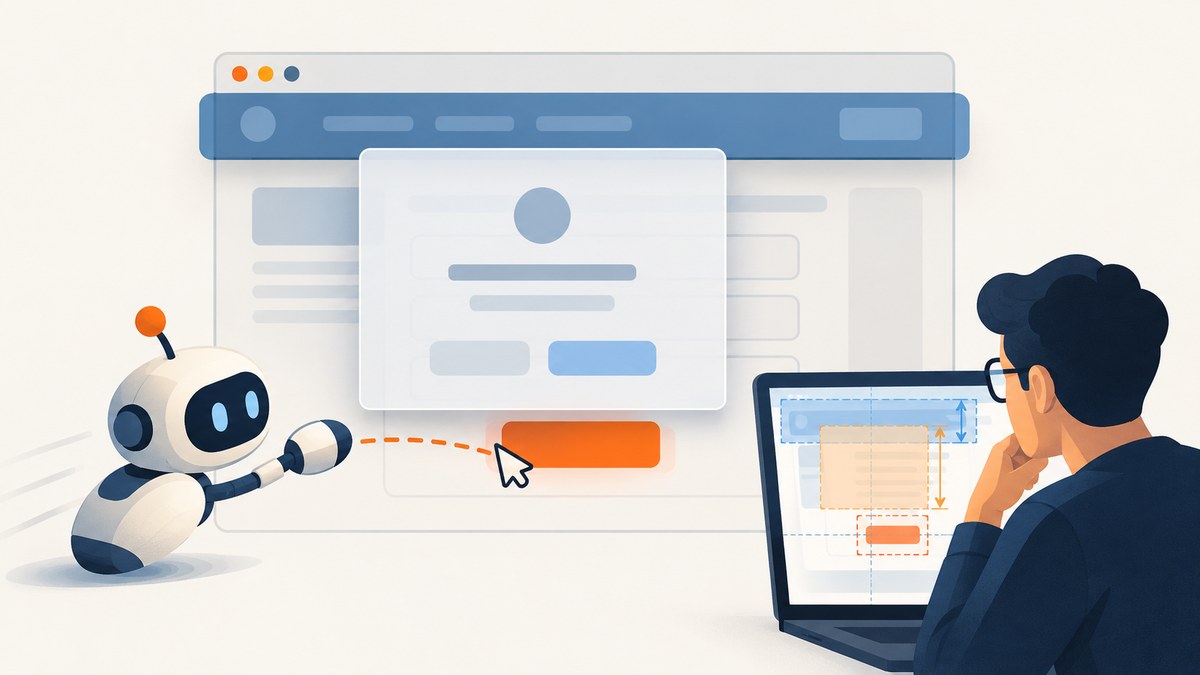
A Selenium wait can pass while the next action still fails because the wait checked a weaker condition than the action requires. An element can exist in the DOM but be hidden; it can be visible but disabled; and it can be visible and enabled while an overlay covers the point Selenium tries to click. Diagnose the exact exception, matched element, action, and page state, then wait for the condition that action needs.
Selenium’s waiting guide says an element must be present and displayed for Selenium to interact with it. Its Python expected conditions define visibility as displayed with nonzero width and height, and clickable as visible and enabled. Neither condition promises that the page will stay unchanged or that a click point will remain unobstructed.
1. Identify what failed before changing the wait
Read the full exception class and message. “Not visible” is often used informally for several different WebDriver failures, and the distinction changes the fix.
| Signal | What it points to | First check |
|---|---|---|
NoSuchElementException |
The current lookup found no matching node. | Check the locator, frame or window, and whether the page has reached the state that creates the node. |
ElementNotInteractableException |
The node exists but is not in a state that accepts the requested interaction. It may be hidden or its center may not be scrollable into view. | Check display, dimensions, viewport position, and whether this is the actual control. |
ElementClickInterceptedException |
A different element would receive the click, commonly because it covers the target’s center. | Inspect dialogs, cookie banners, sticky headers, loading layers, and animations. |
Selenium’s common errors guide describes these as different problems. In particular, click interception is evidence that the target may be visible while an obscuring element covers its click point. A longer wait for target visibility will not necessarily make that obstruction go away.
2. Confirm the locator points to the real control
A correct wait around the wrong node still fails. A broad selector may match a hidden duplicate, a wrapper, a label, a table cell, or a desktop/mobile copy that is not currently displayed. Also verify that the action fits the element: send keys to an input or text area, rather than to a form container or label.
Inspect every match, not just the first. This runnable Python example uses Selenium 4 APIs and prints useful facts about matching nodes:
from selenium.webdriver.common.by import By

locator = (By.CSS_SELECTOR, "button.submit")
matches = driver.find_elements(*locator)
print("matches:", len(matches))
for index, element in enumerate(matches):
    print(
        index,
        "tag:", element.tag_name,
        "displayed:", element.is_displayed(),
        "enabled:", element.is_enabled(),
        "size:", element.size,
        "text:", element.text,
    )
If the count is greater than one, tighten the selector using a stable attribute or scope it to the correct dialog or form. Avoid assuming that index zero is the intended visible control. If the result is a wrapper, locate its child control instead.
3. Match the wait to the next action
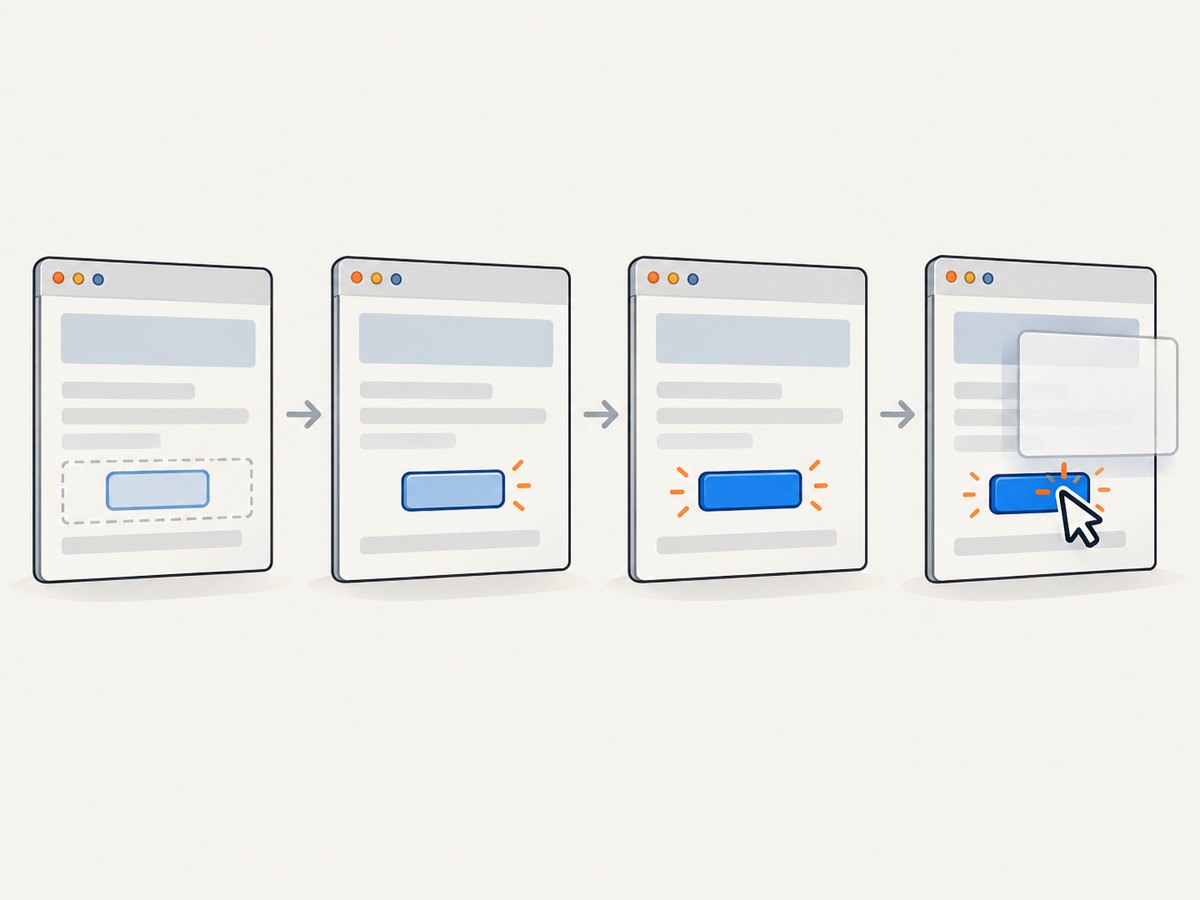
An explicit wait polls until its condition succeeds or its timeout expires. Choose a condition based on the operation that follows it, rather than increasing a timeout without knowing what remains false.
| Condition or action | Use it when | What it does not establish |
|---|---|---|
| Presence | The node is created dynamically and you only need to inspect or wait for DOM existence. | That it is displayed or interactable. |
| Visibility | The node is added or revealed and the next step needs it on screen. | That it is enabled, unobstructed, or stable. |
| Clickable | You are about to click a target that must be visible and enabled. | That another element will not cover its center a moment later. |
| Application state or overlay disappearance | A modal, loading layer, reveal action, or transition controls readiness. | Anything beyond the particular state you explicitly check. |
Here is a basic Python pattern for a click:
from selenium.webdriver.common.by import By
from selenium.webdriver.support import expected_conditions as EC
from selenium.webdriver.support.ui import WebDriverWait

wait = WebDriverWait(driver, 10)
submit = wait.until(
    EC.element_to_be_clickable((By.ID, "submit"))
)
submit.click()
The 10-second value is an example timeout, not a universal recommendation. Python’s expected-conditions API defines visibility as displayed with height and width greater than zero, and clickable as visible and enabled. If the click still fails, inspect what that condition does not cover: overlays, animation, layout shifts, or a locator mismatch.
4. Wait for the page transition or obstruction
If a click opens a hidden field, wait for the resulting field to become visible. If a known overlay blocks a control, wait for that overlay to disappear before locating and clicking the control. The selector and transition are application-specific; use the actual overlay selector and state from the page you automate.
from selenium.webdriver.common.by import By
from selenium.webdriver.support import expected_conditions as EC
from selenium.webdriver.support.ui import WebDriverWait

wait = WebDriverWait(driver, 10)
overlay = (By.CSS_SELECTOR, ".loading-overlay")
target = (By.CSS_SELECTOR, "button.submit")

wait.until(EC.invisibility_of_element_located(overlay))
button = wait.until(EC.element_to_be_clickable(target))
button.click()
If an overlay can be absent from the DOM rather than merely hidden, Selenium’s invisibility condition can cover that state too. If it disappears and then returns, or if another overlay takes its place, identify the relevant page state instead of repeatedly retrying the same click. For a reveal button, wait for the revealed control’s visibility after clicking the reveal action.
5. Check viewport position and click geometry
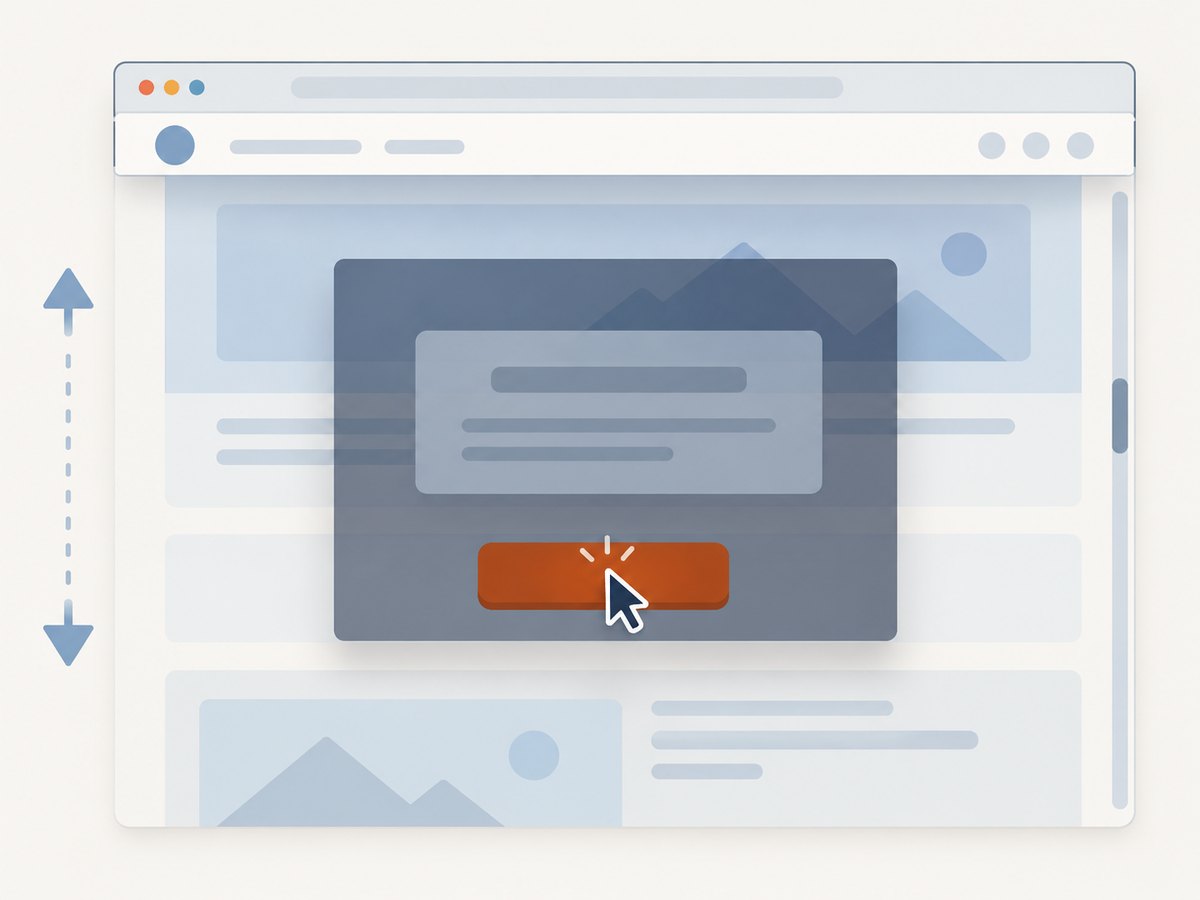
Selenium’s Java API describes ElementNotInteractableException as including a present element that is not displayed or whose center cannot be scrolled into the viewport. A target can also end up behind a sticky header after scrolling. Make position a separate diagnostic step.
from selenium.webdriver.common.by import By
from selenium.webdriver.support import expected_conditions as EC
from selenium.webdriver.support.ui import WebDriverWait

locator = (By.ID, "submit")
wait = WebDriverWait(driver, 10)
element = wait.until(EC.visibility_of_element_located(locator))
driver.execute_script(
    "arguments[0].scrollIntoView({block: 'center'});", element
)
element = wait.until(EC.element_to_be_clickable(locator))
element.click()
Scrolling can help with an out-of-view target; it cannot make an overlapping header disappear. Recheck the target after scrolling, especially if the page has sticky navigation or a fixed consent banner. When pointer position itself matters, Selenium’s Actions API can move to an element before interacting. A normal WebDriver click remains the appropriate check of whether the target can receive a browser click; do not hide a real obstruction by replacing it with a different interaction mechanism.
6. Complete diagnostic example in Python
This example uses explicit waits, checks locator uniqueness, waits for a known overlay to clear, and then scrolls and clicks. Replace the selectors with ones from your page. It deliberately reports a useful locator mismatch rather than silently choosing one duplicate.
from selenium import webdriver
from selenium.common.exceptions import TimeoutException
from selenium.webdriver.common.by import By
from selenium.webdriver.support import expected_conditions as EC
from selenium.webdriver.support.ui import WebDriverWait

options = webdriver.ChromeOptions()
# Uncomment for a headless run:
# options.add_argument("--headless=new")
driver = webdriver.Chrome(options=options)
wait = WebDriverWait(driver, 10)

try:
    driver.get("https://example.com/form")
    target = (By.CSS_SELECTOR, "button.submit")
    overlay = (By.CSS_SELECTOR, ".loading-overlay")

    wait.until(EC.presence_of_element_located(target))
    matches = driver.find_elements(*target)
    if len(matches) != 1:
        raise RuntimeError(f"Expected one submit button; found {len(matches)}")

    wait.until(EC.invisibility_of_element_located(overlay))
    button = wait.until(EC.element_to_be_clickable(target))
    driver.execute_script(
        "arguments[0].scrollIntoView({block: 'center'});", button
    )
    button = wait.until(EC.element_to_be_clickable(target))
    button.click()
except TimeoutException as error:
    print("A required page condition did not become true:", error)
    raise
finally:
    driver.quit()
https://example.com/form and the selectors are placeholders, so replace them with your application’s URL and markup. The wait does not make a broken selector correct, and the overlay condition only helps if its selector represents the real obstruction.
7. Keep wait configuration predictable
Selenium warns that mixing implicit and explicit waits can cause unpredictable total wait times. During diagnosis, set implicit wait to zero and use explicit waits for the conditions needed at each step:
driver.implicitly_wait(0)
wait = WebDriverWait(driver, 10)
Do not keep increasing both wait types until a flaky interaction appears to pass. Record which condition is failing, then wait for the page transition that should make it true. Fixed sleeps can be useful for a temporary experiment, but they do not verify readiness and can make a run slower when the page is already ready.
8. Troubleshooting by symptom
| Symptom | Likely cause | Fix |
|---|---|---|
| Presence wait passes; interaction says not interactable | The node exists but remains hidden, has no usable dimensions, or is not the control. | Wait for visibility or the reveal action’s result; inspect matched nodes and use the actual input or button. |
| Visibility wait passes; click is intercepted | A modal, banner, sticky bar, another element, or animation covers the click point. | Wait for the obstruction to disappear or finish; inspect again after scrolling. |
| Visibility wait times out | The page never revealed the target, the selector is wrong, or the lookup is in the wrong frame or window. | Check the selector and browsing context; wait for the action that reveals it. |
| One selector returns several matches | Hidden duplicate controls, repeated components, or a wrapper match. | Scope the locator to the right component and confirm its result is unique. |
| Failures persist after scrolling | The target may be under fixed UI, moving during animation, or inaccessible in its current state. | Check center-point obstruction and wait for the relevant state transition before retrying. |
| Observed timeout is much longer than configured | Implicit and explicit waits are combined or nested wait operations add time. | Use one clear synchronization approach while debugging; avoid mixing implicit and explicit waits. |
For diagnosis, capture the exception class and message, current URL, locator, number of matches, displayed and enabled state, and whether a known overlay is present. These observations distinguish a condition that never became true from one that became true and was then invalidated by a page change.
9. Reliability, runtime, and cost considerations
Explicit waits improve reliability when they check the state that the next action requires. They do not make a changing page atomic: the target can move, become disabled, or be covered after the wait returns. Keep waits close to the action, wait for application-specific transitions where necessary, and re-check after scrolling or other layout changes.
Use a finite timeout that fits the application and report which state timed out. Polling for a specific condition generally avoids spending the full timeout when the page becomes ready early, unlike a fixed sleep. A larger timeout can help with genuinely slow transitions, but it also delays detection when a selector or state can never succeed. Selenium’s documentation does not provide a universal timeout or failure-rate benchmark, so choose based on the application’s expected behavior.
For a local Selenium run, the practical costs are browser and driver runtime plus the infrastructure used to run them. This diagnosis does not imply a particular speed or monetary saving. If you need a screenshot for visual debugging, a browser screenshot from the failing session preserves that session’s state; a separate screenshot service captures a page through its own request and cannot reproduce Selenium’s exact session, authenticated state, or timing unless configured to match it.
Or skip the browser setup
For a clean screenshot of a URL without setting up Selenium, ScreenshotNeo is a website screenshot API and MCP server. Its API accepts one GET request and returns an image or PDF; see the ScreenshotNeo API documentation. For browser automation and UI interaction, continue using Selenium; this call captures a page image.
curl -G "https://api.screenshotneo.com/v1/shot" -d access_key=YOUR_API_KEY --data-urlencode url=https://stripe.com -o shot.webpimport requests
r = requests.get(
"https://api.screenshotneo.com/v1/shot",
params={"access_key": "YOUR_API_KEY", "url": "https://stripe.com"},
timeout=90,
)
open("shot.webp", "wb").write(r.content)const q = new URLSearchParams({ access_key: 'YOUR_API_KEY', url: 'https://stripe.com' });
const res = await fetch(`https://api.screenshotneo.com/v1/shot?${q}`);
if (!res.ok) throw new Error(`Screenshot request failed: ${res.status}`);
await import('node:fs/promises').then(({ writeFile }) =>
writeFile('shot.webp', Buffer.from(await res.arrayBuffer()))
);ScreenshotNeo removes cookie banners, popups, and chat widgets before the shot. Bot checks, blank pages, and failed loads are never billed. Its MCP server lets AI agents take screenshots. The free plan includes 1,000 screenshots a month with no card; paid plans start at $5 for 3,000. Learn about ScreenshotNeo or sign up for 1,000 free screenshots a month, with no card.
Frequently asked questions
Does element_to_be_clickable guarantee a successful click?
No. It checks that the element is visible and enabled. Another element can still cover the click point, or the page can change between the check and click.
Should I use JavaScript to click an element that Selenium cannot click?
Not as the first fix. A JavaScript click can bypass the browser interaction problem you are trying to diagnose. First confirm the intended control, wait for the relevant state, and inspect obstructions.
Why does the same wait pass on one run and fail on another?
The page may render or change layout at different times, or a transient overlay may appear. Wait for the application state that controls readiness and keep the wait close to the interaction.
Is ElementNotInteractableException the same as click interception?
No. The first indicates that an element cannot be interacted with in its current state. Click interception specifically signals that another element would receive the click.


