How to Screenshot a Web Element and Compare Its Text with Selenium
Locate a DOM element, save its screenshot, read its rendered text, and assert the expected value with Selenium in Python and JavaScript.
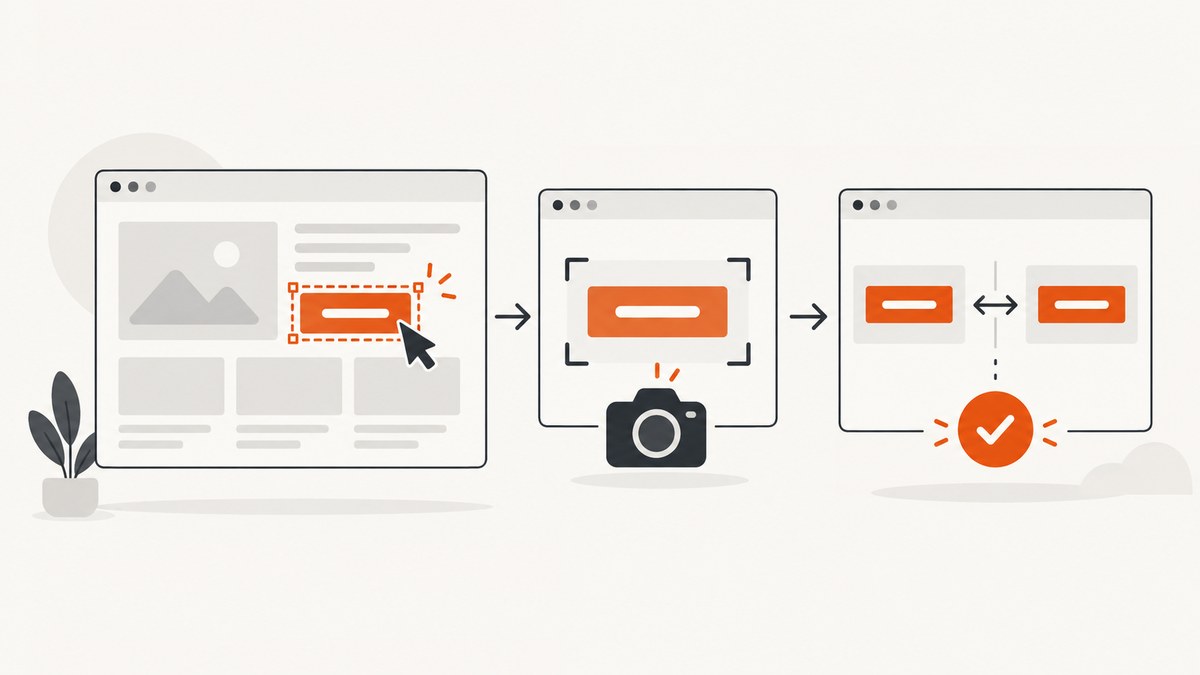
Use Selenium to find the element with a stable locator, call the element screenshot method, read its rendered text, and compare that text with your expected value. The screenshot belongs to the WebElement; a driver screenshot captures the browser viewport instead.
1. The basic workflow
- Open the page and wait until the target is present and visible.
- Locate the element with an ID, CSS selector, or another stable strategy.
- Save the element screenshot to a file.
- Read rendered text with the binding’s text API.
- Assert the actual value equals the expected value.
Selenium’s locator guidance covers finding elements with stable strategies, while its element information documentation distinguishes rendered text from attributes and properties. See locator strategies and web element information.
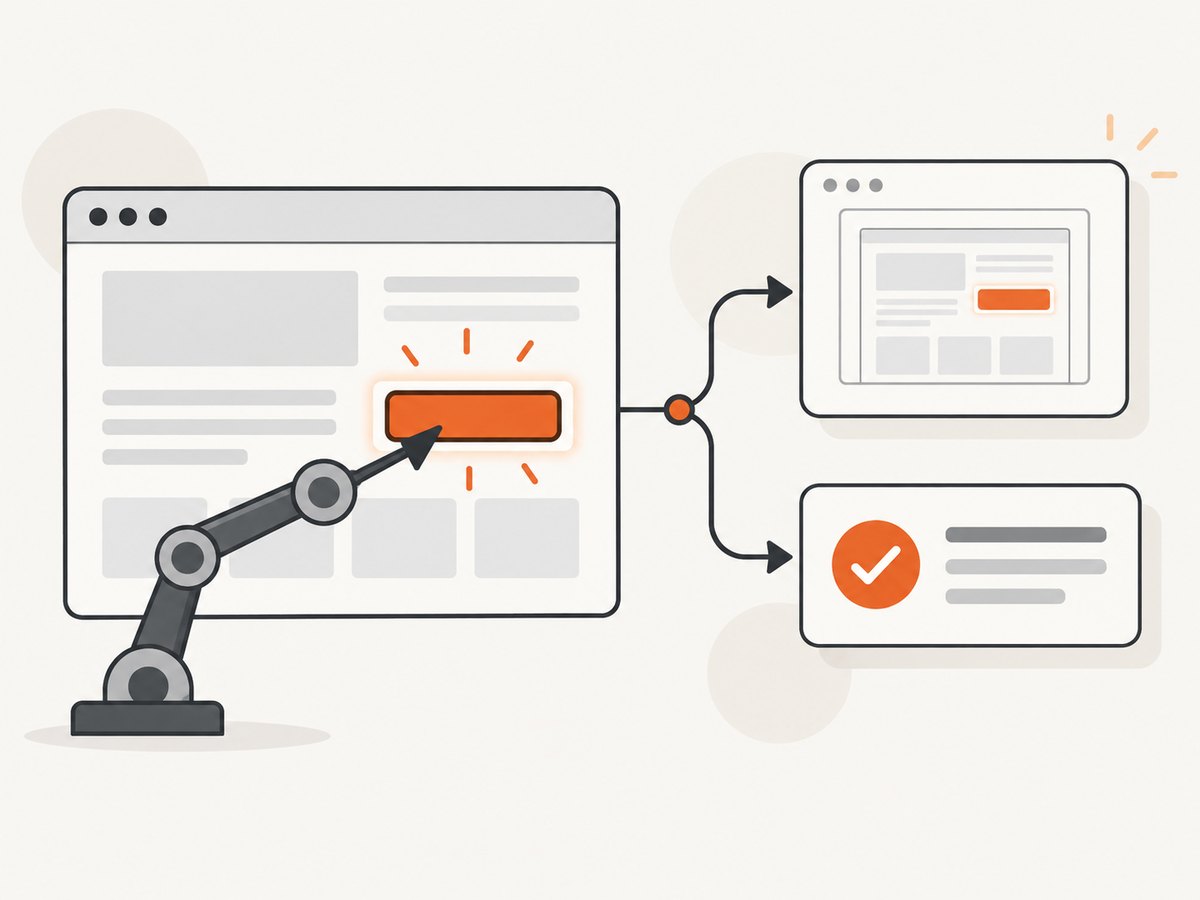
2. Python: capture an element and compare its text
Install Selenium with pip install selenium. Recent Selenium versions can manage a compatible browser driver automatically.
from pathlib import Path
from selenium import webdriver
from selenium.webdriver.common.by import By
from selenium.webdriver.support.ui import WebDriverWait
from selenium.webdriver.support import expected_conditions as EC

URL = "https://example.com"
EXPECTED_TEXT = "Example Domain"
OUTPUT = Path("element.png")

options = webdriver.ChromeOptions()
options.add_argument("--headless=new")
options.add_argument("--window-size=1440,1000")

with webdriver.Chrome(options=options) as driver:
    driver.get(URL)
    wait = WebDriverWait(driver, 20)
    element = wait.until(
        EC.visibility_of_element_located((By.CSS_SELECTOR, "h1"))
    )

    # WebElement.screenshot writes PNG bytes directly to a file.
    if not element.screenshot(str(OUTPUT)):
        raise RuntimeError("Selenium could not capture the element")

    actual_text = element.text
    assert actual_text == EXPECTED_TEXT, (
        f"Expected {EXPECTED_TEXT!r}, got {actual_text!r}"
    )

print(f"Saved {OUTPUT}; text matched {EXPECTED_TEXT!r}")
element.text returns rendered text. It does not read every DOM value. For an input, use get_attribute("value") (or the element property API) instead:
field = driver.find_element(By.NAME, "email")
actual_value = field.get_attribute("value")
assert actual_value == "person@example.com"
3. JavaScript: use the element screenshot API
Install the binding with npm install selenium-webdriver. Selenium’s JavaScript example returns base64 image data from takeScreenshot(true); decode it before writing the file.
const { Builder, By, until } = require('selenium-webdriver');
const fs = require('node:fs');

(async function () {
  const driver = await new Builder().forBrowser('chrome').build();
  try {
    await driver.get('https://example.com');
    const element = await driver.wait(
      until.elementLocated(By.css('h1')),
      20000
    );
    await driver.wait(until.elementIsVisible(element), 20000);

    const pngBase64 = await element.takeScreenshot(true);
    fs.writeFileSync('element.png', Buffer.from(pngBase64, 'base64'));

    const actualText = await element.getText();
    const expectedText = 'Example Domain';
    if (actualText !== expectedText) {
      throw new Error(`Expected ${expectedText}, got ${actualText}`);
    }
  } finally {
    await driver.quit();
  }
})();
The official Selenium screenshot documentation shows separate driver and element screenshot operations: screenshots.
4. Java: save the element screenshot and assert text
import java.nio.file.Files;
import java.nio.file.Path;
import java.time.Duration;
import org.openqa.selenium.By;
import org.openqa.selenium.OutputType;
import org.openqa.selenium.WebDriver;
import org.openqa.selenium.WebElement;
import org.openqa.selenium.chrome.ChromeDriver;
import org.openqa.selenium.support.ui.ExpectedConditions;
import org.openqa.selenium.support.ui.WebDriverWait;

public class ElementCheck {
  public static void main(String[] args) throws Exception {
    WebDriver driver = new ChromeDriver();
    try {
      driver.get("https://example.com");
      WebDriverWait wait = new WebDriverWait(driver, Duration.ofSeconds(20));
      WebElement element = wait.until(
          ExpectedConditions.visibilityOfElementLocated(By.cssSelector("h1")));

      byte[] png = element.getScreenshotAs(OutputType.BYTES);
      Files.write(Path.of("element.png"), png);

      String actual = element.getText();
      String expected = "Example Domain";
      if (!actual.equals(expected)) {
        throw new AssertionError("Expected " + expected + ", got " + actual);
      }
    } finally {
      driver.quit();
    }
  }
}
5. Choosing locators that survive page changes
| Locator | Example | When to use |
|---|---|---|
| ID | By.ID, "status" |
Best when the ID is stable and unique. |
| CSS | By.CSS_SELECTOR, "[data-testid='status']" |
Good for test-specific attributes and structured selectors. |
| Name | By.NAME, "email" |
Useful for form controls. |
| XPath | By.XPATH, "//h1" |
Use when relationships or text-based structure are necessary. |
Prefer a dedicated test attribute such as data-testid over a generated class name. Avoid selecting by visual position or deeply nested markup.
6. Rendered text versus DOM values
- Visible text:
element.textin Python orgetText()in JavaScript returns rendered text according to Selenium’s element information rules. - Input value: read
get_attribute("value")in Python orgetAttribute('value')in JavaScript. - Other properties: query the required attribute or property explicitly, such as
aria-label,href, orchecked. - Whitespace: decide whether whitespace is part of the contract. If not, normalize deliberately with
" ".join(actual.split())rather than hiding unexpected content.
7. Waiting, scrolling, and dynamic content
A screenshot can be blank or incomplete when the element exists in the DOM but has not rendered. Wait for visibility, a specific state, or application text. For lazy content, scroll the element into view before capture:
driver.execute_script(
    "arguments[0].scrollIntoView({block: 'center'});", element
)
wait.until(lambda d: element.is_displayed() and element.text.strip())
element.screenshot("element.png")
Use an explicit wait instead of a fixed sleep where possible. If the page changes after the wait, locate the element again immediately before reading and capturing it.
8. Iframes, shadow DOM, and tricky elements
Iframe
frame = wait.until(EC.presence_of_element_located((By.CSS_SELECTOR, "iframe")))
driver.switch_to.frame(frame)
inside = wait.until(EC.visibility_of_element_located((By.CSS_SELECTOR, "h1")))
inside.screenshot("inside-frame.png")
assert inside.text == "Expected"
driver.switch_to.default_content()
Shadow DOM
Enter the shadow root before locating the target. In Python bindings that support it:
host = driver.find_element(By.CSS_SELECTOR, "my-component")
shadow = host.shadow_root
inside = shadow.find_element(By.CSS_SELECTOR, "h1")
inside.screenshot("shadow-element.png")
Hidden, clipped, or oversized elements
- A hidden element may have no meaningful pixels; assert visibility first.
- CSS transforms, clipping, and overflow can affect the captured bounds.
- For a very large element, increase the browser window or capture a smaller component. A driver screenshot is a viewport image, not an element image.
- Canvas text may not be available through
element.text; test the underlying data or an accessibility label as appropriate.
9. Assertions and useful failure artifacts
Keep the text assertion exact when the displayed copy is part of the contract. For less brittle checks, assert a normalized value or a required substring. On failure, save the page source, a full viewport screenshot, and the target screenshot when possible:
try:
    assert actual_text == expected_text
except AssertionError:
    driver.save_screenshot("failure-viewport.png")
    element.screenshot("failure-element.png")
    Path("failure.html").write_text(driver.page_source, encoding="utf-8")
    raise
10. Troubleshooting
| Error or symptom | Likely cause | Fix |
|---|---|---|
NoSuchElementException |
Wrong locator, page not loaded, or wrong frame. | Verify the selector, wait for the element, and switch into the iframe. |
TimeoutException |
Element never became present or visible. | Check URL, authentication, overlays, network requests, and the wait condition. |
StaleElementReferenceException |
Frontend re-rendered the node. | Wait for the update to finish and locate the element again. |
| Empty or unexpected text | Text is asynchronous, hidden, or stored in an attribute. | Wait for non-empty rendered text; use the relevant property for inputs and controls. |
| Screenshot is blank | Element is hidden, outside the rendered area, or covered by a loading state. | Wait for visibility, scroll into view, and remove the loading condition. |
| Screenshot file cannot be opened | Base64 data was written as text or the output path is invalid. | Decode base64 in JavaScript and write binary bytes; create the output directory first. |
| Driver or browser mismatch | Installed browser and driver versions are incompatible. | Use Selenium Manager or install a matching driver and browser. |
11. Performance, reliability, and cost
- Reuse one driver for a related test sequence, but isolate tests that modify cookies, storage, viewport, or authentication.
- Use targeted locators and explicit waits; repeated full-page polling adds latency.
- Set a consistent viewport, timezone, locale, and font environment when comparing screenshots.
- Capture only the element needed for visual evidence. Save full-page or viewport images only when diagnosing layout.
- Selenium runs a real browser, so each capture consumes browser CPU and memory. Parallel workers improve throughput but require separate driver sessions and enough resources.
- Text assertions are usually more stable and cheaper to maintain than pixel comparisons. Use the image as a diagnostic artifact unless visual fidelity itself is under test.
12. Or skip the browser setup
ScreenshotNeo provides a website screenshot API and MCP server. One GET request captures a URL as PNG, JPEG, WebP, or PDF; its element capture option can target a CSS selector. See the ScreenshotNeo API documentation.
curl -G "https://api.screenshotneo.com/v1/shot" -d access_key=YOUR_API_KEY --data-urlencode url=https://example.com -o shot.webpimport requests
r = requests.get("https://api.screenshotneo.com/v1/shot", params={"access_key": "YOUR_API_KEY", "url": "https://example.com"}, timeout=90)
r.raise_for_status()
open("shot.webp", "wb").write(r.content)const q = new URLSearchParams({ access_key: 'YOUR_API_KEY', url: 'https://example.com' });
const res = await fetch(`https://api.screenshotneo.com/v1/shot?${q}`);
if (!res.ok) throw new Error(`HTTP ${res.status}`);
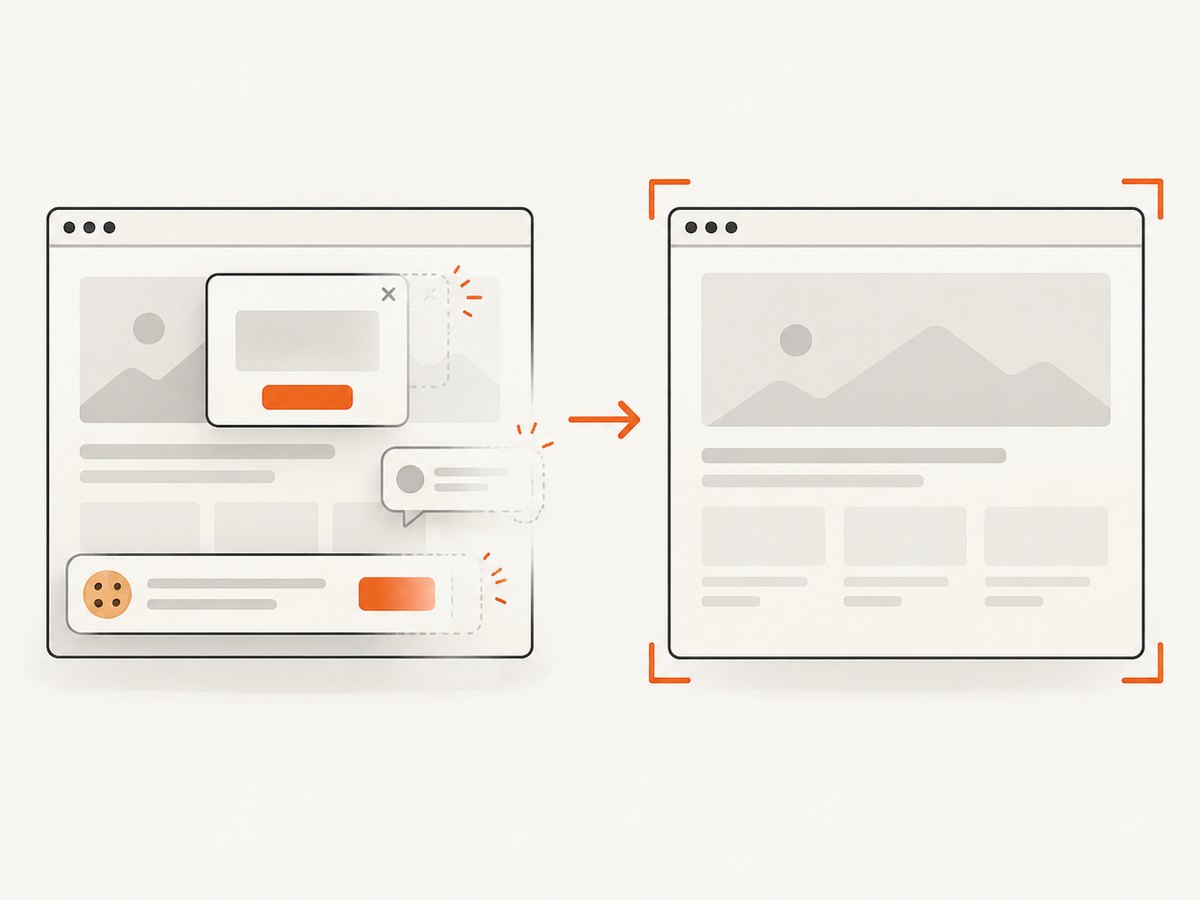
require('node:fs').writeFileSync('shot.webp', Buffer.from(await res.arrayBuffer()));Before the capture, ScreenshotNeo accepts cookie and consent banners and removes more than 60 known consent platforms, newsletter popups, and chat widgets; each step can be turned off. Bot checks, blank pages, timeouts, failed loads, and cache hits are not billed, and the response identifies the result with X-Page-Verdict and X-Billed headers. It also offers an MCP server with take_screenshot, get_page_info, and capture_pdf for Claude, Cursor, and other MCP clients. The Free plan includes 1,000 shots per month with no card; paid plans start at $5 for 3,000 shots, and every feature is on every plan.
Start with 1,000 free screenshots a month—no card required.
13. FAQ
Does an element screenshot include the whole page?
No. It captures the located element’s bounds. Use a driver or full-page capture when you need the broader document.
Why does element.text differ from what I see?
Selenium returns rendered text according to the element’s layout and visibility. The value may differ from hidden text, whitespace in the source, or an input’s current value.
Can I compare text without saving an image?
Yes. Screenshotting and text comparison are independent operations; save the image only when you need visual evidence.
How should I test localized pages?
Set the browser locale and expected string explicitly, or keep locale-specific expectations in separate test data.


