How to Capture and Upload Selenium Failure Screenshots to Google Drive or Dropbox in Java
Capture Selenium screenshots in a Java test failure hook, then upload them to Google Drive or Dropbox. Includes OAuth, working code, and CI troubleshooting.
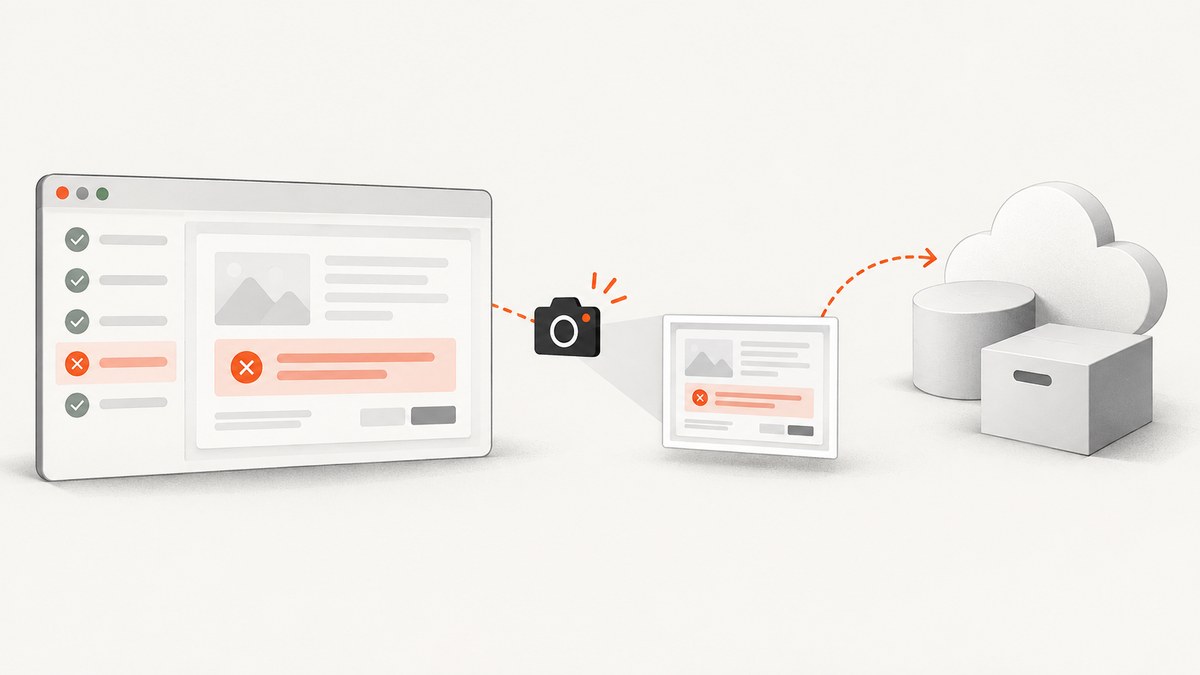
Capture the screenshot inside the test failure callback while the Selenium WebDriver is still alive, save the temporary screenshot to a persistent file, and then upload that file to Google Drive or Dropbox. The key Java API is TakesScreenshot.getScreenshotAs(OutputType.FILE). The examples below show a JUnit 5 failure extension, Google Drive upload with the official Java client, and a Dropbox API v2 upload using the official Java SDK.
For Google Drive, files up to 5 MB can use simple or multipart uploads; resumable upload is the documented choice for larger files or interruption-prone connections. Google’s Java quickstart specifies Java 11 or newer and Gradle 7 or newer, plus a Google Cloud project, enabled Drive API, and OAuth client credentials. Its simplified authentication is intended for testing, so production CI should use an authorization design appropriate to its environment. [Drive upload guide; Java quickstart]
1. Capture before WebDriver teardown
Selenium’s TakesScreenshot interface exposes getScreenshotAs, which can return a temporary file, raw bytes, or Base64 data. The driver must still be available when this call runs. Capture first, copy the temporary file to a stable path, upload it, and only then let teardown quit the driver. Selenium documents that capture can fail with WebDriverException or UnsupportedOperationException. [Selenium TakesScreenshot API]
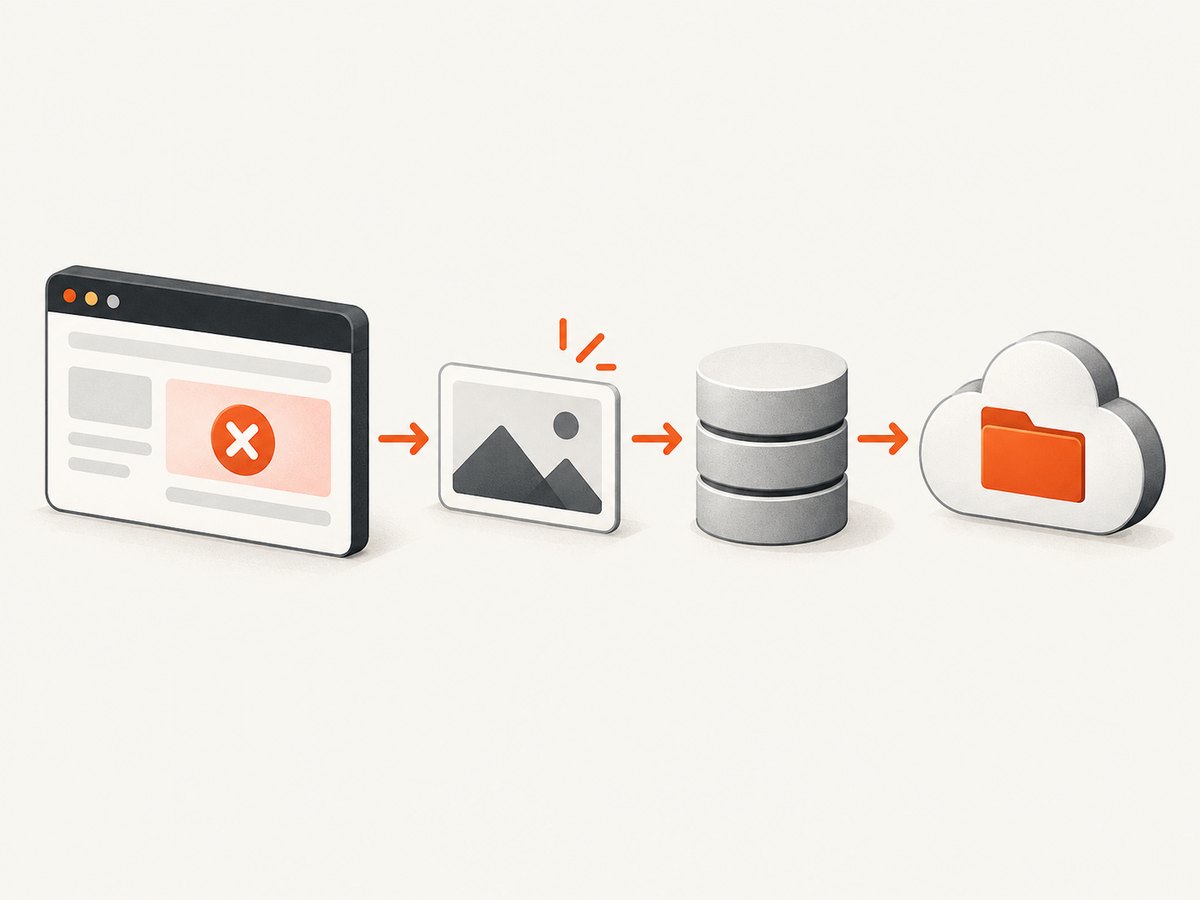
The following JUnit 5 extension captures only failed tests. It writes a uniquely named PNG to a configurable directory and does not let an upload problem hide the original assertion failure. The FailureScreenshotUploader interface lets you plug in either provider implementation shown below.
import org.junit.jupiter.api.extension.AfterTestExecutionCallback;
import org.junit.jupiter.api.extension.ExtensionContext;
import org.openqa.selenium.OutputType;
import org.openqa.selenium.TakesScreenshot;
import org.openqa.selenium.WebDriver;
import org.openqa.selenium.WebDriverException;

import java.io.IOException;
import java.nio.file.Files;
import java.nio.file.Path;
import java.time.Instant;
import java.time.ZoneOffset;
import java.time.format.DateTimeFormatter;

public final class FailureScreenshotExtension implements AfterTestExecutionCallback {
    private final WebDriverProvider driverProvider;
    private final FailureScreenshotUploader uploader;
    private final Path outputDirectory;

    public FailureScreenshotExtension(WebDriverProvider driverProvider,
                                      FailureScreenshotUploader uploader,
                                      Path outputDirectory) {
        this.driverProvider = driverProvider;
        this.uploader = uploader;
        this.outputDirectory = outputDirectory;
    }

    @Override
    public void afterTestExecution(ExtensionContext context) throws Exception {
        if (context.getExecutionException().isEmpty()) return;

        WebDriver driver = driverProvider.current();
        if (driver == null) {
            System.err.println("No active WebDriver; failure screenshot skipped");
            return;
        }

        String test = context.getRequiredTestClass().getSimpleName() + "_" +
                context.getRequiredTestMethod().getName();
        String safeTest = test.replaceAll("[^A-Za-z0-9._-]", "_");
        String stamp = DateTimeFormatter.ofPattern("yyyyMMdd'T'HHmmss.SSS'Z'")
                .withZone(ZoneOffset.UTC).format(Instant.now());
        Path screenshot = outputDirectory.resolve(safeTest + "_" + stamp + ".png");

        try {
            Files.createDirectories(outputDirectory);
            var temporary = ((TakesScreenshot) driver)
                    .getScreenshotAs(OutputType.FILE);
            Files.copy(temporary.toPath(), screenshot);
            uploader.upload(screenshot, test, driver.getCurrentUrl());
        } catch (WebDriverException | UnsupportedOperationException e) {
            System.err.println("Screenshot capture failed for " + test + ": " + e);
        } catch (IOException e) {
            System.err.println("Could not persist screenshot for " + test + ": " + e);
        } catch (Exception e) {
            // Preserve the test failure; report upload failure for diagnosis.
            System.err.println("Screenshot upload failed for " + test + ": " + e);
        }
    }
}

interface WebDriverProvider {
    WebDriver current();
}

interface FailureScreenshotUploader {
    void upload(Path localFile, String testName, String pageUrl) throws Exception;
}
Register the extension using @RegisterExtension or your project’s JUnit extension mechanism, and ensure its callback runs before any @AfterEach or fixture teardown that calls driver.quit(). If your framework orders callbacks differently, move the same capture-and-upload logic into its failure listener or teardown hook. For TestNG, use a listener such as ITestListener.onTestFailure and perform the capture before driver cleanup.
2. Configure Google Drive OAuth
Follow Google’s current Java quickstart to create a Cloud project, enable the Drive API, configure OAuth credentials, and choose the authorization flow. The quickstart is a useful local starting point; for CI and production, keep credentials in the CI secret store, grant only the required access, and choose an authorization method compatible with the account and target Drive. Do not commit client secrets or refresh tokens, and do not print access tokens in logs.
The Drive Java client’s FileContent helper wraps a local file as upload media. The method below creates a Drive file, optionally places it under a known folder ID, and returns the new file ID. This follows Google’s documented files().create(...).execute() Java shape. [Google Java quickstart; Drive upload guide]
import com.google.api.client.http.FileContent;
import com.google.api.services.drive.Drive;
import com.google.api.services.drive.model.File;

import java.io.IOException;
import java.nio.file.Path;

public final class GoogleDriveUploader implements FailureScreenshotUploader {
    private final Drive drive;
    private final String parentFolderId; // null to use the authenticated user's default location

    public GoogleDriveUploader(Drive drive, String parentFolderId) {
        this.drive = drive;
        this.parentFolderId = parentFolderId;
    }

    @Override
    public void upload(Path localFile, String testName, String pageUrl) throws IOException {
        File metadata = new File();
        metadata.setName(localFile.getFileName().toString());
        if (parentFolderId != null && !parentFolderId.isBlank()) {
            metadata.setParents(java.util.List.of(parentFolderId));
        }
        metadata.setDescription("Selenium failure: " + testName + " | URL: " + pageUrl);

        FileContent media = new FileContent("image/png", localFile.toFile());
        File created = drive.files().create(metadata, media)
                .setFields("id,name,mimeType")
                .execute();
        System.out.println("Drive screenshot uploaded: " + created.getId() +
                " (" + created.getName() + ")");
    }
}
Initialize Drive using the credential setup generated by Google’s quickstart, then pass that client to this uploader. Keep the required Drive scope as narrow as the chosen folder and sharing model permit. A successful create response means the upload completed; persist the file ID in test logs or a CI report so a later investigation can locate it.
3. Upload to Dropbox with its Java SDK
Dropbox publishes an official Java SDK for API v2. Its documentation confirms the SDK and directs developers to current authorization and upload examples. Because exact calls can vary by SDK release, pin a current version and follow that release’s official example for building the client and invoking the upload endpoint. [Dropbox Java SDK documentation]
The following shows the upload flow with the SDK’s API v2 client shape. Add the official SDK dependency using the version and coordinates currently documented by Dropbox. Supply the token through an environment variable or CI secret; never hard-code it in source. Use a path under the authorized Dropbox account, such as /ci/screenshots/....
import com.dropbox.core.v2.DbxClientV2;
import com.dropbox.core.v2.files.WriteMode;

import java.io.InputStream;
import java.nio.file.Files;
import java.nio.file.Path;

public final class DropboxUploader implements FailureScreenshotUploader {
    private final DbxClientV2 client;
    private final String remoteDirectory;

    public DropboxUploader(DbxClientV2 client, String remoteDirectory) {
        this.client = client;
        this.remoteDirectory = remoteDirectory;
    }

    @Override
    public void upload(Path localFile, String testName, String pageUrl) throws Exception {
        String safeName = localFile.getFileName().toString();
        String remotePath = remoteDirectory + "/" + safeName;
        try (InputStream in = Files.newInputStream(localFile)) {
            var metadata = client.files().uploadBuilder(remotePath)
                    .withMode(WriteMode.ADD)
                    .uploadAndFinish(in);
            System.out.println("Dropbox screenshot uploaded: " + metadata.getPathDisplay());
        }
    }
}
Construct DbxClientV2 according to the SDK’s current authorization example, using a short-lived or otherwise appropriately managed token. Create the remote folder in advance or handle the provider’s folder-not-found response. Dropbox path names are distinct from Google Drive folder IDs, and uploading a file does not automatically establish a public sharing link; apply sharing policy separately if the CI team needs one.
4. Make filenames and metadata useful in CI
A screenshot has limited value if it cannot be tied back to the failing test. Include a stable test identifier and UTC timestamp in the filename. Log the provider, remote path or file ID, test name, browser, page URL, and failure time. Keep secrets out of filenames, descriptions, and logs. If test names contain parameter values, remove credentials, email addresses, or other sensitive data before constructing names or metadata.
Decide whether to retain a local copy as a CI artifact. Keeping it until the cloud upload finishes avoids a race where a cleanup step deletes the file during transfer. After a confirmed upload, CI can apply a retention period to local files and cloud folders. If uploads happen in parallel, generate collision-resistant names; a timestamp alone can collide under very fast retries, so include a run ID or UUID where appropriate.
5. Choose the upload mode and storage location
| Need | Google Drive | Dropbox |
|---|---|---|
| Small screenshot with metadata | Multipart upload using metadata and media content | Use SDK upload endpoint with remote path |
| Media only | Simple media upload | Use SDK upload endpoint |
| Over 5 MB or unreliable transfer | Use resumable upload | Check current SDK/API guidance for large-file upload behavior |
| Locate the artifact | Record returned Drive file ID and parent folder | Record returned Dropbox path metadata |
| Share with teammates | Set Drive permissions deliberately | Use Dropbox sharing controls separately |
Google documents three upload types: simple, multipart, and resumable. Its guide recommends simple or multipart for files no larger than 5 MB, and resumable uploads for larger files or connections where interruptions are a concern. Selenium screenshots are often modest in size, but full-page captures and high-resolution pages can be larger, so inspect file size rather than assuming. For Dropbox large-file limits and retry details, use the current SDK/API documentation for the version you deploy. [Google upload types and size guidance]
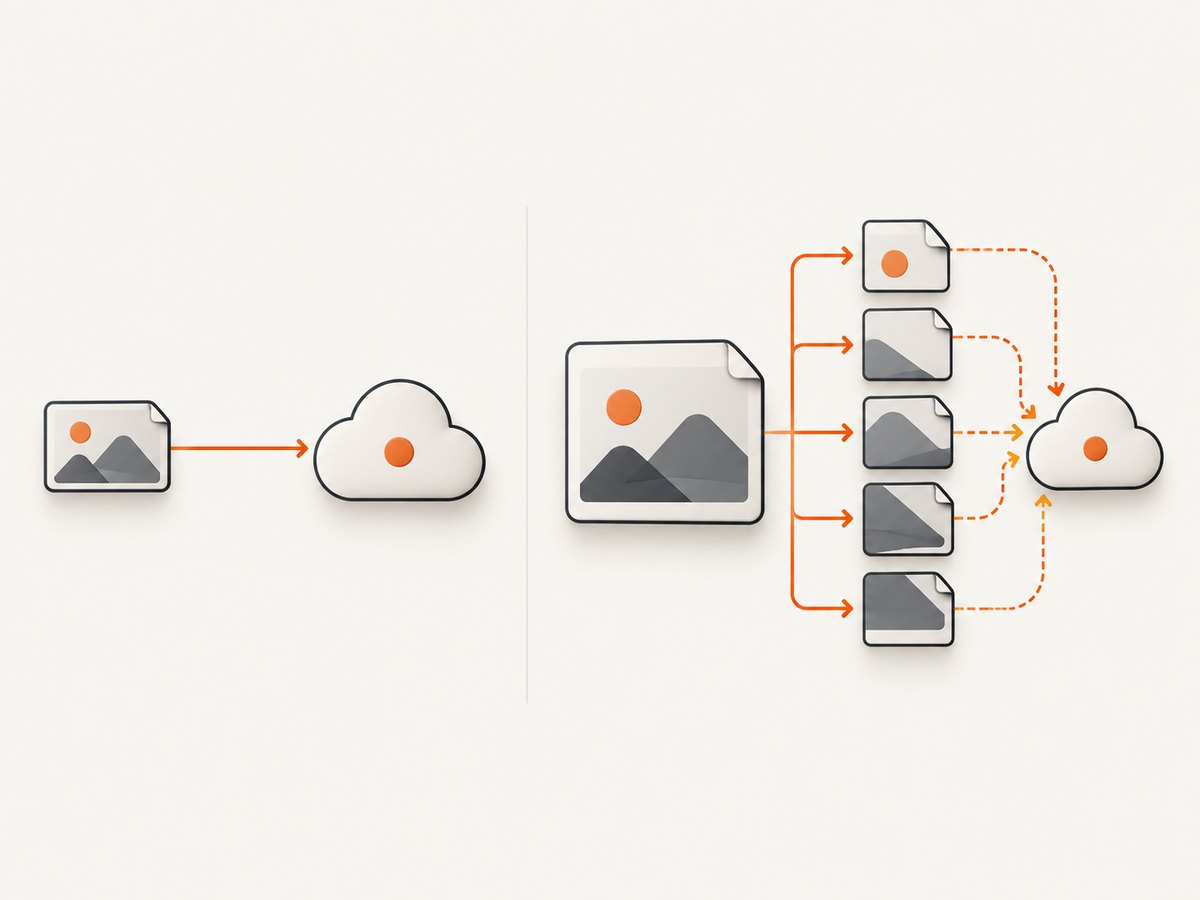
6. Handle failures without masking the test result
- Capture failure: log the test and exception, then preserve the original test failure.
- Upload failure: keep the local screenshot as a CI artifact and report the provider error.
- Transient network error: retry the cloud transfer with bounded backoff; do not rerun the browser test just to upload its existing PNG.
- Authentication failure: verify token expiry, OAuth configuration, scope, and account access. Refresh or reauthorize using the provider’s documented flow.
- Remote collision: use a unique run identifier and a non-overwriting mode where possible.
Use a small retry policy for transient failures, with a maximum elapsed time so teardown cannot hang indefinitely. Keep capture and upload observability separate: report whether capture succeeded, whether local persistence succeeded, and whether remote upload succeeded. If the upload is unavailable, the screenshot file should still be attached to the CI job when that facility exists.
7. Troubleshooting
| Symptom | Likely cause | Fix |
|---|---|---|
ClassCastException casting driver to TakesScreenshot |
The selected driver or remote provider does not expose screenshot support through that interface. | Check the concrete driver/provider capability and its Selenium documentation; skip capture cleanly when unsupported. |
WebDriverException during capture |
The browser session has already quit, disconnected, or failed while rendering. | Run the failure hook before teardown; confirm the session is alive and preserve the original error. |
UnsupportedOperationException |
The driver implementation does not support the requested screenshot operation. | Use a supported browser/driver combination or provider-specific capture capability. |
| File not found or zero-byte upload | The temporary Selenium file was moved/deleted, or copy/upload raced with cleanup. | Copy immediately to a stable path, check size, and retain it until upload completes. |
| Google 401 or 403 | Expired credentials, missing Drive API enablement, insufficient scope, or inaccessible parent folder. | Recheck quickstart setup, authorization, scope, and folder access; do not widen permissions blindly. |
| Google request stalls on a large image | Non-resumable upload on a slow or interrupted connection. | Use Drive’s resumable upload mode for files over 5 MB or unreliable transfers. |
| Dropbox authorization/path error | Invalid/expired token, missing remote folder, or malformed account path. | Follow current SDK authorization examples, validate the destination path, and create folders explicitly. |
| Test teardown hangs | Network upload is blocking the test thread without a deadline. | Set connection/read timeouts where supported, bound retries, or enqueue upload work while retaining the file. |
8. Performance, reliability, and cost
Capturing and uploading synchronously extends failure teardown by the time needed to render the screenshot and complete the network request. That is often acceptable for a small number of failed tests, but parallel suites can create a burst of uploads. Bound concurrency and retries, and avoid reusing one mutable client unsafely across threads unless its documentation says it is safe. An asynchronous queue can reduce test-thread delay, but the process must wait for queued work before the CI container exits or persist the local files for a later uploader.
Cloud storage cost depends on the account’s storage, request, and retention terms; the cited provider pages establish upload methods, not a universal price for a CI workload. Estimate from screenshot size multiplied by failure volume and retention duration, then check the current plan and organization policy. Keep only artifacts useful for diagnosis, and use a documented cleanup policy. Drive resumable upload can improve transfer recovery, but it does not make screenshot capture itself reliable if the browser session is already gone.
Or skip the browser setup
If the page under test is public and you need a screenshot without launching Selenium, ScreenshotNeo is a website screenshot API and MCP server from Yorker Media. The one-call API captures a URL as an image or PDF; see the API documentation for request options.
curl -G "https://api.screenshotneo.com/v1/shot" \
  -d access_key=YOUR_API_KEY \
  --data-urlencode url=https://stripe.com \
  -o shot.webp
import requests
r = requests.get(
"https://api.screenshotneo.com/v1/shot",
params={"access_key": "YOUR_API_KEY", "url": "https://stripe.com"},
timeout=90,
)
open("shot.webp", "wb").write(r.content)const q = new URLSearchParams({
access_key: 'YOUR_API_KEY',
url: 'https://stripe.com'
});
const res = await fetch(`https://api.screenshotneo.com/v1/shot?${q}`);
if (!res.ok) throw new Error(`Screenshot request failed: ${res.status}`);
await Bun.write('shot.webp', res);- Cookie banners are accepted and removed before capture, along with known newsletter popups and chat widgets; each cleanup step can be turned off.
- Bot checks, blank pages, timeouts, failed loads, and cache hits are not billed; response headers report the page verdict and billing status.
- An MCP server exposes
take_screenshot,get_page_info, andcapture_pdfto Claude, Cursor, and other MCP clients. - The free plan includes 1,000 screenshots per month with no card; paid plans start at $5 for 3,000 screenshots. All features are available on every plan.
Create a free ScreenshotNeo account and get 1,000 screenshots a month with no card.
FAQ
Can I capture a screenshot from a JUnit assertion failure?
Yes. Use an after-test callback that can see the test result and runs while the driver is active. JUnit 5’s AfterTestExecutionCallback is one option; an equivalent framework failure listener works too.
Can I upload the screenshot as bytes instead of a file?
Selenium can return raw bytes or Base64 as well as a temporary file. A file is convenient for cloud SDKs, CI artifact retention, and retrying an upload without recapturing the page.
Will the cloud file automatically be public?
No. Upload and sharing permissions are separate decisions. Apply the provider’s sharing settings according to your team’s policy, and avoid public links for screenshots containing sensitive test data.
Should the upload failure fail the test?
Usually the original browser-test result should remain authoritative, while upload errors are logged and the local artifact is retained. Make upload success a test requirement only if your pipeline explicitly treats artifact storage as part of correctness.


