How to Include Selenium Failure Screenshots in a TestNG Report
Capture Selenium screenshots when TestNG tests fail, save them as build artifacts, and link or attach them to the report your team uses.
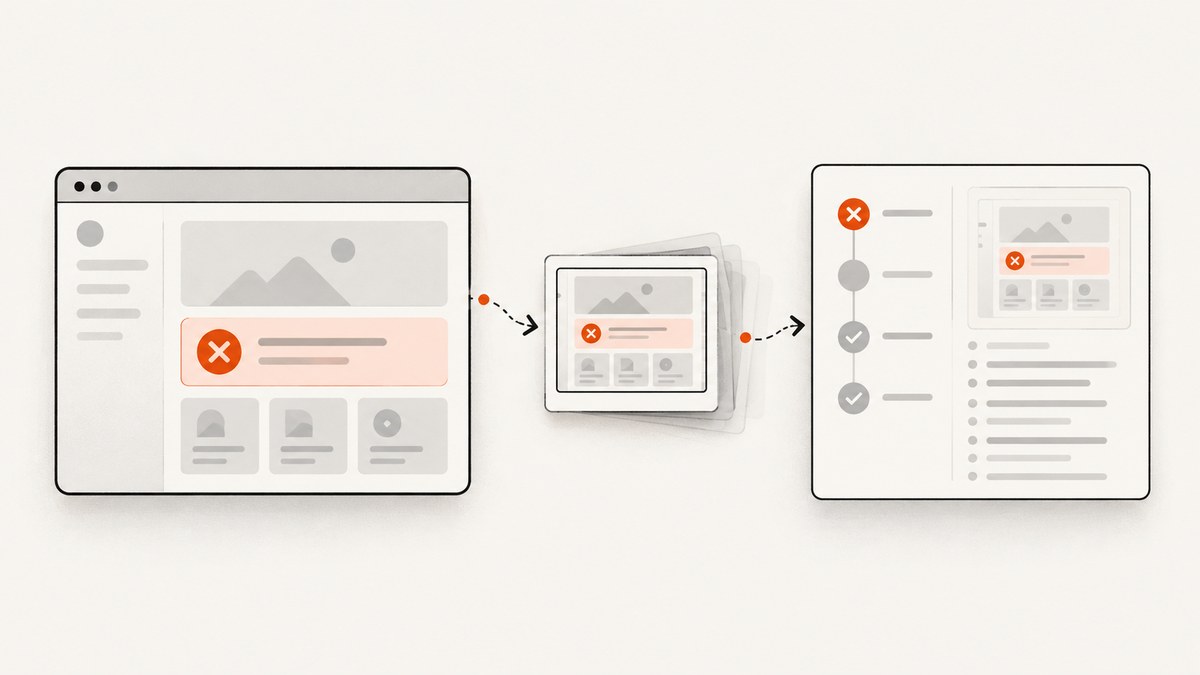
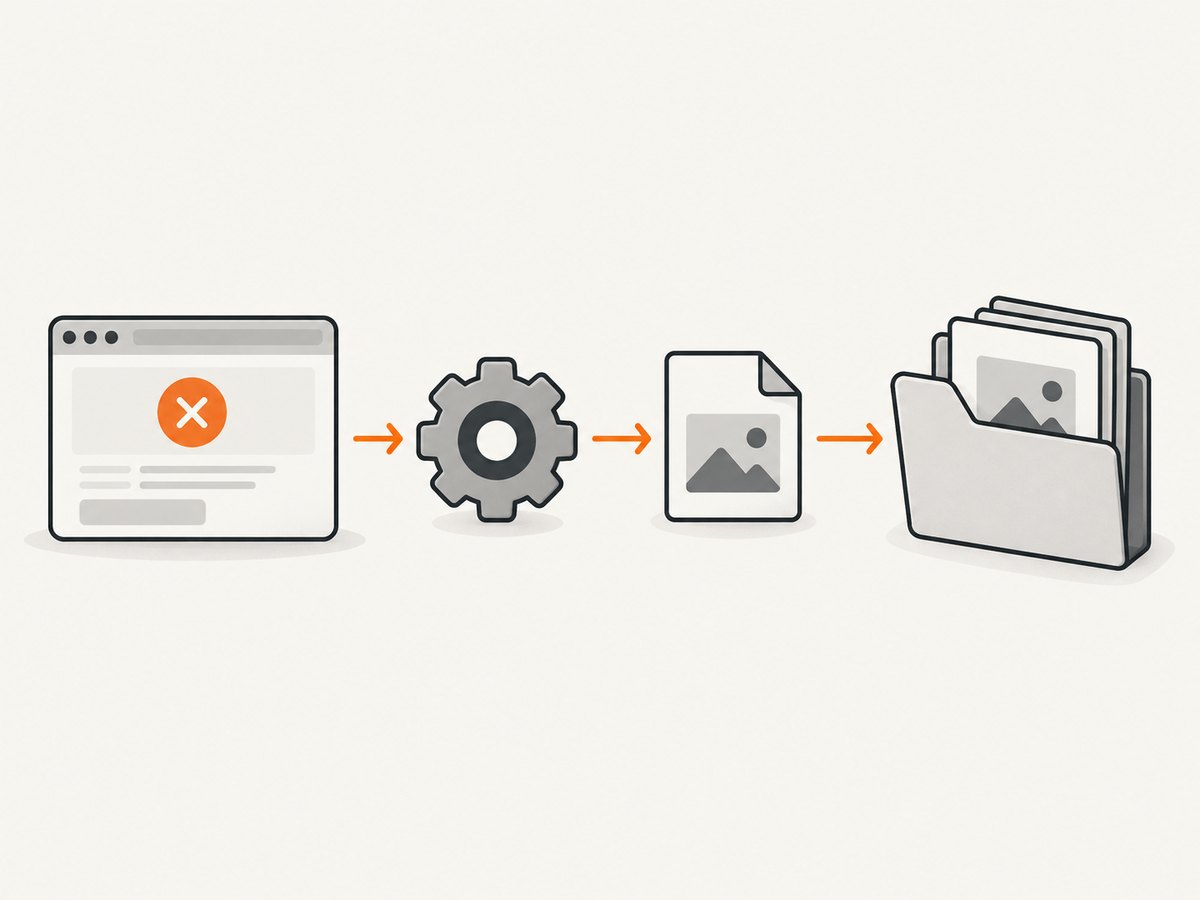
To include a Selenium screenshot for a failed TestNG test, implement a TestNG ITestListener, capture the active test’s browser in onTestFailure(ITestResult), save the image somewhere your build publishes, and attach it using your reporting library’s API—or add a relative link to the artifact. Register the listener in testng.xml or with @Listeners. Capturing the file and adding it to a report are separate steps: TestNG does not provide one universal third-party report attachment call.
The important lifecycle detail is to capture before teardown quits the browser. The listener also needs the exact WebDriver instance used by the failed test. The example below shows the listener and a complete file-writing helper; connect driverFor to your project’s driver lifecycle and attachToReport to your report tool.
1. Add a failure listener and save the screenshot
Selenium’s Java TakesScreenshot interface supports screenshot output as a file or other formats, including Base64. A file is convenient when your report and build system publish a directory of artifacts. Create the output directory explicitly, use a collision-resistant filename, and treat screenshot errors as secondary diagnostics so they do not replace the test’s original failure.
import java.io.File;
import java.io.IOException;
import java.nio.file.Files;
import java.nio.file.Path;
import java.nio.file.StandardCopyOption;
import org.openqa.selenium.OutputType;
import org.openqa.selenium.TakesScreenshot;
import org.openqa.selenium.WebDriver;
import org.openqa.selenium.WebDriverException;
import org.testng.ITestListener;
import org.testng.ITestResult;

public final class FailureScreenshotListener implements ITestListener {
  @Override
  public void onTestFailure(ITestResult result) {
    WebDriver driver = driverFor(result); // Implement with your project's driver manager.
    if (driver == null) {
      result.setAttribute("screenshot.error", "No driver available at failure callback");
      return;
    }

    Path destination = screenshotPathFor(result); // Must be unique per invocation.
    try {
      File temporary = ((TakesScreenshot) driver)
          .getScreenshotAs(OutputType.FILE);
      Files.createDirectories(destination.getParent());
      Files.copy(temporary.toPath(), destination,
          StandardCopyOption.REPLACE_EXISTING);
      result.setAttribute("screenshot.path", destination.toString());
      attachToReport(result, destination); // Implement for your report library.
    } catch (WebDriverException | IOException captureError) {
      // Keep the original test throwable intact; record this as secondary context.
      result.setAttribute("screenshot.error", captureError.toString());
    }
  }

  private WebDriver driverFor(ITestResult result) {
    // Return the driver associated with this test invocation.
    throw new UnsupportedOperationException("Connect your driver manager here");
  }

  private Path screenshotPathFor(ITestResult result) {
    String className = result.getTestClass().getName().replace('.', '-');
    String methodName = result.getMethod().getMethodName();
    String unique = Long.toString(System.nanoTime());
    return Path.of("target", "test-screenshots",
        className + "-" + methodName + "-" + unique + ".png");
  }

  private void attachToReport(ITestResult result, Path screenshot) {
    // Call the report framework's attachment API here, or log a relative link.
  }
}
The placeholders are deliberately project-specific: a generic listener cannot safely guess how your tests store drivers or which report framework is installed. Replace both methods before compiling. If your project uses an older Java version without Path.of, use Paths.get(...). For a simple artifact-only setup, remove the attachment call and publish target/test-screenshots alongside the report.
Selenium’s API documents WebDriverException on capture failure and UnsupportedOperationException when the implementation does not support screenshots. Catching the former here records failures from the WebDriver call; if you need to record every runtime capture problem, broaden the catch to RuntimeException while preserving the test throwable.
2. Connect the listener to your WebDriver lifecycle
The listener must obtain the same driver instance that ran the failed test. Common approaches are a base test class, a driver manager, dependency injection, or a ThreadLocal<WebDriver> when each parallel worker owns a separate session. Adapt driverFor(result) to your design. Avoid one shared mutable static driver when tests execute concurrently: a callback could otherwise capture another test’s browser.
Order teardown so the failure callback can still use the session. If an @AfterMethod or equivalent closes the browser first, onTestFailure cannot capture it. Keep the driver alive until the listener has run, or capture in a failure hook that runs before quit and pass the artifact information to the report step.
Register with testng.xml
XML registration makes listener scope visible in the suite configuration:
<suite name="UI tests">
  <listeners>
    <listener class-name="example.FailureScreenshotListener"/>
  </listeners>
  <test name="Chrome tests">
    <classes>
      <class name="example.CheckoutTest"/>
    </classes>
  </test>
</suite>
Use the listener’s fully qualified class name. Keep the file in the TestNG suite actually invoked by your build; a listener declaration in an unused suite file will not run.
Register with @Listeners
You can instead annotate a test class:
import org.testng.annotations.Listeners;

@Listeners(FailureScreenshotListener.class)
public class CheckoutTest {
  // Test methods
}
TestNG documents this annotation at suite scope. Choose it deliberately when you want broad coverage. If you only intend to capture a subset of classes, XML registration or a narrower suite arrangement can make that scope easier to control.
3. Make the image visible in the report
There are two practical paths: call the reporting library’s own attachment method, or publish the image beside the report and include a relative link. TestNG’s generated reports include an index.html entry point and support logging through Reporter.log, but those features do not imply a universal image-attachment API.
Relative link for a published artifact
If your report supports HTML log output, the listener can write a relative anchor. The exact logging behavior depends on the report and its configuration; verify that it preserves HTML and that the image directory is published at the matching relative path.
import org.testng.Reporter;

String relative = "../test-screenshots/" + screenshot.getFileName();
Reporter.log("<a href=\"" + relative + "\">Open failure screenshot</a>", true);
Use a report-specific escaping helper if the filename can contain untrusted input. The sample filename uses a controlled class and method name, but sanitizing names remains prudent. Keep report and artifact paths aligned: a relative link can work locally and break after CI publishes only the HTML file.
Report library attachment
For a third-party HTML reporter, add the library’s screenshot attachment call inside attachToReport. APIs differ in whether they accept a file path, bytes, or Base64. Keep this code separate from capture so you can change report tools without rewriting driver lookup and screenshot handling. Check the reporter’s current documentation and your installed version for exact method names.
4. Choose the output format and scope
| Choice | Use it when | Consideration |
|---|---|---|
OutputType.FILE |
You publish test artifacts or attach a file. | Copy the temporary file to a stable path before the run ends. |
OutputType.BYTES |
Your report accepts in-memory image bytes. | Useful to avoid managing a temporary screenshot file; your report integration must accept bytes. |
OutputType.BASE64 |
Your report API expects Base64 or embeds data. | Embedding large images in HTML can increase report size. |
| Viewport screenshot | You need the visible browser view at failure time. | Do not assume it includes an entire long page. |
For conformant WebDriver behavior, the screenshot API refers to the W3C WebDriver specification. Selenium notes that non-conformant implementations may return a best-effort page, window, frame, or display image. Confirm the scope your browser and driver combination produces; do not promise full-page capture unless your chosen method supports it.
Use a unique filename per invocation. A method name alone can collide across data-provider rows, retries, classes, or parallel workers. Include class and method, plus an invocation identifier or unique suffix. For predictable links and easier cleanup, place files under a dedicated report artifact directory rather than a general temporary folder.
5. Handle retries, timeouts, skips, and parallel execution
onTestFailure handles test failures. It does not mean every non-success state is covered. TestNG has distinct callbacks for timeouts, skips, and successes; a retry analyzer can cause a failed attempt to be retried. Decide whether you want a screenshot for every failed attempt, only the final failure, or other outcomes, and implement the relevant callbacks and retry-aware naming accordingly.
- Retries: Include attempt or invocation identity so each attempt does not overwrite another image. If you only want the final attempt, determine that using your retry configuration rather than assuming every failure is final.
- Data providers: Include a row or invocation identifier when available. Method names are reused for each data set.
- Parallel tests: Resolve the driver from the current test context or worker-local storage. Use unique output names and avoid mutable shared state.
- Timeouts: Decide whether timeout failures should use the same capture policy. A separate callback or suite-level handling may be needed depending on how the timeout is reported.
- Skipped tests: A skip is a different outcome from failure. Capture it only if it helps diagnose setup or dependency issues.
6. Alternative for projects already using Selenide
If the project already uses Selenide, its documentation describes automatic screenshots for failed Selenide checks, with a default location of build/reports/tests. It also documents Configuration.reportsFolder for changing that directory and a TestNG ScreenShooter listener for broader TestNG screenshot behavior, including non-Selenide assertions. Check the installed Selenide version and report integration before adopting those settings; this is not automatically a drop-in replacement for every project.
7. Troubleshooting
| Symptom | Likely cause | Fix |
|---|---|---|
| No screenshot is created. | Listener is not registered, suite config is not used, or callback cannot find a driver. | Confirm the active suite’s listener declaration and log whether driverFor returns the test’s driver. |
| Session already closed or screenshot command fails. | Teardown quit the driver before capture, or the browser session is unhealthy. | Run capture while the session is active and record capture errors as secondary diagnostics. |
| Wrong browser appears in the image. | Parallel tests share driver state or the lookup returns a global driver. | Use worker-local or invocation-scoped driver storage and verify the association from ITestResult. |
| Images overwrite each other. | Filename only includes the test method. | Add class, data-provider/retry identity, and a unique suffix. |
| Image exists but report link is broken. | CI did not publish the image directory, or the relative path is wrong from the report location. | Publish the directory with the report and calculate the link relative to the final report page. |
| Image is only the visible viewport. | The WebDriver screenshot implementation does not capture a full page. | Use a browser/driver-supported full-page method if required and document its scope. |
| Capture errors replace the assertion error. | Listener throws while handling the screenshot. | Catch capture and I/O errors, store them separately, and preserve result.getThrowable(). |
| Screenshot absent for a retry or skip. | Only onTestFailure was implemented. |
Choose explicit callback and retry behavior for the outcomes you want to diagnose. |
8. Performance, reliability, and artifact cost
Capturing and copying an image adds work to failure handling and consumes artifact storage. Since it runs only for the outcomes you select, avoid adding expensive report uploads or Base64 embedding unless the report requires them. Prefer file links when your artifact system already publishes a directory. Establish a retention policy for CI artifacts and remove stale local screenshots between runs if the build does not clean its output directory.
Reliability depends on three independent parts: an active driver at callback time, a successful screenshot command, and publication of the image at the path referenced by the report. Log the destination and capture error without swallowing the original test exception. In parallel builds, isolate both session lookup and filenames. In CI, verify the final published report, not only the local output folder.
Or skip the browser setup
If your task is to capture a website for documentation or analysis rather than inspect the exact browser state of a failed Selenium test, ScreenshotNeo offers a website screenshot API and MCP server. A single GET request returns an image or PDF, and the API uses parameter names common to other screenshot APIs.
curl -G "https://api.screenshotneo.com/v1/shot" -d access_key=YOUR_API_KEY --data-urlencode url=https://stripe.com -o shot.webpSee the ScreenshotNeo API documentation for request options. ScreenshotNeo removes cookie and consent banners, newsletter popups, and chat widgets before capture. Bot checks, blank pages, failed loads, timeouts, and cache hits are not billed, and response headers report the page verdict and billing status. Its MCP server provides take_screenshot, get_page_info, and capture_pdf for Claude, Cursor, and other MCP clients. The free plan includes 1,000 screenshots per month without a card; paid plans start at $5 for 3,000 screenshots.
Create a free ScreenshotNeo account to get 1,000 screenshots a month with no card.
FAQ
Can TestNG attach a screenshot automatically to every report?
There is no universal attachment API shared by all report tools. Capture with the listener, then use the chosen reporter’s attachment method or publish an artifact and link to it.
Will this listener capture screenshots for passed tests?
No. This implementation handles onTestFailure. Add behavior for success only if your diagnostics need it.
Does the screenshot include the whole page?
Do not assume so. Screenshot scope depends on the WebDriver implementation and method; confirm the behavior for your browser and driver.
Can I use this with a remote WebDriver?
The listener pattern is the same, provided the active remote session supports screenshots and remains available during the callback. The report artifact still needs to be saved or transferred where the report can access it.
References
- TestNG documentation for listeners, registration, reporting, retry behavior, and parallel execution.
- Selenium Java TakesScreenshot API for supported output types and capture behavior.
- TestNG 7.11.0 ITestListener API for failure, timeout, skip, and success callbacks.
- Selenide screenshots documentation for its failure capture and TestNG listener options.


