How to Use Selenium findElement with Chrome in Headless Mode
Configure Chrome headless, locate elements reliably with Selenium findElement, wait for dynamic pages, and fix common no-such-element errors.
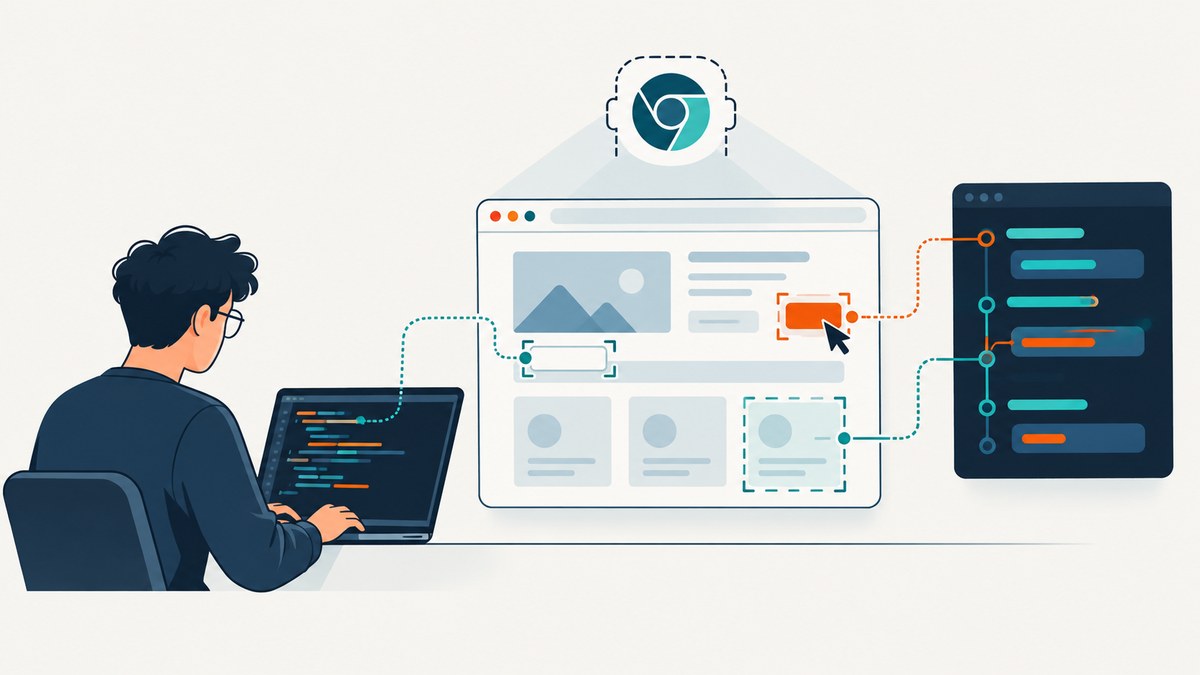
Direct answer: start Chrome with a ChromeOptions object containing --headless=new, create a ChromeDriver session with those options, navigate to the page, and locate the element with Selenium’s current findElement API and a stable locator. In Python, the core call is driver.find_element(By.ID, "submit"). For content inserted by JavaScript, wait for the condition your next operation needs instead of assuming navigation has finished loading the element.
This guide shows complete examples, explains locator and wait choices, covers page-load strategies, frames, shadow DOM, compatibility, performance, and troubleshooting, then shows how to capture a page without maintaining a browser session.
1. Install Selenium and verify Chrome
Install the Selenium binding for your language and make sure Chrome or Chromium is available on the machine. Selenium 4 supports Chrome 75 and newer. Chrome and ChromeDriver major versions must match when you manage the driver yourself. Selenium Manager can download or select a driver in supported Selenium releases, but a container or locked-down server may still require an explicit browser and driver path.
Python
python -m pip install seleniumJavaScript (Node.js)
npm install selenium-webdriverJava
<dependency>
  <groupId>org.seleniumhq.selenium</groupId>
  <artifactId>selenium-java</artifactId>
  <version>4.XX.X</version>
</dependency>
Use the current Selenium release listed by your build system rather than copying an old version number.
2. Launch Chrome in headless mode
Headless mode is a Chrome browser argument. Current Selenium Chrome guidance uses --headless=new, passed through the binding’s Chrome options class. The newer mode uses Chrome’s current headless implementation and is the appropriate default for current Chrome installations.

Python: complete findElement example
from selenium import webdriver
from selenium.webdriver.common.by import By
from selenium.webdriver.support.ui import WebDriverWait
from selenium.webdriver.support import expected_conditions as EC
from selenium.common.exceptions import TimeoutException

options = webdriver.ChromeOptions()
options.add_argument("--headless=new")
options.add_argument("--window-size=1365,900")

# If Chrome is installed somewhere nonstandard:
# options.binary_location = "/path/to/chrome"

driver = webdriver.Chrome(options=options)
try:
    driver.get("https://example.com")

    heading = WebDriverWait(driver, 15).until(
        EC.visibility_of_element_located((By.TAG_NAME, "h1"))
    )
    print(heading.text)
finally:
    driver.quit()
find_element returns the first matching element and raises NoSuchElementException when none exists. Use find_elements when an empty result is valid:
cards = driver.find_elements(By.CSS_SELECTOR, "[data-test='card']")
for card in cards:
    print(card.text)
Java: complete example
import org.openqa.selenium.By;
import org.openqa.selenium.WebDriver;
import org.openqa.selenium.WebElement;
import org.openqa.selenium.chrome.ChromeDriver;
import org.openqa.selenium.chrome.ChromeOptions;
import org.openqa.selenium.support.ui.ExpectedConditions;
import org.openqa.selenium.support.ui.WebDriverWait;
import java.time.Duration;

public class HeadlessFindElement {
  public static void main(String[] args) {
    ChromeOptions options = new ChromeOptions();
    options.addArguments("--headless=new", "--window-size=1365,900");

    WebDriver driver = new ChromeDriver(options);
    try {
      driver.get("https://example.com");
      WebDriverWait wait = new WebDriverWait(driver, Duration.ofSeconds(15));
      WebElement heading = wait.until(
          ExpectedConditions.visibilityOfElementLocated(By.tagName("h1")));
      System.out.println(heading.getText());
    } finally {
      driver.quit();
    }
  }
}
Node.js: complete example
const { Builder, By, until } = require('selenium-webdriver');
const chrome = require('selenium-webdriver/chrome');

(async function () {
  const options = new chrome.Options()
    .addArguments('--headless=new', '--window-size=1365,900');
  const driver = await new Builder()
    .forBrowser('chrome')
    .setChromeOptions(options)
    .build();

  try {
    await driver.get('https://example.com');
    const heading = await driver.wait(
      until.elementLocated(By.css('h1')), 15000);
    console.log(await heading.getText());
  } finally {
    await driver.quit();
  }
}());
3. Choose a locator that survives markup changes
Selenium supports ID, name, XPath, CSS selector, class name, tag name, link text, partial link text, and relative locators. Prefer a stable ID or name. If the application provides test attributes, a CSS selector such as [data-test="submit"] is usually clear and durable.
| Strategy | Example | Use when |
|---|---|---|
| ID | By.ID, "submit" |
The ID is unique and application-controlled. |
| Name | By.NAME, "email" |
A form control has a stable name. |
| CSS | By.CSS_SELECTOR, "[data-test='save']" |
You can target a stable attribute or relationship. |
| XPath | By.XPATH, "//button[@type='submit']" |
CSS cannot express the required relationship or text condition. |
| Tag | By.TAG_NAME, "h1" |
You need a simple structural element. |
| Link text | By.LINK_TEXT, "Continue" |
The visible link text is stable and unique. |
Avoid absolute XPath such as /html/body/div[2]/div[1]/button; a small layout change breaks it. Generated class names are similarly brittle. Text locators can fail after localization or copy edits. If you control the application, add dedicated data-test attributes.
Relative locators
Selenium also provides relative locators for relationships such as an input near a label or a button above another element. They are useful when semantic relationships are stable, but a direct ID or test attribute is simpler when available.
4. Wait for the state your next command requires
A successful get or navigate call means the selected page-load milestone was reached. It does not guarantee that client-side JavaScript has rendered the element, that it is visible, or that it is clickable. Use an explicit wait for that exact condition.
# Present in the DOM
el = WebDriverWait(driver, 15).until(
    EC.presence_of_element_located((By.CSS_SELECTOR, "[data-test='result']"))
)

# Visible to the user
el = WebDriverWait(driver, 15).until(
    EC.visibility_of_element_located((By.ID, "result"))
)

# Ready for interaction
button = WebDriverWait(driver, 15).until(
    EC.element_to_be_clickable((By.CSS_SELECTOR, "button.submit"))
)
button.click()
Do not mix implicit and explicit waits in one session. An implicit wait changes how every element lookup polls and can make explicit-wait timeouts longer and harder to reason about. The default implicit timeout is zero; leave it there when using explicit waits.
Waiting for an application-specific condition
WebDriverWait(driver, 20).until(
    lambda d: d.find_element(By.ID, "status").text == "Ready"
)
For a framework that renders asynchronously, waiting for a spinner to disappear or for a known result count is more reliable than sleeping for an arbitrary number of seconds. A short delay can still be useful for a page with a documented animation, but a condition should be the primary synchronization mechanism.
5. Frames, shadow DOM, and elements that look present but cannot be found
Switch into an iframe
An element inside an iframe is not part of the top-level document’s search context. Wait for the frame, switch to it, find the element, then return to the default content.
frame = WebDriverWait(driver, 15).until(
    EC.frame_to_be_available_and_switch_to_it((By.CSS_SELECTOR, "iframe.payment"))
)
card_number = WebDriverWait(driver, 15).until(
    EC.visibility_of_element_located((By.NAME, "cardnumber"))
)
driver.switch_to.default_content()
Open shadow roots
Web components can place markup in a shadow root. Selenium 4 exposes shadow-root support in current bindings. Locate the host first, obtain its shadow root, and search inside that root rather than the document.
host = driver.find_element(By.CSS_SELECTOR, "my-widget")
root = host.shadow_root
field = root.find_element(By.CSS_SELECTOR, "input[name='query']")
If a component uses a closed shadow root, normal DOM selectors cannot inspect its internals; use the component’s public interaction surface.
6. Page-load strategies and headless session options
Chrome sessions use a page-load strategy that controls how long navigation waits:
| Strategy | Navigation waits for | Trade-off |
|---|---|---|
normal |
The load event and dependent resources | Most conservative; can wait on slow resources. |
eager |
DOMContentLoaded | Returns earlier; dynamic content still needs explicit waits. |
none |
Initial page download milestone | Fastest return; requires disciplined synchronization. |
options = webdriver.ChromeOptions()
options.add_argument("--headless=new")
options.page_load_strategy = "eager"
Changing the strategy affects the whole session. Pair eager or none with explicit waits for the DOM state your test needs. Set a viewport deliberately because responsive breakpoints can change which element exists.
7. Troubleshooting checklist
| Error or symptom | Likely cause | Fix |
|---|---|---|
NoSuchElementException |
Wrong locator, wrong page, late rendering, or wrong frame. | Save the current URL and page source, verify the selector in the active document, switch frames, and add an explicit wait. |
ElementNotInteractableException |
Element exists but is hidden, disabled, covered, or outside the usable viewport. | Wait for visibility or clickability, scroll if needed, and inspect overlays. |
StaleElementReferenceException |
JavaScript replaced the node after you located it. | Wait for the update to finish and locate the element again immediately before use. |
| ChromeDriver cannot start | Chrome and driver major versions differ, or the binary is not on PATH. | Check both versions, update the driver, or set the Chrome binary and driver paths explicitly. |
| Headless result differs from headed mode | Different viewport, user agent, permissions, or responsive layout. | Set window size, compare screenshots and page source, and reproduce with the same options. |
| Navigation hangs | A resource never completes or the page-load strategy is too strict. | Set page-load and script timeouts, consider eager, then explicitly wait for required content. |
| Element is in a different tab | A click opened a new window or tab. | Wait for the window handles, switch to the new handle, then locate the element. |
When a lookup fails, investigate in this order: confirm the intended URL and active frame; inspect the current markup; determine whether client-side rendering has completed; wait for the needed condition; then verify Chrome and ChromeDriver setup. This order separates page-state problems from environment problems.
8. Reliability and performance practices
- Use one driver per isolated test or job. Always call
quit()in a finally/cleanup block so Chrome processes do not accumulate. - Keep locators small and semantic. Stable attributes reduce retries and maintenance.
- Wait narrowly. A 10–20 second wait for a specific result is easier to diagnose than a global sleep.
- Capture diagnostics on failure. Save the URL, page source, console logs where available, and a screenshot from the same headless session.
- Control resource use. Reuse a session for related steps, but do not share one driver across concurrent tests without isolation. Parallel jobs need separate profiles and ports as appropriate.
- Set timeouts. Use page-load, script, and explicit-wait limits so a broken page cannot consume a worker indefinitely.
Headless mode removes the visible window; it does not make network requests, JavaScript execution, or rendering instantaneous. The page’s scripts and third-party resources still determine when a target becomes available.
9. Or skip the browser setup
If your goal is a clean screenshot rather than browser interaction, ScreenshotNeo provides a single GET request that returns PNG, JPEG, WebP, or PDF. See the ScreenshotNeo API documentation for the complete option list.
curl -G "https://api.screenshotneo.com/v1/shot" -d access_key=YOUR_API_KEY --data-urlencode url=https://stripe.com -o shot.webpimport requests
r = requests.get("https://api.screenshotneo.com/v1/shot", params={"access_key": "YOUR_API_KEY", "url": "https://stripe.com"}, timeout=90)
open("shot.webp", "wb").write(r.content)const q = new URLSearchParams({ access_key: 'YOUR_API_KEY', url: 'https://stripe.com' });
const res = await fetch(`https://api.screenshotneo.com/v1/shot?${q}`);ScreenshotNeo accepts full-page capture with lazy images loaded, CSS-element capture, dark mode, device presets or custom viewports, retina scale, custom CSS and JavaScript, clicks, selector waits, delays, network-idle waits, ad and tracker blocking, headers, cookies, user agents, authorization, timezone, geolocation, transparent backgrounds, resizing, caching with your chosen TTL, signed image links, asynchronous jobs with signed webhooks, bulk capture for up to 100 URLs per call, a usage API, and an OpenAPI specification. Its parameter names are compatible with those used by other screenshot APIs.
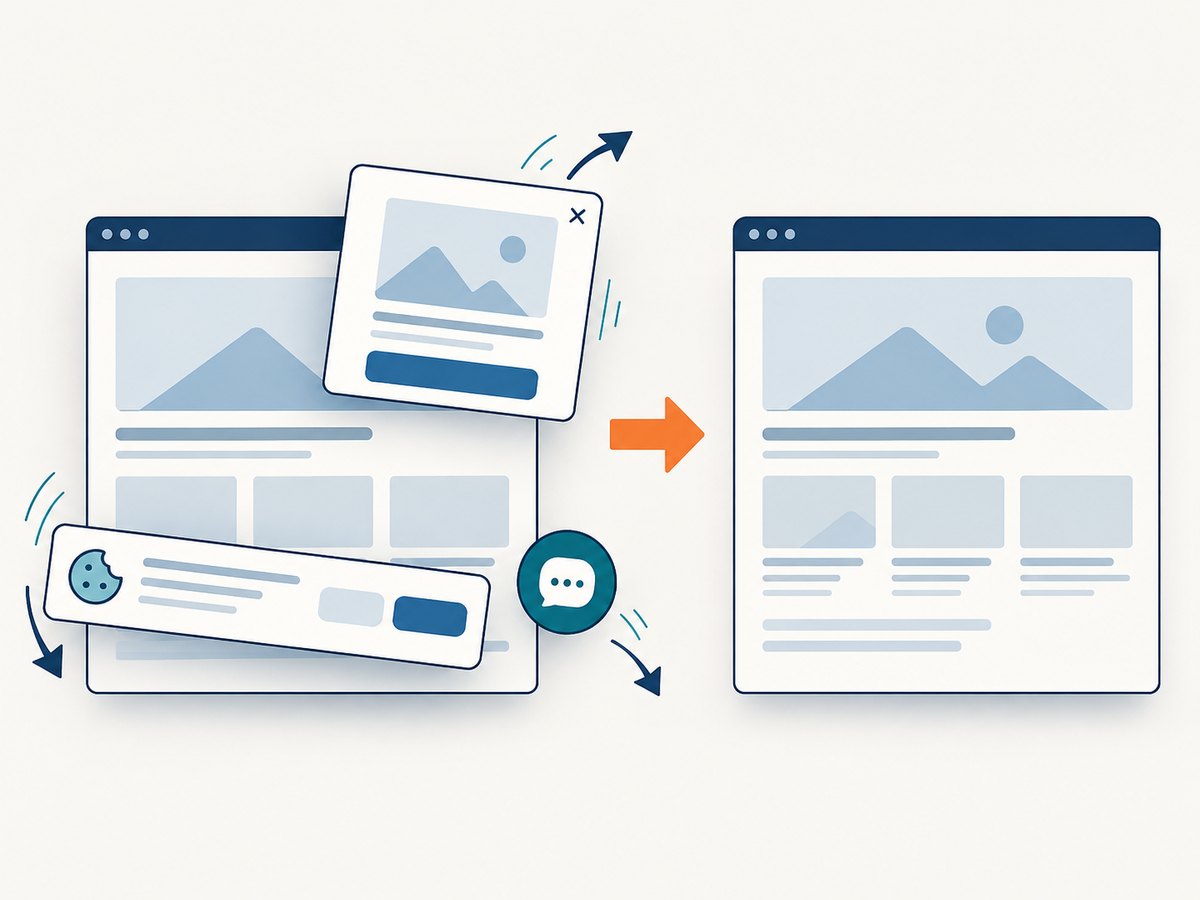
Cookie and consent banners, newsletter popups, and chat widgets are removed before capture, with each cleanup step configurable. Bot checks, blank pages, timeouts, failed loads, and cache hits are not billed; response headers report the page verdict and whether the request was billed. An MCP server provides take_screenshot, get_page_info, and capture_pdf tools for Claude, Cursor, and other MCP clients.
The Free plan includes 1,000 screenshots per month without a card. Paid plans start at $5 for 3,000 screenshots; every feature is available on every plan. Create a free ScreenshotNeo account to try the API.
10. FAQ
Is findElement case-sensitive?
The method name and locator constants are binding-specific and case-sensitive. Java uses findElement; Python uses find_element; JavaScript uses the WebDriver methods exposed by its binding.
Should I use find_element or find_elements?
Use the singular form when one match is required and failure should be explicit. Use the plural form when zero matches are acceptable or you need to process a collection.
Why did an old tutorial use find_element_by_id?
Those convenience methods were removed from current Selenium Python APIs. Use driver.find_element(By.ID, "value") and the corresponding By strategy.
Can I run headless Chrome without setting a window size?
Yes, but the default viewport can change responsive markup and screenshots. Set a known size when layout affects the locator or assertion.
When should I choose Selenium instead of a screenshot API?
Use Selenium when you must perform multi-step interactions, inspect application state, or assert behavior. Use a screenshot API when you need repeatable page images or PDFs without managing Chrome, drivers, waits, and cleanup.


