Why Selenium Firefox WebDriver Captures Only Partial Screenshots
Firefox WebDriver screenshots are usually viewport-only. Learn the full-page APIs, diagnose cropped captures, and handle scrolling, headless sizing, and huge pages.
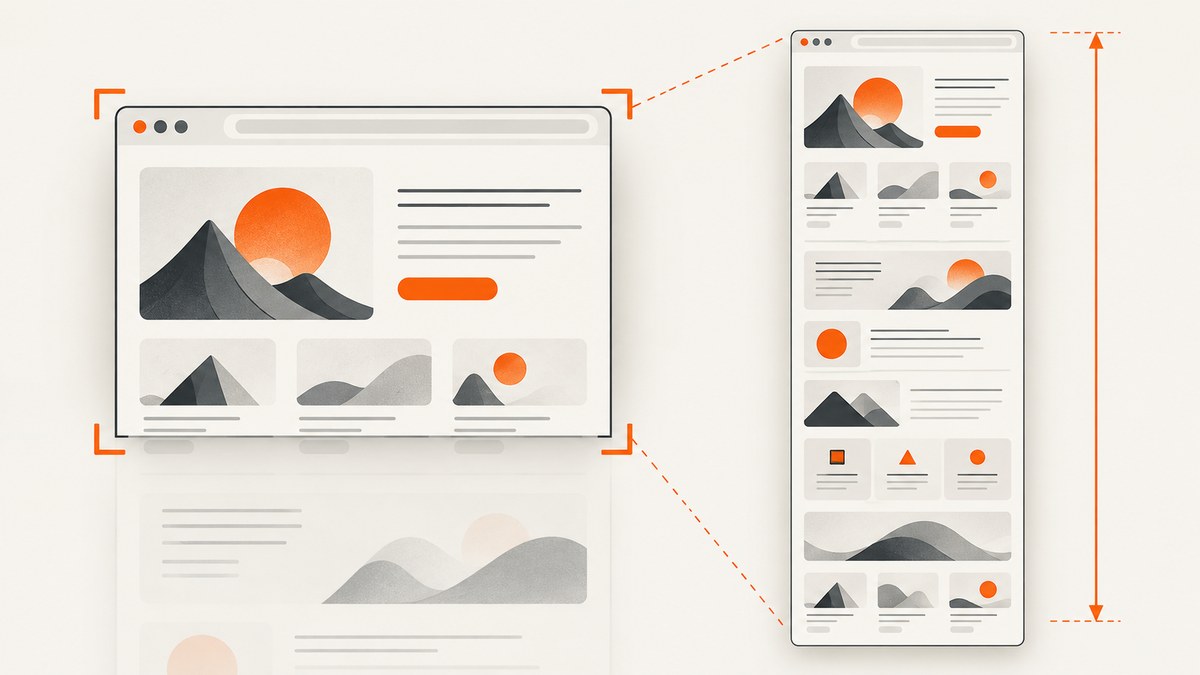
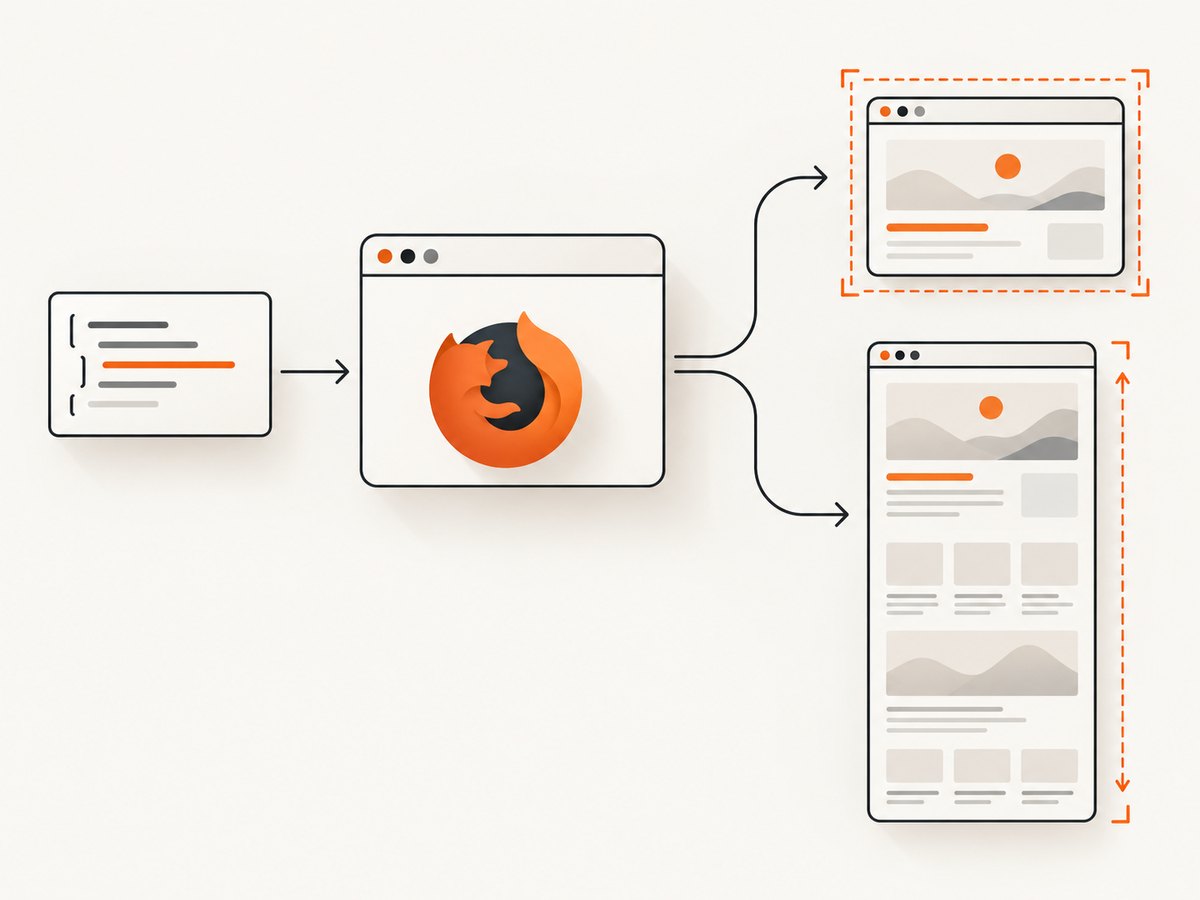
Short answer: Selenium’s ordinary screenshot call captures the visible browser viewport. In Firefox, use the driver’s full-document screenshot API when the page extends below the fold. In Python, that is get_full_page_screenshot_as_file() (or its PNG/base64 variants), rather than save_screenshot().
from selenium import webdriver
from selenium.webdriver.firefox.options import Options

options = Options()
options.add_argument("-headless")
driver = webdriver.Firefox(options=options)
try:
    driver.get("https://example.com/long-page")
    driver.get_full_page_screenshot_as_file("page.png")
finally:
    driver.quit()
What Selenium Firefox is actually capturing
save_screenshot(), get_screenshot_as_file(), and Selenium’s generic screenshot command describe the current viewport. Pixels below the viewport are not included. Firefox exposes a separate full-document endpoint and Selenium bindings expose it through full-page methods. Selenium’s Python API describes this operation as saving a full document screenshot of the current window.
| Method | Coverage | Use it when |
|---|---|---|
save_screenshot(path) |
Viewport only | You need exactly what a user currently sees. |
get_full_page_screenshot_as_file(path) |
Whole document in Firefox | You need content below the fold in one PNG. |
get_full_page_screenshot_as_png() |
Whole document as bytes | You will upload or process the image in memory. |
get_full_page_screenshot_as_base64() |
Whole document as base64 | You need to embed or transmit the result as text. |
Capture a full-page Firefox screenshot in Python
Minimal runnable example
from pathlib import Path
from selenium import webdriver
from selenium.webdriver.firefox.options import Options

URL = "https://example.com/long-page"
OUTPUT = Path("full-page.png")

options = Options()
options.add_argument("-headless")

driver = webdriver.Firefox(options=options)
try:
    driver.get(URL)
    ok = driver.get_full_page_screenshot_as_file(str(OUTPUT))
    if not ok:
        raise RuntimeError("Firefox did not write the full-page screenshot")
    print(f"Wrote {OUTPUT} ({OUTPUT.stat().st_size} bytes)")
finally:
    driver.quit()
Save bytes, not a file
png_bytes = driver.get_full_page_screenshot_as_png()
with open("full-page.png", "wb") as image:
    image.write(png_bytes)
Wait for lazy content before capturing
A full-document call does not guarantee that an application has finished rendering. Wait for a meaningful selector, then optionally scroll to trigger lazy loading.
from selenium.webdriver.common.by import By
from selenium.webdriver.support.ui import WebDriverWait

wait = WebDriverWait(driver, 30)
driver.get(URL)
wait.until(lambda d: d.find_element(By.CSS_SELECTOR, "main.article"))
driver.execute_script("window.scrollTo(0, document.body.scrollHeight);")
wait.until(lambda d: d.execute_script("return document.readyState") == "complete")
driver.get_full_page_screenshot_as_file("article.png")
Equivalent Firefox full-page calls in other Selenium bindings
The exact method name depends on the language binding. Check the binding documentation for your installed version, but the Firefox-specific operation is distinct from the generic viewport screenshot.
// Java
FirefoxDriver driver = new FirefoxDriver();
driver.get("https://example.com/long-page");
driver.getFullPageScreenshotAs(OutputType.FILE);

// JavaScript (selenium-webdriver)
const { Builder } = require('selenium-webdriver');
const firefox = require('selenium-webdriver/firefox');
const driver = await new Builder().forBrowser('firefox').setFirefoxOptions(new firefox.Options().headless()).build();
await driver.get('https://example.com/long-page');
// The standard takeScreenshot() call is viewport-oriented; use Firefox’s full-page
// WebDriver endpoint through the binding/version that supports it.
Why the result is still partial
1. The viewport method was called
This is the most common cause. Replace save_screenshot() with get_full_page_screenshot_as_file() and verify the output dimensions.
2. The page scrolls horizontally
Firefox’s full-page endpoint has had limitations with horizontally scrolling documents. Mozilla geckodriver issue #1580 reports that a horizontal-scroll document fell back to a viewport capture while vertical scrolling worked in that environment. Inspect overflow before blaming Selenium:
metrics = driver.execute_script("""
return {
  documentScrollWidth: document.documentElement.scrollWidth,
  documentClientWidth: document.documentElement.clientWidth,
  documentScrollHeight: document.documentElement.scrollHeight,
  documentClientHeight: document.documentElement.clientHeight,
  bodyScrollWidth: document.body.scrollWidth,
  bodyScrollHeight: document.body.scrollHeight
};
""")
print(metrics)
Remove unintended horizontal overflow, or capture logical sections separately when horizontal overflow is part of the design.
3. An inner element owns the scrollbar
Dashboards and app shells often use a fixed-height wrapper with overflow: auto. The document itself is short, so a document screenshot cannot include the wrapper’s hidden content. Find the scrolling element:
scrollers = driver.execute_script("""
return [...document.querySelectorAll('*')]
  .filter(e => e.scrollHeight > e.clientHeight)
  .slice(0, 20)
  .map(e => ({tag: e.tagName, id: e.id, className: e.className,
              scrollHeight: e.scrollHeight, clientHeight: e.clientHeight}));
""")
print(scrollers)
For an inner panel, scroll and capture that element’s states, or temporarily change the layout in a test-only stylesheet so the document flows vertically.
4. The document is extremely tall
Very large pages can hit browser or driver image-size limits. geckodriver issue #1306 records viewport-only behavior and JavaScript errors on a page reported at 1000 × 32766 pixels. Treat that as a limitation, not proof that every pixel was captured.
For extreme documents, capture sections after scrolling and stitch them. Remove fixed overlays between sections, preserve overlap for alignment, and verify the stitched image dimensions.
5. Headless window dimensions do not equal PNG dimensions
In headless Firefox, the requested outer window size can differ from the rendered viewport. geckodriver issue #1744 reports a requested 1024 × 768 window producing a 1024 × 694 PNG. Measure the screenshot itself and compare it with the viewport, not only get_window_size().
driver.set_window_size(1280, 900)
print("outer window:", driver.get_window_size())
print("viewport:", driver.execute_script("return {w: innerWidth, h: innerHeight}"))
6. Lazy loading, sticky overlays, canvas, or animations
Full-page capture records the rendered state. Images that load only after scrolling, sticky headers repeated on every section, animated canvases, and fixed chat widgets can make a technically full image look wrong. Wait for content, disable animation in test CSS, hide fixed overlays, and use deterministic data when possible.
Version compatibility checklist
Mozilla documents geckodriver compatibility and notes that geckodriver is not yet feature complete. Before debugging application CSS, record and align:
- Selenium package version
- Firefox version
- geckodriver version
- Operating system and headless/non-headless mode
Upgrade the trio together and reproduce on a simple page with ordinary vertical flow. If that page works, the application’s scrolling or layout is the likely cause.
A diagnostic script for cropped captures
from selenium import webdriver
from selenium.webdriver.firefox.options import Options

options = Options()
options.add_argument("-headless")
driver = webdriver.Firefox(options=options)
try:
    driver.get("https://example.com/long-page")
    info = driver.execute_script("""
    return {
      ready: document.readyState,
      innerWidth, innerHeight,
      documentWidth: document.documentElement.scrollWidth,
      documentHeight: document.documentElement.scrollHeight,
      bodyWidth: document.body.scrollWidth,
      bodyHeight: document.body.scrollHeight,
      url: location.href
    };
    """)
    print(info)
    driver.save_screenshot("viewport.png")
    driver.get_full_page_screenshot_as_file("full.png")
finally:
driver.quit()- If
documentHeightis close toinnerHeight, the document may not be the scrolling surface. - If
documentWidthexceedsinnerWidth, investigate horizontal overflow. - If
full.pngmatches the viewport image, check Firefox/geckodriver versions and try a simple vertical page. - If the full image exists but content is missing, trigger lazy loading and wait for the application’s ready state.
Common errors and fixes
| Symptom | Likely cause | Fix |
|---|---|---|
| Only the top of the page appears | Viewport API | Call Firefox’s full-page method. |
| Full-page call returns a short image | Inner scroll container or horizontal overflow | Inspect scroll metrics and capture the actual scrolling surface. |
| Images are blank below the fold | Lazy loading has not run | Scroll, wait for image/network completion, then capture. |
| Headless image is shorter than requested | Outer window versus viewport difference | Read innerWidth/innerHeight and validate the PNG dimensions. |
| JavaScript error or driver failure on huge pages | Image/document size limit | Reduce page complexity or capture and stitch sections. |
| Method is missing | Old binding, driver, or Firefox combination | Upgrade Selenium, Firefox, and geckodriver as a compatible set. |
Performance, reliability, and cost considerations
- Runtime: Full-page rendering, lazy-load waits, and scrolling take longer than a viewport capture. Set explicit waits and a command timeout.
- Memory: A tall PNG can consume substantial browser and Python memory. Prefer file output or section captures for very long pages.
- Determinism: Freeze animations, use a fixed viewport, set a stable timezone, and wait for a specific application condition instead of an arbitrary short sleep.
- Reliability: Keep a small vertical-flow smoke page in CI. It separates driver regressions from application layout problems.
- Cost: Local Selenium uses your compute. A hosted browser service adds session and transfer costs; measure the pages and retry policy that your workload requires.

Or skip the browser setup
ScreenshotNeo provides a website screenshot API and MCP server. It accepts one GET request and returns PNG, JPEG, WebP, or PDF. Full-page capture loads lazy images, and you can also capture one element by CSS selector, choose a device or viewport, set retina scale, wait for a selector, delay, or network idle, and supply custom CSS or JavaScript.
Cookie banners are accepted and removed before capture, along with more than 60 known consent platforms, newsletter popups, and chat widgets; each cleanup step can be turned off. Bot checks, blank pages, timeouts, failed loads, and cache hits are not billed, and the response identifies the result with X-Page-Verdict and X-Billed headers. Its MCP server provides take_screenshot, get_page_info, and capture_pdf for Claude, Cursor, and other MCP clients.
See the ScreenshotNeo API documentation for all options.
curl -G "https://api.screenshotneo.com/v1/shot" -d access_key=YOUR_API_KEY --data-urlencode url=https://stripe.com -o shot.webpimport requests
r = requests.get("https://api.screenshotneo.com/v1/shot", params={"access_key": "YOUR_API_KEY", "url": "https://stripe.com"}, timeout=90)
open("shot.webp", "wb").write(r.content)const q = new URLSearchParams({ access_key: 'YOUR_API_KEY', url: 'https://stripe.com' });
const res = await fetch(`https://api.screenshotneo.com/v1/shot?${q}`);The free plan includes 1,000 screenshots each month with no card. Paid plans start at $5 for 3,000 shots, and every feature is included on every plan. Create a free ScreenshotNeo account.
FAQ
Does Firefox full-page capture scroll the page?
It captures the document through Firefox’s full-page endpoint. It does not solve an application that keeps its content inside an independently scrolling element.
Should I resize the browser to the document height?
Usually no. Use Firefox’s full-page API; resizing can create unrealistic layout behavior and still misses inner scroll regions.
Can I use the generic Selenium screenshot API for a full page?
Use the Firefox-specific full-page method when you need document coverage. The generic viewport method is intentionally limited to what is visible.
When should I stitch screenshots?
Use section captures when the document is too tall for one image, contains nested scrolling, or triggers a driver/browser size limitation.


