How to Take Full-Page Screenshots with Python Selenium in Mobile View
Capture complete mobile pages with Python Selenium, Chrome mobile emulation, CDP, lazy-content waits, troubleshooting, and a simpler API option.
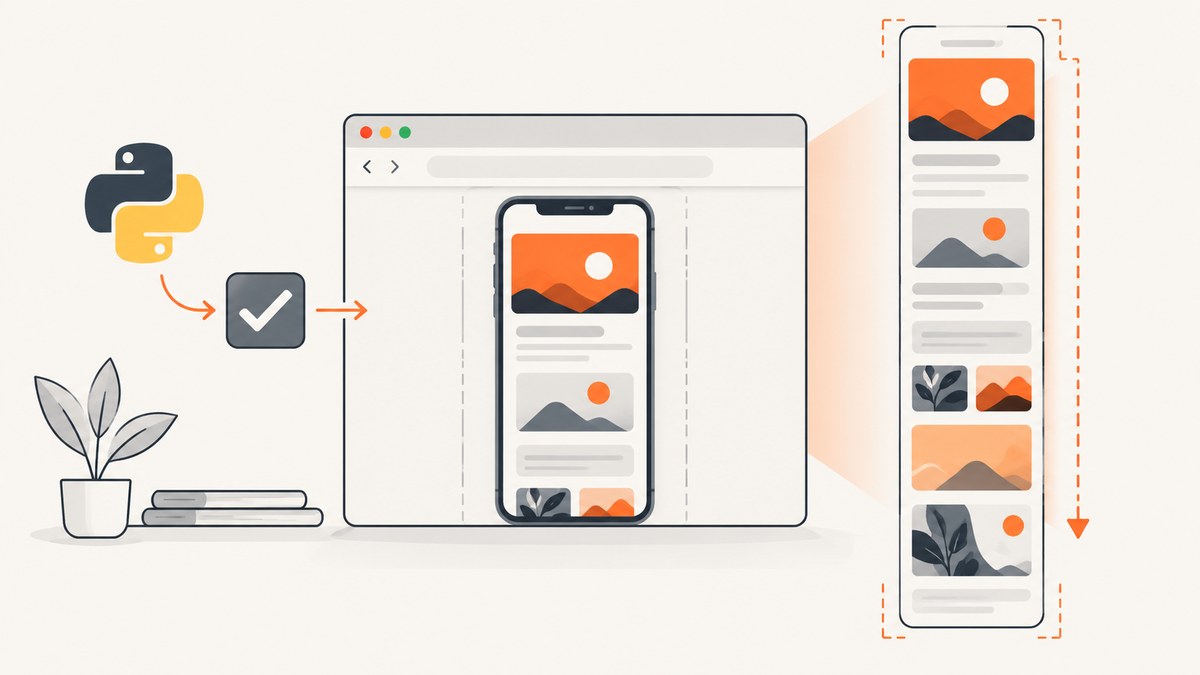
Developers commonly ask: How do I take a full-page screenshot with Selenium in Python? How can I capture an entire page in mobile view, and why does Selenium save only the visible viewport? The reliable Chrome approach is to configure mobile emulation with ChromeOptions, wait for the page and lazy content to finish loading, then call the Chrome DevTools Protocol (CDP) Page.captureScreenshot method with captureBeyondViewport: true. CDP returns base64-encoded image data, which you decode and write to a PNG file.
This guide builds that workflow from a runnable script through device profiles, custom metrics, waits, dynamic pages, output formats, diagnostics, performance, and failure handling.
1. The direct answer
Install Selenium, make sure Chrome and a compatible ChromeDriver are available, start Chrome with a mobile emulation profile, navigate to the page, and capture through CDP:
import base64
from selenium import webdriver
from selenium.webdriver.chrome.options import Options

options = Options()
options.add_experimental_option("mobileEmulation", {
    "deviceMetrics": {
        "width": 412,
        "height": 823,
        "pixelRatio": 2.0,
        "mobile": True,
        "touch": True,
    }
})

driver = webdriver.Chrome(options=options)
try:
    driver.get("https://example.com")
    result = driver.execute_cdp_cmd("Page.captureScreenshot", {
        "format": "png",
        "fromSurface": True,
        "captureBeyondViewport": True,
    })
    with open("full-page-mobile.png", "wb") as image_file:
        image_file.write(base64.b64decode(result["data"]))
finally:
    driver.quit()
The important details are mobileEmulation for responsive rendering, execute_cdp_cmd for the Chrome protocol call, and captureBeyondViewport for content below the visible viewport. ChromeDriver documents both named devices and custom mobile metrics in its mobile emulation guide. Selenium documents its Python screenshot and CDP methods in the Python API reference. The CDP Page specification defines the full-page parameter and base64 response.
2. Set up the Python environment
Install Selenium
python -m venv .venv
# macOS/Linux
source .venv/bin/activate
# Windows PowerShell: .venv\\Scripts\\Activate.ps1
pip install -U selenium
Recent Selenium releases can manage a compatible driver automatically through Selenium Manager. In controlled CI images, you can instead put a matching ChromeDriver on PATH. Chrome and ChromeDriver must support the CDP version you call.
Run headless Chrome in CI
options.add_argument("--headless=new")
options.add_argument("--disable-gpu")
options.add_argument("--no-sandbox")
options.add_argument("--disable-dev-shm-usage")
Use --no-sandbox only where your container requires it. A normal desktop run is easier to debug because you can see the emulated viewport.
3. Choose the mobile profile
Known device
ChromeDriver can select a built-in device profile by name:
options.add_experimental_option("mobileEmulation", {
    "deviceName": "Nexus 5"
})
Known profiles apply a documented set of viewport dimensions, device scale, user agent, and mobile behavior. Record the profile name in your capture metadata so later screenshots are reproducible. Device names vary with the Chrome version installed; an unknown name causes session creation to fail.
Custom metrics
Custom metrics are better when your test must match a product breakpoint or a design specification:
options.add_experimental_option("mobileEmulation", {
    "deviceMetrics": {
        "width": 390,
        "height": 844,
        "pixelRatio": 3.0,
        "mobile": True,
        "touch": True,
    },
    "userAgent": "Mozilla/5.0 (iPhone; CPU iPhone OS 17_0 like Mac OS X) AppleWebKit/605.1.15 (KHTML, like Gecko) Version/17.0 Mobile/15E148 Safari/604.1"
})widthandheightare CSS viewport dimensions.pixelRatiocontrols the device pixel ratio and therefore output pixel density.mobileenables mobile browser behavior used by responsive layouts.touchenables touch input capabilities.userAgentchanges server-side and client-side user-agent detection. It does not turn Chrome into Safari; use it only when your test requires that signal.
Client hints can also matter for adaptive servers. ChromeDriver’s mobile emulation documentation describes the supported custom fields and their limits. Keep the profile stable across runs; changing width, scale, and user agent at once makes visual differences difficult to explain.
4. Wait for the page before capturing
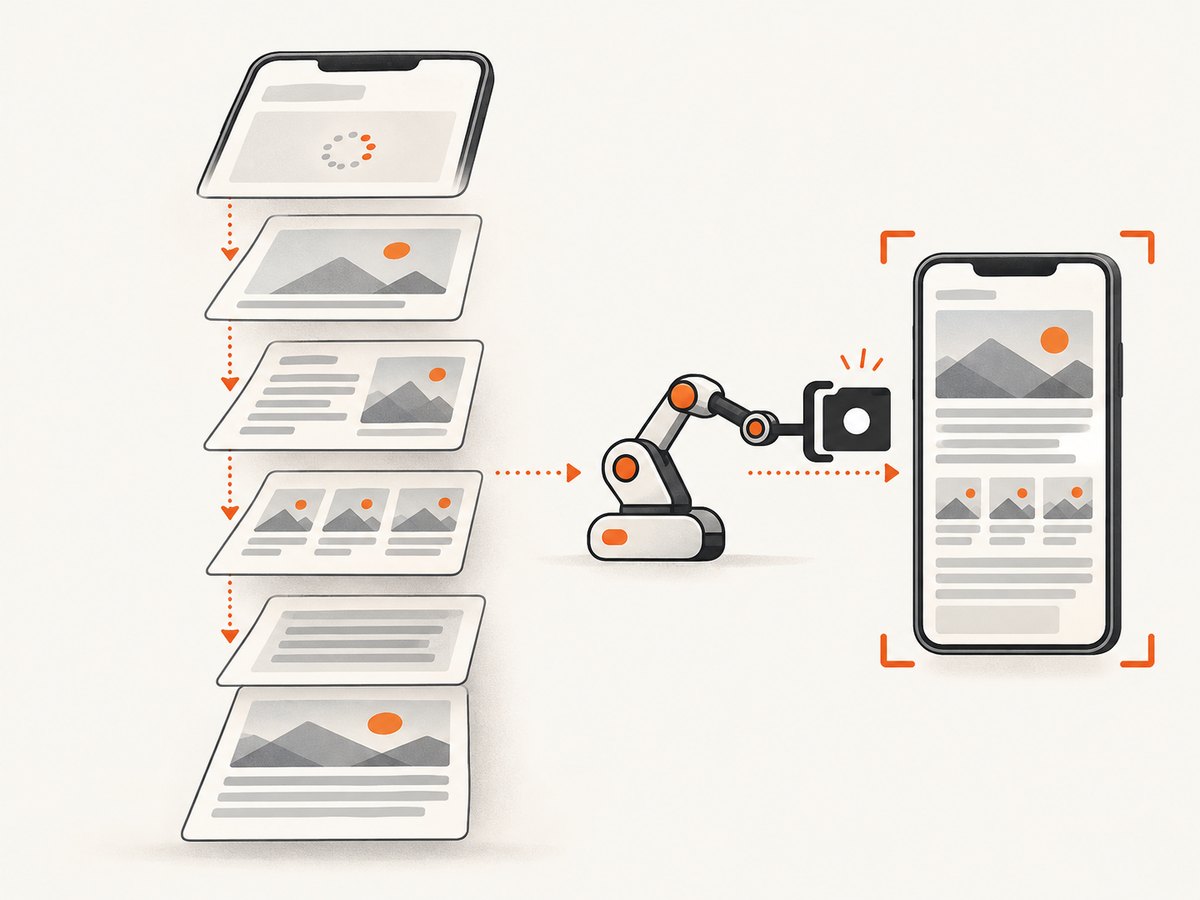
driver.get() waits for the browser’s page-load milestone, but modern applications often continue rendering afterward. Fonts, API responses, images, hydration, and lazy sections can arrive later. Use explicit conditions instead of an arbitrary long sleep where possible.
from selenium.webdriver.common.by import By
from selenium.webdriver.support.ui import WebDriverWait
from selenium.webdriver.support import expected_conditions as EC

wait = WebDriverWait(driver, 30)
driver.get("https://example.com/article")
wait.until(EC.presence_of_element_located((By.CSS_SELECTOR, "main")))
wait.until(lambda d: d.execute_script("return document.readyState") == "complete")
If the site has an application-specific marker, wait for that marker:
wait.until(EC.visibility_of_element_located((By.CSS_SELECTOR, "[data-page-ready='true']")))For lazy images, scroll in controlled increments so intersection observers run, then return to the top before capture:
driver.execute_script("""
const step = Math.max(window.innerHeight, 600);
let y = 0;
const max = document.documentElement.scrollHeight;
while (y < max) {
  window.scrollTo(0, y);
  y += step;
}
window.scrollTo(0, 0);
""")
For pages that keep changing, wait for a stable height over two samples:
import time

last_height = 0
stable = 0
for _ in range(10):
    height = driver.execute_script("return document.documentElement.scrollHeight")
    if height == last_height:
        stable += 1
        if stable >= 2:
            break
    else:
        stable = 0
    last_height = height
    time.sleep(0.5)
This is a practical policy, not a guarantee: a page can still replace content after its height stabilizes. For deterministic visual tests, disable animations and freeze time through your test application’s own controls when available.
5. Capture the full document with CDP
result = driver.execute_cdp_cmd("Page.captureScreenshot", {
    "format": "png",
    "fromSurface": True,
    "captureBeyondViewport": True,
})
image_bytes = base64.b64decode(result["data"])
with open("full-page-mobile.png", "wb") as image_file:
    image_file.write(image_bytes)
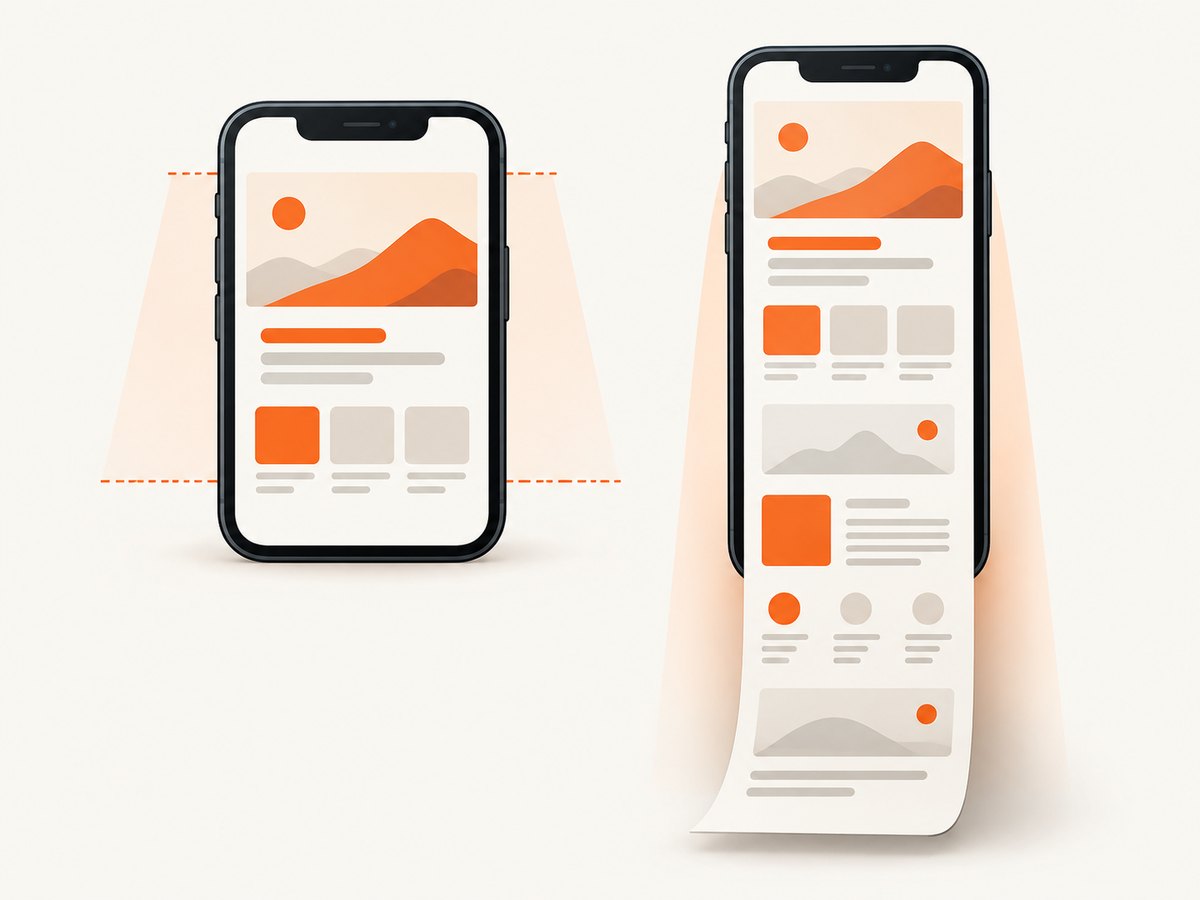
fromSurface: true captures the rendered surface rather than an obsolete view. captureBeyondViewport: true is the setting that asks Chrome to include content outside the visible viewport. The protocol response contains a data property with base64 image bytes; it is not a file path.
PNG, JPEG, and WebP
CDP supports image format selection. PNG is lossless and is usually best for pixel comparisons, text, and UI screenshots. JPEG is smaller for photographic pages and accepts a quality value. WebP can reduce size while preserving more detail than JPEG at a similar size.
result = driver.execute_cdp_cmd("Page.captureScreenshot", {
    "format": "jpeg",
    "quality": 85,
    "fromSurface": True,
    "captureBeyondViewport": True,
})
with open("full-page-mobile.jpg", "wb") as f:
    f.write(base64.b64decode(result["data"]))
Check the resulting dimensions and file size in your pipeline. A very tall page multiplied by a high pixel ratio can exceed memory limits or image decoder limits.
6. A complete reusable script
#!/usr/bin/env python3
import argparse
import base64
import time
from selenium import webdriver
from selenium.webdriver.chrome.options import Options
from selenium.webdriver.common.by import By
from selenium.webdriver.support.ui import WebDriverWait
from selenium.webdriver.support import expected_conditions as EC

def capture(url: str, output: str, width: int, height: int, pixel_ratio: float):
    options = Options()
    options.add_experimental_option("mobileEmulation", {
        "deviceMetrics": {
            "width": width,
            "height": height,
            "pixelRatio": pixel_ratio,
            "mobile": True,
            "touch": True,
        }
    })
    driver = webdriver.Chrome(options=options)
    try:
        driver.get(url)
        wait = WebDriverWait(driver, 30)
        wait.until(lambda d: d.execute_script("return document.readyState") == "complete")
        wait.until(EC.presence_of_element_located((By.TAG_NAME, "body")))

        # Trigger lazy loading, then return to the top.
        driver.execute_script("""
            const step = Math.max(window.innerHeight, 600);
            for (let y = 0; y < document.documentElement.scrollHeight; y += step) {
                window.scrollTo(0, y);
            }
            window.scrollTo(0, 0);
        """)
        time.sleep(0.5)

        result = driver.execute_cdp_cmd("Page.captureScreenshot", {
            "format": "png",
            "fromSurface": True,
            "captureBeyondViewport": True,
        })
        with open(output, "wb") as image_file:
            image_file.write(base64.b64decode(result["data"]))
    finally:
        driver.quit()

if __name__ == "__main__":
    parser = argparse.ArgumentParser()
    parser.add_argument("url")
    parser.add_argument("-o", "--output", default="full-page-mobile.png")
    parser.add_argument("--width", type=int, default=412)
    parser.add_argument("--height", type=int, default=823)
    parser.add_argument("--pixel-ratio", type=float, default=2.0)
    args = parser.parse_args()
    capture(args.url, args.output, args.width, args.height, args.pixel_ratio)
Run it with python capture_mobile.py https://example.com -o example.png. Add a site-specific ready selector and a stronger lazy-loading policy for production pages.
7. What can make a “full-page” image look wrong?
- Sticky or fixed elements: CDP captures the rendered page surface. A fixed header may appear once, while a scroll-driven implementation may change during lazy loading. Hide it temporarily with an injected stylesheet only if your test definition permits that.
- Consent dialogs and chat widgets: They can cover content and make screenshots inconsistent. Locate and click the close/accept control before capture, or remove the element in a controlled test fixture.
- Cross-origin iframes: You cannot inspect another origin’s DOM from the top document. The iframe may still render, but you need cooperation from that application to control its state.
- Animations: Capture timing changes the frame. Inject CSS to pause transitions when visual determinism matters.
- Very tall documents: Split the page into sections or use a service designed for long captures if Chrome or your image tooling runs out of memory.
8. Troubleshooting checklist
| Symptom | Likely cause | Fix |
|---|---|---|
| Only the viewport is saved | Using save_screenshot() or omitting CDP’s beyond-viewport flag |
Call Page.captureScreenshot with captureBeyondViewport: true. |
unknown command: Page.captureScreenshot |
Browser/driver mismatch or a non-Chromium browser | Use Chrome or a compatible Chromium driver and verify versions. Firefox has separate full-document screenshot APIs. |
| Session fails with “device not found” | Invalid deviceName |
Use a device name supported by the installed Chrome version or provide custom deviceMetrics. |
| Images are missing | Lazy loading has not been triggered or the network is still busy | Scroll through the document, wait for image elements or a page-ready marker, then capture. |
| Blank or partially rendered page | Capture occurs before hydration, fonts, or API content completes | Wait for document.readyState and an application-specific selector; increase the timeout for slow environments. |
| Text is unexpectedly large or small | CSS width, device scale, or user agent differs from the intended profile | Log width, height, pixel ratio, and user agent; use one stable profile. |
| Chrome crashes on tall pages | High pixel ratio and a large surface exceed available memory | Lower pixel ratio, capture sections, reduce concurrent browsers, or use an API service. |
| Output cannot be opened | Base64 was written as text or the response was not decoded | Use base64.b64decode(result["data"]) and write with "wb". |
9. Performance and reliability
Capture time is dominated by page load, JavaScript, fonts, images, and lazy-loading behavior rather than the final CDP call. Reuse a driver for a batch of URLs when isolation allows it, but reset cookies, storage, and navigation state between sites. Limit concurrent browsers according to available CPU and memory. A high device pixel ratio increases both raster work and output size.
For reliable jobs, record the URL, emulation metrics, browser version, timestamp, output format, and any wait conditions. Retry transient navigation failures with a bounded retry count; do not blindly retry an application error forever. Save diagnostic HTML, console logs, and a viewport screenshot when a full-page capture fails. Treat pages that change during capture as nondeterministic and define whether the expected result is the first stable render or the final loaded state.
For cost, self-hosted Selenium consumes your machine or CI resources, and long pages can increase runtime and storage. A managed screenshot API can move browser maintenance and queueing out of your application, but compare its billing rules, output options, and failure handling before switching.
10. Or skip the browser setup
ScreenshotNeo provides a single GET request for a PNG, JPEG, WebP, or PDF. It supports full-page capture with lazy images loaded, custom viewports and device presets, retina scale, waits, custom JavaScript and CSS, element capture, dark mode, headers, cookies, user agents, geolocation, and many other controls. See the ScreenshotNeo API documentation for the complete option list.
cURL
curl -G "https://api.screenshotneo.com/v1/shot" -d access_key=YOUR_API_KEY --data-urlencode url=https://stripe.com -o shot.webpPython
import requests
r = requests.get("https://api.screenshotneo.com/v1/shot", params={"access_key": "YOUR_API_KEY", "url": "https://stripe.com"}, timeout=90)
open("shot.webp", "wb").write(r.content)
Node.js
const q = new URLSearchParams({ access_key: 'YOUR_API_KEY', url: 'https://stripe.com' });
const res = await fetch(`https://api.screenshotneo.com/v1/shot?${q}`);
Cookie banners, newsletter popups, and chat widgets are removed before the shot. Bot checks, blank pages, failed loads, timeouts, and cache hits are not billed, and response headers identify the page verdict and billing result. ScreenshotNeo also provides an MCP server with take_screenshot, get_page_info, and capture_pdf tools for Claude, Cursor, and other MCP clients. The Free plan includes 1,000 shots each month with no card; paid plans start at $5 for 3,000 shots. Create a free ScreenshotNeo account.
11. FAQ
Can Selenium capture a full page without CDP?
Chrome’s ordinary Selenium screenshot methods are viewport-oriented. For Chrome, CDP’s captureBeyondViewport is the documented full-page route. Firefox provides browser-specific full-document methods in its Selenium binding.
Does mobile emulation equal a real phone?
No. It changes viewport, device metrics, touch behavior, and optionally user-agent signals inside desktop Chrome. It is useful for responsive testing, but it does not reproduce every hardware, browser, or network characteristic of a physical device.
Why is my screenshot still missing content below the fold?
The capture can include the document surface, but content may not exist yet because it is lazy-loaded. Scroll to trigger observers and wait for the page’s own ready condition before calling CDP.
Should I use PNG or JPEG?
Use PNG for crisp text and pixel comparisons. Use JPEG with a chosen quality for photographic pages when a smaller file is more important.
Can I capture one element instead of the whole page?
Yes. Locate the element and use Selenium’s element screenshot methods, or calculate its bounds and use CDP clipping. A full-page capture remains preferable when you need the page’s complete responsive layout.


