Python Selenium: Take a Full-Page Screenshot as PDF Without Page Breaks, Regardless of Page Dimensions
Create a one-sheet PDF with Selenium by measuring rendered content, converting pixels to centimeters, and configuring custom print dimensions.
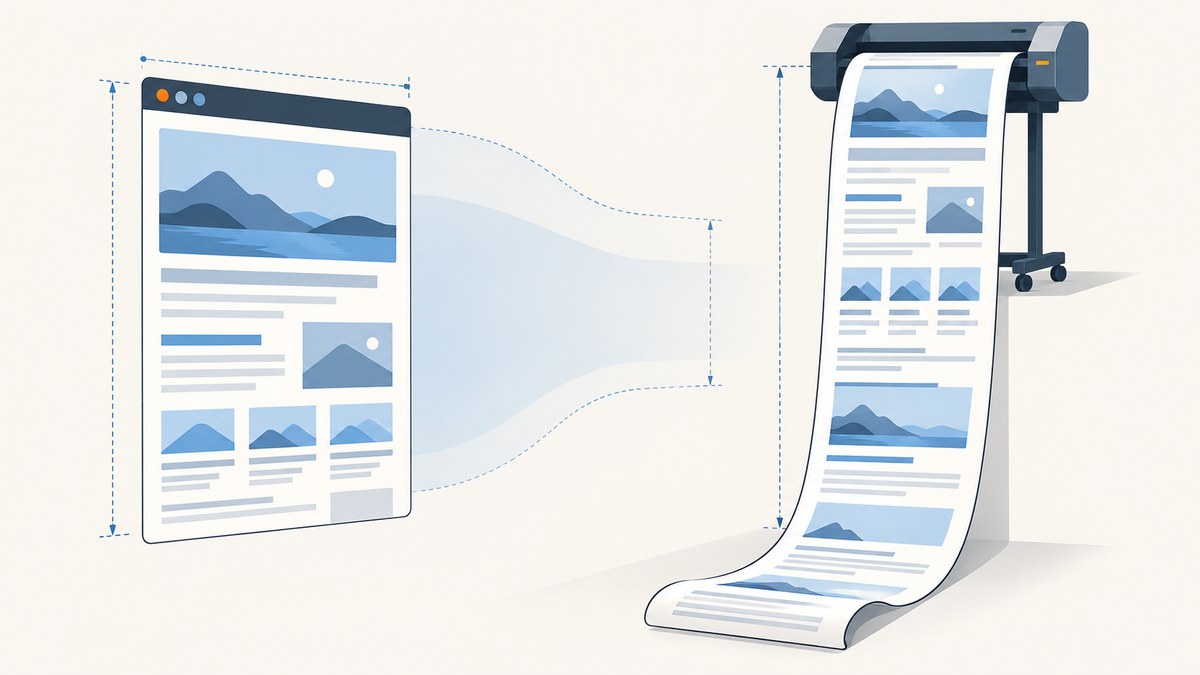
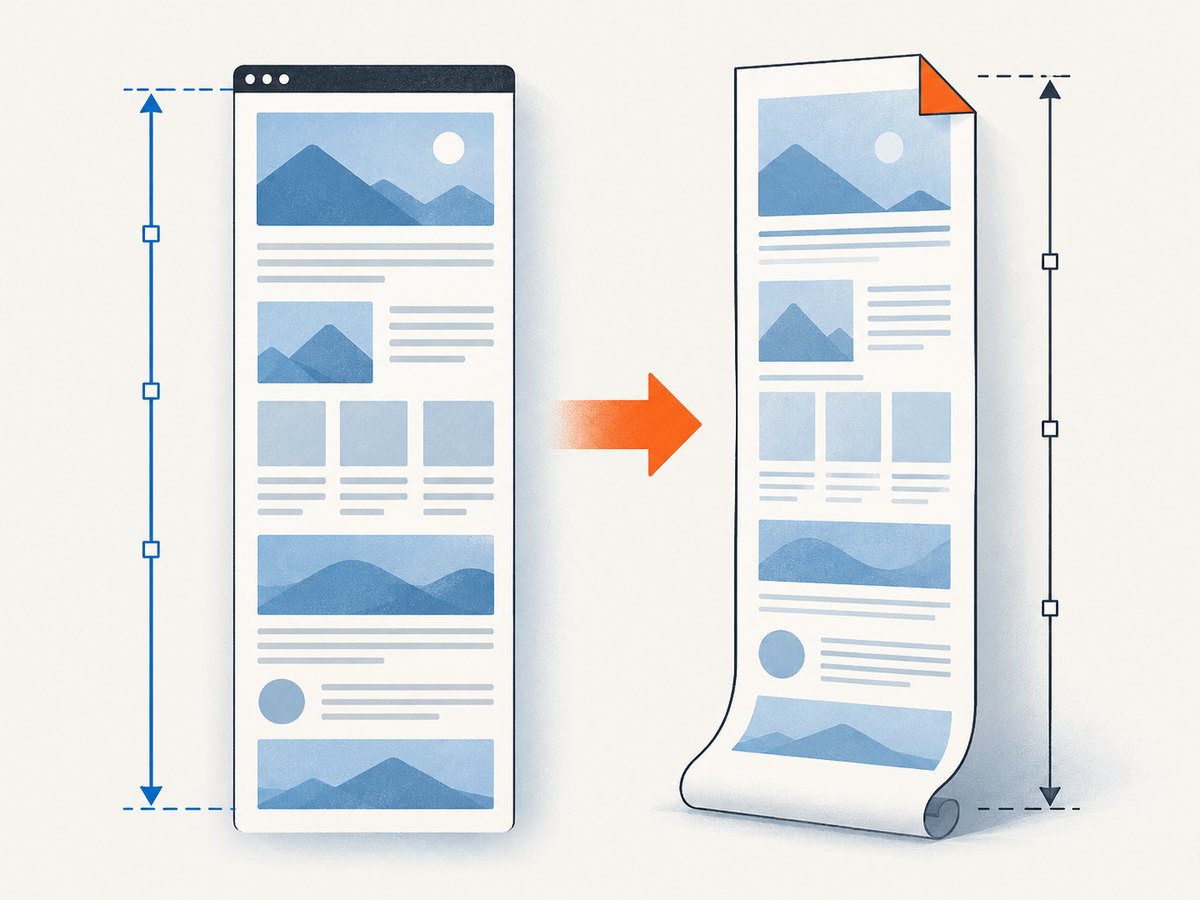
A normal browser PDF uses a fixed paper size such as A4 or Letter, so a long page is split into multiple sheets. To create one continuous PDF page, use Selenium’s print API with a custom width and height sized to the rendered document.
In Python, the workflow is:
- Render the page completely, including content loaded after scrolling.
- Measure its CSS pixel width and height.
- Convert those pixels to centimeters (Selenium’s custom dimensions use centimeters).
- Set zero margins and the custom page size in
PrintOptions. - Call
driver.print_page(), decode the returned Base64 PDF, and inspect the result.
This is a best-effort browser print operation. It removes ordinary fixed-height pagination when the browser accepts the requested sheet size, but it cannot guarantee a single sheet for every document, browser, driver, or extreme dimension. Print CSS, lazy loading, fixed elements, and implementation limits can still change the output.
Complete Python example
The following example assumes Selenium 4 and an already configured WebDriver. It waits for the page, scrolls through it to trigger common lazy-loading patterns, measures the document, and writes full_page.pdf.
import base64
import time
from pathlib import Path

from selenium import webdriver
from selenium.webdriver.common.print_page_options import PrintOptions
from selenium.webdriver.support.ui import WebDriverWait

URL = "https://example.com/long-page"

# Configure the browser as appropriate for your environment.
options = webdriver.ChromeOptions()
options.add_argument("--headless=new")
options.add_argument("--disable-gpu")
driver = webdriver.Chrome(options=options)

try:
    driver.get(URL)
    WebDriverWait(driver, 30).until(
        lambda d: d.execute_script("return document.readyState") == "complete"
    )

    # Trigger sections that load when they approach the viewport.
    driver.execute_script("window.scrollTo(0, document.body.scrollHeight);")
    time.sleep(2)
    driver.execute_script("window.scrollTo(0, 0);")

    # Compare document and body dimensions because sites use different layouts.
    width_px, height_px = driver.execute_script("""
        const html = document.documentElement;
        const body = document.body;
        return [
          Math.max(html.scrollWidth, body ? body.scrollWidth : 0),
          Math.max(html.scrollHeight, body ? body.scrollHeight : 0)
        ];
    """)

    # Selenium's custom page dimensions are centimeters.
    px_to_cm = 2.54 / 96
    options = PrintOptions()
    options.page_width = width_px * px_to_cm
    options.page_height = height_px * px_to_cm
    options.margin_top = 0
    options.margin_bottom = 0
    options.margin_left = 0
    options.margin_right = 0
    options.background = True
    options.shrink_to_fit = False

    pdf_base64 = driver.print_page(options)
    Path("full_page.pdf").write_bytes(base64.b64decode(pdf_base64))
finally:
    driver.quit()
The pixel-to-centimeter conversion is pixels × 2.54 ÷ 96: CSS defines 96 pixels per inch and an inch is 2.54 centimeters. The measurement and conversion strategy is practical implementation guidance built on Selenium’s documented custom dimensions; validate page count and visual layout in your target browser.
How Selenium’s PDF print pipeline works
driver.print_page(print_options) asks the remote WebDriver to print the current page and returns PDF data as a string. Selenium’s API describes this as best effort: the driver attempts to follow the supplied parameters, but does not promise identical output for every page or browser.
PrintOptions controls the print layout. The official Python API documents:
| Option | Effect | Typical use |
|---|---|---|
page_width, page_height |
Custom sheet dimensions in centimeters | One tall sheet sized to content |
set_page_size({"width": ..., "height": ...}) |
Sets both custom dimensions in centimeters | Applying a calculated size as a dictionary |
margin_top, margin_bottom, margin_left, margin_right |
Whitespace around the page | Set all to zero for edge-to-edge output |
background |
Includes CSS background colors and images | Preserving designed sections |
scale |
Print scale from 0.1 to 2 | Fitting width or changing text size |
orientation |
Portrait or landscape | Wide tables and dashboards |
shrink_to_fit |
Lets the browser reduce content to fit | When avoiding horizontal overflow matters more than exact sizing |
page_ranges |
Prints selected PDF pages | Exporting a subset after normal pagination |
For a continuous page, explicitly set margins to zero and use a custom height. Setting shrink_to_fit to false helps preserve the measured scale, but very wide content may overflow. If width is more important, enable shrink-to-fit and test the resulting text size.
Preparing content before measuring
Wait for asynchronous rendering
The navigation load event only tells you that the initial document finished loading. JavaScript frameworks may still be fetching data, fonts, images, or components. Wait for a page-specific selector when possible:
from selenium.webdriver.support import expected_conditions as EC
from selenium.webdriver.common.by import By

WebDriverWait(driver, 30).until(
    EC.visibility_of_element_located((By.CSS_SELECTOR, "main article"))
)
Trigger lazy images and infinite sections
Many pages load images only after they enter the viewport. Scroll in increments, pause briefly, and return to the top before measuring:
driver.execute_script("""
    const step = Math.max(window.innerHeight, 800);
    let y = 0;
    const max = document.documentElement.scrollHeight;
    const timer = setInterval(() => {
      window.scrollTo(0, y);
      y += step;
      if (y >= max) {
        clearInterval(timer);
        window.scrollTo(0, 0);
      }
    }, 150);
""")
time.sleep(3)
For a production script, replace a fixed sleep with an explicit condition, such as waiting until image elements report complete and the document height stops changing.
Measure the correct box
document.documentElement.scrollHeight is usually correct, but layouts that place content in the body or an application shell can produce different values. Compare HTML, body, and the known content container:
dimensions = driver.execute_script("""
const nodes = [document.documentElement, document.body, document.querySelector('main')];
return nodes.filter(Boolean).map(el => ({
  tag: el.tagName,
  width: el.scrollWidth,
  height: el.scrollHeight
}));
""")
print(dimensions)
Use the largest values that represent the intended page. Do not blindly include an off-screen modal, a hidden template, or a full-width element that is not part of the article.
Print CSS, fixed elements, and page breaks
PDF printing applies print stylesheets. A rule such as break-before: page, page-break-after: always, or a print-only fixed height can create breaks even when your custom sheet is tall. Inspect styles under the print media emulation used by your browser and remove rules that are intended for reports.
Sticky headers, cookie banners, chat launchers, and fixed footers may be repeated or overlap content. Hide them before printing if they are not part of the document:
driver.execute_script("""
for (const selector of ['.cookie-banner', '.chat-widget', '.sticky-header']) {
  document.querySelectorAll(selector).forEach(el => el.remove());
}
""")
Use this only when you control the page or have permission to alter it. A custom page height does not turn a raster screenshot into a PDF image: Selenium’s ordinary save_screenshot() writes a PNG of the current window, while print produces a searchable, printable PDF. Chromium also exposes a separate DevTools command, Page.printToPDF; that protocol-specific API is not the same as Selenium’s standard Python method.
Handling width, orientation, and scale
Measure the rendered width rather than assuming a desktop viewport. Set the viewport before navigation when a consistent layout is required:
driver.set_window_size(1440, 900)
driver.get(URL)
If the document contains a 2,000-pixel table, a proportional custom width may create an unusually wide PDF. Options include:
- Use
shrink_to_fit = Trueto fit the content into a narrower sheet. - Set
scalebelow 1, then inspect readability. - Use landscape orientation for wide reports.
- Capture a selected content container instead of navigation and sidebars.
There is no universal maximum custom height established by the reviewed Selenium references. Extremely long documents can exceed browser, PDF viewer, memory, or operating-system limits. For those pages, split the document intentionally or use a normal paper size with controlled breaks.
Verifying that the PDF is really one page
Always inspect the generated file. Check the page count with a PDF library or command-line tool, then open it in at least one viewer. A successful WebDriver response only means PDF data was returned.
# Optional local check with pypdf
from pypdf import PdfReader

reader = PdfReader("full_page.pdf")
print("pages:", len(reader.pages))
print("media box:", reader.pages[0].mediabox)
Review the top, middle, and bottom of long documents. Look for missing lazy images, repeated fixed controls, clipped right edges, unexpected white bands, and text that became too small after scaling.
Troubleshooting common failures
| Symptom | Likely cause | Fix |
|---|---|---|
| Several pages are produced | Fixed paper height, print CSS breaks, or a browser limit | Set custom page_height, remove forced breaks, and test a shorter document. |
| Bottom content is missing | Lazy loading had not completed before measurement | Scroll through the page, wait for images/data, then measure again. |
| Width is clipped | Horizontal overflow or an incorrect width element | Measure the widest intended container, use landscape, or enable shrink-to-fit. |
| Backgrounds are white | Background printing is disabled | Set options.background = True and check print CSS. |
| Content overlaps | Fixed or sticky elements remain in the print layout | Hide them with print CSS or remove them before printing. |
InvalidArgumentException |
Unsupported option, wrong type, or invalid page dimensions | Upgrade Selenium and the browser driver, use float centimeter values, and test with a simple page. |
| PDF is blank | Navigation failed, authentication is missing, or the page is a bot challenge | Check the URL and response state, supply required cookies/headers, and save an HTML snapshot for diagnosis. |
| Fonts or images differ | Resources were still loading or blocked in headless mode | Wait for font/image completion, configure network access, and compare headed and headless runs. |
Reliability, performance, and cost considerations
Reliability
- Pin compatible Selenium, browser, and driver versions in CI.
- Use explicit waits for application state instead of a single arbitrary delay.
- Log measured width, height, URL, browser version, and PDF page count.
- Retry navigation failures separately from print failures; repeating a print call cannot fix missing page content.
- Keep a maximum document size and a fallback that prints normal pages when a single sheet is impractical.
Performance
Scrolling, waiting for network activity, decoding PDF data, and opening a browser dominate runtime. Reuse a driver for multiple URLs when isolation permits, but clear cookies and storage between sites. Avoid repeatedly measuring while the page is still growing; wait until two measurements taken a short interval apart are equal.
Cost
Self-hosted Selenium costs the compute time and browser infrastructure you operate. Add limits for very tall pages because memory use rises with layout complexity and PDF size. If you need a managed capture endpoint, compare billing semantics carefully: a failed browser load can otherwise consume a quota unit.
Or skip the browser setup
ScreenshotNeo provides a one-request website capture API that can return PNG, JPEG, WebP, or PDF. It handles the browser layer for you and supports full-page capture, custom viewport and device settings, PDF paper size, margins, landscape mode, page ranges, waits, custom CSS and JavaScript, cookies, headers, authentication, blocking rules, caching, asynchronous jobs, bulk capture, and signed links. See the ScreenshotNeo API documentation for the complete option list.
cURL
curl -G "https://api.screenshotneo.com/v1/shot" \
  -d access_key=YOUR_API_KEY \
  --data-urlencode url=https://stripe.com \
  -o shot.webp
Python
import requests

r = requests.get(
    "https://api.screenshotneo.com/v1/shot",
    params={"access_key": "YOUR_API_KEY", "url": "https://stripe.com"},
    timeout=90,
)
r.raise_for_status()
open("shot.webp", "wb").write(r.content)
Node.js
const q = new URLSearchParams({
  access_key: 'YOUR_API_KEY',
  url: 'https://stripe.com'
});
const res = await fetch(`https://api.screenshotneo.com/v1/shot?${q}`);
if (!res.ok) throw new Error(`HTTP ${res.status}`);
const buffer = Buffer.from(await res.arrayBuffer());
await import('node:fs/promises').then(fs => fs.writeFile('shot.webp', buffer));
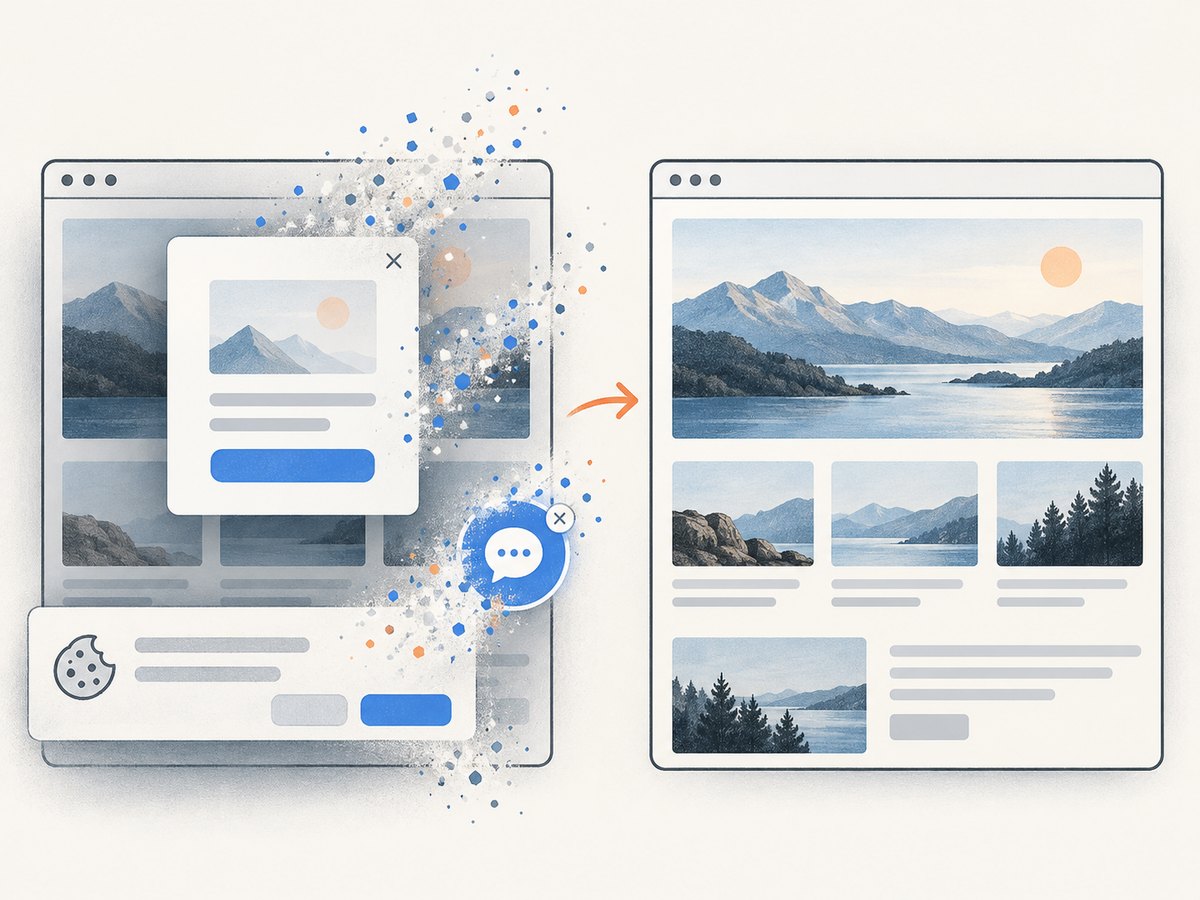
ScreenshotNeo accepts consent banners before capture and removes more than 60 known consent platforms, newsletter popups, and chat widgets; each cleanup step can be disabled. Bot checks, blank pages, timeouts, failed loads, and cache hits are not billed, and the response identifies the result with X-Page-Verdict and X-Billed headers. Its MCP server provides take_screenshot, get_page_info, and capture_pdf tools for Claude, Cursor, and other MCP clients.
The Free plan includes 1,000 screenshots per month with no card. Paid plans start at $5 for 3,000 shots; every feature is available on every plan. Create a free ScreenshotNeo account.
FAQ
Does a custom height guarantee one PDF page?
No. It prevents ordinary fixed-paper pagination when supported, but print CSS, browser limits, and unusually large documents can still create breaks or failures.
Why use centimeters instead of pixels?
Selenium’s documented custom page dimensions are physical units in centimeters. Convert CSS pixels with 2.54 / 96.
Can I make the PDF searchable?
Yes. Selenium print output is a PDF generated from the browser’s document, so text is generally represented as PDF text rather than a bitmap. Fonts and browser rendering can affect extraction.
Should I use save_screenshot() instead?
Use save_screenshot() for PNG viewport captures. Use print_page() when the output must be a PDF with print layout controls.
What if the page is too tall for one sheet?
Set a practical maximum, then fall back to normal paper sizes or split the content at deliberate section boundaries. Inspect the result instead of assuming the browser accepted the full dimension.


