How to Resize a Web Page in Selenium to Capture a Full-Page Screenshot
Resize Selenium’s browser to control responsive layout, then use Firefox’s full-document API or a browser-specific capture method for the entire page.
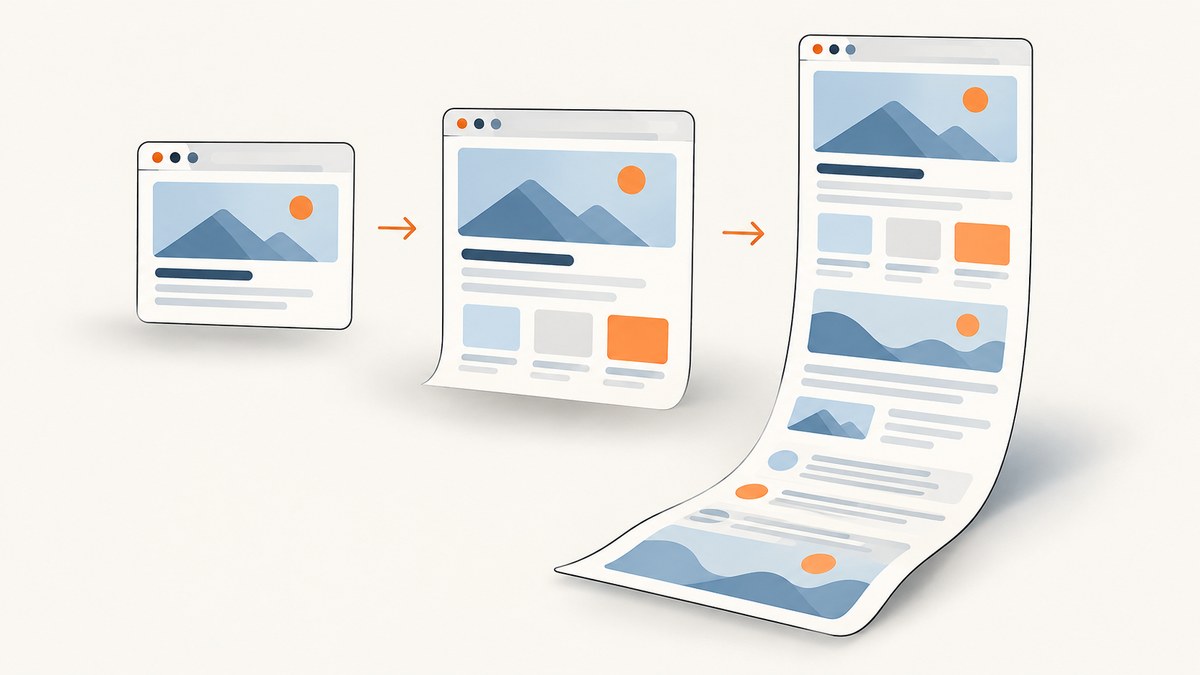
To capture a full-page screenshot in Selenium, first set the browser window to the width you want the page to render at, then use a capture method that includes content beyond the visible viewport. In Python, Firefox WebDriver provides save_full_page_screenshot(). The common Selenium save_screenshot() command captures the current window only; resizing its height does not turn it into a reliable full-document capture.
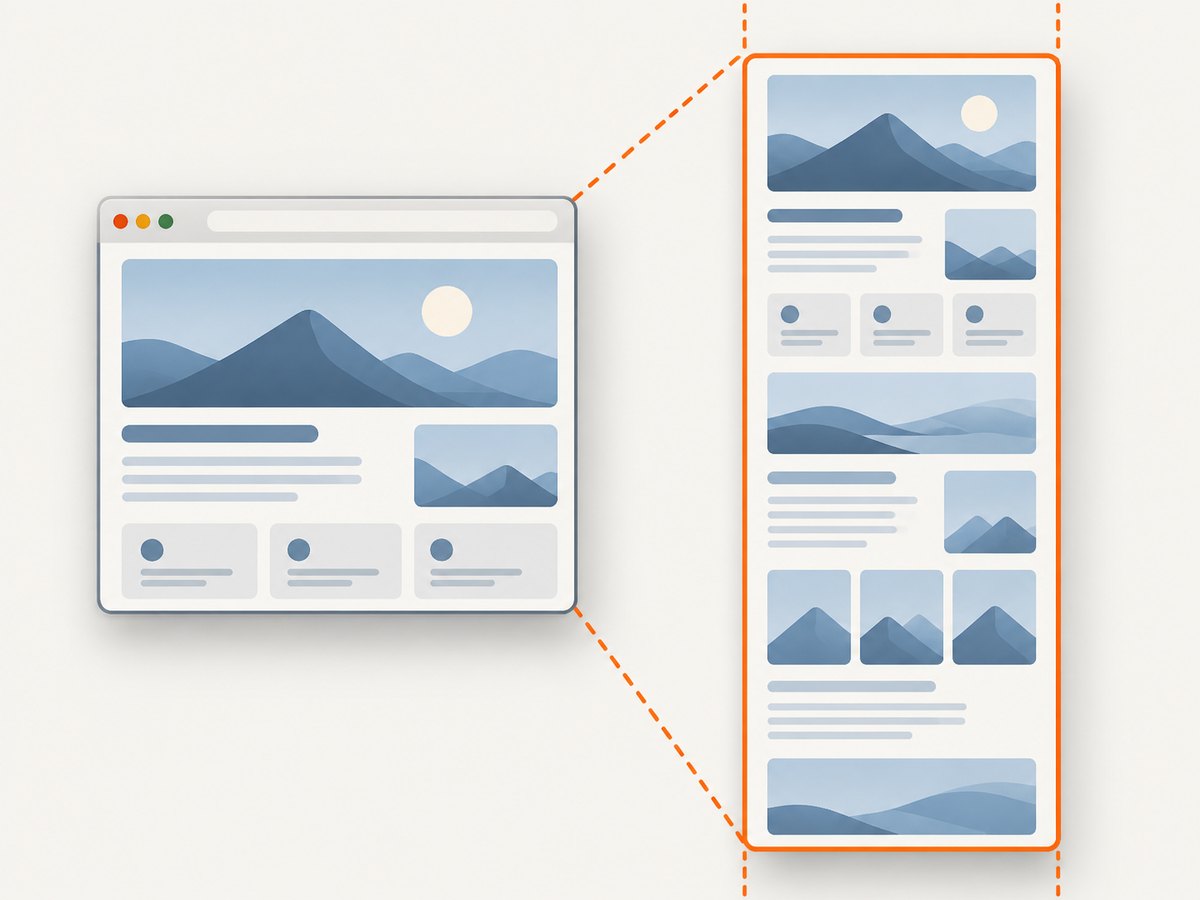
Window size and capture extent are separate choices. Width affects responsive breakpoints and page layout. Height sets the visible browser area for viewport screenshots, while a full-page method captures document content outside that area. For other browsers, use a browser-native full-page capability where available or build and validate a page-specific scrolling and stitching workflow.
1. Choose the layout width and capture method
Decide what the screenshot needs to show before writing code:
- One visible screen: Set both dimensions and call
save_screenshot(). - The whole document in Firefox: Set the desired width and call
save_full_page_screenshot(). - The whole document in Chrome or another driver: Set the desired width, then use a supported browser-native full-page feature or a page-specific capture-and-stitch process. Selenium’s common screenshot commands capture the current window.
Choose a width that represents the target device class. A 1366-pixel-wide browser and a 390-pixel-wide browser can trigger different layouts; widening the window does not merely enlarge the same design. Selenium documents window sizing as useful because screen resolution can affect how an application renders. [Selenium: Working with windows and tabs]
2. Capture the full document in Firefox with Python
Install Selenium and ensure Firefox and a compatible driver are available in your environment. The example uses Firefox’s full-document screenshot API and writes a PNG file:
from selenium import webdriver

options = webdriver.FirefoxOptions()
# Uncomment to run without a visible browser window.
# options.add_argument("-headless")

driver = webdriver.Firefox(options=options)
try:
    driver.set_window_size(1366, 900)
    driver.get("https://example.com")
    driver.save_full_page_screenshot("page.png")
finally:
    driver.quit()
save_full_page_screenshot(filename) saves a full-document screenshot of the current window. Firefox’s Python API also provides full-page methods that return a file path, PNG bytes, or base64 data. [Selenium Python Firefox WebDriver API]
For a standard viewport capture, use this variant:
from selenium import webdriver

options = webdriver.FirefoxOptions()
driver = webdriver.Firefox(options=options)
try:
    driver.set_window_size(1366, 900)
    driver.get("https://example.com")
    driver.save_screenshot("viewport.png")
finally:
    driver.quit()
The common WebDriver screenshot methods, including save_screenshot(), capture the current window. [Selenium Python WebDriver API]
3. Resize the window correctly
In Python, driver.set_window_size(width, height) is the direct way to request a window size. Selenium also exposes set_window_rect() on supported drivers, which can set position and dimensions together. For example:
driver.set_window_rect(x=0, y=0, width=1366, height=900)Drivers and desktop environments can interpret outer window dimensions differently from the page’s inner viewport. If exact CSS viewport dimensions matter, inspect the rendered page’s window.innerWidth and window.innerHeight after resizing. Browser chrome, headless mode, operating-system scaling, and driver behavior can affect the relationship between requested window size and usable page area.
Set the size before navigation when possible, as in the examples, so responsive scripts see the intended viewport early. If the page changes layout only after resizing, resize and then wait for the layout to settle before capture. Use a consistent browser and execution environment when comparing images across runs.
4. Select an approach for Chrome and other drivers
The familiar Selenium screenshot methods are current-window captures. Firefox is the straightforward documented WebDriver option when a full-document PNG is required. For Chrome and other drivers, check whether the browser or driver version you use exposes a native full-page capture mechanism. If it does, validate its output against your page and browser version; do not assume the shared WebDriver screenshot command will capture beyond the viewport.
A second option is to scroll through the document, save viewport screenshots, and compose them into one image. This is a fallback technique, not a Selenium guarantee. It needs page-specific handling for overlap, sticky elements, dynamic content, and scroll containers. If a project depends on a particular browser-native capability, keep that behavior covered in the project’s own compatibility checks.
| Approach | What it captures | Key consideration |
|---|---|---|
save_screenshot() |
Current browser window | Simple and broadly familiar; not a full-document command. |
Firefox save_full_page_screenshot() |
Full document, including content beyond the window bounds | Firefox WebDriver API; returns a PNG file. |
| Browser-native full-page capability | Depends on the browser and driver feature | Check support and validate for the deployed versions. |
| Scroll and stitch | A composed image of successive viewport captures | Requires overlap removal and special handling for fixed UI and dynamic pages. |
Mozilla describes full-page capture as including page parts outside the current window bounds. [Mozilla Firefox Source Docs]
5. Handle dynamic pages, lazy loading, and scroll containers
A full-document API captures the document; it cannot make a page’s content deterministic. Before capture, identify how the page builds its content and wait for the relevant state:
- Wait for navigation and a useful page condition. A page’s initial load event may occur before client-side data or images are ready. Wait for a stable selector or a known application state when the page requires it.
- Account for lazy-loaded content. Some pages fetch images or sections only when they approach the visible region. Scroll through the document to trigger loading, then allow the content to settle before taking the final full-page shot.
- Inspect internal scroll regions. A chat panel, table, or application pane may scroll independently of the document. Increasing the browser height will not reveal all content inside that region. If that region must be shown, handle its scroll position or capture it separately.
- Settle animations and transitions where appropriate. Animating elements can appear at different positions from run to run. In a test environment, disable animations using a test stylesheet or wait until the relevant transition ends.
- Review the resulting image. Check for blank sections, missing images, unexpected responsive changes, repeated sticky headers, and content clipped by nested containers.
These checks are page-specific. Neither a tall window nor a full-document method guarantees that a dynamic page has finished loading every piece of content.
6. Stitch screenshots when necessary
If no suitable full-page capture method is available, a scroll-and-stitch workflow can work for controlled pages. Its basic process is:
- Set the target responsive width and a manageable viewport height.
- Record the document height and scroll position.
- Capture the viewport, scroll down by a viewport-sized increment, and continue until reaching the bottom.
- Use overlapping regions to align adjacent captures, then remove duplicate overlap when composing the image.
- Inspect seams and fixed or sticky elements. A header that stays pinned may appear repeatedly, while changing content can make adjacent slices impossible to align cleanly.
Do not treat this outline as drop-in code for every site. Scroll height may change while images load, a page may use virtualized content that removes off-screen nodes, and a nested scroll region may not follow document scrolling. Validate the result against the actual page. For especially tall pages, the output image can become large and costly to store or process; split captures into sections if a single image is not required.
7. Troubleshooting
| Symptom | Likely cause | Fix |
|---|---|---|
| The screenshot shows only the first screen. | save_screenshot() captures the current window. |
Use Firefox’s full-document method, a verified browser-native full-page feature, or a validated stitch workflow. |
| The page layout is unexpectedly mobile or desktop. | The requested width triggered a responsive breakpoint, or the inner viewport differs from the requested outer window dimensions. | Choose the intended layout width and inspect window.innerWidth after resizing. |
| Lower-page images are missing. | Images may load lazily, or capture started before requests completed. | Scroll to trigger loading, wait for image readiness or a page-specific condition, then capture. |
| Some content is still cut off. | The content may be inside a fixed-height nested scrolling element rather than the document. | Scroll that element independently or capture it separately; verify which region owns the scrollbar. |
| Repeated headers or seams appear in a stitched image. | Sticky UI was captured in each viewport, or overlap was not aligned and removed consistently. | Account for the fixed region and overlap during composition; inspect each seam at the target scale. |
| Images vary between runs. | Animations, live data, delayed scripts, or changing page height affect the capture. | Wait for stable content, use test data where possible, and settle or disable animation when appropriate. |
| The saved file is empty or capture fails. | Navigation, driver startup, or page loading failed before the screenshot call. | Check the WebDriver error and browser logs, confirm the URL is reachable in the execution environment, and wait for the required page condition. |
8. Performance, reliability, and output size
Capture time depends on navigation, page scripts, network requests, lazy loading, and the chosen full-page technique. A full-document screenshot can produce a much taller image than a viewport capture, increasing memory use and file size. Keep the width at the smallest value that reproduces the layout you need, and avoid capturing irrelevant pages or repeating identical work.
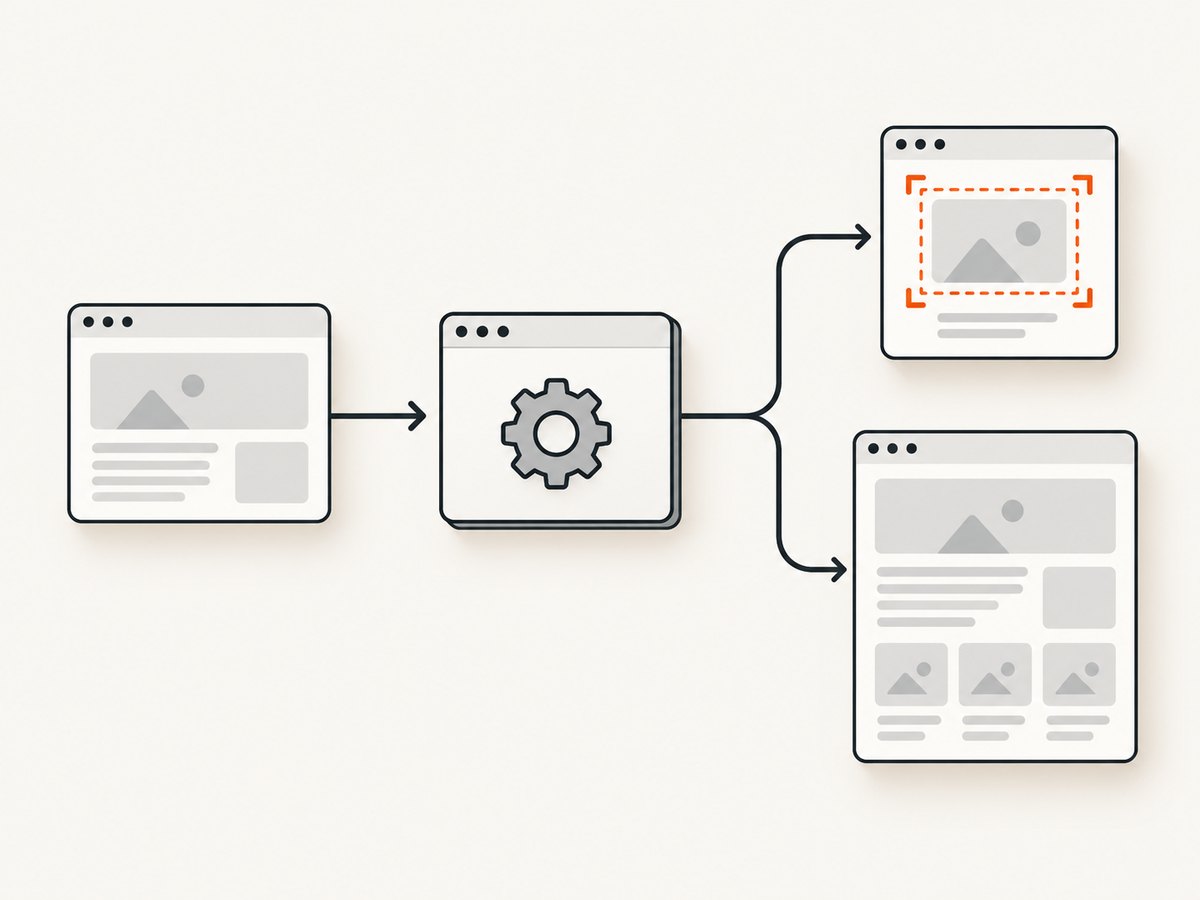
For repeatable results, pin or record browser and driver versions in the capture environment, use explicit waits for application-specific readiness, and save screenshots with enough context to identify the URL and viewport. Retries can help with transient navigation failures, but retries should be bounded: a page that consistently fails a readiness condition needs diagnosis rather than an endless recapture loop. For stitched captures, page movement or changing document height can undermine reliability; prefer a native full-page method when it suits the browser and page.
These Selenium methods do not define a universal maximum useful page height. Practical limits depend on browser, device memory, page complexity, image processing, and storage. Validate very tall captures on the actual runtime you plan to use.
9. Or skip the browser setup
If your goal is a clean page screenshot rather than browser automation, ScreenshotNeo is a website screenshot API and MCP server. One GET request returns an image or PDF. Its screenshot API can capture full pages and load lazy images; see the ScreenshotNeo API documentation for request options.
curl -G "https://api.screenshotneo.com/v1/shot" -d access_key=YOUR_API_KEY --data-urlencode url=https://example.com -o shot.webpimport requests
r = requests.get(
"https://api.screenshotneo.com/v1/shot",
params={"access_key": "YOUR_API_KEY", "url": "https://example.com"},
timeout=90,
)
open("shot.webp", "wb").write(r.content)const q = new URLSearchParams({
access_key: 'YOUR_API_KEY',
url: 'https://example.com'
});
const res = await fetch(`https://api.screenshotneo.com/v1/shot?${q}`);
if (!res.ok) throw new Error(`Screenshot request failed: ${res.status}`);
await Bun.write('shot.webp', res);Replace YOUR_API_KEY with your key. The API also supports PNG, JPEG, and PDF output, viewport sizing, device presets, waiting for a selector or network idle, and other capture options. Cookie and consent banners, newsletter popups, and chat widgets are removed before capture, and each of those cleanup steps can be turned off. Bot checks, blank pages, timeouts, failed loads, and cache hits are not billed; response headers report the page verdict and billing status. Its MCP server offers take_screenshot, get_page_info, and capture_pdf for Claude, Cursor, and other MCP clients. The free plan includes 1,000 screenshots per month with no card; paid plans start at $5 for 3,000 screenshots.
Sign up for ScreenshotNeo’s free 1,000 screenshots a month—no card required.
10. Frequently asked questions
Does resizing the window make Selenium capture the whole page?
No. It changes the rendered window size and can affect responsive layout. The screenshot method determines whether content outside the current window is included.
Can I save a Firefox full-page screenshot as bytes?
Yes. Firefox WebDriver documents PNG and base64 full-page return methods in addition to saving a full-document PNG file. Use the return form that fits whether your next step writes a file, uploads bytes, or embeds data.
Why is a full-page screenshot much taller than expected?
The document may include long content, hidden sections that affect layout, or content added after navigation. Inspect the page’s document height and application state, then decide whether the whole document or selected regions are actually needed.
Should I use a full-page capture for visual regression tests?
Use it when the entire document is part of the behavior you need to compare. Keep viewport width, browser environment, page state, and dynamic content consistent; otherwise layout or live content changes can dominate the image diff.


