How to Take a Full-Page Selenium Screenshot When an UnhandledAlertException Occurs
Handle the unexpected JavaScript prompt first, then capture again. Learn what Selenium’s screenshot APIs guarantee—and how full-page capture depends on your browser and driver.
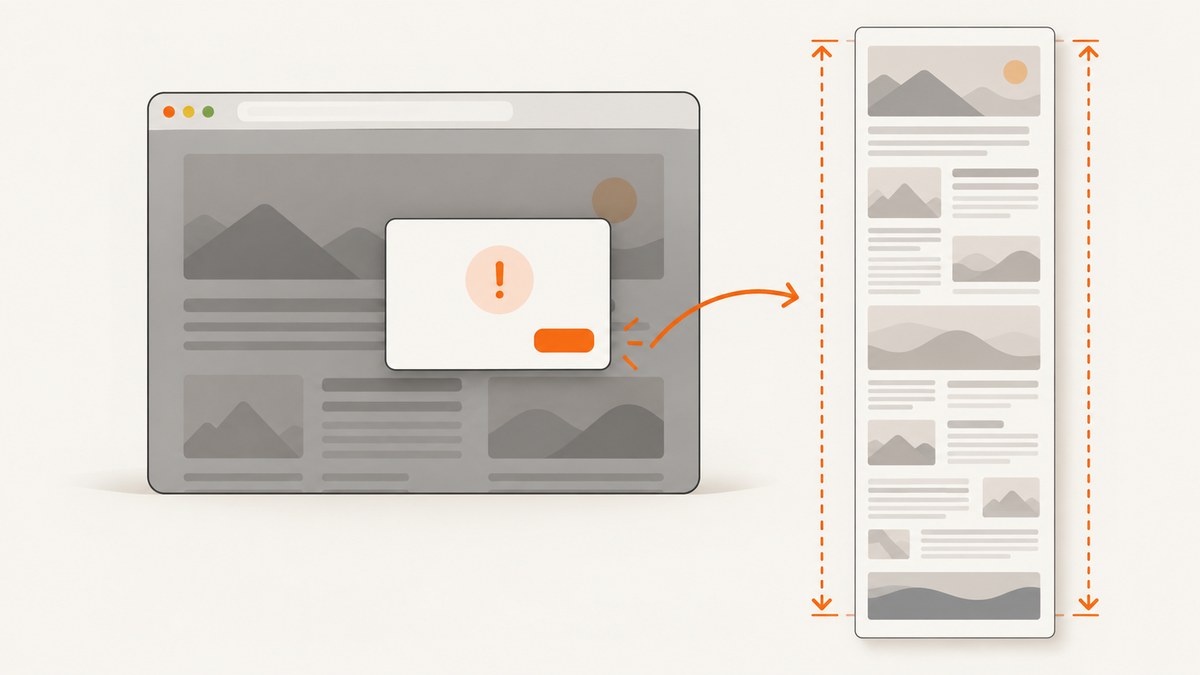
When Selenium raises UnhandledAlertException during a screenshot, first determine whether the JavaScript prompt is still open. Handle it according to the test’s expected behavior, then retry the capture. For a genuinely full-page image, use a capture method documented for your exact browser and language binding: Selenium’s standard Java screenshot API does not guarantee that every driver returns the entire document.
This guide uses Java for the exception-recovery example, then explains the full-page limitation, gives Firefox’s documented Python full-page API, and covers configuration, failure handling, and practical alternatives. The prompt policy and browser determine what happens; there is no universal catch-and-capture recipe that guarantees a full-page result across all Selenium setups.
1. What the exception means and what to do first
A browser alert, confirmation dialog, or prompt can interrupt WebDriver commands. Depending on the configured unhandledPromptBehavior, WebDriver may accept or dismiss the prompt and still notify the caller by raising UnhandledAlertException. Selenium documents dismiss and notify as the default behavior. Therefore, the exception alone does not tell you whether the dialog is still open.
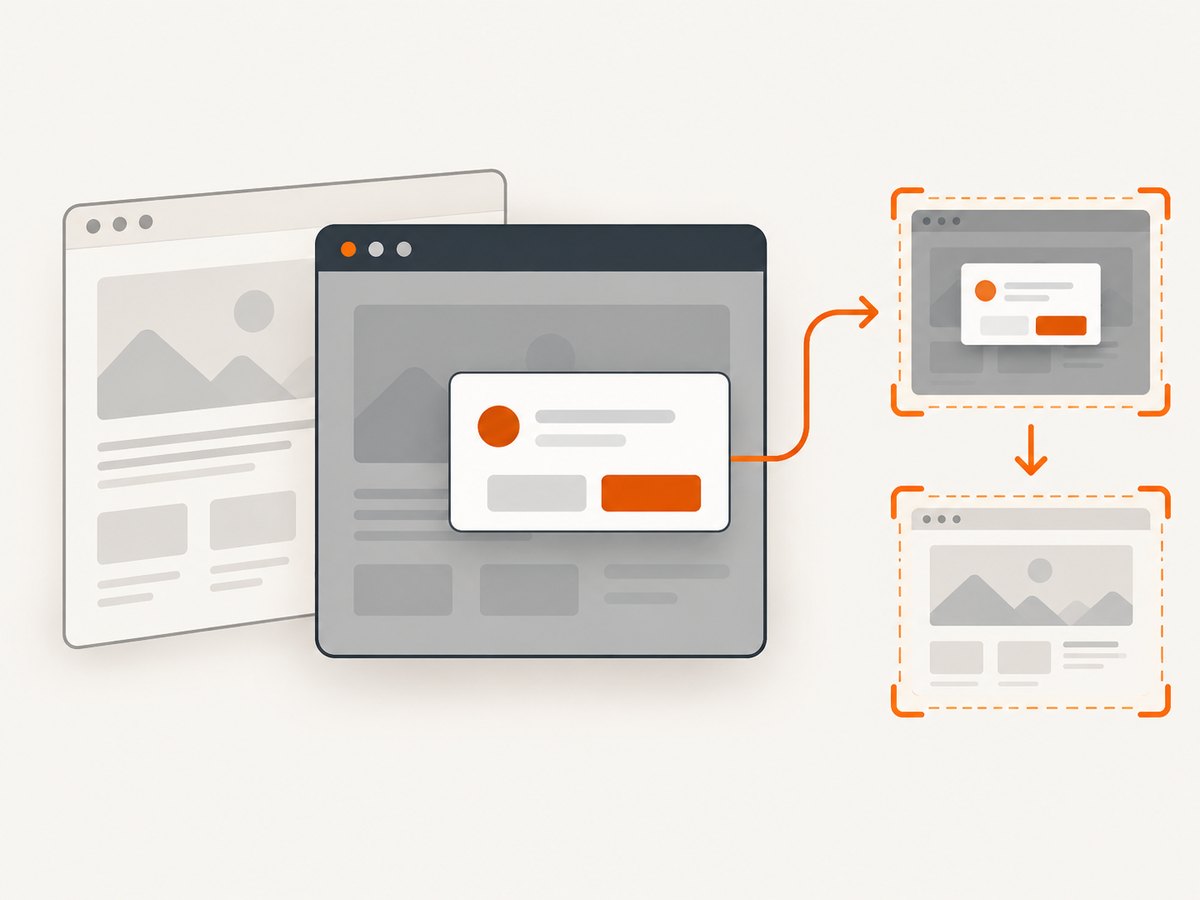
Use this sequence:
- Keep the original exception and its stack trace as test evidence.
- Check whether an alert remains. If it does, read its text if useful and choose accept or dismiss based on the test’s intended behavior.
- Retry the screenshot after the prompt is handled.
- If you require the whole document, use a full-page method documented for that browser and binding. Label ordinary viewport captures accurately.
The Java alert API exposes operations to read text, accept, dismiss, and enter text for a prompt. Do not automatically accept or dismiss every dialog: accepting a confirmation can trigger a different application action than dismissing it. See Selenium’s official alert documentation and the WebDriver specification on user prompts.
2. Java: recover from the alert and retry the screenshot
This example uses Selenium’s standard Java screenshot entry point, saves the returned image, and handles the case where the prompt was already cleared by WebDriver. It is an implementation pattern based on the documented APIs, not a published universal Selenium recipe.
import java.io.File;
import java.io.IOException;
import java.nio.file.Files;
import java.nio.file.Path;
import java.nio.file.StandardCopyOption;

import org.openqa.selenium.Alert;
import org.openqa.selenium.NoAlertPresentException;
import org.openqa.selenium.OutputType;
import org.openqa.selenium.TakesScreenshot;
import org.openqa.selenium.UnhandledAlertException;
import org.openqa.selenium.WebDriver;

public class ScreenshotRecovery {
    static void saveScreenshot(WebDriver driver, Path destination) throws IOException {
        File image = ((TakesScreenshot) driver).getScreenshotAs(OutputType.FILE);
        Files.copy(image.toPath(), destination, StandardCopyOption.REPLACE_EXISTING);
    }

    static void captureAfterUnexpectedAlert(WebDriver driver, Path destination)
            throws IOException {
        try {
            saveScreenshot(driver, destination);
        } catch (UnhandledAlertException original) {
            // Preserve the original failure in the test report or logs.
            try {
                Alert alert = driver.switchTo().alert();
                String message = alert.getText(); // Optional diagnostic evidence.
                System.err.println("Unexpected browser prompt: " + message);
                alert.accept(); // Choose accept or dismiss for this test's semantics.
            } catch (NoAlertPresentException alreadyHandled) {
                // The configured prompt behavior may have handled it already.
            }

            // Retry once after handling or confirming the prompt is gone.
            saveScreenshot(driver, destination);
        }
    }
}
Call captureAfterUnexpectedAlert(driver, Path.of("artifacts/page.png")) after creating the artifact directory and navigating to the page. The method deliberately catches only UnhandledAlertException. A filesystem error, session failure, unsupported screenshot command, or second capture failure should remain visible to the test rather than be swallowed.
If accepting is wrong for the application, replace alert.accept() with alert.dismiss(). For a prompt that requires input, use alert.sendKeys("...") before accepting, but only when that input is part of the intended test flow. Avoid putting sensitive prompt text into logs.
Configure prompt behavior deliberately
For Java, prompt behavior is set through browser options and the W3C capability named unhandledPromptBehavior. Selenium’s documented default is dismiss and notify; the supported behavior values include dismiss, accept, dismiss and notify, accept and notify, and ignore. The notify variants handle the prompt and report the interruption. ignore leaves handling to the test, where supported.
import org.openqa.selenium.chrome.ChromeOptions;

ChromeOptions options = new ChromeOptions();
options.setCapability("unhandledPromptBehavior", "dismiss and notify");
WebDriver driver = new org.openqa.selenium.chrome.ChromeDriver(options);
Changing the capability changes application behavior during the test. Choose it deliberately and keep it consistent with the scenario being tested. For example, a test verifying the result of clicking “Cancel” should not silently accept a confirmation just to make screenshot capture succeed. Consult the capability definition and your browser’s Selenium options documentation for the exact binding and browser version.
3. What “full-page” means in Selenium
TakesScreenshot.getScreenshotAs(OutputType.FILE) is the standard Java screenshot API, but that signature does not promise a full-document image for every driver. Selenium’s Java API describes W3C-conformant behavior and a best-effort fallback for non-conformant implementations; the fallback can capture an entire page, current window, visible frame, or whole display. It is not a cross-browser guarantee of a tall document image. See the Java TakesScreenshot API.
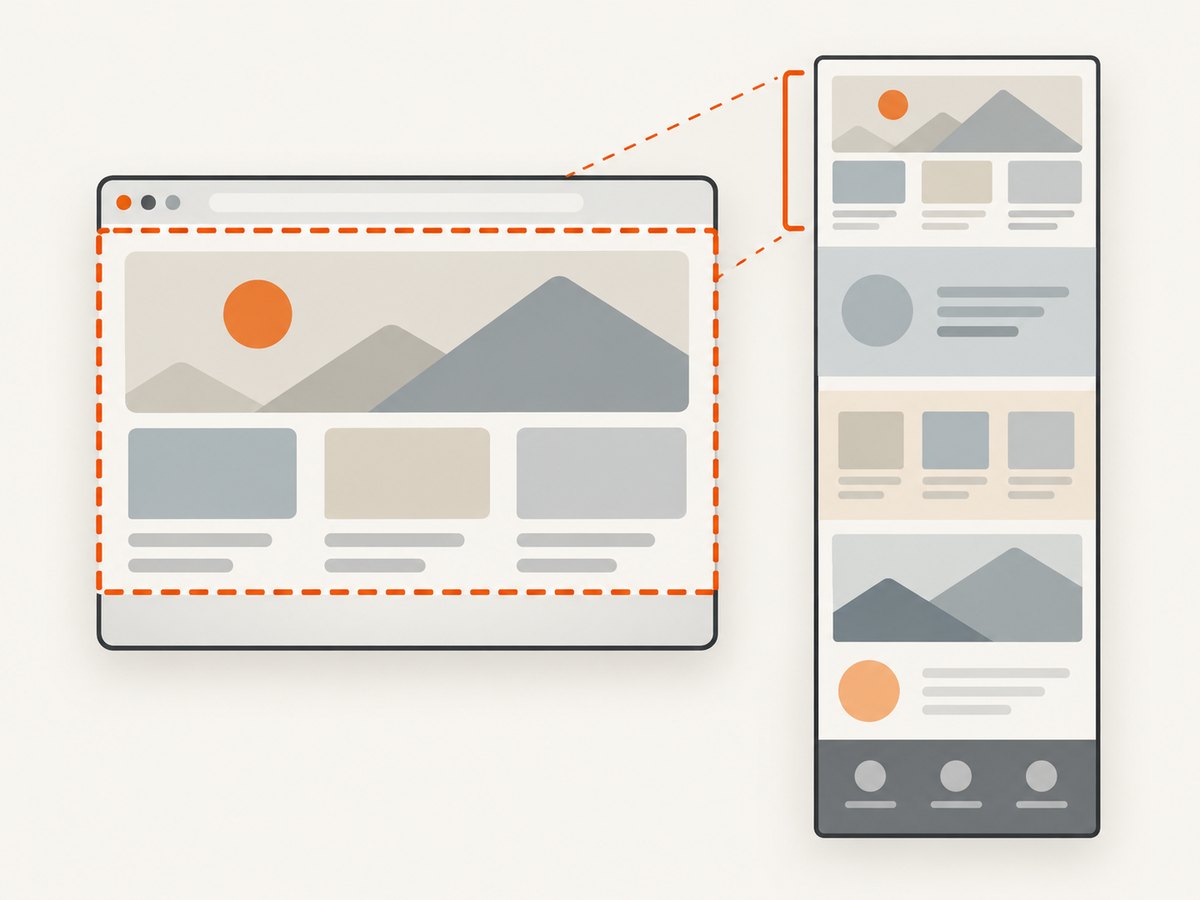
Selenium’s general screenshot examples show saving a screenshot from the current browsing context. A viewport image can still be useful failure evidence, but it should not be called full-page unless the selected method actually captures the full document. See Selenium’s screenshot documentation.
The reviewed official documentation explicitly provides full-document methods for Firefox’s Python WebDriver binding. It does not establish an equivalent method for Java, Chrome, or every driver version. If Java full-page output is required, verify a separate strategy against the browser and driver versions your project supports, and treat that as a project-specific implementation rather than a Selenium-wide guarantee.
4. Firefox Python: documented full-document capture
For teams using Selenium’s Firefox Python binding, the API documents methods such as get_full_page_screenshot_as_file and save_full_page_screenshot. This runnable example handles an unexpected prompt, then invokes the full-page method. It is separate from the Java example; it does not imply that Java exposes the same method.
from pathlib import Path
from selenium import webdriver
from selenium.common.exceptions import NoAlertPresentException, UnhandledAlertException

output = Path("artifacts")
output.mkdir(parents=True, exist_ok=True)
destination = output / "page.png"

driver = webdriver.Firefox()
try:
    driver.get("https://example.com")
    try:
        driver.get_full_page_screenshot_as_file(str(destination))
    except UnhandledAlertException:
        try:
            alert = driver.switch_to.alert
            message = alert.text  # Optional diagnostic evidence.
            print("Unexpected browser prompt:", message)
            alert.accept()  # Use dismiss() if that matches the scenario.
        except NoAlertPresentException:
            # The configured prompt policy may already have handled it.
            pass
        driver.get_full_page_screenshot_as_file(str(destination))
finally:
    driver.quit()
Check the method’s return value in production code if you need to assert that the file was written, and surface a failed capture in the test report. The API also documents full-page screenshot methods that return PNG bytes or base64. See the official Firefox WebDriver Python API. Confirm your installed Selenium version and Firefox driver support the method before relying on it.
5. Evidence, retries, and reliable test artifacts
Preserve the failure even when recovery succeeds
A screenshot taken after accepting a prompt shows the page after that action, which may not match the state at the moment the exception occurred. Record the exception type, message, browser and driver versions, Selenium binding and version, and the prompt capability. If useful, record the alert text before handling it. Keep the original failure attached to the test result even if a recovery screenshot succeeds.
Use bounded retries
The examples retry once because the expected transition is specific: prompt handled, screenshot attempted again. An unbounded retry can hide a persistent browser or page fault and waste test time. If the second capture fails, report both the original alert exception and the retry failure, or attach the retry as a secondary failure. Do not catch every exception and return success.
Keep artifact paths predictable
Create parent directories before capture, use a unique path per test or run, and use REPLACE_EXISTING only when overwriting is intended. If multiple tests share one destination, parallel runs can overwrite each other’s evidence. Save diagnostic context alongside the image so someone can reproduce the driver and prompt-policy combination.
6. Options that affect the result
| Choice | Effect | What to verify |
|---|---|---|
| Accept, dismiss, or enter text | Changes how the web application proceeds after the prompt. | Choose the action the test scenario expects; preserve prompt text only when appropriate. |
unhandledPromptBehavior |
Determines whether WebDriver accepts, dismisses, reports, or leaves the prompt for caller handling. | Set it through browser options when needed and confirm the browser honors it. |
| Standard screenshot API | Captures according to the driver’s supported screenshot behavior; Java API does not establish universal full-page output. | Check whether the artifact is viewport-sized or document-sized. |
| Browser-specific full-page method | Can explicitly request full-document capture where the binding documents it. | Match the documented browser, language binding, and installed version. |
| Retry policy | Controls recovery time and whether a second failure remains visible. | Use bounded retries and report both failures when relevant. |
Full-document capture can produce much larger files and take longer than a viewport capture, especially for long pages. That is a practical consequence of capturing more pixels, not a published Selenium benchmark. For CI, capture only when needed for diagnostics, retain artifacts according to your team’s policy, and avoid capturing the same unchanged page repeatedly without a reason.
7. Troubleshooting common failures
| Symptom | Likely cause | Fix |
|---|---|---|
UnhandledAlertException repeats after handling |
The application opened another prompt, or the original prompt action did not take effect. | Check alert text and page flow; handle the actual prompt once, then keep retries bounded. |
NoAlertPresentException while recovering |
The configured accept/dismiss-and-notify behavior already handled the prompt. | Continue to the retry path; do not treat absence of an alert as a reason to fail recovery. |
| Screenshot saved, but only the visible viewport appears | The chosen driver method returns a viewport screenshot. | Use a documented full-page API for that exact browser and binding, or describe the artifact as a viewport capture. |
| Alert text cannot be read | The prompt was already handled, or the dialog is not an alert exposed through WebDriver’s alert API. | Check prompt capability and browser logs; do not assume every browser-native dialog is a JavaScript alert. |
| File copy or save fails | The parent directory is missing, the path is unwritable, or the temporary screenshot file is unavailable. | Create the directory, check permissions and disk space, and preserve the I/O exception. |
| Retry fails with session or driver error | The browser session ended or the driver could not service the command. | Report the retry failure with the original exception and inspect browser/driver compatibility and session logs. |
| Full-page method is missing | The binding, browser, or installed Selenium version does not expose that API. | Verify the official API for the exact combination; do not copy Firefox Python method names into Java code. |
8. Or skip the browser setup
If your goal is a clean website screenshot rather than exercising Selenium’s prompt handling, ScreenshotNeo is a website screenshot API and MCP server. One GET request returns a PNG, JPEG, WebP, or PDF. See the ScreenshotNeo API documentation for the available parameters.
curl -G "https://api.screenshotneo.com/v1/shot" \
  -d access_key=YOUR_API_KEY \
  --data-urlencode url=https://example.com \
  -o shot.webp
import requests
r = requests.get(
"https://api.screenshotneo.com/v1/shot",
params={"access_key": "YOUR_API_KEY", "url": "https://example.com"},
timeout=90,
)
open("shot.webp", "wb").write(r.content)const q = new URLSearchParams({
access_key: 'YOUR_API_KEY',
url: 'https://example.com'
});
const res = await fetch(`https://api.screenshotneo.com/v1/shot?${q}`);
const bytes = new Uint8Array(await res.arrayBuffer());
await (await import('node:fs/promises')).writeFile('shot.webp', bytes);Cookie banners, newsletter popups, and chat widgets are removed before the shot; each of those cleanup steps can be turned off. Bot checks, blank pages, timeouts, failed loads, and cache hits are never billed, and response headers report the page verdict and billing status. Its MCP server gives AI agents tools to take screenshots, inspect page information, and capture PDFs. The free plan includes 1,000 screenshots per month with no card; paid plans start at $5 for 3,000 screenshots. All features are on every plan.
Sign up for 1,000 free screenshots a month with no card.
9. FAQ
Does catching the exception guarantee I get a screenshot?
No. It gives your code a chance to handle a prompt and retry. The browser session, driver, filesystem, and screenshot implementation can still fail.
Should I always dismiss the unexpected prompt?
No. Accepting and dismissing can lead to different application behavior. Select the action that matches the test’s intended scenario.
Can the Java example guarantee a full-page screenshot?
No. It uses Selenium’s standard Java screenshot API, whose documentation does not guarantee full-document capture for every conforming driver.
Can I use the Firefox Python full-page method from Java?
No. The cited method is documented for Selenium’s Firefox Python binding. Verify an API for the language, browser, and driver you actually use.
What details should I include in a bug report?
Include the exception and stack trace, prompt behavior capability, Selenium binding and version, browser and driver versions, whether a prompt remained open, and whether the output was viewport-sized or full-document.


