How to Capture a Full-Page Screenshot with Selenium and a Chrome Extension
Capture an entire webpage with Selenium, Chrome DevTools Protocol, and a Chrome extension, with runnable code, troubleshooting, and automation guidance.
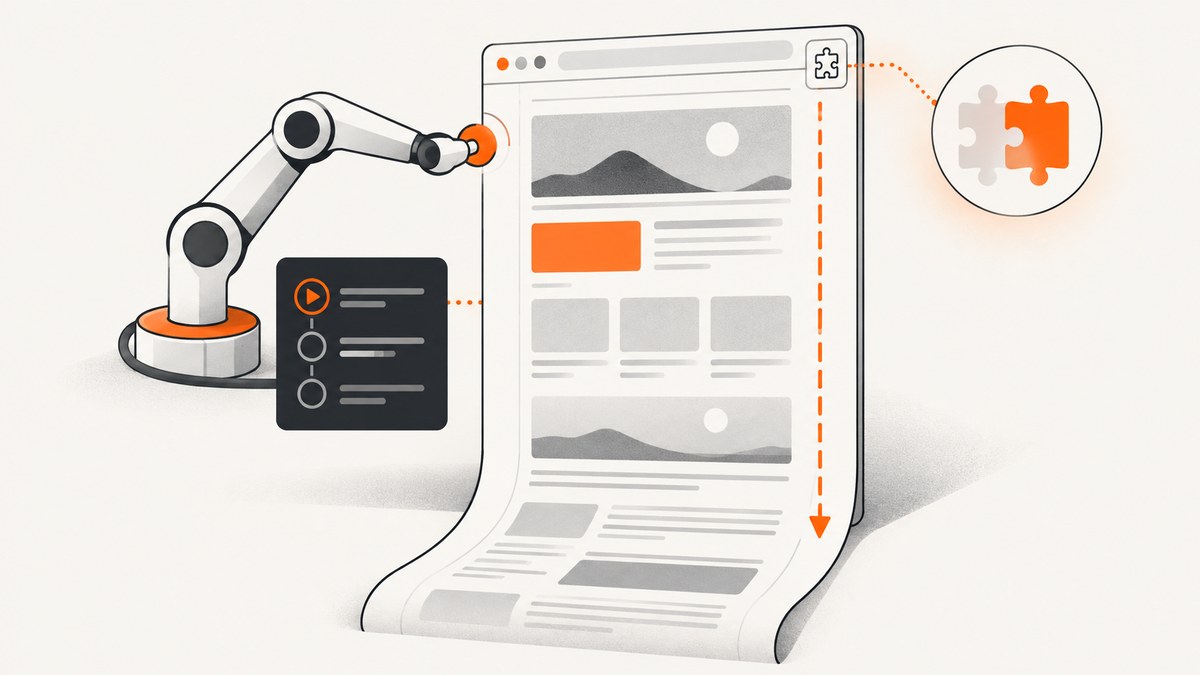
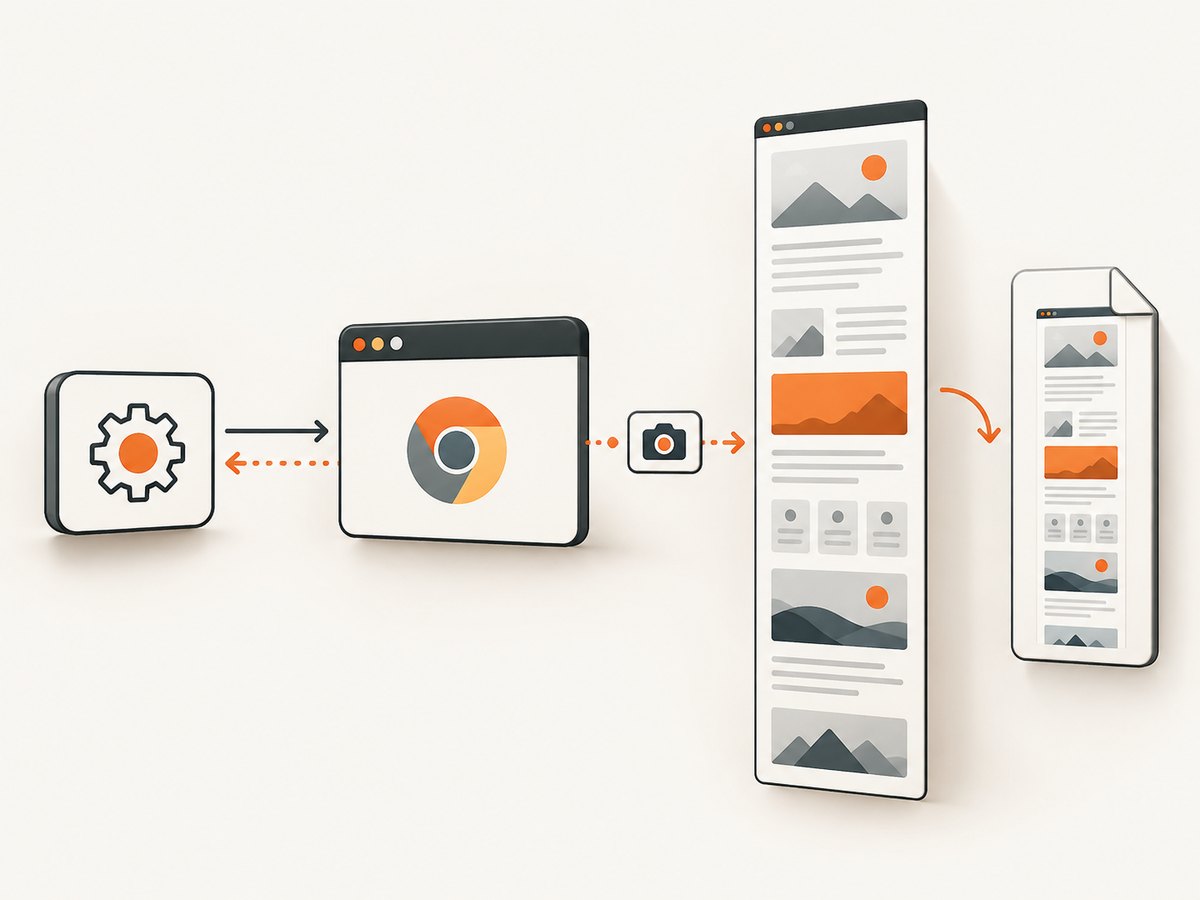
To capture a full-page screenshot with Selenium, drive Chrome to the target URL and call the Chrome DevTools Protocol Page.captureScreenshot command with captureBeyondViewport: true. Decode the returned Base64 data and write it to a PNG file. If you must use a Chrome extension, load the packed CRX or unpacked extension before navigation, then invoke that extension through its documented interface.
The CDP method is usually the most repeatable approach because your test owns the format, timing, and output path. An extension is useful when its stitching or capture behavior is part of what you need to validate.
What “full page” means in Chrome
A normal screenshot captures the current viewport. A full-page capture includes content below the fold, including content that is not currently visible. Chrome DevTools Protocol supports PNG, JPEG, and WebP output; PNG is the default. The protocol parameter captureBeyondViewport controls whether content outside the viewport is included. See the Page.captureScreenshot specification.
Full-page output is different from a screenshot of the operating-system window. The browser does not need to be maximized, and the resulting image can be much taller than the viewport.
Prerequisites and version compatibility
- Python 3 and the Selenium package.
- Google Chrome and a compatible ChromeDriver, or Selenium Manager configured to obtain one.
- An optional CRX file or unpacked extension directory.
- A URL that the test is allowed to access.
Selenium’s Chrome documentation says Selenium 4 is compatible with Chrome 75 and greater and that Chrome and ChromeDriver major versions must match. Keep the browser, driver, Selenium binding, CDP version, extension version, and capture parameters in your run logs. Read the current Selenium Chrome documentation before pinning a CI image.
Direct CDP capture in Python
Install Selenium:
python -m pip install seleniumThis complete script loads a page, waits for the document to reach a usable state, asks Chrome for a beyond-viewport screenshot, decodes the response, and saves full-page.png:
from base64 import b64decode
from selenium import webdriver
from selenium.webdriver.chrome.options import Options
from selenium.webdriver.support.ui import WebDriverWait

URL = "https://example.com"

options = Options()
# options.add_argument("--headless=new")  # Enable in CI if needed.
# options.add_argument("--window-size=1440,900")

driver = webdriver.Chrome(options=options)
try:
    driver.get(URL)
    WebDriverWait(driver, 30).until(
        lambda d: d.execute_script("return document.readyState") == "complete"
    )

    payload = driver.execute_cdp_cmd(
        "Page.captureScreenshot",
        {
            "format": "png",
            "captureBeyondViewport": True,
        },
    )

    with open("full-page.png", "wb") as image_file:
        image_file.write(b64decode(payload["data"]))
finally:
    driver.quit()
The exact Selenium method name can vary by language and binding version, but the stable concepts are the CDP operation and its parameter names. Selenium’s Java DevTools API exposes the same capture parameters, including captureBeyondViewport; see the Java DevTools API reference.
Loading a Chrome extension before navigation
Chrome extensions must be installed before you open the page you intend to capture. Selenium documents two common forms:
- Packed extension: pass the CRX file to
options.add_extension(). - Unpacked extension: pass the extension directory to Chrome’s
--load-extensionargument.
from base64 import b64decode
from pathlib import Path
from selenium import webdriver
from selenium.webdriver.chrome.options import Options
from selenium.webdriver.support.ui import WebDriverWait

URL = "https://example.com"
CRX_PATH = Path("capture-extension.crx")
UNPACKED_PATH = Path("capture-extension")

options = Options()
# Use exactly one of these installation methods.
# options.add_extension(str(CRX_PATH))
# options.add_argument(f"--load-extension={UNPACKED_PATH.resolve()}")

# options.add_argument("--headless=new")

driver = webdriver.Chrome(options=options)
try:
    driver.get(URL)
    WebDriverWait(driver, 30).until(
        lambda d: d.execute_script("return document.readyState") == "complete"
    )

    # The extension's trigger is extension-specific. Use its documented
    # toolbar action, command, message, or result page here.
    payload = driver.execute_cdp_cmd(
        "Page.captureScreenshot",
        {"format": "png", "captureBeyondViewport": True},
    )
    Path("full-page.png").write_bytes(b64decode(payload["data"]))
finally:
    driver.quit()
There is no universal Selenium command that triggers every extension. Read the extension’s current listing or developer documentation to find whether it exposes a keyboard command, message API, result tab, download, or toolbar action.
Extension-based full-page workflow
- Choose an extension whose current listing documents full-page capture and the output formats you need.
- Pin the extension version where possible and record its version with each artifact.
- Load the CRX or unpacked directory before calling
get(). - Navigate to the target URL and wait for the content and late-loading assets that matter to your test.
- Trigger the extension through its documented UI, command, or message interface.
- Wait for the downloaded file, result tab, or extension-defined response.
- Assert that the artifact exists and has a non-zero size before quitting Chrome.
GoFullPage is one concrete maintained extension. Its Chrome Web Store listing records version 8.9 dated 2026-09-24, a Chromium 153 URL-requirement fix, Manifest V3 support in earlier releases, and fixes involving long pages, scrollbars, iframes, and fixed-position elements. Those release notes illustrate why extension version and Chrome version should be part of your reproducibility record: GoFullPage listing.
Waiting for dynamic pages
document.readyState == "complete" only indicates that the initial document load finished. Single-page applications, lazy images, fonts, and API calls can still change the page. Add waits that match the page under test.
Wait for a selector
WebDriverWait(driver, 30).until(
    lambda d: d.find_element("css selector", "main article")
)
Wait for a fixed delay when an animation must settle
import time
time.sleep(2)
Wait until images have completed
WebDriverWait(driver, 30).until(
    lambda d: d.execute_script(
        "return Array.from(document.images).every((img) => img.complete)"
    )
)
Prefer a meaningful application state or selector over a large arbitrary delay. For pages with infinite scroll, explicitly define the stopping condition and scroll to the required point before capture; a full-page command cannot infer where an endless feed should end.
Capture options and page-specific edge cases
| Situation | What to do |
|---|---|
| Only the viewport appears | Set captureBeyondViewport: true and verify that the command actually reaches Chrome through Selenium. |
| Lazy-loaded images are missing | Wait for the image elements, scroll through the page if the site loads content only after intersection, then capture. |
| Sticky headers repeat or overlap content | Compare the output with a manual DevTools full-page capture and, if appropriate, hide or neutralize the sticky element with test-only CSS. |
| Animations produce inconsistent pixels | Wait for the animation to finish or inject CSS that disables transitions and animations for the test run. |
| Cross-origin iframes are present | Do not assume frame DOM access. Capture the page as rendered and diagnose frame-specific issues with a manual comparison. |
| The page is extremely tall | Watch memory, image dimensions, and artifact size. Split the capture into sections if your consumer cannot handle one very tall bitmap. |
| Transparent output is required | Check the capture API and page background behavior; a normal browser page generally paints its background. |
| Authentication is required | Authenticate in the same driver session before capture, or configure the test’s cookies and headers through the application under test. |
Choosing CDP or an extension
| Axis | Direct CDP capture | Extension capture |
|---|---|---|
| Control | Explicit format, clip, and beyond-viewport parameters. | Depends on the extension interface and settings. |
| Repeatability | Small API surface that fits directly in test code. | Requires compatible extension versions, permissions, and trigger behavior. |
| Long or dynamic pages | One protocol operation can request beyond-viewport capture. | May scroll and stitch; behavior varies by page and release. |
| Output | Base64 data saved directly by the test. | Usually a download, result tab, or extension-defined response. |
| Maintenance | Track Selenium, Chrome, ChromeDriver, and CDP compatibility. | Track all of those plus extension releases and permissions. |
Manual diagnostic fallback
When an automated result looks wrong, use Chrome DevTools to determine whether the issue is the page or the automation. DevTools provides manual full-page, node, mobile, and area capture workflows. Chrome for Developers documents these techniques in DevTools Tips: capture screenshots.
Troubleshooting
ChromeDriver or session creation fails
Cause: Chrome and ChromeDriver major versions do not match, or the browser is unavailable in the execution environment.
Fix: Check both versions, use Selenium Manager or a pinned compatible driver, and log the versions at startup.
The output contains only the visible screen
Cause: The request omitted captureBeyondViewport: true, or the binding did not send the expected CDP parameters.
Fix: Inspect the exact command payload, confirm the parameter is boolean true, and compare against a manual DevTools full-page capture.
The extension does not load
Cause: The path is wrong, the file is not a valid CRX, the unpacked directory is not the extension root, or the current Chrome version rejects a required permission.
Fix: Use an absolute path, test the CRX and unpacked forms separately, inspect Chrome startup logs, and verify the extension’s current permissions and release notes. Selenium documents separate handling for CRX files and unpacked directories.
The extension loads but no file appears
Cause: The extension trigger is implementation-specific, downloads are blocked, or the test quits before the asynchronous operation finishes.
Fix: Follow the extension’s documented trigger, configure a known download directory, wait for the file and ensure its size is non-zero, then close the driver.
Images or content are missing
Cause: Lazy loading, delayed API requests, blocked resources, authentication, or a page that changes after readyState becomes complete.
Fix: Wait for application selectors, image completion, or network-driven state; authenticate first; and scroll when the site requires intersection events.
Captures differ between runs
Cause: Animations, rotating content, time-dependent data, fonts, viewport differences, or extension updates.
Fix: Fix the viewport and timezone where possible, disable animations for visual tests, wait for stable content, pin versions, and record all capture parameters.
Performance, reliability, and cost considerations
- Performance: A very tall page creates a large bitmap and can consume substantial browser memory. Use an appropriate viewport, avoid unnecessary assets in test pages, and split captures when downstream systems impose image limits.
- Reliability: Pin Chrome, ChromeDriver, Selenium, CDP binding, and extension versions. Store the browser version and capture parameters beside each artifact.
- CI isolation: Use a dedicated temporary profile and download directory so extensions, cookies, and files from one run cannot affect another.
- Retries: Retry navigation or capture only for transient failures. Preserve the first failure artifact and logs so retries do not hide a deterministic page problem.
- Cost: Self-hosted Selenium costs the compute time and storage of your browser runners. An extension does not remove those operational costs; it adds version and permission maintenance.
Or skip the browser setup
ScreenshotNeo provides a website screenshot API and MCP server. One GET request returns a PNG, JPEG, WebP, or PDF, so you can capture a full page without installing Chrome, ChromeDriver, Selenium, or an extension. See the ScreenshotNeo API documentation for the complete options.
cURL
curl -G "https://api.screenshotneo.com/v1/shot" \
  -d access_key=YOUR_API_KEY \
  --data-urlencode url=https://stripe.com \
  -o shot.webp
Python
import requests

r = requests.get(
    "https://api.screenshotneo.com/v1/shot",
    params={"access_key": "YOUR_API_KEY", "url": "https://stripe.com"},
    timeout=90,
)
r.raise_for_status()
open("shot.webp", "wb").write(r.content)
Node.js
const q = new URLSearchParams({
  access_key: 'YOUR_API_KEY',
  url: 'https://stripe.com'
});
const res = await fetch(`https://api.screenshotneo.com/v1/shot?${q}`);
if (!res.ok) throw new Error(`Screenshot failed: ${res.status}`);
const buffer = Buffer.from(await res.arrayBuffer());
require('fs').writeFileSync('shot.webp', buffer);
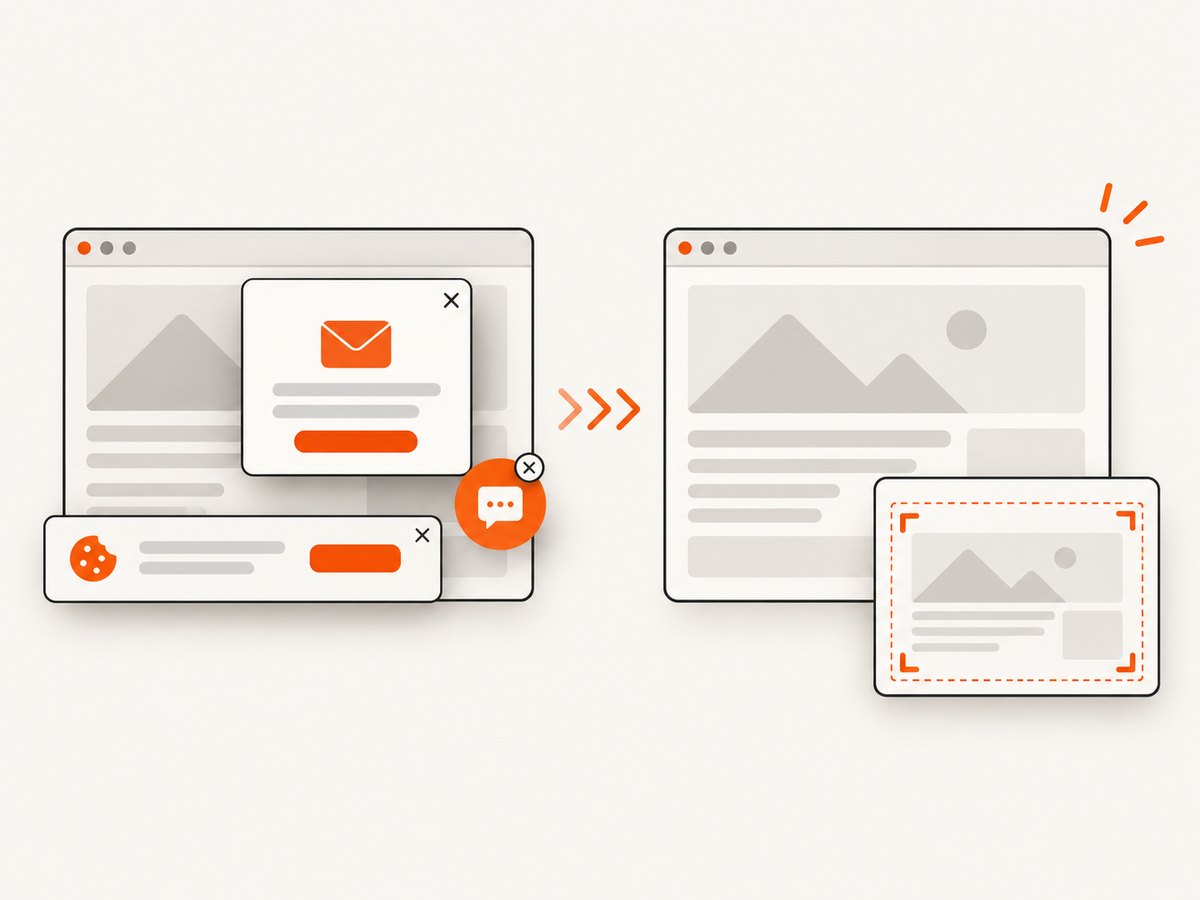
ScreenshotNeo removes cookie and consent banners, newsletter popups, and chat widgets before capture. Bot checks, blank pages, timeouts, failed loads, and cache hits are not billed; response headers identify the page verdict and whether the request was billed. Its MCP server includes take_screenshot, get_page_info, and capture_pdf for Claude, Cursor, and other MCP clients. The free plan includes 1,000 screenshots per month with no card, and paid plans start at $5 for 3,000 shots. Create a free ScreenshotNeo account.
FAQ
Can Selenium take a full-page screenshot without an extension?
Yes. Chrome DevTools Protocol’s Page.captureScreenshot with captureBeyondViewport: true is sufficient for the basic operation.
Does the extension automatically work with every Selenium script?
No. Installation is standardized through Chrome options, but the capture trigger and output are specific to each extension.
Which format should I use?
Use PNG for lossless visual comparisons, JPEG for smaller photographic images, and WebP when your downstream tools support it. CDP supports all three.
Why is my full-page image blank or incomplete?
Check authentication, waits, lazy loading, resource failures, and the page’s own dynamic behavior before changing Selenium code.


