How to Capture a Full-Page Screenshot With Selenium WebDriver in Rails
Capture a full-document PNG from a Rails system test with Selenium Ruby’s driver-dependent full-page option, and handle waits, unsupported drivers, and common failures.
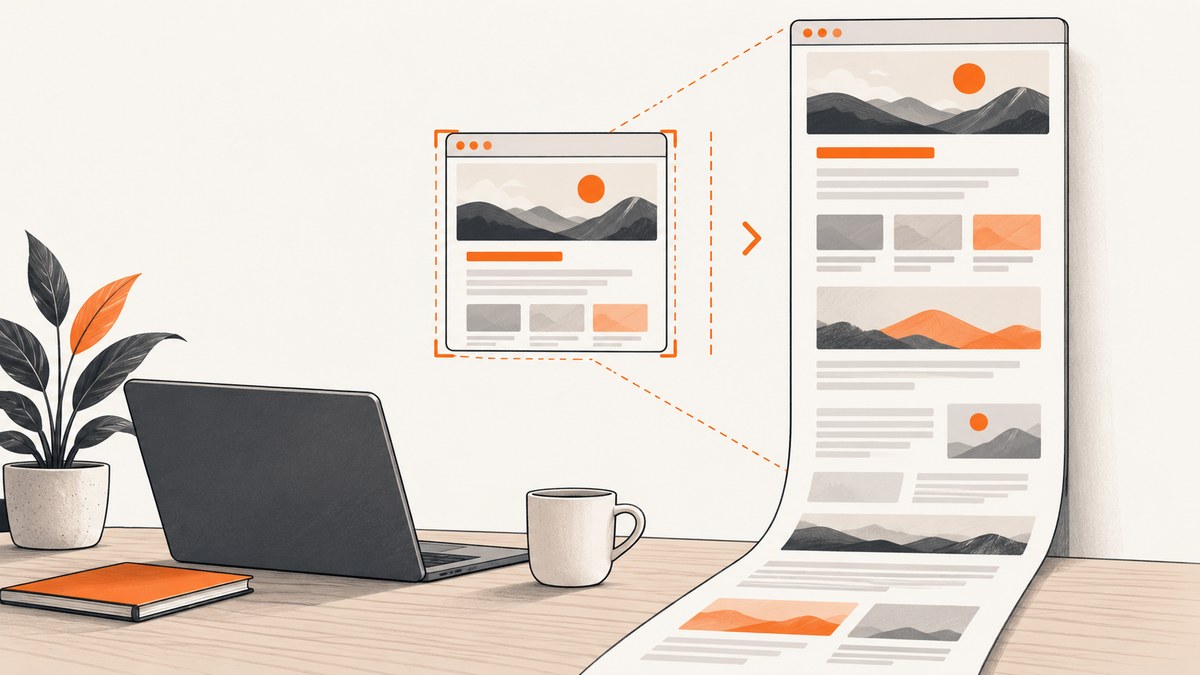
To save a full-document PNG from a Selenium-controlled browser in Rails, call Selenium Ruby’s screenshot method with full_page: true after the page is ready:
driver.save_screenshot("tmp/page.png", full_page: true)This works only when the active browser driver supports full-page capture. Selenium Ruby checks for that capability and raises Selenium::WebDriver::Error::UnsupportedOperationError if it is unavailable. A successful ordinary screenshot call does not establish that the image contains the entire document: by default, Selenium captures the current browsing context, which is generally the visible viewport. See the Selenium Ruby screenshot API and the Rails testing guide.
1. Add an explicit full-page capture to a Rails system test
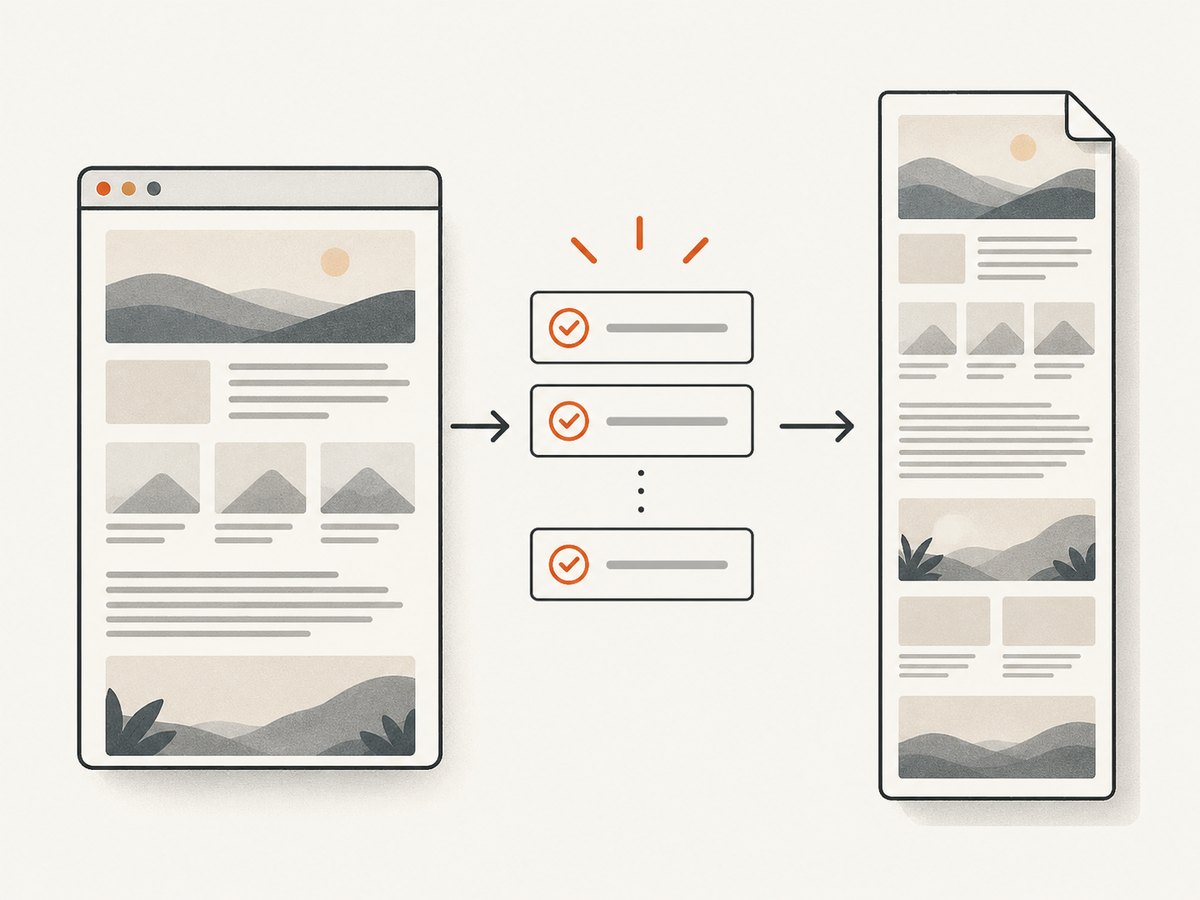
Rails system tests use a real browser through a browser driver. Configure Selenium for a JavaScript-capable browser, navigate to the route under test, wait for the specific content your test needs, then request full-page capture. Here is an illustrative system-test pattern:
class ApplicationSystemTestCase < ActionDispatch::SystemTestCase
  driven_by :selenium, using: :headless_chrome

  test "captures the full page" do
    visit articles_path

    # Replace this with a condition that represents readiness in your app.
    assert_selector "main article h1", text: "Articles"

    FileUtils.mkdir_p("tmp/screenshots")
    page.driver.browser.save_screenshot(
      "tmp/screenshots/articles.png",
      full_page: true
    )
  end
end
This is a usage pattern, not a guarantee that every Rails, Capybara, and Selenium version exposes exactly the same browser object chain. Confirm page.driver.browser and the full-page method against the versions installed in your application. Rails documents Selenium system-test configuration, including headless Chrome and Firefox; the precise setup can depend on the Rails version and test environment.
Make sure the directory exists before writing. Selenium writes the PNG to the supplied path; the test process needs permission to create or overwrite that file. Use a stable filename for a one-off debugging artifact, or include a test-specific name when several tests may run concurrently.
Prerequisites and setup checks
- Identify the browser and driver that run locally and in CI. A full-page request depends on the active driver’s capability, not simply on Rails using Selenium.
- Check that the installed
selenium-webdrivergem exposes the documented screenshot signature, includingfull_page:. - Use a browser-driven test when client-side JavaScript affects the rendered page. Capybara’s RackTest driver does not execute JavaScript; Selenium is one of the browser-driver choices. See the Capybara project documentation.
- Wait for the content that matters to your test before capture. Prefer a selector, visible state, or application-specific readiness condition over a fixed delay.
- Save as PNG and inspect the resulting image or its dimensions in the same environment where the test runs.
2. Choose between writing a file and returning PNG bytes
Use save_screenshot when the test or debugging workflow needs an image file. Use screenshot_as when another part of the test needs the bytes—for example, to pass them to an image-processing step or attach them using a project-specific reporting tool.
png_bytes = driver.screenshot_as(:png, full_page: true)
File.binwrite("tmp/page.png", png_bytes)
Both calls use the Ruby API’s full-page option and both depend on driver support. The API documents PNG output. Keep the .png extension consistent with the requested format. File.binwrite writes the returned bytes without text encoding conversions.
In a Capybara system test, the corresponding bytes pattern may look like this, once your project’s driver object exposes the Selenium browser:
browser = page.driver.browser
png_bytes = browser.screenshot_as(:png, full_page: true)
File.binwrite("tmp/screenshots/page.png", png_bytes)
If you need a screenshot of one element rather than the full document, Selenium also has element screenshot APIs. That is a different capture target; it should not be confused with full-page mode.
3. Understand what “full page” means
A normal screenshot captures the current browsing context. With the Ruby API’s default full_page: false, do not assume it will include content below the visible viewport. A full-page request asks the driver for a document-length capture when that driver implements the capability.
Increasing the browser window height is not an equivalent substitute for a supported full-page screenshot method. Resizing can change responsive breakpoints, layout, sticky elements, and the content visible to the browser. It also does not demonstrate that the saved result covers the full document.
The content in the image depends on the browser state at capture time. If images load lazily as they approach the viewport, a page that has not been scrolled or otherwise prepared may not have loaded all of them. The same applies to asynchronous sections populated after navigation. A fixed sleep is brittle: it can be unnecessarily slow on a fast run and still too short on a slow one. Wait for application-specific evidence that the required content is present.
Full-page capture checklist
- The test has navigated to the intended route.
- The relevant asynchronous content has appeared or reached a known ready state.
- Lazy-loaded sections and images needed in the artifact have been triggered and loaded.
- The selected driver supports full-page mode, and the call does not silently fall back to a viewport image.
- The output path is writable, the file is a PNG, and the captured dimensions and content match the test’s intent.
4. Handle unsupported drivers and select the right output
The full-page option is conditional. Selenium Ruby checks whether the active driver responds to its full-page screenshot method. If it does not, the request raises Selenium::WebDriver::Error::UnsupportedOperationError. Treat that as a capability or configuration issue. Do not catch it and report a normal screenshot as though it were full-page.
Confirm the browser-driver combination and installed gem version first. Selenium’s Firefox WebDriver API documentation describes full-document screenshot methods for its Python bindings, which is evidence that the Selenium API family has Firefox support in that binding. It is not Ruby syntax documentation. Verify the Ruby binding and your installed version before relying on a Firefox-specific method name.
If the required deliverable is printable output rather than a PNG, Selenium’s page-printing capability can produce PDF in supported configurations; Selenium documents that Chromium must be headless for this feature. A PDF is a different artifact with print-layout behavior, so use it only when that is acceptable. Rails’ ScreenshotHelper is useful for inspecting browser state when a system test fails, but the Rails guide does not promise that helper produces a full-document screenshot.
5. Troubleshooting
| Symptom | Likely cause | What to check or change |
|---|---|---|
UnsupportedOperationError on full_page: true |
The active driver does not expose full-page capture, or the installed binding/driver combination lacks the capability. | Check the actual browser, driver, and selenium-webdriver version used in that run. Choose a supported combination or a capture method available to your environment. Keep the failure visible rather than presenting a viewport image as complete. |
| The PNG contains only the visible viewport | The call used the default full_page: false, used an ordinary screenshot path, or full-page support was not actually enabled. |
Pass full_page: true to the documented Ruby method, then inspect the image dimensions and bottom-of-page content. |
| Content is missing or appears blank | The capture ran before asynchronous rendering completed, or lazy content had not loaded. | Wait for a meaningful selector or application-ready condition. Trigger lazy content as the page requires, then verify that the required sections and images are present before capture. |
| Works locally but fails in CI | CI may use a different browser, driver, gem version, headless configuration, or filesystem permissions. | Compare the actual runtime versions and configuration in both environments. Ensure the output directory exists and is writable in CI. |
page.driver.browser is missing or behaves differently |
The Rails, Capybara, or driver versions expose a different object chain. | Inspect the installed project APIs and retrieve the Selenium browser using the supported path for that version. The example is not universal across all version combinations. |
| The file is missing, empty, or overwritten unexpectedly | The directory may not exist, the test may lack write access, or parallel tests may use the same filename. | Create the directory, check permissions, and use a test-specific path when tests can run concurrently. |
6. Performance, reliability, and cost considerations
A full-document image can be larger and take more work to produce than a viewport capture, especially for long pages. Keep screenshots that are only for failure investigation out of the normal success path where practical. In CI, write artifacts to the job’s intended output location and avoid concurrent tests overwriting the same path.
Reliability comes from controlling the page state and verifying the browser capability. Synchronize on conditions tied to the application, and make the test fail clearly when full-page mode is unsupported. Do not treat a fixed delay, a larger window, or an ordinary screenshot as proof that the full document was captured.
For cost, account for browser and CI execution time, image storage, and artifact retention in your own environment. The research sources provide no universal timing or storage figures, so measure your application’s pages and CI setup rather than relying on a generic benchmark.
7. Or skip the browser setup
ScreenshotNeo is a website screenshot API and MCP server. For a one-off full-page capture, call its API with the target URL and request a full-page PNG. See the ScreenshotNeo documentation for the API options and request details.

curl -G "https://api.screenshotneo.com/v1/shot" \
  -d access_key=YOUR_API_KEY \
  --data-urlencode url=https://stripe.com \
  -d full_page=true \
  -d format=png \
  -o shot.png
Equivalent examples in Python and Node.js:
import requests

r = requests.get(
    "https://api.screenshotneo.com/v1/shot",
    params={
        "access_key": "YOUR_API_KEY",
        "url": "https://stripe.com",
        "full_page": "true",
        "format": "png",
    },
    timeout=90,
)
r.raise_for_status()
open("shot.png", "wb").write(r.content)
const q = new URLSearchParams({
access_key: 'YOUR_API_KEY',
url: 'https://stripe.com',
full_page: 'true',
format: 'png',
});
const res = await fetch(`https://api.screenshotneo.com/v1/shot?${q}`);
if (!res.ok) throw new Error(`Screenshot request failed: ${res.status}`);
await Bun.write('shot.png', new Uint8Array(await res.arrayBuffer()));ScreenshotNeo removes cookie and consent banners, newsletter popups, and chat widgets before capture; each step can be turned off. Bot checks and CAPTCHAs, blank pages, timeouts, failed loads, and cache hits are not billed, and the response identifies page verdict and billing status in headers. Its MCP server gives AI agents tools for screenshots, page information, and PDF capture. The free plan includes 1,000 shots per month with no card; paid plans start at $5 for 3,000 shots. Create a free ScreenshotNeo account to try it.
8. Frequently asked questions
Does Rails’ failed-test screenshot helper capture the full page?
Rails documents the helper as a way to inspect system-test state during failures. Its documentation does not promise full-document output. Use Selenium’s explicit full-page API when that artifact is required, and verify the driver supports it.
Can I use RackTest for a page that depends on JavaScript?
RackTest does not execute JavaScript. Use a JavaScript-capable browser driver such as Selenium when the rendered state under test depends on browser-side JavaScript.
Should I use a screenshot or PDF for a long page?
Use PNG when the test requires an image of the page. Use PDF when the desired result is printable output and the browser configuration supports printing. They represent different output formats and may have different layout behavior.
Will the Firefox full-page method from Selenium’s Python docs work in Ruby?
Do not assume so. The cited Firefox methods are documented for Python bindings. Confirm the method and capability in the Ruby binding and installed version you use.


