How to Take a Screenshot of an Entire Page with Selenium
Use Selenium’s Firefox API for a full-page PNG, or Chrome DevTools Protocol for Chromium. This guide covers runnable code, browser differences, troubleshooting, and a simpler API option.

For a full-document screenshot with Python and Firefox, use Selenium’s Firefox-specific get_full_page_screenshot_as_file() method. Selenium’s ordinary WebDriver screenshot call captures the current browsing context; it is not a portable promise of a full-page image across browsers. With Chromium, a browser-specific route is Chrome DevTools Protocol (CDP), whose Page.captureScreenshot command supports capturing beyond the viewport.
Choose the route that matches your browser: Firefox offers a direct full-page method; Chromium requires CDP and may need version-specific adjustments. The examples below save a PNG, check for file errors, and close the browser even if capture fails.
1. Capture an entire page in Firefox with Python
Selenium’s Python Firefox driver documents methods for saving a full-document screenshot as a PNG file or returning it as bytes or base64. The file-saving method returns False if it encounters an I/O error, so check the result instead of assuming the file exists.
from pathlib import Path
from selenium import webdriver

output = Path("page.png")
driver = webdriver.Firefox()
try:
    driver.get("https://example.com")
    saved = driver.get_full_page_screenshot_as_file(str(output))
    if not saved:
        raise OSError(f"Could not save screenshot to {output}")
finally:
    driver.quit()
Install Selenium and make Firefox available in the environment before running the script. Selenium’s current browser setup behavior depends on your installed Selenium and browser versions; follow the official Selenium documentation for your environment. The capture call itself is the important distinction: it is the Firefox full-document API, not the ordinary cross-browser screenshot method.
Return the image in memory
If another part of your program uploads the PNG or processes it without writing a file, use Firefox’s bytes-returning API:
from selenium import webdriver

 driver = webdriver.Firefox()
try:
    driver.get("https://example.com")
    png_bytes = driver.get_full_page_screenshot_as_png()
    if not png_bytes:
        raise RuntimeError("Firefox returned no screenshot bytes")
    # Pass png_bytes to an image processor or upload client.
finally:
    driver.quit()
Remove the leading space before driver = webdriver.Firefox() when copying; it must be flush-left. The Firefox API also documents a base64-returning method if your consumer specifically needs that representation. Prefer bytes for Python code that handles binary images directly; base64 is useful when the next interface expects encoded text.
2. Capture beyond the viewport in Chromium
Chrome DevTools Protocol provides a Chromium-specific screenshot command with a captureBeyondViewport option. CDP also exposes layout metrics, including cssContentSize, which reports the scrollable content dimensions in CSS pixels. Selenium’s standard screenshot method should not be substituted here if the requirement is explicitly a full page.
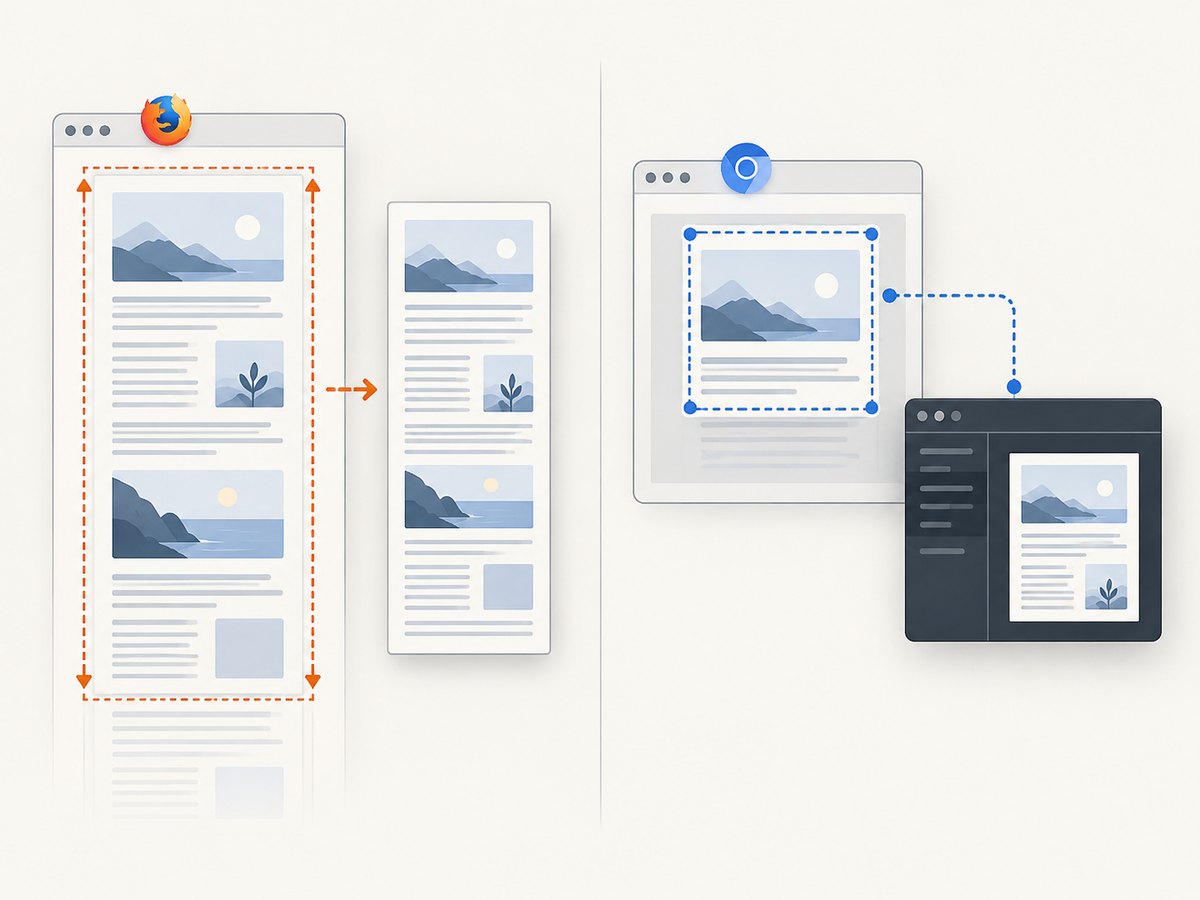
CDP is less portable than Firefox’s direct full-page method. The protocol’s tip-of-tree documentation warns that it changes frequently and does not guarantee backward compatibility. Confirm that the command and parameters work with the Chrome, ChromeDriver, and Selenium versions you deploy. A minimal Selenium Python call is:
from pathlib import Path
from selenium import webdriver

output = Path("page.png")
driver = webdriver.Chrome()
try:
    driver.get("https://example.com")
    result = driver.execute_cdp_cmd(
        "Page.captureScreenshot",
        {
            "format": "png",
            "captureBeyondViewport": True,
        },
    )
    import base64
    output.write_bytes(base64.b64decode(result["data"]))
finally:
    driver.quit()
This example asks CDP to capture beyond the viewport and decodes its base64 image data into a PNG. It does not calculate and set a full-document clip rectangle. For pages where the result does not include the complete scrollable document, first query Page.getLayoutMetrics, inspect cssContentSize, and use a clip rectangle sized to that content if supported by the target browser’s protocol version. Validate dimensions and output on the browser versions you actually run; CDP’s evolving protocol is a compatibility consideration.
When to use each route
| Route | Good fit | Trade-off |
|---|---|---|
| Firefox full-page WebDriver method | Python scripts using Firefox that need a direct full-document PNG | Firefox-specific API |
| Chromium CDP | Automation already using Chrome or Chromium and able to manage protocol compatibility | Browser-specific protocol can change |
| Ordinary WebDriver screenshot | Capturing the current viewport | Do not assume it captures the entire document on every browser |
3. Prepare the page before capture
A full-page API determines the capture area, but it cannot decide when your application’s content is ready. Selenium’s page navigation returning does not guarantee that every site-specific asynchronous component, image, or API-driven section has finished rendering. Add a wait for a meaningful condition on the target page when needed.

from selenium.webdriver.common.by import By
from selenium.webdriver.support.ui import WebDriverWait
from selenium.webdriver.support import expected_conditions as EC

# After driver.get(...):
WebDriverWait(driver, 20).until(
    EC.presence_of_element_located((By.CSS_SELECTOR, "main"))
)
Use a selector that signals the content you need, not merely a generic element present on every page. If the site progressively loads content, wait for a site-specific completion marker or expected item count. Avoid arbitrary long sleeps when a condition can express readiness more precisely.
Lazy-loaded images and long pages
Some pages load images or content only after scrolling them near the viewport. A full-document capture method does not imply that every site’s lazy-loading logic will run in the way you expect. For pages with lazy content, inspect the output and consider scrolling through the page before capture, then wait for image loads or the application’s completion signal. This is practical guidance: the API references do not guarantee a universal lazy-loading strategy.
Long pages can also produce very large image dimensions. Consider whether you need the entire document at native scale, or whether a viewport capture, a PDF, or a smaller set of targeted captures better serves the downstream use. Test representative pages and inspect the resulting file dimensions and visual completeness.
Fixed headers, sticky elements, and overlays
Fixed-position navigation can appear differently in a full-document capture than in a sequence of viewport screenshots stitched together. Sticky behavior may change as the page is laid out or scrolled. Consent dialogs, chat panels, and other overlays may obscure content. There is no universal behavior guaranteed by the cited screenshot APIs; review samples from your target site and decide whether your script should dismiss or otherwise handle a known overlay before taking the image.
4. cURL, Python, and Node.js alternatives
Selenium is useful when the task requires browser automation or interaction with the page before capture. If the goal is simply to request a screenshot, an image API can remove the need to install and manage a browser and driver. ScreenshotNeo offers a GET endpoint that returns a screenshot or PDF; its supported options and usage are described in the ScreenshotNeo documentation.
cURL
curl -G "https://api.screenshotneo.com/v1/shot" \
  -d access_key=YOUR_API_KEY \
  --data-urlencode url=https://example.com \
  -o shot.webp
Python
import requests

r = requests.get(
    "https://api.screenshotneo.com/v1/shot",
    params={"access_key": "YOUR_API_KEY", "url": "https://example.com"},
    timeout=90,
)
r.raise_for_status()
with open("shot.webp", "wb") as f:
    f.write(r.content)
Node.js
const q = new URLSearchParams({
  access_key: 'YOUR_API_KEY',
  url: 'https://example.com',
});
const res = await fetch(`https://api.screenshotneo.com/v1/shot?${q}`);
if (!res.ok) throw new Error(`Screenshot request failed: ${res.status}`);
const bytes = new Uint8Array(await res.arrayBuffer());
await import('node:fs/promises').then(fs => fs.writeFile('shot.webp', bytes));
ScreenshotNeo is a website screenshot API and MCP server from ScreenshotNeo. Its response headers identify the page verdict and whether a request was billed. It removes known cookie and consent banners, newsletter popups, and chat widgets before capture; each cleanup step can be turned off. Its MCP server provides take_screenshot, get_page_info, and capture_pdf tools for Claude, Cursor, and other MCP clients.
5. Troubleshooting Selenium full-page captures
| Symptom | Likely cause | What to try |
|---|---|---|
| Only the visible area is saved | The ordinary WebDriver screenshot method was used, or the browser-specific capture settings did not extend past the viewport | Use Firefox’s full-page API, or verify CDP’s capture options and content clip for your Chromium version |
| Firefox method is missing | The driver is not Firefox, or the Selenium binding/version differs from the one assumed | Confirm the browser and Python binding, then consult the matching Selenium Firefox API reference |
| File is absent or empty | Output path is unwritable, a directory does not exist, or a save operation failed | Use an absolute writable path, create the parent directory, check the method’s return value, and inspect exceptions |
| Images or lower sections are blank | Content is lazy-loaded or asynchronous, or the site has not reached its ready state | Wait for a meaningful selector or completion condition; scroll through lazy content if needed and inspect the result |
| CDP command or parameter errors | Protocol support differs across browser versions | Check the target browser’s protocol and Selenium CDP command support; avoid assuming tip-of-tree parameters exist everywhere |
| Screenshot looks different from the browser | Fonts, viewport, device scale, animation, sticky UI, or overlays affect rendering | Set the environment and wait conditions deliberately; compare a reproducible sample and handle site-specific overlays |
6. Performance, reliability, and cost
Browser automation carries setup and runtime costs: the script must start a browser, load the target page, wait for content, encode a potentially tall image, and write or transfer the result. A full-page image can consume substantial memory when the page is exceptionally long or rendered at high resolution. Keep browser sessions scoped to the work, close them in a finally block, and avoid capturing more page area than your use case needs.
For reliability, pin or control browser and driver versions in repeatable environments, especially when using CDP. Treat capture output as data to validate: check that the file exists, is nonempty, and has plausible dimensions. Retry only failures that are transient, and avoid an unbounded retry loop against a site that consistently blocks or fails.
Selenium itself does not charge per screenshot; costs depend on the infrastructure and browser execution environment you operate. An API changes that model to a per-plan request allowance. ScreenshotNeo’s Free plan includes 1,000 shots per month with no card; paid plans start at $5 for 3,000 shots. Starter is $5 for 3,000, Growth $15 for 15,000, Pro $39 for 60,000, Scale $99 for 250,000, and Business $249 for 1,000,000. Yearly billing gives two months free, and every feature is on every plan. Only clean shots are billed: bot checks or CAPTCHAs, blank pages, timeouts, failed loads, and cache hits cost nothing. Check the response’s X-Page-Verdict and X-Billed headers to see how a response was classified.
7. Or skip the browser setup
With Selenium, you manage the browser, driver, and page readiness. ScreenshotNeo makes a screenshot request directly:
curl -G "https://api.screenshotneo.com/v1/shot" \
  -d access_key=YOUR_API_KEY \
  --data-urlencode url=https://example.com \
  -o shot.webp
Cookie banners, popups, and chat widgets are removed before the shot. Bot checks, blank pages, and failed loads are never billed. An MCP server lets AI agents take screenshots. The Free plan includes 1,000 screenshots a month with no card, and paid plans start at $5 for 3,000. Sign up free for ScreenshotNeo.
8. FAQ
Does Selenium’s normal screenshot command capture a whole page?
Do not rely on that as a cross-browser guarantee. The ordinary WebDriver screenshot is for the current browsing context; use a browser-specific full-page route when the entire document is required.
Can I use the Firefox full-page method with Chrome?
No. It is a Firefox driver API. For Chromium, use an appropriate CDP approach and verify support against the browser version you deploy.
Should I use a screenshot or PDF for a very long page?
Use a PNG when you need a raster image. If the deliverable is a multipage document, use a PDF workflow; ScreenshotNeo’s API supports PDF output and its options are documented in its API guide.
How do I know the capture includes everything?
Check the output dimensions and inspect representative pages, especially those with lazy-loaded sections, sticky UI, or asynchronous content. Screenshot APIs cannot guarantee that every site renders all content identically.


