Why Selenium Full-Page Screenshots Fail When Hiding Navigation Bars
Hiding a fixed or sticky navigation bar can break full-page screenshots. Learn which capture path you use and how to fix repeated, missing, or shifted UI.
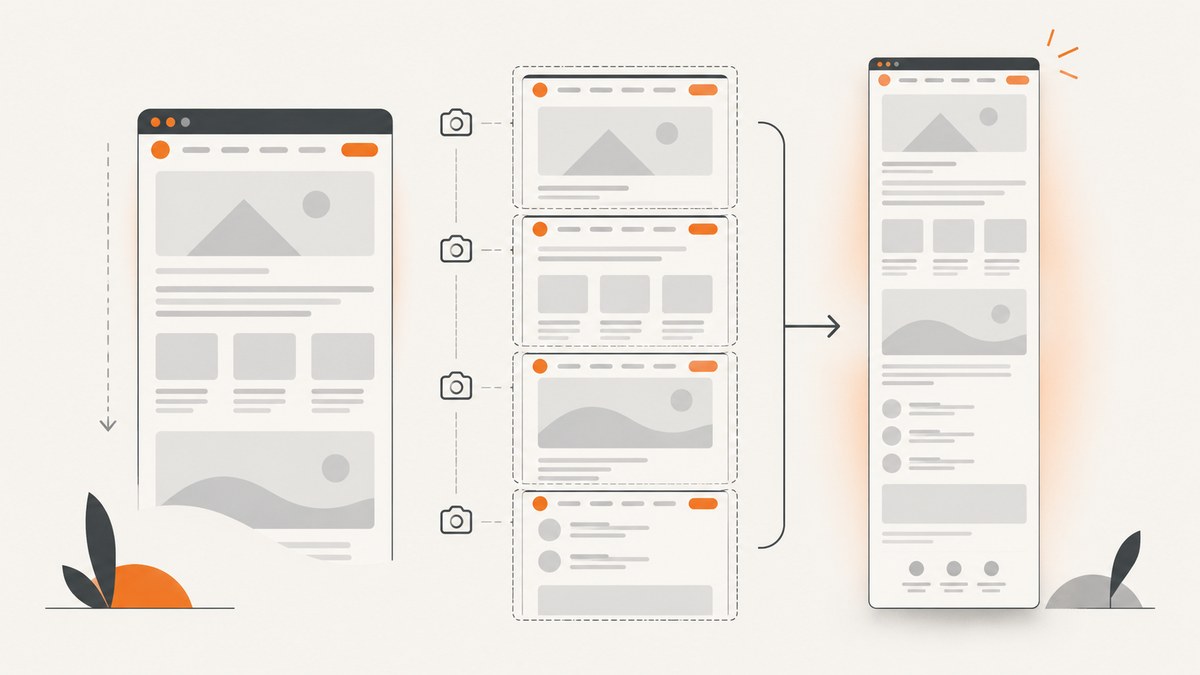
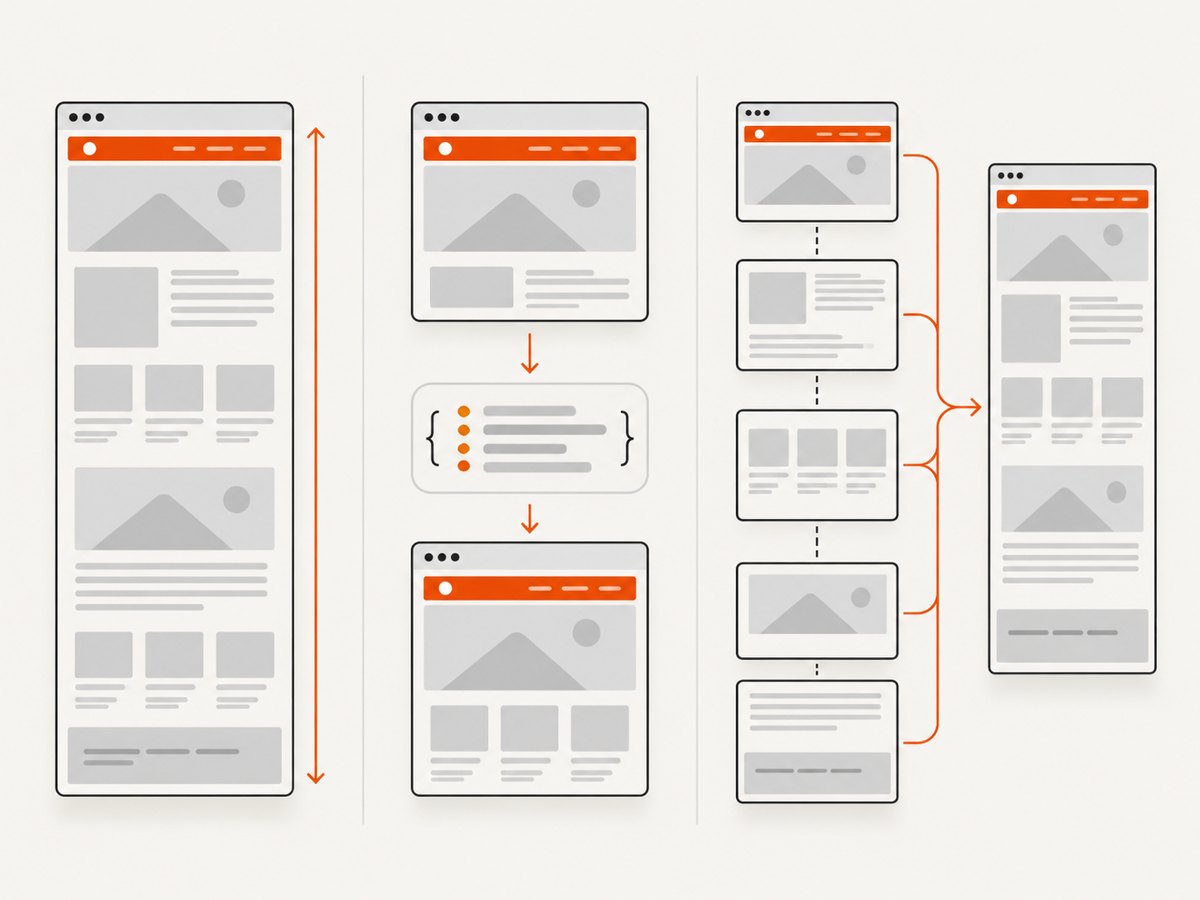
Short answer: Selenium does not have one universal “full-page screenshot” implementation. Firefox can capture the full document directly, Chrome can use the DevTools Protocol, and tools such as WebdriverIO can scroll through the page and stitch viewport images. A fixed or sticky navigation bar is attached to the viewport or painted as a composited layer, so hiding it can produce different results in each path.
To fix the problem, first identify your browser, driver, Selenium binding, screenshot method, CSS hiding technique, and whether the page is captured in one operation or by scrolling. Then choose a remedy for that exact path. Reproduce the page with the bar visible and hidden under identical conditions before changing code.
What “full-page screenshot” can mean
| Capture path | How it works | Typical navigation-bar symptom |
|---|---|---|
| Browser binding | The browser driver asks the browser for a document-sized image. Selenium’s Firefox binding exposes full-document screenshot methods. | Results depend on Firefox and driver behavior, but there is no scroll stitching to repeat a fixed bar. |
| Chrome DevTools Protocol | Page.captureScreenshot captures a page through Chrome’s protocol. |
Parameters and behavior can change with browser and protocol versions. |
| Scroll and stitch | The tool scrolls through viewport-sized regions, captures each frame, and joins them. | A fixed or sticky bar can appear in every segment, creating repeated bands or seams. |
See the Selenium Firefox WebDriver documentation, the Chrome DevTools Protocol Page.captureScreenshot method, and WebdriverIO’s service options for the documented differences.
Why hiding the bar changes the capture
Fixed and sticky positioning
position: fixed is positioned against the viewport. position: sticky behaves like normal flow until a scroll threshold is reached, then sticks relative to its scroll container. A viewport capture paints these layers at the current scroll position. A document-origin capture may treat composited layers differently.
WebdriverIO documents this distinction for BiDi element screenshots: document-origin screenshots do not capture some composited fixed or sticky overlays, while viewport-origin screenshots capture the painted frame when visibility and viewport constraints are satisfied. Do not assume that behavior applies identically to every Selenium binding.
Scroll-and-stitch repetition
In a user-like full-page capture, each viewport includes the fixed bar. Stitching those frames together repeats the bar. WebdriverIO provides hideAfterFirstScroll for selected elements in its user-based full-page mode; the option requires userBasedFullPageScreenshot: true. It is a WebdriverIO option, not a Selenium-wide API.
Layout reflow
How you hide the element matters:
display: noneremoves the element from layout. Content can move, changing every subsequent pixel.visibility: hiddenkeeps the layout box but does not paint the element.opacity: 0keeps layout and usually leaves the element in hit-testing unless you also change pointer behavior.- Removing the node with JavaScript can trigger resize observers, lazy loading, or application state changes.
There is no universal Selenium rule that makes these techniques equivalent. Record which technique you use and compare the page geometry before and after.
A repeatable diagnosis
- Freeze page state. Use the same URL, viewport, device scale factor, cookies, user agent, timezone, and wait conditions.
- Capture with the bar visible. Save the output and a screenshot of the first viewport.
- Capture with the bar hidden. Apply only one hiding change.
- Inspect the bar. Record its computed
position, dimensions, scroll container, z-index, and whether it creates a composited layer. - Identify the capture path. Check whether your code calls a browser full-document method, CDP, or a library that scrolls and stitches.
- Classify the artifact. Repeated bands suggest scroll stitching; a missing overlay suggests document-origin handling; shifted content suggests layout reflow; a timeout suggests the page never reached the capture condition.
- Check versions. Record browser, driver, Selenium binding, and capture-library versions. Chrome’s tip-of-tree protocol changes frequently and does not promise backward compatibility.
Python Selenium examples
Firefox full-document capture
from selenium import webdriver
from selenium.webdriver.firefox.options import Options

options = Options()
options.add_argument("-headless")
driver = webdriver.Firefox(options=options)
try:
    driver.get("https://example.com")
    driver.execute_script("document.querySelector('nav')?.style.setProperty('visibility', 'hidden')")
    driver.save_full_page_screenshot("page.png")
finally:
    driver.quit()
This uses Firefox’s documented full-page method. If hiding the bar causes the page to reflow, use visibility: hidden or a carefully scoped overlay rule when preserving geometry is required.
Chrome with DevTools Protocol
from selenium import webdriver
from selenium.webdriver.chrome.options import Options
import base64

options = Options()
options.add_argument("--headless=new")
driver = webdriver.Chrome(options=options)
try:
    driver.get("https://example.com")
    driver.execute_script("document.querySelector('nav')?.style.setProperty('visibility', 'hidden')")
    metrics = driver.execute_cdp_cmd("Page.getLayoutMetrics", {})
    content_size = metrics["contentSize"]
    result = driver.execute_cdp_cmd("Page.captureScreenshot", {
        "format": "png",
        "captureBeyondViewport": True,
        "clip": {
            "x": 0,
            "y": 0,
            "width": content_size["width"],
            "height": content_size["height"],
            "scale": 1
        }
    })
    with open("page.png", "wb") as output:
        output.write(base64.b64decode(result["data"]))
finally:
    driver.quit()
CDP parameters are version-sensitive. If this fails after a browser update, check the matching protocol documentation and driver version before changing the page code.
Keeping the element in layout while hiding it
driver.execute_script("""
const nav = document.querySelector('nav');
if (nav) {
  nav.style.setProperty('visibility', 'hidden', 'important');
  nav.style.setProperty('pointer-events', 'none', 'important');
}
""")
Use this only when preserving the navigation box is desirable. If the bar occupies vertical space that should disappear, use display: none and accept the resulting reflow.
WebdriverIO scroll-and-stitch captures
When using WebdriverIO’s user-based full-page mode, configure the documented option for elements that should disappear after the first scroll. The option applies to WebdriverIO’s capture implementation and requires user-based full-page screenshots.
await browser.saveScreenshot('./page.png', {
  fullPage: true,
  userBasedFullPageScreenshot: true,
  hideAfterFirstScroll: ['nav', '.cookie-banner']
});
If the result still repeats the bar, verify that the selector matches the element, that the option is enabled on the user-based path, and that the bar is not recreated by the application after each scroll.
Choosing a remedy
| Symptom | Likely cause | Remedy |
|---|---|---|
| Navigation repeats down the image | Scroll-and-stitch capture paints a fixed element in every viewport. | Use a document-sized capture, or use the capture library’s documented hide-after-first-scroll option. |
| Content jumps upward | display:none or DOM removal changed layout. |
Use visibility:hidden or reserve the original height with a placeholder. |
| Navigation disappears unexpectedly | Document-origin capture omits a composited overlay. | Use a viewport-origin capture when you need the painted frame, or move the target into normal document flow. |
| Only some pages fail | Different pages use different scroll containers, lazy loading, or bar implementations. | Inspect the page’s scroll root and wait for content and layout to stabilize. |
| Click or script is blocked | A fixed overlay covers the target after scrolling. | Hide or remove the blocker, scroll the target into an unobstructed position, or wait for the overlay to close. ChromeDriver documents this interaction failure separately from screenshot behavior. |
Waiting, lazy loading, and dynamic navigation
- Wait for the navigation selector and its final dimensions before capturing.
- Wait for fonts and images if they affect page height.
- Trigger lazy-loaded content deliberately when using a document capture; scroll-and-stitch naturally triggers some scroll handlers but can also change page state.
- Disable animations and transitions for deterministic output:
driver.execute_script("""
const style = document.createElement('style');
style.textContent = `*, *::before, *::after {
  animation: none !important;
  transition: none !important;
  caret-color: transparent !important;
}`;
document.head.appendChild(style);
""")
Do not use an arbitrary sleep as the only readiness check. Prefer a selector, a stable layout measurement, or a network-idle condition supported by your tooling.
Performance and reliability considerations
- One-shot document capture avoids stitching seams and is usually simpler when the browser supports it.
- Scroll-and-stitch capture can execute scroll handlers repeatedly, trigger lazy loading, and expose sticky UI to every segment.
- CDP capture can be effective for Chrome but requires matching protocol assumptions to the browser version.
- Large pages may exceed browser bitmap or protocol limits. Split very tall pages, reduce scale, or capture sections when a single image is not necessary.
- Repeatability improves when viewport, device scale factor, fonts, timezone, geolocation, cookies, and network conditions are fixed.
Troubleshooting checklist
- Is the bar
fixed,sticky, or inside a nested scrolling element? - Does your method capture one document or stitch viewport images?
- Did hiding use
display:none,visibility:hidden, opacity, or DOM removal? - Does the page recreate the bar after scroll, resize, or route changes?
- Are lazy images changing document height during capture?
- Are browser, driver, Selenium, and capture-library versions compatible?
- Does the failure occur with the bar visible? If so, investigate page readiness or size limits before focusing on hiding.
Or skip the browser setup
ScreenshotNeo provides a website screenshot API when you need a stable capture request without maintaining Selenium, drivers, and browser setup. Its capture options include full-page screenshots, custom CSS and JavaScript, selector-based element capture, waits, device presets, retina scale, and blocking controls. See the ScreenshotNeo API documentation for the current request options.
curl -G "https://api.screenshotneo.com/v1/shot" -d access_key=YOUR_API_KEY --data-urlencode url=https://stripe.com -o shot.webpimport requests
r = requests.get("https://api.screenshotneo.com/v1/shot", params={"access_key": "YOUR_API_KEY", "url": "https://stripe.com"}, timeout=90)
open("shot.webp", "wb").write(r.content)const q = new URLSearchParams({ access_key: 'YOUR_API_KEY', url: 'https://stripe.com' });
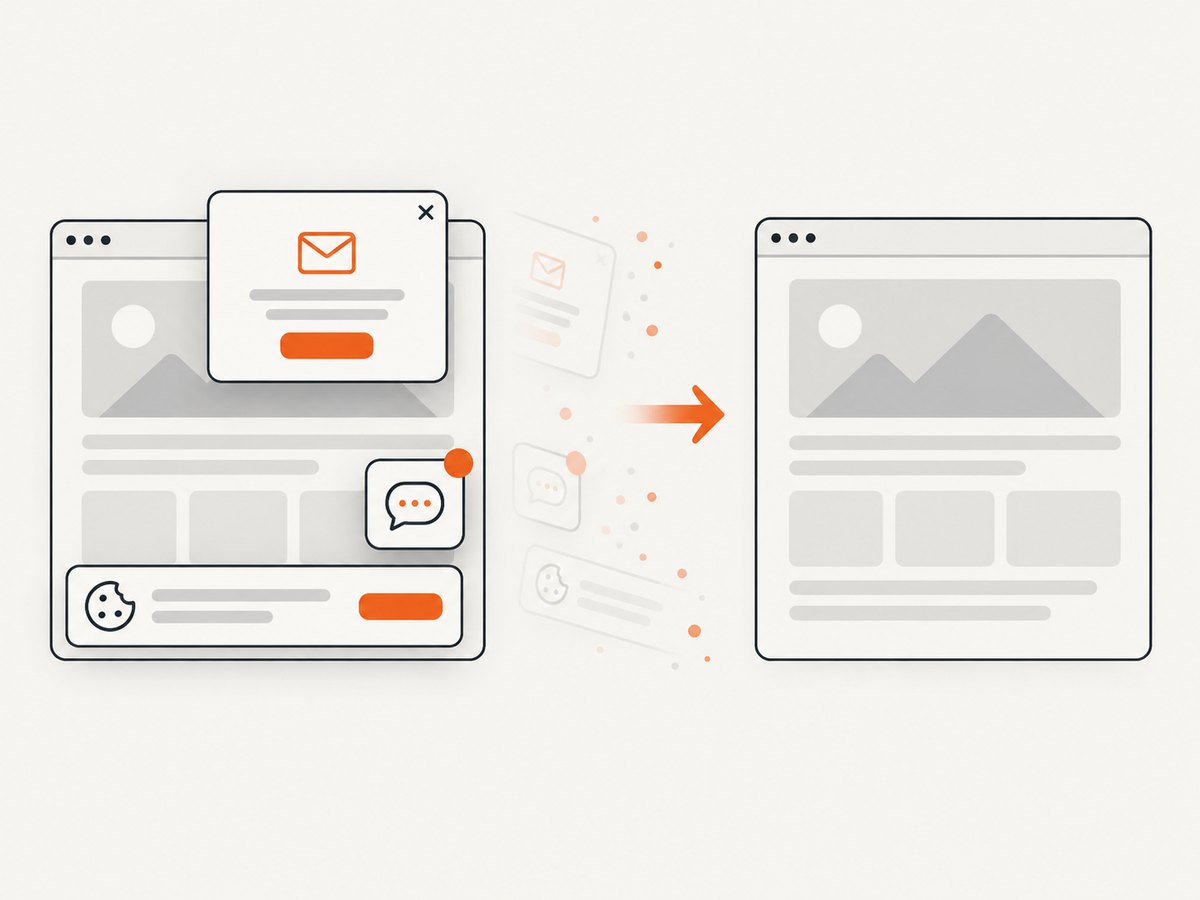
const res = await fetch(`https://api.screenshotneo.com/v1/shot?${q}`);Cookie banners, newsletter popups, and chat widgets are removed before the shot, with each cleanup step configurable. Bot checks, blank pages, failed loads, timeouts, and cache hits are not billed; the response identifies the page verdict and billing result in X-Page-Verdict and X-Billed headers. ScreenshotNeo also offers an MCP server with take_screenshot, get_page_info, and capture_pdf for AI agents. The free plan includes 1,000 screenshots per month with no card, and paid plans start at $5 for 3,000 shots. Create a free ScreenshotNeo account.
FAQ
Is a repeated navigation bar always a Selenium bug?
No. It often indicates that the selected tool is scrolling and stitching viewport captures, where a fixed element is painted in every frame.
Should I always use display:none?
No. It removes the element from layout and can shift all content. Use it only when that reflow is intended.
Can I rely on Chrome DevTools Protocol parameters forever?
No. The tip-of-tree protocol changes frequently and has no backward-compatibility guarantee. Pin and verify the browser, driver, and library versions.
Why does an element screenshot differ from a full-page screenshot?
Element screenshots can use document or viewport origins. Composited fixed and sticky layers may be treated differently depending on the origin and visibility constraints.
What details should I include in a bug report?
Include browser and driver versions, Selenium binding version, capture method, viewport and scale, navigation CSS, hiding code, wait conditions, and a visible-versus-hidden pair of outputs.


