How to Capture Full-Page Screenshots with Selenium in Python, Firefox, or Chrome
Capture full-page screenshots with Selenium in Python. Use Firefox’s documented full-document API, or validate a version-specific Chrome CDP approach.
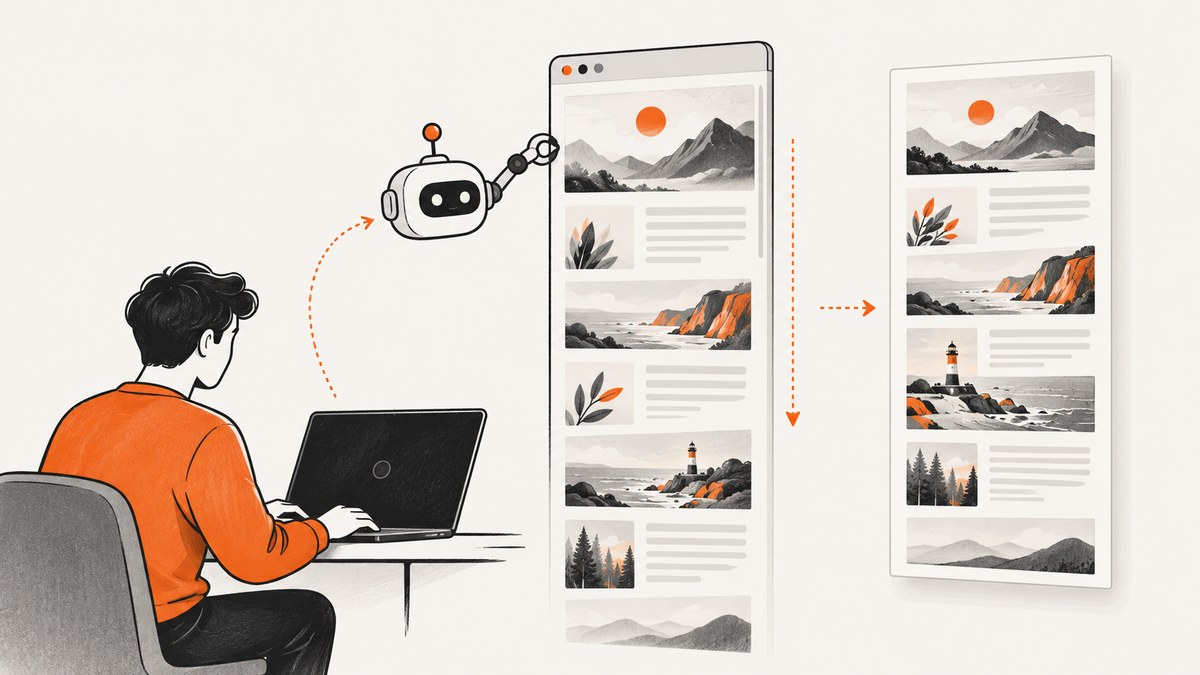
For a full-document screenshot with Selenium in Python, Firefox has a documented method: get_full_page_screenshot_as_file(). Selenium’s ordinary screenshot calls capture the current window, so in Chrome they should not be mistaken for full-page capture. Chrome can expose Chrome DevTools Protocol (CDP) commands through Selenium’s execute_cdp_cmd(), but the official API references cited here do not establish a universal, version-independent full-page command sequence. Validate any Chrome CDP implementation against your Chrome version, runtime mode, and target page.
The practical choice is therefore straightforward: use Firefox’s documented full-page method when it fits your environment; for Chrome, use a CDP workflow you have verified for your setup, and inspect the resulting image. This guide covers runnable Firefox code, a safe Chrome setup and validation path, page readiness, common failures, and an API option when you do not want to maintain browser infrastructure.
1. What counts as a full-page screenshot?
A viewport screenshot contains the visible browser content at the time of capture. A full-page screenshot contains the document beyond that visible area. These are different outputs: calling Selenium’s ordinary save_screenshot() after navigating to a long page does not, by itself, make the image full-page.
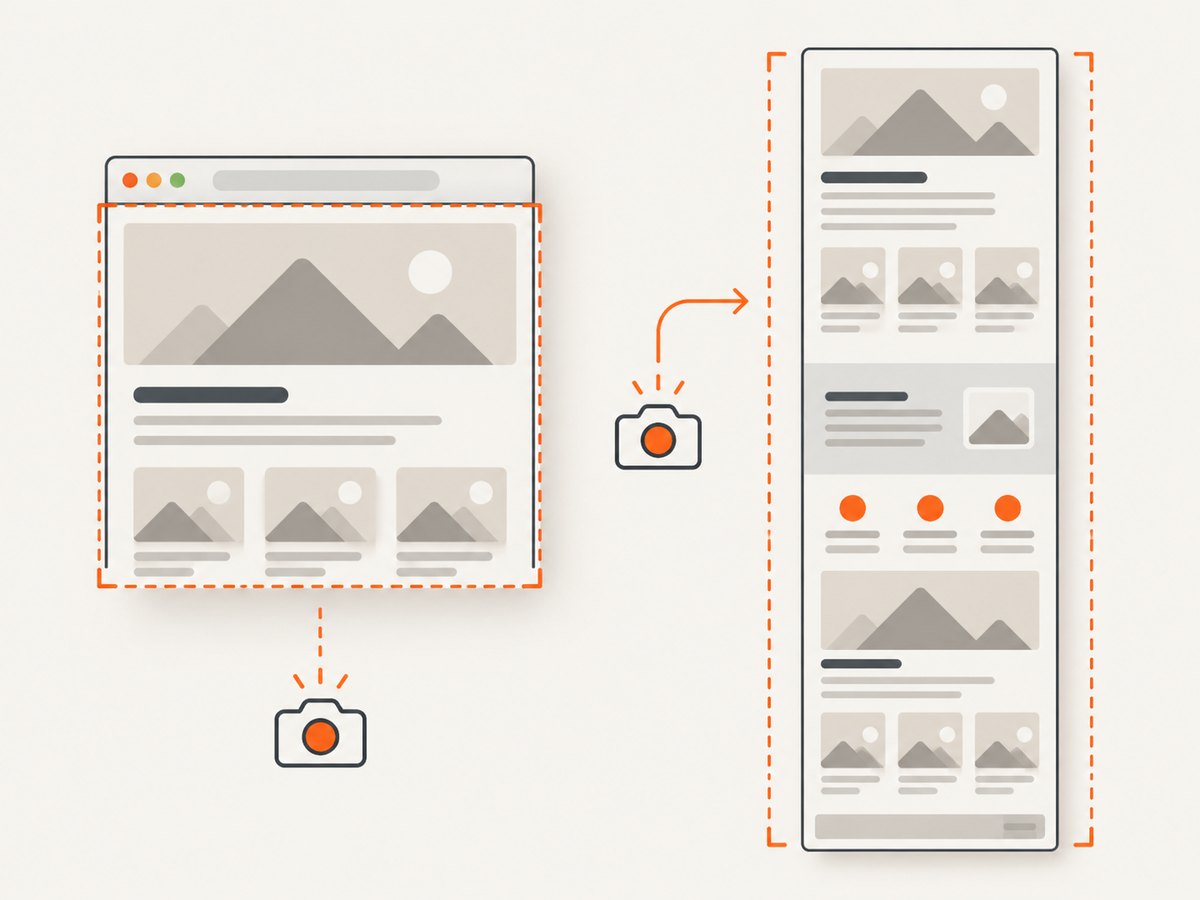
Selenium’s Firefox Python API documents full-document screenshot methods. Selenium’s common WebDriver API documents ordinary screenshot methods as capturing the current window, and exposes execute_cdp_cmd() as the interface for issuing CDP commands. The Chromium API also documents current-window screenshot methods. The references support this distinction, but do not specify a stable Chrome full-page recipe across versions and execution environments. [Firefox WebDriver API; common WebDriver API; Chromium WebDriver API]
| Browser path | What Selenium documents | What to validate |
|---|---|---|
| Firefox | Firefox-specific full-document screenshot methods, including file, PNG-byte, and base64 variants. | File path permissions, PNG extension, page readiness, and image contents. |
| Chrome | Current-window screenshot methods and a CDP command interface. | The exact CDP sequence, output dimensions, lower-page content, and behavior in your browser/runtime version. |
2. Install Selenium and the browser
Install Selenium in the Python environment that will run the capture:
python -m pip install seleniumInstall Firefox or Chrome in the execution environment as well. Selenium’s driver management behavior depends on your Selenium version and environment; if driver discovery fails, install or configure the matching browser driver and make it available to the process. In CI or a container, confirm that the browser can start in the configured headless or display-backed mode before debugging screenshot behavior.
Keep browser and Selenium versions visible in your deployment logs. For Chrome CDP work, version information is especially useful because the command sequence is browser-specific and should be verified against the version actually running.
3. Capture a full document in Firefox
Firefox’s Python WebDriver reference documents get_full_page_screenshot_as_file(filename). It saves a full-document PNG and returns True on success or False for an I/O error. Use a writable full path and a filename ending in .png.
from pathlib import Path
from selenium import webdriver
from selenium.webdriver.firefox.options import Options

url = "https://example.com"
output = Path("page.png").resolve()

options = Options()
# For a headless environment, uncomment this line:
# options.add_argument("-headless")

driver = webdriver.Firefox(options=options)
try:
    driver.get(url)

    saved = driver.get_full_page_screenshot_as_file(str(output))
    if not saved:
        raise OSError(f"Could not save screenshot to {output}")

    print(f"Saved full-page PNG to {output}")
finally:
    driver.quit()
The Firefox API also documents save_full_page_screenshot(filename) with equivalent stated behavior. If you need the screenshot in memory rather than on disk, use get_full_page_screenshot_as_png() for PNG bytes or get_full_page_screenshot_as_base64() for base64-encoded data. These are Firefox-specific documented APIs; do not assume the same methods exist on Chrome’s driver.
Wait for the page you want to capture
A successful navigation does not guarantee that every meaningful page element has rendered. Single-page applications, delayed images, and content loaded as the user scrolls may need application-specific preparation. Selenium does not promise that the full-page method triggers every lazy-loaded element. Wait for a meaningful element or known readiness condition before taking the shot.
from selenium.webdriver.common.by import By
from selenium.webdriver.support import expected_conditions as EC
from selenium.webdriver.support.ui import WebDriverWait

# After driver.get(url):
WebDriverWait(driver, 15).until(
    EC.visibility_of_element_located((By.CSS_SELECTOR, "main"))
)
Replace main with a selector that represents the content you need. If the site renders asynchronously, wait for a site-specific state rather than relying only on a fixed sleep. A timeout should fail clearly so an incomplete capture is not silently treated as good output.
4. Capture a full page in Chrome: use CDP carefully
Chrome’s standard Selenium screenshot methods capture the current window. Selenium exposes execute_cdp_cmd(cmd, cmd_args) for Chrome DevTools Protocol commands, but the official API references used here do not give a stable, universal full-page capture sequence. That means a code snippet presented as guaranteed across Chrome versions, headless modes, and remote drivers would overstate what these sources establish.
Use this runnable setup to start Chrome, wait for page content, and confirm the ordinary screenshot path works. It deliberately saves a viewport image; it is a baseline and is not labeled full-page.
from pathlib import Path
from selenium import webdriver
from selenium.webdriver.chrome.options import Options
from selenium.webdriver.common.by import By
from selenium.webdriver.support import expected_conditions as EC
from selenium.webdriver.support.ui import WebDriverWait

url = "https://example.com"
output = Path("chrome-viewport.png").resolve()

options = Options()
options.add_argument("--headless")

driver = webdriver.Chrome(options=options)
try:
    driver.get(url)
    WebDriverWait(driver, 15).until(
        EC.visibility_of_element_located((By.CSS_SELECTOR, "main"))
    )

    # This captures the current window, not necessarily the full document.
    if not driver.save_screenshot(str(output)):
        raise OSError(f"Could not save screenshot to {output}")

    print(f"Saved viewport screenshot to {output}")
    print(f"Browser capabilities: {driver.capabilities}")
finally:
    driver.quit()
For full-page output in Chrome, select and verify a CDP-based implementation for your actual Chrome and Selenium versions. Confirm that its command and returned image format match your capture requirements. Test the output on the target page and inspect dimensions and content below the initial viewport. Resizing the viewport and calling save_screenshot() is not proof of full-document capture: the page may still extend beyond it, and resizing can change responsive layout.
Chrome validation checklist
- Record Chrome, Selenium, and driver versions with the run.
- Verify the capture method is documented or tested for those versions and for the selected headed/headless or remote configuration.
- Compare the image height and visible sections against the document; confirm content near the bottom appears.
- Check for missing lazy content, duplicate sections, sticky headers, and fixed overlays.
- Repeat validation after browser upgrades or changes to the page and execution environment.
5. Prepare dynamic pages and handle edge cases
Screenshot quality depends on the page state at capture time as much as on the screenshot API. Before capturing:
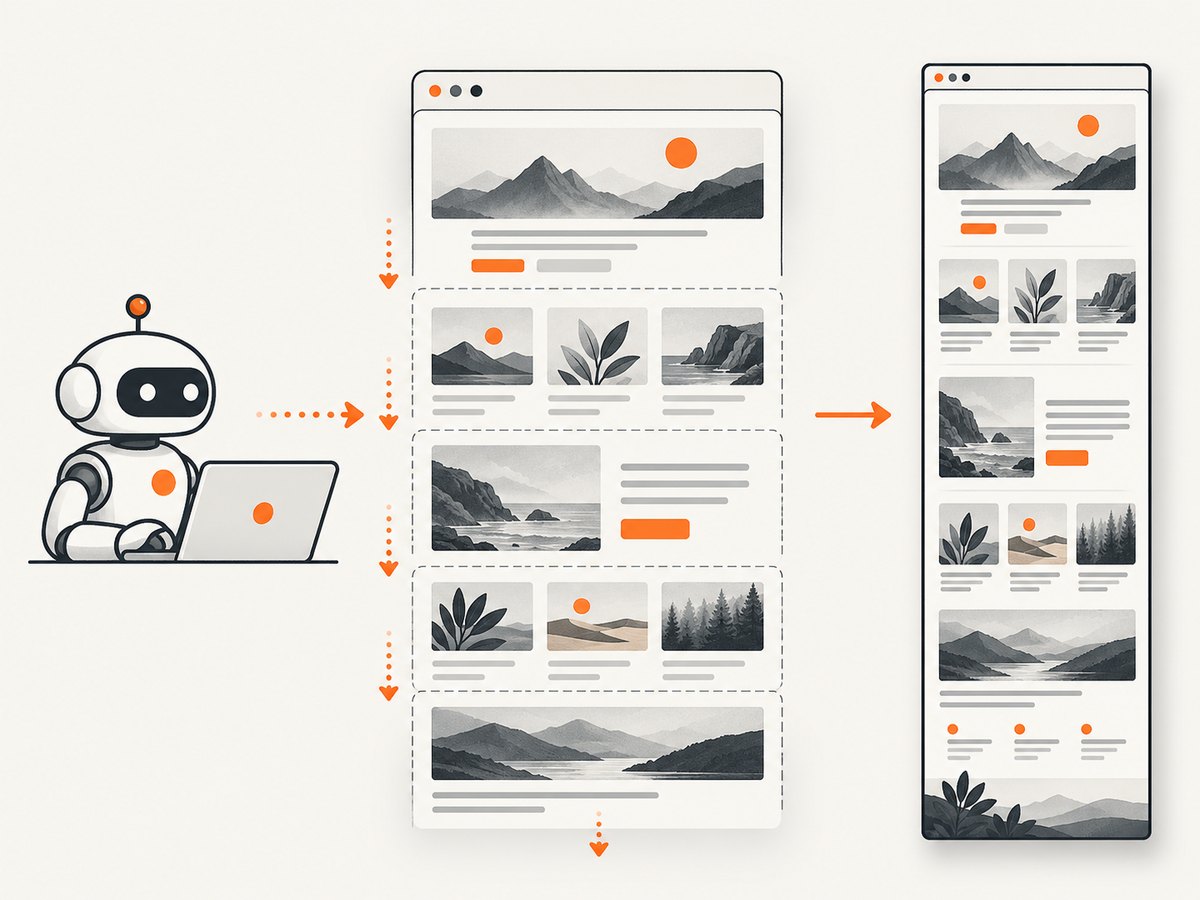
- Wait for a useful state. Prefer an explicit wait for the main content or a page-specific readiness signal.
- Account for scroll-triggered content. Some pages request images or sections only when they approach the viewport. Determine whether the target page needs scrolling or another preparation step. Do not assume the capture method loads every lazy element.
- Consider layout changes. Cookie notices, chat panels, sticky navigation, and responsive breakpoints can cover or alter content. Decide whether the goal is a faithful visitor view or a clean document view.
- Inspect the actual image. Check top, middle, and bottom content; look for clipping, blank regions, repeated content, overlays, and an unexpected viewport-only result.
- Use a clear output path. Create the output directory first when needed, and ensure the process account can write to it.
A very tall page can produce a large image. If the destination has pixel-dimension or memory limits, validate that downstream system’s constraints and consider whether splitting the capture is more appropriate. Avoid treating a successful file write as proof that every page section rendered correctly.
6. Troubleshooting
| Symptom | Likely cause | Fix |
|---|---|---|
| The image contains only the visible window | A current-window screenshot method was used, especially save_screenshot(). |
In Firefox, call its documented full-page method. In Chrome, use a verified CDP approach; do not label a viewport image full-page. |
Firefox returns False |
The file could not be written, often because of an invalid path or permissions. | Resolve an absolute path, create its parent directory, check process permissions, and use a .png filename. |
| Firefox method is missing in Chrome | The full-document methods documented on Firefox’s driver are browser-specific. | Use the Firefox driver for that API or a Chrome-specific, version-validated capture implementation. |
| Chrome CDP command fails | Command support or arguments may not match the browser, driver, or remote execution setup. | Check version compatibility and the CDP documentation for the running Chrome version. Keep a reproducible minimal page and inspect the returned error. |
| Bottom of page is blank or absent | Capture happened before content was ready, or content is loaded on scroll. | Wait for a page-specific condition and determine whether scrolling or another site-specific action is needed to trigger loading. |
| Screenshot is unexpectedly short | The method captured the window viewport, or the document had not reached its final layout. | Confirm the chosen full-page API and wait for layout/content readiness; inspect dimensions after capture. |
| Image has a banner or chat panel | The page displays visitor-facing overlays at capture time. | For a faithful visitor image, leave it in place. For a clean capture, remove or dismiss it only if your use case and site permissions allow it. |
| Browser fails to start in CI | Browser installation, driver discovery, display, or headless configuration differs from local development. | Verify the browser and driver are installed and compatible, configure the intended runtime mode, and test browser startup separately from screenshot logic. |
7. Performance, reliability, and cost
Running Selenium means your job owns browser startup, navigation, page readiness, capture, and cleanup. Reusing a browser session may reduce repeated startup work in a batch, but long-lived sessions also need careful cleanup and isolation between pages. For parallel work, keep browser instances and output paths separate, and size concurrency for the memory available to the workers.
Reliability improves when each capture has a bounded navigation and wait policy, a unique output name, and a clear failure result. Always quit the driver in a finally block. Save enough run metadata to reproduce browser-specific problems, especially Chrome version and runtime mode. Validate output content, not only the browser call’s return value.
Cost includes the machine time and operational work for browser installation, updates, and failed or retried captures. A self-hosted Selenium flow gives control over the browser and page preparation, while a screenshot API shifts browser operations to a service and adds per-plan usage limits. Compare the cost model against your volume, need for custom browser behavior, and tolerance for maintaining drivers.
8. Or skip the browser setup
If you need a screenshot without installing and maintaining a browser and driver, ScreenshotNeo is a website screenshot API and MCP server. One GET request takes a URL and returns PNG, JPEG, WebP, or PDF output. Its cleanup steps accept cookie/consent banners like a visitor and remove more than 60 known consent platforms, newsletter popups, and chat widgets; each step can be turned off. Only clean shots are billed: bot checks/CAPTCHAs, blank pages, timeouts, failed loads, and cache hits cost nothing, and responses include X-Page-Verdict and X-Billed headers.
Here is the one-call cURL example:
curl -G "https://api.screenshotneo.com/v1/shot" -d access_key=YOUR_API_KEY --data-urlencode url=https://stripe.com -o shot.webpSee the ScreenshotNeo API documentation for request options. Python and Node.js versions are below.
import requests

r = requests.get(
    "https://api.screenshotneo.com/v1/shot",
    params={"access_key": "YOUR_API_KEY", "url": "https://stripe.com"},
    timeout=90,
)
open("shot.webp", "wb").write(r.content)
const q = new URLSearchParams({ access_key: 'YOUR_API_KEY', url: 'https://stripe.com' });
const res = await fetch(`https://api.screenshotneo.com/v1/shot?${q}`);ScreenshotNeo also offers an MCP server for Claude, Cursor, and other MCP clients, with take_screenshot, get_page_info, and capture_pdf tools. Other available options include full-page capture with lazy images loaded, CSS-selector element capture, dark mode, device presets and custom viewports, retina scale, PDF settings, HTML/CSS input, custom CSS or JavaScript, click-before-capture, selector hiding, wait conditions, request blocking, custom headers and cookies, user agent and Authorization, timezone and geolocation, transparent backgrounds, resizing, configurable cache TTL, signed image links, async jobs with signed webhooks, bulk capture up to 100 URLs per call, a usage API, and an OpenAPI spec. Familiar parameter names from other screenshot APIs also work to ease migration.
Plans are Free: 1,000 shots/month with no card; Starter: $5 for 3,000; Growth: $15 for 15,000; Pro: $39 for 60,000; Scale: $99 for 250,000; and Business: $249 for 1,000,000. Yearly billing gives two months free. Every feature is on every plan. Sign up for 1,000 free screenshots a month, with no card required.
9. Frequently asked questions
Can Selenium capture a full-page screenshot in Firefox?
Yes. Firefox’s Python WebDriver reference documents get_full_page_screenshot_as_file() and related full-document methods. The file method saves PNG and returns a Boolean indicating whether the save succeeded.
Does Selenium’s save_screenshot() capture the full page?
The common WebDriver and Chromium API references describe ordinary screenshot methods as capturing the current window. Treat the result as a viewport capture unless you use and validate a full-document method.
Is there one Chrome CDP recipe that works everywhere?
The cited Selenium API references establish the CDP command interface, but not a universal full-page sequence. Verify the implementation for the Chrome version and execution environment you use.
Can I get Firefox’s screenshot as bytes instead of a file?
Yes. The Firefox API documents PNG-byte and base64 full-page methods. Use the byte method when you need to pass the image to another library or upload it without first writing a local file.
Why does a successful capture still miss page content?
The page may render asynchronously or load content on scroll. Wait for the relevant page state and inspect the output for missing lower-page content before relying on it.


