How to Capture Full-Page Selenium Screenshots with Sticky Headers
Capture full-page Selenium screenshots without repeating sticky headers. Compare Chromium CDP capture with a scroll-and-stitch fallback, with runnable code and fixes.
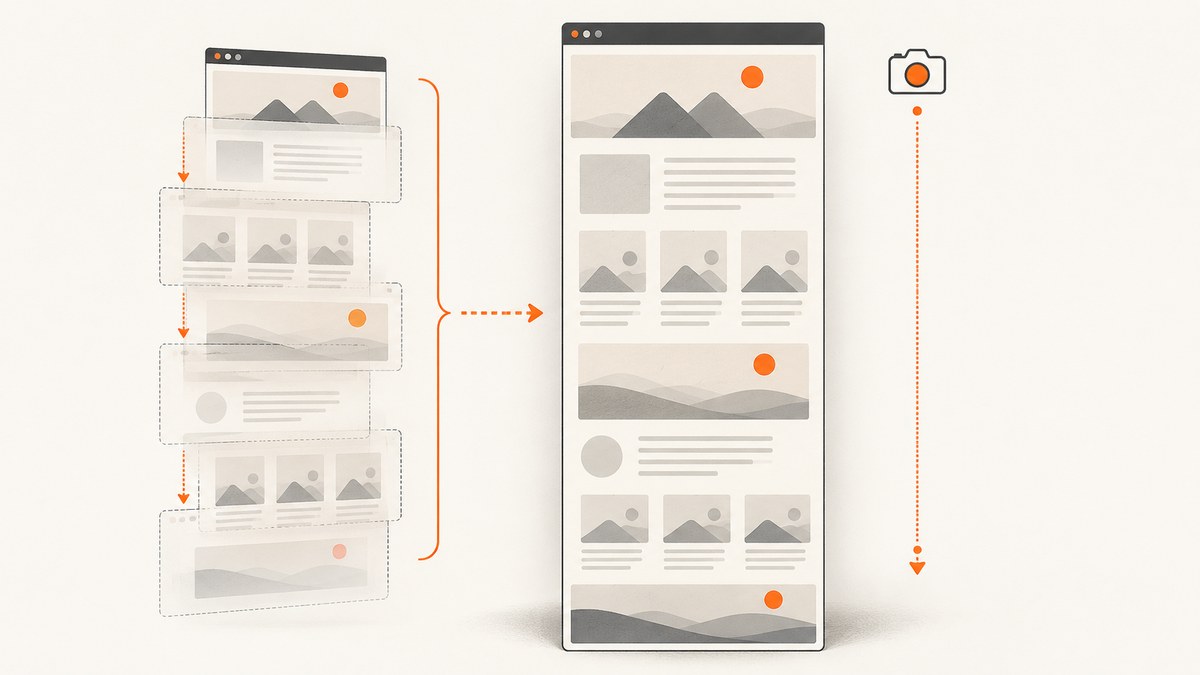
To capture a full page in Selenium without repeating a sticky header, use Chromium’s Chrome DevTools Protocol (CDP) Page.captureScreenshot with captureBeyondViewport when your Chrome version and Selenium binding support it. That takes one capture beyond the visible viewport, so a viewport-attached header is not stamped into every segment. If CDP capture is unavailable, scroll through overlapping viewport-sized captures and stitch them together; temporarily put sticky or fixed headers back into normal document flow during that capture, then restore their styles.
Selenium’s ordinary screenshot calls capture the current browser context or a selected element, so full-page capture needs an additional strategy. Selenium provides screenshot and JavaScript execution primitives; Chrome’s DevTools Protocol documents the beyond-viewport option, and Chrome’s full-size screenshot workflow covers content outside the visible viewport. Selenium documentation, CDP Page.captureScreenshot, and Chrome full-size screenshots.
1. Choose a capture strategy
| Approach | Good fit | Watch for |
|---|---|---|
| CDP beyond-viewport capture | Chromium-based browser, one page-sized capture, fewer moving parts | CDP availability varies by browser and binding; very tall pages can exceed image or browser limits |
| Scroll and stitch | Fallback when CDP is unavailable, or when you need control over a page or scroll container | Sticky elements repeat unless neutralised; lazy content and layout shifts must settle before each shot |
| Element screenshot | A specific component rather than the entire document | Only captures the element’s rendered bounds, not everything below the fold |
Start with CDP when it is supported and the page scrolls as a document. Use stitching for portability or for more control. Before coding, identify the scroll surface: some applications put the content inside a panel with its own scrollbar. Scrolling window does not reveal content inside that panel.
2. Prepare the page before capture
Wait for navigation and for the content that must appear in the evidence image. A successful get() only means the configured page load condition was reached; client-rendered applications may still be fetching data, loading fonts, or decoding images. Prefer an explicit wait for a page-specific selector that signals the content is ready.
from selenium.webdriver.common.by import By
from selenium.webdriver.support.ui import WebDriverWait

# After driver.get(url):
WebDriverWait(driver, 20).until(
    lambda d: d.find_element(By.CSS_SELECTOR, "main .report-ready")
)
For a generic page, you can wait for document readiness and image completion, but neither proves that every application widget has finished rendering. Add an application-specific condition where possible.
WebDriverWait(driver, 20).until(
    lambda d: d.execute_script("return document.readyState") == "complete"
)
WebDriverWait(driver, 20).until(lambda d: d.execute_script("""
  return Array.from(document.images).every(img => img.complete)
"""))
Web fonts can change line wrapping and page height after an initial measurement. If the browser supports the Font Loading API, wait for document.fonts.ready. Also consider disabling animations and caret blinking for stable evidence captures, using a temporary injected style sheet and removing it afterward.
3. Chromium: capture beyond the viewport with CDP
With Selenium 4 and Chromium, the driver exposes CDP commands through execute_cdp_cmd in common Python bindings. Ask the page for its content dimensions, set the device metrics override to those dimensions, and request a screenshot beyond the viewport. The exact available command surface depends on your Selenium and Chrome versions; check your binding if the method is missing.
from pathlib import Path
from selenium import webdriver
from selenium.webdriver.support.ui import WebDriverWait
import base64

url = "https://example.com"
out = Path("full-page.png")

driver = webdriver.Chrome()
try:
    driver.set_window_size(1440, 1000)
    driver.get(url)
    WebDriverWait(driver, 20).until(
        lambda d: d.execute_script("return document.readyState") == "complete"
    )
    WebDriverWait(driver, 20).until(lambda d: d.execute_script("""
      return document.fonts ? document.fonts.ready.then(() => true) : true
    """))

    metrics = driver.execute_cdp_cmd("Page.getLayoutMetrics", {})
    size = metrics["cssContentSize"]
    width, height = int(size["width"]), int(size["height"])
    driver.execute_cdp_cmd("Emulation.setDeviceMetricsOverride", {
        "width": width,
        "height": height,
        "deviceScaleFactor": 1,
        "mobile": False,
    })
    result = driver.execute_cdp_cmd("Page.captureScreenshot", {
        "format": "png",
        "captureBeyondViewport": True,
        "fromSurface": True,
    })
    out.write_bytes(base64.b64decode(result["data"]))
finally:
    driver.quit()
For pixel density, increase deviceScaleFactor if your browser and memory budget allow it. The resulting bitmap can grow quickly: doubling both dimensions produces four times as many pixels. CDP may return an error for an unusually large surface; reduce scale, capture sections, or switch to stitching. Restore device metrics if the same browser session will continue with ordinary viewport-sized work.
Do not neutralise sticky headers preemptively for CDP. A single beyond-viewport capture is different from repeated viewport shots. If the result still shows an unexpected header position, inspect the actual screenshot and the page’s layout; browser behavior, transforms, nested scrollers, and application-specific CSS can affect the result.
4. Cross-browser fallback: scroll and stitch
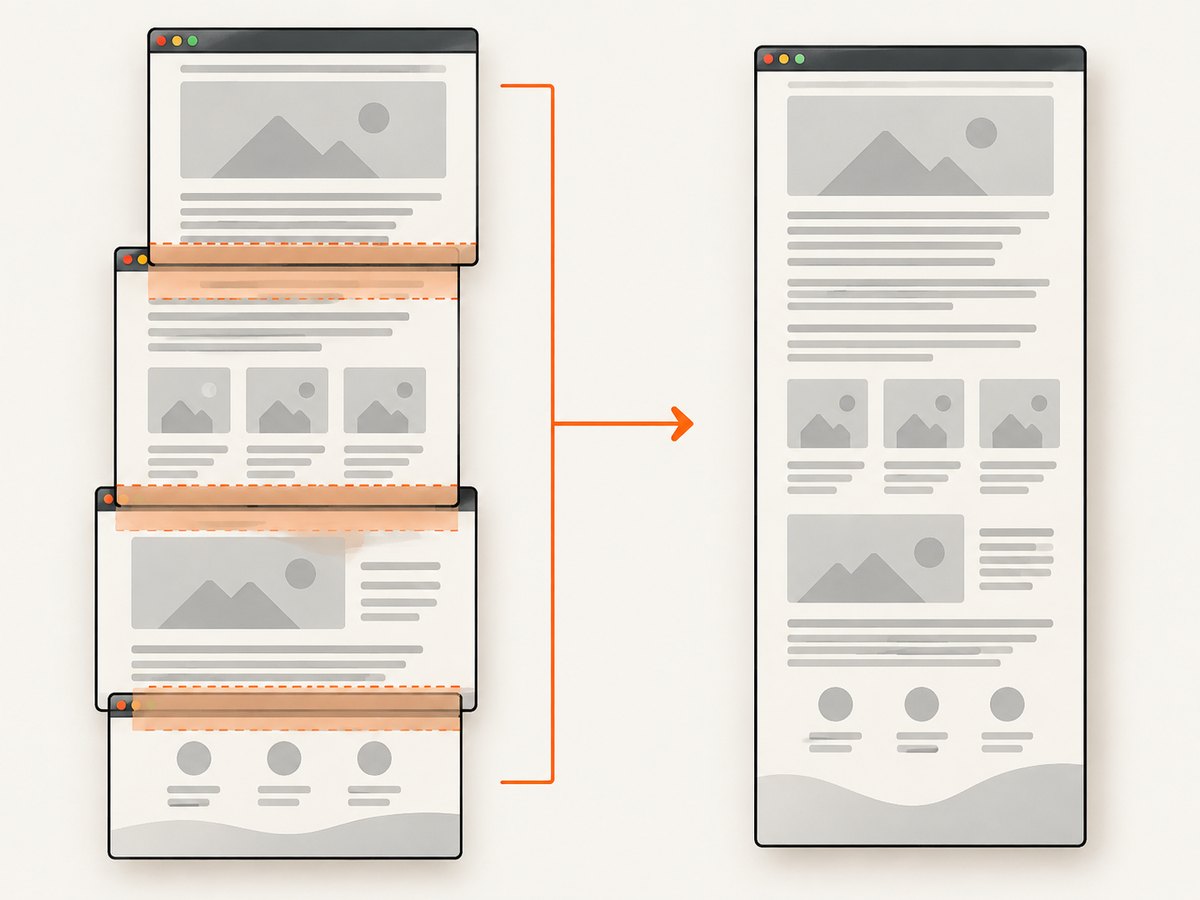
The fallback captures overlapping viewport segments and joins them. Overlap gives you room to align edges and avoid gaps; the final segment often ends beyond the document bottom, so crop it to the remaining document height. The sample below uses Pillow for image composition: install it with python -m pip install Pillow. It handles the document scroll surface and saves a PNG.
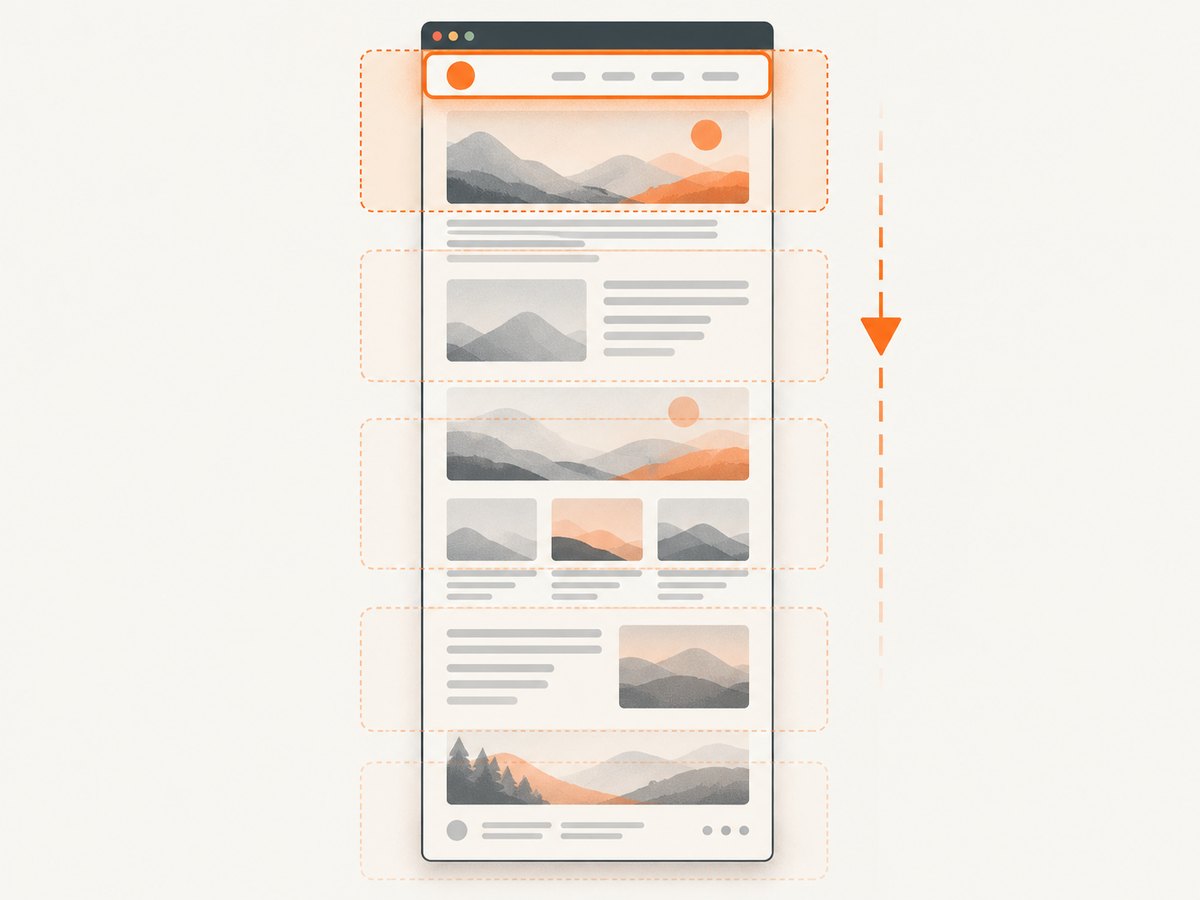
For a stitched image, a fixed or sticky header remains attached to each viewport and therefore appears in every segment. Temporarily override the relevant header’s position so it returns to normal flow. The original inline style is saved and restored in a finally block. This is a capture-time change; do not leave it applied to a live user session.
from io import BytesIO
from pathlib import Path
from PIL import Image
from selenium import webdriver
from selenium.webdriver.support.ui import WebDriverWait

url = "https://example.com"
header_selector = "header.site-header"  # Adjust to the page
out = Path("stitched.png")

driver = webdriver.Chrome()
try:
    driver.set_window_size(1440, 1000)
    driver.get(url)
    WebDriverWait(driver, 20).until(
        lambda d: d.execute_script("return document.readyState") == "complete"
    )
    driver.execute_script("""
      if (document.fonts) return document.fonts.ready;
    """)

    # Keep the original inline style so it can be restored exactly.
    saved = driver.execute_script("""
      const el = document.querySelector(arguments[0]);
      if (!el) return null;
      const old = el.getAttribute('style');
      el.style.setProperty('position', 'relative', 'important');
      for (const p of ['top', 'right', 'bottom', 'left'])
        el.style.setProperty(p, 'auto', 'important');
      return old;
    """, header_selector)

    try:
        dims = driver.execute_script("""
          return {
            width: Math.max(document.documentElement.scrollWidth,
                            document.body.scrollWidth),
            height: Math.max(document.documentElement.scrollHeight,
                             document.body.scrollHeight),
            viewport: window.innerHeight
          };
        """)
        width, height, viewport = dims["width"], dims["height"], dims["viewport"]
        overlap = 120
        step = max(1, viewport - overlap)
        positions = list(range(0, max(1, height - viewport + 1), step))
        last = max(0, height - viewport)
        if not positions or positions[-1] != last:
            positions.append(last)

        shots = []
        for y in positions:
            driver.execute_script("window.scrollTo(0, arguments[0])", y)
            WebDriverWait(driver, 5).until(
                lambda d: d.execute_script("return Math.abs(window.scrollY - arguments[0]) <= 2", y)
            )
            # Allow layout and lazy-loaded images to settle at each position.
            driver.implicitly_wait(0)
            shots.append(Image.open(BytesIO(driver.get_screenshot_as_png())).convert("RGB"))

        result = Image.new("RGB", (width, height), "white")
        for i, (y, shot) in enumerate(zip(positions, shots)):
            # Browser screenshot width can differ from CSS width due to scale.
            if shot.width != width:
                shot = shot.resize((width, round(shot.height * width / shot.width)))
            visible = min(shot.height, height - y)
            result.paste(shot.crop((0, 0, width, visible)), (0, y))
        result.save(out)
    finally:
        driver.execute_script("""
          const el = document.querySelector(arguments[0]);
          if (!el) return;
          const old = arguments[1];
          if (old === null) el.removeAttribute('style');
          else el.setAttribute('style', old);
        """, header_selector, saved)
        driver.execute_script("window.scrollTo(0, 0)")
finally:
    driver.quit()
This example is intentionally explicit, but production pages often need adjustments. The sample assumes one header and a document scroll surface. If there are separate desktop and mobile headers, select the visible one or neutralise both. If a page has a sticky sub-navigation, it may also repeat. Identify all viewport-attached elements that should appear once, not just the main header.
Fixing the segment alignment
The simple paste logic places each segment at its requested scroll coordinate. Since captures overlap, later segments overwrite the earlier overlap. This works when the viewport and page layout remain stable. If content changes height while scrolling, freeze animations, wait for lazy images, and remeasure. For more exact alignment, crop the overlap from each segment and paste only the non-overlapping band; special handling is needed for the final segment at the bottom.
5. Inner scroll containers and lazy content
For a page with an inner scrolling panel, measure that element’s scrollHeight and clientHeight, then set its scrollTop for each segment. Capture the viewport or the panel element depending on the desired output. A full document screenshot may not include content that remains clipped inside a panel. Nested scroll regions can require separate capture passes or a page-specific layout change.
panel = driver.find_element("css selector", ".results-panel")
height = driver.execute_script("return arguments[0].scrollHeight", panel)
viewport = driver.execute_script("return arguments[0].clientHeight", panel)
for y in range(0, height, max(1, viewport - 100)):
    driver.execute_script("arguments[0].scrollTop = arguments[1]", panel, y)
    # Wait for panel content to settle, then capture the relevant element.
    panel.screenshot(f"panel-{y}.png")
Lazy-loaded images may only load when near the viewport. In a stitched workflow, scroll through the page once to trigger loading, wait for image completion where practical, then return to the top and capture. Some sites use intersection observers, virtualized lists, or content that is removed when out of view; those require application-specific handling. A screenshot cannot capture list rows that the page has not rendered.
6. Useful capture options and stability choices
- Viewport and device scale: pick the CSS viewport that matches the evidence you need. Higher device scale improves pixel density but increases image size and memory use.
- PNG or JPEG: PNG preserves crisp text and UI edges; JPEG can be smaller for photographic pages but introduces compression artifacts. Selenium’s standard screenshot methods commonly write PNG.
- Element capture: use an element screenshot for a chart, dialog, or panel when the full page is unnecessary. Scroll the element into view first if needed.
- Timing: wait for selectors, fonts, images, and application data; use a short settling delay only when the page has no reliable readiness signal.
- Animations and blinking cursors: inject temporary CSS to disable motion and hide carets for repeatable evidence; restore or remove the style after capture.
- Header selector: prefer a stable ID, data attribute, or application-owned selector over a fragile class generated at runtime.
- Artifacts: on failure, save the current viewport screenshot, page source, browser console logs if enabled, and the exception text. These help distinguish load failures from stitching errors.
7. Common errors and fixes
| Symptom | Likely cause | Fix |
|---|---|---|
execute_cdp_cmd is missing |
Non-Chromium browser, older Selenium binding, or unsupported driver | Use a current Selenium 4 Chromium setup or switch to scroll-and-stitch. |
| CDP reports an invalid parameter or method | Chrome and binding protocol support differ | Check the browser’s supported protocol and Selenium version; remove unsupported options or use the fallback. |
| Screenshot contains only the viewport | Ordinary Selenium screenshot call was used | Use CDP beyond-viewport capture or capture and compose multiple scroll positions. |
| Header appears repeatedly | Fixed or sticky header is in every viewport segment | Save its inline style, temporarily set position to relative and clear inset properties, then restore it in finally. |
| Blank strip or duplicated band at the bottom | Last partial viewport was pasted at the wrong height or not cropped | Compute last = documentHeight - viewportHeight and crop to the remaining document pixels. |
| Missing images or sections | Lazy loading, virtualized content, delayed rendering, or inner scroll area | Trigger loading by scrolling first; wait for page-specific readiness; capture the actual scroll container. |
| Composite seams or shifted text | Page layout changed between shots or device scale was misapplied | Disable motion, wait for fonts and images, hold viewport dimensions constant, and recompute page dimensions. |
| Memory error or very large PNG | Extremely tall or high-density capture | Reduce device scale, capture chunks, or save lower-complexity output where fidelity requirements allow. |
| Header remains altered after an exception | Restoration was not protected by cleanup | Put style and scroll restoration in finally; restart the browser after a failed capture if page state is uncertain. |
8. Performance, reliability, and cost
Capture time depends on navigation, page rendering, image loading, and screenshot encoding. The CDP approach usually has less application-side work than taking many segments, while stitching adds browser round trips, image decoding, and memory for the composed bitmap. No fixed timing or size limit applies across all sites and machines, so treat very tall pages as a resource-management problem rather than assuming every capture will fit.
For reliable automation, reuse a controlled browser configuration, set explicit timeouts, wait for meaningful content, and isolate each capture’s temporary CSS and viewport changes. Save diagnostic artifacts when a capture fails. If a screenshot is part of a test, assert expected dimensions or the presence of a known visual region instead of assuming that a successful file write proves the page was complete.
Local Selenium has no per-screenshot API charge, but it does consume compute, browser memory, storage, and maintenance time. Include browser and driver management in the operational cost. For repeated or distributed capture, compare that work with a hosted screenshot endpoint’s usage and feature requirements.
Or skip the browser setup
ScreenshotNeo is a website screenshot API and MCP server from Yorker Media. A single GET request returns a PNG, JPEG, WebP, or PDF. Its capture flow accepts cookie and consent banners like a visitor, then removes more than 60 known consent platforms, newsletter popups, and chat widgets; each step can be turned off. Bot checks and CAPTCHAs, blank pages, timeouts, failed loads, and cache hits cost nothing, and response headers report the page verdict and billing status. The MCP server exposes take_screenshot, get_page_info, and capture_pdf for Claude, Cursor, and other MCP clients. It includes 1,000 screenshots per month free with no card; paid plans start at $5 for 3,000.
curl -G "https://api.screenshotneo.com/v1/shot" -d access_key=YOUR_API_KEY --data-urlencode url=https://stripe.com -o shot.webpPython:
import requests
r = requests.get("https://api.screenshotneo.com/v1/shot", params={"access_key": "YOUR_API_KEY", "url": "https://stripe.com"}, timeout=90)
open("shot.webp", "wb").write(r.content)
Node.js:
const q = new URLSearchParams({ access_key: 'YOUR_API_KEY', url: 'https://stripe.com' });
const res = await fetch(`https://api.screenshotneo.com/v1/shot?${q}`);
See the ScreenshotNeo API documentation for request options. The API supports full-page capture with lazy images loaded, CSS selector element capture, custom CSS and JavaScript, waits, headers and cookies, viewport presets, caching, bulk capture, and more. Sign up for 1,000 free screenshots a month with no card.
9. Frequently asked questions
Can Selenium take a full-page screenshot by itself?
The regular screenshot call captures the current viewport or an element. Use a browser-specific full-page mechanism such as CDP or compose scrolled screenshots.
Does making a sticky header relative remove it from the page?
No. It returns the element to normal document flow for the capture. Save and restore its original style so the page returns to its prior state.
Will this work in Firefox?
The CDP sample is for Chromium. The stitching strategy uses Selenium’s browser-independent screenshot and script concepts, but check how your chosen browser handles viewport size, device scale, and element screenshots.
Why is a full-page image so large?
Pixel dimensions multiply: a tall page at high device scale can contain many millions of pixels. Reduce scale or capture smaller sections when the output exceeds memory or storage limits.
Can I capture a page that requires authentication?
Yes, if the browser session is authenticated before capture. Use the application’s normal login flow or an approved test session, and avoid saving sensitive session artifacts alongside screenshots.


