How to Use Selenium’s get_screenshot_as_png Method
Learn how Selenium's get_screenshot_as_png() returns PNG bytes, how to save or process them, and when to use Selenium's file and base64 alternatives.
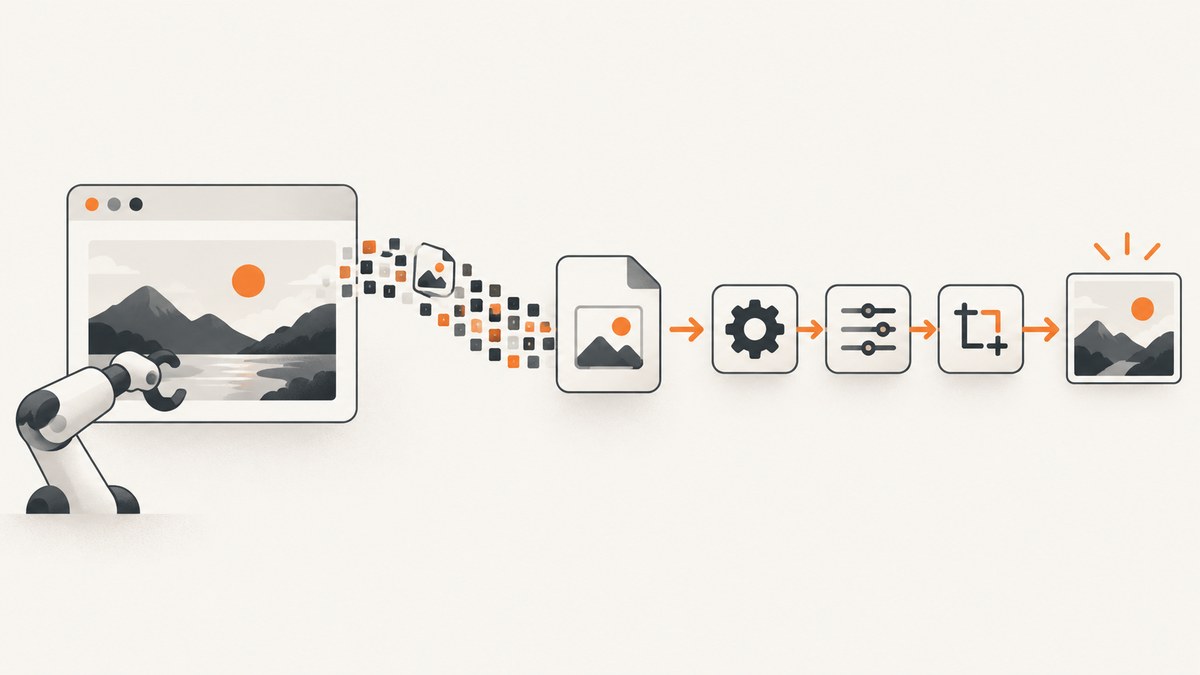
driver.get_screenshot_as_png() returns Python bytes containing a PNG screenshot of Selenium’s current browser window. Save those bytes with binary mode (wb) or pass them directly to code that uploads, transforms or inspects the image.
The smallest working example is:
png_bytes = driver.get_screenshot_as_png()

with open("screenshot.png", "wb") as image_file:
    image_file.write(png_bytes)
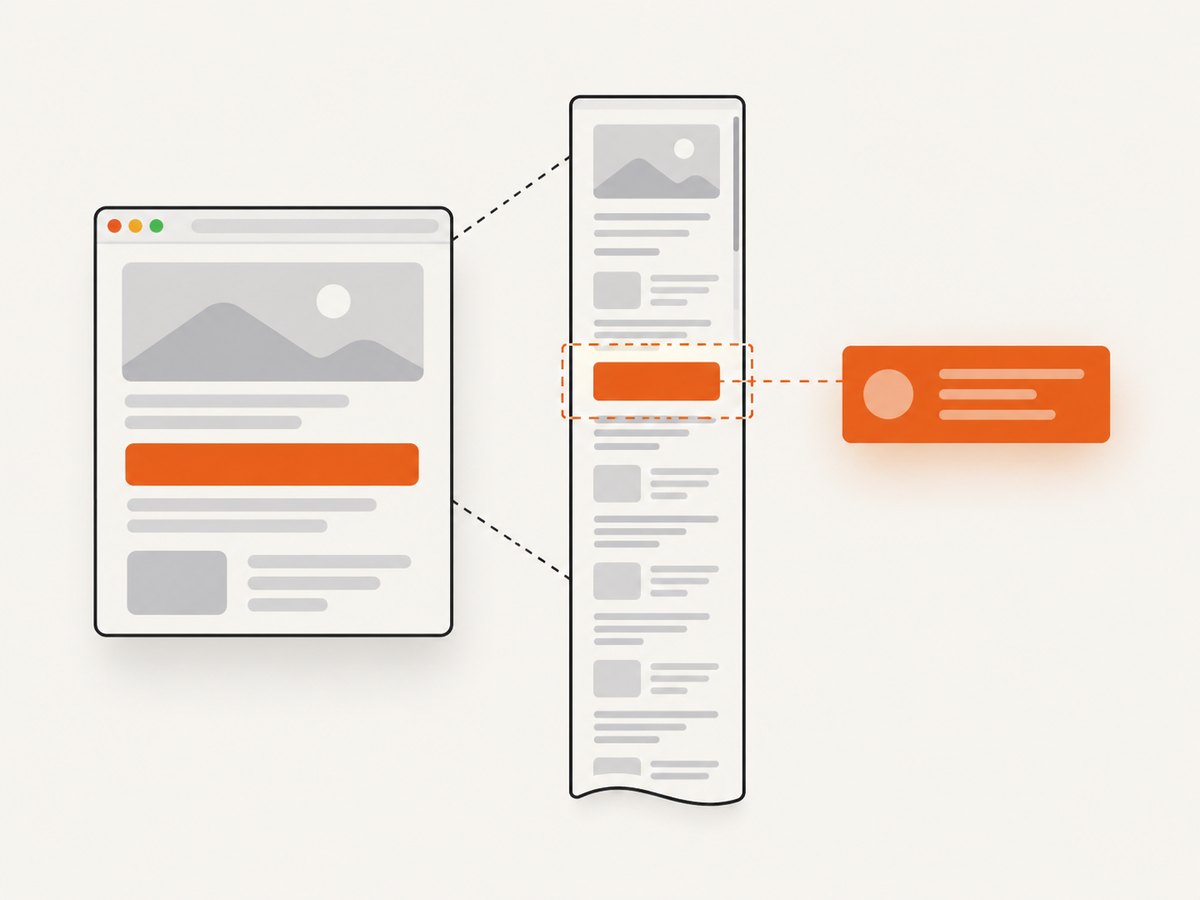
Selenium documents this as a screenshot of the current window, not automatically the entire vertically scrolling document. See the official Selenium Python WebDriver API for the method definition.
What get_screenshot_as_png() returns
- Type: Python
bytes. - Format: PNG image data.
- Scope: the current browser window.
- Storage: memory only until your code writes or sends it.
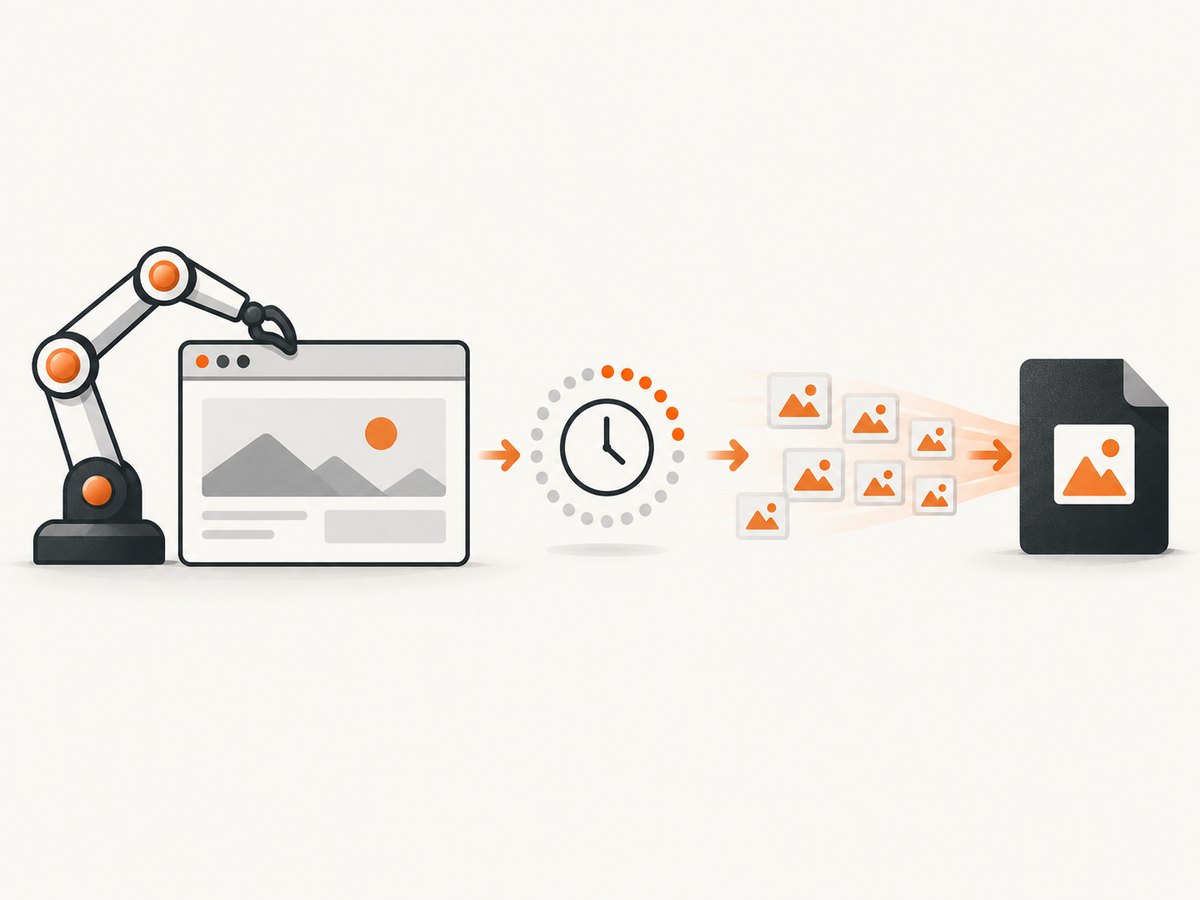
- Timing: the capture reflects the page state when Selenium executes the command.
It is different from a base64 screenshot. Base64 is text encoded from the image, useful when embedding an image in HTML; get_screenshot_as_png() gives Python code the raw binary representation. Selenium documents both forms in its common WebDriver API.
Complete Python example
This script starts a headless Chrome session, waits for a page, captures PNG bytes, writes them safely and closes the driver even when an error occurs.
from pathlib import Path
from selenium import webdriver
from selenium.webdriver.chrome.options import Options
from selenium.webdriver.support.ui import WebDriverWait

url = "https://example.com"
output_path = Path("screenshot.png")

def build_driver():
    options = Options()
    options.add_argument("--headless=new")
    options.add_argument("--window-size=1440,900")
    return webdriver.Chrome(options=options)


driver = build_driver()
try:
    driver.get(url)

    # Wait until the document has finished loading.
    WebDriverWait(driver, 30).until(
        lambda current: current.execute_script("return document.readyState") == "complete"
    )

    png_bytes = driver.get_screenshot_as_png()
    if not png_bytes:
        raise RuntimeError("Selenium returned an empty screenshot")

    output_path.write_bytes(png_bytes)
    print(f"Wrote {len(png_bytes)} bytes to {output_path}")
finally:
    driver.quit()
The binary write is essential. Opening the file with "w" treats the PNG as text and can corrupt it or raise an encoding error. Selenium’s own file-saving implementation also writes in binary mode; see the Python WebDriver source.
Save the bytes safely
Use pathlib
from pathlib import Path

png_bytes = driver.get_screenshot_as_png()
Path("artifacts/run-001.png").write_bytes(png_bytes)
Create the parent directory first when it may not exist:
from pathlib import Path

output = Path("artifacts/run-001.png")
output.parent.mkdir(parents=True, exist_ok=True)
output.write_bytes(driver.get_screenshot_as_png())
Use open()
with open("screenshot.png", "wb") as image_file:
    image_file.write(driver.get_screenshot_as_png())
Check the result
png_bytes = driver.get_screenshot_as_png()
if len(png_bytes) < 8:
    raise ValueError("Screenshot data is unexpectedly small")

# PNG files begin with this eight-byte signature.
if png_bytes[:8] != b"\\x89PNG\\r\\n\\x1a\\n":
    raise ValueError("Returned data does not have a PNG signature")
When save_screenshot() is simpler
If the only goal is a PNG file on disk, let Selenium perform the write:
saved = driver.save_screenshot("screenshot.png")
if not saved:
    raise OSError("Selenium could not save the screenshot")
get_screenshot_as_file() is another file-oriented spelling:
saved = driver.get_screenshot_as_file("screenshot.png")
if not saved:
    raise OSError("Selenium could not save the screenshot")
These methods return True when the file operation succeeds and False for an I/O failure. Use a path ending in .png; an absolute path makes the output location unambiguous. Choose get_screenshot_as_png() when another operation needs the image in memory, such as an upload, hash, image transform or test assertion.
PNG bytes versus base64
| Method | Result | Best fit |
|---|---|---|
get_screenshot_as_png() |
Python bytes |
Uploads, image libraries, binary storage and in-memory processing |
get_screenshot_as_base64() |
Base64 text | HTML or JSON fields that expect a string |
save_screenshot(path) |
Boolean success value | Writing a PNG directly to disk |
get_screenshot_as_file(path) |
Boolean success value | The same file-first workflow with an explicit file method |
base64_text = driver.get_screenshot_as_base64()
html = f'<img src="data:image/png;base64,{base64_text}" alt="Screenshot">'
Do not decode the base64 string when you need raw bytes from get_screenshot_as_png(); that method already returns decoded binary data.
Process the image in memory
The method does not require Pillow or another image library. If a downstream library accepts a file-like object, wrap the bytes with io.BytesIO:
import io
from PIL import Image

png_bytes = driver.get_screenshot_as_png()
with Image.open(io.BytesIO(png_bytes)) as image:
    print(image.format, image.size, image.mode)
Pillow is optional. The screenshot capture itself is provided by Selenium.
Control what is captured
Current window
get_screenshot_as_png() captures the current window. Set the viewport before navigation when you need repeatable dimensions:
driver.set_window_size(1366, 768)
driver.get("https://example.com")
png_bytes = driver.get_screenshot_as_png()
Element screenshots
For one element, locate it and use Selenium's element screenshot API:
element = driver.find_element("css selector", "main")
element.screenshot("main.png")
This is a separate scope choice. Do not assume the window method crops to an element.
Full-page screenshots
The current-window method is not a promise of a complete, vertically scrolling document. Full-page capture depends on the browser, driver and API in use. Check the support for your exact environment before relying on it; Selenium's quick reference discusses adjacent screenshot forms and implementation differences.
Make the capture deterministic
- Set a known viewport with
--window-sizeorset_window_size(). - Navigate to the URL.
- Wait for a meaningful application condition, not only a fixed sleep.
- Dismiss consent dialogs or close overlays that would obscure the page.
- Capture after fonts, images and dynamic content needed by the test are ready.
from selenium.webdriver.common.by import By
from selenium.webdriver.support import expected_conditions as EC
from selenium.webdriver.support.ui import WebDriverWait

wait = WebDriverWait(driver, 30)
driver.get("https://example.com/dashboard")
wait.until(EC.visibility_of_element_located((By.CSS_SELECTOR, "main.dashboard")))
wait.until(lambda d: d.execute_script("return document.fonts.status") == "loaded")
png_bytes = driver.get_screenshot_as_png()
Replace selectors and conditions with signals your application actually exposes. A fixed time.sleep() can be useful for a known animation, but it is usually slower and less reliable than waiting for state.
Common errors and fixes
| Symptom | Likely cause | Fix |
|---|---|---|
AttributeError on get_screenshot_as_png |
The object is not a Selenium WebDriver instance, or the driver setup failed. | Confirm that driver is initialized and that the Selenium version supports the method. |
| Unreadable or empty output file | The file was opened in text mode or the parent directory does not exist. | Use wb or Path.write_bytes(); create the directory first. |
WebDriverException during capture |
The browser or driver exited, crashed or lost its session. | Check browser-driver compatibility, process logs and resource limits; recreate the session if appropriate. |
| Screenshot shows a loading spinner | Capture happened before application content was ready. | Wait for a stable selector, network-independent application state or loaded fonts/images. |
| Cookie banner or chat widget covers the page | Those elements are part of the current window. | Handle the consent flow or hide the overlay before capture. |
| Only the visible viewport appears | The method captures the current window, not automatically the full document. | Use a supported full-page technique or a service designed for full-page capture. |
| Works locally but fails in CI | Different viewport, browser flags, permissions or available fonts. | Pin browser/driver versions, set the viewport explicitly and use CI-compatible headless options. |
Performance, reliability and cost
- Memory: the complete PNG is held in memory. Large viewports or high-density pages create larger byte strings, so release or stream them after processing when running many captures.
- Speed: browser startup and page loading usually cost more time than the screenshot command itself. Reuse a driver for a controlled batch, while resetting state between pages.
- Reliability: wait on application conditions, keep browser and driver versions compatible, and always call
quit()in afinallyblock. - Reproducibility: fix viewport, device scale, timezone, locale, fonts and test data when screenshot diffs matter.
- Cost: Selenium itself does not provide a hosted capture quota. You operate the browser and its infrastructure, so account for compute, browser maintenance and CI time.
Or skip the browser setup
ScreenshotNeo provides a website screenshot API and MCP server. One GET request returns a PNG, JPEG, WebP or PDF, with options for full-page capture, element selectors, waits, custom CSS and JavaScript, device presets, dark mode, cookies, headers and more. The API removes cookie and consent banners, newsletter popups and chat widgets before capture. Bot checks, blank pages, timeouts, failed loads and cache hits are not billed, and the response identifies the result with X-Page-Verdict and X-Billed headers.
Read the ScreenshotNeo API documentation for all options.
cURL
curl -G "https://api.screenshotneo.com/v1/shot" -d access_key=YOUR_API_KEY --data-urlencode url=https://stripe.com -o shot.webpPython
import requests

r = requests.get(
    "https://api.screenshotneo.com/v1/shot",
    params={"access_key": "YOUR_API_KEY", "url": "https://stripe.com"},
    timeout=90,
)
r.raise_for_status()
open("shot.webp", "wb").write(r.content)
Node.js
const q = new URLSearchParams({ access_key: 'YOUR_API_KEY', url: 'https://stripe.com' });
const res = await fetch(`https://api.screenshotneo.com/v1/shot?${q}`);
if (!res.ok) throw new Error(`Screenshot failed: ${res.status}`);
const image = Buffer.from(await res.arrayBuffer());
await import('node:fs/promises').then(fs => fs.writeFile('shot.webp', image));
ScreenshotNeo also has an MCP server for Claude, Cursor and other MCP clients, so AI agents can call take_screenshot, get_page_info and capture_pdf. The free plan includes 1,000 screenshots each month with no card; paid plans start at $5 for 3,000. Create a free ScreenshotNeo account.
FAQ
Does get_screenshot_as_png() return a filename?
No. It returns PNG bytes. Your code chooses the filename and writes the bytes, or you can use save_screenshot().
Can I send the result to an HTTP API?
Yes. Pass the returned bytes as a binary request body or multipart file according to the receiving API.
Is PNG the same as base64?
No. PNG is the binary image format; base64 is a text encoding of image data. Use the method that matches the next API or library.
Why is my screenshot not full page?
The method targets the current window. Full-document capture requires a separate, supported browser or driver approach.
Do I need Pillow?
No. Pillow is optional for inspecting or transforming the bytes after Selenium captures them.


