How to Take Screenshots with Selenium Grid 2
Capture screenshots from remote Selenium Grid 2 browsers, save artifacts correctly, handle full-page limits, and avoid common RemoteWebDriver errors.
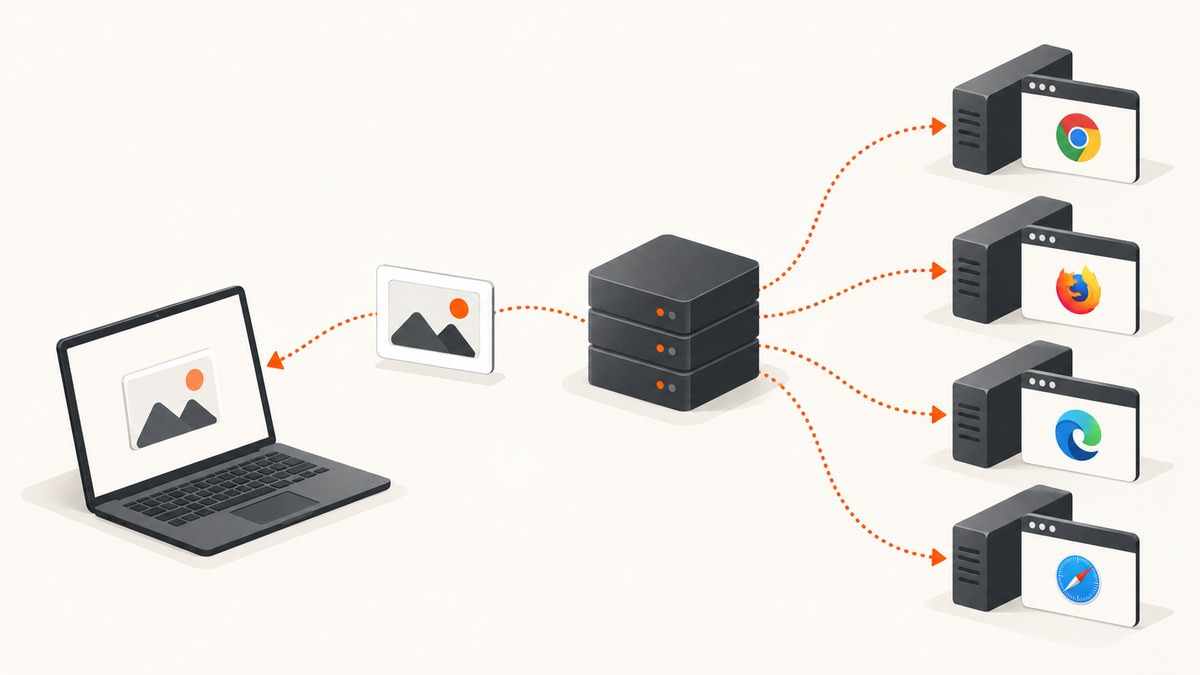
Short answer: start the Selenium Grid 2 hub and a compatible node, create a RemoteWebDriver session pointed at http://grid-host:4444/wd/hub, navigate and wait for the page, then call the driver’s screenshot API. The screenshot bytes or temporary file are returned to the client process, so save the artifact on the machine running your test code or in CI storage.
How the capture works
Grid 2 separates the test client from the browser. The hub routes your session to a registered node; the browser and driver run on that node, while your Java, Python or Node.js process runs elsewhere. The screenshot call is made through RemoteWebDriver, but the returned file, bytes or Base64 value must be persisted by the client.
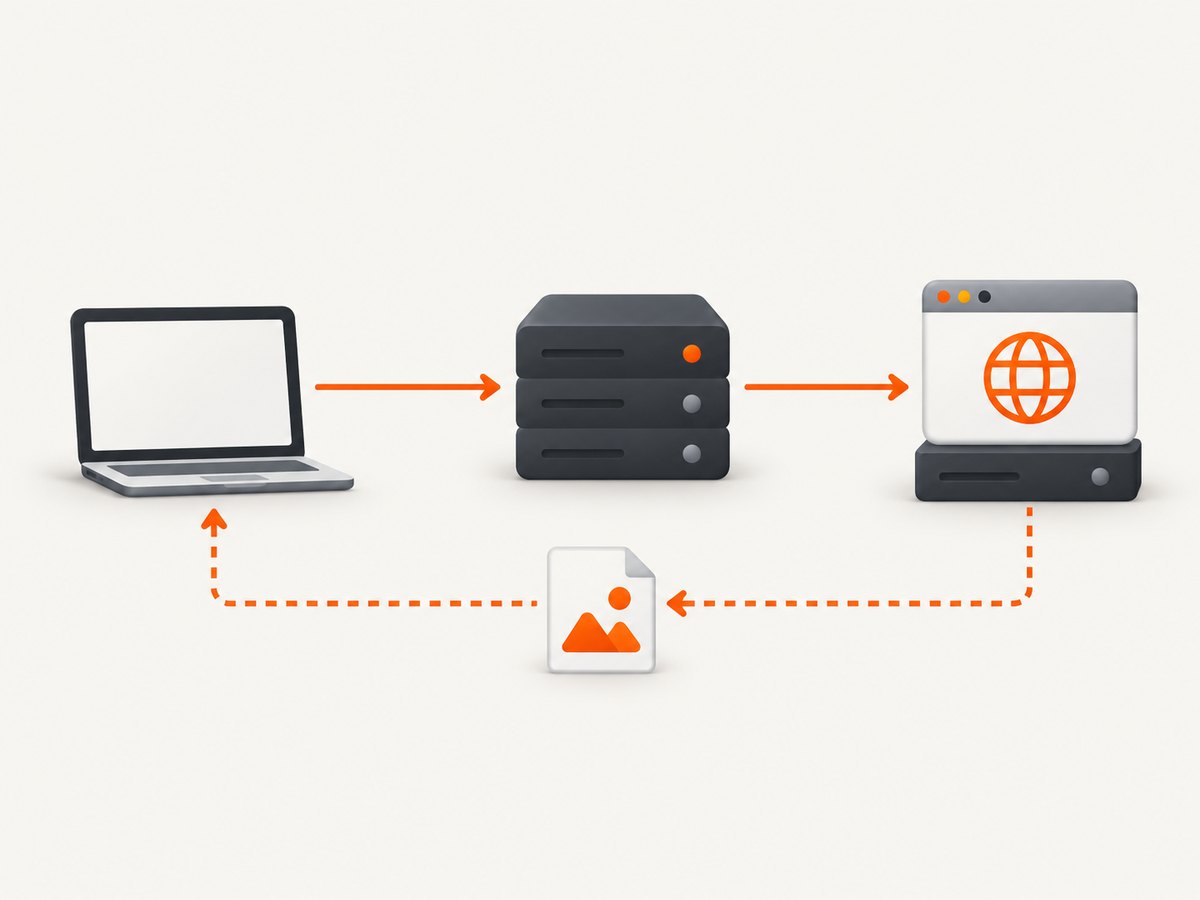
- Start the Grid 2 hub.
- Register a node whose browser capability matches your requested capability.
- Create a remote session using the hub URL and browser capabilities.
- Navigate to the target URL.
- Wait for the document and any required element or network activity.
- Capture the driver or an element.
- Write the returned artifact to a client-side directory.
- Always quit the session in a
finallyor teardown block.
Java: complete Selenium Grid 2 example
This example uses the Grid 2 style DesiredCapabilities API and the legacy /wd/hub endpoint. Create the output directory before running it, and make sure the client process can write there.
import java.io.File;
import java.net.URL;
import java.nio.file.Files;
import java.nio.file.Path;
import java.nio.file.StandardCopyOption;

import org.openqa.selenium.OutputType;
import org.openqa.selenium.TakesScreenshot;
import org.openqa.selenium.WebDriver;
import org.openqa.selenium.remote.DesiredCapabilities;
import org.openqa.selenium.remote.RemoteWebDriver;

public class Grid2Screenshot {
    public static void main(String[] args) throws Exception {
        URL hub = new URL("http://grid-host:4444/wd/hub");
        DesiredCapabilities capabilities = DesiredCapabilities.chrome();
        WebDriver driver = new RemoteWebDriver(hub, capabilities);

        try {
            driver.get("https://example.com");

            File temporary = ((TakesScreenshot) driver)
                    .getScreenshotAs(OutputType.FILE);
            Path destination = Path.of("artifacts/example.png");
            Files.createDirectories(destination.getParent());
            Files.copy(temporary.toPath(), destination,
                    StandardCopyOption.REPLACE_EXISTING);
            System.out.println("Saved " + destination.toAbsolutePath());
        } finally {
            driver.quit();
        }
    }
}
getScreenshotAs(OutputType.FILE) returns a temporary file to the client binding. Other output types include bytes and Base64, which are useful when your artifact store accepts those formats directly.
Python: RemoteWebDriver and client-side storage
from pathlib import Path
from selenium import webdriver
from selenium.webdriver.common.desired_capabilities import DesiredCapabilities

output = Path("artifacts/example.png")
output.parent.mkdir(parents=True, exist_ok=True)

driver = webdriver.Remote(
    command_executor="http://grid-host:4444/wd/hub",
    desired_capabilities=DesiredCapabilities.CHROME,
)
try:
    driver.get("https://example.com")
    driver.save_screenshot(str(output))
    print(f"Saved {output.resolve()}")
finally:
    driver.quit()
For newer Selenium client versions, use the equivalent browser options API while retaining the same remote-session concept. A Grid 2 suite may still require the legacy capability and endpoint syntax shown above.
Node.js: remote browser session
const { Builder } = require('selenium-webdriver');
const fs = require('node:fs/promises');

(async () => {
  const driver = await new Builder()
    .usingServer('http://grid-host:4444/wd/hub')
    .withCapabilities({ browserName: 'chrome' })
    .build();

  try {
    await fs.mkdir('artifacts', { recursive: true });
    await driver.get('https://example.com');
    const png = await driver.takeScreenshot();
    await fs.writeFile('artifacts/example.png', png, 'base64');
  } finally {
    await driver.quit();
  }
})();
Capturing an element instead of the viewport
TakesScreenshot can be implemented by a driver or an HTML element. In Java, locate the element and call the same API on it:
WebElement card = driver.findElement(By.cssSelector(".pricing-card"));
File shot = card.getScreenshotAs(OutputType.FILE);
Files.copy(shot.toPath(), Path.of("artifacts/pricing-card.png"),
        StandardCopyOption.REPLACE_EXISTING);
Element screenshots are useful for visual regression tests and focused documentation images. Wait until the element is visible and stable before capturing.
Full-page screenshots: what Grid 2 does and does not guarantee
Grid distributes the browser session; it does not define a universal full-page screenshot format. For W3C-conformant drivers, screenshot behavior follows the WebDriver implementation. Non-conformant implementations may return the entire page, the current window, the visible frame or the display containing the browser. Verify the exact browser and driver pair in your environment before depending on full-page output.
| Requirement | Recommended approach |
|---|---|
| Visible viewport | Use the driver’s screenshot method. |
| One element | Call the screenshot method on the located element. |
| Full page | Validate support for the browser/driver pair; do not assume Grid changes semantics. |
| Very tall page | Consider a browser-specific full-page feature or stitch controlled viewport captures, then verify scrolling and lazy-loaded content. |
Waiting for a reliable capture
A screenshot taken immediately after get can show a loading shell, an animation frame or missing lazy content. Use explicit waits for the state that matters to your test.
WebDriverWait wait = new WebDriverWait(driver, Duration.ofSeconds(30));
wait.until(ExpectedConditions.visibilityOfElementLocated(
        By.cssSelector("main .report")));
wait.until(d -> ((JavascriptExecutor) d).executeScript(
"return document.readyState").equals("complete"));- Wait for a distinctive selector rather than a fixed sleep whenever possible.
- Disable or wait through animations when pixel stability matters.
- For pages that fetch data after load, wait for the data-bearing element, not only
document.readyState. - Allow enough time for lazy images before a full-page attempt.
Where the screenshot file is stored
The browser node does not automatically write into your local project directory. The client binding receives a temporary file, bytes or Base64 and then writes the final artifact. In CI, save it to the runner’s artifact directory or upload it from the client process. Use a unique path containing the test name, browser and session identifier to prevent parallel workers from overwriting one another.
Grid 2 configuration checklist
- Hub URL is reachable from the client.
- A node is registered and reports the requested browser capability.
- The node has a working browser and matching driver.
- The target URL is reachable from the node’s network, not merely from the client.
- The client has write permission for the artifact directory.
- Parallel tests use unique filenames.
- Every session is closed, including failure paths.
Common errors and fixes
| Error or symptom | Likely cause | Fix |
|---|---|---|
Connection refused or timeout at /wd/hub |
Hub is stopped, the address is wrong, or a firewall blocks the client. | Check the hub process, port and network route from the test runner. |
| No matching node capability | The requested browser name or version is not registered. | Inspect node registrations and request a capability that exists. |
| Screenshot is blank or shows a spinner | Capture occurred before application content rendered. | Wait for a meaningful selector or application-ready condition. |
| File not found after capture | A node-local path was assumed to exist on the client. | Use the value returned by the screenshot API and copy it in the client process. |
| Permission denied writing artifact | The client directory is absent or read-only. | Create the directory and choose a writable CI workspace. |
| Parallel screenshots overwrite each other | Workers share a fixed filename. | Include test, browser and run identifiers in each filename. |
| Full-page image is only the viewport | The browser/driver implementation does not provide full-page capture. | Check support for that pair or use a browser-specific method and validate output. |
| Nodes remain busy after failures | The test skipped teardown. | Put quit in finally or the framework’s teardown hook. |
Performance, reliability and cost considerations
- Session startup: remote browser creation adds hub routing and node startup time. Reuse a session only when test isolation permits it.
- Wait strategy: explicit condition waits usually finish sooner and produce more stable images than large fixed sleeps.
- Node capacity: parallel captures compete for browser, CPU and memory resources. Tune concurrency to the node capacity and watch for queueing.
- Artifact size: PNG preserves detail but can be large. Compress or convert after retrieval when your visual checks allow it.
- Reliability: retry only transient session or network failures; do not hide deterministic selector, capability or permission errors.
- Cost: Grid 2 itself is infrastructure you operate. Account for node machines, browser maintenance, CI time and artifact storage.
Or skip the browser setup
ScreenshotNeo provides a one-request website screenshot API when you do not need to maintain a Selenium node. See the ScreenshotNeo API documentation for all options.
curl -G "https://api.screenshotneo.com/v1/shot" -d access_key=YOUR_API_KEY --data-urlencode url=https://stripe.com -o shot.webpimport requests
r = requests.get("https://api.screenshotneo.com/v1/shot", params={"access_key": "YOUR_API_KEY", "url": "https://stripe.com"}, timeout=90)
open("shot.webp", "wb").write(r.content)const q = new URLSearchParams({ access_key: 'YOUR_API_KEY', url: 'https://stripe.com' });
const res = await fetch(`https://api.screenshotneo.com/v1/shot?${q}`);Before the capture, ScreenshotNeo accepts cookie and consent banners and removes more than 60 known consent platforms, newsletter popups and chat widgets; each step can be turned off. Bot checks or CAPTCHAs, blank pages, timeouts, failed loads and cache hits are not billed, and the response identifies the result with X-Page-Verdict and X-Billed headers. An MCP server provides take_screenshot, get_page_info and capture_pdf tools for Claude, Cursor and other MCP clients. The Free plan includes 1,000 screenshots per month with no card; paid plans start at $5 for 3,000 shots. Create a free ScreenshotNeo account.
FAQ
Does the screenshot save on the Grid node?
No. The screenshot result is returned through the remote driver to the client. Persist it from the client process or CI runner.
Can Grid 2 guarantee a full-page screenshot?
No. Full-page behavior depends on the browser and driver implementation. Validate the exact pair you run.
Should I use a fixed sleep before every screenshot?
No. Prefer an explicit wait for the element or application state that proves the page is ready.
Can I capture an element?
Yes. Locate the element and invoke the screenshot API on that element when the binding and driver support element screenshots.
Is Selenium Grid 2 the current Grid release?
Grid 2 is legacy technology. Keep its /wd/hub and DesiredCapabilities patterns when maintaining a Grid 2 suite, and consult current Selenium documentation when planning an upgrade.


