How to Capture a Full-Page Screenshot with Selenium in Headed Chrome
Capture a full-page screenshot in visible Chrome with Selenium and CDP. Includes runnable Python code, setup, edge cases, troubleshooting, and an API alternative.
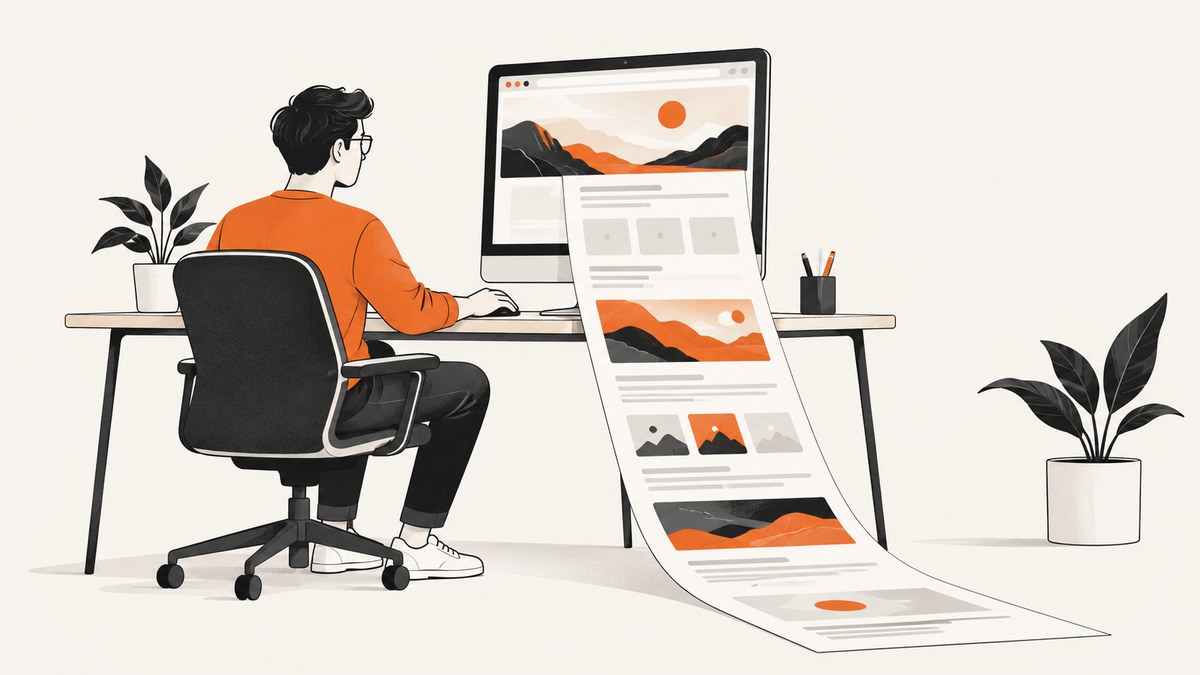
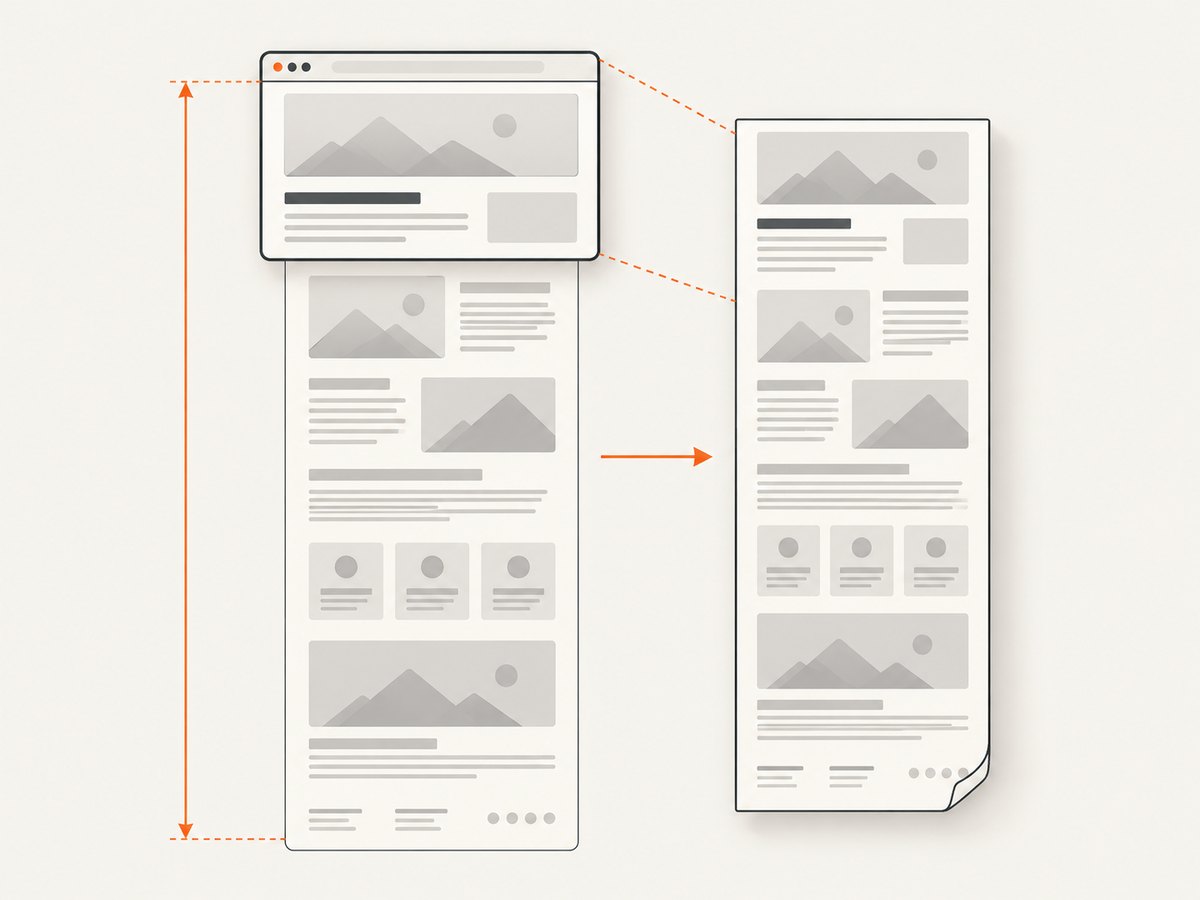
To capture the whole document in visible Chrome, use Selenium’s Chrome DevTools Protocol (CDP) bridge: get the page’s content dimensions with Page.getLayoutMetrics, then call Page.captureScreenshot with captureBeyondViewport set to true. Decode the returned base64 PNG and write it to a file. Chrome’s basic driver.save_screenshot() captures the current window, so it normally contains only the visible viewport.
This guide uses Python and a headed webdriver.Chrome() session. It covers setup, waits, lazy content, capture limits and common failures. For the standard Selenium and CDP interfaces, see the Selenium Chromium WebDriver API and the CDP Page.captureScreenshot reference.
1. Install Selenium and start headed Chrome
Install Selenium in the Python environment that will run the script:
python -m pip install seleniumRecent Selenium versions can manage a compatible ChromeDriver through Selenium Manager when a Chrome installation is available. In managed or restricted environments, install the matching ChromeDriver yourself and ensure it is on PATH. The key headed-mode requirement is simple: do not pass --headless.
from selenium import webdriver

options = webdriver.ChromeOptions()
# Add ordinary Chrome options here, but do not add --headless.
driver = webdriver.Chrome(options=options)
try:
    driver.get("https://example.com")
    print(driver.title)
finally:
    driver.quit()
Running a headed browser on a desktop usually opens a visible window. On a remote Linux host, headed Chrome needs a graphical display; a virtual display may be needed if the machine has no physical screen. Do not assume a browser started without --headless can open successfully in an environment without a display server.
2. Capture the full document with CDP
Use this complete example as a starting point. Replace the example URL and the ready condition with the target site’s own requirements. The explicit wait shown here waits for the document to reach the browser’s complete state; single-page apps often need an additional element-specific wait.
import base64
from pathlib import Path

from selenium import webdriver
from selenium.webdriver.support.ui import WebDriverWait


def full_page_screenshot(driver, path):
    """Save the rendered document as a PNG using Chrome DevTools Protocol."""
    metrics = driver.execute_cdp_cmd("Page.getLayoutMetrics", {})
    content = metrics.get("cssContentSize") or metrics.get("contentSize")
    if not content:
        raise RuntimeError(f"CDP did not return page content dimensions: {metrics}")

    width = int(content["width"])
    height = int(content["height"])
    if width <= 0 or height <= 0:
        raise RuntimeError(f"Invalid document dimensions: {width} x {height}")

    result = driver.execute_cdp_cmd(
        "Page.captureScreenshot",
        {
            "format": "png",
            "fromSurface": True,
            "captureBeyondViewport": True,
            "clip": {
                "x": 0,
                "y": 0,
                "width": width,
                "height": height,
                "scale": 1,
            },
        },
    )

    image_data = result.get("data")
    if not image_data:
        raise RuntimeError(f"CDP returned no screenshot data: {result}")

    output = Path(path)
    output.parent.mkdir(parents=True, exist_ok=True)
    output.write_bytes(base64.b64decode(image_data))
    return output


options = webdriver.ChromeOptions()
# This is a headed session: deliberately do not add --headless.
driver = webdriver.Chrome(options=options)
try:
    driver.set_window_size(1440, 1000)
    driver.get("https://example.com/long-page")

    WebDriverWait(driver, 30).until(
        lambda d: d.execute_script("return document.readyState") == "complete"
    )
    # For a single-page app, add a wait for its actual ready element/state here.

    saved = full_page_screenshot(driver, "output/full-page.png")
    print(f"Saved {saved}")
finally:
    driver.quit()
execute_cdp_cmd(cmd, cmd_args) sends a CDP command and returns its result through Selenium. The screenshot command returns PNG data encoded as base64, which is why the example decodes it before writing binary bytes. The code checks both cssContentSize and contentSize because layout metric response shapes can vary across protocol versions.
3. Why save_screenshot captures only the viewport
Selenium’s save_screenshot() is a convenient browser-window screenshot API. In Chrome it does not expose CDP’s captureBeyondViewport setting or a document-sized clip. A long page therefore gets cut at the visible window boundary:
driver.save_screenshot("viewport.png")Use that call when you want exactly what a person currently sees. Use the CDP method when you want the rendered document beyond the viewport. The CDP protocol defines captureBeyondViewport as the option that permits capturing beyond the visible viewport; it defaults to false, so set it explicitly.
4. Prepare the page before measuring it
The dimensions returned by CDP describe the page layout at the time you ask. If the page is still changing, the capture may omit content, include a loading state, or have stale dimensions. Use this checklist before taking the final metrics:
- Wait for the navigation and the application’s meaningful ready state.
document.readyState == "complete"is a useful baseline, not proof that an app has finished rendering. - Wait for the specific article, table, chart, or component that matters. Selenium’s explicit waits avoid relying on a guessed fixed delay.
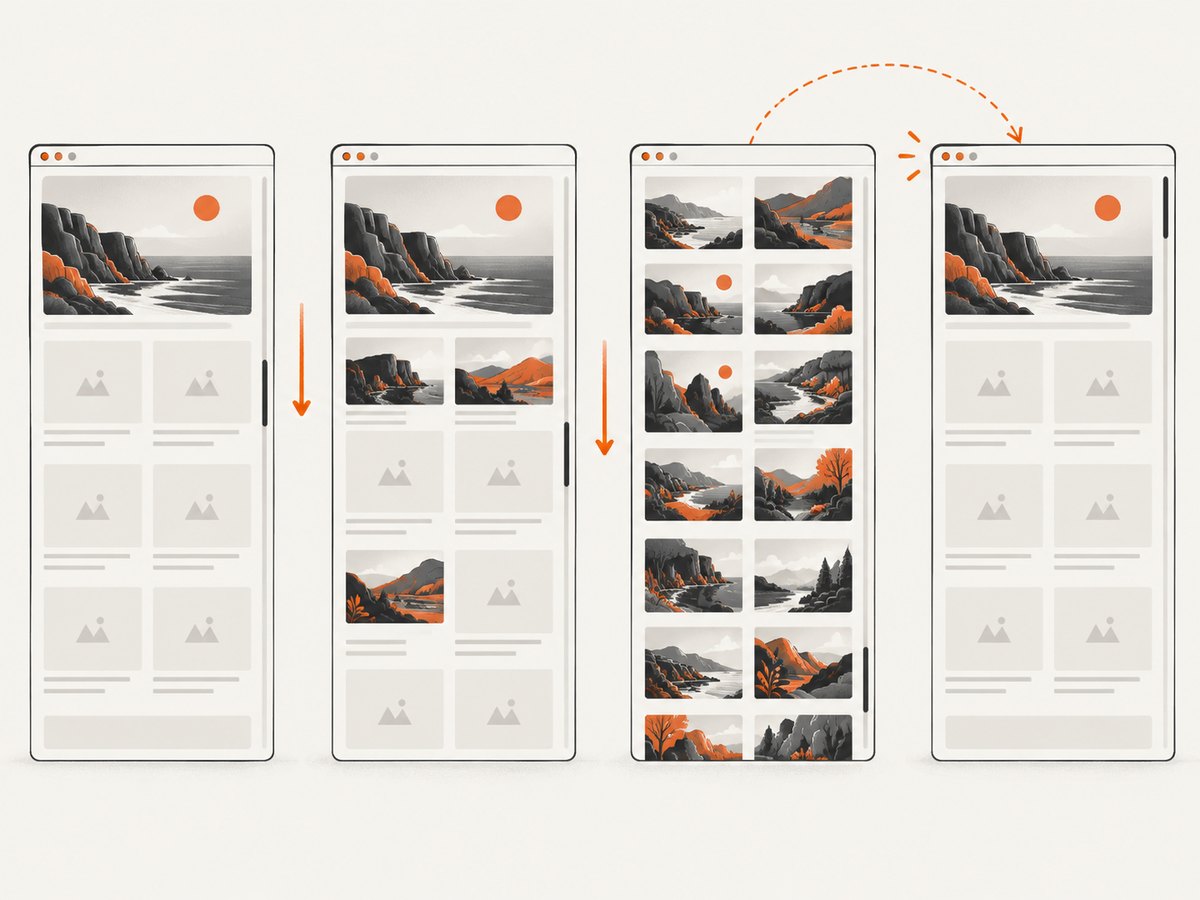
- Load lazy content deliberately. Some pages only fetch images or sections when they approach the viewport. Scroll through the document in controlled increments, wait for new content, then return to the top before measuring.
- Handle consent or login state explicitly when the target requires it. The screenshot represents the current browser state, including overlays that remain visible.
- Reduce animation or dynamic updates for repeatable captures. A page that animates while captured can show inconsistent frames.
- Set the desired window size before navigating or capturing. Surrounding test code may resize the window, changing responsive layout and document dimensions.
A basic lazy-load preparation loop can scroll the page in increments, pausing briefly to let scroll-triggered content load. Tune the wait condition for the site instead of assuming that one delay works for every page:
import time

page_height = driver.execute_script("return document.body.scrollHeight")
step = max(400, driver.execute_script("return window.innerHeight") - 100)
for y in range(0, page_height, step):
    driver.execute_script("window.scrollTo(0, arguments[0])", y)
    time.sleep(0.25)  # Replace with an application-specific wait if possible.
driver.execute_script("window.scrollTo(0, 0)")
Because scrolling may cause the document to grow, a more robust site-specific loop can re-read scrollHeight until it stops increasing, with a maximum pass count to prevent an endless loop on infinite-scroll pages. After preparation, call Page.getLayoutMetrics again; do not reuse dimensions measured before lazy content finished loading.
5. Options and capture choices
| Choice | Use it when | Trade-off |
|---|---|---|
driver.save_screenshot(path) |
You need the visible browser window | Viewport-sized; does not capture the whole document |
CDP Page.captureScreenshot |
You use Chrome and need content beyond the viewport | Chrome-specific protocol bridge; page state still matters |
| Scroll and stitch | Content only renders when scrolled, or protocol capture is unsuitable | Requires image stitching and page-specific handling |
The capture call accepts several useful parameters. The example sets the essentials explicitly:
format: choosepng,jpeg, orwebpwhere supported by the Chrome protocol version. PNG is the example’s lossless default.quality: relevant to lossy image formats such as JPEG; consult the protocol documentation for supported behavior in the Chrome version you run.clip: specifies the capture rectangle. This example uses the document content width and height, origin at zero, and scale one.fromSurface: the example requests capture from the rendered surface.captureBeyondViewport: set totrueso the clip can extend beyond the visible viewport.optimizeForSpeed: the protocol exposes this option; consider it only after checking the resulting output against your image-quality needs.
Protocol details can change with Chrome versions. Check the CDP reference for the browser version you deploy, especially if you change formats or tune quality. This recipe targets Chrome; Selenium’s Firefox full-document screenshot methods are Firefox APIs and should not be confused with Chrome’s CDP commands.
6. Edge cases and output quality
Very tall or wide pages
Large documents produce large images. Browser, operating-system, image-decoder, or downstream storage limits may prevent a single enormous bitmap from being created or processed. If capture fails or memory use is excessive, narrow the viewport where appropriate, capture sections separately, or use a paginated PDF workflow if the goal is a document rather than one giant raster image.
Sticky and fixed elements
Fixed headers, sticky navigation, and floating buttons are positioned relative to scrolling or viewport state. A full-document capture can show them in unexpected positions or make them obscure page content. Scroll-and-stitch methods can repeat sticky elements in every tile. Hide or restyle these elements with page-specific CSS when you control the page, or accept that a general-purpose screenshot cannot guarantee a perfect editorial rendering.
Frames, canvases, and cross-origin content
Cross-origin iframes and embedded content may render under browser security and loading rules that differ from the parent document. Canvas-based visualizations can be blank if their own data has not loaded or rendering has not completed. Wait for the frame or application state you need, and verify the output rather than assuming the top-level document’s ready state covers every embedded component.
Dynamic pages
Ads, rotating banners, consent prompts, clocks, and live dashboards can change between runs. For repeatable screenshots, control the data and state if possible, wait for stable page content, and disable animations in a test-specific stylesheet. A full-page screenshot captures a moment; it does not freeze the site’s behavior.
7. Troubleshooting
| Symptom | Likely cause | Fix |
|---|---|---|
| Chrome fails to start in headed mode | No graphical display is available, or Chrome cannot access it | Run in a desktop session or configure a virtual display on the host. Confirm Chrome starts outside the capture routine. |
| Only the visible viewport appears | The code uses save_screenshot(), or captureBeyondViewport is false |
Use CDP capture, set captureBeyondViewport to true, and supply a document-sized clip. |
| Capture is clipped at the bottom | Metrics were read before content finished loading or before lazy content expanded the page | Prepare and wait for the page first, then fetch layout metrics immediately before capture. |
KeyError: 'cssContentSize' |
The returned metrics use another field shape | Use the fallback to contentSize shown in the code, and inspect the metrics object if neither key exists. |
| CDP command or parameter error | Chrome/protocol version mismatch or unsupported parameter | Keep Chrome and ChromeDriver compatible, check the CDP Page reference, and remove optional parameters before reintroducing them one by one. |
| Image is blank, partial, or shows a loader | Navigation completed but the application or embedded content did not | Wait for an application-specific selector or state, and verify network-dependent content is available in that environment. |
| Duplicate content or repeated headers | A scroll-and-stitch fallback captured overlapping tiles or sticky content | Adjust scroll increments and overlap, or hide sticky elements while capturing; use CDP when its output fits the page. |
| Screenshot file is empty or invalid | Screenshot data was missing, incorrectly decoded, or the process exited before writing | Check the returned data, base64-decode it as binary, and write bytes rather than text. |
8. Performance, reliability, and cost
Capture time depends on page complexity, image loading, browser startup, and the environment; there is no single reliable duration for all pages. Reuse a browser session for batches when safe, but isolate pages whose cookies, authentication, or state must not leak into one another. Always close the driver in a finally block so a failed capture does not leave Chrome processes behind.
For reliability, use explicit readiness checks, cap waits, log the target URL and failure stage, and retain enough diagnostic information to reproduce a bad capture. A screenshot should be treated as an output artifact that needs validation: check file size and dimensions, and inspect representative captures when changing Chrome versions or page preparation logic.
Self-hosting uses your own browser and compute resources. Account for Chrome startup, memory for large images, storage, and operational work to keep Chrome and ChromeDriver compatible. The CDP route has no per-shot service fee, but it is not free to operate at scale.
9. Or skip the browser setup
If you need a screenshot without installing or operating Chrome, ScreenshotNeo is a website screenshot API and MCP server for developers. One GET request returns a PNG, JPEG, WebP, or PDF. See the ScreenshotNeo API documentation for request options and response details.
curl -G "https://api.screenshotneo.com/v1/shot" -d access_key=YOUR_API_KEY --data-urlencode url=https://stripe.com -o shot.webpimport requests
r = requests.get(
"https://api.screenshotneo.com/v1/shot",
params={"access_key": "YOUR_API_KEY", "url": "https://stripe.com"},
timeout=90,
)
r.raise_for_status()
open("shot.webp", "wb").write(r.content)const q = new URLSearchParams({ access_key: 'YOUR_API_KEY', url: 'https://stripe.com' });
const res = await fetch(`https://api.screenshotneo.com/v1/shot?${q}`);
if (!res.ok) throw new Error(`Screenshot request failed: ${res.status}`);
await Bun.write('shot.webp', res);ScreenshotNeo removes cookie banners, newsletter popups, and chat widgets before the shot. Bot checks, blank pages, and failed loads are never billed, and response headers say which page verdict and billing outcome applied. Its MCP server lets AI agents use take_screenshot, get_page_info, and capture_pdf. The free plan includes 1,000 screenshots a month with no card; paid plans start at $5 for 3,000. Sign up for 1,000 free screenshots a month, with no card required.
10. Frequently asked questions
Does this method work with Selenium Grid?
It depends on the remote driver and browser configuration. The command must reach a Chrome instance that supports the relevant CDP method. Confirm that your Grid setup exposes CDP commands, then try a small capture against a simple page before using a long document.
Can I save the result as JPEG instead of PNG?
Yes, the CDP capture command exposes a format option. Use a format accepted by the Chrome version in your environment and consult its protocol reference for quality behavior. The sample uses PNG to keep the example straightforward.
Is a full-page screenshot the same as printing the page?
No. A screenshot is a raster image of rendered browser content. Printing to PDF follows print layout rules and can paginate content; use PDF when pages, selectable text, or print-specific styling matter.
Will Chrome’s CDP code work unchanged in Firefox?
No. This implementation calls Chrome DevTools Protocol commands through Selenium’s Chromium driver. Firefox has its own screenshot capabilities and API surface.


