How to Make Selenium Headless Chrome Behave Like a Full Browser
Use Chrome’s unified headless mode, then control viewport, profiles, versions, waits, and diagnostics to make Selenium runs more like headful Chrome.
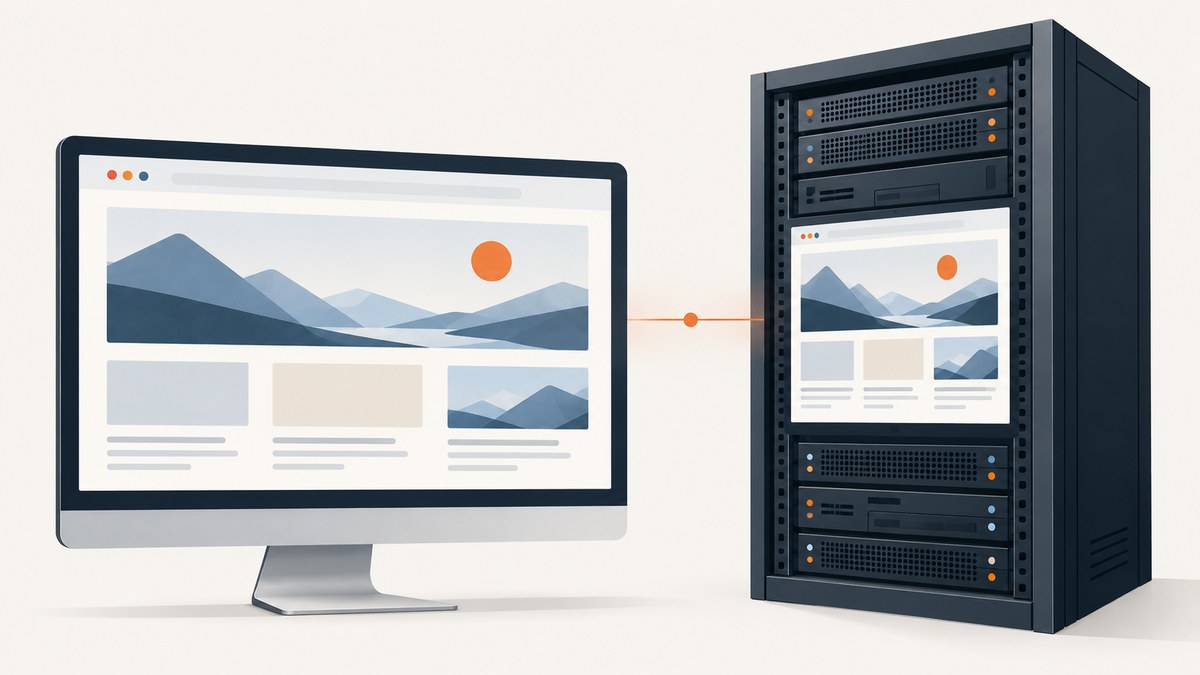
To make Selenium headless Chrome behave as much like a visible Chrome session as possible, use Chrome’s unified Headless implementation with --headless=new, set the viewport explicitly, keep Chrome and ChromeDriver on matching major versions, isolate browser state when repeatability matters, and wait for the actual condition your test needs. Headless mode uses Chrome’s browser implementation; it does not make every machine, profile, network, or automation session identical.
Selenium configures headless mode through Chrome arguments. The old setHeadless(true) convenience method was removed in Selenium 4.10.0. The current pattern is an argument passed through ChromeOptions. [Selenium Chrome options]
1. Start with unified Headless Chrome
For current Chrome, pass --headless=new. Chrome describes the new mode as the real Chrome browser, sharing code with headful Chrome. That gives headless runs the same browser implementation rather than the historical lightweight headless implementation. [Chrome Headless documentation]
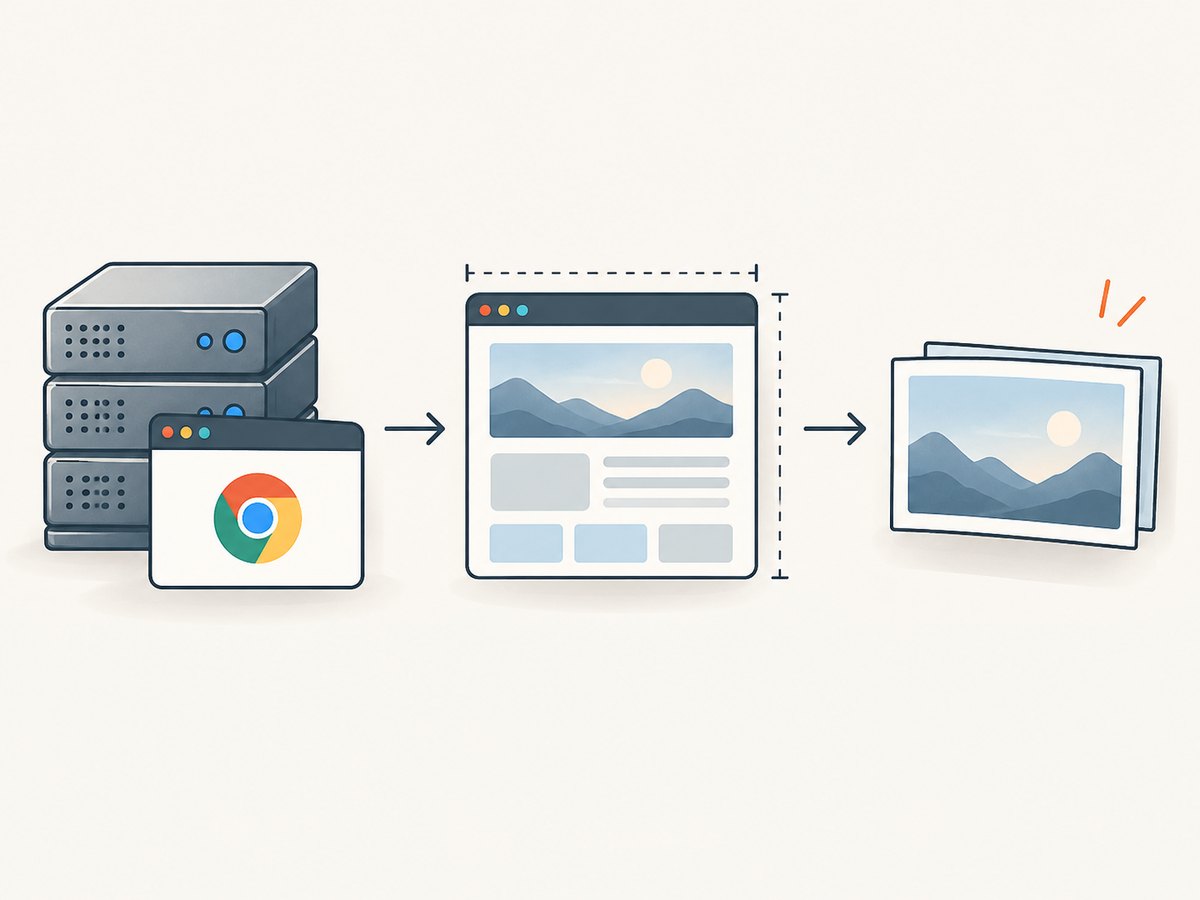
Here is a complete Python example. It opens a page, waits for a meaningful condition, takes a screenshot, and closes the browser even if an error occurs.
from selenium import webdriver
from selenium.webdriver.chrome.options import Options
from selenium.webdriver.support.ui import WebDriverWait
from selenium.webdriver.support import expected_conditions as EC
from selenium.webdriver.common.by import By

options = Options()
options.add_argument("--headless=new")
options.add_argument("--window-size=1920,1080")

# Use a unique writable directory if the test needs an isolated profile.
options.add_argument("--user-data-dir=/tmp/selenium-profile")

driver = webdriver.Chrome(options=options)
try:
    driver.get("https://example.com")
    WebDriverWait(driver, 15).until(
        EC.visibility_of_element_located((By.TAG_NAME, "h1"))
    )
    driver.save_screenshot("page.png")
finally:
    driver.quit()
Install Selenium with python -m pip install selenium. Selenium Manager normally discovers and obtains a compatible driver for a local Chrome installation; if you manage ChromeDriver yourself, its major version must match Chrome’s major version. [Selenium Manager, Chrome browser setup]
2. Choose the right headless flag for your Chrome version
Headless mode’s name changed as Chrome consolidated implementations. Chrome 96–108 used --headless=chrome for the newer implementation. From Chrome 109, the documented form is --headless=new. Since Chrome 132, the old implementation is distributed separately as chrome-headless-shell. For a normal Selenium test intended to match visible Chrome, choose unified Headless rather than the old shell. [Chrome Headless documentation]
| Environment | What to use | What to check |
|---|---|---|
| Current Chrome | --headless=new |
Chrome and ChromeDriver major versions match. |
| Chrome 96–108 | --headless=chrome for the newer mode available then |
Upgrade where possible; keep the driver compatible with that browser. |
| Chrome 132 or later, old behavior specifically required | The separate chrome-headless-shell binary |
This is not the unified browser mode recommended for headful fidelity. |
If Selenium says setHeadless does not exist, remove that call. Add the browser argument instead:
options.add_argument("--headless=new")3. Normalize the environment that affects rendering
Using the same Chrome code improves consistency, but pixels and behavior also depend on the runtime environment. Viewport dimensions, device scale factor, installed fonts, GPU availability, container limits, locale, timezone, permissions, proxy, profile contents, network timing, and scheduling can all matter. Decide which variables are part of the test and set them deliberately.
Viewport and device scale
Always specify a viewport when layout or screenshots matter. Without it, the effective window dimensions can vary across environments. Chrome’s --window-size=WIDTH,HEIGHT is a straightforward starting point. If tests depend on a mobile viewport, use Selenium’s supported device emulation or Chrome DevTools Protocol (CDP) controls and define the screen characteristics explicitly.
Profile and state
A fresh browser profile avoids carrying cookies, local storage, cached assets, extensions, or preferences from another run. Give each parallel worker a distinct writable --user-data-dir; do not point simultaneous sessions at the same profile. If the test is supposed to exercise a logged-in or returning user, seed the necessary state intentionally instead of relying on whatever happens to be in a developer’s profile.
Fonts, locale, and permissions
Install the fonts used by the page in CI and production-like containers. A missing font can change line wrapping and element positions even if the viewport is identical. Set locale, timezone, geolocation, and permissions only when they are relevant to the scenario. Chrome’s Emulation domain can override user agent, accepted language, platform, user-agent metadata, and screen configuration; use these controls to model a stated test condition, not as a generic “make it human” switch. [Chrome DevTools Protocol Emulation domain]
Do not copy container flags or disable browser protections without diagnosing a concrete need. Flags can alter security boundaries, rendering, or resource behavior. Make the browser environment as close as practical to the target deployment, then record any intentional differences.
4. Wait for conditions, not elapsed time
A fixed sleep can be too short on a slow run and waste time on a fast one. Use an explicit wait for the thing the next step depends on: an element becoming visible or clickable, a URL change, a title update, or application-specific readiness. Selenium advises against mixing implicit and explicit waits because their combined timing can be unpredictable. It also advises against sharing a WebDriver instance across tests. [Selenium waits]
from selenium.webdriver.support.ui import WebDriverWait
from selenium.webdriver.support import expected_conditions as EC
from selenium.webdriver.common.by import By

wait = WebDriverWait(driver, 20)
wait.until(EC.visibility_of_element_located((By.CSS_SELECTOR, "main .result")))
wait.until(EC.element_to_be_clickable((By.ID, "continue"))).click()
For a single-page application, “document loaded” may only mean its initial HTML and scripts loaded. Identify a stable application signal such as a results container, a loading indicator disappearing, or a known data attribute. Wait for that signal rather than increasing every timeout or adding arbitrary delays.
5. Diagnose browser and network differences
When a test fails only in headless mode, capture evidence from the failing run: browser and driver versions, viewport, URL, screenshot, page source, console errors, and the first unmet wait condition. This helps distinguish a rendering issue from a selector, application readiness, network, or environment problem.
For cross-browser console, JavaScript error, and network events, Selenium’s WebDriver BiDi support provides a bidirectional WebSocket connection and is its direction for cross-browser event capabilities. For Chrome-specific controls, CDP offers broader Chrome functionality, including emulation. Chrome’s protocol documentation cautions that stable Chrome exposes a subset of the full protocol. [Selenium WebDriver BiDi, Chrome DevTools Protocol]
Headless does not mean undetectable. A site may observe browser characteristics, automation instrumentation, timing, or network behavior. Unified Headless addresses the old split between implementations; it does not guarantee that a site will treat automation as a human-operated session. Keep tests focused on compatibility and rendering fidelity, and use a supported test or staging environment when access controls block automation.
6. Common failures and fixes
| Symptom | Likely cause | Fix |
|---|---|---|
setHeadless is missing |
The old Selenium convenience method was removed in Selenium 4.10.0. | Use options.add_argument("--headless=new"). |
| Session cannot start or driver reports a version error | Chrome and ChromeDriver major versions do not match, or the driver is stale. | Update ChromeDriver or let Selenium Manager resolve the driver; confirm both major versions. |
| Element wait times out only in CI | Different network speed, missing app readiness signal, environment config, or an incorrect selector. | Inspect screenshot, page source, URL, and console/network events. Wait for the required state with an explicit condition. |
| Screenshot layout differs | Viewport, fonts, device scale, locale, or browser build differs. | Pin dimensions and browser build, install matching fonts, and set relevant emulation values. |
| Profile is locked or state leaks between workers | Multiple sessions use the same profile directory. | Assign a unique writable --user-data-dir to each worker, or omit it and use a fresh temporary profile. |
| Chrome exits immediately in a container | Chrome cannot access required runtime resources, shared memory, or sandbox facilities. | Check container logs, permissions, memory and shared-memory mounts, and the Chrome/driver startup error. Apply only the environment-specific fix required; do not paste a bundle of flags blindly. |
| Page appears blank or partially rendered | Navigation returned before client rendering, network requests failed, or a site-side challenge blocked the session. | Wait for an app-specific ready condition and inspect the page. Use an authorized test environment if a bot check is involved. |
| New mode flag is rejected by an old Chrome | Browser version predates the current flag form. | Use the flag supported by that Chrome generation or upgrade Chrome and its matching driver together. |
7. Performance, reliability, and cost
Headless execution does not remove the cost of starting Chrome, loading a page, running JavaScript, or downloading assets. For repeatable test suites, reuse a browser within a test’s lifecycle where appropriate, but keep sessions isolated between tests and do not share one driver concurrently. Close every driver with quit(), cap parallel sessions to the memory and CPU available, and collect artifacts only when useful for diagnosing failures.
Reliability improves when the browser build, driver, fonts, viewport, profile, locale, and test data are controlled. A CI image that silently updates Chrome can change rendering or driver compatibility. Pin or deliberately update browser versions, and make version changes visible in the test logs. Network-dependent tests still need reasonable timeouts and diagnosis; a larger timeout cannot repair a broken request or a selector that never appears.
Operational cost is mainly the infrastructure and runtime needed to launch browsers and execute pages. Heavy sites, high-resolution screenshots, large parallel batches, and repeated navigation consume more resources. Measure your own workload rather than assuming a fixed headless speed advantage. If the requirement is to fetch screenshots rather than exercise browser interactions, managing Chrome, ChromeDriver, profiles, and container resources may be unnecessary.
8. Or skip the browser setup
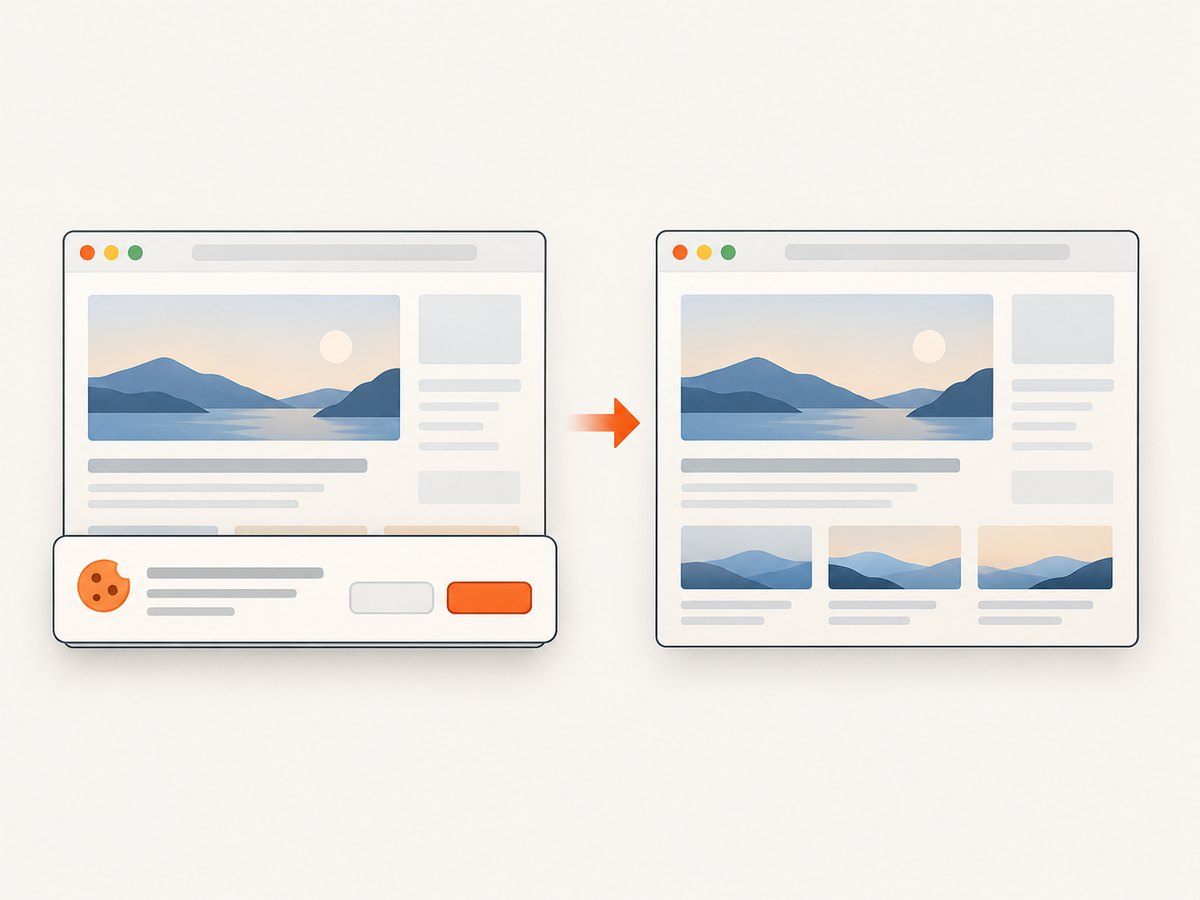
If you need a website screenshot rather than a Selenium interaction test, ScreenshotNeo provides a screenshot API and MCP server. One GET request returns an image or PDF, with options for full-page capture, a CSS-selected element, device and viewport settings, custom CSS or JavaScript, waits, and more. See the API documentation for parameters.
curl -G "https://api.screenshotneo.com/v1/shot" \
  -d access_key=YOUR_API_KEY \
  --data-urlencode url=https://stripe.com \
  -o shot.webp
import requests
r = requests.get(
"https://api.screenshotneo.com/v1/shot",
params={"access_key": "YOUR_API_KEY", "url": "https://stripe.com"},
timeout=90,
)
open("shot.webp", "wb").write(r.content)const q = new URLSearchParams({ access_key: 'YOUR_API_KEY', url: 'https://stripe.com' });
const res = await fetch(`https://api.screenshotneo.com/v1/shot?${q}`);
if (!res.ok) throw new Error(`Screenshot request failed: ${res.status}`);
await Bun.write('shot.webp', res);Cookie and consent banners, newsletter popups, and chat widgets are removed before the shot; each step can be turned off. Bot checks, blank pages, failed loads, timeouts, and cache hits are not billed, and response headers identify the page verdict and billing status. AI agents can use its MCP server tools to take screenshots, inspect page information, or capture PDFs. The free plan includes 1,000 screenshots a month with no card; paid plans start at $5 for 3,000.
Create a free ScreenshotNeo account to get 1,000 screenshots a month with no card.
9. FAQ
Does --headless=new make Chrome identical to visible mode?
It uses Chrome’s unified browser implementation, but the machine, profile, viewport, fonts, network, permissions, and scheduling can still differ. Control the inputs your test depends on.
Should I add flags to hide automation?
No universal stealth configuration is established by the official documentation cited here. Use headless settings for browser compatibility and reliable tests, not to bypass a site’s access controls.
Can I use Selenium for screenshot generation?
Yes, if you need browser interactions, assertions, or test setup before capturing. For a screenshot-only workflow, an API can avoid maintaining a browser and driver stack.
Should every test use the same browser session?
No. Keep state isolated per test, and do not run concurrent tests through a shared WebDriver. A test may reuse its own session across steps, then close it when done.


