How to Set the Language in Selenium Headless Chrome
Set Chrome’s language preference in Selenium, verify Accept-Language, handle remote sessions, and avoid common headless localization failures.
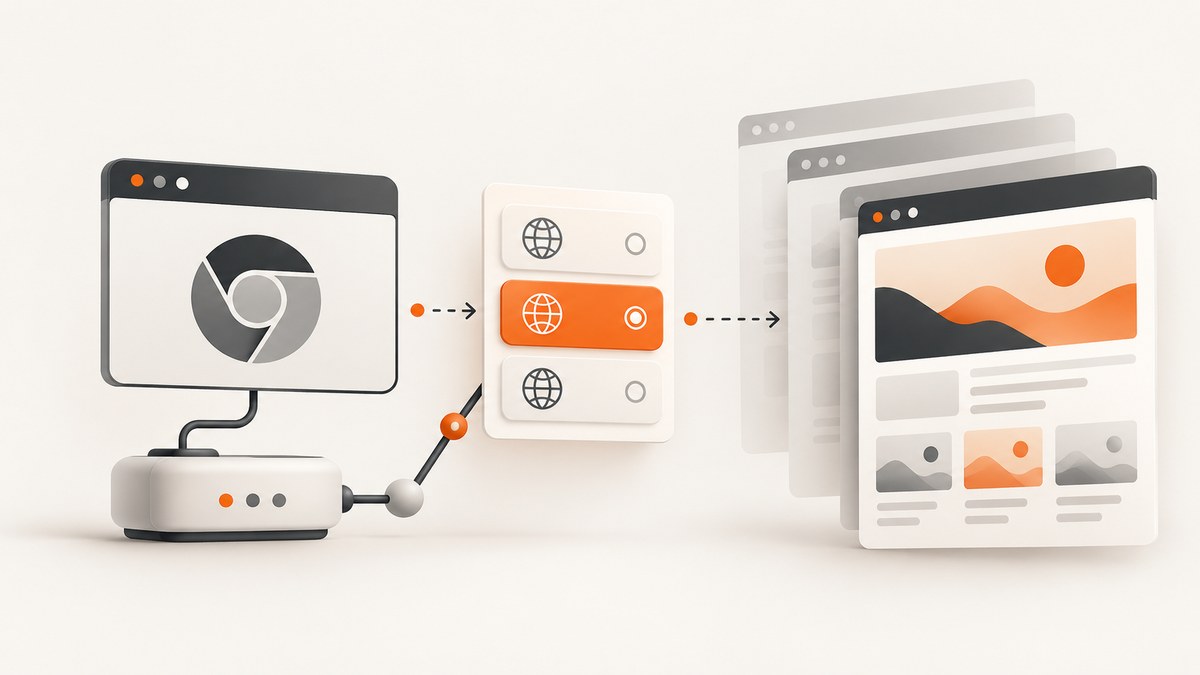
Set the language in Selenium headless Chrome by adding Chrome’s intl.accept_languages preference to the same options object that enables headless mode. In Python:
from selenium import webdriver

options = webdriver.ChromeOptions()
options.add_experimental_option("prefs", {
    "intl.accept_languages": "fr-FR,fr"
})
options.add_argument("--headless=new")

driver = webdriver.Chrome(options=options)
driver.get("https://example.com")
print(driver.title)
driver.quit()
The preference controls Chrome’s language signal, including the Accept-Language request header. It does not force every website to display a translation. Sites may choose a locale from cookies, URL paths, account settings, geolocation, JavaScript, or their own language negotiation. Test both the outgoing header and the rendered result your application needs.
What intl.accept_languages changes
Chromium associates intl.accept_languages with the browser’s language preference and derives the Accept-Language header from the selected languages. Configure the preference through Chrome options instead of trying to set the header directly. See the Selenium Chrome documentation and Chromium’s preference implementation for the browser-level behavior.
Use a comma-separated list ordered by preference. For example:
en-US,enprefers US English, then general English.fr-FR,frprefers French as used in France, then French generally.de-DE,de,en-US,enprovides German fallbacks before English.
The exact response depends on the site. A server can ignore the header, redirect to a fixed locale, require a locale cookie, or render translated text only after JavaScript runs.
Prerequisites and version checks
- Install Selenium for your language.
- Install Chrome or Chromium.
- Make ChromeDriver available, or let Selenium Manager resolve it.
- Keep Chrome and ChromeDriver major versions aligned when you manage the driver yourself. Selenium documents Chrome options and driver setup in its browser guide.
Current Chrome uses the unified headless implementation. Use --headless=new for explicit current behavior. Chrome’s headless documentation explains that the older implementation is maintained separately as the chrome-headless-shell binary in modern Chrome releases.
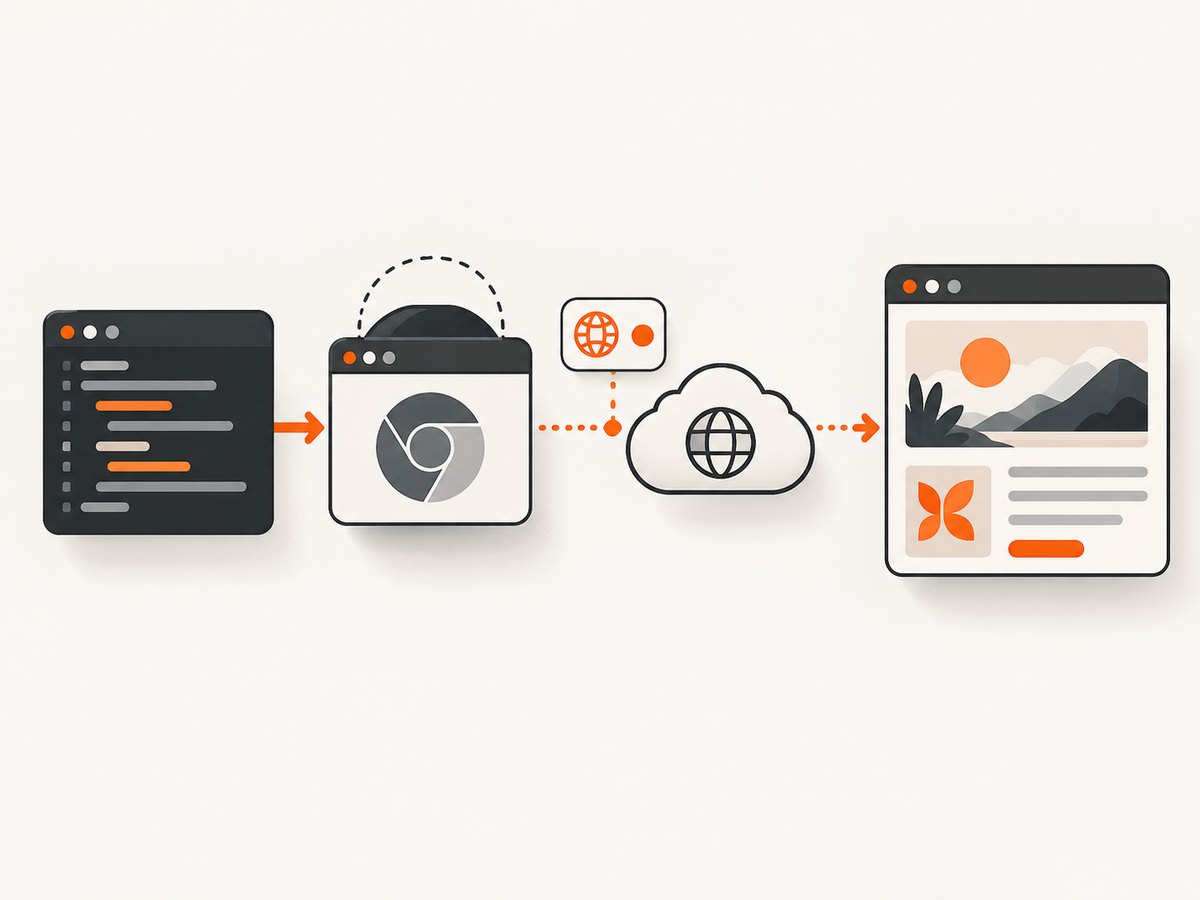
Python: complete headless example
Install Selenium:
python -m pip install seleniumThen create a script:
from selenium import webdriver
from selenium.webdriver.chrome.options import Options

LANGUAGES = "fr-FR,fr,en-US,en"

options = Options()
options.add_experimental_option("prefs", {
    "intl.accept_languages": LANGUAGES
})
options.add_argument("--headless=new")
options.add_argument("--window-size=1365,900")

# Add these in containers or restricted Linux environments when required.
# options.add_argument("--no-sandbox")
# options.add_argument("--disable-dev-shm-usage")

driver = webdriver.Chrome(options=options)
try:
    driver.get("https://example.com")
    print("title:", driver.title)
    print("url:", driver.current_url)
    driver.save_screenshot("language-test.png")
finally:
    driver.quit()
Keep the language preference and the headless argument on the same Options object passed to webdriver.Chrome. Calling add_experimental_option after the driver has already been created has no effect on that session.
Using a locale-specific test page
To test a page that exposes its selected locale, navigate to your application and inspect a language marker:
from selenium.webdriver.common.by import By
from selenium.webdriver.support.ui import WebDriverWait

# driver was created with intl.accept_languages above
driver.get("https://your-app.example/account")

language = WebDriverWait(driver, 15).until(
    lambda d: d.find_element(By.TAG_NAME, "html").get_attribute("lang")
)
print("html lang:", language)

# Replace this selector with an application-specific translated element.
text = driver.find_element(By.CSS_SELECTOR, "[data-testid='welcome']").text
print("welcome text:", text)
The lang attribute and visible text are application-level checks. They are more meaningful than assuming that a request header guarantees a translation.
Node.js: Selenium WebDriver and Chrome
Install the packages:
npm install selenium-webdriver
Use Chrome options to set the preference:
const { Builder } = require('selenium-webdriver');
const chrome = require('selenium-webdriver/chrome');

(async function run() {
  const options = new chrome.Options();
  options.setChromeOptions({
    args: ['--headless=new', '--window-size=1365,900'],
    prefs: { 'intl.accept_languages': 'ja-JP,ja,en-US,en' }
  });

  const driver = await new Builder()
    .forBrowser('chrome')
    .setChromeOptions(options)
    .build();

  try {
    await driver.get('https://example.com');
    console.log(await driver.getTitle());
    await driver.takeScreenshot().then((data) => {
      require('fs').writeFileSync('language-test.png', data, 'base64');
    });
  } finally {
    await driver.quit();
  }
})();
Selenium project examples also show setting user preferences with a language key. Treat the browser’s resulting request and page behavior as the source of truth for your test.
Remote Selenium Grid sessions
For a remote browser, build the Chrome options locally and pass them as session capabilities. Selenium 4 uses browser options classes to determine the browser configuration, including remote sessions.
from selenium import webdriver
from selenium.webdriver.chrome.options import Options

options = Options()
options.add_experimental_option("prefs", {
    "intl.accept_languages": "es-ES,es,en-US,en"
})
options.add_argument("--headless=new")

# Replace this with your Grid URL.
driver = webdriver.Remote(
    command_executor="http://selenium-hub:4444/wd/hub",
    options=options,
)
try:
    driver.get("https://example.com")
    print(driver.title)
finally:
    driver.quit()
The preference must reach the node that actually launches Chrome. If a Grid strips capabilities, inspect the created session capabilities and the node’s browser configuration.
How to verify the language signal
Check the rendered page
Inspect the HTML language attribute, visible translated strings, locale-specific date formatting, and any application locale endpoint. Use explicit waits for content that appears after JavaScript initialization.
Check the actual HTTP header
intl.accept_languages is a browser preference, so verify the request that matters. A practical approach is to point a test-only endpoint at your application that records request headers, or use Chrome performance logging and inspect network events. Do not infer the header from the preference string alone: policies, profiles, redirects, and the target browser can affect the final request.
For a simple server-side check, create an endpoint that returns the received Accept-Language value, then load it in Selenium and assert the response. This tests the real browser request rather than a local configuration object.
Language options, fallbacks, and related settings
| Goal | Configuration | What to verify |
|---|---|---|
| Prefer one regional language | en-GB,en |
Header order and regional formatting |
| Provide fallbacks | nl-NL,nl,en-US,en |
Fallback content when Dutch is unavailable |
| Test a translated route | Language preference plus the route under test | Redirects, cookies, and visible strings |
| Test account locale | Language preference plus authenticated session | Whether account settings override negotiation |
Do not confuse the browser language preference with timezone or geolocation. Those are separate signals. If your application selects locale from timezone, configure and test that separately. Likewise, a locale in the URL, such as /fr/, may take precedence over the header.
Common failures and fixes
| Symptom | Likely cause | Fix |
|---|---|---|
| The page remains in English | The site ignores Accept-Language or uses a cookie/account locale. |
Inspect redirects and cookies; set the application’s documented locale control and assert the expected behavior. |
| The header is unchanged | The preference was added to a different options object or after driver creation. | Set intl.accept_languages before constructing the driver and pass that exact object to the builder. |
| Chrome fails to start | ChromeDriver and Chrome major versions differ, or the binary is missing. | Align versions, use Selenium Manager, or provide the correct binary paths. |
| Works headful but not headless | Different profile, timing, viewport, or old headless mode. | Use --headless=new, set a deterministic window size, and wait for locale-dependent content. |
| Remote Grid ignores the setting | The node does not receive or accept the Chrome capability. | Inspect session capabilities and node logs; confirm the node launches Chrome with the requested preferences. |
| Container crashes or hangs | Shared memory or sandbox restrictions. | Use the container’s documented Chrome flags, commonly --disable-dev-shm-usage and, where required by the environment, --no-sandbox. |
| Only some requests use the language | Subresources or API clients use separate headers. | Verify the document request and API requests independently; configure the API client if needed. |
Performance and reliability considerations
- Reuse a driver when appropriate. Starting Chrome is expensive. For a suite using one locale, reuse a session and reset state between tests.
- Use separate sessions for different locales. A language preference is session configuration. Do not mutate one running browser and assume every existing profile state changed.
- Control caching. Cached redirects, service workers, and locale cookies can hide configuration changes. Use a clean profile or clear cookies when testing negotiation.
- Wait for application readiness. Header negotiation happens early, but translated text may arrive after hydration or an API call. Wait for a stable selector instead of sleeping for an arbitrary duration.
- Keep viewport and user agent deterministic. Responsive layouts and server-side device detection can change which locale picker or content branch appears.
- Record diagnostics. On failure, save the URL, title, screenshot, HTML, browser version, driver version, and the effective locale marker.
There is no universal guarantee that a language preference produces a particular translation. Your reliability target should be an observable application result: a locale route, a known string, a date format, or a locale API response.
Or skip the browser setup
If your goal is a screenshot rather than an interactive browser test, ScreenshotNeo provides a single GET request for a clean PNG, JPEG, WebP, or PDF. Its capture options include custom headers, cookies, user agents, timezone, geolocation, custom JavaScript, waits, full-page capture, element selectors, and device presets. You can use the same language signal by supplying a custom Accept-Language header.
See the ScreenshotNeo API documentation for the complete option list.
cURL
curl -G "https://api.screenshotneo.com/v1/shot" \
  -d access_key=YOUR_API_KEY \
  --data-urlencode url=https://stripe.com \
  -o shot.webp
Python
import requests

r = requests.get(
    "https://api.screenshotneo.com/v1/shot",
    params={"access_key": "YOUR_API_KEY", "url": "https://stripe.com"},
    timeout=90,
)
open("shot.webp", "wb").write(r.content)
Node.js
const q = new URLSearchParams({ access_key: 'YOUR_API_KEY', url: 'https://stripe.com' });
const res = await fetch(`https://api.screenshotneo.com/v1/shot?${q}`);
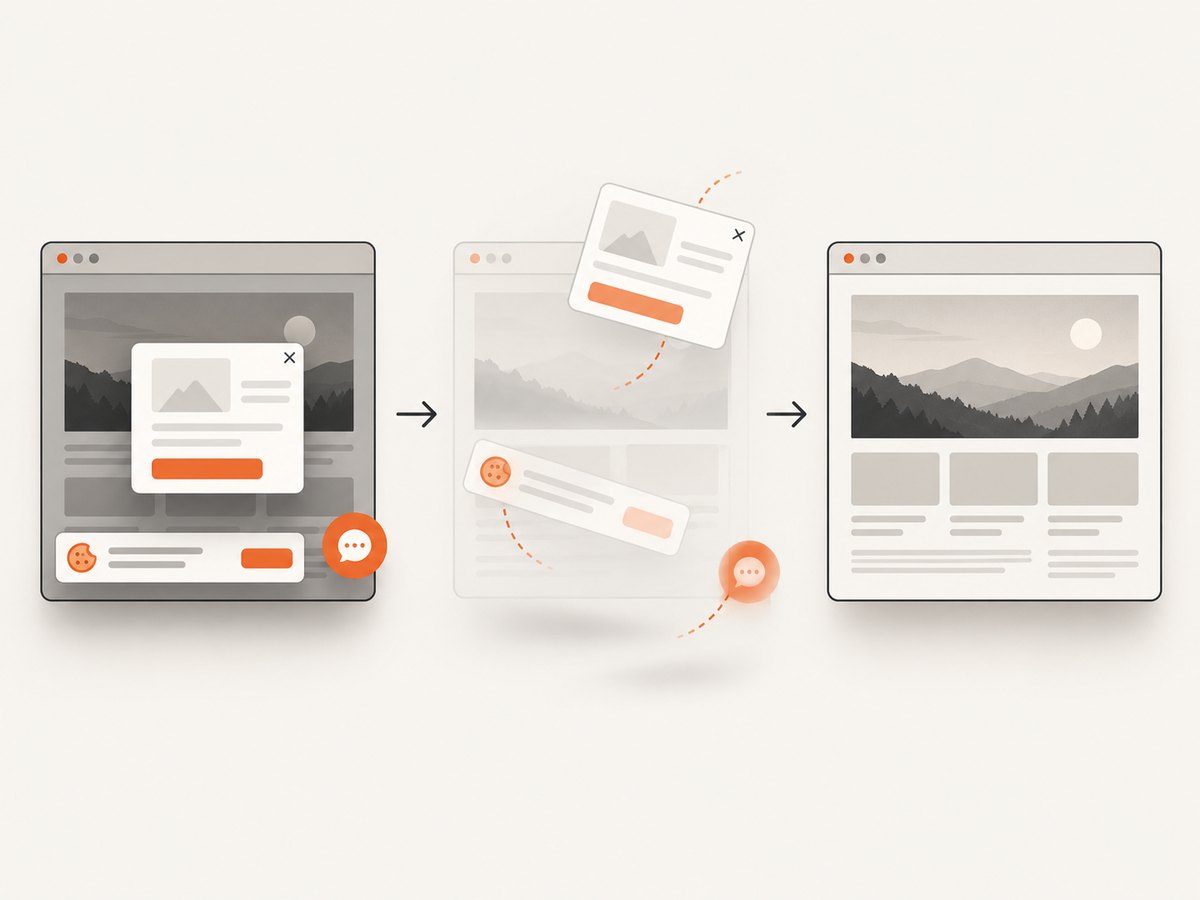
ScreenshotNeo removes cookie and consent banners, newsletter popups, and chat widgets before capture. Bot checks, blank pages, timeouts, failed loads, and cache hits are not billed; response headers report the page verdict and whether the shot was billed. An MCP server provides take_screenshot, get_page_info, and capture_pdf tools for Claude, Cursor, and other MCP clients. The Free plan includes 1,000 screenshots per month with no card; paid plans start at $5 for 3,000 shots. Create a free ScreenshotNeo account.
Cost and operational planning
Self-hosted Selenium costs come from browser hosts, CI minutes, Grid capacity, maintenance, and the engineering time required to handle drivers, crashes, profiles, and localization state. A hosted screenshot API trades that setup for per-shot billing. ScreenshotNeo’s plans are Free (1,000 shots/month), Starter ($5 for 3,000), Growth ($15 for 15,000), Pro ($39 for 60,000), Scale ($99 for 250,000), and Business ($249 for 1,000,000); yearly billing gives two months free, and every feature is available on every plan.
FAQ
Does headless mode change the language preference?
No. The preference belongs to Chrome’s profile configuration. Headless mode changes how Chrome runs, so test the actual headless session you deploy.
Can I set only fr instead of fr-FR,fr?
Yes. Use the language tags that match your test. Regional tags are useful when regional formatting matters, while a general tag provides a broader fallback.
Why does setting the header manually differ from setting the preference?
Chrome derives the header from its language preference and policy. The preference follows the browser’s normal language configuration path and is the supported Selenium approach.
Should I use a new profile for every test?
Use isolated profiles when cookies, service workers, or account settings can influence locale selection. Reuse a session only when those stateful effects are controlled.
Can ScreenshotNeo run my Selenium script?
No. ScreenshotNeo is a screenshot API and MCP server. Use Selenium when you need browser interaction and assertions; use ScreenshotNeo when you need a clean captured image or PDF with API controls.


