How to Capture Screenshots with Selenium in Headless Chrome
Capture reliable Chrome screenshots with Selenium in headless mode, including waits, viewport control, troubleshooting, and a browser-free API option.
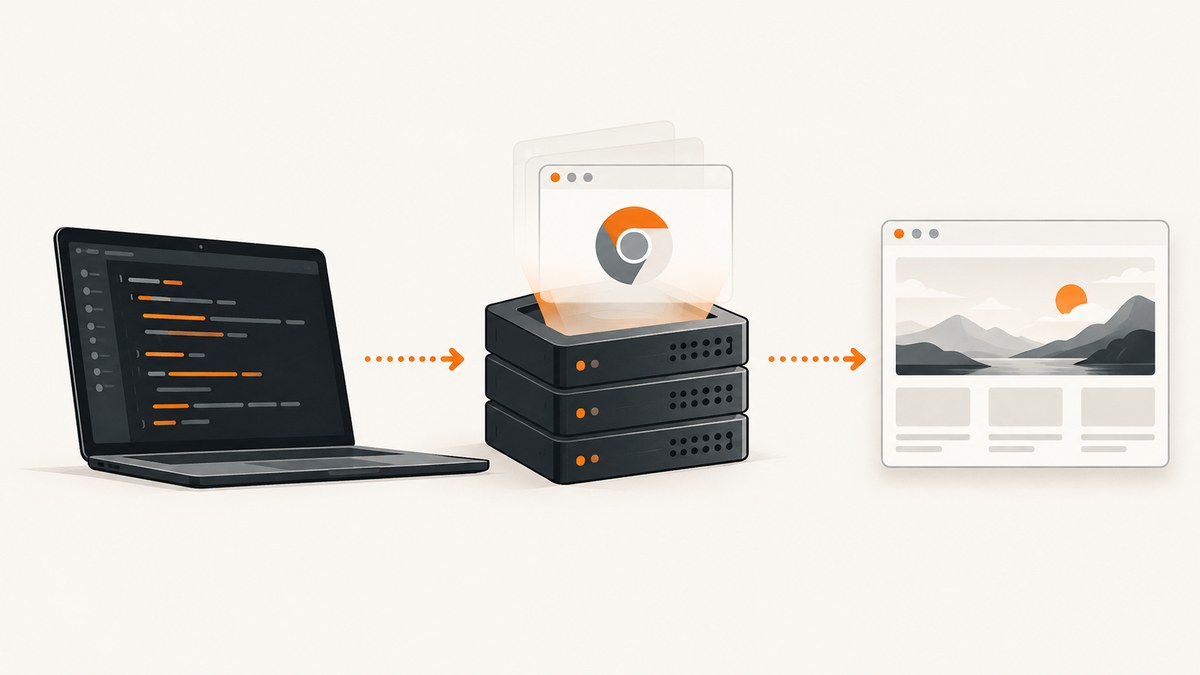
To capture a screenshot with Selenium in headless Chrome, add Chrome’s --headless argument, create a WebDriver with those options, navigate to the page, wait for the content you need, call the binding’s screenshot method, and always quit the driver in cleanup code. In Python, the smallest complete example is:
from selenium import webdriver
from selenium.webdriver.chrome.options import Options

options = Options()
options.add_argument("--headless")

driver = webdriver.Chrome(options=options)
try:
    driver.get("https://example.com")
    driver.save_screenshot("screenshot.png")
finally:
    driver.quit()
Chrome Headless runs without a visible user interface. Selenium’s documented Python method saves the current window as a PNG and returns a boolean indicating success. The normal WebDriver screenshot call is a current-window/current-browsing-context capture; it should not be treated as a guaranteed full-page screenshot. See the Selenium screenshot documentation and Chrome’s Headless mode documentation for the underlying APIs.
1. Install Selenium and verify Chrome
You need Python, a Chrome or Chromium installation, and a compatible Selenium package. Recent Selenium releases can manage the driver executable for common local setups, but a corporate image or pinned browser may require you to install and expose ChromeDriver separately.
python -m venv .venv
source .venv/bin/activate
python -m pip install --upgrade pip selenium
On Windows PowerShell, activate with .venv\\Scripts\\Activate.ps1. Confirm that Chrome is installed and that your process can start it. In containers and CI systems, also verify that the Chrome binary is present and that the user running the job can write to the output directory.
2. Build a robust Python capture script
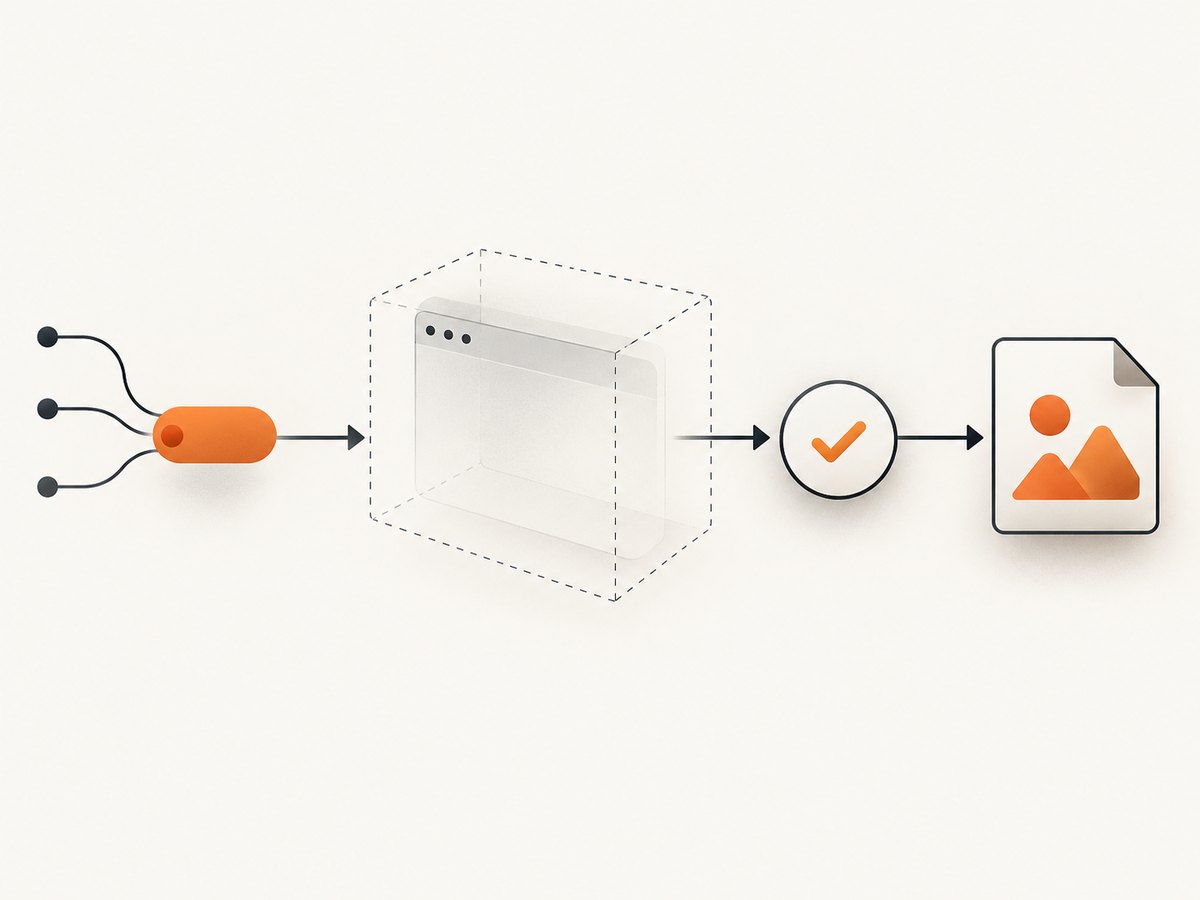
The short example is enough for a static page. Production captures need deliberate viewport settings, a page-specific readiness condition, an explicit output path, and cleanup even when navigation or rendering fails.
from pathlib import Path

from selenium import webdriver
from selenium.webdriver.chrome.options import Options
from selenium.webdriver.common.by import By
from selenium.webdriver.support.ui import WebDriverWait
from selenium.webdriver.support import expected_conditions as EC

URL = "https://example.com"
OUTPUT = Path("artifacts/example.png")

options = Options()
options.add_argument("--headless")
options.add_argument("--window-size=1440,900")
# Useful in many Linux CI/container environments:
# options.add_argument("--no-sandbox")
# options.add_argument("--disable-dev-shm-usage")

OUTPUT.parent.mkdir(parents=True, exist_ok=True)
driver = webdriver.Chrome(options=options)
try:
    driver.get(URL)

    # Replace this selector with an element that means your page is ready.
    WebDriverWait(driver, 30).until(
        EC.presence_of_element_located((By.TAG_NAME, "body"))
    )

    # If the page has a specific application-ready marker, wait for that
    # marker instead of assuming navigation means all content is rendered.
    driver.save_screenshot(str(OUTPUT))
finally:
    driver.quit()
save_screenshot(path) writes a PNG. Selenium’s Python API also exposes get_screenshot_as_file(path), which returns false for an I/O error, plus methods that return a base64 string or raw PNG bytes. Use an absolute or clearly managed path when another process will consume the image.
3. Understand headless Chrome options
--headless
Pass the argument through Chrome options before constructing the driver. Chrome’s documentation describes Headless as running in an unattended environment without visible UI. Modern Chrome creates platform windows but does not display them; this changed in Chrome 112. The older standalone headless implementation became a separate chrome-headless-shell binary starting with Chrome 132.0.6793.0. If two machines behave differently, check their Chrome versions and command-line arguments.
Viewport size
--window-size=1440,900 sets the initial CSS viewport for a predictable layout. Responsive sites can render entirely different navigation, typography, and image crops at different widths. Pick dimensions that match the consumer of the screenshot and keep them fixed in CI.
options.add_argument("--window-size=1280,800")The regular Selenium screenshot is still the current window. A tall viewport does not turn it into a complete long-page capture.
Linux and container flags
Some minimal Linux images need extra flags because Chrome cannot create a sandbox or has limited shared memory. Add these only when your environment requires them:
options.add_argument("--no-sandbox")
options.add_argument("--disable-dev-shm-usage")
--no-sandbox changes Chrome’s isolation model, so use an appropriately isolated build environment and follow your platform’s security policy. Increasing the container’s shared memory is another way to address shared-memory failures.
Chrome binary and driver selection
For a non-default browser path, set options.binary_location. Driver capabilities are passed through the ChromeOptions object; ChromeDriver’s official capabilities guide explains this options-based configuration.
options.binary_location = "/usr/bin/google-chrome"
driver = webdriver.Chrome(options=options)
4. Wait for the page you actually need
driver.get() returning means navigation reached its normal completion condition. It does not prove that client-side data, lazy images, fonts, charts, or animations have finished. A screenshot taken too early can be valid PNG data while still showing placeholders.
Wait for an element
from selenium.webdriver.common.by import By
from selenium.webdriver.support.ui import WebDriverWait
from selenium.webdriver.support import expected_conditions as EC

WebDriverWait(driver, 30).until(
    EC.visibility_of_element_located((By.CSS_SELECTOR, "main.dashboard"))
)
Wait for a loading marker to disappear
WebDriverWait(driver, 30).until(
    EC.invisibility_of_element_located((By.CSS_SELECTOR, ".loading-spinner"))
)
Wait for a JavaScript readiness flag
WebDriverWait(driver, 30).until(
    lambda d: d.execute_script("return window.appReady === true")
)
Use a short delay only when necessary
import time

time.sleep(2)
A fixed delay is simple but slow and either too short for a busy page or wasteful for a fast one. Prefer a condition tied to the content that must appear. For animations, wait for the animation’s completion state or disable it with test CSS when that is acceptable.
5. Capture an element, current window, or image bytes
For a single component, locate the element and call its screenshot method:
card = driver.find_element(By.CSS_SELECTOR, "article.card")
card.screenshot("card.png")
This captures the element as rendered in the current page. It does not automatically include content outside the element or expand a virtualized list.
To keep the image in memory, use the PNG bytes API:
png_bytes = driver.get_screenshot_as_png()
with open("screenshot.png", "wb") as output:
    output.write(png_bytes)
For an HTTP response or JSON payload, Selenium also provides a base64 representation. Decode it before writing a binary PNG file.
6. Full-page expectations and alternatives
The standard documented Selenium operation captures the current window/current browsing context. The reviewed Selenium and Chrome sources do not establish a universal full-page recipe for that call. If you need a long page, define the requirement precisely: a taller viewport, a stitched set of viewport captures, or a browser-specific DevTools capture. Each approach has edge cases around fixed headers, lazy loading, sticky elements, and pages that change while scrolling.
Chrome’s direct headless command is a separate option from WebDriver:
chrome --headless --screenshot=page.png \\
  --window-size=412,892 \\
  https://example.com
Chrome documents --screenshot for writing screenshot.png and supports --window-size. Its command-line --timeout controls the maximum wait before capture:
chrome --headless --screenshot=page.png \\
  --window-size=1440,900 \\
  --timeout=10000 \\
  https://example.com
This CLI path does not give your script a live WebDriver session for clicking, querying elements, or waiting on custom Selenium conditions. Use it when a one-shot browser command is sufficient; use WebDriver when the page must be driven as part of a test or automation workflow.
7. Interact before capturing
Many screenshots require a click, login, tab switch, or scroll before the final state exists. Selenium can perform those actions before calling the screenshot API.
from selenium.webdriver.common.by import By
from selenium.webdriver.support import expected_conditions as EC

button = WebDriverWait(driver, 30).until(
    EC.element_to_be_clickable((By.CSS_SELECTOR, "button.show-details"))
)
button.click()
WebDriverWait(driver, 30).until(
    EC.visibility_of_element_located((By.CSS_SELECTOR, ".details-panel"))
)
driver.save_screenshot("details.png")
If a consent dialog blocks the page, locate its accept control and click it before the capture. If a cross-origin iframe contains the target, switch into the frame first; Selenium cannot query elements inside a frame until you call driver.switch_to.frame(...).
8. Reliability checklist for CI
- Pin or document Chrome and Selenium versions so upgrades are diagnosable.
- Set an explicit window size and output directory.
- Wait for a page-specific readiness condition.
- Use a generous page-load timeout and catch failures with useful logs.
- Always call
quit()in afinallyblock. - Save the HTML, browser console logs, and a failure screenshot when a test fails.
- Make output filenames unique when workers run in parallel.
- Do not assume network completion means that lazy images or client-side rendering are complete.
For repeatable visual comparisons, control timezone, locale, fonts, device scale, and animation state. Differences in installed fonts or operating-system rendering can change line breaks even when the page source is identical.
9. Troubleshooting common errors
| Symptom | Likely cause | Fix |
|---|---|---|
SessionNotCreatedException |
Chrome and ChromeDriver are incompatible, or the binary cannot start. | Check installed versions, update the driver/Selenium setup, and set binary_location when Chrome is non-standard. |
| DevToolsActivePort or browser startup failure | Restricted container, sandbox, or shared-memory configuration. | Try --disable-dev-shm-usage; use --no-sandbox only in a controlled environment; verify writable temporary directories. |
| Screenshot file is missing | Relative path points somewhere unexpected, or the process lacks write permission. | Use an absolute path, create the parent directory, and check the return value of get_screenshot_as_file. |
| Blank or incomplete page | Capture happened before asynchronous rendering completed, or a bot check blocked navigation. | Wait for a meaningful selector or readiness flag; inspect page source and browser logs; verify the URL works in the same environment. |
| Element screenshot raises a lookup error | The selector is wrong, the element is inside an iframe, or it has not rendered. | Wait for it, switch into the correct frame, and verify the selector in browser developer tools. |
| Unexpected mobile or desktop layout | Viewport dimensions differ between runs. | Set --window-size explicitly and keep browser scale settings consistent. |
| Long page is cut off | Current-window capture is not a guaranteed full-page capture. | Use a deliberate full-page strategy, a browser-specific capture method, or an image API designed for full-page output. |
10. Performance, reliability, and cost considerations
Starting Chrome and creating a WebDriver session is usually the largest fixed cost in a small script. Reuse one session for a controlled batch of pages when isolation requirements allow it, but reset cookies and application state between URLs. Excessive fixed sleeps reduce throughput; condition-based waits release the driver as soon as the required content is ready.

Parallel workers can improve throughput until CPU, memory, network, or the target site’s rate limits become the bottleneck. Give each worker its own driver and output path. Retrying every failure blindly can amplify load and hide a deterministic selector or authentication problem. Classify failures first, then retry transient navigation or infrastructure errors with a bounded backoff.
Selenium and Chrome consume the resources of a real browser. If you only need a clean image from a URL and do not need to interact with the page, an HTTP screenshot service can remove browser maintenance from your application.
Or skip the browser setup
ScreenshotNeo provides a single-request website screenshot API and MCP server. It removes cookie and consent banners, newsletter popups, and chat widgets before capture. Bot checks, blank pages, timeouts, failed loads, and cache hits are not billed, and the response identifies the result with X-Page-Verdict and X-Billed headers. Its MCP server provides take_screenshot, get_page_info, and capture_pdf tools for Claude, Cursor, and other MCP clients.
See the ScreenshotNeo API documentation for all options. The basic request returns an image such as WebP:
cURL
curl -G "https://api.screenshotneo.com/v1/shot" \\
  -d access_key=YOUR_API_KEY \\
  --data-urlencode url=https://stripe.com \\
  -o shot.webp
Python
import requests

r = requests.get(
    "https://api.screenshotneo.com/v1/shot",
    params={"access_key": "YOUR_API_KEY", "url": "https://stripe.com"},
    timeout=90,
)
r.raise_for_status()
open("shot.webp", "wb").write(r.content)
Node.js
const q = new URLSearchParams({
  access_key: 'YOUR_API_KEY',
  url: 'https://stripe.com'
});
const res = await fetch(`https://api.screenshotneo.com/v1/shot?${q}`);
if (!res.ok) throw new Error(`HTTP ${res.status}`);
const buffer = Buffer.from(await res.arrayBuffer());
require('fs').writeFileSync('shot.webp', buffer);
ScreenshotNeo also supports full-page capture with lazy images loaded, CSS-selector element capture, dark mode, device presets and custom viewports, retina scale, PDF output, custom CSS and JavaScript, clicks, selector or network-idle waits, request blocking, headers, cookies, user agents, authorization, timezone, geolocation, transparent backgrounds, resizing, cache TTLs, signed links, asynchronous jobs with signed webhooks, bulk capture of up to 100 URLs per call, a usage API, and an OpenAPI specification. Parameter names used by other screenshot APIs are accepted to make migrations easier.
There are 1,000 free screenshots each month with no card. Paid plans start at $5 for 3,000 screenshots, and every feature is available on every plan. Create a free ScreenshotNeo account.
11. Short FAQ
Does Selenium’s normal screenshot method capture the whole page?
It captures the current window/current browsing context. The standard API documentation does not promise a complete long-page image.
Can I save JPEG or WebP with Selenium’s Python screenshot method?
The documented Selenium Python methods save or return PNG data. Convert the PNG afterward if another format is required.
Why does headless output differ from visible Chrome?
Viewport, Chrome version, fonts, device scale, timing, and page state can differ. Set these inputs explicitly and wait for the same readiness condition.
When should I use Chrome’s --screenshot CLI?
Use it for a simple one-shot capture with a known URL, viewport, and timeout. Use WebDriver when you need clicks, element queries, custom waits, or integration with a test suite.
How do I capture a page that needs authentication?
Use Selenium to establish the authenticated session, then capture after the protected content is visible. Keep credentials out of source code and CI logs.


