How to Fix Selenium Headless Chrome Failing to Get the URL After Switching Tabs
Fix Selenium URL errors after a tab switch by waiting for the new handle, switching explicitly, and checking the destination page state.
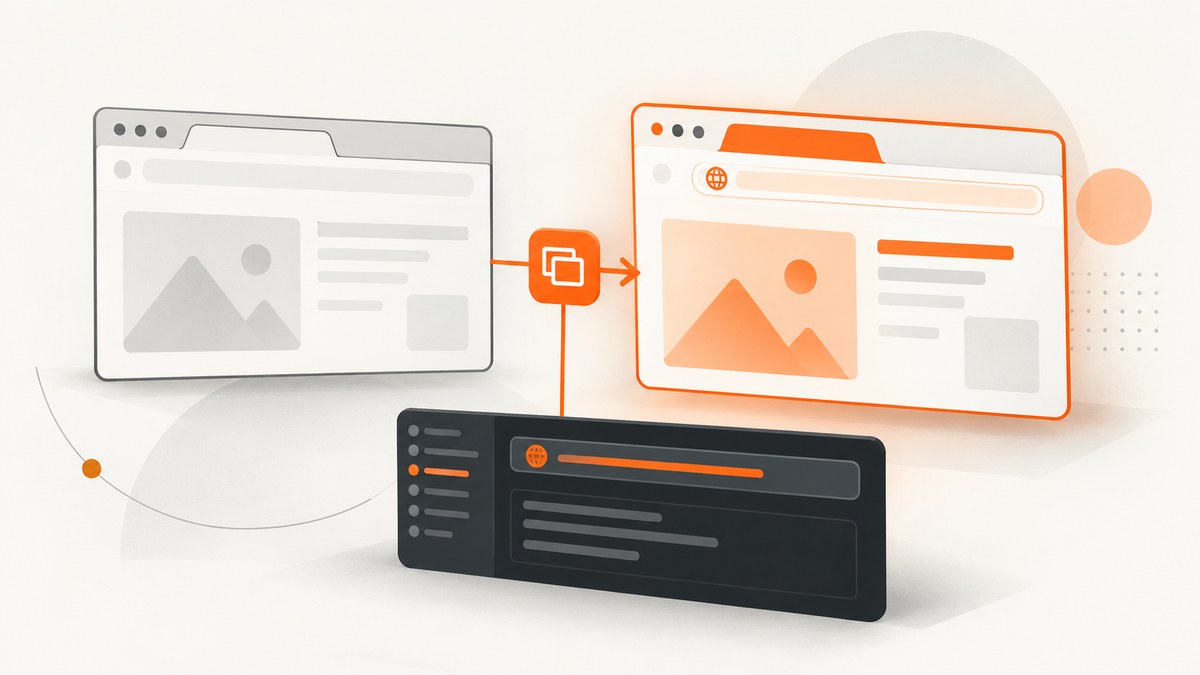
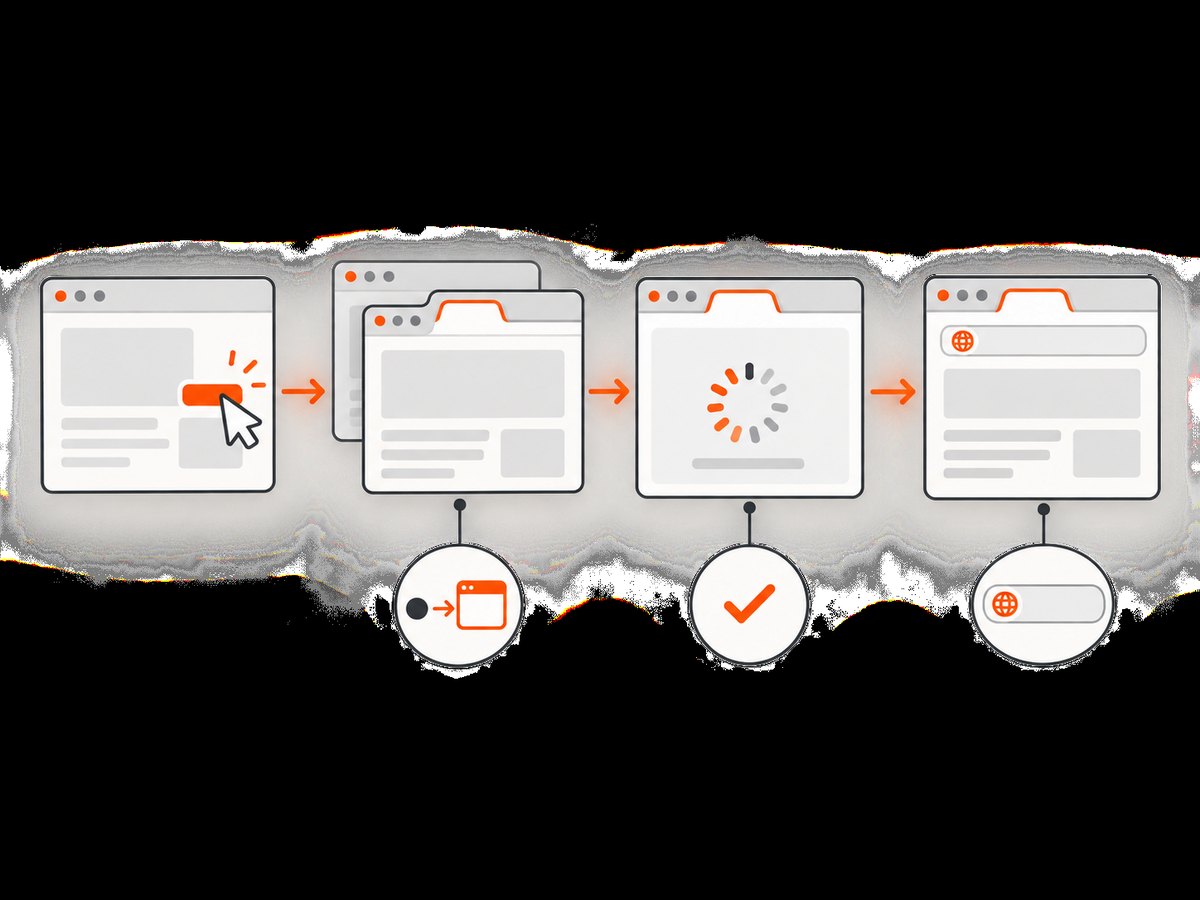
When Selenium returns the wrong URL, an old URL, or no usable URL after a headless Chrome tab switch, the usual problem is window context or timing. A visible tab change does not automatically change WebDriver’s active window handle. Save the original handle, wait for the new handle, switch to it explicitly, wait for the destination page to become ready, and only then read driver.current_url.
This sequence follows Selenium’s model: WebDriver treats tabs and windows through window handles rather than through the operating system’s visibly focused tab. Selenium’s documentation states that “WebDriver does not make the distinction between windows and tabs.” See Working with windows and tabs and WebDriver navigation.
Why the URL is wrong after switching tabs
A browser session can contain several tabs, but Selenium commands operate in one active browsing context at a time. Opening a tab creates another window handle; it does not guarantee that the driver has switched to that handle. Reading current_url before switching therefore reads the URL from the old tab.
There is a second timing issue. A new tab can exist before its navigation has finished. The handle count may be correct while the page still has an interim URL such as about:blank, a redirect URL, or the previous page’s state. Wait for an observable destination condition, such as a title or known element, before asserting the URL.
Headless mode can expose timing and version differences, but the evidence does not establish headless mode as the universal cause of this symptom. Diagnose the handle and page state first. Compare headless and headful runs only after the context logic is correct.
The reliable diagnostic sequence
- Save
driver.current_window_handlebefore the action that opens the tab. - Trigger the link, button, or script that opens the new tab.
- Wait until the number of window handles reaches the expected count.
- Find the handle that differs from the saved handle. Do not assume the new tab is at index
1. - Call
driver.switch_to.window(new_handle). - Wait for the destination title, selector, URL condition, or another application-specific readiness signal.
- Read
driver.current_urland validate it. - If the child tab was closed, switch back to a saved handle that remains open.
Complete Python example
Install Selenium with pip install selenium. Recent Selenium versions can manage the driver through Selenium Manager. The example below assumes the click opens exactly one additional tab and that the destination contains an element with the ID checkout. Replace that selector and expected URL with values from your application.
from selenium import webdriver
from selenium.webdriver.common.by import By
from selenium.webdriver.chrome.options import Options
from selenium.webdriver.support.ui import WebDriverWait
from selenium.webdriver.support import expected_conditions as EC
from selenium.common.exceptions import TimeoutException, NoSuchWindowException

TARGET = "https://example.com/launch"
EXPECTED_URL_PART = "/destination"

options = Options()
options.add_argument("--headless=new")
options.add_argument("--window-size=1440,1000")

# Keep the browser configuration deterministic in CI.
# Add --no-sandbox or --disable-dev-shm-usage only when your container requires them.
driver = webdriver.Chrome(options=options)
wait = WebDriverWait(driver, 30)

try:
    driver.get(TARGET)
    original = driver.current_window_handle
    handles_before = set(driver.window_handles)

    # Replace this locator with the control that opens the new tab.
    driver.find_element(By.CSS_SELECTOR, "a[data-opens-tab]").click()

    # Wait for a new handle instead of sleeping for an arbitrary duration.
    wait.until(lambda d: len(d.window_handles) == len(handles_before) + 1)
    handles_after = set(driver.window_handles)
    new_handles = handles_after - handles_before
    if len(new_handles) != 1:
        raise RuntimeError(f"Expected one new tab, found: {new_handles}")

    new_handle = new_handles.pop()
    driver.switch_to.window(new_handle)

    # Wait for the destination application, not merely the handle.
    wait.until(EC.title_contains("Destination"))
    wait.until(EC.presence_of_element_located((By.ID, "checkout")))
    wait.until(lambda d: EXPECTED_URL_PART in d.current_url)

    url = driver.current_url
    print(f"Active handle: {driver.current_window_handle}")
    print(f"Destination URL: {url}")

finally:
    driver.quit()
The important details are the set difference and the explicit switch. Sets work when a session has more than two tabs and avoid depending on handle ordering. The explicit waits also make failures actionable: a timeout while waiting for a handle means the action did not create the expected tab; a timeout while waiting for an element means the tab exists but the page is not ready or the locator is wrong.
Returning to the parent tab
If the workflow closes the child tab, switch before issuing another command. A closed active context causes NoSuchWindowException.
parent = original
child = new_handle

driver.switch_to.window(child)
# Read data or perform work in the child.
driver.close()

driver.switch_to.window(parent)
print(driver.current_url)
Do not call driver.current_url between close() and switch_to.window(parent). The driver still points at the closed context.
JavaScript Selenium equivalent
In Node.js, the same principles apply. The method names differ, but a tab is still addressed by a window handle.
const { Builder, By, until } = require('selenium-webdriver');
const chrome = require('selenium-webdriver/chrome');

(async function () {
  const options = new chrome.Options().addArguments('--headless=new', '--window-size=1440,1000');
  const driver = await new Builder().forBrowser('chrome').setChromeOptions(options).build();

  try {
    await driver.get('https://example.com/launch');
    const parent = await driver.getWindowHandle();
    const before = new Set(await driver.getAllWindowHandles());

    await driver.findElement(By.css('a[data-opens-tab]')).click();
    await driver.wait(async () => (await driver.getAllWindowHandles()).length === before.size + 1, 30000);

    const after = await driver.getAllWindowHandles();
    const child = after.find(handle => !before.has(handle));
    if (!child) throw new Error('New tab handle was not found');

    await driver.switchTo().window(child);
    await driver.wait(until.titleContains('Destination'), 30000);
    await driver.wait(async () => (await driver.getCurrentUrl()).includes('/destination'), 30000);

    console.log(await driver.getCurrentUrl());
    await driver.close();
    await driver.switchTo().window(parent);
  } finally {
    await driver.quit();
  }
})();
Waiting correctly: handles, navigation, and redirects
Wait for the handle count
Selenium’s window example uses an explicit wait for the number of windows. This is preferable to time.sleep(), because the correct delay varies with the machine, network, and application. If the application can open multiple tabs, wait for a minimum count and then identify handles by a page condition.
Wait for page state
A handle only proves that a browsing context exists. Add one or more conditions:
- Title: useful when the destination sets a stable title.
- Known element: usually stronger than a title because it verifies rendered application state.
- URL predicate: check a stable path or query parameter rather than an entire URL when redirects or tracking parameters are expected.
- Application signal: wait for a loading indicator to disappear or a status element to become visible.
For redirects, wait on the final condition and then read the URL. An immediate assertion after switch_to.window() can observe an intermediate redirect.
Use a separate timeout for diagnosis
Keep normal waits bounded, such as 30 seconds, and include context in timeout logs. A long global implicit wait can make every failed lookup slow and can obscure which condition failed. Prefer explicit waits around the tab-opening and destination steps.
Headless Chrome configuration and version checks
Chrome’s newer headless implementation shares the regular Chrome implementation. The Chrome 112-era announcement documents --headless=new, but flags and defaults are version-sensitive; check the Chrome version installed in the environment and the current Chrome documentation at developer.chrome.com.
Record these values when a failure occurs:
- Selenium language binding and version.
- Chrome version and ChromeDriver version, or Selenium Manager output.
- Operating system and container image.
- Headless flag and all additional Chrome arguments.
- Window-handle list before and after the action.
- The active handle at each URL read.
- Whether the tab was opened, navigated, or closed by the test.
Run the same test once with the headless argument removed. If headful passes and headless fails, compare browser logs, viewport size, permissions, and timing. That comparison narrows the cause; it does not prove that headless itself is defective.
Common errors and fixes
| Error or symptom | Likely cause | Fix |
|---|---|---|
current_url is the parent URL |
The driver never switched contexts. | Save handles, calculate the new handle, and call switch_to.window() before reading the URL. |
URL is about:blank |
The tab exists but navigation has not completed, or the opener created an empty tab first. | Wait for the title, destination element, or stable URL predicate. |
| Timeout waiting for a new window | The click did not run, a popup was blocked, or the application navigated the current tab. | Verify the locator and click, inspect the handle count, and determine whether the expected behavior is a new tab or same-tab navigation. |
NoSuchWindowException |
The active tab was closed or the browser session ended. | Switch to a saved, still-open handle. Do not issue commands against the closed context. |
| Wrong tab selected | Code assumed window_handles[1] was the target. |
Use set difference plus a destination-page condition. Handle ordering is not a reliable identity. |
| Intermittent failures in CI | Fixed sleeps, slow redirects, resource contention, or version mismatch. | Use explicit waits, capture versions and handles in logs, and allow a bounded timeout appropriate for the environment. |
| Headful works, headless fails | Different Chrome implementation, viewport, permissions, or timing. | Use the current headless mode, set a known window size, compare logs, and verify browser/driver compatibility. |
Performance and reliability practices
- Reuse one driver for a test flow, but reset to a known handle before each independent operation.
- Close child tabs after extracting their data to avoid handle leaks and memory growth.
- Use stable selectors and URL predicates that tolerate expected query parameters.
- Set a viewport explicitly in headless runs; responsive layouts can change which control opens a tab.
- Capture a screenshot and browser console or driver log when a wait fails. The failure state often shows whether the page was blank, redirected, or blocked.
- Keep Chrome, ChromeDriver, and Selenium versions compatible and record them with every CI artifact.
- Use bounded retries only for known transient navigation failures. Retrying a missing handle without checking whether the click worked hides the actual defect.
Or skip the browser setup
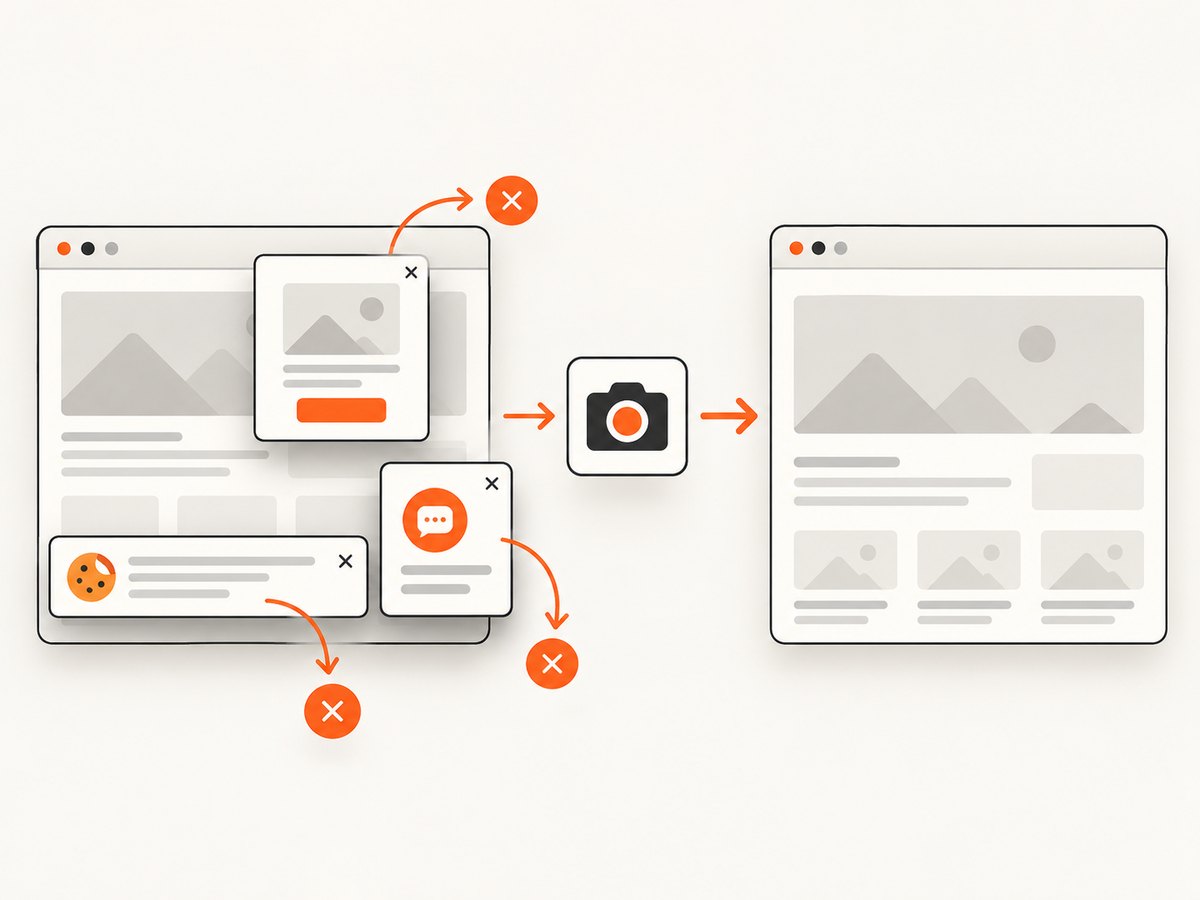
If your goal is a clean image or PDF of a URL rather than interactive tab automation, ScreenshotNeo provides a single screenshot API request. Read the ScreenshotNeo documentation for all capture options.
curl -G "https://api.screenshotneo.com/v1/shot" -d access_key=YOUR_API_KEY --data-urlencode url=https://stripe.com -o shot.webpimport requests
r = requests.get("https://api.screenshotneo.com/v1/shot", params={"access_key": "YOUR_API_KEY", "url": "https://stripe.com"}, timeout=90)
open("shot.webp", "wb").write(r.content)const q = new URLSearchParams({ access_key: 'YOUR_API_KEY', url: 'https://stripe.com' });
const res = await fetch(`https://api.screenshotneo.com/v1/shot?${q}`);Cookie banners, newsletter popups, and chat widgets are removed before the shot. Bot checks, blank pages, failed loads, timeouts, and cache hits are not billed, and response headers identify the page verdict and billing result. ScreenshotNeo also has an MCP server so Claude, Cursor, and other MCP clients can take screenshots with take_screenshot, inspect pages with get_page_info, and create PDFs with capture_pdf. The free plan includes 1,000 screenshots a month with no card; paid plans start at $5 for 3,000 shots. Create a free ScreenshotNeo account.
FAQ
Does switching the visible Chrome tab switch Selenium’s context?
No. Selenium commands use window handles. Call the binding’s switch-to-window method explicitly.
Should I use a fixed sleep after opening a tab?
No. Wait for the handle and then for a destination-page condition. A fixed sleep is either unnecessarily slow or too short for a busy run.
Can I trust the order of window_handles?
No. Identify the new handle by comparing the set before and after the action, then verify it by title, element, or URL.
Is --headless=new always required?
Headless flags and defaults depend on the installed Chrome version. Check the current Chrome documentation and record the version used by CI.
What should I log first?
Log the handle list, active handle, URL, title, Selenium and browser versions, headless arguments, and whether the target tab is still open.


