How to Take Selenium Screenshots Without Opening a Browser Window
Run Selenium in headless mode to capture screenshots without a visible window. Includes Chrome, Firefox, CI fixes, full-page capture, and API alternatives.
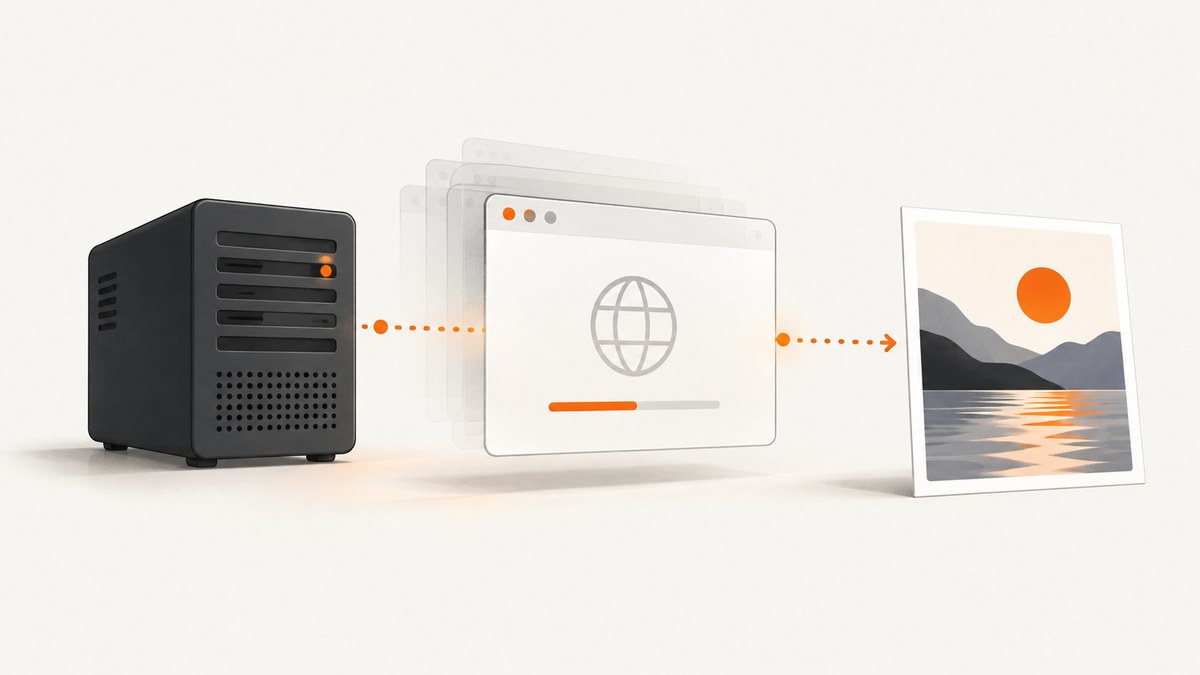
Use Selenium’s headless browser mode, then call the normal screenshot method. Headless mode loads and renders the page with Chrome, Chromium, or Firefox without creating a visible desktop window. Your script still navigates, waits for elements, executes JavaScript, and saves the resulting image.
For Chromium, pass --headless=new to the exact Options object used to create the driver. Set a deterministic viewport such as --window-size=1280,900, capture after the page is ready, check the return value, and always call driver.quit() in a finally block.
Quick answer: headless Chrome in Python
from selenium import webdriver
from selenium.webdriver.chrome.options import Options

options = Options()
options.add_argument("--headless=new")
options.add_argument("--window-size=1280,900")

driver = webdriver.Chrome(options=options)
try:
    driver.get("https://example.com")
    ok = driver.save_screenshot("screenshot.png")
    if not ok:
        raise RuntimeError("Screenshot could not be written")
finally:
    driver.quit()
save_screenshot captures the current viewport and returns a boolean. A return value of False indicates that Selenium could not write the file. The Selenium headless guidance recommends explicit browser arguments; the older convenience setHeadless(true) style was deprecated in Selenium 4.8 and removed in 4.10.
1. Install Selenium and a compatible browser
Install the Python binding with:
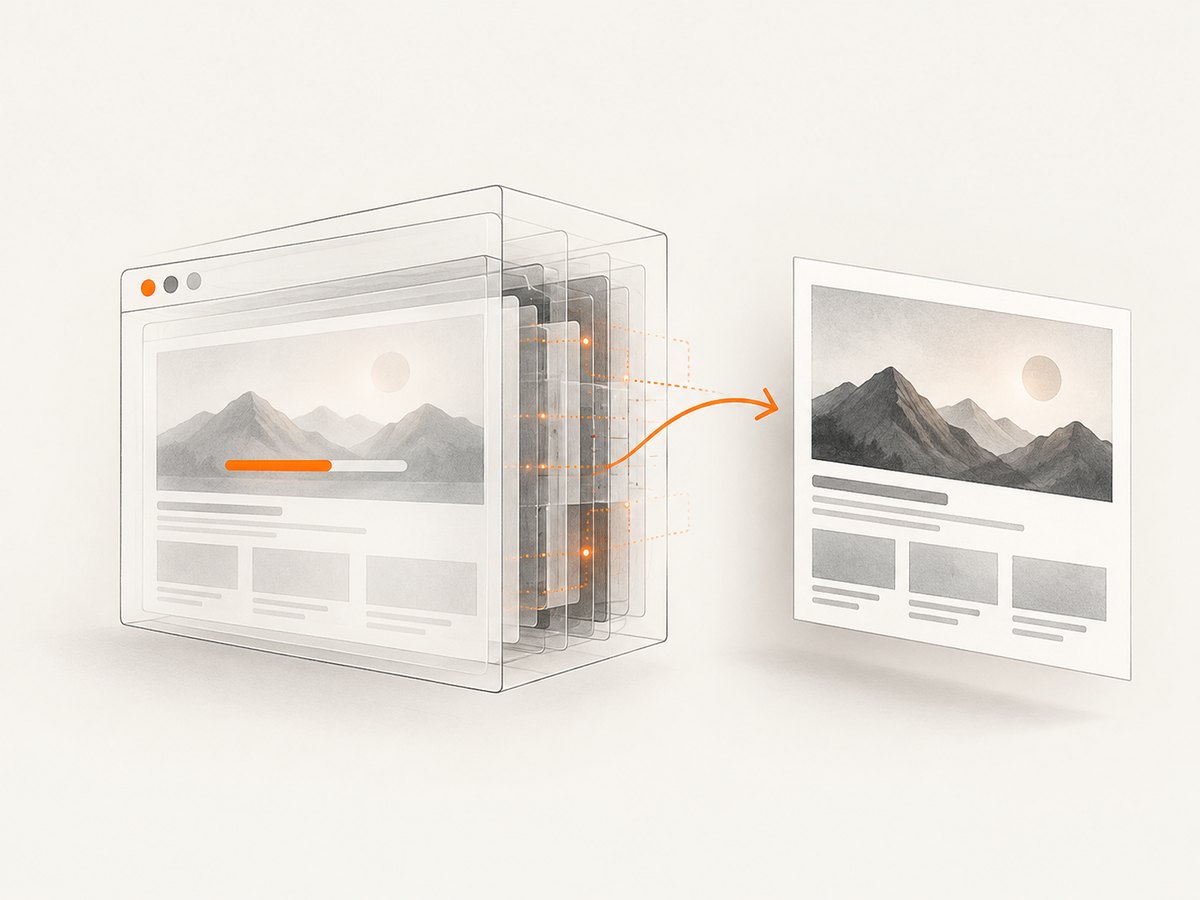
python -m pip install -U seleniumYou need a locally installed Chrome or Chromium binary for webdriver.Chrome, or Firefox for webdriver.Firefox. Selenium Manager can usually locate and manage a compatible driver when you create the driver. In locked-down CI images, install the browser and driver through the image’s package system and verify their versions before running the job.
Run the script from a directory where the process can write files. Relative paths are resolved from the current working directory, which is often different in a CI runner than on your laptop.
2. Chrome and Chromium headless screenshots
Basic viewport capture
from pathlib import Path
from selenium import webdriver
from selenium.webdriver.chrome.options import Options

output = Path("artifacts/example.png")
output.parent.mkdir(parents=True, exist_ok=True)

options = Options()
options.add_argument("--headless=new")
options.add_argument("--window-size=1440,1000")

driver = webdriver.Chrome(options=options)
try:
    driver.get("https://example.com")
    if not driver.save_screenshot(str(output)):
        raise IOError(f"Selenium could not write {output}")
finally:
    driver.quit()
--headless=new selects current Chromium headless mode. Chrome’s documentation shows headless Selenium usage and recommends setting the window size for predictable output. Since Chrome 132, the old implementation is distributed separately as chrome-headless-shell; older tutorials that rely on legacy behavior may not match current Chrome.
Capture bytes instead of a file
Use the in-memory APIs when you upload to object storage, attach the image to a test report, or process it without a temporary file:
from selenium import webdriver
from selenium.webdriver.chrome.options import Options

options = Options()
options.add_argument("--headless=new")
options.add_argument("--window-size=1280,900")

driver = webdriver.Chrome(options=options)
try:
    driver.get("https://example.com")
    png_bytes = driver.get_screenshot_as_png()
    with open("screenshot.png", "wb") as file:
        file.write(png_bytes)

    base64_png = driver.get_screenshot_as_base64()
    print(f"Base64 length: {len(base64_png)}")
finally:
    driver.quit()
The Selenium remote WebDriver API documents both byte and Base64 forms. Base64 is convenient for JSON transport, but raw bytes avoid the extra encoding overhead.
3. Firefox headless and full-page screenshots
Firefox uses --headless. Its Selenium binding also documents save_full_page_screenshot, which captures the full document rather than only the viewport.
from selenium import webdriver
from selenium.webdriver.firefox.options import Options

options = Options()
options.add_argument("--headless")
options.add_argument("--width=1440")
options.add_argument("--height=1000")

driver = webdriver.Firefox(options=options)
try:
    driver.get("https://example.com")
    if not driver.save_screenshot("firefox-viewport.png"):
        raise RuntimeError("Viewport screenshot failed")
    if not driver.save_full_page_screenshot("firefox-full-page.png"):
        raise RuntimeError("Full-page screenshot failed")
finally:
    driver.quit()
Firefox’s WebDriver API distinguishes the current-window screenshot from the full-document method. Chrome’s standard Selenium method is a viewport capture, so a cross-browser full-page workflow needs a browser-specific strategy.
4. Node.js Selenium example
Install the JavaScript binding:
npm install selenium-webdriverThis script runs Chrome without a visible window and writes a PNG:
const fs = require('node:fs/promises');
const { Builder } = require('selenium-webdriver');
const chrome = require('selenium-webdriver/chrome');

(async () => {
  const options = new chrome.Options();
  options.addArguments('--headless=new', '--window-size=1280,900');

  const driver = await new Builder()
    .forBrowser('chrome')
    .setChromeOptions(options)
    .build();

  try {
    await driver.get('https://example.com');
    const png = await driver.takeScreenshot();
    await fs.writeFile('screenshot.png', png, 'base64');
  } finally {
    await driver.quit();
  }
})();
takeScreenshot() returns a Base64-encoded PNG in the Node.js binding. The finally block matters in asynchronous code: without it, a failed navigation can leave a Chrome process and WebDriver session running.
5. Wait for the page before capturing
Headless mode does not make a page instantly ready. A screenshot taken immediately after get() can contain a loading skeleton, missing web fonts, or images that have not finished decoding. Wait for a state that represents the content you need.
Wait for a specific element
from selenium.webdriver.common.by import By
from selenium.webdriver.support.ui import WebDriverWait
from selenium.webdriver.support import expected_conditions as EC

# After driver.get(...)
wait = WebDriverWait(driver, 20)
hero = wait.until(EC.visibility_of_element_located((By.CSS_SELECTOR, "main")))
hero.screenshot("main.png")
Wait for document readiness
from selenium.webdriver.support.ui import WebDriverWait

WebDriverWait(driver, 20).until(
    lambda browser: browser.execute_script("return document.readyState") == "complete"
)
document.readyState == complete does not guarantee that lazy images, API data, or animations are finished. Prefer a selector that appears after the application has rendered its important content. For a known animation, use a short, explicit delay only when a deterministic selector is unavailable.
6. Full-page capture options and limitations
| Requirement | Recommended approach | Limit |
|---|---|---|
| Visible viewport | save_screenshot or takeScreenshot |
Captures only the current viewport. |
| Entire document in Firefox | save_full_page_screenshot |
Firefox-specific Selenium API. |
| Entire document in Chrome | Use a browser-specific full-page technique or resize the viewport carefully | Very tall pages can exceed browser bitmap limits; fixed headers and lazy content need validation. |
| One component | Locate the element and call its screenshot method |
Element must be present and rendered. |
For pages that lazy-load images when scrolled, a full-page capture may miss content unless you scroll through the document first. A simple approach is to scroll in increments, wait for images, then capture. This can trigger infinite scroll and makes the final page height unstable, so define a maximum scroll count for automated jobs.
import time

last_height = 0
for _ in range(20):
    height = driver.execute_script("return document.body.scrollHeight")
    if height == last_height:
        break
    last_height = height
    driver.execute_script("window.scrollTo(0, document.body.scrollHeight)")
    time.sleep(0.25)
driver.execute_script("window.scrollTo(0, 0)")
7. Useful browser options
--headless=new(Chromium): runs without a GUI.--headless(Firefox): runs Firefox without a GUI.--window-size=WIDTH,HEIGHT: sets a repeatable viewport. Screenshot dimensions follow the viewport and device scale settings.--disable-gpu: appears in older CI examples. Do not add it automatically; use the options required by the browser version and container.--no-sandbox: sometimes used in containers running as root. It changes browser security isolation and should only be used when your container policy requires it.--hide-scrollbars(Chromium): can remove scrollbars from the image, but changes the pixels being tested.
Keep the option list minimal. Extra flags copied from unrelated Docker tutorials can hide configuration errors or produce different rendering between local and CI environments.
8. Why a window still appears
- Confirm the headless argument is attached to the same options instance passed to
webdriver.Chrome(options=options)orsetChromeOptions(options). - Remove deprecated calls such as
setHeadless(true)and use explicit arguments. - Check that a framework is not creating a second driver without your options.
- Print the browser and driver versions in CI and verify that the intended binary is being launched.
- Make sure you are observing a real browser window rather than a desktop notification, VNC session, or another process started by the test runner.
9. Troubleshooting common failures
| Symptom | Likely cause | Fix |
|---|---|---|
| No file is created | Output directory is missing or not writable. | Create the directory, use an absolute path, and check the boolean returned by save_screenshot. |
| Screenshot is the wrong size | Viewport was not fixed, or device scale differs between environments. | Set --window-size and keep browser/container versions consistent. |
| Blank or half-rendered page | Capture happened before application content or fonts loaded. | Wait for a meaningful selector, document state, or a known network completion condition. |
| Missing lazy images | Images load only after scrolling into view. | Scroll in bounded increments, wait for image completion, then capture. |
| Session creation error | Browser and driver versions are incompatible, or the binary is absent. | Install a compatible browser/driver pair and inspect Selenium Manager or container logs. |
| Process hangs after failure | quit() was skipped. |
Put cleanup in finally (Python) or try/finally (Node.js). |
| Full-page method is unavailable | The selected browser binding does not expose that method. | Use Firefox’s documented full-page API or implement a browser-specific capture strategy. |
| Different pixels in CI | Fonts, viewport, timezone, device scale, or browser versions differ. | Pin the environment, install the same fonts, set viewport and timezone, and compare artifacts. |
10. Reliability, performance, and cost considerations
Headless mode removes the desktop display; it does not remove the cost of starting a browser, loading assets, executing JavaScript, and waiting for the page. Reuse a driver for a controlled batch of pages when isolation allows it. Create separate sessions when tests change cookies, local storage, permissions, or authentication state.
Use explicit timeouts so a broken dependency cannot hold a CI worker forever. Capture diagnostic data on failure: the URL, browser version, viewport, page title, console logs where available, and a screenshot of the failure state. Always close the driver even when navigation or writing fails.
For repeatable visual comparisons, standardize:
- Browser and driver versions.
- Viewport width and height.
- Device scale factor and operating-system fonts.
- Timezone, locale, and geolocation.
- Authentication, cookies, and test data.
- Animation state and network-dependent content.
Local Selenium has no per-screenshot service charge, but your CI or host still consumes CPU, memory, storage, and network bandwidth. Full-page images use more memory than viewport captures. Store only the artifacts you need and use deterministic waits instead of very long fixed sleeps.
Or skip the browser setup
If you need a clean screenshot from a URL without installing and maintaining a browser, ScreenshotNeo provides a single HTTP request. See the ScreenshotNeo API documentation for all capture options.
curl -G "https://api.screenshotneo.com/v1/shot" -d access_key=YOUR_API_KEY --data-urlencode url=https://stripe.com -o shot.webpimport requests
r = requests.get("https://api.screenshotneo.com/v1/shot", params={"access_key": "YOUR_API_KEY", "url": "https://stripe.com"}, timeout=90)
open("shot.webp", "wb").write(r.content)const q = new URLSearchParams({ access_key: 'YOUR_API_KEY', url: 'https://stripe.com' });
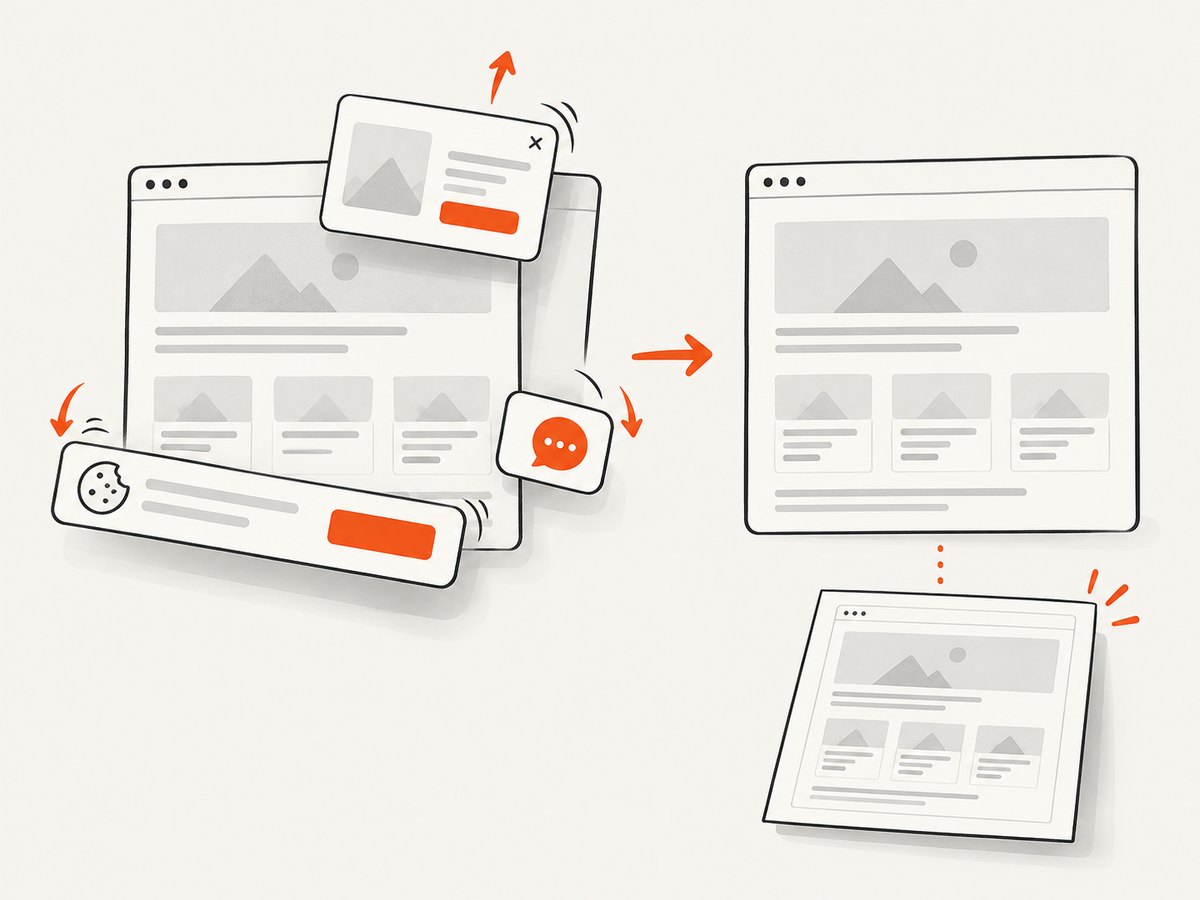
const res = await fetch(`https://api.screenshotneo.com/v1/shot?${q}`);ScreenshotNeo accepts the cookie or consent banner like a visitor and removes more than 60 known consent platforms, newsletter popups, and chat widgets before capture; each cleanup step can be turned off. Bot checks and CAPTCHAs, blank pages, timeouts, failed loads, and cache hits are not billed, and the response identifies the result with X-Page-Verdict and X-Billed headers. It also provides an MCP server with take_screenshot, get_page_info, and capture_pdf tools for Claude, Cursor, and other MCP clients.
You can set full-page capture, CSS element selection, dark mode, device presets or custom viewports, retina scale, PDF settings, custom CSS and JavaScript, clicks, waits, request blocking, headers, cookies, user agents, authorization, timezone, geolocation, transparent backgrounds, resizing, caching TTLs, signed image links, asynchronous webhooks, bulk capture, and usage reporting. The free plan includes 1,000 screenshots each month with no card; paid plans start at $5 for 3,000 shots. Create a free ScreenshotNeo account.
FAQ
Does headless Selenium render the same page as headed Chrome?
Current Chrome shares code between headless and headful modes, but pixels can still differ because of fonts, viewport, device scale, browser versions, and environment settings. Pin those variables for visual tests.
Can I take a screenshot without saving a file?
Yes. Python provides get_screenshot_as_png() and get_screenshot_as_base64(); Node.js returns Base64 from takeScreenshot().
Why does save_screenshot return false?
The driver could not write the image, commonly because the path is invalid or the directory is not writable. Use a writable absolute path and check permissions.
Which browser has a documented Selenium full-page method?
Firefox’s Selenium API documents save_full_page_screenshot. Chrome’s ordinary screenshot method captures the current viewport, so full-page Chrome capture requires a separate strategy.
Is Selenium headless suitable for public image URLs?
It works well for controlled automation and test pipelines. For a production endpoint that accepts arbitrary URLs, an API such as ScreenshotNeo removes browser packaging and lifecycle work while providing capture options and billing verdicts.


