How to Capture the Entire Screen in Selenium with Horizontal Scrolling
Capture a wide, tall page in Selenium with Chrome DevTools Protocol or a scroll-and-stitch fallback, including practical fixes for sticky headers, lazy content, and tile seams.
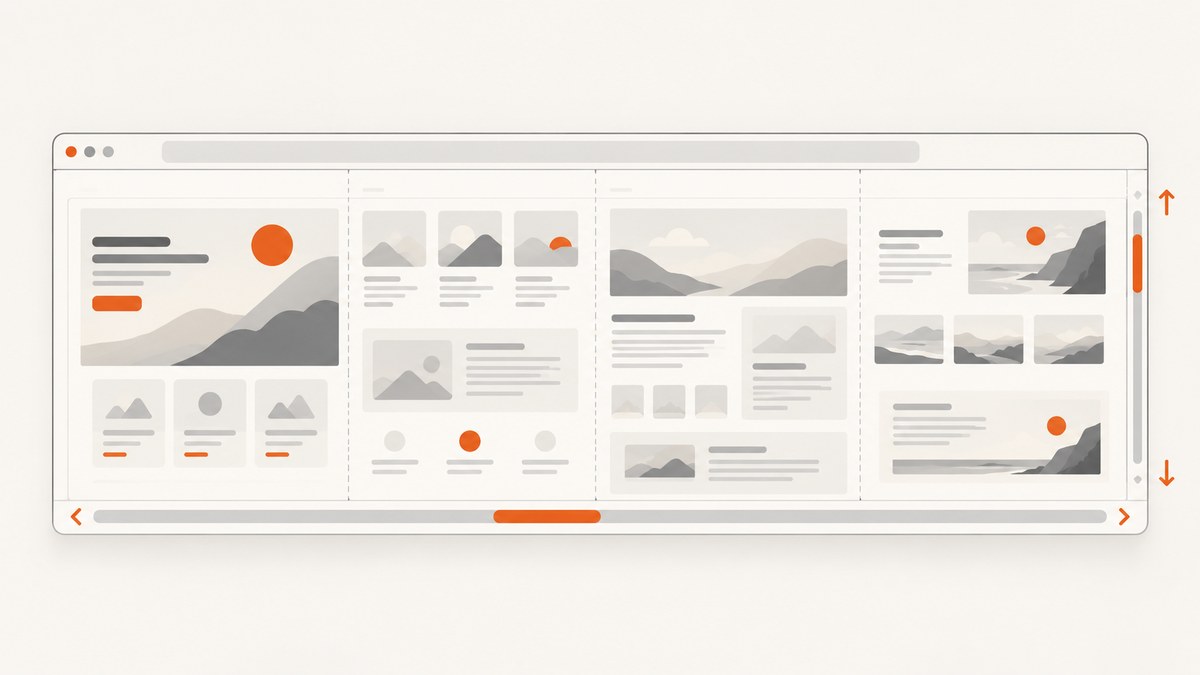
Selenium’s normal screenshot command captures the current viewport. To capture an entire page that also overflows horizontally, use Chrome DevTools Protocol (CDP) to capture a clip covering the page’s measured content width and height. If that fails for a very large or dynamic page, scroll the viewport across the page, save each tile, and stitch tiles at their actual scroll offsets.
This guide uses Python with Selenium and Chrome. It covers both approaches, including horizontal overflow, lazy content, sticky headers, nested scrollers, output dimensions, and common failures. ScreenshotNeo is a hosted screenshot API and MCP server if you want to avoid managing browser capture and stitching yourself.
1. Choose a capture method
| Method | Use it when | Trade-off |
|---|---|---|
| CDP full-content capture | You use Chromium and want one screenshot of the measured document bounds. | Chromium-specific; very large clips can exceed browser or image limits, and scrolling may be needed to load dynamic content. |
| Scroll and stitch | CDP capture is unavailable, fails at the required size, or the page reveals content on scroll. | More steps, more time, and fixed UI can repeat across tiles. |
Both methods capture the top-level document. A horizontally scrolling table, carousel, nested scroll panel, iframe, or virtualized list may need a separate capture strategy. Decide whether “entire screen” means the whole document or the visible content of a particular nested region.
2. Set up Selenium and wait for the page
Install Selenium and Pillow for browser control and image assembly. Selenium Manager can provision the browser driver in supported setups. This example uses Chrome; adjust browser setup for your installed Selenium and Chrome versions.
python -m pip install selenium pillowfrom selenium import webdriver
from selenium.webdriver.support.ui import WebDriverWait
url = "https://example.com"
options = webdriver.ChromeOptions()
# For CI, headless mode is often useful. Remove this to inspect the browser.
options.add_argument("--headless=new")
driver = webdriver.Chrome(options=options)
try:
driver.set_window_size(1440, 1000)
driver.get(url)
WebDriverWait(driver, 30).until(
lambda d: d.execute_script("return document.readyState") == "complete"
)
# Add an application-specific wait for the actual content you need.
WebDriverWait(driver, 20).until(
lambda d: d.execute_script("return document.body && document.body.innerText.length > 0")
)
finally:
driver.quit()document.readyState == "complete" only means the document load event has completed. It does not guarantee that client-side rendering, fonts, images, API requests, animations, or lazy content are finished. Prefer a wait for a known selector that signals the page is ready. For pages where fonts affect layout, wait for document.fonts.ready; for images, check the images relevant to the capture rather than assuming the load event covers them.
3. Capture the complete content with CDP
CDP’s Page.getLayoutMetrics provides cssContentSize. Use its width and height for the screenshot clip, and explicitly set captureBeyondViewport to true. The protocol default is false. Selenium’s maintained Chromium protocol definitions expose the screenshot command, but the Python command wrapper can vary across Selenium releases. See the CDP captureScreenshot, getLayoutMetrics, and Selenium Chromium WebDriver references.
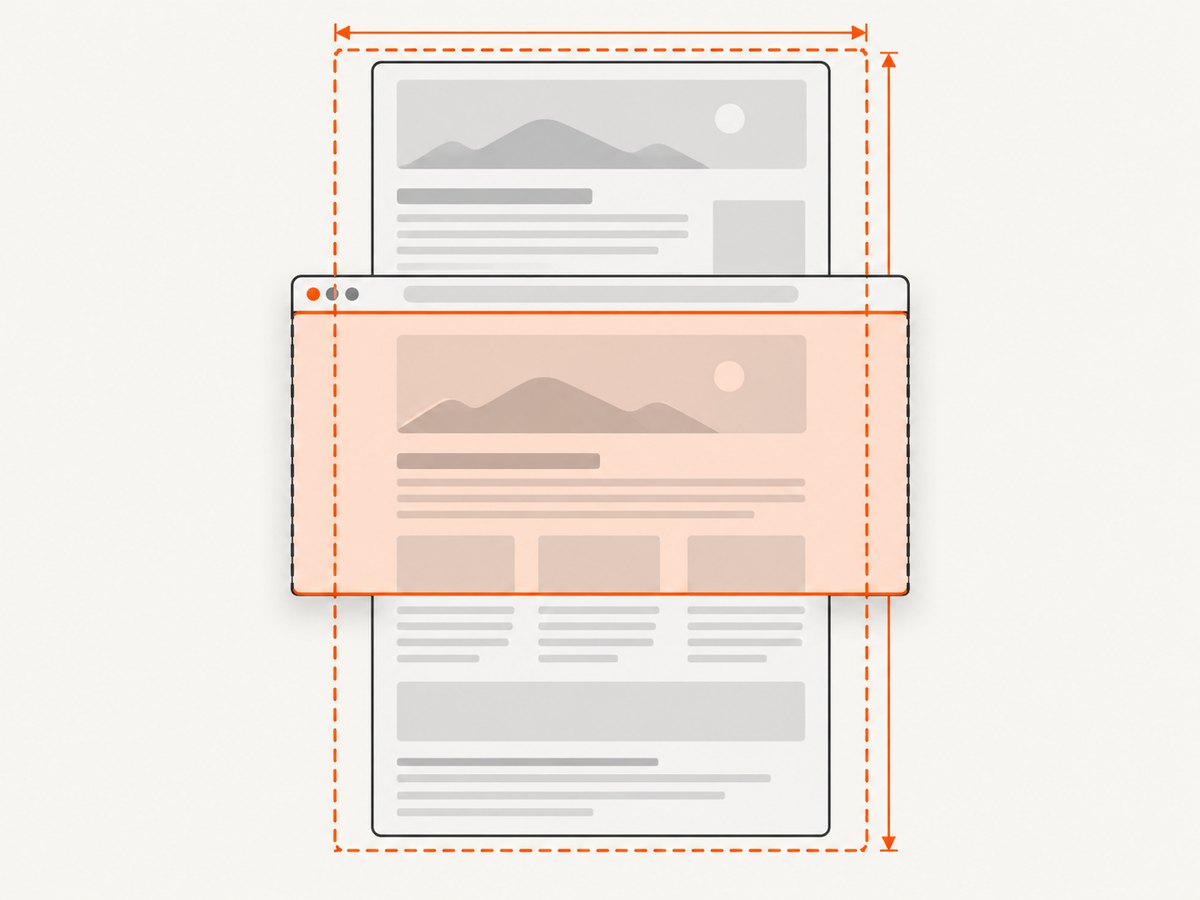
For current Selenium Python bindings, execute_cdp_cmd sends protocol commands and returns their results. This code writes the returned PNG bytes directly to a file:
import base64
import json
from selenium import webdriver
from selenium.webdriver.support.ui import WebDriverWait

url = "https://example.com"
options = webdriver.ChromeOptions()
options.add_argument("--headless=new")
driver = webdriver.Chrome(options=options)
try:
    driver.set_window_size(1440, 1000)
    driver.get(url)
    WebDriverWait(driver, 30).until(
        lambda d: d.execute_script("return document.readyState") == "complete"
    )

    metrics = driver.execute_cdp_cmd("Page.getLayoutMetrics", {})
    content = metrics["cssContentSize"]
    width, height = int(content["width"]), int(content["height"])
    if width <= 0 or height <= 0:
        raise RuntimeError(f"Invalid page dimensions: {width}x{height}")

    result = driver.execute_cdp_cmd("Page.captureScreenshot", {
        "format": "png",
        "captureBeyondViewport": True,
        "fromSurface": True,
        "clip": {
            "x": 0,
            "y": 0,
            "width": width,
            "height": height,
            "scale": 1
        }
    })
    with open("full-page.png", "wb") as image_file:
        image_file.write(base64.b64decode(result["data"]))
    print(f"Saved {width}x{height} CSS-pixel clip to full-page.png")
finally:
    driver.quit()
The returned bitmap’s pixel dimensions can differ from CSS dimensions because device scale factor and capture behavior affect raster output. Open the image and inspect its actual dimensions; do not assume the printed CSS dimensions are the file’s pixel dimensions. CDP versions may vary, so check the protocol and Selenium binding for the browser version you run.
To use JPEG or WebP where supported, set format to that format. JPEG and WebP can reduce file size, but lossy compression can blur small text and sharp edges. PNG is a reliable default for text-heavy pages. Protocol-specific quality controls may be available for lossy formats; consult the protocol schema for the Chrome version in use.
4. Measure horizontal and vertical overflow
When you need page-level dimensions outside CDP, measure both the document element and the body. Which element reports the useful size varies by page and browser. This JavaScript helper returns the maximum reported width and height:
dimensions = driver.execute_script("""
const de = document.documentElement;
const body = document.body;
return {
  width: Math.max(de.scrollWidth, body ? body.scrollWidth : 0),
  height: Math.max(de.scrollHeight, body ? body.scrollHeight : 0),
  viewportWidth: de.clientWidth,
  viewportHeight: de.clientHeight,
  dpr: window.devicePixelRatio
};
""")
print(dimensions)
This is a page-level estimate, not a universal description of everything a person can scroll. CSS transforms, absolutely positioned elements, shadow DOM, iframe documents, nested scroll containers, and virtualized content can complicate measurements. A virtualized list may only have a small number of rows in the DOM at once; a document screenshot cannot include rows that have not been rendered.
5. Scroll and stitch as a fallback
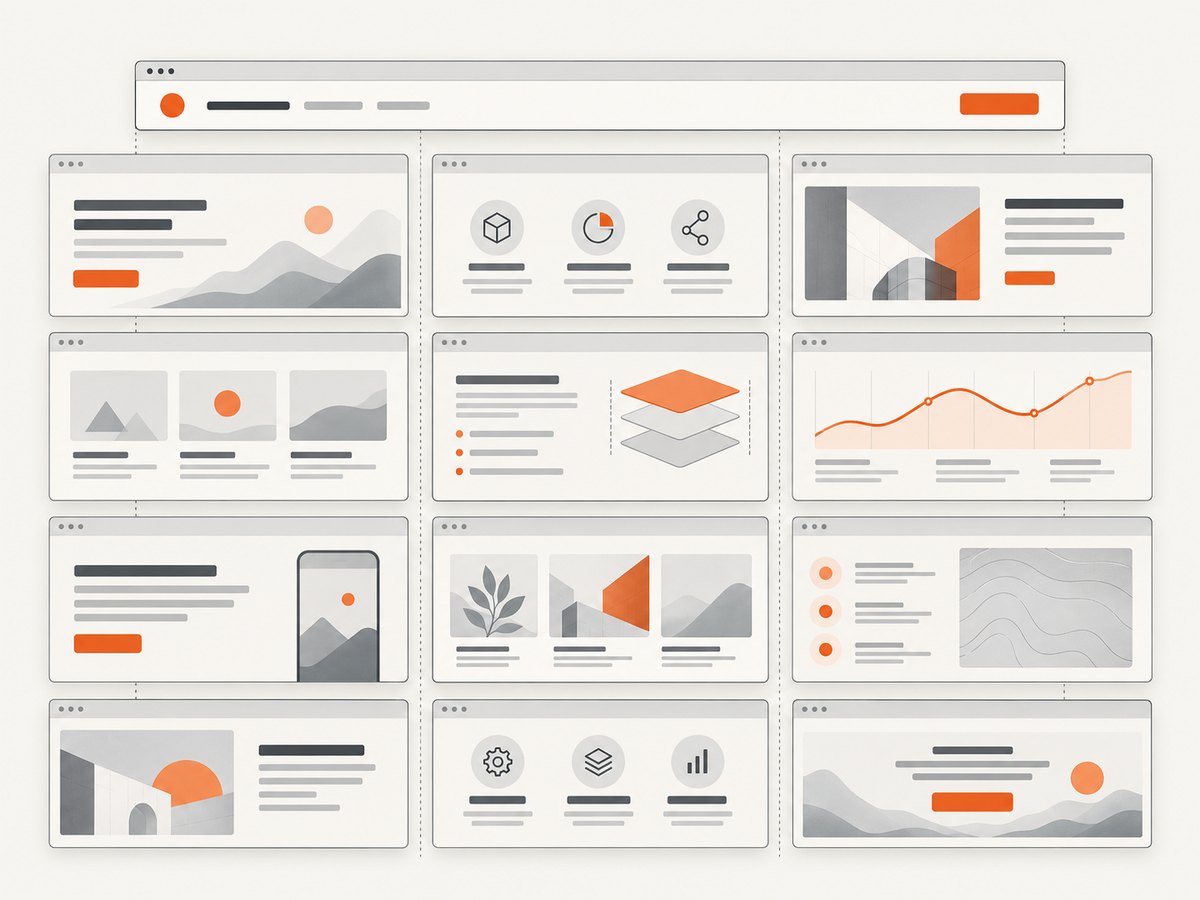
For a dynamic page or a CDP clip that is too large, capture viewport-sized tiles. The following runnable Python example uses Selenium for viewport screenshots and Pillow to assemble them. It uses actual post-scroll offsets because browsers clamp requested scroll positions at the document edges.
import math
import time
from io import BytesIO
from PIL import Image
from selenium import webdriver
from selenium.webdriver.support.ui import WebDriverWait

url = "https://example.com"
options = webdriver.ChromeOptions()
options.add_argument("--headless=new")
driver = webdriver.Chrome(options=options)
try:
    driver.set_window_size(1200, 900)
    driver.get(url)
    WebDriverWait(driver, 30).until(
        lambda d: d.execute_script("return document.readyState") == "complete"
    )

    # Optional: ask the page to stop motion that makes tile seams unpredictable.
    original_style = driver.execute_script("""
      const style = document.createElement('style');
      style.id = '__selenium_capture_style';
      style.textContent = `*, *::before, *::after {
        animation: none !important;
        transition: none !important;
        caret-color: transparent !important;
      }`;
      document.head.appendChild(style);
      return style.id;
    """)
    metrics = driver.execute_script("""
      const de = document.documentElement, b = document.body;
      return {
        vw: de.clientWidth, vh: de.clientHeight,
        cw: Math.max(de.scrollWidth, b ? b.scrollWidth : 0),
        ch: Math.max(de.scrollHeight, b ? b.scrollHeight : 0),
        x: window.scrollX, y: window.scrollY
      };
    """)
    original_x, original_y = metrics["x"], metrics["y"]
    canvas = Image.new("RGB", (metrics["cw"], metrics["ch"]), "white")
    x_positions = list(range(0, metrics["cw"], metrics["vw"]))
    y_positions = list(range(0, metrics["ch"], metrics["vh"]))

    for y in y_positions:
        for x in x_positions:
            actual = driver.execute_script("""
              window.scrollTo(arguments[0], arguments[1]);
              return {x: window.scrollX, y: window.scrollY};
            """, x, y)
            # Replace with a selector or app-specific wait for scroll-linked content.
            time.sleep(0.2)
            tile = Image.open(BytesIO(driver.get_screenshot_as_png())).convert("RGB")
            left = int(actual["x"])
            top = int(actual["y"])
            # Clip at page bounds. Later tiles may overlap; paste the visible tile
            # at its measured offset so the last row/column does not extend canvas.
            right = min(left + tile.width, metrics["cw"])
            bottom = min(top + tile.height, metrics["ch"])
            if right > left and bottom > top:
                canvas.paste(tile.crop((0, 0, right-left, bottom-top)), (left, top))

    canvas.save("stitched.png")
    driver.execute_script("window.scrollTo(arguments[0], arguments[1])", original_x, original_y)
    driver.execute_script("document.getElementById(arguments[0])?.remove()", original_style)
finally:
    driver.quit()
This basic stitcher pastes each viewport at its scroll position, so overlapping portions are overwritten by later tiles. That can be acceptable for static content but can create visible seams if the page changes between captures. For deterministic stitching, choose a fixed overlap and crop each tile to non-overlapping regions, or compare adjacent overlaps and select a consistent boundary. If the viewport screenshot includes browser-controlled scrollbars differently across positions, inspect seams and adjust the crop.
For sticky or fixed headers, a tile screenshot may contain the header at the top of every viewport. A practical option is to add temporary CSS that neutralizes fixed positioning during capture, provided the layout remains representative. Another option is to mask repeated header regions while stitching and keep the first copy. Remove injected styles and restore the original scroll position even when capture fails; for production code, put restoration in a finally block.
6. Handle lazy loading, motion, and special page structures
- Lazy images and scroll-triggered sections: visit each scroll position and wait for the relevant image or section to load before taking its tile. A single CDP capture may not trigger content that only appears when scrolled into view.
- Fonts and layout shifts: wait for
document.fonts.readyand for important images to be complete before measuring. Re-measure after the page settles because dimensions can change. - Animations and blinking cursors: disable them with temporary CSS when visual determinism matters. This can change page behavior, so use it only when acceptable for the screenshot.
- Nested scroll containers: scroll the specific element and capture its region, or temporarily expand it if the page permits.
window.scrollToonly moves the top-level document. - Iframes: switch to the frame to inspect or capture its content. Cross-origin restrictions prevent page JavaScript from measuring another origin’s document, though WebDriver can switch browsing context where permitted.
- Virtualized lists: scroll through the list to force rows to render and assemble those states. A full-document bitmap cannot include content the application has not inserted into the DOM.
- Fixed overlays, consent dialogs, and chat widgets: decide whether these belong in the result. Hide or dismiss them only when the test’s purpose allows it; changes can affect page layout.
7. Performance, reliability, and file size
A full-page bitmap’s pixel count grows with both dimensions. A very wide and tall page can consume substantial browser memory, image memory, and disk space. PNG files preserve text edges but can be large; JPEG or WebP may be smaller at the expense of image detail. A tiled capture uses more browser interactions and waits, and stitching holds the output canvas in memory. If pages are exceptionally large, process tiles incrementally, reduce device scale factor where the test permits, or capture only the region needed.
Keep capture conditions stable: fix the viewport, device scale, browser version, fonts, and network-dependent state. Wait for meaningful selectors instead of relying on arbitrary long sleeps. Log measured dimensions, tile offsets, and the URL when debugging. Validate the final image’s dimensions and inspect boundaries between tiles; a file can be successfully written while still omitting content or showing repeated overlays.
CDP is convenient for Chromium but ties the capture path to Chrome’s protocol. The scroll-and-stitch method uses ordinary WebDriver viewport screenshots, but page dynamics and tile count make it more complex. Selenium’s screenshot API returns an image for the current browsing context; it does not itself promise a full-document screenshot. See the Selenium screenshot documentation.
8. Troubleshooting
| Symptom | Likely cause | Fix |
|---|---|---|
| Only the visible viewport appears | Used the standard Selenium screenshot endpoint. | Use the CDP clip with content dimensions and captureBeyondViewport: true, or capture and stitch tiles. |
| Right side is missing | Width was measured from only one element or only viewport width. | Compare documentElement and body scroll widths; include horizontal overflow in the CDP clip or tile positions. |
| CDP command or parameter errors | Selenium/Chrome protocol wrapper or browser version differs. | Check the installed Selenium API and protocol schema matching the Chrome version. Inspect the command name and returned metrics. |
| Screenshot is blank or clipped | Invalid dimensions, page not ready, or capture bounds exceeded browser limits. | Wait for content, verify positive dimensions, try a smaller region, or use tiled capture. |
| Repeated header or chat widget | Fixed or sticky UI appears in every viewport tile. | Temporarily neutralize the element’s positioning or mask later copies during stitching. |
| Gaps or duplicated bands | Requested offsets were clamped, overlap was pasted inconsistently, or layout shifted. | Use returned scrollX/scrollY, remeasure after settling, and inspect overlap boundaries. |
| Images or rows are missing | Lazy loading or virtualization did not render offscreen content. | Scroll to each region, wait for it to render, and capture tiles; use app-specific waits. |
| Unexpectedly huge output | Device pixel ratio or page dimensions are larger than expected. | Check CSS dimensions and DPR, then reduce scale or capture a narrower target if fidelity allows. |
9. Or skip the browser setup
ScreenshotNeo is a website screenshot API: send a URL and receive an image or PDF. Its API and MCP server are documented at ScreenshotNeo docs. Here is the one-call cURL form:
curl -G "https://api.screenshotneo.com/v1/shot" -d access_key=YOUR_API_KEY --data-urlencode url=https://stripe.com -o shot.webpPython:
import requests
r = requests.get("https://api.screenshotneo.com/v1/shot", params={"access_key": "YOUR_API_KEY", "url": "https://stripe.com"}, timeout=90)
open("shot.webp", "wb").write(r.content)
Node.js:
const q = new URLSearchParams({ access_key: 'YOUR_API_KEY', url: 'https://stripe.com' });
const res = await fetch(`https://api.screenshotneo.com/v1/shot?${q}`);- Cookie banners are accepted like a visitor; 60+ known consent platforms, newsletter popups, and chat widgets are removed before the shot. Each step can be turned off.
- Bot checks and CAPTCHAs, blank pages, timeouts, failed loads, and cache hits are never billed; response headers say the page verdict and whether it was billed.
- An MCP server lets Claude, Cursor, and other MCP clients use
take_screenshot,get_page_info, andcapture_pdf. - The free plan includes 1,000 screenshots a month with no card. Paid plans start at $5 for 3,000 screenshots; every feature is on every plan.
Sign up free for 1,000 screenshots a month, with no card.
10. FAQ
Can Selenium capture horizontal overflow with one screenshot?
With Chromium, CDP can capture a clip wider than the viewport when you measure the content width and enable captureBeyondViewport. A normal WebDriver screenshot remains viewport-scoped.
Does full-page capture include content inside a scrolling table?
Not automatically. The table may have its own scroll container. Scroll and capture that element separately, or use a page-specific method to expose its full content.
Why do screenshots differ across runs?
Fonts, image loading, animations, responsive layout, device scale, and live content can change pixels or dimensions. Stabilize those inputs and wait for the page state relevant to the test.
Should I use a full-size screenshot or tiles?
Use a CDP clip for a straightforward Chromium page within practical image limits. Use tiles when scrolling triggers content, the clip is too large, or you need per-region retries and inspection.


