Fixing Selenium Visibility Waits in Headless Chrome for Google IAP
Diagnose Google IAP redirects, sessions, and Selenium visibility waits in headless Chrome with explicit checks and practical Python examples.
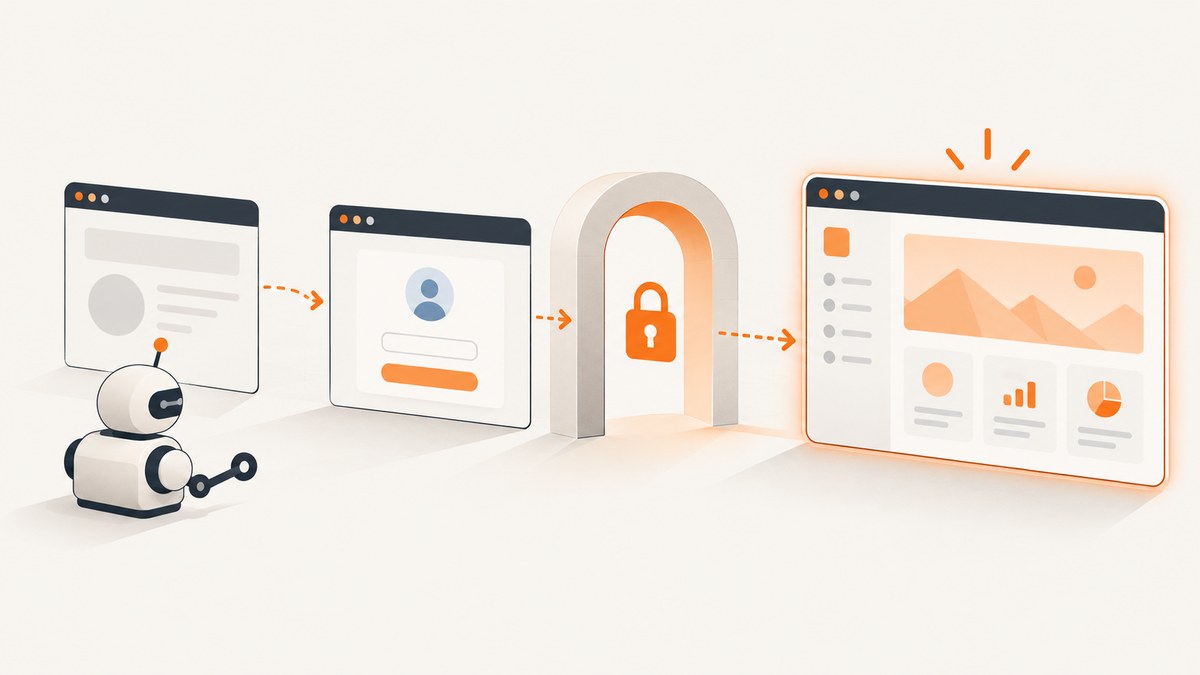
Direct answer: a Selenium visibility timeout in headless Chrome does not prove that the element is slow. First establish that Google IAP authentication completed and that the browser returned to the protected application. Then wait for the exact application element and visible state your test needs. A page-load event or document.readyState == complete only describes navigation; JavaScript can render or reveal controls later.
This sequence separates three different failures: an IAP redirect or OAuth problem, an IAP session or cookie problem, and an application-readiness problem. Increasing the timeout helps only the last category.
1. Understand what Selenium is waiting for
Selenium describes explicit waits as condition-based waits. Its official guidance notes that browser automation commonly fails when an application is not yet in the state required by the next command. WebDriver page-load strategies are based on document.readyState, which does not guarantee that a client-rendered element exists or is displayed.
Use one clear explicit wait for the state you need. Selenium warns that combining a nonzero implicit wait with explicit waits can produce unpredictable timeout durations.
| Observation | What it proves | What it does not prove |
|---|---|---|
driver.get() returned |
The selected page-load strategy completed | IAP authentication succeeded or the target control is visible |
readyState == complete |
The document load event reached completion | Client JavaScript finished rendering the control |
| Final URL is the protected host | The browser returned to the application host | The response is not an IAP error page |
| Expected IAP cookie exists | A session cookie was set in the relevant scope | The application request used it correctly |
| Element is visible | The locator matches an element Selenium considers displayed | That element is enabled or ready for the next business action |
2. Record the browser and headless runtime
Save the Chrome version, ChromeDriver version, Selenium version, operating system, viewport, and arguments. Chrome’s official Selenium example enables current Headless with --headless. Current Headless is unified with headful Chrome; the older implementation became a separate chrome-headless-shell starting with Chrome 132.0.6793.0. Do not apply an old Headless-only workaround without checking the versions.
python - <<'PY'
import selenium
from selenium import webdriver
from selenium.webdriver.chrome.options import Options

options = Options()
options.add_argument("--headless")
options.add_argument("--window-size=1440,1000")
driver = webdriver.Chrome(options=options)
print("Selenium:", selenium.__version__)
print("Browser:", driver.capabilities.get("browserVersion"))
print("Driver:", driver.capabilities.get("chromedriverVersion"))
print("User agent:", driver.execute_script("return navigator.userAgent"))
driver.quit()
PY
Keep the viewport fixed while diagnosing. A responsive breakpoint can hide or replace a control and look like a wait failure.
3. Preserve the complete IAP redirect chain
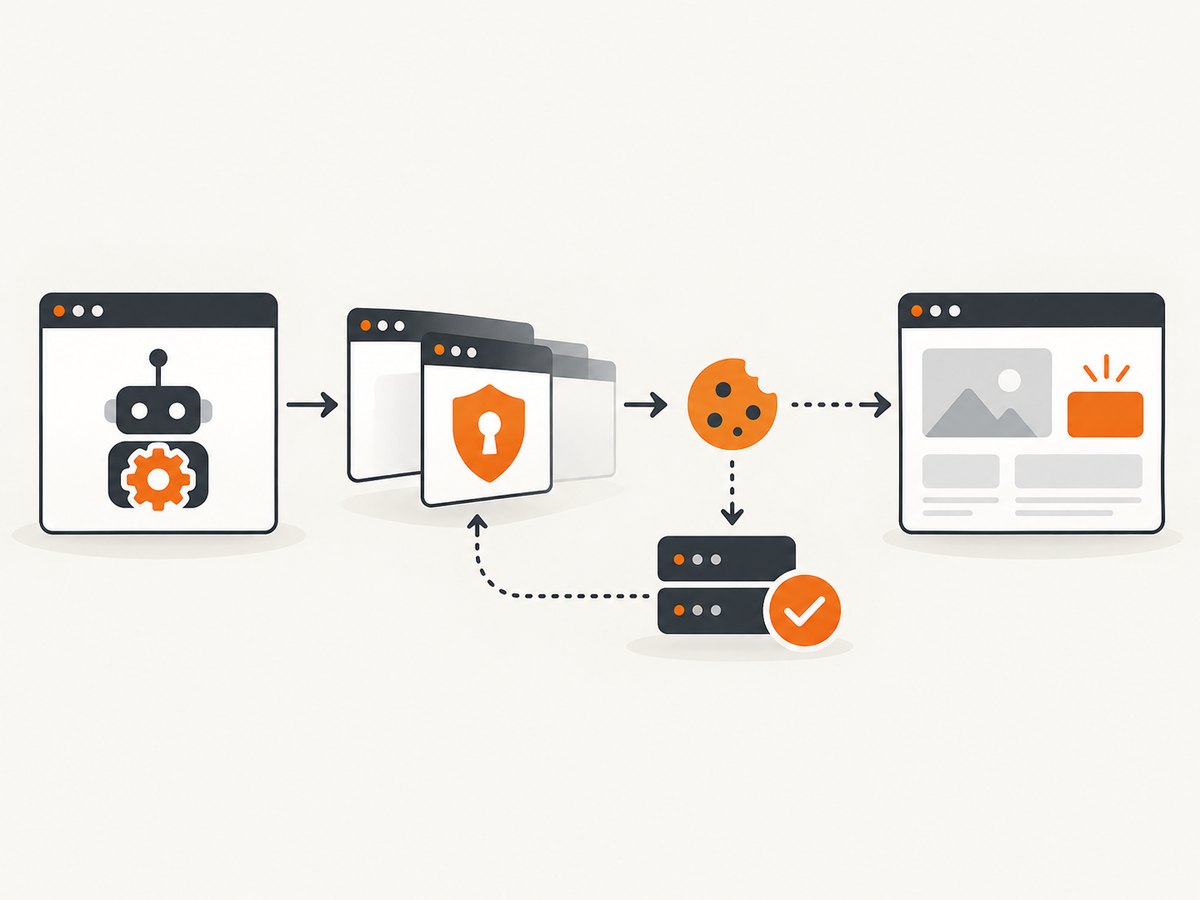
Enable the browser Network log before navigation and preserve it across redirects. Google recommends distinguishing failures on iap.googleapis.com from failures after the browser returns to the application’s domain. This tells you whether the visibility wait is even being reached on the intended page.
from selenium import webdriver
from selenium.webdriver.chrome.options import Options
import json

options = Options()
options.add_argument("--headless")
options.add_argument("--window-size=1440,1000")
options.set_capability("goog:loggingPrefs", {"performance": "ALL"})

driver = webdriver.Chrome(options=options)
try:
    driver.get("https://protected.example.com")
    print("Final URL:", driver.current_url)
    print("Title:", driver.title)

    for entry in driver.get_log("performance"):
        message = json.loads(entry["message"])["message"]
        if message["method"] == "Network.responseReceived":
            response = message["params"]["response"]
            url = response["url"]
            if "iap.googleapis.com" in url or "protected.example.com" in url:
                print(response["status"], url)
finally:
    driver.quit()
For a failed run, retain the final URL, title, status codes, and a screenshot. A failure on iap.googleapis.com is an authentication or OAuth investigation. A redirect back to the app followed by an IAP error requires app-domain and IAP troubleshooting. A normal application response with a late-rendered control is an application wait problem.
4. Verify that IAP authentication completed
IAP relies on cookies to manage user sessions. Check the final host, the page content, and cookies before waiting for an application locator.
from urllib.parse import urlparse

final_host = urlparse(driver.current_url).hostname
print("Final host:", final_host)
print("Cookies:")
for cookie in driver.get_cookies():
    print(cookie["name"], cookie.get("domain"), cookie.get("path"))

body_text = driver.find_element("tag name", "body").text[:1000]
print("Body preview:", body_text)
Do not hard-code a cookie name from an example and assume it proves success. Confirm that the cookie is scoped to the target domain where appropriate and that the final response is your application, not a sign-in or error page. If the application makes cross-origin AJAX requests, verify target-domain session establishment, request credentials, and third-party-cookie behavior. An AJAX request that returns 401 can indicate missing credentials or cookies even when the top-level page loaded.
5. Wait for the precise visible condition
After the browser is back on the application, use an explicit wait for the locator and state required by the next action. Choose a stable locator such as an ID, data attribute, or accessible role rather than a brittle CSS path.
from selenium.webdriver.common.by import By
from selenium.webdriver.support.ui import WebDriverWait
from selenium.webdriver.support import expected_conditions as EC
from selenium.common.exceptions import TimeoutException

wait = WebDriverWait(driver, 30, poll_frequency=0.25)
locator = (By.CSS_SELECTOR, "[data-testid='dashboard-ready']")
try:
    element = wait.until(EC.visibility_of_element_located(locator))
    print("Visible:", element.is_displayed())
except TimeoutException:
    driver.save_screenshot("visibility-timeout.png")
    print("URL at timeout:", driver.current_url)
    print("Title at timeout:", driver.title)
    raise
Use a different condition when visibility is not the real requirement:
# Present in the DOM, even if hidden
wait.until(EC.presence_of_element_located(locator))

# Visible and enabled for a click
wait.until(EC.element_to_be_clickable(locator))

# A client-side route or redirect has settled
wait.until(lambda d: d.current_url.startswith("https://protected.example.com/app"))

# A loading marker disappeared
wait.until(EC.invisibility_of_element_located((By.CSS_SELECTOR, ".loading")))
If the element is replaced during rendering, reacquire it through the wait instead of storing a reference too early. If an iframe contains the target, wait for the frame and switch into it first. If a shadow root owns the control, locate through the shadow root rather than expecting a normal document query to find it.
6. Use a diagnostic headed/headless comparison
Run the same test once with --headless and once without it only to expose an environment difference. Compare:
- Chrome and ChromeDriver versions and arguments
- Final URL and page title
- Preserved Network log and response status
- Cookies and their domains
- Viewport and window size
- Screenshot and the element’s presence, display, and bounding rectangle
The official documentation does not establish a universal Headless visibility defect. If the runs differ, report the reproducible environment and the observed network, cookie, and DOM evidence rather than presuming that Headless changed Selenium’s visibility semantics.
7. Complete Python diagnostic example
import json
from urllib.parse import urlparse
from selenium import webdriver
from selenium.webdriver.chrome.options import Options
from selenium.webdriver.common.by import By
from selenium.webdriver.support.ui import WebDriverWait
from selenium.webdriver.support import expected_conditions as EC

APP_URL = "https://protected.example.com"
TARGET = (By.CSS_SELECTOR, "[data-testid='dashboard-ready']")

options = Options()
options.add_argument("--headless")
options.add_argument("--window-size=1440,1000")
options.set_capability("goog:loggingPrefs", {"performance": "ALL"})

driver = webdriver.Chrome(options=options)
try:
    driver.get(APP_URL)
    print("final_url=", driver.current_url)
    print("title=", driver.title)
    print("host=", urlparse(driver.current_url).hostname)
    print("cookies=", [(c["name"], c.get("domain")) for c in driver.get_cookies()])

    for entry in driver.get_log("performance"):
        message = json.loads(entry["message"])["message"]
        if message["method"] == "Network.responseReceived":
            response = message["params"]["response"]
            if "iap.googleapis.com" in response["url"] or urlparse(APP_URL).netloc in response["url"]:
                print("response", response["status"], response["url"])

    wait = WebDriverWait(driver, 30, poll_frequency=0.25)
    element = wait.until(EC.visibility_of_element_located(TARGET))
    print("target_visible=", element.is_displayed())
except Exception:
    driver.save_screenshot("iap-diagnostic-failure.png")
    print("failure_url=", driver.current_url)
    print("failure_title=", driver.title)
    raise
finally:
    driver.quit()
8. Troubleshooting checklist
| Symptom | Likely boundary | Action |
|---|---|---|
Network log fails on iap.googleapis.com |
IAP authentication, OAuth, or redirect setup | Fix the IAP flow and inspect the documented error before changing Selenium waits. |
| Final URL is the app, but the body contains an IAP error | Authorization or app-domain IAP response | Use the error code and IAP troubleshooting guidance; do not merely extend the element timeout. |
| Final app response is normal; control appears later | Client rendering race | Wait for that locator’s visibility, presence, enabled state, or a loading marker to disappear. |
| AJAX returns 401 | Target-domain session, credentials, or cookie policy | Inspect target-domain cookies, credentialed requests, and third-party-cookie settings. |
| Timeout lasts longer than configured | Stacked implicit and explicit waits | Set the implicit wait to zero and use one explicit wait policy. |
| Headed works while Headless fails | Environment difference | Compare versions, arguments, viewport, URL, network log, cookies, screenshot, and DOM state. |
| Element is present but not visible | CSS, overlay, responsive layout, iframe, or shadow DOM | Inspect computed display/visibility, overlays, frame context, shadow root, and viewport. |
9. Reliability, performance, and cost considerations
- Use a short polling interval only when the application changes quickly; polling more often cannot repair a failed IAP flow.
- Capture diagnostics only on failure when running a large suite. Network logs and screenshots add processing and storage overhead.
- Keep authentication setup separate from application assertions so a failed sign-in is reported as an authentication failure, not a missing element.
- Use stable test data and deterministic viewport settings. Responsive layouts and feature flags can change visibility without any Headless bug.
- Do not treat IAP quota figures as evidence about Selenium wait failures; the researched sources provide no failure-rate statistic.
10. Or skip the browser setup
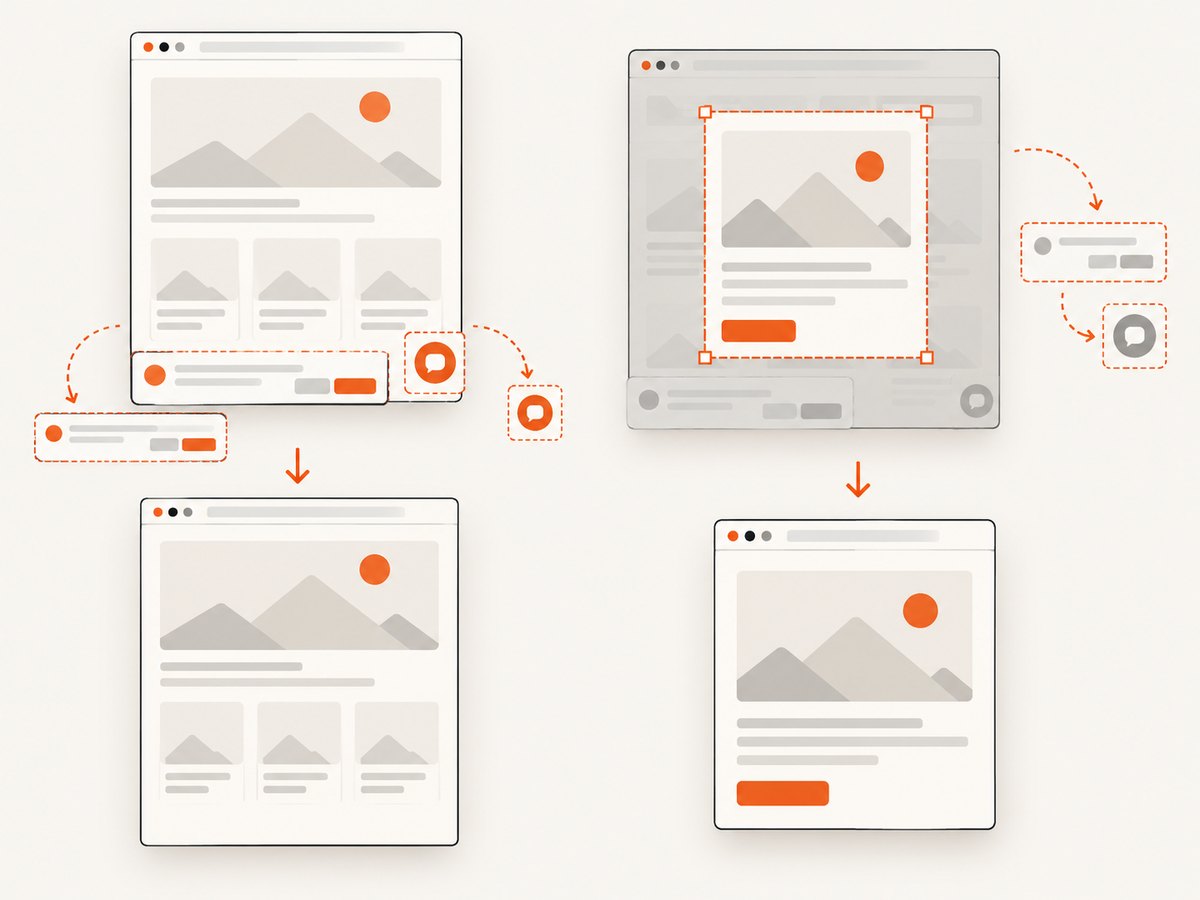
If your goal is a clean image of a protected or public page rather than an interactive Selenium test, ScreenshotNeo provides a single screenshot request. Its capture pipeline accepts cookie and consent banners, removes more than 60 known consent platforms plus newsletter popups and chat widgets, and lets each step be disabled. Bot checks, blank pages, timeouts, failed loads, and cache hits are not billed, and the response reports the page verdict and billing status in X-Page-Verdict and X-Billed headers.
See the ScreenshotNeo API documentation for all options.
cURL
curl -G "https://api.screenshotneo.com/v1/shot" \
  -d access_key=YOUR_API_KEY \
  --data-urlencode url=https://protected.example.com \
  -o shot.webp
Python
import requests
r = requests.get("https://api.screenshotneo.com/v1/shot", params={"access_key": "YOUR_API_KEY", "url": "https://protected.example.com"}, timeout=90)
r.raise_for_status()
open("shot.webp", "wb").write(r.content)
Node.js
const q = new URLSearchParams({ access_key: 'YOUR_API_KEY', url: 'https://protected.example.com' });
const res = await fetch(`https://api.screenshotneo.com/v1/shot?${q}`);
if (!res.ok) throw new Error(`Screenshot failed: ${res.status}`);
require('fs').writeFileSync('shot.webp', Buffer.from(await res.arrayBuffer()));
ScreenshotNeo also supports full-page and element capture, device presets, custom viewports, retina scale, PDF output, custom CSS and JavaScript, click and wait actions, request blocking, headers, cookies, user agents, Authorization, timezone, geolocation, transparent backgrounds, resizing, caching, signed links, asynchronous webhooks, bulk capture, usage reporting, and an OpenAPI specification. Its MCP server exposes take_screenshot, get_page_info, and capture_pdf to Claude, Cursor, and other MCP clients. Plans include 1,000 free shots each month with no card; paid plans start at $5 for 3,000 shots.
Create a free ScreenshotNeo account and use the included 1,000 screenshots to try the capture flow.
11. FAQ
Does --headless change Selenium’s visibility rules?
The cited Chrome documentation does not establish a universal change in visibility semantics. Compare the two modes as a diagnostic and collect evidence from the URL, network, cookies, viewport, and DOM.
Should I wait for document.readyState == 'complete'?
It can confirm document loading, but it is not an application-ready signal for client-rendered controls. Follow it with the condition your next action requires.
Can a longer timeout fix IAP sign-in?
No. A longer timeout may help a slow application render after successful authentication. It cannot fix an OAuth error, failed redirect, missing session cookie, or 401 AJAX request.
Why does mixing implicit and explicit waits cause trouble?
Each lookup can consume the implicit wait while the explicit wait is polling, making the total duration unpredictable. Use one explicit wait strategy for this diagnostic path.
What evidence should a bug report include?
Include Chrome and ChromeDriver versions, Selenium version, arguments, viewport, final URL, title, preserved network entries, cookie domains, screenshot, locator, and the configured wait condition.


