How to Fix Selenium Mouseover and Hover Issues in Internet Explorer 11
Fix IE11 hover failures by checking the IE Driver environment, viewport, focus and native mouse behavior—then decide when to move to Edge IE mode.
Selenium hover failures in Internet Explorer 11 often come from IE Driver’s native mouse behavior, not a bad locator or a wait that is too short. First stabilize the IE Driver environment: match Protected Mode settings across all zones, disable Enhanced Protected Mode, set IE zoom and Windows display scaling to 100%, and configure the IE11 FEATURE_BFCACHE registry value. Then keep IE in the foreground, ensure the target is visible, and use Selenium Actions to hover. If the menu opens for a fraction of a second and closes while the physical cursor is inside the IE window, Selenium documents this as an IE limitation with no WebDriver-only workaround.
1. Why IE11 hover can disappear
IE Driver sends native, operating-system-level mouse events. Selenium’s IE Driver documentation describes a specific failure: if the physical mouse cursor is within the IE browser window, a synthetic hover may appear briefly and then revert as IE performs its own hit-testing. The documented explanation matters because it changes the debugging approach: endlessly adding sleeps, changing locators, or repeating the same action cannot fix a browser and desktop input conflict.
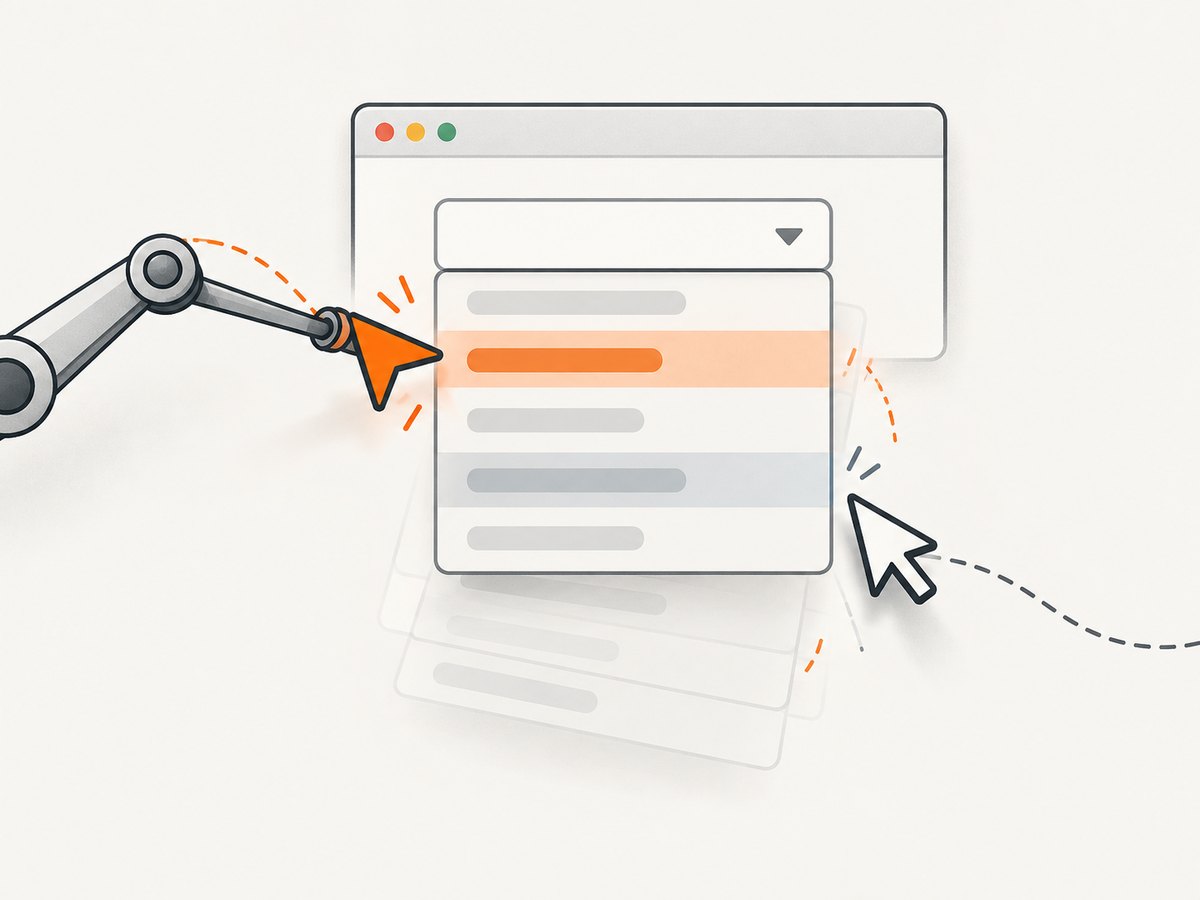
Native input also makes the result sensitive to the browser’s focus and the desktop environment. IE may not fully respect mouse messages when its window is not focused. Meanwhile, the real cursor can interfere with the automation’s intended pointer position. Treat focus, cursor location, browser configuration, zoom, and display scale as part of the test setup.
There are two separate questions to answer:
- Is the environment valid for IE Driver? Check zone security settings, Enhanced Protected Mode, zoom, display scaling, and FEATURE_BFCACHE.
- Is IE overriding the synthetic pointer? Keep the window foregrounded and keep the physical cursor out of the IE window during the hover.
If these checks are satisfied and the hover still flickers, use the documented limitation as the diagnosis. Selenium reports no WebDriver-only workaround for that physical-cursor hit-testing behavior.
2. Stabilize the IE Driver environment
Do these checks before changing test logic. They affect native coordinates and IE Driver’s ability to control the browser consistently.
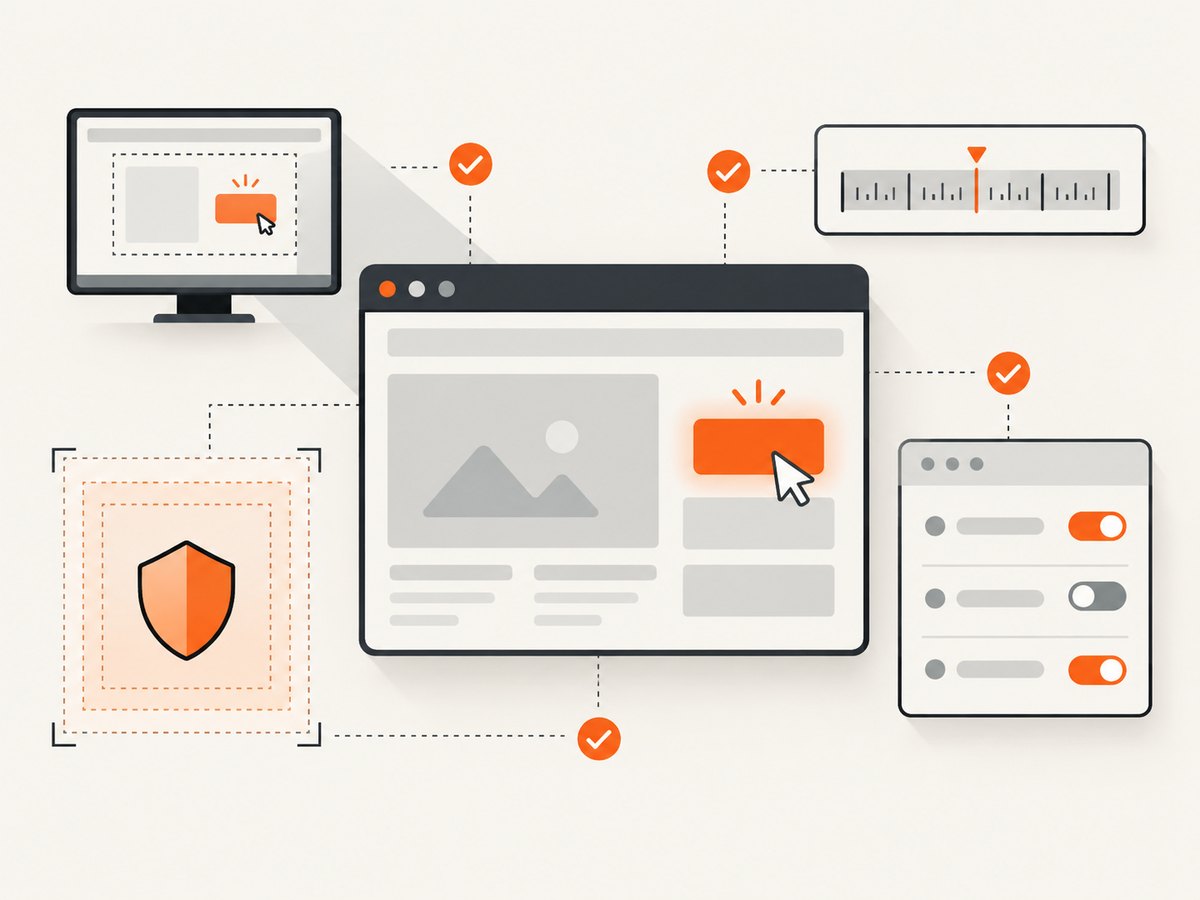
- Match Protected Mode settings across zones. In Internet Options > Security, set Protected Mode either on for every zone or off for every zone: Internet, Local intranet, Trusted sites, and Restricted sites. A mixture can prevent reliable driver operation.
- Disable Enhanced Protected Mode. In Internet Options > Advanced, turn off Enhanced Protected Mode as specified by Selenium’s IE Driver prerequisites.
- Set IE zoom to 100%. IE Driver relies on native coordinates, so a nonstandard zoom can make those coordinates disagree with the page layout.
- Set Windows display scaling to 100%. On Windows 10, set “Change the size of text, apps, and other items” to 100%. Keep the test host’s scaling stable between runs.
- Configure FEATURE_BFCACHE for IE11. Create or edit the documented FEATURE_BFCACHE registry key and set the DWORD value
iexplore.exeto0. Use the registry path matching the system architecture; on 64-bit Windows this may be underWow6432Nodefor the 32-bit driver context. Consult Selenium’s IE Driver documentation for the exact registry path for your host.
Registry edits affect the machine’s browser configuration. Apply the value to the intended test host and verify the path and architecture against Selenium’s current documentation rather than copying an unrelated registry path from an old forum post.
3. Use Actions with an in-view target
Selenium defines moveToElement as moving the pointer to the element’s in-view center. If the target is outside the viewport, the action can fail. Bring it into view first, then perform a normal Actions hover. Java example:
import org.openqa.selenium.By;
import org.openqa.selenium.WebDriver;
import org.openqa.selenium.WebElement;
import org.openqa.selenium.interactions.Actions;

WebElement hoverable = driver.findElement(By.id("hover"));
new Actions(driver)
    .moveToElement(hoverable)
    .perform();
Python example, including a positioning scroll:
from selenium.webdriver.common.by import By
from selenium.webdriver.common.action_chains import ActionChains

hoverable = driver.find_element(By.ID, "hover")
driver.execute_script("arguments[0].scrollIntoView(true);", hoverable)
ActionChains(driver).move_to_element(hoverable).perform()
The JavaScript here only scrolls the element into view. The hover itself remains a WebDriver Actions operation, preserving the native mouse path Selenium uses for IE Driver. Scrolling can place the element flush against the top edge, so if the page has a sticky header, adjust the scroll position or use a small scroll offset before hovering.
For a menu, wait for the resulting submenu state after performing the action rather than using a fixed delay as the only check. For example, in Java:
new Actions(driver).moveToElement(hoverable).perform();
new WebDriverWait(driver, Duration.ofSeconds(5))
    .until(ExpectedConditions.visibilityOfElementLocated(By.id("submenu")));
A state-based wait can make the test clearer and avoid proceeding before the application reacts. It cannot solve the IE physical-cursor defect: if the menu disappears because IE hit-tests the real cursor, waiting longer only observes the failure later.
4. Keep focus and the physical cursor under control
Run the hover while IE is the foreground window. Avoid backgrounding, minimizing, or covering IE at the moment of the action. Selenium’s IE Driver documentation warns that IE may not fully respect native mouse messages when the browser lacks focus.
Also keep the physical mouse cursor outside the IE window while the automated hover runs. This is especially important on a shared desktop, a developer workstation, or a virtual machine where a person may move the mouse during a test. Use an isolated test desktop and avoid remote-control activity during the critical interaction.
Do not confuse the real cursor with the element’s visual hover state. The page can report a hover briefly because the synthetic event arrived, then revert when IE hit-tests the physical cursor. If that exact flicker occurs, changing the CSS selector or increasing the explicit wait is unlikely to help.
5. A practical debugging sequence
- Confirm the browser and driver. Verify that the session uses
InternetExplorerDriverandIEDriverServer, and that the driver version matches the Selenium binding and target environment. - Confirm the mode. If the host has Edge but no standalone IE, determine whether the session is using Edge’s IE Compatibility Mode rather than assuming standalone IE is installed.
- Apply all IE Driver prerequisites. Make the Protected Mode state consistent across zones, disable Enhanced Protected Mode, set zoom and display scale to 100%, and set the IE11 FEATURE_BFCACHE value.
- Check element geometry. Locate the intended element, scroll it into the viewport, and make sure overlays or sticky headers do not cover its center point.
- Perform one standard Actions hover. Use
moveToElement(...).perform(). Wait for the expected menu or state, not an arbitrary long sleep. - Control desktop input. Keep IE foregrounded and prevent physical mouse movement into its window during the action.
- Classify the failure. A command error for an off-screen target points to positioning. A hover that never starts can indicate setup, focus, or locator problems. A hover that appears and immediately reverts with the physical cursor in IE matches Selenium’s documented limitation.
- Choose a supported path. If the test must cover IE compatibility, move it to Edge IE Compatibility Mode where feasible. If the test is tied to an application behavior and policy permits it, application-level JavaScript event dispatch may be considered, but it is not equivalent to testing native pointer input.
6. Standalone IE11 or Edge IE Compatibility Mode?
Selenium states that it officially stopped supporting standalone Internet Explorer in June 2022. Its maintained migration route is Edge IE Compatibility Mode, and Selenium documents that IE Driver can launch or attach to Edge in that mode. For new or maintained automation, this is generally the more supportable direction when the application requires IE compatibility behavior.
Selenium recommends the 32-bit IE Driver because of known limitations in the 64-bit driver. Driver architecture, browser mode, binding version, and host setup should all be recorded in the test environment so failures can be reproduced.
| Choice | What it preserves | Tradeoff |
|---|---|---|
| Stabilized standalone IE | Existing legacy environment and native IE interaction | Standalone IE is no longer officially supported by Selenium; desktop focus and physical cursor can affect hover |
| Edge IE Compatibility Mode | IE compatibility mode through Edge with Selenium’s documented path | Requires validating the application and test setup in the compatibility mode used by the organization |
| JavaScript event dispatch | Application-level event behavior when the test policy allows it | Does not validate native mouse input or reproduce the same interaction as Actions |
Choose based on what the test is meant to prove. If it must validate real native pointer behavior, an application-level event is not a substitute. If its goal is compatibility coverage for an older application, Edge IE Compatibility Mode is the documented migration path to evaluate.
7. Troubleshooting common failures
| Symptom | Likely cause | Fix |
|---|---|---|
| Hover command errors for an element | The target is outside the viewport or cannot be interacted with at its in-view center | Scroll it into view, inspect overlays and sticky headers, then perform the Actions move again. |
| Menu opens for a fraction of a second, then closes | IE’s physical-cursor hit-testing overrides the synthetic hover | Keep the real cursor out of the IE window. If it continues, treat it as the documented limitation; no WebDriver-only workaround is documented. |
| Hover is inconsistent when the browser is in the background | IE may not fully respect native mouse events without focus | Bring IE to the foreground for the action and avoid minimizing or covering it. |
| Coordinates are offset or the wrong element receives the hover | IE zoom or Windows display scaling is not 100% | Set both to 100%, then restart the browser session and retry. |
| Driver initialization or interaction fails across sites | Protected Mode differs among security zones, Enhanced Protected Mode is enabled, or FEATURE_BFCACHE is not configured | Check each prerequisite on the actual test machine and confirm the registry architecture and path. |
| Fixes work locally but fail on a shared runner | The runner may have different display scaling, focus, browser mode, registry state, or concurrent desktop input | Make the runner configuration explicit and isolate the desktop during native input actions. |
| Standalone IE cannot be launched on a current host | The host has Edge but not a supported standalone IE setup | Evaluate Selenium’s Edge IE Compatibility Mode options. |
8. Or skip the browser setup
If the task is to capture a page for inspection or documentation rather than to validate native hover behavior, ScreenshotNeo provides a website screenshot API and MCP server. A single GET request can return a PNG, JPEG, WebP, or PDF. Here is a runnable cURL example; see the ScreenshotNeo API documentation for options and setup.
curl -G "https://api.screenshotneo.com/v1/shot" \
  -d access_key=YOUR_API_KEY \
  --data-urlencode url=https://example.com \
  -o shot.webp
Python:
import requests

r = requests.get(
    "https://api.screenshotneo.com/v1/shot",
    params={"access_key": "YOUR_API_KEY", "url": "https://example.com"},
    timeout=90,
)
open("shot.webp", "wb").write(r.content)
Node.js:
const q = new URLSearchParams({
  access_key: 'YOUR_API_KEY',
  url: 'https://example.com'
});
const res = await fetch(`https://api.screenshotneo.com/v1/shot?${q}`);
if (!res.ok) throw new Error(`Screenshot request failed: ${res.status}`);
await import('node:fs/promises').then(fs => fs.writeFile('shot.webp', Buffer.from(await res.arrayBuffer())));
ScreenshotNeo accepts cookie or consent banners like a visitor and removes more than 60 known consent platforms, newsletter popups, and chat widgets before capture; each cleanup step can be disabled. Bot checks and CAPTCHAs, blank pages, timeouts, failed loads, and cache hits cost nothing, and response headers identify the page verdict and billing status. Its MCP server exposes take_screenshot, get_page_info, and capture_pdf for Claude, Cursor, and other MCP clients. The Free plan includes 1,000 screenshots per month with no card; paid plans start at $5 for 3,000 screenshots.
Sign up for 1,000 free screenshots a month, with no card required.
9. Performance, reliability, and cost notes
For IE Driver, reliability begins with repeatable machine configuration. Keep browser mode, driver and binding versions, zone settings, zoom, Windows scaling, registry configuration, focus, and desktop input consistent. Record these alongside failures. Native input can be affected by environmental state even when the page and test code have not changed.
Use explicit waits for the state the test needs and keep the interaction sequence short. Long fixed sleeps make runs slower without resolving coordinate mismatch, missing focus, or physical-cursor interference. No canonical official source publishes a success-rate or performance percentage for this hover issue, so a numeric improvement claim would be unsupported.
ScreenshotNeo is useful for visual capture workflows, but a screenshot does not establish that an IE11 native hover interaction works. Its listed plans are Free: 1,000 shots/month; Starter: $5 for 3,000; Growth: $15 for 15,000; Pro: $39 for 60,000; Scale: $99 for 250,000; Business: $249 for 1,000,000. Yearly billing gives two months free, and every feature is on every plan. Choose it when you need captures, not as a replacement for a browser interaction test.
10. FAQ
Can I fix the flicker by adding a longer wait?
A wait can synchronize the test with a menu state, but it cannot prevent IE from undoing a synthetic hover because of its physical-cursor hit-testing.
Does JavaScript hover dispatch prove that a user can hover the menu?
No. It can test application-level event handling if policy allows, but it does not validate native mouse input.
Should new automation target standalone IE?
Selenium ended official standalone IE support in June 2022. Evaluate Edge IE Compatibility Mode for maintained compatibility testing.
Why is the 32-bit IE Driver recommended?
Selenium documents known limitations with the 64-bit driver and recommends the 32-bit driver.
Can ScreenshotNeo replace Selenium for this test?
No. ScreenshotNeo captures pages; it does not verify the native hover interaction or resolve IE Driver’s desktop input behavior.


