How to Automatically Screenshot Every New Page with Selenium in Java
Capture screenshots automatically after Selenium navigation in Java. Learn how to cover URL loads, clicks, tabs, and SPA routes without saving images too early.
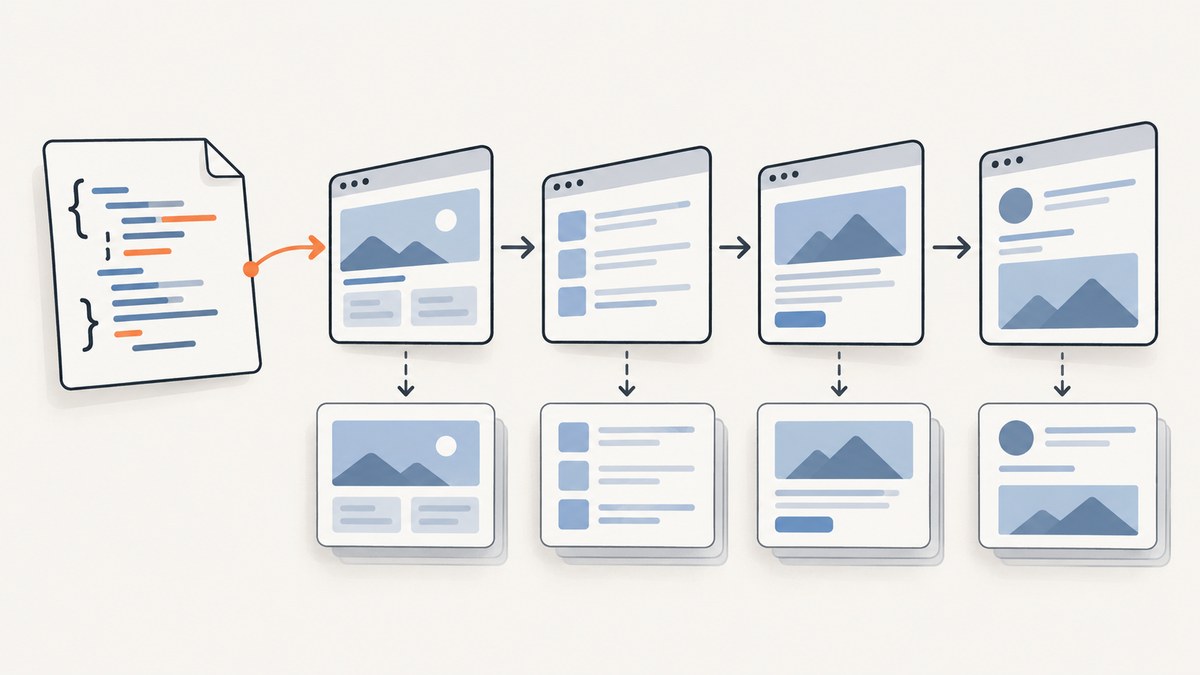
To automatically screenshot pages in Selenium Java, wrap your WebDriver with Selenium’s EventFiringDecorator, register a WebDriverListener, and capture with TakesScreenshot after the navigation event. Then wait for a page-specific ready condition before saving each image. A callback after get() alone does not cover every way a browser can reach a page: define whether you also need back/forward, refresh, links, new tabs, and single-page-app (SPA) route changes.
This guide shows a runnable pattern for URL navigation, safer capture timing, unique artifact names, and the cases that need separate handling. Selenium’s screenshot API returns the requested output type, commonly a temporary file, and screenshot support depends on the driver implementation. See the official TakesScreenshot API.
1. Set up Selenium Java
Use the Selenium version already pinned by your project when possible. The example uses Selenium 4 APIs: WebDriverListener and EventFiringDecorator. Add Selenium to your build, then select a browser driver supported by your environment.
<!-- Maven: add this dependency inside <dependencies> -->
<dependency>
  <groupId>org.seleniumhq.selenium</groupId>
  <artifactId>selenium-java</artifactId>
  <version>4.29.0</version>
</dependency>
That version is an example dependency declaration, not a recommendation to upgrade blindly. Match the dependency to your project’s Java version and dependency policy. Selenium’s current Java API pages document the interfaces used here; check them against the version your build resolves.
2. Capture after URL navigation
A listener is useful when many tests use the same driver and you want a consistent hook. This minimal example catches calls to get(), assigns a unique output file, and copies Selenium’s temporary screenshot to a chosen directory.
import org.openqa.selenium.OutputType;
import org.openqa.selenium.TakesScreenshot;
import org.openqa.selenium.WebDriver;
import org.openqa.selenium.chrome.ChromeDriver;
import org.openqa.selenium.support.events.EventFiringDecorator;
import org.openqa.selenium.support.events.WebDriverListener;

import java.io.File;
import java.io.IOException;
import java.nio.file.Files;
import java.nio.file.Path;
import java.nio.file.StandardCopyOption;
import java.time.Instant;
import java.util.UUID;

public class AutoScreenshot {
  static class CaptureListener implements WebDriverListener {
    private final Path outputDir;

    CaptureListener(Path outputDir) {
      this.outputDir = outputDir;
    }

    @Override
    public void afterGet(WebDriver driver, String url) {
      capture(driver);
    }

    private void capture(WebDriver driver) {
      try {
        Files.createDirectories(outputDir);
        File temporary = ((TakesScreenshot) driver)
            .getScreenshotAs(OutputType.FILE);
        String name = Instant.now().toEpochMilli() + "-"
            + UUID.randomUUID() + ".png";
        Files.copy(temporary.toPath(), outputDir.resolve(name),
            StandardCopyOption.REPLACE_EXISTING);
      } catch (IOException | RuntimeException e) {
        // Choose whether screenshot failures should fail your test.
        throw new RuntimeException("Could not save browser screenshot", e);
      }
    }
  }

  public static void main(String[] args) {
    WebDriver raw = new ChromeDriver();
    WebDriver driver = new EventFiringDecorator<>(
        new CaptureListener(Path.of("target", "screenshots")))
        .decorate(raw);

    try {
      driver.get("https://example.com");
      driver.get("https://www.selenium.dev");
    } finally {
      driver.quit();
    }
  }
}
The listener observes calls made through the decorated driver. Keep and use the decorated instance for browser operations; calling methods directly on the original driver bypasses the decorator. The callback above is intentionally narrow: it records get() calls and does not promise to catch every page transition.
3. Wait for the page you mean to capture
Taking a screenshot immediately after navigation can save a loading state. Selenium’s normal page-load strategy waits for document.readyState to reach complete, but that state does not guarantee that JavaScript-rendered content, images, or a client-side data request has settled. For stable captures, wait for a condition that represents the page state your test cares about.
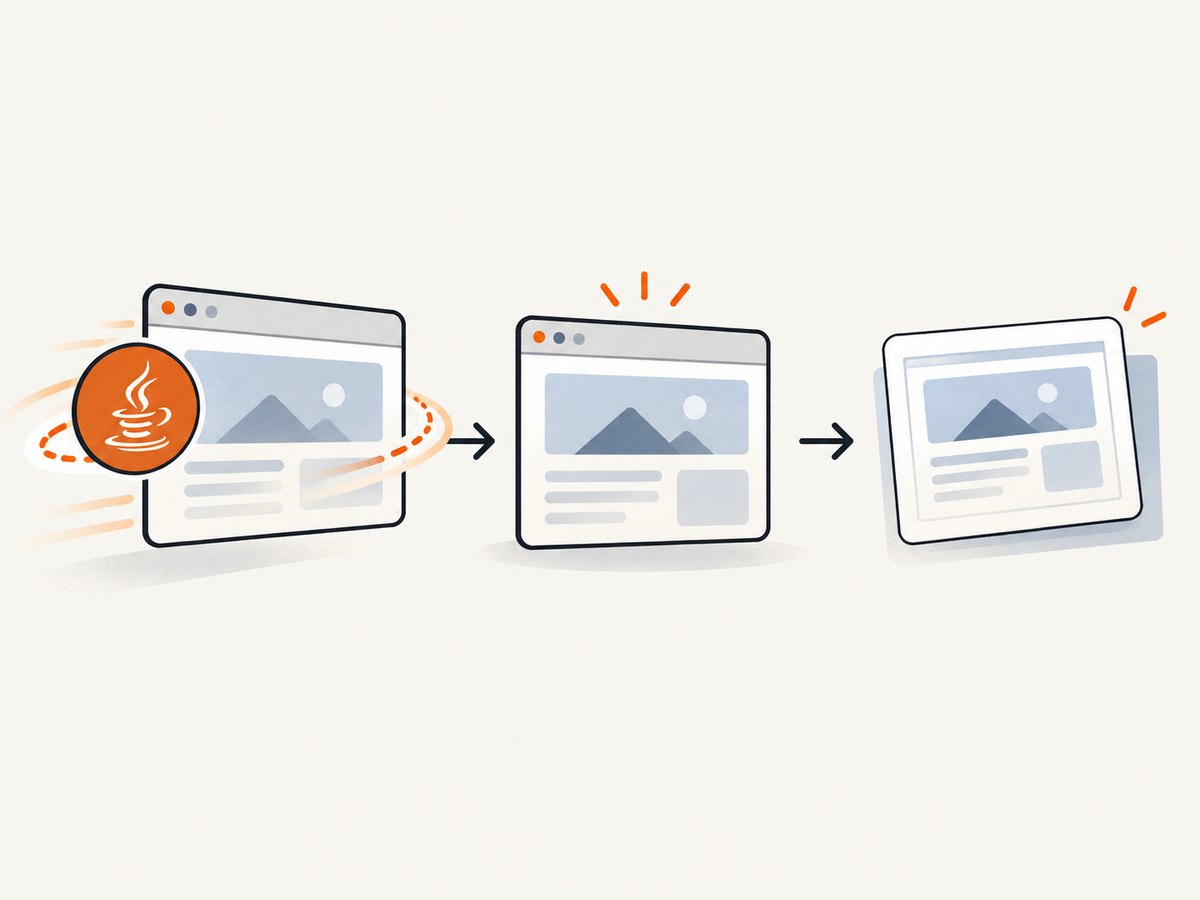
For example, wait for a page-specific heading or result container before taking the screenshot:
import org.openqa.selenium.By;
import org.openqa.selenium.WebDriver;
import org.openqa.selenium.support.ui.ExpectedConditions;
import org.openqa.selenium.support.ui.WebDriverWait;

import java.time.Duration;

WebDriverWait wait = new WebDriverWait(driver, Duration.ofSeconds(15));
driver.get("https://example.com/reports");
wait.until(ExpectedConditions.visibilityOfElementLocated(
    By.cssSelector("main .report-ready")));
// Capture here, after the condition is true.
That explicit wait belongs in test or navigation code before capture. A generic listener callback does not know what “ready” means for each application. If you want the listener to perform capture, give it a page-specific readiness strategy or have test code call a shared capture helper after its wait.
Selenium documents three page-load strategies in its browser options guide:
normalwaits for document readiness atcompleteand is the default.eagerwaits forinteractive.nonedoes not block for document readiness.
These settings control when URL navigation returns; they do not replace application-specific waits. Clicks and form submissions also do not use the same URL-navigation wait behavior. Choose an explicit condition such as a visible result, changed URL, or application-defined completion signal when those actions trigger the state you need.
4. Decide what “every new page” includes
Write down the transitions your capture job should cover. A “page” can mean a new document, a new tab, or an SPA route transition, and those are different events.
| Transition | Capture approach | Important detail |
|---|---|---|
driver.get(url) |
afterGet listener or explicit helper |
Works only when the call goes through the decorated driver. |
navigate().to(url) |
Use the navigation callbacks exposed by WebDriverListener, or call a capture helper from test code |
A navigation callback may not provide the decorated driver directly. Retain driver access deliberately rather than assuming it does. |
| Back, forward, refresh | Handle corresponding listener callbacks or capture in the test after the command | Wait for the destination’s meaningful ready condition. |
| Link click or form submission | Capture after the action and an explicit wait | A click can update content without a document navigation, or start an asynchronous transition. |
| New tab or window | Switch to the new window, wait, then capture | The screenshot is of the current window context. Selenium’s windows and tabs guide covers handles and switching. |
| SPA route update | Use an app/test hook, URL or DOM wait, then capture | History API route changes may not call WebDriver navigation methods or create a new document. |
WebDriverListener exposes callbacks for WebDriver operations and is designed to work with EventFiringDecorator. Consult the listener API for the callback names available in your Selenium version. Treat event callbacks as instrumentation points, not a guarantee that every visual change is observable.
New tabs and windows
When a click opens a tab, compare the window handles before and after the click, switch to the new handle, wait for its content, then take the screenshot. For example:
import java.util.Set;
import org.openqa.selenium.By;
import org.openqa.selenium.support.ui.ExpectedConditions;

Set<String> before = driver.getWindowHandles();
driver.findElement(By.cssSelector("a.opens-tab")).click();
wait.until(d -> d.getWindowHandles().size() > before.size());
String newHandle = driver.getWindowHandles().stream()
    .filter(handle -> !before.contains(handle))
    .findFirst()
    .orElseThrow();
driver.switchTo().window(newHandle);
wait.until(ExpectedConditions.visibilityOfElementLocated(
    By.cssSelector("main")));
// Invoke your shared screenshot helper here.
SPA routes
If the app changes routes without loading a new document, choose a route signal: wait for the expected URL, a page heading, or a component that only appears on the destination view. Decide whether each route should produce an artifact. A modal, tab inside a page, or filter update might be a state worth capturing, but it is not necessarily a “new page.”
5. Choose screenshot scope and artifact behavior
TakesScreenshot can be used with a driver or an element. A driver screenshot captures the current browser view according to the implementation; an element screenshot requests a capture of that element. Do not assume all browser/driver combinations produce a full-page image. Verify the actual extent and output on the browser in your CI environment.
For reliable artifacts, make these choices explicit:
- Format:
OutputType.FILEis convenient for saving files; use another supported output type when your pipeline needs bytes or a base64 value. - Naming: include a test identifier plus a timestamp or UUID. A fixed name such as
page.pngwill be overwritten by later captures. - Destination: write to a test artifact directory that your CI system collects, and create it before copying.
- Failure policy: decide whether inability to capture should fail the test or be reported as a secondary artifact error. Avoid silently discarding exceptions.
- Scope: use the current window for a viewport capture; use an element capture when only a specific component matters.
Keep artifacts bounded. Capturing every intermediate state can produce large test outputs and make failures harder to inspect. Consider saving on each successful navigation for a crawl, but capturing on failure plus selected checkpoints for a test suite.
6. Troubleshooting
| Symptom | Likely cause | Fix |
|---|---|---|
| No screenshot is created | The operation bypassed the decorated driver, the callback did not cover that action, or capture is unsupported by the driver. | Route commands through the decorated instance; cover the relevant callback or call a helper explicitly; check driver support for TakesScreenshot. |
| Screenshot shows a spinner or partial content | Document navigation returned before app data or rendering finished. | Wait for a page-specific selector or state before capture; increase the wait timeout only if the expected work genuinely takes longer. |
| Click navigation was missed | The code listens only for get(), or the click changed client-side content. |
Wait and capture after the click in test code, or add instrumentation for the operation and route behavior you use. |
| Capture is from the wrong tab | The browser remained focused on the original window handle. | Detect the new handle, switch to it, then wait and capture. |
| Artifacts overwrite each other | Every capture uses the same filename. | Include a test name and a unique suffix such as a timestamp plus UUID. |
| File copy fails | The output directory is missing, inaccessible, or the temporary file is unavailable. | Create the directory, use a writable artifact path, and preserve the exception cause in logs. |
| Capture fails intermittently in CI | Timing, browser support, or an unstable page condition differs from local runs. | Wait on application state, record the URL and active window with the failure, and verify behavior on the same browser/driver configuration used in CI. |
7. Performance, reliability, and cost
Screenshot capture adds work: the browser has to render the current view, encode an image, and your test process has to write the artifact. The cost depends on page complexity, viewport and image dimensions, browser environment, and how often you capture; no single timing applies to every setup. Avoid capturing repeatedly inside polling loops. Capture after a meaningful transition, and keep image dimensions and retention aligned with what reviewers need.
For reliability, use explicit waits with bounded timeouts, unique filenames, a stable output directory, and a deliberate error policy. Avoid treating document.readyState as proof that asynchronous content is complete. Run the same browser and driver setup in local development and CI where practical, and confirm screenshot support and extent on that implementation.
Cost includes browser compute and storage/retention for the generated artifacts. A local Selenium setup has no per-image API fee, but CI minutes and stored artifacts may have their own costs under your infrastructure plan. If you capture many pages, limit unnecessary repeats and retain only the artifacts useful for debugging or review.
Or skip the browser setup
If your goal is to get an image for a URL rather than exercise a browser workflow, ScreenshotNeo provides a website screenshot API and MCP server. Its one-call API returns a screenshot or PDF, and its options include full-page capture, selectors, waits, custom headers, and caching. See the ScreenshotNeo API docs for request options.
curl -G "https://api.screenshotneo.com/v1/shot" \
  -d access_key=YOUR_API_KEY \
  --data-urlencode url=https://stripe.com \
  -o shot.webp
import requests
r = requests.get(
"https://api.screenshotneo.com/v1/shot",
params={"access_key": "YOUR_API_KEY", "url": "https://stripe.com"},
timeout=90,
)
r.raise_for_status()
open("shot.webp", "wb").write(r.content)const q = new URLSearchParams({
access_key: 'YOUR_API_KEY',
url: 'https://stripe.com'
});
const res = await fetch(`https://api.screenshotneo.com/v1/shot?${q}`);
if (!res.ok) throw new Error(`Screenshot request failed: ${res.status}`);
await Bun.write('shot.webp', res);- Cookie banners are accepted and removed before the shot, along with known consent platforms, newsletter popups, and chat widgets.
- Bot checks, blank pages, failed loads, timeouts, and cache hits are never billed; response headers say the page verdict and billing status.
- An MCP server lets AI agents use
take_screenshot,get_page_info, andcapture_pdf. - 1,000 screenshots a month are free with no card; paid plans start at $5 for 3,000 screenshots.
Sign up free for 1,000 screenshots a month, with no card required.
FAQ
Can I capture every URL in a list?
Yes. Navigate through the URLs in a loop, wait for the chosen ready condition for each page, and call the same capture helper. Use unique artifact names and decide how to handle a failure on one URL without losing the rest of the run.
Does a Selenium screenshot always include the full page?
No. Screenshot extent depends on the driver and implementation. Verify the result on the actual browser setup you use; do not assume a viewport screenshot is a full-page capture.
Will a WebDriver listener detect every SPA change?
Not necessarily. A client-side route or component update may not invoke a WebDriver navigation method. Add a test hook or wait for the app’s route or DOM state, then capture explicitly.
Should screenshot failure fail the test?
Choose based on the role of the image. If screenshot output is the test result, fail on capture errors. If it is diagnostic evidence, report the capture error while preserving the original test failure.


