How to Click Elements Not Yet Loaded in the DOM with Selenium Java
Use Selenium Java explicit waits to find dynamic elements safely, avoid stale references and diagnose visibility, overlays and timing failures.
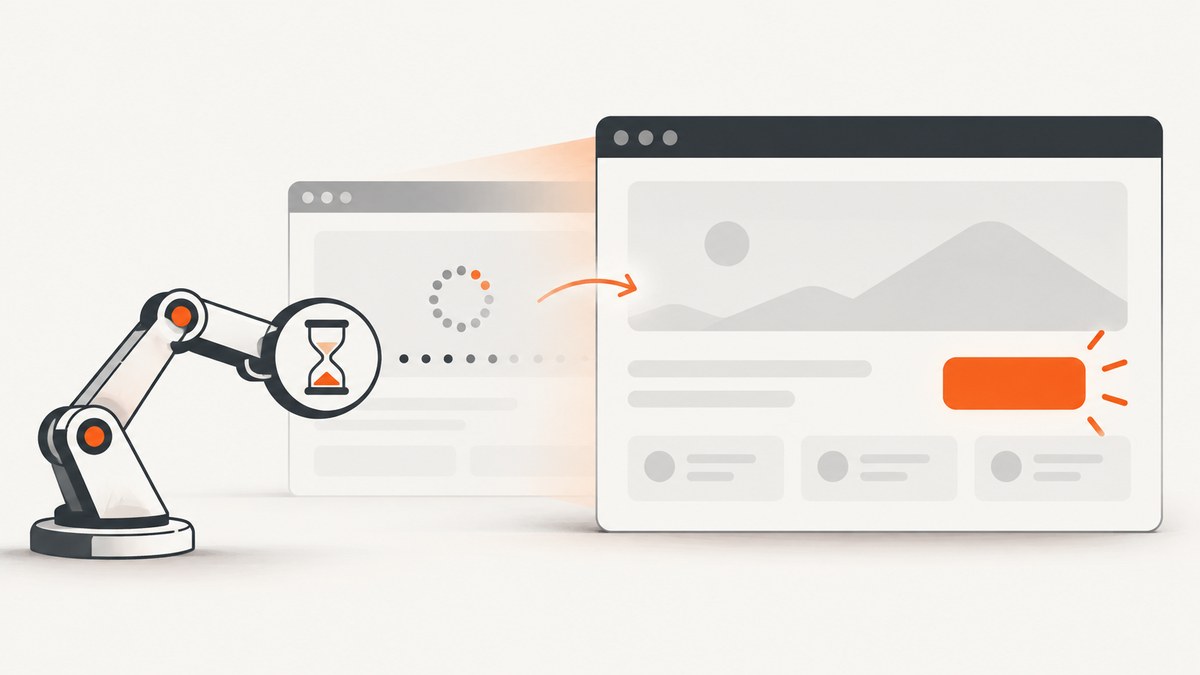
Use an explicit wait tied to the state your next action needs. If JavaScript will insert the element, wait by locator until it is present; if it exists but is hidden, wait until it is visible; before clicking, use elementToBeClickable. Click the WebElement returned by the wait instead of locating it before it exists.
import java.time.Duration;
import org.openqa.selenium.By;
import org.openqa.selenium.WebDriver;
import org.openqa.selenium.WebElement;
import org.openqa.selenium.support.ui.ExpectedConditions;
import org.openqa.selenium.support.ui.WebDriverWait;

WebDriverWait wait = new WebDriverWait(driver, Duration.ofSeconds(10));
WebElement target = wait.until(
    ExpectedConditions.elementToBeClickable(By.id("submit")));
target.click();
The ten-second timeout is an example. Choose a finite value that matches your application and let a timeout expose an incorrect locator or readiness assumption.
Why Selenium reaches the click too early
Navigation completing does not mean a single-page application has finished rendering. Selenium’s page-load handling concerns the document loaded by the original navigation, while JavaScript can continue inserting, revealing, replacing or enabling controls afterward. Selenium describes explicit waits as polling for a condition until it succeeds or the timeout expires. See the official waiting strategies guide.
A fixed sleep is not a reliable synchronization rule: it may be too short on a slow run and waste time on a fast run. A condition expresses what the next command actually requires.
Pick the wait condition that matches the state
| Current state | Condition | Use it when |
|---|---|---|
| Element is absent | presenceOfElementLocated |
JavaScript will insert the node and you only need it in the DOM. |
| Element exists but is hidden | visibilityOfElementLocated |
The node is present and must become displayed. |
| Element should be clicked | elementToBeClickable |
It must be visible and enabled. A covering overlay can still intercept the click. |
| Element may be replaced | Any locator-based condition | Re-find the node on every poll instead of retaining an old WebElement. |
The Expected Conditions documentation lists the conditions available to Java WebDriver tests.
Complete Java examples
1. Click an element inserted after another action
driver.findElement(By.id("adder")).click();

WebDriverWait wait = new WebDriverWait(driver, Duration.ofSeconds(10));
WebElement added = wait.until(
    ExpectedConditions.visibilityOfElementLocated(By.id("box0")));
added.click();
Selenium’s official demonstration uses a newly created element after clicking an adder control. The production version above waits for visibility and clicks the returned element.
2. Wait only for DOM presence
WebElement item = new WebDriverWait(driver, Duration.ofSeconds(10))
    .until(ExpectedConditions.presenceOfElementLocated(
        By.cssSelector("button[data-action='load-more']")));

// Presence does not guarantee that a user could click it.
String label = item.getText();
Use presence when you need to inspect attributes or wait for a later condition. For interaction, visibility or clickability is usually clearer.
3. Wait for visibility, then click
WebDriverWait wait = new WebDriverWait(driver, Duration.ofSeconds(10));
WebElement menu = wait.until(
    ExpectedConditions.visibilityOfElementLocated(By.id("account-menu")));
menu.click();
4. Wait for clickability
WebDriverWait wait = new WebDriverWait(driver, Duration.ofSeconds(10));
WebElement submit = wait.until(
    ExpectedConditions.elementToBeClickable(
        By.cssSelector("form#checkout button[type='submit']")));
submit.click();
elementToBeClickable checks visibility and enabled state. It cannot prove that a cookie dialog, modal, spinner or other element will not cover the click point.
5. Poll with a custom condition
WebDriverWait wait = new WebDriverWait(driver, Duration.ofSeconds(15));
WebElement ready = wait.until(driver -> {
    WebElement element = driver.findElement(By.id("async-action"));
    return element.isDisplayed() && element.isEnabled() ? element : null;
});
ready.click();
The locator is evaluated inside the polling function. Returning null tells the wait to continue.
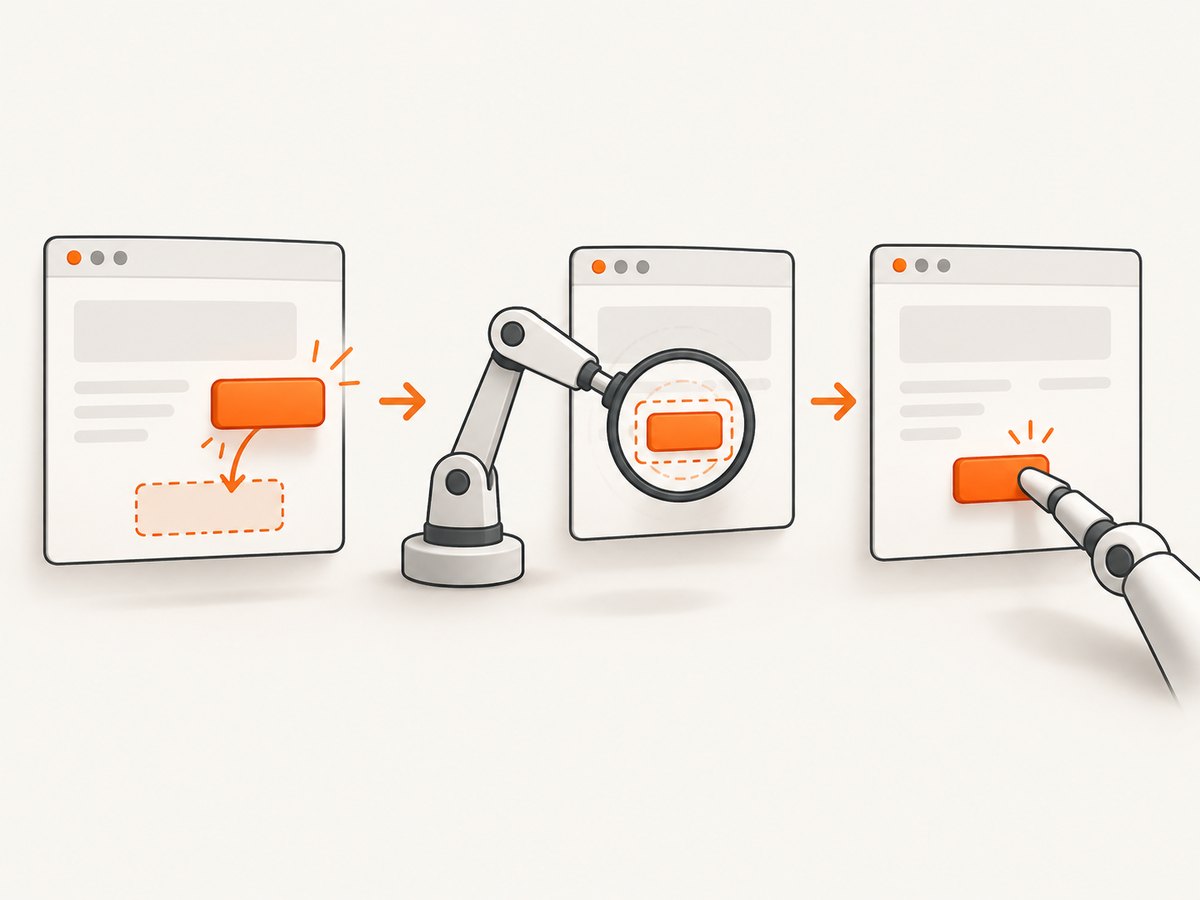
6. Handle a DOM replacement without a stale reference
WebDriverWait wait = new WebDriverWait(driver, Duration.ofSeconds(10));
WebElement row = wait.until(
    ExpectedConditions.refreshed(
        ExpectedConditions.elementToBeClickable(
            By.cssSelector("[data-row-id='42'] button.edit"))));
row.click();
When a framework redraws a component, the old WebElement points to the discarded node. Locate by By inside the wait so Selenium can obtain the replacement.
Locator choices for dynamic elements
- ID: Prefer a stable unique
idwhen the application provides one. - Data attributes: A purpose-built selector such as
[data-testid='save']is often less fragile than a generated class. - Accessible semantics: Use role, label or visible text when it is stable and meaningful.
- CSS or XPath: Keep selectors short and anchored to stable structure. Avoid long chains of positional indexes.
A timeout can mean the element is genuinely late, but it can also reveal a typo, an iframe boundary, a changed route or a selector that never matched.
Frames, shadow DOM and overlays
Switch into the correct iframe
WebDriverWait wait = new WebDriverWait(driver, Duration.ofSeconds(10));
WebElement frame = wait.until(
    ExpectedConditions.presenceOfElementLocated(By.cssSelector("iframe.payment")));
driver.switchTo().frame(frame);
wait.until(ExpectedConditions.elementToBeClickable(By.id("pay"))).click();
driver.switchTo().defaultContent();
An element inside an iframe cannot be found from the top-level document. Wait for and switch to the frame first.
Shadow DOM
For an open shadow root, obtain the shadow root and then locate the element within it. A selector that works in the light DOM will not automatically cross a shadow boundary. If the component is rebuilt, reacquire the shadow root during the wait.
Overlays and intercepted clicks
If the target is visible and enabled but Selenium reports ElementClickInterceptedException, inspect the element at the click point. Wait for the overlay or spinner to disappear, close the dialog, or wait for the target after layout settles. Scrolling the element into view can help, but JavaScript clicking should be a last resort because it bypasses normal user interaction.
Do not mix implicit and explicit waits
Keep implicit waiting at its default, or use one consistent strategy. Selenium explicitly warns: “Do not mix implicit and explicit waits.” Combining them can make polling take longer than expected and produce unpredictable timeout behavior. See the official wait guidance.
Timeout and polling configuration
WebDriverWait wait = new WebDriverWait(
    driver,
    Duration.ofSeconds(20),
    Duration.ofMillis(200));

WebElement button = wait.until(
    ExpectedConditions.elementToBeClickable(By.id("continue")));
button.click();
Use a finite timeout and a polling interval appropriate for the UI. A longer timeout can accommodate a known slow operation, but it should not hide a broken selector. Keep timeout values centralized so tests remain consistent.
Common errors and fixes
| Error or symptom | Likely cause | Fix |
|---|---|---|
NoSuchElementException immediately |
You called findElement before JavaScript inserted the node. |
Pass the By locator to an explicit wait. |
TimeoutException |
Wrong locator, wrong page or frame, element never inserted, or timeout too short. | Verify URL and selector, inspect the DOM, switch frames, then choose a measured finite timeout. |
ElementNotInteractableException |
Element exists but is hidden, disabled or has no usable layout. | Wait for visibility or clickability and verify application state. |
ElementClickInterceptedException |
Another element covers the click point. | Wait for the overlay or animation to finish, dismiss it, or correct the layout. |
StaleElementReferenceException |
The framework replaced the node after you located it. | Discard the old reference and re-locate by By inside a wait; ExpectedConditions.refreshed can help. |
| Works locally, fails in CI | Different speed, viewport, browser, network or timing. | Use state-based waits, set a deterministic viewport, capture diagnostics and avoid sleeps. |
| Wait never sees the element | Element is inside an iframe or shadow root. | Switch to the frame or query the shadow root before waiting for the descendant. |
Selenium’s common-errors guide covers stale references and interaction failures.
Reliability and performance checklist
- Wait for the next required state, not an arbitrary number of seconds.
- Use stable locators and keep them close to the assertion or action.
- Re-find elements that a framework may replace.
- Use one waiting model; do not combine implicit and explicit waits.
- Keep timeouts finite and log the URL, locator, browser, viewport and relevant page state on failure.
- Wait for a specific overlay, network-driven state or application signal when the UI exposes one.
- Prefer the smallest condition that proves readiness; unnecessary long waits slow the suite.
Or skip the browser setup
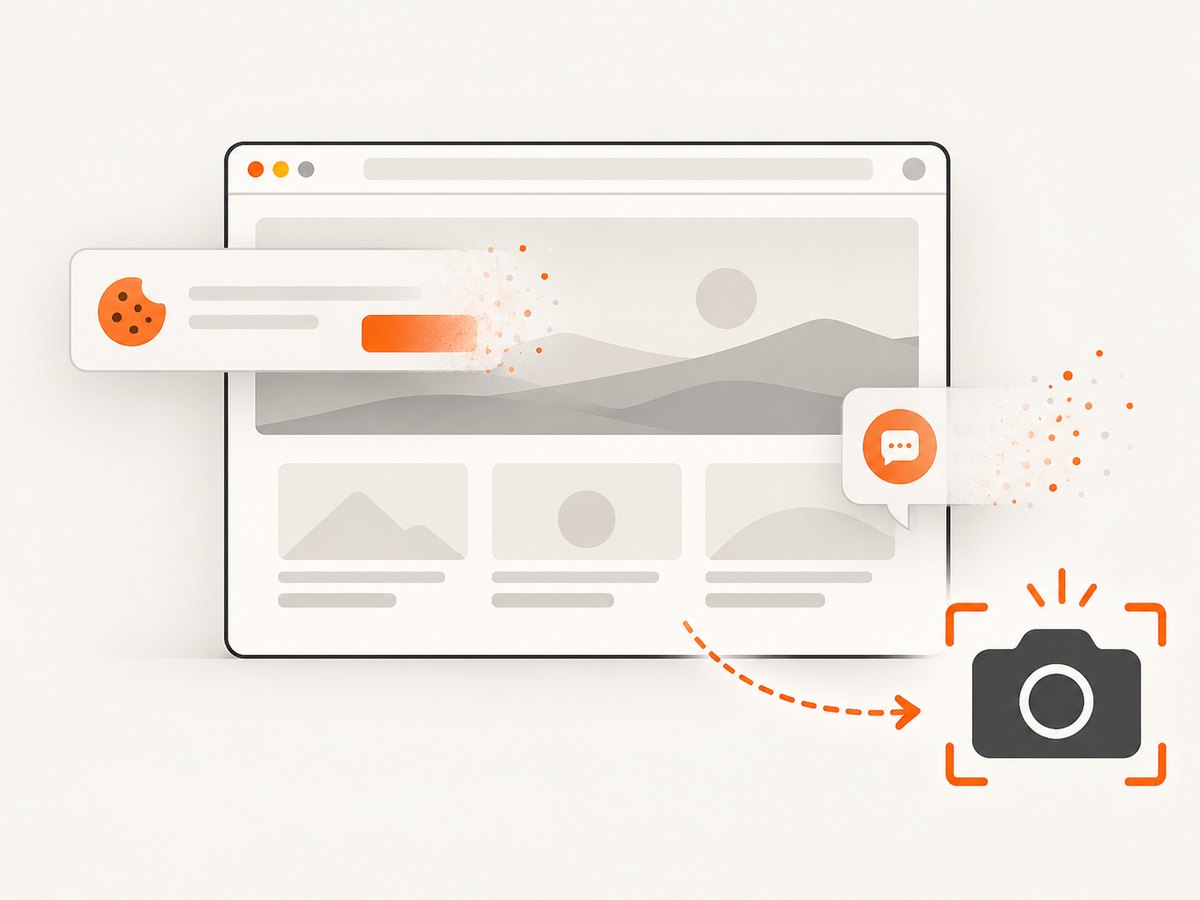
If your goal is a clean image of a page rather than an interactive test, ScreenshotNeo provides a single screenshot request. It handles consent banners before capture and removes more than 60 known consent platforms, newsletter popups and chat widgets; each step can be turned off. Bot checks, blank pages, timeouts, failed loads and cache hits are not billed, and response headers report the page verdict and billing result.
See the ScreenshotNeo API documentation for all options.
curl -G "https://api.screenshotneo.com/v1/shot" -d access_key=YOUR_API_KEY --data-urlencode url=https://stripe.com -o shot.webpimport requests
r = requests.get("https://api.screenshotneo.com/v1/shot", params={"access_key": "YOUR_API_KEY", "url": "https://stripe.com"}, timeout=90)
open("shot.webp", "wb").write(r.content)const q = new URLSearchParams({ access_key: 'YOUR_API_KEY', url: 'https://stripe.com' });
const res = await fetch(`https://api.screenshotneo.com/v1/shot?${q}`);ScreenshotNeo also has an MCP server with take_screenshot, get_page_info and capture_pdf tools for Claude, Cursor and other MCP clients. The free plan includes 1,000 screenshots a month with no card; paid plans start at $5 for 3,000. Create a free ScreenshotNeo account.
FAQ
Should I use presence or clickability?
Use presence when you only need the node in the DOM. Use clickability when the next operation is a click and the control must be visible and enabled.
Why does document.readyState not solve this?
It describes the initial document load. Client-side JavaScript may insert or replace controls afterward.
Can I solve this with Thread.sleep?
A sleep can mask timing issues but has no connection to the actual UI state. Prefer an explicit condition.
Why is a previously found element stale?
The application replaced that DOM node. Selenium references identify a particular node and do not relocate themselves; find it again by locator.
Is a JavaScript click equivalent to a user click?
No. It can bypass hit testing and event behavior. Use normal WebDriver interaction unless you have a documented reason to test JavaScript-triggered behavior.


