How to Get a Full-Page Screenshot Using Selenium and Java
Capture a full-page screenshot in Java with Selenium’s Firefox API, understand the Chrome DevTools alternative, and troubleshoot viewport-only captures.
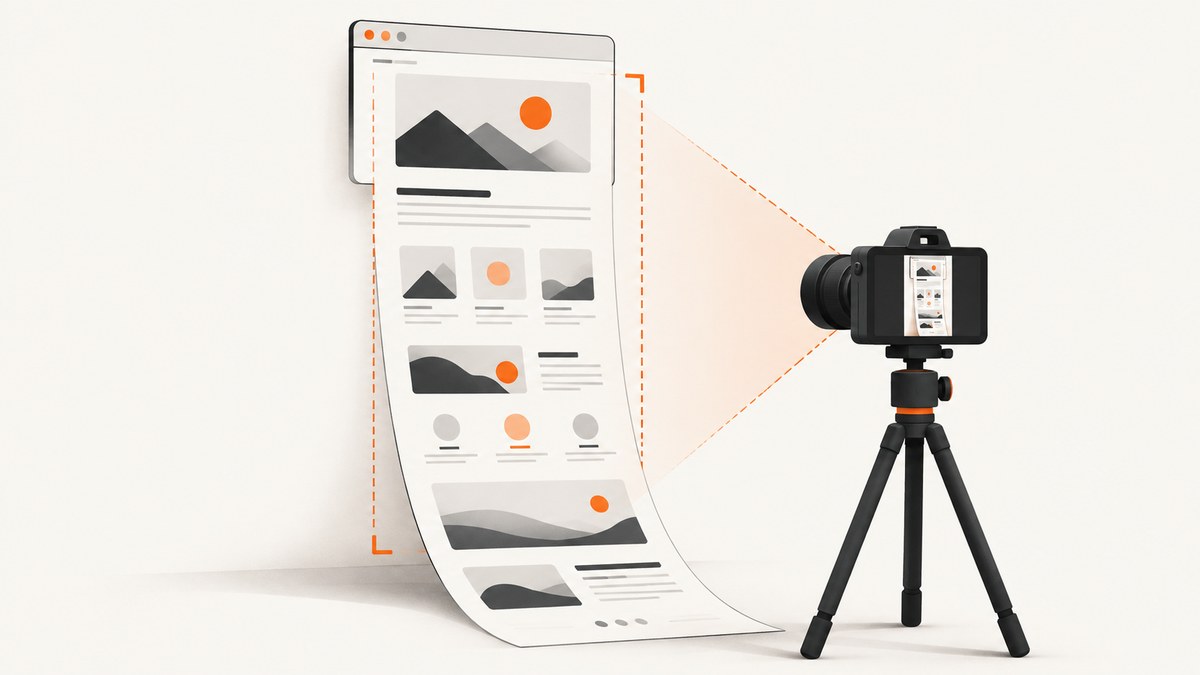
To capture an entire page with Selenium Java, use FirefoxDriver’s explicit full-page method, getFullPageScreenshotAs. The generic TakesScreenshot.getScreenshotAs method does not guarantee full-page output across browsers. If your project must use Chrome, the Selenium Chrome DevTools binding exposes a browser-specific capture option, but it is tied to the DevTools protocol version and should be checked against your installed Selenium and Chrome versions.
1. Choose the capture method
| Method | When to use it | Full-page guarantee |
|---|---|---|
FirefoxDriver getFullPageScreenshotAs |
Firefox is acceptable and you want an explicit Selenium Java API. | The API is specifically documented for full-page capture. |
Chrome DevTools Page.captureScreenshot |
The project requires Chrome and can accept a version-specific route. | The generated binding includes captureBeyondViewport; verify its behavior with your exact versions. |
Generic TakesScreenshot |
You need a normal screenshot and can accept browser-dependent output. | No portable full-page promise. |
Selenium’s HasFullPageScreenshot API lists FirefoxDriver as an implementing class and defines getFullPageScreenshotAs(OutputType<X>). The TakesScreenshot API documents that screenshot behavior for non-conformant implementations may be browser-dependent: it can return the page, current window, or visible frame portion. The Selenium 4.22.0 Chrome DevTools v124 reference is an example of the versioned Chrome API, not a universal method. Firefox also documents full-page screenshots in its Developer Tools.
2. Set up Selenium Java
Add Selenium Java to your build. The example uses Maven coordinates; choose a Selenium version compatible with the project and browser setup. The API call shown below is documented by Selenium; this article does not claim that the code was executed.
<dependency>
  <groupId>org.seleniumhq.selenium</groupId>
  <artifactId>selenium-java</artifactId>
  <version>YOUR_SELENIUM_VERSION</version>
</dependency>
Use a current Firefox installation and a matching Selenium setup. Selenium Manager can manage browser drivers in supported setups, but driver management details depend on your environment. If your organization pins browsers and drivers, follow its provisioning process.
3. Capture the full page with FirefoxDriver
This complete Java example opens a URL, captures the full page as a PNG file, and always closes the browser. Pass a real URL as the first program argument, or replace the default.
import java.io.File;
import java.nio.file.Files;
import java.nio.file.Path;
import java.nio.file.StandardCopyOption;

import org.openqa.selenium.OutputType;
import org.openqa.selenium.firefox.FirefoxDriver;

public class FullPageScreenshot {
    public static void main(String[] args) throws Exception {
        String url = args.length > 0 ? args[0] : "https://example.com";
        Path output = Path.of("full-page.png");

        FirefoxDriver driver = new FirefoxDriver();
        try {
            driver.get(url);
            File screenshot = driver.getFullPageScreenshotAs(OutputType.FILE);
            Files.copy(screenshot.toPath(), output,
                    StandardCopyOption.REPLACE_EXISTING);
            System.out.println("Saved screenshot to " + output.toAbsolutePath());
        } finally {
            driver.quit();
        }
    }
}
OutputType.FILE asks Selenium to return a file. The API is generic, so another supported output type can be selected where appropriate. For a byte array, use OutputType.BYTES and write it with Files.write. Keeping the temporary Selenium file or byte output separate from the final destination also lets you choose the output filename and directory.
Compile and run with your normal Maven or IDE workflow. For example, after building a runnable classpath, invoke FullPageScreenshot https://example.com. Ensure the destination directory exists and the process has permission to write there.
4. Decide when the page is ready
driver.get(url) returns according to the configured page-load strategy and browser behavior. A page may still change after navigation because of client-side rendering, network requests, timers, or user interaction. If the page needs an element before capture, wait for it explicitly rather than adding an arbitrary long sleep.
import java.time.Duration;
import org.openqa.selenium.By;
import org.openqa.selenium.support.ui.ExpectedConditions;
import org.openqa.selenium.support.ui.WebDriverWait;

WebDriverWait wait = new WebDriverWait(driver, Duration.ofSeconds(20));
wait.until(ExpectedConditions.visibilityOfElementLocated(By.cssSelector("main")));
File screenshot = driver.getFullPageScreenshotAs(OutputType.FILE);
Use a selector that represents content readiness on the target site. A visible main element is only an example; it may appear before images or other asynchronous content finish. For application-specific readiness, wait on the page condition that actually matters, such as a completed state marker. Selenium’s explicit wait prevents needless fixed delays when the condition is met early, while the timeout bounds the wait.
5. Chrome and the DevTools route
If Chrome is required, Selenium’s generated Chrome DevTools Java bindings expose Page.captureScreenshot with a captureBeyondViewport option in the v124 binding documented for Selenium 4.22.0. The binding is generated for a specific protocol version, so its package names and signatures vary with Selenium releases. Consult the API documentation matching the version in your build before writing code.
In general, the workflow is to create a ChromeDriver, obtain the matching DevTools session, enable the Page domain, then call the generated Page screenshot command with the beyond-viewport option and decode the returned Base64 image data. Do not copy a generated import or signature from a different Selenium version and assume it will compile. The exact binding, command parameters, and return type are version-specific. After upgrading Selenium or Chrome, re-check the generated API and confirm the resulting image dimensions and page coverage in that environment.
This is a tradeoff: Firefox offers the direct explicit full-page Selenium API; Chrome’s documented route couples the Java code to a generated DevTools protocol binding. If neither browser is fixed by a test requirement, choose based on the browser coverage and upgrade stability your project needs. The research sources do not establish speed or image-quality differences between these approaches.
6. Understand what “full page” includes
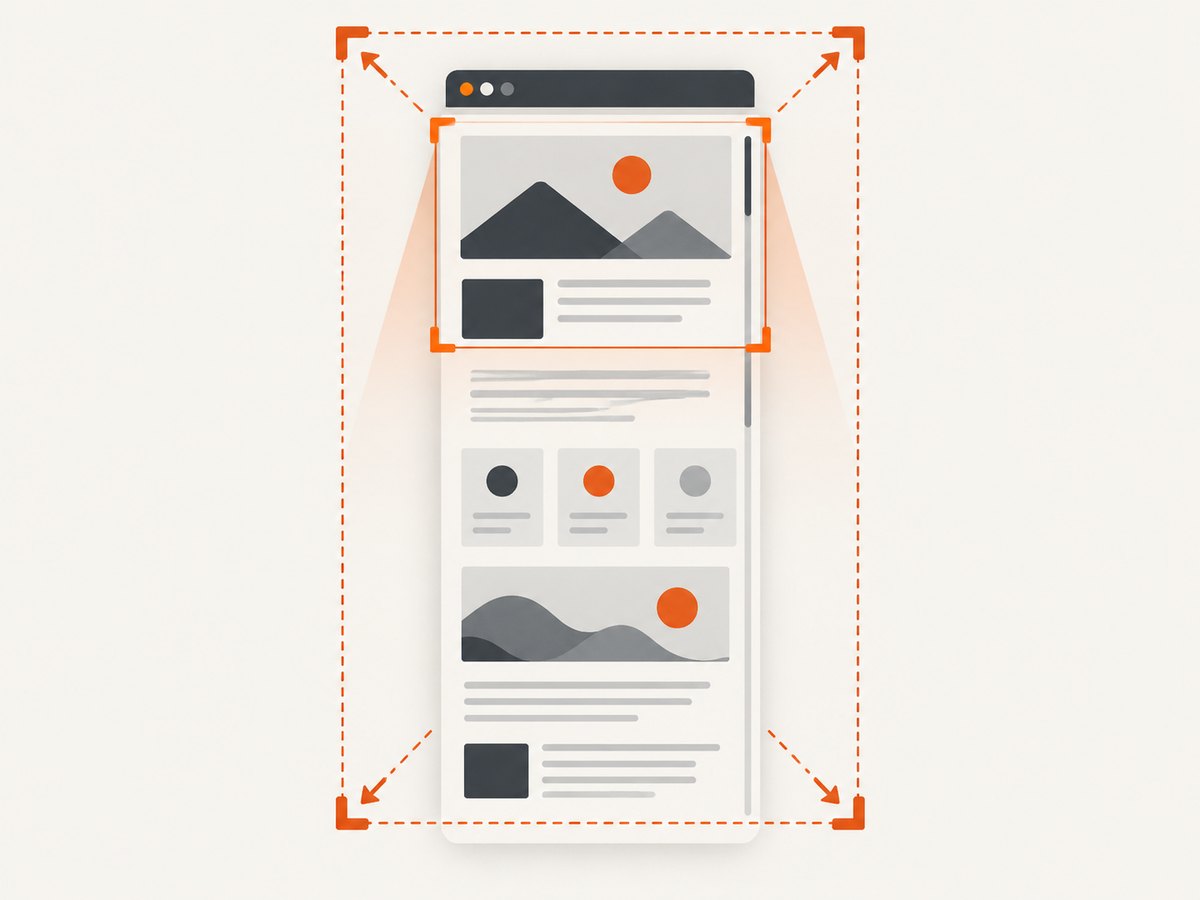
A full-page screenshot aims to cover content beyond the initial viewport, but it does not automatically mean every piece of content is in its final visual state. Modern pages can defer images until they approach the viewport, update after network activity, display animations, or use fixed and sticky elements. The cited APIs do not establish how those site behaviors are handled for every page.
- Lazy-loaded content: content may not be requested until scrolling brings it near view. If the result misses content, determine whether the site loads it only after scroll or another interaction.
- Dynamic content: wait for a page-specific completion marker before capture; the initial navigation event may not mean the application is settled.
- Sticky headers: inspect the resulting image for repeated or unexpected fixed elements. Do not assume a capture method handles sticky content identically across browsers.
- Frames: the generic screenshot documentation explicitly allows visible-frame output for some implementations. Check the actual output when frames are involved.
- Very long pages: output dimensions and memory requirements grow with page height and width. Save to disk when possible, and avoid holding many large screenshots in memory at once.
7. Viewport screenshots are different
For an ordinary viewport screenshot, use the generic interface:
import org.openqa.selenium.OutputType;
import org.openqa.selenium.TakesScreenshot;

File screenshot = ((TakesScreenshot) driver).getScreenshotAs(OutputType.FILE);
Label this output as a viewport screenshot unless the browser and driver combination has been checked and shown to capture the whole document. The interface’s generic contract is not a cross-browser full-page guarantee. A page can be much taller than the resulting image even though the call succeeds.
8. Troubleshooting
| Symptom | Likely cause | What to do |
|---|---|---|
| Only the visible viewport appears | The code uses generic getScreenshotAs, or the selected implementation does not provide full-page behavior. |
Use FirefoxDriver’s getFullPageScreenshotAs or investigate the matching Chrome DevTools route. |
getFullPageScreenshotAs does not compile |
The declared driver type or Selenium dependency does not expose the interface in the version used. | Check the Selenium Java API for that version, use a FirefoxDriver reference, and confirm the dependency is present. |
| DevTools imports or method arguments do not match | Generated bindings differ by Selenium and Chrome DevTools protocol version. | Use the DevTools documentation for the exact Selenium version and inspect that release’s generated package signatures. |
| Browser fails to start | Browser installation, driver provisioning, or environment configuration is missing or incompatible. | Install or provision Firefox and follow the project’s Selenium driver setup; inspect the startup exception for the missing component. |
| Screenshot is blank or incomplete | The page may not have reached its final state, or content may require scrolling or interaction. | Wait for an application-specific ready condition; inspect whether content is lazy-loaded or gated behind interaction. |
| Output file is absent | The parent directory may not exist, or the process cannot write there. | Create the directory and verify permissions before copying or writing the screenshot. |
| Browser process remains after an exception | Cleanup did not run because the driver lifecycle was not protected. | Keep capture and file handling inside try and call quit() in finally. |
9. Performance, reliability, and cost
Capturing an entire page can produce a much larger image than capturing the viewport. Actual time and memory use depend on the page, browser, machine, image dimensions, and rendering work; the cited sources provide no benchmark. Keep concurrency appropriate for the available browser processes and memory. If a screenshot job runs in a test suite, set bounded waits and ensure browser cleanup even when navigation or file output fails.
For reliable visual automation, control the input conditions: use a known URL, wait for meaningful page state, keep the browser and Selenium versions explicit, and record whether the output is intended to be full-page or viewport-only. On upgrades, check both compilation and actual page coverage. For repeatable comparisons, pages with animations or changing content may need application-level controls; no universal animation handling is promised by these APIs.
Selenium’s software and browser use do not imply a per-screenshot service charge in this tutorial; infrastructure and maintenance costs depend on where your browser runs. If operating browsers is the burden, a hosted screenshot API is an alternative.
10. Or skip the browser setup
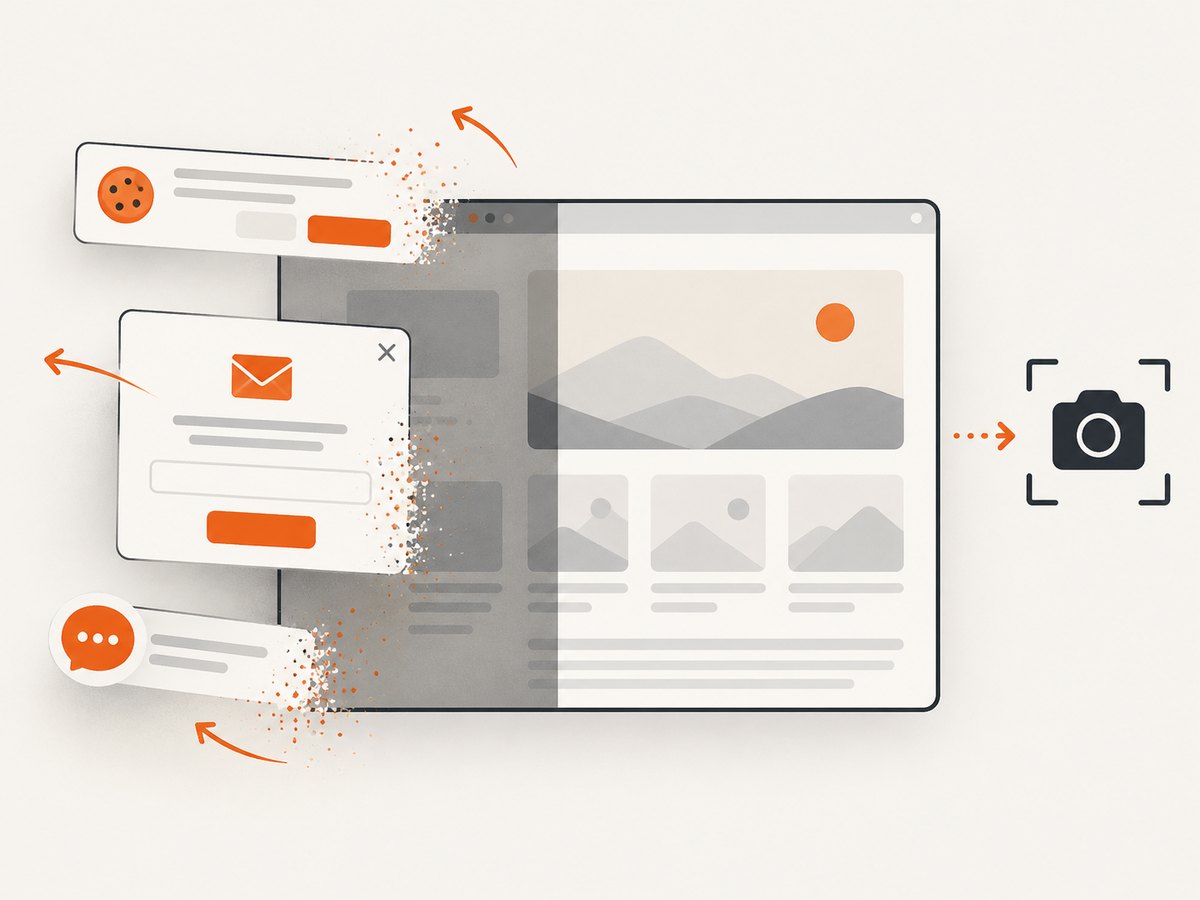
ScreenshotNeo is a website screenshot API and MCP server. One GET request can return a PNG, JPEG, WebP, or PDF. Its clean-shot flow accepts cookie and consent banners like a visitor and removes 60+ known consent platforms, newsletter popups, and chat widgets before capture; each step can be turned off. Bot checks, CAPTCHAs, blank pages, timeouts, failed loads, and cache hits cost nothing, and responses identify the page verdict and billing status in headers.
For a full-page capture, make a single request and save the returned image. See the ScreenshotNeo API documentation for parameters and formats.
curl -G "https://api.screenshotneo.com/v1/shot" \
  -d access_key=YOUR_API_KEY \
  --data-urlencode url=https://stripe.com \
  -o shot.webp
import requests
r = requests.get(
"https://api.screenshotneo.com/v1/shot",
params={"access_key": "YOUR_API_KEY", "url": "https://stripe.com"},
timeout=90,
)
open("shot.webp", "wb").write(r.content)const q = new URLSearchParams({
access_key: 'YOUR_API_KEY',
url: 'https://stripe.com'
});
const res = await fetch(`https://api.screenshotneo.com/v1/shot?${q}`);
if (!res.ok) throw new Error(`Screenshot request failed: ${res.status}`);
await Bun.write('shot.webp', res);ScreenshotNeo also supports full-page capture with lazy images loaded, CSS-selector element capture, device presets and custom viewports, retina scale, dark mode, PDF options, custom CSS and JavaScript, selector waits and delays, request blocking, custom headers and cookies, timezone and geolocation, caching with a chosen TTL, signed image links, asynchronous jobs with signed webhooks, bulk capture of up to 100 URLs per call, usage reporting, and an OpenAPI spec. Its MCP server offers take_screenshot, get_page_info, and capture_pdf for Claude, Cursor, and other MCP clients.
Plans include 1,000 screenshots per month free with no card; paid plans start at $5 for 3,000. Higher plans are Growth at $15 for 15,000, Pro at $39 for 60,000, Scale at $99 for 250,000, and Business at $249 for 1,000,000. Yearly billing gives two months free, and every feature is on every plan. Sign up for 1,000 free screenshots a month with no card.
11. FAQ
Does Selenium’s Java screenshot API always capture the whole page?
No. The generic TakesScreenshot contract does not guarantee that. Use FirefoxDriver’s explicit full-page method or a verified browser-specific route.
Can I use the explicit full-page method with ChromeDriver?
The API reference identifies FirefoxDriver as an implementing class. For Chrome, consult the DevTools binding matching your Selenium version.
Will a full-page screenshot include content hidden below the fold?
It can capture beyond the viewport, but a page that only loads content after scrolling or interaction may need additional readiness steps. Inspect the target site’s behavior.
Should I choose Firefox or Chrome?
Use Firefox when the direct documented Selenium full-page method fits your browser requirements. Use Chrome’s version-specific DevTools route when Chrome is required and you can maintain that binding across upgrades.


