How to Locate and Handle In-Context Prompt Messages with Selenium Java
Learn to wait for JavaScript prompts in Selenium Java, read their messages, enter text, accept or dismiss them, and avoid common alert-handling failures.

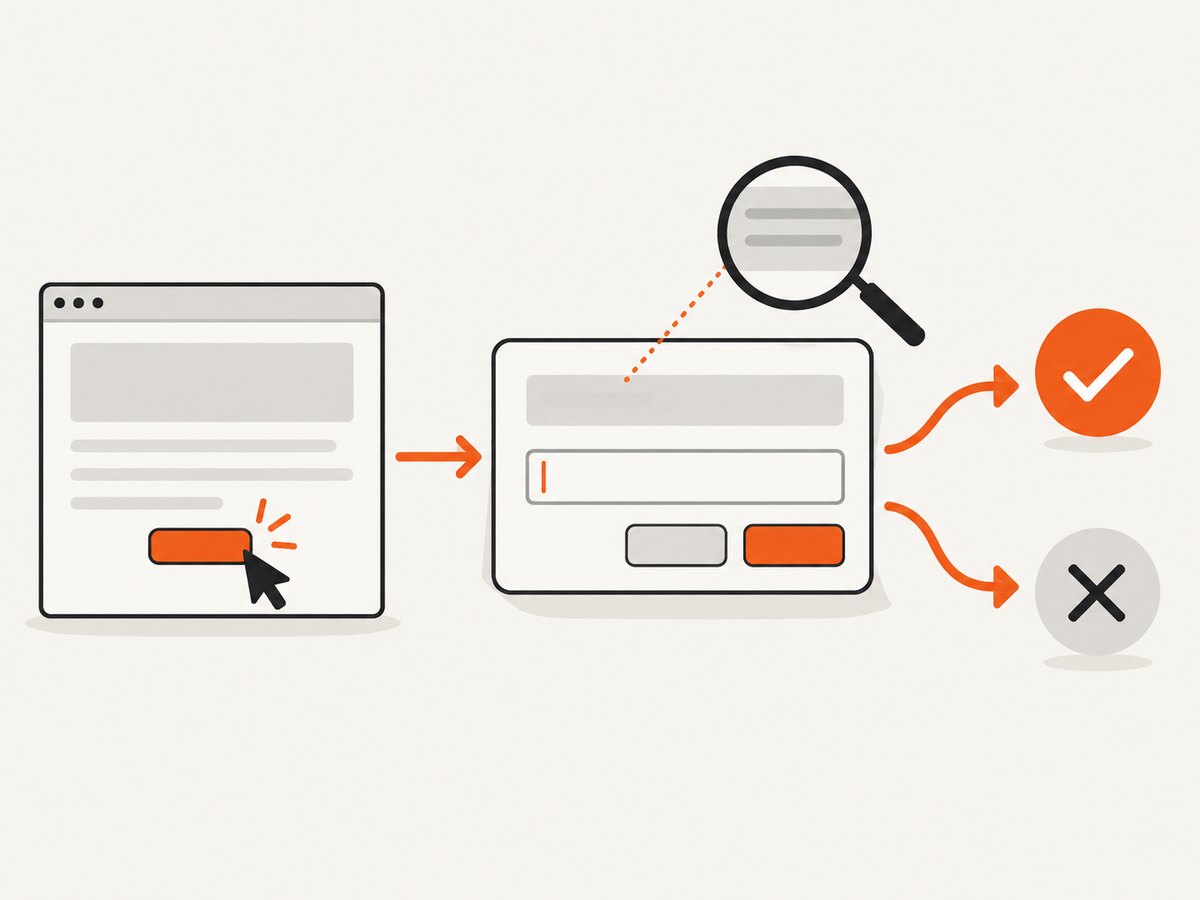
A JavaScript prompt is a native browser dialog, so Selenium does not locate it with CSS or XPath. In Java, trigger the action that opens it, wait until the alert is present, switch to it with driver.switchTo().alert(), read getText(), optionally enter text with sendKeys(), then call accept() or dismiss(). Waiting before switching prevents a race when the dialog appears asynchronously.
WebDriverWait wait = new WebDriverWait(driver, Duration.ofSeconds(10));
wait.until(ExpectedConditions.alertIsPresent());
Alert prompt = driver.switchTo().alert();
String message = prompt.getText();
prompt.sendKeys("Selenium");
prompt.accept();
The example assumes driver has been initialized and the page action that opens the prompt has already run. Imports and a complete test are below. The Selenium docs describe alerts, confirms, and prompts as native JavaScript popups, with prompts adding a text input. Selenium: Alerts.
1. Identify the kind of dialog first
“Prompt message” can mean either a browser-native JavaScript prompt or a dialog built into the page with HTML and CSS. They look similar to a user, but Selenium interacts with them differently.
| Dialog | How to recognize it | Selenium interface |
|---|---|---|
| JavaScript alert | Message and an OK button; no input | Alert: read, accept, or dismiss |
| JavaScript confirm | Message and OK/Cancel choices | Alert: accept or dismiss |
| JavaScript prompt | Message, text input, and OK/Cancel choices | Alert: read, enter text, accept or dismiss |
| HTML modal | Part of the document, often styled with the site | WebElement: locate using By and wait for visibility/clickability |
A native prompt is not in the page DOM. Trying driver.findElement(...) for its input will not work. Conversely, calling switchTo().alert() for a custom HTML modal usually raises NoAlertPresentException. If unsure, inspect the page implementation or try the correct interaction model and diagnose the resulting condition.
2. Add the Java imports and wait support
For current Selenium Java APIs, use WebDriverWait with a Duration and Selenium’s ExpectedConditions.alertIsPresent(). Add these imports to the test:
import java.time.Duration;

import org.openqa.selenium.Alert;
import org.openqa.selenium.By;
import org.openqa.selenium.WebDriver;
import org.openqa.selenium.WebElement;
import org.openqa.selenium.chrome.ChromeDriver;
import org.openqa.selenium.support.ui.ExpectedConditions;
import org.openqa.selenium.support.ui.WebDriverWait;
The driver setup depends on your project and browser-driver management approach. The next example uses ChromeDriver and leaves setup to your environment. Use the Selenium documentation’s Java examples as the API reference: alerts and prompts and waits.
3. Handle a prompt step by step
- Trigger it. Click the page control or run the JavaScript action that opens the prompt.
- Wait for it. Wait for
alertIsPresent(); do not assume a click opens the dialog synchronously. - Switch and inspect. Get an
Alertreference and read its text before changing the dialog. - Enter input if needed. Use
sendKeys()for prompts. Selenium documents that this replaces the placeholder text. - Choose the outcome. Call
accept()to submit/confirm ordismiss()to cancel. - Continue with the page. Once the dialog closes, locate and assert on the resulting page state.
Here is a complete test method. Replace the example URL and trigger locator with a page that opens a prompt. The assertion demonstrates checking the prompt message; use your test framework’s preferred assertion API.
import java.time.Duration;
import org.openqa.selenium.Alert;
import org.openqa.selenium.By;
import org.openqa.selenium.WebDriver;
import org.openqa.selenium.WebElement;
import org.openqa.selenium.chrome.ChromeDriver;
import org.openqa.selenium.support.ui.ExpectedConditions;
import org.openqa.selenium.support.ui.WebDriverWait;

public class PromptExample {
    public static void main(String[] args) {
        WebDriver driver = new ChromeDriver();
        try {
            driver.get("https://example.com/page-with-prompt");

            driver.findElement(By.id("open-prompt")).click();

            WebDriverWait wait = new WebDriverWait(driver, Duration.ofSeconds(10));
            wait.until(ExpectedConditions.alertIsPresent());

            Alert prompt = driver.switchTo().alert();
            String message = prompt.getText();
            if (!message.contains("name")) {
                throw new AssertionError("Unexpected prompt message: " + message);
            }

            prompt.sendKeys("Selenium");
            prompt.accept();

            WebElement result = wait.until(
                ExpectedConditions.visibilityOfElementLocated(By.id("result"))
            );
            System.out.println("Result: " + result.getText());
        } finally {
            driver.quit();
        }
    }
}
The page, element IDs, and expected message are placeholders because each application defines its own content. Keep the dialog handling sequence intact and replace those page-specific values.
4. Accept, dismiss, and handle each dialog type
Prompt: submit entered text
wait.until(ExpectedConditions.alertIsPresent());
Alert prompt = driver.switchTo().alert();
String message = prompt.getText();
prompt.sendKeys("Selenium");  // replaces any placeholder value
prompt.accept();
Prompt: cancel without submitting
wait.until(ExpectedConditions.alertIsPresent());
Alert prompt = driver.switchTo().alert();
String message = prompt.getText();
prompt.dismiss();
Do not call sendKeys() for a plain alert or confirm: only prompts provide an input field. For an alert, read the message if useful and accept it. For a confirm, acceptance represents the positive choice and dismissal represents cancel. The page’s JavaScript determines what each choice does.
Default or empty prompt values
Some prompts begin with placeholder/default input; others begin empty. Selenium’s sendKeys() replaces the placeholder value, so provide the complete desired value instead of assuming text will be appended. If the application distinguishes an empty submission from cancellation, test both paths: accept with an empty value and dismiss the dialog.
Several prompts in sequence
Wait and switch for each dialog separately. After accepting or dismissing one prompt, trigger or await the next step before requesting another Alert reference. Do not reuse a stale assumption that the next dialog already exists.
WebDriverWait wait = new WebDriverWait(driver, Duration.ofSeconds(10));

wait.until(ExpectedConditions.alertIsPresent());
Alert first = driver.switchTo().alert();
String firstMessage = first.getText();
first.sendKeys("first value");
first.accept();

// Perform any page action required to open the next prompt.
wait.until(ExpectedConditions.alertIsPresent());
Alert second = driver.switchTo().alert();
String secondMessage = second.getText();
second.dismiss();
5. Wait correctly and avoid timing races
alertIsPresent() is an explicit wait condition: Selenium polls until a dialog is available or the timeout expires. Choose a timeout that fits the page and test environment. A short timeout can fail on a slow application; an unnecessarily long timeout delays diagnosis when the dialog never opens.
Place the wait immediately after the action expected to cause the prompt. If that action itself gets blocked by a prompt that appears during another command, the command may instead fail with an unexpected-alert error; configure an unhandled-prompt policy only when that behavior is intentional. Selenium’s wait guide explains explicit waits and condition-based synchronization: Waiting strategies.
For a deliberately slow prompt, increase the explicit timeout to a reasonable bound. Avoid arbitrary fixed sleeps as the normal strategy: they either waste time when the prompt appears quickly or remain too short when it appears slowly.
6. Handle prompts opened inside frames
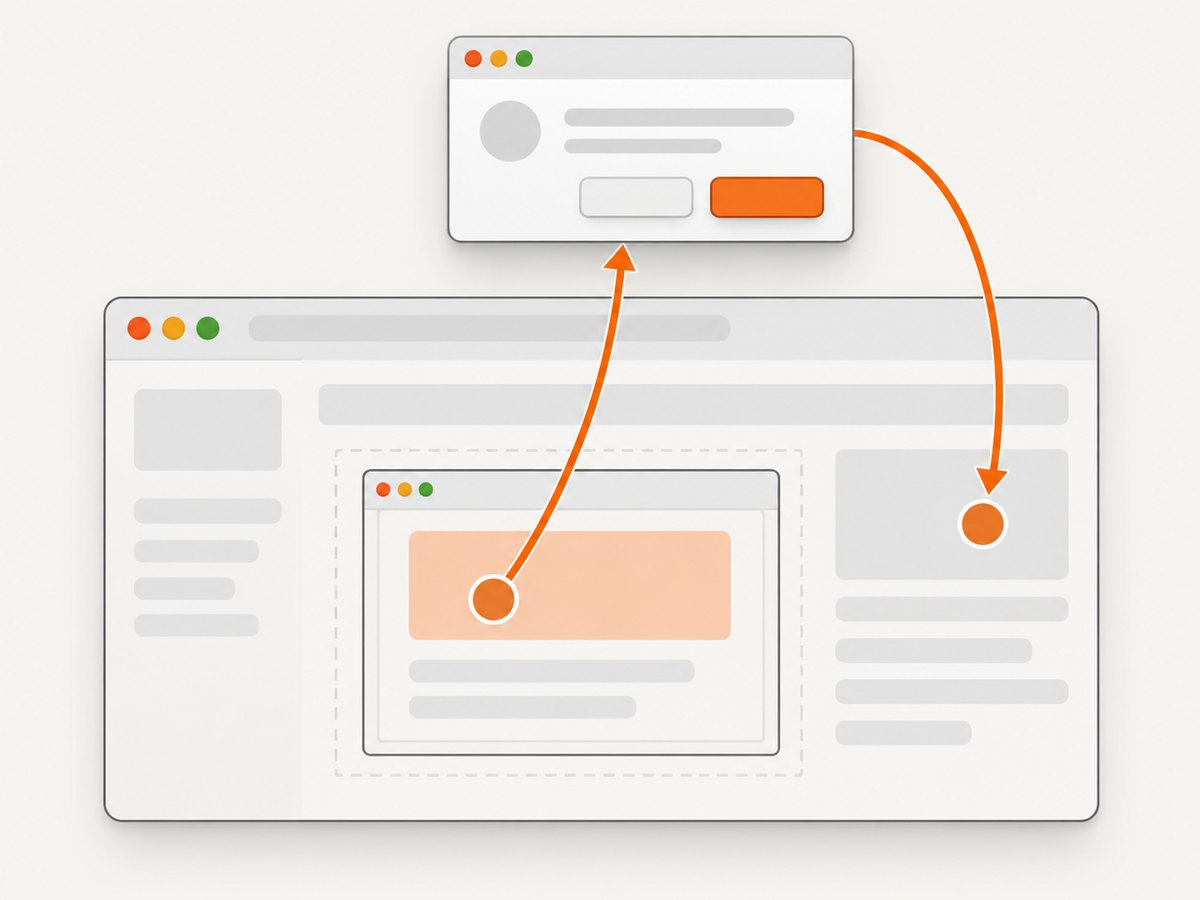
If the JavaScript that opens a prompt runs from an iframe, switch into that frame before locating and clicking its trigger. Then handle the native prompt through the driver’s alert interface. When the dialog closes, switch back to the frame or top-level document needed for subsequent DOM work.
WebDriverWait wait = new WebDriverWait(driver, Duration.ofSeconds(10));

WebElement frameElement = driver.findElement(By.id("prompt-frame"));
driver.switchTo().frame(frameElement);
driver.findElement(By.id("open-prompt")).click();

wait.until(ExpectedConditions.alertIsPresent());
Alert prompt = driver.switchTo().alert();
String message = prompt.getText();
prompt.sendKeys("inside frame");
prompt.accept();

driver.switchTo().defaultContent();
// Continue top-level page interactions here.
For nested frames, switch through each parent frame in order before interacting with the inner document. The prompt itself is handled as a browser dialog; returning to defaultContent() restores the top-level page context. Selenium’s Java API lists frame/window switching separately from alert operations: frames.
7. Unexpected prompts and unhandled-prompt behavior
Sometimes a dialog appears while Selenium is executing a command other than the intended click. WebDriver has an unhandledPromptBehavior capability to define how prompts encountered during commands are handled. Depending on the configured behavior, the driver can accept or dismiss the dialog, report it to the test, or ignore it. Exact behavior should be checked against the WebDriver and Selenium versions in use.
Set a policy only when the test deliberately wants a default response. If the test needs to verify prompt text or distinguish accept from cancel, explicitly wait, switch, inspect, and respond. Automatically dismissing every prompt can hide a real application regression. WebDriver BiDi also defines browsingContext.handleUserPrompt for alert, confirm, prompt, and beforeunload dialogs; use BiDi where your client and browser workflow is built around that protocol. See the WebDriver specification.
8. Troubleshooting common Selenium prompt errors
| Symptom | Likely cause | Fix |
|---|---|---|
NoAlertPresentException |
The prompt has not appeared, already closed, or is actually an HTML modal. | Wait with alertIsPresent() after the trigger. Confirm whether the dialog is native or in the DOM. |
TimeoutException waiting for alert |
The trigger did not run, the locator/action is wrong, or the prompt did not open before timeout. | Check that the click succeeded, verify the application path and frame context, then set a timeout appropriate to the page. |
| Unexpected alert error during another command | A dialog appeared while WebDriver was trying to run a different command. | Handle it explicitly before the blocked operation or choose a deliberate unhandledPromptBehavior policy. |
| Prompt input has unexpected value | The test assumed sendKeys() appends to existing placeholder text. |
Supply the entire intended value; Selenium replaces the placeholder. |
| Prompt opens from an iframe but trigger cannot be found | The driver is still in top-level content or the wrong frame. | Switch into the correct frame before locating the trigger; restore the desired frame after closing. |
| DOM lookup cannot find prompt input | A native prompt is not a page element. | Use driver.switchTo().alert() and Alert.sendKeys(). |
NoAlertPresentException for a styled dialog |
The UI is an HTML modal, not a browser-native popup. | Locate its HTML elements with By, wait for visibility or clickability, and interact with WebElement. |
9. Performance, reliability, and maintenance
Alert handling itself is a small part of test runtime; most variability comes from the page action and when the application opens the dialog. A condition-based explicit wait limits unnecessary delay while still allowing slower pages to complete. Keep the timeout bounded and report the expected action and dialog message when an assertion fails.
For reliability, centralize repeated prompt handling in a helper only if the helper preserves the important steps: wait, inspect, respond. Avoid helpers that silently accept every dialog, because they can mask behavior changes. Include tests for both accepted and dismissed paths when those paths produce different application outcomes. For frame-originated prompts, make frame entry and restoration visible in the test flow.
Native dialogs are browser-controlled, so tests should not depend on styling, button labels, or DOM selectors. Test the message and resulting page state instead. Run the same flow under the browsers and drivers your project supports; do not assume identical timing or configuration without checking your own environment.
10. Or skip the browser setup
If the task is to capture a page screenshot rather than test its native prompt behavior, ScreenshotNeo offers a single GET request that returns an image or PDF. See the API documentation for request details.
curl -G "https://api.screenshotneo.com/v1/shot" -d access_key=YOUR_API_KEY --data-urlencode url=https://stripe.com -o shot.webpimport requests
r = requests.get("https://api.screenshotneo.com/v1/shot", params={"access_key": "YOUR_API_KEY", "url": "https://stripe.com"}, timeout=90)
open("shot.webp", "wb").write(r.content)const q = new URLSearchParams({ access_key: 'YOUR_API_KEY', url: 'https://stripe.com' });
const res = await fetch(`https://api.screenshotneo.com/v1/shot?${q}`);- Cookie banners, popups, and chat widgets are removed before the shot; each step can be turned off.
- Bot checks, blank pages, and failed loads are never billed; response headers report the page verdict and billing status.
- An MCP server lets Claude, Cursor, and other MCP clients take screenshots.
- 1,000 screenshots a month are free with no card; paid plans start at $5 for 3,000.
Sign up for 1,000 free screenshots a month, with no card required.
11. Frequently asked questions
Can I locate a prompt with XPath?
No. A native JavaScript prompt is outside the page DOM. Switch to it using Selenium’s alert interface.
Does getText() return what the user typed?
Use getText() to inspect the dialog message. Enter the prompt response with sendKeys(); verify the submitted result in the page after accepting.
Should I accept or dismiss a prompt in teardown?
Use the choice that matches the test’s intended behavior. A blanket teardown response can obscure whether the application opened an unexpected dialog.
Can I handle a beforeunload dialog the same way?
WebDriver’s prompt handling applies to user prompts including beforeunload, but browser and capability behavior can vary. Configure and verify the behavior needed by your specific navigation test.
What if the prompt appears only sometimes?
Model it as an optional branch with a bounded wait and explicit expected outcomes. Do not let a missing prompt silently pass when its appearance is part of the behavior under test.


