How to Fix Selenium Java TakesScreenshot Size Issues
Fix Selenium Java screenshot size problems by separating capture scope, window geometry, viewport metrics, and image output representation.
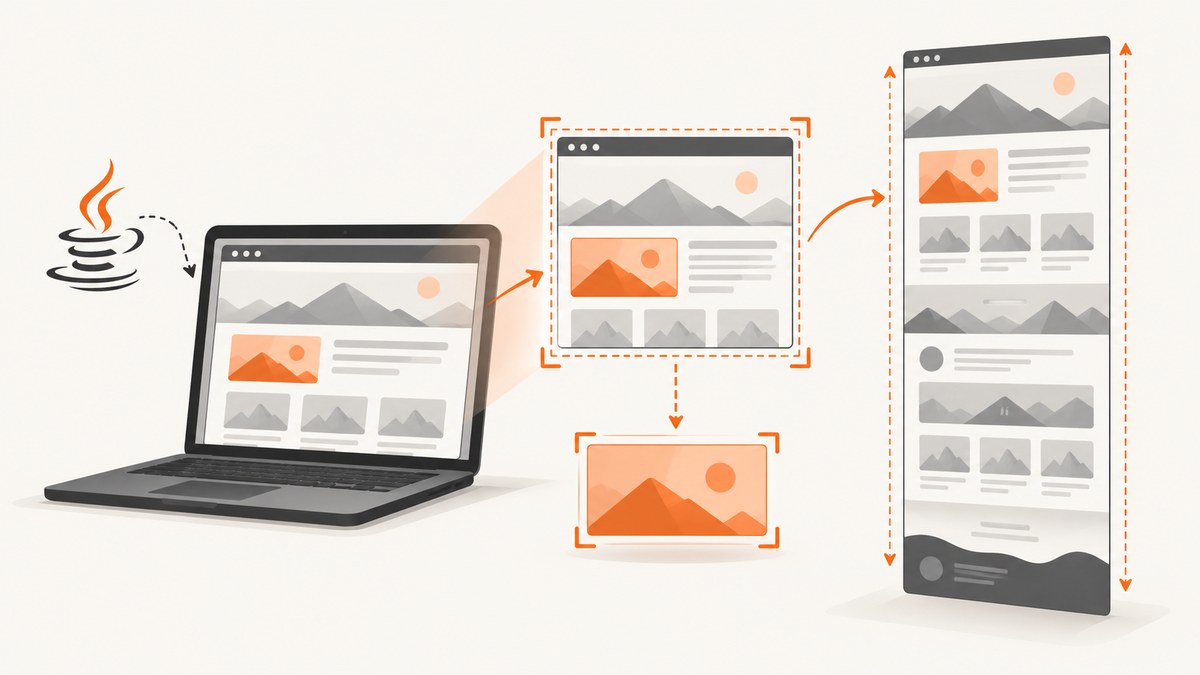
Selenium screenshot size problems usually come from mixing up three different things: what area is captured, what browser geometry was requested, and how Selenium returns the image. Decide whether you need the visible viewport, one element, or the entire scrollable document first. Then record the effective browser metrics and inspect the saved PNG dimensions in the same browser, driver, headless mode, and remote environment.
The standard WebDriver screenshot is the top-level browsing context’s visual viewport. An element screenshot is a separate operation that captures the visible part of an element’s bounding rectangle. Neither operation promises a universal full-document image across browsers. Selenium’s OutputType changes the returned representation, not the capture area. See the Selenium Java API and the W3C WebDriver screenshot specification.
1. Identify the screenshot scope
| Need | Operation | What it means |
|---|---|---|
| Currently visible page | ((TakesScreenshot) driver).getScreenshotAs(...) |
Visual viewport of the top-level browsing context |
| One target | element.getScreenshotAs(...) |
Visible region of that element’s bounding rectangle |
| Entire document | Browser or driver-specific full-page method | Must be verified for the selected browser and driver; do not assume the standard viewport command scrolls the whole page |
2. Capture a viewport screenshot in Java
This is a complete example that waits for a page, captures the viewport, copies Selenium’s temporary file to a durable path, and prints the realized window rectangle. The requested window size is outer window geometry in CSS pixels, including browser chrome; it is not a promise about final PNG dimensions.
import java.nio.file.Files;
import java.nio.file.Path;
import java.nio.file.StandardCopyOption;
import java.time.Duration;

import org.openqa.selenium.Dimension;
import org.openqa.selenium.WebDriver;
import org.openqa.selenium.chrome.ChromeDriver;
import org.openqa.selenium.chrome.ChromeOptions;
import org.openqa.selenium.OutputType;
import org.openqa.selenium.TakesScreenshot;
import org.openqa.selenium.support.ui.WebDriverWait;

public class ViewportShot {
    public static void main(String[] args) throws Exception {
        ChromeOptions options = new ChromeOptions();
        // Remove this argument when a headed browser is required.
        options.addArguments("--headless=new");

        WebDriver driver = new ChromeDriver(options);
        try {
            driver.manage().window().setSize(new Dimension(1440, 900));
            driver.get("https://example.com");
            new WebDriverWait(driver, Duration.ofSeconds(20))
                .until(d -> "complete".equals(
                    ((org.openqa.selenium.JavascriptExecutor) d)
                        .executeScript("return document.readyState")));

            Dimension realized = driver.manage().window().getSize();
            System.out.printf("realized outer window: %dx%d CSS px%n",
                    realized.getWidth(), realized.getHeight());

            TakesScreenshot camera = (TakesScreenshot) driver;
            Path temporary = camera.getScreenshotAs(OutputType.FILE).toPath();
            Path destination = Path.of("artifacts", "viewport.png");
            Files.createDirectories(destination.getParent());
            Files.copy(temporary, destination, StandardCopyOption.REPLACE_EXISTING);
            System.out.println("saved " + destination.toAbsolutePath());
        } finally {
            driver.quit();
        }
    }
}
OutputType.FILE returns a temporary file that is deleted when the JVM exits, so copy it before the process ends. For bytes or base64, use the following forms:
byte[] png = ((TakesScreenshot) driver)
        .getScreenshotAs(OutputType.BYTES);
String base64 = ((TakesScreenshot) driver)
        .getScreenshotAs(OutputType.BASE64);
3. Capture one element instead of the viewport
import java.nio.file.Files;
import java.nio.file.Path;
import java.nio.file.StandardCopyOption;
import org.openqa.selenium.By;
import org.openqa.selenium.OutputType;
import org.openqa.selenium.WebElement;

WebElement card = driver.findElement(By.cssSelector("article.product-card"));
Path temporary = card.getScreenshotAs(OutputType.FILE).toPath();
Files.copy(temporary, Path.of("artifacts/card.png"),
        StandardCopyOption.REPLACE_EXISTING);
This captures the element’s visible bounding rectangle. If the element is partly outside the viewport, clipped, covered, or still changing size, the result can differ from the element’s full DOM height. Scroll it into view and wait for its final layout when necessary.
4. Understand window size, viewport size, and PNG size
driver.manage().window().setSize(...) requests an outer window rectangle. The browser may clamp that request because of screen limits, minimum sizes, browser chrome, remote-driver behavior, or headless implementation details. The resulting viewport is therefore not guaranteed to equal the requested width and height, and the PNG dimensions are not guaranteed to equal either value.
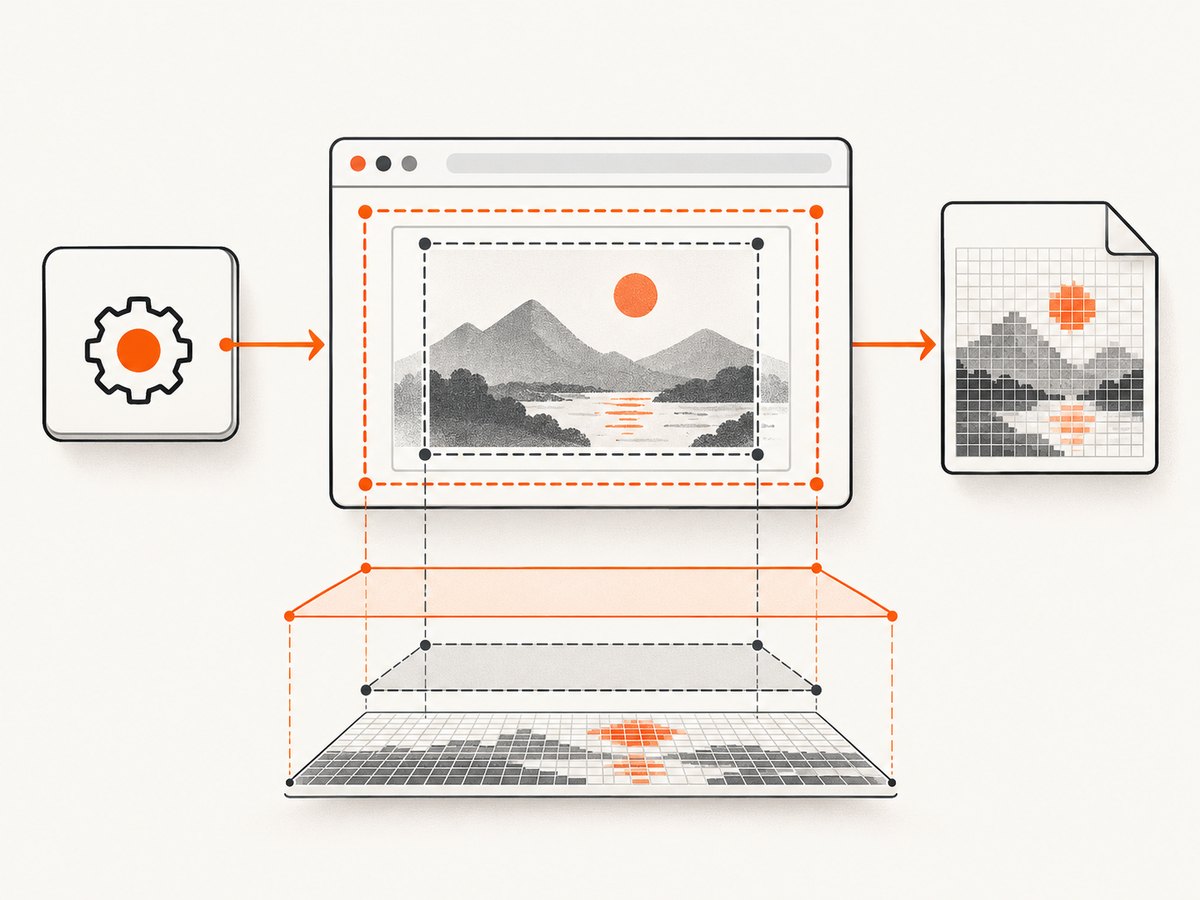
Measure the effective CSS viewport inside the page and inspect the actual image file:
JavascriptExecutor js = (JavascriptExecutor) driver;
Object metrics = js.executeScript(
    "return {innerWidth: window.innerWidth, innerHeight: window.innerHeight," +
    " dpr: window.devicePixelRatio, outerWidth: window.outerWidth," +
    " outerHeight: window.outerHeight};");
System.out.println(metrics);

byte[] png = ((TakesScreenshot) driver).getScreenshotAs(OutputType.BYTES);
Files.write(Path.of("artifacts/viewport.png"), png);
Use an image library such as ImageIO to read the saved PNG width and height. Compare all three observations: requested outer window, effective viewport, and file dimensions. Do this in the exact browser version, driver version, headless mode, and local or remote setup where the mismatch occurs. The available standards do not establish one pixel-to-CSS scaling formula for every configuration.
5. Full-page screenshots: avoid the common assumption
The standard driver screenshot describes the visual viewport, not the complete scrollable document. A page’s scrollHeight alone does not turn that operation into a full-page capture. Full-page support is browser- and driver-specific, so verify the selected implementation and test it against the browser version you deploy.
If you need a reliable full-page artifact across varied environments, define the method explicitly: use a driver feature documented for that browser, a browser-specific protocol command, or a screenshot service. Record the browser, driver, viewport, device scale, and stitching behavior with the artifact so later size comparisons remain meaningful.
6. A repeatable troubleshooting checklist
- Name the scope. Write “viewport,” “visible element,” or “full document” in the test or ticket.
- Separate representation from capture. Switching FILE, BYTES, and BASE64 cannot change width or height.
- Verify the realized geometry. Read
window.innerWidth,window.innerHeight,devicePixelRatio, anddriver.manage().window().getSize()immediately before capture. - Inspect the output file. Confirm it is a valid PNG and record its decoded dimensions.
- Reproduce in the same environment. Headed and headless runs, local and remote sessions, and different browser versions can realize different viewports.
- Check layout stability. Wait for fonts, images, animations, and asynchronous content before capturing.
7. Common errors and fixes
| Symptom | Likely cause | Fix |
|---|---|---|
PNG is smaller than setSize |
Outer window includes browser chrome or was clamped | Measure the effective viewport and saved PNG; do not treat the request as an exact pixel guarantee |
| Only the visible top portion is present | Standard viewport screenshot was used for a full-page requirement | Use a verified browser-specific full-page method or a service that supports full-page capture |
| Element image is clipped | Element extends outside the visible viewport or is covered | Scroll it into view, wait for layout, and verify the element’s bounding rectangle |
| Image disappears after the run | OutputType.FILE is temporary |
Copy it to durable storage before JVM exit |
| Different dimensions in CI | Different headless mode, browser, driver, screen limits, or device scale | Pin versions where possible and log all geometry metrics in CI |
| Blank or half-rendered capture | Capture happened before navigation, fonts, images, or app data finished | Wait for a meaningful selector or application-ready condition, then capture |
8. Performance and reliability considerations
- Viewport captures are generally cheaper to move and store than stitched full-page images; keep the requested scope as small as the requirement allows.
- Wait for a concrete readiness condition instead of an unnecessarily long fixed sleep. A selector, document state, or application signal makes failures easier to diagnose.
- For deterministic visual tests, disable or control animations, use stable test data, and keep browser and driver versions consistent.
- When a remote session is involved, preserve the raw bytes immediately and attach the geometry metrics to the test result.
- Do not infer a universal performance or size relationship from one browser. Measure in the deployment environment.
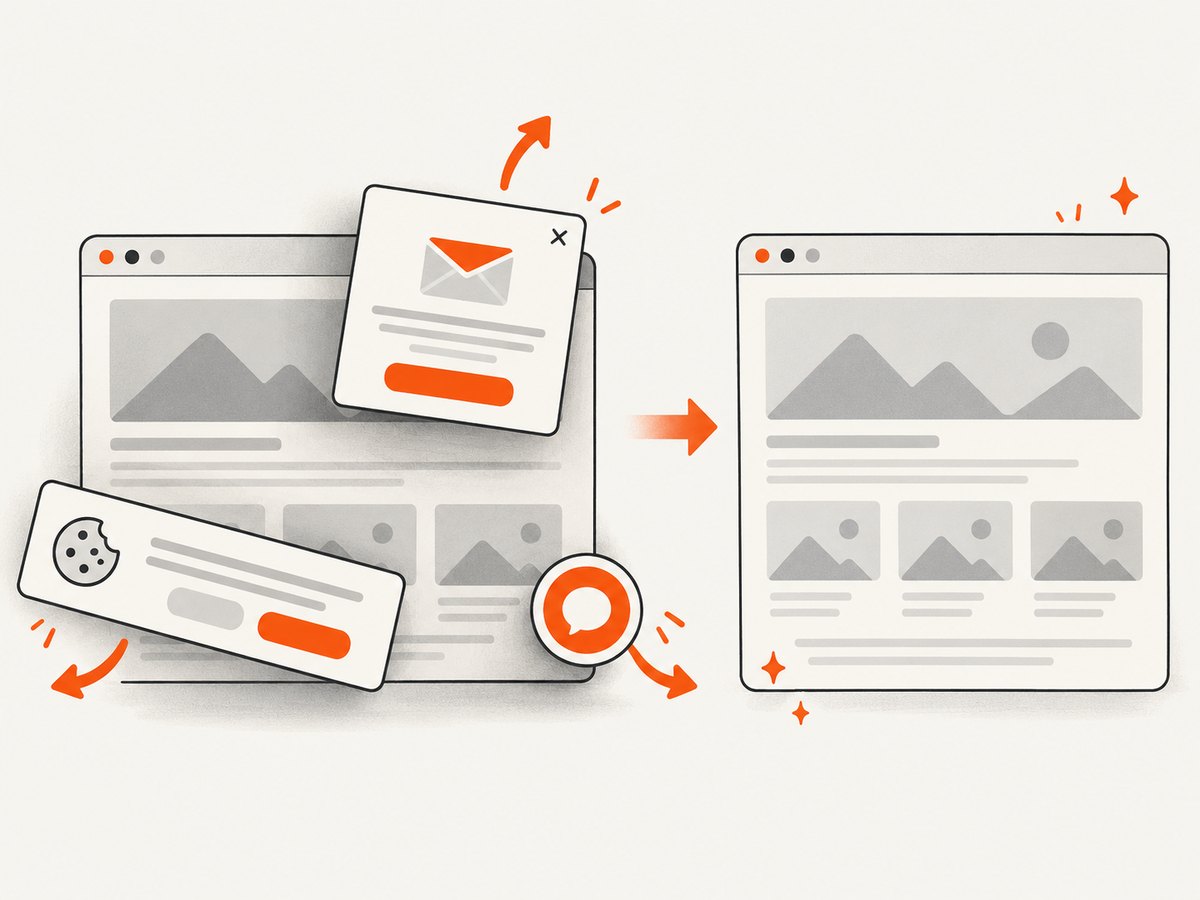
Or skip the browser setup
ScreenshotNeo provides a single screenshot API request when you do not want to maintain browser and driver setup. It can remove cookie and consent banners, newsletter popups, and chat widgets before capture. Bot checks, blank pages, timeouts, failed loads, and cache hits are not billed, and the response identifies the result with X-Page-Verdict and X-Billed headers. It also supports full-page capture, element selectors, device presets, custom viewport and retina scale, waiting rules, custom CSS and JavaScript, headers and cookies, PDFs, caching, async jobs, bulk capture, and an MCP server for AI agents. See the ScreenshotNeo API documentation.
curl -G "https://api.screenshotneo.com/v1/shot" -d access_key=YOUR_API_KEY --data-urlencode url=https://stripe.com -o shot.webpimport requests
r = requests.get("https://api.screenshotneo.com/v1/shot", params={"access_key": "YOUR_API_KEY", "url": "https://stripe.com"}, timeout=90)
open("shot.webp", "wb").write(r.content)const q = new URLSearchParams({ access_key: 'YOUR_API_KEY', url: 'https://stripe.com' });
const res = await fetch(`https://api.screenshotneo.com/v1/shot?${q}`);The free plan includes 1,000 screenshots per month with no card. Paid plans start at $5 for 3,000 screenshots, and every feature is included on every plan. Create a free ScreenshotNeo account.
FAQ
Does changing OutputType change screenshot dimensions?
No. FILE, BYTES, and BASE64 select the returned representation; capture scope remains the driver’s supported screenshot behavior.
Why does a 1366×768 request not produce a 1366×768 PNG?
The request applies to outer window geometry in CSS pixels. Browser chrome, clamping, headless behavior, and device scaling can change the effective viewport and decoded image dimensions.
Is Selenium’s normal screenshot full page?
No. The standards-defined driver screenshot is the visual viewport. Full-page capture requires a verified browser- or driver-specific method.
Should I use an element screenshot for a long page section?
Only when the required area is visible and fits the element screenshot behavior. For content extending beyond the viewport, use a documented full-page or stitching approach.


