How to Fix Selenium Java Screenshots Capturing the Wrong Region
Fix Selenium Java screenshots that capture the wrong area by choosing the right target, viewport, frame, and full-page API.
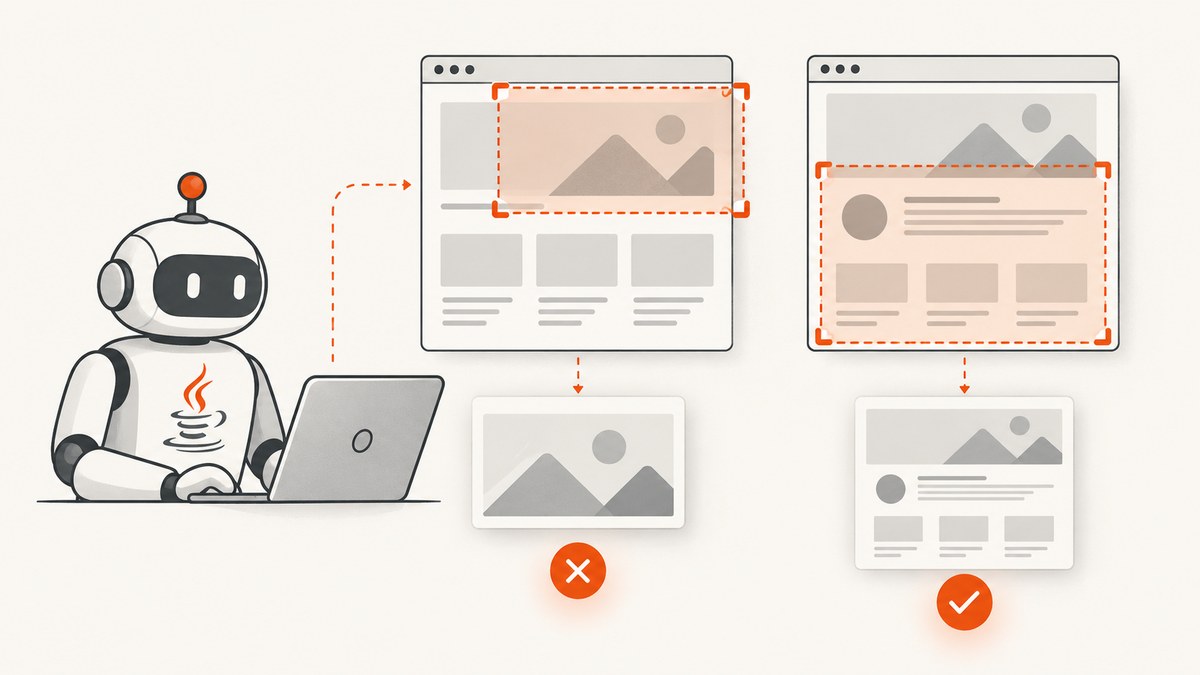
Most wrong-region screenshots come from using the wrong screenshot receiver or expecting a generic screenshot call to capture the full document. In Selenium Java, decide whether you need one element, the current browser view, or the entire page. Then use the matching API, verify the frame and viewport, and check the driver’s full-page support.
The generic TakesScreenshot#getScreenshotAs method can be implemented by both WebDriver and WebElement. The object receiving the call determines the target. Output types such as FILE, BYTES, and BASE64 change how the result is returned; they do not select a crop or page extent. Selenium also documents that non-conforming drivers may return the entire page, the current window, the visible portion of the current frame, or the display containing the browser. See the Selenium Java TakesScreenshot API.
Choose the region you actually need
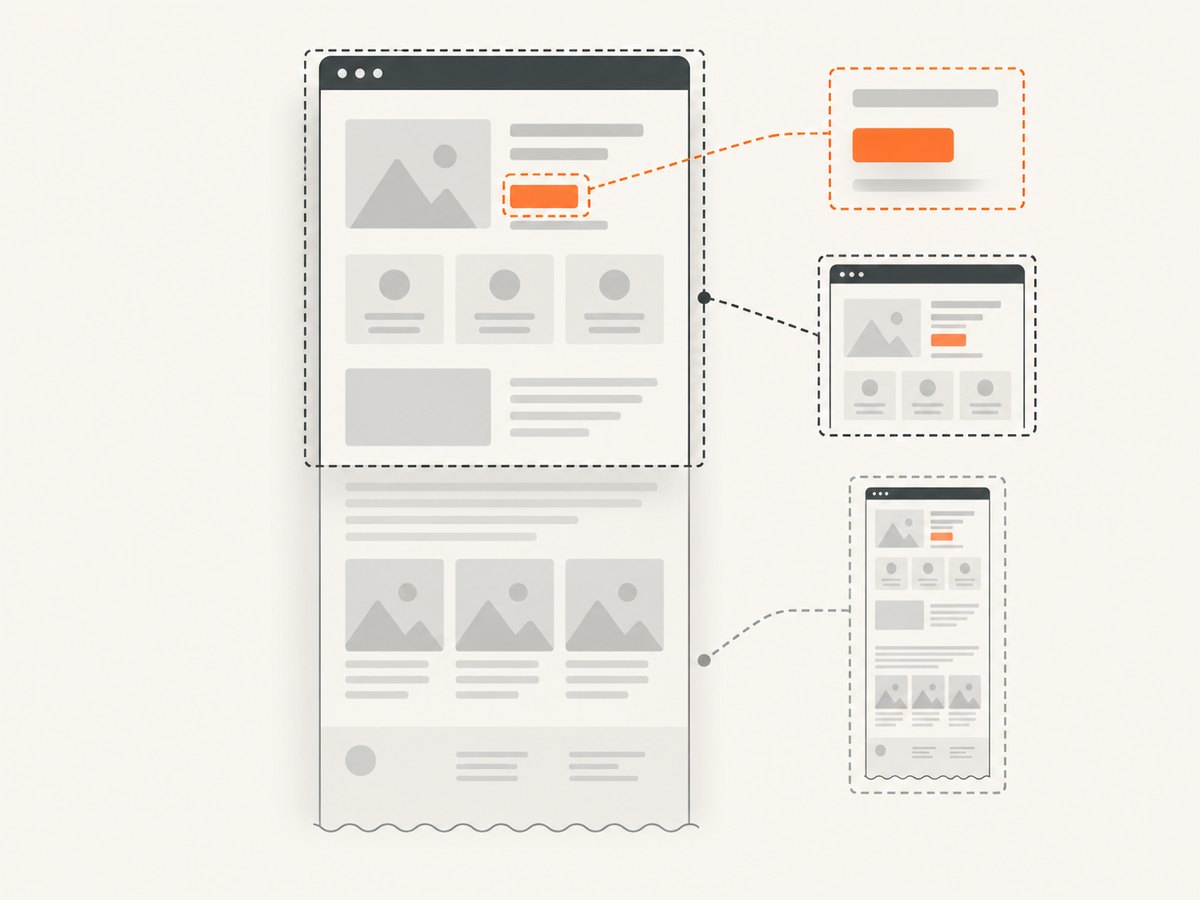
| Requirement | Use | What to expect |
|---|---|---|
| One element | element.getScreenshotAs(...) |
The element’s rendered bounds. |
| Current browser view | ((TakesScreenshot) driver).getScreenshotAs(...) |
Driver-defined window or visible capture. Do not assume full document height. |
| Full page in Firefox | FirefoxDriver#getFullPageScreenshotAs(...) |
An explicitly named full-page route when your Selenium and Firefox driver versions support it. |
1. Capture a specific element
Call the screenshot method on the WebElement, not on the driver, when the required image is a card, chart, form, or other component.
import java.io.File;
import java.nio.file.Files;
import java.nio.file.Path;
import java.nio.file.StandardCopyOption;

import org.openqa.selenium.By;
import org.openqa.selenium.WebDriver;
import org.openqa.selenium.OutputType;
import org.openqa.selenium.WebElement;

WebElement target = driver.findElement(By.cssSelector(".target"));
File temporary = target.getScreenshotAs(OutputType.FILE);
Files.copy(
    temporary.toPath(),
    Path.of("target.png"),
    StandardCopyOption.REPLACE_EXISTING
);
Locate the element after the page has reached the state you want to record. If the element is inside an iframe, switch into that frame before locating it.
driver.switchTo().frame(driver.findElement(By.cssSelector("iframe.payment")));
WebElement payment = driver.findElement(By.cssSelector(".payment-form"));
File temporary = payment.getScreenshotAs(OutputType.FILE);
Files.copy(temporary.toPath(), Path.of("payment.png"),
           StandardCopyOption.REPLACE_EXISTING);
driver.switchTo().defaultContent();
2. Capture the current browser view
Use the driver as the receiver for a normal browser screenshot. Cast it to TakesScreenshot so the intent is explicit.
import java.io.File;
import java.nio.file.Files;
import java.nio.file.Path;
import java.nio.file.StandardCopyOption;
import org.openqa.selenium.OutputType;
import org.openqa.selenium.TakesScreenshot;
import org.openqa.selenium.WebDriver;

File temporary = ((TakesScreenshot) driver)
    .getScreenshotAs(OutputType.FILE);
Files.copy(temporary.toPath(), Path.of("viewport.png"),
           StandardCopyOption.REPLACE_EXISTING);
OutputType.FILE returns a temporary file. Copy it to a stable destination while the test is running; Selenium’s output API documents that the temporary file is deleted when the JVM exits. Use bytes when you want to upload directly or Base64 when a transport requires text.
byte[] png = ((TakesScreenshot) driver)
    .getScreenshotAs(OutputType.BYTES);
String base64 = ((TakesScreenshot) driver)
    .getScreenshotAs(OutputType.BASE64);
3. Capture a full page in Firefox
A generic driver screenshot is not a portable full-page command. Selenium’s Java API lists an explicit Firefox full-page method and the HasFullPageScreenshot capability. Check your Selenium version and actual driver before using it.
import java.io.File;
import java.nio.file.Files;
import java.nio.file.Path;
import java.nio.file.StandardCopyOption;
import org.openqa.selenium.OutputType;
import org.openqa.selenium.firefox.FirefoxDriver;

FirefoxDriver driver = new FirefoxDriver();
driver.get("https://example.com");
File temporary = driver.getFullPageScreenshotAs(OutputType.FILE);
Files.copy(temporary.toPath(), Path.of("full-page.png"),
           StandardCopyOption.REPLACE_EXISTING);
driver.quit();
The method is documented in Selenium’s Java API references for full-page screenshot support. If your installed driver does not expose it, use a supported Firefox setup or a browser-automation library that explicitly provides full-page stitching.
4. Make the viewport deterministic
A screenshot can look wrong when the browser window, device scale, headless mode, or responsive breakpoint differs between runs. Set the window size before navigation and record the resulting dimensions.
import org.openqa.selenium.Dimension;

Dimension viewport = new Dimension(1440, 900);
driver.manage().window().setSize(viewport);
driver.get("https://example.com");
System.out.println(driver.manage().window().getSize());
Use the same browser version, matching driver, Selenium version, headless or headed mode, window size, and device scale when comparing images. A CSS breakpoint may move an element or change the page height even when the URL is identical.
5. Verify page state before taking the shot
Capture after the relevant content exists, not merely after navigation returns. Wait for a selector, visibility, or a known state.

import java.time.Duration;
import org.openqa.selenium.support.ui.ExpectedConditions;
import org.openqa.selenium.support.ui.WebDriverWait;

WebDriverWait wait = new WebDriverWait(driver, Duration.ofSeconds(20));
WebElement chart = wait.until(ExpectedConditions.visibilityOfElementLocated(
    By.cssSelector(".chart")
));
chart.getScreenshotAs(OutputType.FILE);
For lazy-loaded content, scroll the target into view and wait for its dimensions or image state. For animations, wait until the animation completes or apply test CSS that disables motion. These steps prevent a correctly cropped screenshot from still appearing incomplete.
6. Diagnose the wrong region systematically
- Name the expected output. Write down “element,” “current view,” or “full document.”
- Inspect the receiver. Check whether the call is made on
WebElement,WebDriver, orFirefoxDriver. - Check browsing context. Confirm the active iframe and window before locating the target.
- Separate format from extent. Changing
FILEtoBYTESorBASE64will not change the captured region. - Record environment details. Log browser, driver, Selenium version, headless mode, window size, and image dimensions.
- Inspect pixels and bounds. Compare the image dimensions with
element.getRect()or the configured window size.
import org.openqa.selenium.Rectangle;

Rectangle r = target.getRect();
System.out.printf("x=%d y=%d width=%d height=%d%n",
    r.getX(), r.getY(), r.getWidth(), r.getHeight());
Common errors and fixes
| Symptom | Likely cause | Fix |
|---|---|---|
| Only the visible viewport appears | Generic driver capture was used for a full-page requirement. | Use Firefox’s explicit full-page API where supported, or a tool with documented full-page capture. |
| The image contains the whole page instead of one component | The screenshot call was made on the driver. | Call getScreenshotAs on the intended WebElement. |
| The target is missing or shifted | Responsive viewport, late layout, or a different device scale. | Set the window size, wait for the target state, and log dimensions. |
| An element cannot be found | The driver is in the wrong window or iframe. | Switch to the correct window and frame before locating it. |
| The saved file disappears | OutputType.FILE is temporary. |
Copy it to a permanent path before the JVM exits. |
| Full-page method does not compile | Your Selenium Java version or driver type lacks that API. | Verify the installed API and use a compatible FirefoxDriver setup. |
| Screenshot dimensions differ between CI and local runs | Different browser versions, headless settings, viewport sizes, or scaling. | Pin and log those environment values, then compare like-for-like runs. |
Performance and reliability considerations
- Element and viewport screenshots usually require less image data than full-page captures. Prefer the smallest region that answers the test’s question.
- Wait only for the state you need. A long fixed delay makes suites slower and still may miss asynchronous content; an explicit condition is more reliable.
- Keep screenshot files out of the hot path unless they are needed for an artifact. Return bytes for uploads and copy files only when persistence is required.
- Full-page captures can be tall and memory-intensive. Set a sensible page scope and avoid taking them for every test step.
- When a screenshot is diagnostic evidence, retain the browser, driver, Selenium version, viewport, frame, and image dimensions with the artifact.
Or skip the browser setup
ScreenshotNeo provides a single HTTP request for website screenshots and PDFs. Cookie and consent banners are accepted and removed before capture, along with more than 60 known consent platforms, newsletter popups, and chat widgets; each cleanup step can be turned off. Bot checks, blank pages, timeouts, failed loads, and cache hits are not billed, and the response identifies the result with X-Page-Verdict and X-Billed headers. Its MCP server lets Claude, Cursor, and other MCP clients call take_screenshot, get_page_info, and capture_pdf.
See the ScreenshotNeo API documentation for all capture options.
curl -G "https://api.screenshotneo.com/v1/shot" \
  -d access_key=YOUR_API_KEY \
  --data-urlencode url=https://stripe.com \
  -o shot.webp
import requests
r = requests.get(
"https://api.screenshotneo.com/v1/shot",
params={"access_key": "YOUR_API_KEY", "url": "https://stripe.com"},
timeout=90,
)
open("shot.webp", "wb").write(r.content)const q = new URLSearchParams({
access_key: 'YOUR_API_KEY',
url: 'https://stripe.com'
});
const res = await fetch(`https://api.screenshotneo.com/v1/shot?${q}`);
const image = Buffer.from(await res.arrayBuffer());
await import('node:fs/promises').then(fs => fs.writeFile('shot.webp', image));ScreenshotNeo supports full-page capture, CSS element selection, device presets, custom viewports, retina scale, dark mode, custom CSS and JavaScript, waits, request blocking, headers, cookies, user agents, authorization, timezone, geolocation, transparent backgrounds, resizing, caching, signed links, asynchronous jobs, webhooks, bulk capture, usage reporting, and PDF output. It accepts parameter names used by other screenshot APIs, which can simplify migration.
Pricing: 1,000 screenshots per month are free with no card. Paid plans start at $5 for 3,000 shots; yearly billing gives two months free, and every feature is included on every plan. Create a free ScreenshotNeo account.
FAQ
Does OutputType.FILE mean a full-page screenshot?
No. It selects a temporary file representation. The receiver and driver determine the capture target.
Can every Selenium browser driver capture the full document?
No universal guarantee exists for the generic method. Use an explicitly documented full-page capability and verify support for your browser and Selenium version.
Why does changing to Base64 not fix the crop?
Base64 changes encoding only. It does not alter the region being captured.
Should I use a driver screenshot or an element screenshot for visual assertions?
Use an element screenshot when the assertion concerns one component; use a driver or full-page route when surrounding layout matters.


