How to Capture JavaScript Alert Screenshots in Selenium WebDriver
Capture alert, confirm, and prompt evidence in Selenium with reliable waits, screenshots, dialog text, troubleshooting, and post-action artifacts.
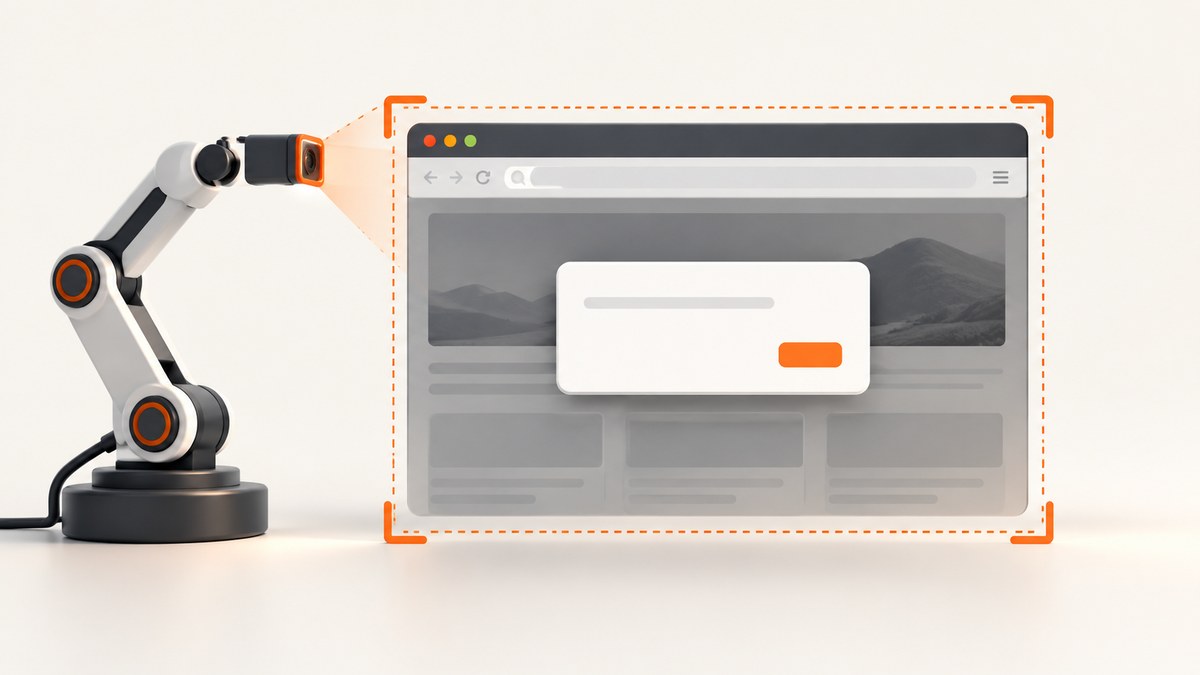
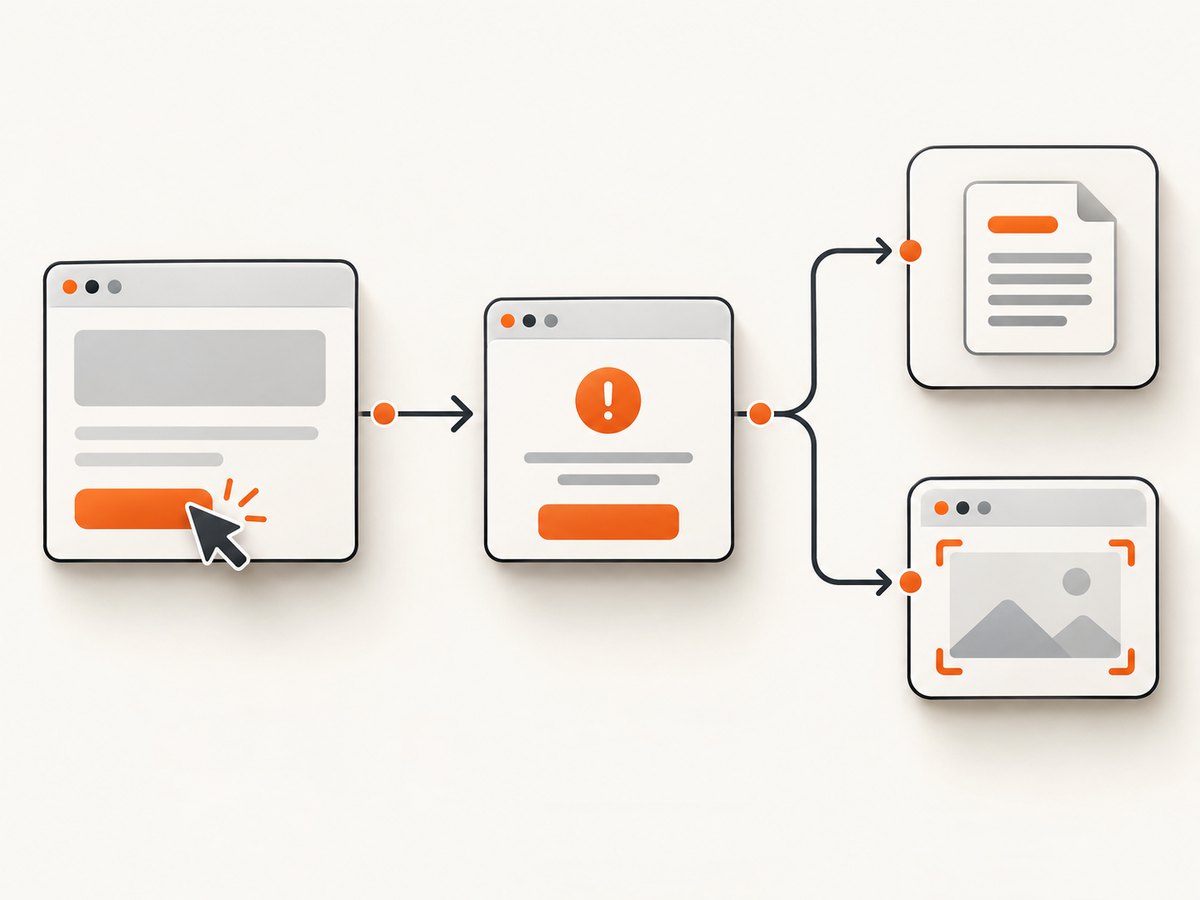
To capture a JavaScript alert screenshot in Selenium, trigger the dialog, wait until the alert is present, switch to it, record its text, call the normal WebDriver screenshot method, then accept or dismiss the dialog and capture the resulting page. Native alert, confirm, and prompt dialogs are controlled through WebDriver’s alert target; they are not ordinary DOM elements.
Keep two artifacts for a dependable test record: the image returned by WebDriver and the alert text plus action outcome. Browser drivers do not guarantee that native dialog chrome appears in the bitmap, and some environments reject a screenshot while a modal dialog is active. The text and action are therefore often the authoritative evidence.
What Selenium can and cannot screenshot
WebDriver can read popup text and accept or dismiss JavaScript alerts. Its screenshot endpoint captures the current page and returns image data, commonly as Base64 in the protocol. A native dialog belongs to the browser interface rather than the page’s DOM. That means:
- You cannot locate a native alert with a CSS selector or an element screenshot method.
- You should use the alert interface for
getText(),accept(),dismiss(), and prompt input. - You should use the driver-level screenshot API for page pixels.
- Whether the operating system’s dialog frame is visible depends on the browser, driver, operating system, headed or headless mode, and remote execution setup.
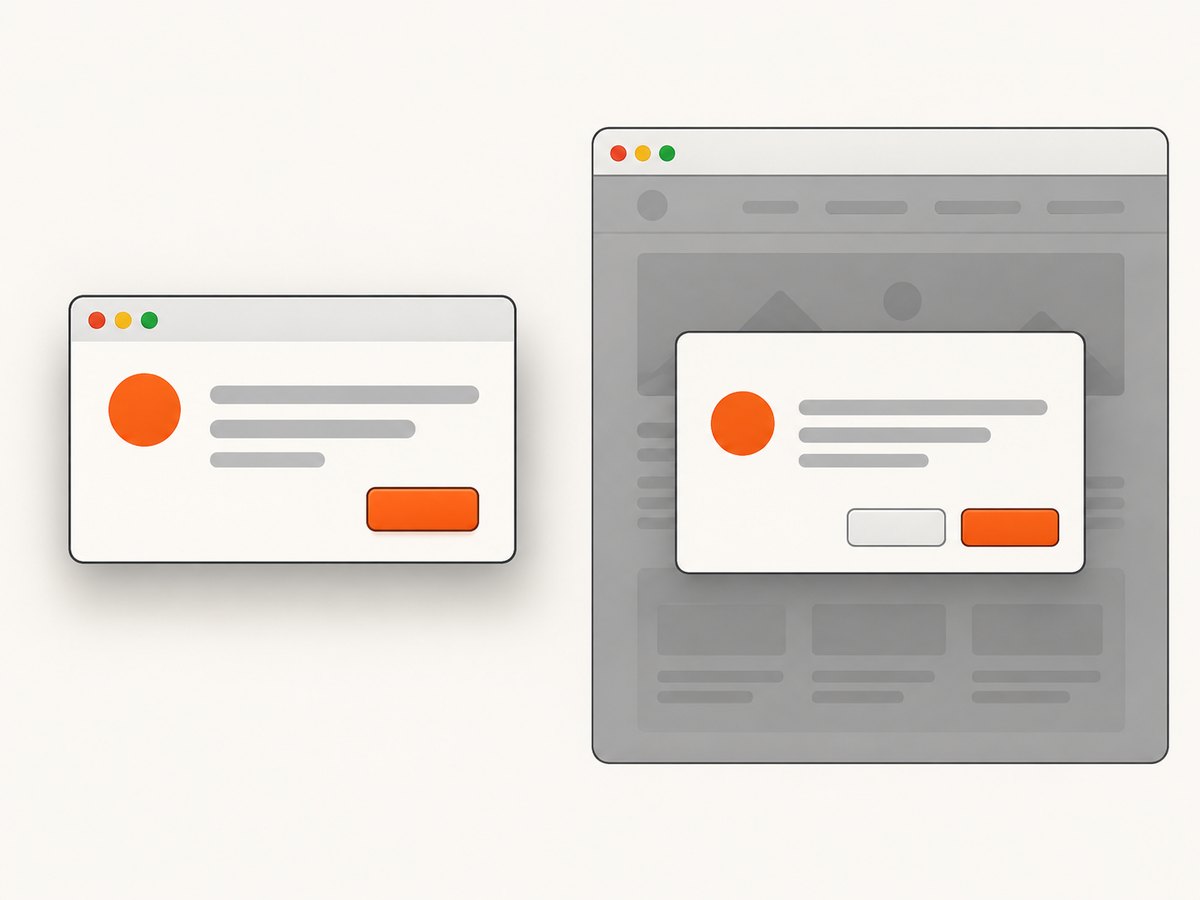
If the page displays a modal built from HTML elements, it is not a native JavaScript dialog. Locate that modal as normal DOM content and use an element or page screenshot instead.
Reliable capture sequence
- Navigate to the page under test.
- Trigger the alert, confirm, or prompt.
- Wait for alert presence. In Python this is
EC.alert_is_present(); Java usesExpectedConditions.alertIsPresent(); JavaScript usesuntil.alertIsPresent(). - Switch to the alert and read its text before changing its state.
- Attempt a screenshot while the dialog is open. Save it only if the driver returns one.
- For a prompt, send the required response before accepting. For a confirm, choose accept or dismiss for the branch being tested.
- Capture a post-action screenshot immediately after the dialog closes.
- Store the alert text, selected action, browser and driver versions, operating system, and headless or headed setting with the files.
Python: capture alert, confirm, and prompt evidence
Install Selenium with pip install selenium. Recent Selenium releases can manage a compatible browser driver automatically. The example below writes an alert-state image when possible, always records text, and captures the page after acceptance.
from pathlib import Path
from selenium import webdriver
from selenium.common.exceptions import WebDriverException
from selenium.webdriver.common.by import By
from selenium.webdriver.support.ui import WebDriverWait
from selenium.webdriver.support import expected_conditions as EC

ARTIFACTS = Path("artifacts")
ARTIFACTS.mkdir(exist_ok=True)

driver = webdriver.Chrome()
try:
    driver.get("https://example.test/alerts")
    driver.find_element(By.ID, "open-alert").click()

    alert = WebDriverWait(driver, 10).until(EC.alert_is_present())
    alert_text = alert.text
    (ARTIFACTS / "alert-text.txt").write_text(alert_text, encoding="utf-8")

    try:
        driver.save_screenshot(str(ARTIFACTS / "alert-state.png"))
    except WebDriverException as error:
        (ARTIFACTS / "alert-screenshot-error.txt").write_text(
            str(error), encoding="utf-8"
        )

    alert.accept()
    driver.save_screenshot(str(ARTIFACTS / "after-alert.png"))
finally:
    driver.quit()
For a confirm, replace alert.accept() with alert.dismiss() for the cancel branch. For a prompt:
alert = WebDriverWait(driver, 10).until(EC.alert_is_present())
text_before_input = alert.text
alert.send_keys("value entered by the test")
alert.accept()
driver.save_screenshot("artifacts/after-prompt.png")
Take the screenshot before accepting only when your driver supports it. If it does not, preserve the text and action, close the dialog, and capture the resulting page.
Java: capture the dialog and both page states
Add Selenium to your build, then use TakesScreenshot for the image bytes or file. The wait prevents a race between the click that opens the dialog and the alert switch.
import java.io.File;
import java.nio.file.Files;
import java.nio.file.Path;
import java.time.Duration;
import org.openqa.selenium.Alert;
import org.openqa.selenium.By;
import org.openqa.selenium.OutputType;
import org.openqa.selenium.TakesScreenshot;
import org.openqa.selenium.WebDriver;
import org.openqa.selenium.chrome.ChromeDriver;
import org.openqa.selenium.support.ui.ExpectedConditions;
import org.openqa.selenium.support.ui.WebDriverWait;

WebDriver driver = new ChromeDriver();
try {
    driver.get("https://example.test/alerts");
    driver.findElement(By.id("open-alert")).click();

    WebDriverWait wait = new WebDriverWait(driver, Duration.ofSeconds(10));
    Alert alert = wait.until(ExpectedConditions.alertIsPresent());
    String text = alert.getText();
    Files.writeString(Path.of("artifacts/alert-text.txt"), text);

    try {
        File before = ((TakesScreenshot) driver).getScreenshotAs(OutputType.FILE);
        Files.copy(before.toPath(), Path.of("artifacts/alert-state.png"));
    } catch (Exception screenshotError) {
        Files.writeString(Path.of("artifacts/alert-screenshot-error.txt"),
                          screenshotError.toString());
    }

    alert.accept();
    File after = ((TakesScreenshot) driver).getScreenshotAs(OutputType.FILE);
    Files.copy(after.toPath(), Path.of("artifacts/after-alert.png"));
} finally {
    driver.quit();
}
For a prompt, call alert.sendKeys("response") before alert.accept(). For a confirm test, call alert.dismiss() to exercise the cancel path.
JavaScript: Selenium WebDriver with Base64 screenshots
Install the package with npm install selenium-webdriver. takeScreenshot() returns a Base64 string, so convert it to a Node.js buffer before writing the file.
const {Builder, By, until} = require('selenium-webdriver');
const fs = require('node:fs');

const driver = await new Builder().forBrowser('chrome').build();
try {
  await driver.get('https://example.test/alerts');
  await driver.findElement(By.id('open-alert')).click();

  await driver.wait(until.alertIsPresent(), 10000);
  const alert = await driver.switchTo().alert();
  const text = await alert.getText();
  fs.writeFileSync('artifacts/alert-text.txt', text);

  try {
    fs.writeFileSync(
      'artifacts/alert-state.png',
      Buffer.from(await driver.takeScreenshot(), 'base64')
    );
  } catch (error) {
    fs.writeFileSync('artifacts/alert-screenshot-error.txt', String(error));
  }

  await alert.accept();
  fs.writeFileSync(
    'artifacts/after-alert.png',
    Buffer.from(await driver.takeScreenshot(), 'base64')
  );
} finally {
  await driver.quit();
}
Choosing the right evidence for each dialog type
| Dialog | Text operation | Action | Useful evidence |
|---|---|---|---|
alert |
text or getText() |
accept() |
Message, attempted alert-state screenshot, post-alert page |
confirm |
text or getText() |
accept() or dismiss() |
Message, chosen branch, resulting page |
prompt |
text or getText() |
sendKeys(), then accept or dismiss |
Question, supplied value, action, resulting page |
Record the state you actually need. A screenshot before action proves what the page looked like when the dialog appeared. A post-action screenshot proves the visible result. Alert text proves the native message even when dialog chrome is absent from pixels.
Timing, windows, frames, and headless edge cases
Wait for presence, not a fixed sleep
A fixed delay can be too short on a busy run and unnecessarily slow on a fast one. An alert-presence wait polls until WebDriver can switch to the dialog. Start the wait after the action that triggers the alert and use a timeout based on the page’s normal worst case.
Use the correct browsing context
If the trigger runs inside an iframe, switch into that frame before clicking it. If it opens a new tab or window, switch to the correct window handle before waiting. A wait on the original context can time out even though the alert exists elsewhere.
Headless versus headed mode
Native dialog rendering differs between headed and headless sessions. Keep the mode in artifact metadata and compare screenshots only within the same environment. A remote grid can also use different browser, driver, and operating-system versions than a local machine.
Full-page and viewport behavior
The standard screenshot call captures the current page according to the driver implementation, usually the viewport or a driver-specific full-page image. It does not promise to include operating-system dialog chrome. If you need a consistent full-page result, capture the page after the dialog closes and store the alert text separately.
Troubleshooting common failures
| Symptom | Likely cause | Fix |
|---|---|---|
NoAlertPresentException |
The dialog was not triggered, the wait started too early, or the driver is in the wrong window or frame. | Verify the trigger, switch context first, then wait with the alert-presence condition. |
| Alert wait times out | The page uses an HTML modal, blocks the script, or the click did not reach the intended element. | Inspect the DOM for a modal; otherwise verify the locator, browser console, and trigger path. |
| Screenshot fails while alert is open | The browser driver rejects page capture while a native modal is active. | Save alert text and the intended action, close the dialog, and take the post-dialog screenshot. |
| Screenshot has no visible dialog | Native browser chrome is outside the page screenshot or differs in headless mode. | Treat text and action as authoritative; retain the image as page-state evidence. |
| Element locator cannot find the alert | Native dialogs are not DOM elements. | Use switchTo().alert() or the binding’s alert API. |
| Prompt value is missing | The test accepted before sending input. | Call sendKeys() first, then accept. |
| Post-action screenshot shows the old page | The page updates asynchronously after acceptance. | Wait for a result selector, URL change, or other application condition before capturing. |
| Different pixels across runs | Browser, driver, OS, viewport, scale factor, fonts, or headed mode changed. | Pin and record the environment; compare like-for-like sessions. |
Performance and reliability practices
- Capture only the states that answer a debugging or assertion question. Two targeted images are cheaper and easier to review than screenshots after every command.
- Write files once, after the screenshot call returns, and use unique names for parallel tests.
- Keep alert text in a small text or JSON artifact so a failed image does not erase the key diagnostic.
- Use explicit waits for alert presence and post-action conditions instead of global sleeps.
- Pin browser and driver versions in CI and include them in the artifact manifest.
- On failure, retain the exception, alert text if available, selected action, URL, window handle, frame state, and screenshot paths.
- For remote sessions, verify that the returned Base64 data is decoded exactly once and that the test runner has permission to write its artifact directory.
A screenshot is evidence, not the alert control mechanism. The most reliable record combines the dialog’s text, the action taken, and the page image captured before or after that action.
Or skip the browser setup
For ordinary website screenshots, ScreenshotNeo provides a single HTTP request and supports PNG, JPEG, WebP, and PDF output. It does not replace Selenium when you must exercise a native alert branch, read dialog text, or verify a user action. It is useful when your goal is a clean page capture after the interaction or when maintaining browser infrastructure is unnecessary.
See the ScreenshotNeo API documentation for request options. The basic cURL call is:
curl -G "https://api.screenshotneo.com/v1/shot" \
  -d access_key=YOUR_API_KEY \
  --data-urlencode url=https://stripe.com \
  -o shot.webp
Python:
import requests

r = requests.get(
    "https://api.screenshotneo.com/v1/shot",
    params={"access_key": "YOUR_API_KEY", "url": "https://stripe.com"},
    timeout=90,
)
open("shot.webp", "wb").write(r.content)
Node.js:
const q = new URLSearchParams({ access_key: 'YOUR_API_KEY', url: 'https://stripe.com' });
const res = await fetch(`https://api.screenshotneo.com/v1/shot?${q}`);
ScreenshotNeo removes cookie and consent banners, newsletter popups, and chat widgets before capture. Bot checks, blank pages, failed loads, timeouts, and cache hits are not billed, and response headers identify the page verdict and billing status. Its MCP server provides take_screenshot, get_page_info, and capture_pdf tools for Claude, Cursor, and other MCP clients. The Free plan includes 1,000 screenshots each month without a card; paid plans start at $5 for 3,000 screenshots.
Create a free ScreenshotNeo account and use the 1,000 included monthly screenshots to capture clean post-interaction pages.
FAQ
Can Selenium screenshot the native alert itself?
Sometimes, depending on the browser and driver. Attempt the normal screenshot call, but do not depend on native dialog pixels. Always record the alert text and action.
Should I accept the alert before taking a screenshot?
Capture before acceptance when the driver permits and that state matters. Otherwise record the text, accept or dismiss, and capture the resulting page immediately.
How do I test a cancel path?
Read the text, call dismiss(), wait for the application’s cancel result, and save a post-dismiss screenshot.
Why does a CSS selector not find my popup?
A native JavaScript dialog is outside the DOM. Use WebDriver’s alert target. A DOM-styled modal can be selected normally.
What should I attach to a bug report?
Attach the alert text, action outcome, attempted alert-state image, post-action image, URL, browser and driver versions, operating system, viewport, and headed or headless mode.


