How to Fix Selenium sendKeys and clear on Kendo Autocomplete in Safari
Diagnose why Selenium sendKeys or clear fails on a Kendo AutoComplete in Safari, then choose between real keyboard input and Kendo’s widget API.
When Selenium’s sendKeys or clear fails on a Kendo UI AutoComplete in Safari, first verify that your locator points to the widget’s real, editable <input> and that it is visible, enabled, and interactable in the current page state. Kendo creates widget markup around an input, so an element that looks like the field may not be the input Selenium needs. If realistic typing is not required, Telerik’s widget API offers another path: set the value, call search(value), and explicitly handle any application change or binding behavior your test depends on.
This guide gives a diagnostic sequence and runnable examples in Python, Java, and JavaScript. It also explains what the widget API does and does not trigger. A historical report involved Selenium 3.6.0 and Safari 11.0.1; it does not establish that every current Safari and Kendo combination has the same defect.
1. Identify what is actually failing
Separate three outcomes before changing the test:
- WebDriver cannot interact with the element. An exception such as “element not visible” or “element not interactable” points to the locator, visibility, enabled state, or active page state. Selenium checks interactability and attempts to scroll an element into view before sending keys or clearing it.
- Typing succeeds but suggestions do not update. The input may have received text without the widget’s filtering/search path producing the expected popup. Check the widget configuration, data source, and application event handlers.
- Suggestions appear but application state is stale. A programmatic widget value can be visible while an MVVM model or application handler has not been updated. Verify the state your application actually consumes, not just the field’s displayed text.
Record the exact exception and the failing command. “Typing does not work” is not specific enough to distinguish an element-interaction failure from a filtering or binding failure.
2. Check Safari WebDriver and window focus
Safari automation uses Apple’s safaridriver, which ships with macOS. Selenium’s Safari setup guide gives safaridriver --enable as the command to enable it. Run this once in the macOS account used for automation if Safari WebDriver has not been enabled.
safaridriver --enableSafari WebDriver runs in isolated automation windows and applies safeguards around simulated keyboard and mouse input. Confirm that the driver has opened the expected Safari window and that the test has switched into the right window and frame before locating the field. These are sensible environment checks; the available historical report does not establish that focus safeguards caused its Kendo failure.
For a reproducible diagnosis, note the macOS and Safari versions, Selenium binding and version, Kendo UI build, locator, markup around the field, and full exception. The old report alone cannot identify a root cause for a current setup.
3. Locate and validate the real input
Kendo UI AutoComplete is created from an HTML input. Inspect the rendered DOM in the failing page, including the element that owns the input value. Do not assume that a wrapper, generated container, label, or suggestion-list element is the input just because it occupies the visible field area.
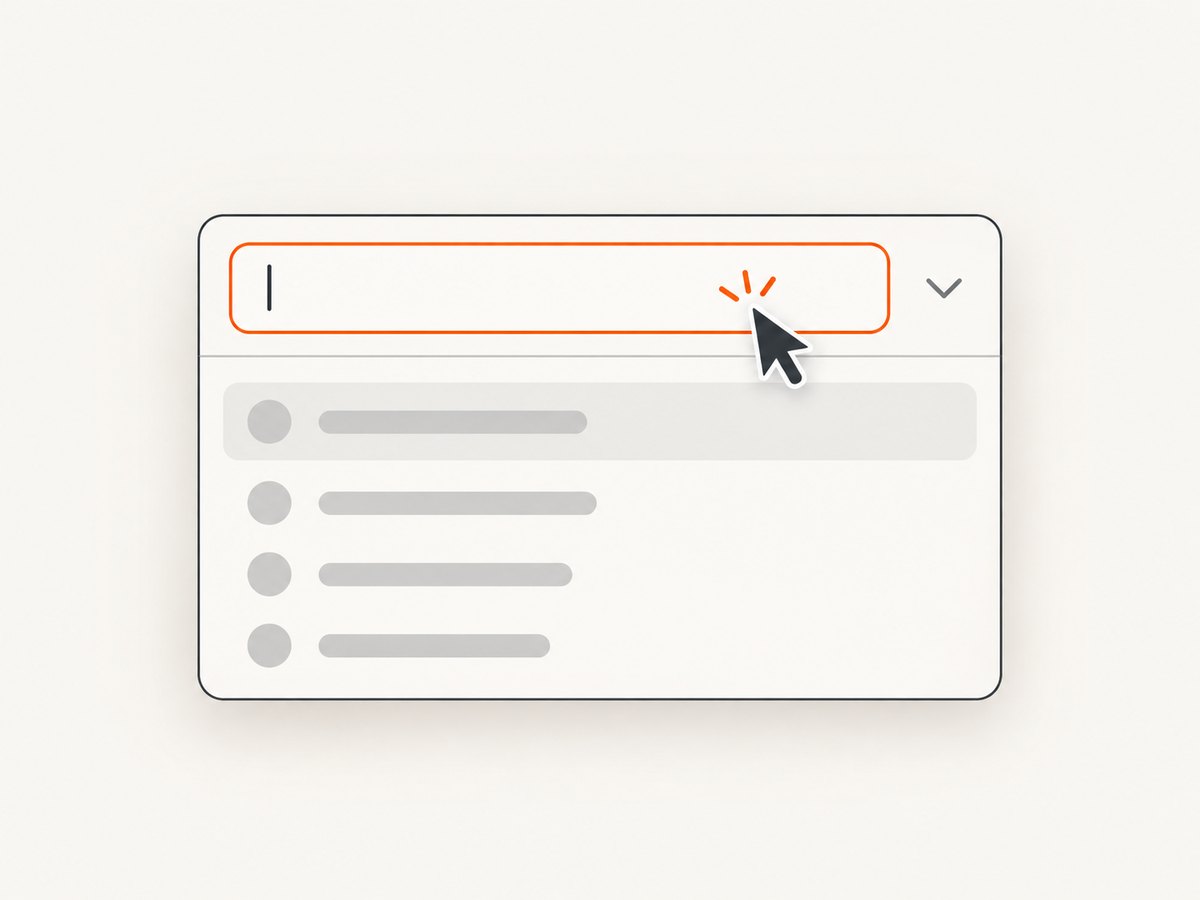
Use a stable application-owned ID or a precise CSS selector. Then check that Selenium resolves exactly one intended element and that it is displayed and enabled immediately before interaction. If the page renders the widget asynchronously, wait for the input to become visible rather than sleeping for a guessed duration.
Python: inspect and type into the input
from selenium import webdriver
from selenium.webdriver.common.by import By
from selenium.webdriver.support.ui import WebDriverWait
from selenium.webdriver.support import expected_conditions as EC

# Safari WebDriver must be enabled on macOS with: safaridriver --enable
driver = webdriver.Safari()
try:
    driver.get("https://your-app.example/form")
    wait = WebDriverWait(driver, 15)

    field = wait.until(
        EC.visibility_of_element_located((By.CSS_SELECTOR, "#autocomplete"))
    )
    if not field.is_enabled():
        raise RuntimeError("Kendo AutoComplete input is disabled")

    field.clear()
    field.send_keys("search text")

    # Replace with an assertion for the actual suggestion or result in your app.
    wait.until(EC.visibility_of_element_located(
        (By.CSS_SELECTOR, ".k-animation-container")
    ))
finally:
    driver.quit()
Replace the URL, input selector, and suggestion assertion with elements from your application. The example checks for a popup container only; a robust test should assert the expected suggestion text or resulting state. If clear() is the failing operation, inspect the input’s value and editability before trying send_keys.
Java: wait, validate, and use keyboard input
import org.openqa.selenium.By;
import org.openqa.selenium.WebDriver;
import org.openqa.selenium.WebElement;
import org.openqa.selenium.safari.SafariDriver;
import org.openqa.selenium.support.ui.ExpectedConditions;
import org.openqa.selenium.support.ui.WebDriverWait;
import java.time.Duration;

public class KendoAutocompleteSafari {
    public static void main(String[] args) {
        WebDriver driver = new SafariDriver();
        try {
            driver.get("https://your-app.example/form");
            WebDriverWait wait = new WebDriverWait(driver, Duration.ofSeconds(15));
            WebElement field = wait.until(ExpectedConditions.visibilityOfElementLocated(
                By.cssSelector("#autocomplete")
            ));
            if (!field.isEnabled()) {
                throw new IllegalStateException("AutoComplete input is disabled");
            }
            field.clear();
            field.sendKeys("search text");
            wait.until(ExpectedConditions.visibilityOfElementLocated(
                By.cssSelector(".k-animation-container")
            ));
        } finally {
            driver.quit();
        }
    }
}
This uses Selenium 4’s Duration-based wait constructor. If your project uses another Selenium version, use that version’s supported wait API. The selector and popup assertion are application-specific.
4. Decide whether the test needs real typing
Use WebDriver keyboard input when the behavior under test includes key events or user interaction: typing, keyboard navigation, focus changes, or the exact path that a person follows. First fix an incorrect locator or non-interactable state; switching to JavaScript or a widget API can hide the defect the test was meant to catch.
Use Kendo’s documented widget API when the test needs to put a query into the AutoComplete and display matching suggestions, but keyboard simulation itself is not the subject. Telerik documents search(word) to search the data source for a string and show matching suggestions. Setting the widget value and then calling search(value) is a practical fallback inferred from those APIs, not a guaranteed Safari-specific repair.
JavaScript: set the Kendo value and request suggestions
const query = "search text";
const widget = $("#autocomplete").data("kendoAutoComplete");

if (!widget) {
  throw new Error("Kendo AutoComplete widget is not initialized");
}

widget.value(query);
widget.search(query);

// Assert the actual suggestion text and application state in your test.
This code runs in the page context after Kendo initializes the widget. In Selenium, execute it with the binding’s script-execution method, for example Python’s execute_script:
query = "search text"
driver.execute_script("""
    const query = arguments[0];
    const widget = $("#autocomplete").data("kendoAutoComplete");
    if (!widget) throw new Error("Kendo AutoComplete is not initialized");
    widget.value(query);
    widget.search(query);
""", query)
Use a locator that identifies the initialized widget and pass test data as an argument instead of concatenating it into JavaScript source. That avoids quoting problems when values contain apostrophes, backslashes, or other special characters.
5. Preserve change and MVVM behavior
Telerik documents that value() does not fire the widget’s change event. For MVVM-bound values, the documentation says to trigger change manually if the model needs to update. Programmatic selection also does not fire select, and the select method does not itself trigger change.
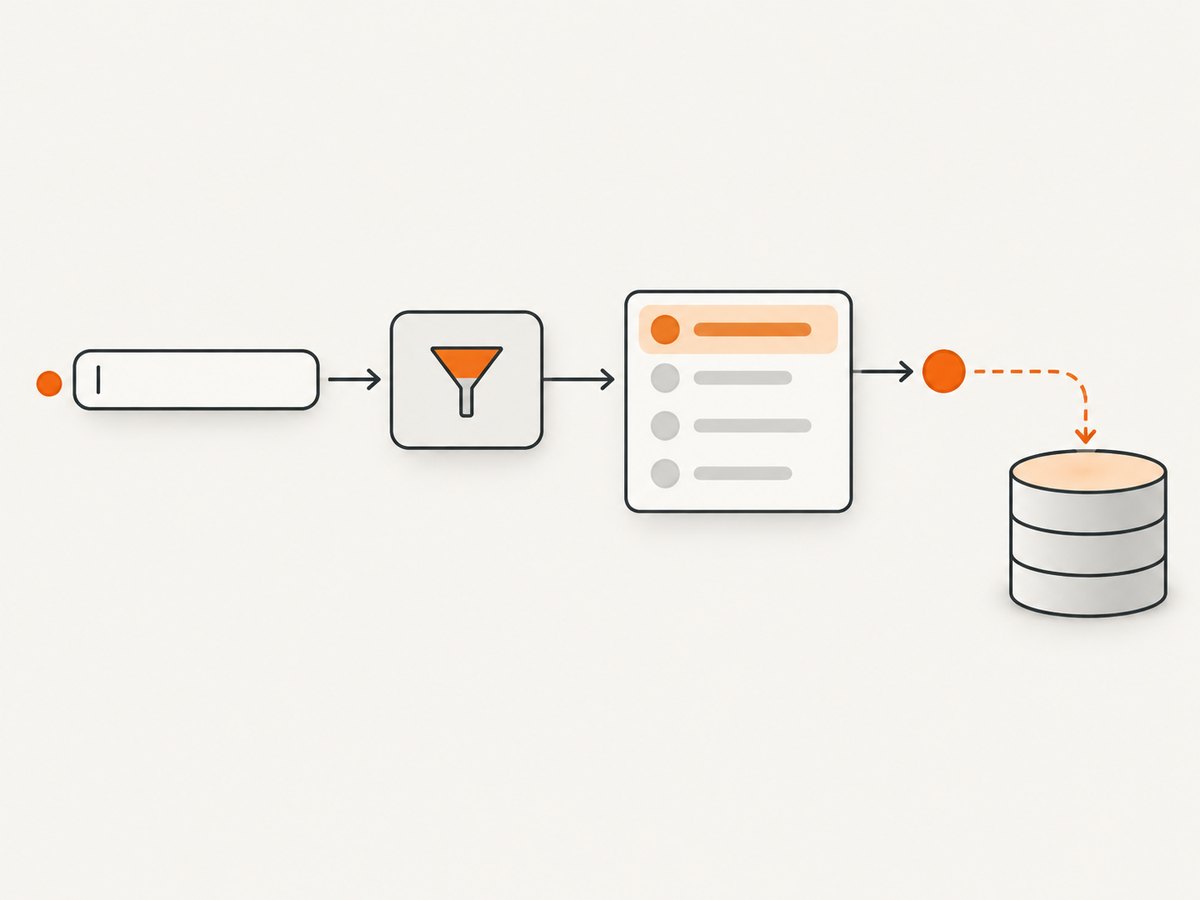
That means the right follow-up depends on what your application listens for. If it relies on the widget’s change handler or MVVM binding, explicitly trigger the documented change path after setting the value:
const widget = $("#autocomplete").data("kendoAutoComplete");
widget.value("search text");
widget.search("search text");
widget.trigger("change");
Do not add trigger("change") mechanically. It may duplicate application work if your page has another update path, and it does not simulate a real user typing sequence. Assert both the suggestions and the application-level result that matters, such as a bound value or a form submission payload. If selection behavior matters, test the actual selection interaction or explicitly account for the fact that a programmatic selection does not emit the select event.
| Approach | Best for | What to verify |
|---|---|---|
WebDriver clear() + send_keys() |
Testing user-like keyboard behavior | Correct editable input, interactability, focus, expected keys and suggestions |
Kendo value() + search() |
Driving filtering when keyboard simulation is not under test | Suggestions, change/MVVM updates, application state |
DOM input.value assignment |
Generally avoid as the first fallback | Widget synchronization and all relevant events; direct assignment alone may bypass them |
6. Troubleshooting common failures
| Symptom | Likely cause to check | Next action |
|---|---|---|
| “Element not visible” | Locator found a wrapper or hidden input, or the widget is not in its active state | Inspect rendered markup; locate the actual input; wait for visibility and check the current frame/window |
| “Element not interactable” | Input is disabled, covered, or otherwise not ready for interaction | Check is_enabled(), visibility, overlay/loading state, and page readiness before typing |
clear() errors or text remains |
Target is not an editable, resettable text input; wrong element or state | Confirm the node type and editability; locate the actual input; wait for the widget to finish rendering |
| Text appears but no suggestions | Search/filter path did not run, the data source has no matching result, or the query is below configured behavior | Check Kendo initialization and data-source results; call documented search(query) when using the widget API |
| Suggestions appear but model is unchanged | value() did not emit change |
Trigger change if required by the MVVM binding or application handler, then assert the model |
| Script reports widget is undefined | Code ran before Kendo initialized or selector does not identify the initialized widget | Wait for the page’s initialization condition and verify the selector and widget name |
| Safari cannot start a session | Safari WebDriver may not be enabled or the automation environment is misconfigured | Enable safaridriver on the macOS account and consult Selenium’s Safari setup guidance |
| Inconsistent keyboard results | Wrong Safari window/frame or focus context | Switch to the intended window and frame; verify the field is focused and visible before sending keys |
These are diagnostic possibilities, not a claim that one cause explains every Safari failure. The specific exception, live DOM, and versions determine which branch applies.
7. Reliability, runtime, and maintenance
Prefer explicit waits for a state that matters: the input is visible, the widget is initialized, or the expected suggestion is present. Fixed sleeps slow a suite when the page is fast and can still be too short when the page is slow. Keep the assertion tied to the desired behavior rather than merely waiting for a generic popup wrapper.
Keyboard interaction exercises more of the page’s real input path, but it depends on the field being interactable and Safari’s automation context being correct. The widget API avoids simulated typing for the query and gives a direct way to invoke filtering, but it skips keyboard behavior and may require explicit change handling. Choose according to test intent and keep separate coverage when both user interaction and application state matter.
For maintainability, centralize the input selector and widget-ready condition, use stable application-owned attributes, and record browser, driver, Selenium, and Kendo versions in failures. Avoid treating the 2017 Selenium 3.6.0 / Safari 11.0.1 report as proof of a current browser defect. No performance benchmark or universal version-specific fix is established by the available evidence.
8. Or skip the browser setup
If your goal is to capture how a page renders rather than to test Selenium keyboard behavior, ScreenshotNeo can return a screenshot or PDF with one API request. Its clean-shot process accepts cookie/consent banners and removes more than 60 known consent platforms, newsletter popups, and chat widgets before capture; each step can be turned off. Bot checks, CAPTCHAs, blank pages, timeouts, failed loads, and cache hits are not billed, and responses include X-Page-Verdict and X-Billed headers. An MCP server provides take_screenshot, get_page_info, and capture_pdf tools for Claude, Cursor, and other MCP clients. The free plan includes 1,000 shots per month with no card; paid plans start at $5 for 3,000.
For example, this cURL request saves a WebP capture of the page:
curl -G "https://api.screenshotneo.com/v1/shot" -d access_key=YOUR_API_KEY --data-urlencode url=https://stripe.com -o shot.webpPython and Node.js versions are below. See the ScreenshotNeo API documentation for request options. ScreenshotNeo is a website screenshot API and MCP server by Yorker Media; learn more at screenshotneo.com.
import requests
r = requests.get("https://api.screenshotneo.com/v1/shot", params={"access_key": "YOUR_API_KEY", "url": "https://stripe.com"}, timeout=90)
open("shot.webp", "wb").write(r.content)
const q = new URLSearchParams({ access_key: 'YOUR_API_KEY', url: 'https://stripe.com' });
const res = await fetch(`https://api.screenshotneo.com/v1/shot?${q}`);
if (!res.ok) throw new Error(`Screenshot request failed: ${res.status}`);
await Bun.write("shot.webp", res);For Node.js versions without Bun, write the response bytes with the standard filesystem module:
import { writeFile } from "node:fs/promises";
const q = new URLSearchParams({ access_key: "YOUR_API_KEY", url: "https://stripe.com" });
const res = await fetch(`https://api.screenshotneo.com/v1/shot?${q}`);
if (!res.ok) throw new Error(`Screenshot request failed: ${res.status}`);
await writeFile("shot.webp", Buffer.from(await res.arrayBuffer()));
Sign up for ScreenshotNeo’s free plan for 1,000 screenshots a month with no card.
9. FAQ
Is this a confirmed current Safari bug?
No. The surfaced report describes a historical Selenium 3.6.0 and Safari 11.0.1 case. It does not establish behavior across current Safari, Selenium, and Kendo versions.
Should I always trigger Kendo’s change event after setting a value?
Only when your application’s binding or handler depends on it. Telerik documents that value() does not fire change; verify your own state-update path.
Does calling search() select a suggestion?
No. It searches and displays matching suggestions. Test selection separately if choosing an item is part of the behavior under test.
What details are most useful in a bug report?
The exact exception and command, browser and macOS versions, Selenium binding/version, Kendo build, locator, and relevant rendered input markup.


