How to Fix “Element Is Currently Not Visible” for Selenium Links
Selenium can find a link in the DOM even when it cannot be clicked. Diagnose hidden elements, timing, overlays, iframes, and stale locators.
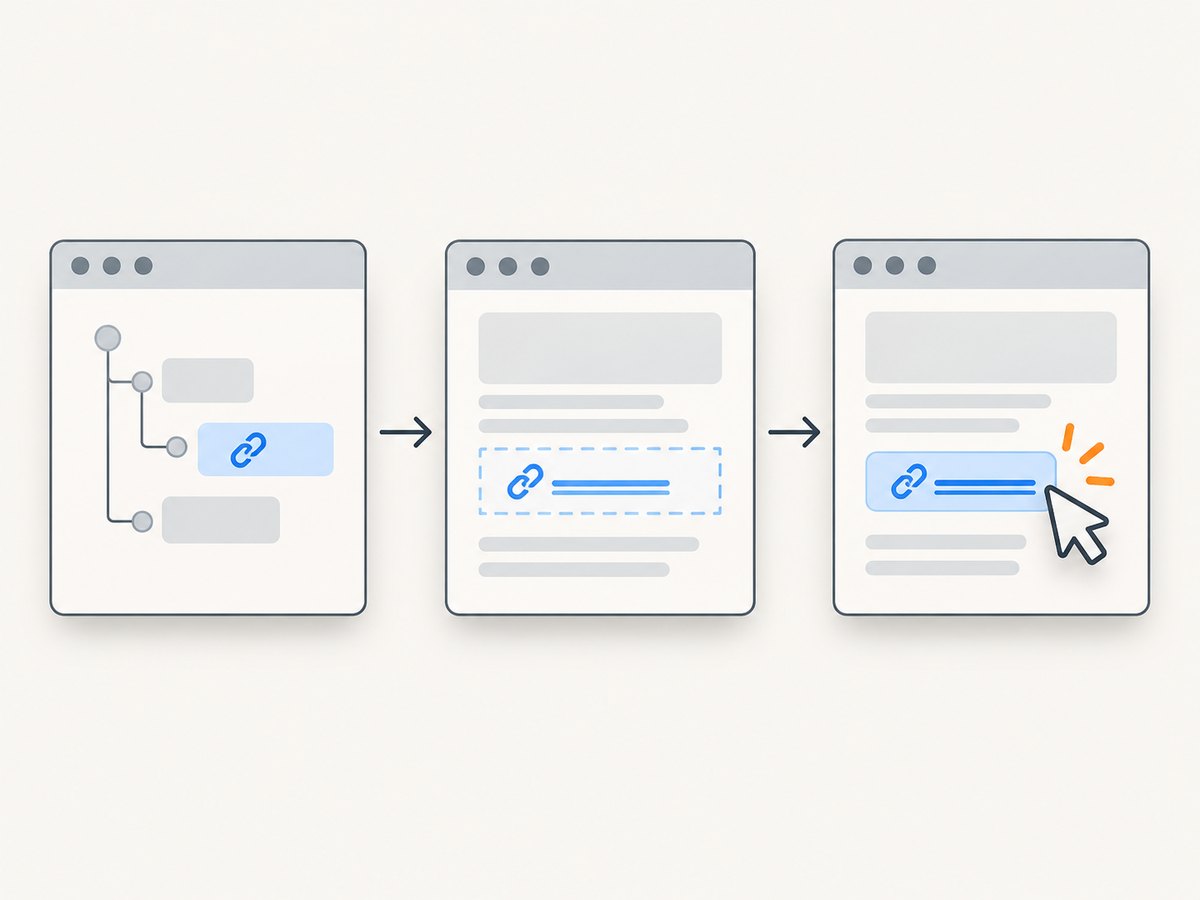
Selenium can find a link in the DOM while the browser still considers it hidden, zero-sized, disabled, covered, or outside the usable viewport. Finding an element proves only that a matching node exists; it does not prove a person could see or click it. Use a unique locator, wait for the link to become visible and enabled, resolve any overlay or iframe, then click a freshly located element.
This guide uses Python examples, then provides equivalent cURL, Python, and Node.js calls to ScreenshotNeo for capturing a page while diagnosing its appearance. Those captures can help inspect a page, but they do not replace Selenium’s interaction checks.
1. Understand the error: presence, visibility, and clickability
Selenium distinguishes several states that are easy to confuse:
| State | What it establishes | What it does not establish |
|---|---|---|
| Presence | A matching node exists in the DOM. | That it is displayed, enabled, or usable. |
| Visibility | The element is displayed and has non-zero height and width. | That it is enabled or unobstructed. |
| Clickability | The element is visible and enabled. | That another element will not intercept the pointer at click time. |
The Selenium Python expected-conditions documentation describes element_to_be_clickable as checking that an element is visible and enabled. Selenium’s Java API likewise defines visibility in terms of display and dimensions greater than zero. An interaction attempted when an element is not interactable can raise ElementNotInteractableException; Selenium’s common-errors guide describes that as an attempt to interact with an element in its current non-interactable state. See the Selenium common errors guide, Python expected conditions, and Java ExpectedConditions API.
The exact exception and message depend on the Selenium version, browser, and operation. The important diagnostic is the state transition: a locator may succeed before the page has made the intended link visible and actionable.
2. Diagnose which link Selenium found
Duplicate links are common in responsive headers, hidden menus, modal dialogs, and page templates. A broad locator such as By.LINK_TEXT may match more than one anchor. Inspect matches and their displayed/enabled state before choosing one.
from selenium.webdriver.common.by import By

matches = driver.find_elements(By.LINK_TEXT, "View results")
print("matches:", len(matches))
for index, element in enumerate(matches):
    print(index, "displayed:", element.is_displayed(),
          "enabled:", element.is_enabled(),
          "href:", element.get_attribute("href"))
Prefer a stable id or data attribute, and scope the locator to the visible component when possible. Make sure it selects the clickable <a>, rather than a parent container or a hidden template copy. For example:
from selenium.webdriver.common.by import By

results_link = driver.find_element(
    By.CSS_SELECTOR, "nav[aria-label='Results'] a[data-testid='results-link']"
)
A locator can be syntactically valid but semantically wrong. Confirm the selected element’s text, href, parent, and displayed state before changing waits or adding JavaScript.
3. Wait for the state you need
Use an explicit wait for a state transition instead of a fixed sleep. Presence is appropriate if you only need a node before reading an attribute. Use visibility when it must be shown, and clickability before a normal click.
from selenium.webdriver.common.by import By
from selenium.webdriver.support.ui import WebDriverWait
from selenium.webdriver.support import expected_conditions as EC

wait = WebDriverWait(driver, 10)
link = wait.until(
    EC.element_to_be_clickable(
        (By.CSS_SELECTOR, "a[data-testid='results-link']")
    )
)
link.click()
If you need the element visible for a non-click action, use visibility_of_element_located:
link = WebDriverWait(driver, 10).until(
    EC.visibility_of_element_located(
        (By.CSS_SELECTOR, "a[data-testid='results-link']")
    )
)
print(link.text)
Choose a timeout that fits the application’s normal response time and keep it bounded. A longer timeout can accommodate slower rendering, but it cannot fix a locator that will never match the visible link or an overlay that never closes. Avoid mixing implicit and explicit waits without understanding their timing effects; use a consistent wait strategy and wait for the page state your next operation depends on.
4. Fix the underlying state
Hidden menu, tab, or modal
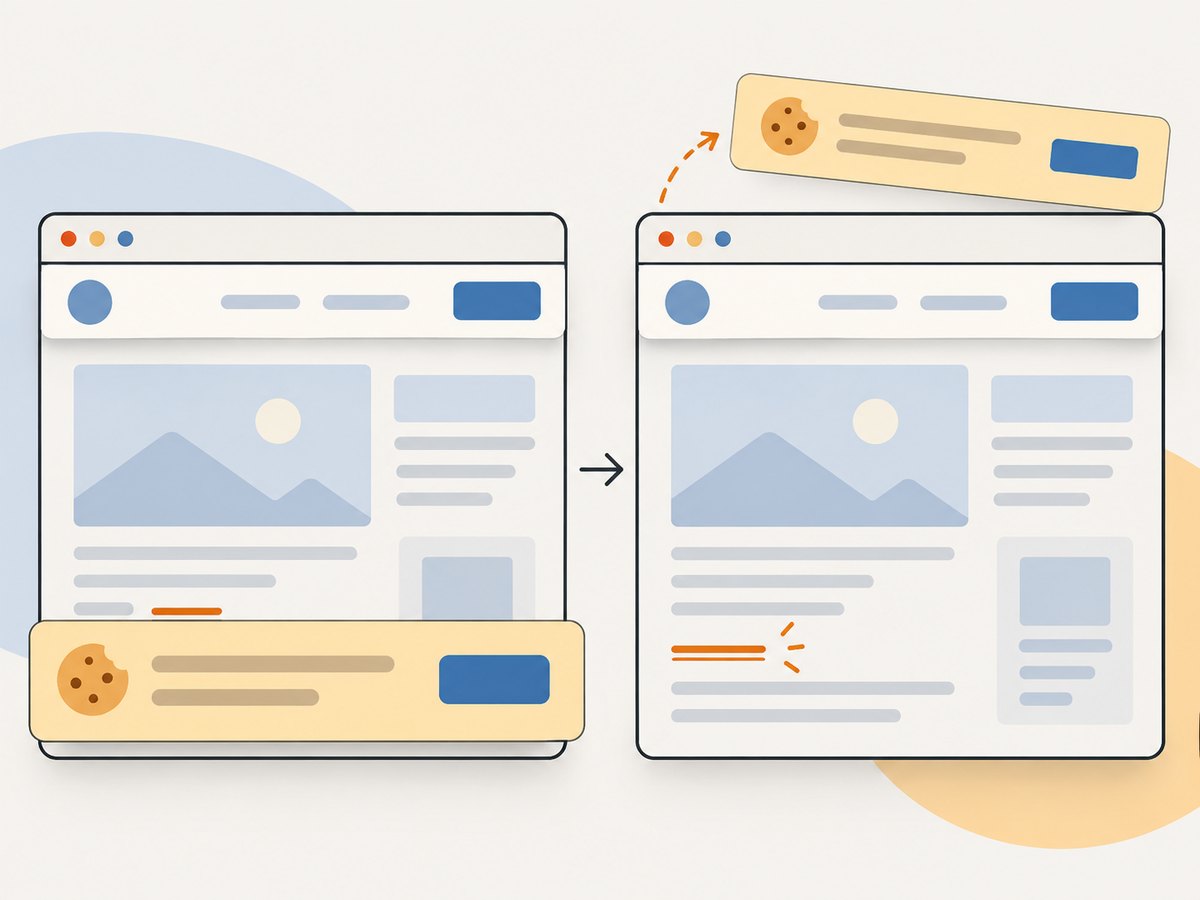
If the link lives in a collapsed menu or inactive tab, open that control first. Then locate the link and wait for visibility or clickability. For an obstruction that should disappear, wait for its invisibility before proceeding:
overlay = (By.CSS_SELECTOR, ".loading-overlay")
WebDriverWait(driver, 10).until(EC.invisibility_of_element_located(overlay))
link = WebDriverWait(driver, 10).until(
    EC.element_to_be_clickable((By.CSS_SELECTOR, "a[data-testid='results-link']"))
)
link.click()
Use the selector for the actual loading layer, consent banner, or modal in your page. If it remains visible by design, dismiss it through the same control a user would use. Avoid hiding it with script just to make the test pass unless bypassing that UI is an explicit test requirement.
Asynchronous rendering or animation
A single-page application may insert a placeholder immediately and reveal the link after data arrives, a transition ends, or a state update completes. Wait for the relevant visible link or for a known loading indicator to disappear. A fixed time.sleep() always adds its full delay and can still be too short on a slow run; a condition wait proceeds as soon as the required state is reached.
Viewport position and sticky elements
A visible link can be outside the viewport or overlapped by a sticky header. Scroll it into view, then re-check clickability. Scrolling does not dismiss overlays, so inspect the page if the click is still intercepted.
link = WebDriverWait(driver, 10).until(
    EC.visibility_of_element_located(
        (By.CSS_SELECTOR, "a[data-testid='results-link']")
    )
)
driver.execute_script(
    "arguments[0].scrollIntoView({block: 'center'});", link
)
link = WebDriverWait(driver, 10).until(
    EC.element_to_be_clickable(
        (By.CSS_SELECTOR, "a[data-testid='results-link']")
    )
)
link.click()
Iframe context
Elements inside an iframe are not found from the top-level document. Wait for the frame, switch into it, find the link there, and switch back when done:
from selenium.webdriver.common.by import By
from selenium.webdriver.support.ui import WebDriverWait
from selenium.webdriver.support import expected_conditions as EC

driver.switch_to.default_content()
WebDriverWait(driver, 10).until(
    EC.frame_to_be_available_and_switch_to_it(
        (By.CSS_SELECTOR, "iframe#checkout")
    )
)
link = WebDriverWait(driver, 10).until(
    EC.element_to_be_clickable((By.LINK_TEXT, "Continue"))
)
link.click()
driver.switch_to.default_content()
If there are nested frames, switch into each frame in order. Return to the default content before selecting a different top-level frame.
Element replaced during an update
Frameworks can replace a node while updating the page. A previously stored WebElement then points to a stale node. Wait for the update to finish and find the link again immediately before the interaction. If you catch StaleElementReferenceException, do not keep retrying the same reference; repeat the locator after the relevant update state has settled.
5. A complete, runnable Python pattern
This example creates a Chrome session, opens a target page, waits for an optional obstruction to disappear, waits for the link to be clickable, clicks it, and always closes the browser. Replace the URL and selectors with those from your application.
from selenium import webdriver
from selenium.webdriver.common.by import By
from selenium.webdriver.support.ui import WebDriverWait
from selenium.webdriver.support import expected_conditions as EC

URL = "https://example.com/results"
LINK = (By.CSS_SELECTOR, "a[data-testid='results-link']")
OVERLAY = (By.CSS_SELECTOR, ".loading-overlay")

options = webdriver.ChromeOptions()
# Uncomment to run without a visible browser window:
# options.add_argument("--headless=new")

driver = webdriver.Chrome(options=options)
try:
    driver.get(URL)
    wait = WebDriverWait(driver, 15)

    # This condition succeeds if the overlay disappears or is absent.
    wait.until(EC.invisibility_of_element_located(OVERLAY))

    link = wait.until(EC.element_to_be_clickable(LINK))
    driver.execute_script(
        "arguments[0].scrollIntoView({block: 'center'});", link
    )
    # Re-find after scrolling in case the page re-rendered.
    link = wait.until(EC.element_to_be_clickable(LINK))
    link.click()
    print("Clicked link; current URL:", driver.current_url)
finally:
    driver.quit()
The example assumes that the obstruction selector describes a layer whose absence is expected. Remove that wait if the page has no such layer, or replace it with the actual condition, such as a menu becoming visible. The selector and link need to be specific to the tested page.
6. Troubleshooting by symptom
| Symptom | Likely cause | Fix |
|---|---|---|
| Presence wait succeeds, visibility wait times out | Hidden duplicate, collapsed menu, inactive tab, or zero-sized element. | Inspect all matches; scope the locator; open the owning UI; wait for visibility. |
| Visible, but clickability wait times out | The element is disabled, or the locator selects the wrong node. | Check is_enabled(); wait for the app’s enabled state; refine the locator. |
| Click raises an intercepted-click error | A banner, modal, sticky header, or animation covers the click point. | Dismiss or wait for the covering UI to go away; scroll into view and inspect again. |
| Link not found inside a component | The driver is in the wrong frame, or the component is a shadow root. | Switch into the correct iframe. For shadow DOM, locate the host and query its shadow root using the support provided by your Selenium version. |
| Stale element after waiting | A render replaced the node after it was located. | Wait for the update and locate the element again; avoid retaining a reference across re-renders. |
| Works locally, flakes in CI | Timing, viewport, browser differences, or slower network/rendering. | Use condition-based waits, set a deliberate window size, and wait for a page-specific readiness condition. |
| JavaScript click works but normal click fails | The normal pointer path is blocked or the element is not truly usable. | Resolve visibility, enabled state, frame, viewport, and overlays. Use script clicks only when the test intentionally needs script-level activation. |
7. Capture a page to inspect its appearance
A screenshot can make a hidden menu, covering banner, or loading state easier to spot. Selenium can save the current browser viewport directly:
driver.save_screenshot("page.png")For a capture independent of the local WebDriver session, ScreenshotNeo takes a URL and returns an image or PDF. Its options include full-page capture, element capture by CSS selector, device and viewport settings, custom waits, and custom CSS or JavaScript. See the ScreenshotNeo API documentation for parameters and response details.
8. Or skip the browser setup
For a page image without configuring a browser driver, call ScreenshotNeo’s screenshot endpoint. Replace the example URL with the page you are diagnosing and use your API key. This captures the page; Selenium remains the tool for testing whether a link can be interacted with.
cURL
curl -G "https://api.screenshotneo.com/v1/shot" -d access_key=YOUR_API_KEY --data-urlencode url=https://stripe.com -o shot.webpPython
import requests

r = requests.get(
    "https://api.screenshotneo.com/v1/shot",
    params={"access_key": "YOUR_API_KEY", "url": "https://stripe.com"},
    timeout=90,
)
open("shot.webp", "wb").write(r.content)
Node.js
const q = new URLSearchParams({ access_key: 'YOUR_API_KEY', url: 'https://stripe.com' });
const res = await fetch(`https://api.screenshotneo.com/v1/shot?${q}`);
const bytes = new Uint8Array(await res.arrayBuffer());
await (await import('node:fs/promises')).writeFile('shot.webp', bytes);
ScreenshotNeo accepts and removes cookie and consent banners, newsletter popups, and chat widgets before capture; each of those steps can be turned off. Bot checks, blank pages, timeouts, failed loads, and cache hits are not billed, and responses identify page verdict and billing through headers. Its MCP server offers take_screenshot, get_page_info, and capture_pdf tools for AI agents and MCP clients. The Free plan includes 1,000 screenshots per month with no card; paid plans start at $5 for 3,000. Every feature is on every plan. Create a free account at ScreenshotNeo sign-up.
9. Reliability, performance, and cost notes
- Prefer state waits. Wait for the specific menu, link, overlay, or loading state that governs the next operation. This makes timing less dependent on arbitrary delays.
- Keep retries bounded. A retry may help if the application legitimately re-renders, but unlimited retries conceal a bad selector or a persistent obstruction. Log which condition timed out.
- Set a stable viewport. Responsive layouts can move a link into a collapsed menu at a narrow width. Pick a window size that matches the test scenario.
- Capture only when it helps diagnosis. Screenshots add browser or API work and storage/output to manage. Use them at failure points or when visual state is relevant rather than capturing every poll.
- Account for API usage separately from Selenium. ScreenshotNeo pricing is Free 1,000/month, Starter $5 for 3,000, Growth $15 for 15,000, Pro $39 for 60,000, Scale $99 for 250,000, and Business $249 for 1,000,000; yearly billing gives two months free. Only clean shots are billed under the stated product rules. Check the docs for response handling and options before integrating captures into a high-volume workflow.
10. FAQ
Why does presence_of_element_located pass but click() fail?
Presence checks only that the node exists. It may still be hidden, disabled, covered, or outside the correct browsing context. Wait for clickability and resolve any obstruction.
Does element_to_be_clickable guarantee the click will work?
No. It checks visibility and enabled state, but another element can still intercept the pointer between the check and the click.
Should I use JavaScript to click the link?
Usually not as the first fix. A script click bypasses normal pointer interaction and can let a test pass when a user could not perform the same action. Diagnose the actual page state first.
What should I do if several identical links are present?
Inspect the matches and narrow the locator to the intended visible component using a stable attribute or a meaningful scope.
Can a screenshot prove Selenium can click the link?
No. A screenshot can show visual appearance at capture time. Selenium still needs to locate the right node in the right context and complete a valid interaction.


