How to Generate a PDF From a Selenium Login Session in PyQt5
Print an authenticated Selenium page to PDF from PyQt5, or render it inside Qt WebEngine. Includes runnable examples, session handling, layout options, and fixes.
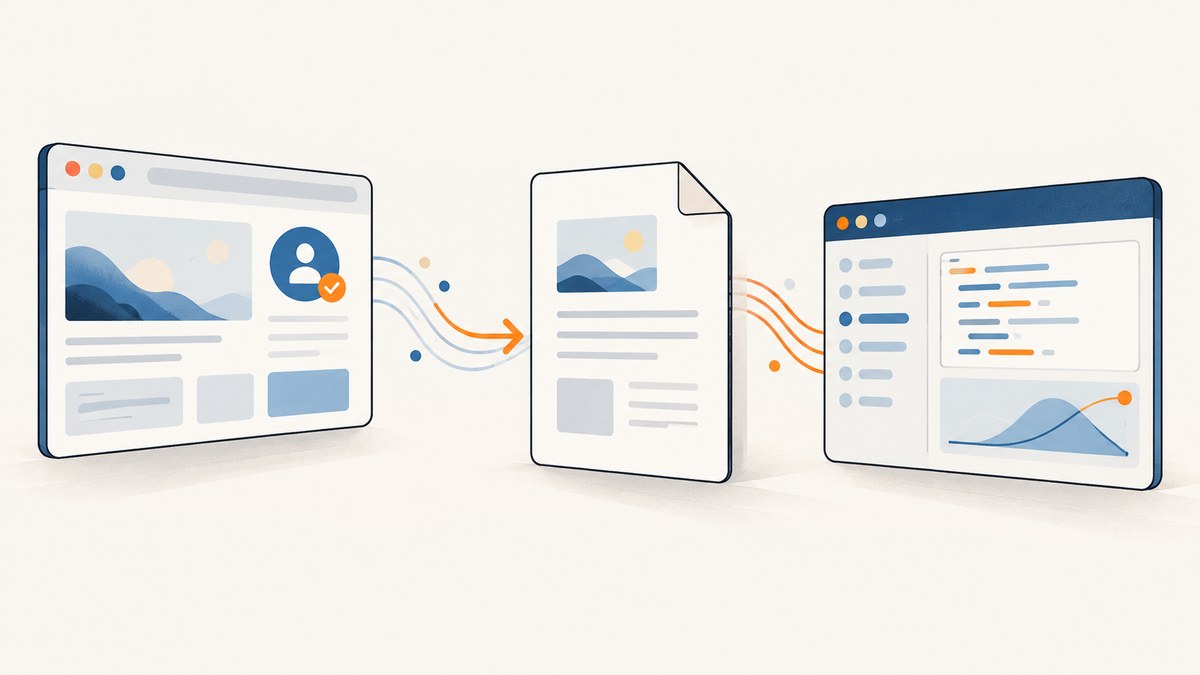
If Selenium has already logged in to the site, the simplest way to generate a PDF is to print the page from that same Selenium browser session. You do not need to copy its cookies into PyQt5. Selenium’s page-print command returns base64-encoded PDF data; decode it and save it to the chosen path. Use Qt WebEngine’s printToPdf instead when the authenticated page is displayed inside your PyQt5 interface. These are separate browser sessions unless you deliberately transfer authentication state. Selenium’s page-print guide
1. Choose which browser will render the PDF
Start by deciding where the authenticated page lives. This determines which browser must do the printing.
| Approach | Choose it when | Session implication |
|---|---|---|
| Selenium prints its current page | Your Selenium driver has already logged in and can navigate to the page. | Uses the existing Selenium session; there is no second login context. |
| Qt WebEngine prints the page | The page is shown or managed in a QWebEngineView inside the PyQt5 UI. |
Authenticate in that WebEngine profile or explicitly transfer the required state. |
For the title workflow, Selenium printing is usually the shortest path: navigate to the protected page, wait for the content you need, verify it is present, print, then write the returned bytes. Qt WebEngine is a better fit when the user is already interacting with the page in your app and you want the PDF to reflect that rendered view.
2. Print from the authenticated Selenium session
The example below is a complete function for Selenium 4. It assumes you have a configured, logged-in WebDriver and uses Selenium’s print API. Install the packages in the same Python environment as the app with python -m pip install selenium PyQt5. Selenium’s documented print support depends on the browser and driver combination, so check the versions you deploy.
import base64
from pathlib import Path

from selenium.webdriver.common.print_page_options import PrintOptions


def save_current_page_as_pdf(driver, destination):
    """Print the driver's current page and save its PDF bytes."""
    options = PrintOptions()
    options.orientation = "portrait"  # or "landscape"
    options.scale = 1.0
    options.background = True
    options.shrink_to_fit = True

    encoded_pdf = driver.print_page(options)
    pdf_bytes = base64.b64decode(encoded_pdf, validate=True)

    if not pdf_bytes.startswith(b"%PDF-"):
        raise ValueError("The browser returned data that does not look like a PDF")

    output = Path(destination)
    output.parent.mkdir(parents=True, exist_ok=True)
    output.write_bytes(pdf_bytes)
    return output
The exact options exposed by Selenium can vary by release. The Selenium guide documents orientation, scale, background graphics, and shrink-to-fit. Confirm the installed Selenium API and browser support before relying on a setting. Printing applies to the current page, so make sure the driver has reached the intended authenticated URL first.
Connect it to a PyQt5 button
Browser operations can take time. Keep the UI responsive by running Selenium work outside the GUI thread. This PyQt5 example uses a worker thread, reports completion through signals, and leaves browser ownership to the caller. Pass a driver that has already logged in; create and use that driver in a way that avoids simultaneous commands from multiple threads.
import sys
from pathlib import Path

from PyQt5.QtCore import QThread, pyqtSignal
from PyQt5.QtWidgets import QApplication, QLabel, QPushButton, QVBoxLayout, QWidget


def save_current_page_as_pdf(driver, destination):
    import base64
    from selenium.webdriver.common.print_page_options import PrintOptions

    options = PrintOptions()
    options.orientation = "portrait"
    options.scale = 1.0
    options.background = True
    options.shrink_to_fit = True
    pdf_bytes = base64.b64decode(driver.print_page(options), validate=True)
    if not pdf_bytes.startswith(b"%PDF-"):
        raise ValueError("Browser returned invalid PDF data")
    output = Path(destination)
    output.parent.mkdir(parents=True, exist_ok=True)
    output.write_bytes(pdf_bytes)


class PdfWorker(QThread):
    finished_path = pyqtSignal(str)
    failed = pyqtSignal(str)

    def __init__(self, driver, destination, parent=None):
        super().__init__(parent)
        self.driver = driver
        self.destination = destination

    def run(self):
        try:
            save_current_page_as_pdf(self.driver, self.destination)
            self.finished_path.emit(str(self.destination))
        except Exception as exc:
            self.failed.emit(f"PDF generation failed: {exc}")


class Window(QWidget):
    def __init__(self, logged_in_driver):
        super().__init__()
        self.driver = logged_in_driver
        self.status = QLabel("Ready")
        self.button = QPushButton("Save PDF")
        layout = QVBoxLayout(self)
        layout.addWidget(self.button)
        layout.addWidget(self.status)
        self.button.clicked.connect(self.start_pdf)
        self.worker = None

    def start_pdf(self):
        destination = str(Path.home() / "Downloads" / "page.pdf")
        self.button.setEnabled(False)
        self.status.setText("Creating PDF…")
        self.worker = PdfWorker(self.driver, destination, self)
        self.worker.finished_path.connect(self.on_finished)
        self.worker.failed.connect(self.on_failed)
        self.worker.start()

    def on_finished(self, path):
        self.status.setText(f"Saved: {path}")
        self.button.setEnabled(True)

    def on_failed(self, message):
        self.status.setText(message)
        self.button.setEnabled(True)


# Supply a configured Selenium driver that is already authenticated.
# app = QApplication(sys.argv)
# window = Window(driver)
# window.show()
# sys.exit(app.exec_())
The sample’s UI startup is commented out because the driver must be configured for your application and logged into the relevant site. In production, use a file save dialog for the destination, disable repeated clicks while a job is active, and close the driver as part of your app’s normal shutdown or session lifecycle. Avoid accessing the same WebDriver concurrently from the UI and worker.
Wait for the right page state
After login, navigate and wait for a meaningful element that proves the target content is ready. A fixed sleep can be too short on a slow response and waste time on a fast one.
from selenium.webdriver.common.by import By
from selenium.webdriver.support import expected_conditions as EC
from selenium.webdriver.support.ui import WebDriverWait

# After completing login:
driver.get("https://example.com/account/report")
WebDriverWait(driver, 30).until(
    EC.visibility_of_element_located((By.CSS_SELECTOR, "main .report"))
)
# Optional: confirm the expected account or report text before printing.
pdf_path = save_current_page_as_pdf(driver, "report.pdf")
Replace the URL and selector with ones from the site. For pages that render asynchronously, wait for the actual report or a site-specific readiness condition rather than merely waiting for navigation to return. If the page uses print styles, the printed layout can differ from the screen layout; inspect the resulting PDF in your workflow.
3. Print from Qt WebEngine when the page belongs in the UI
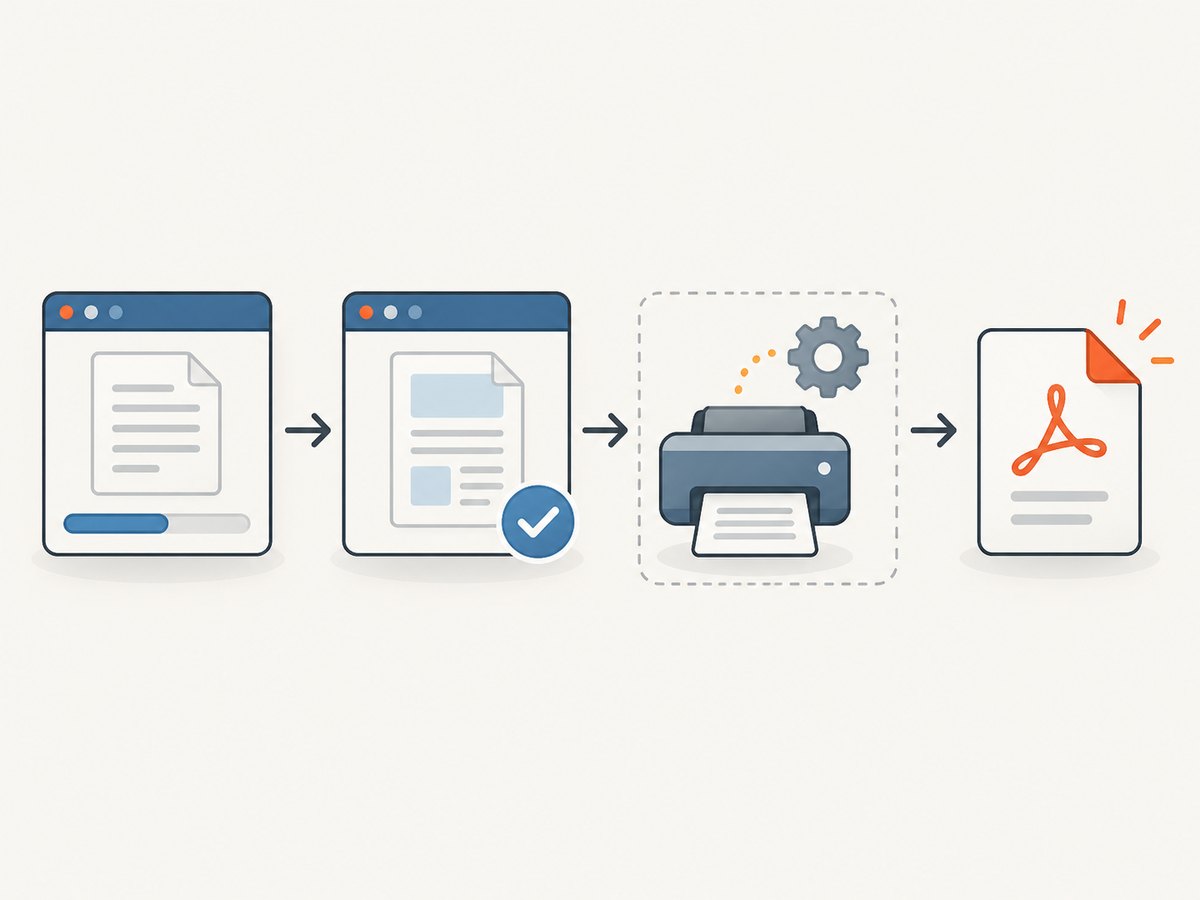
Qt WebEngine prints the currently rendered page. On Qt 5.15, QWebEnginePage.printToPdf is asynchronous: connect to pdfPrintingFinished, call the method, and keep the page and view alive until the completion signal arrives. Check the success boolean before telling the user the file is ready. The Qt 5.15 API reference documents A4 portrait as the default layout and says an existing destination file is overwritten. Qt WebEngine 5.15 QWebEnginePage reference
import sys
from pathlib import Path

from PyQt5.QtCore import QUrl
from PyQt5.QtWidgets import QApplication, QLabel, QMainWindow
from PyQt5.QtWebEngineWidgets import QWebEngineView


class BrowserWindow(QMainWindow):
    def __init__(self):
        super().__init__()
        self.view = QWebEngineView(self)
        self.setCentralWidget(self.view)
        self.status = QLabel("Loading page…", self)
        self.statusBar().addWidget(self.status)

        self.page = self.view.page()
        self.page.loadFinished.connect(self.on_load_finished)
        self.page.pdfPrintingFinished.connect(self.on_pdf_finished)
        self.view.load(QUrl("https://example.com/account/report"))

    def on_load_finished(self, ok):
        if not ok:
            self.status.setText("Page failed to load")
            return
        # In a real app, verify login and page readiness before printing.
        self.status.setText("Loaded. Starting PDF print…")
        self.page.printToPdf(str(Path.home() / "Downloads" / "report.pdf"))

    def on_pdf_finished(self, file_path, success):
        if success:
            self.status.setText(f"PDF saved: {file_path}")
        else:
            self.status.setText("PDF generation failed")


app = QApplication(sys.argv)
window = BrowserWindow()
window.resize(1100, 800)
window.show()
sys.exit(app.exec_())
This illustrates the asynchronous lifecycle, not a universal login recipe. In a real application, only trigger printing after authentication and any client-side rendering are complete. The API spelling and overloads depend on the installed PyQt5 and Qt WebEngine versions; check the binding used by your app, and do not copy Qt 6 signatures blindly into a Qt 5 project. The Qt WebEngine overview describes a cookie store per profile and synchronization with QNetworkAccessManager; it does not document automatic sharing with Selenium. Qt WebEngine overview
4. Preserve authentication safely
A Selenium driver and a newly created QWebEngineView should be treated as independent browser sessions. If the Qt view loads the protected URL without signing in, expect a login page unless your application deliberately authenticates that WebEngine profile.
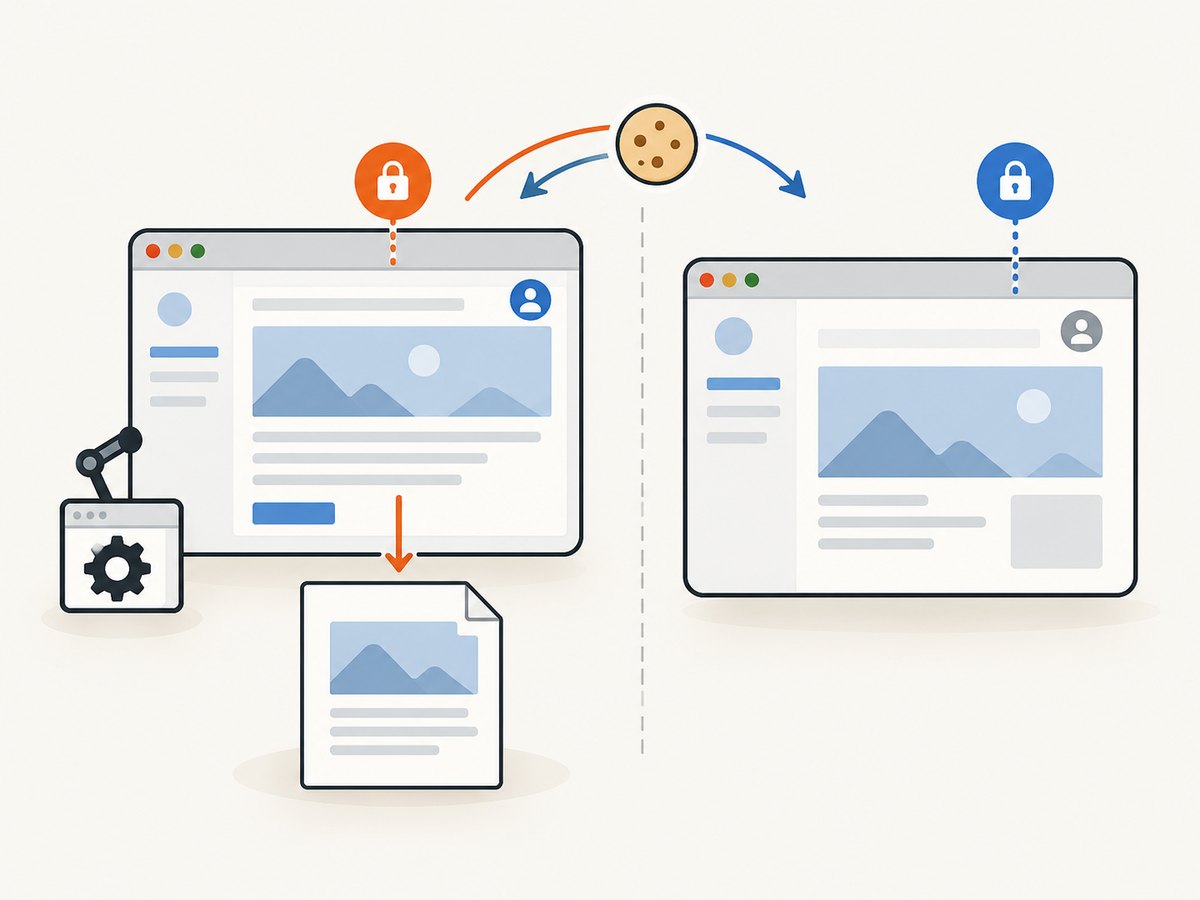
- Prefer one context: if Selenium completed login, let Selenium navigate and print.
- Authenticate in WebEngine: when Qt owns rendering, perform login in that WebEngine profile and wait for its authenticated state before printing.
- Transfer only when needed: cookies can be set through Qt’s profile cookie store, but cookie-store operations are asynchronous. Wait for the operation and verify authenticated access before printing.
- Check cookie scope: domain, path, secure flag, expiry, and SameSite behavior affect whether a cookie is sent. A copied cookie may not be accepted.
- Expect more than cookies: some sites also rely on local storage, CSRF state, or device/browser checks. Copying cookies alone may not recreate the session.
Cookies are credentials. Do not put their values in source code, application logs, screenshots, or broadly readable temporary files. Transfer the minimum state needed, protect it in transit and at rest, and clear temporary material when finished. These precautions cannot guarantee compatibility with a site’s authentication scheme.
5. Layout choices and output details
Use the print controls that match the document, then verify the generated file. A browser’s print renderer can honor print CSS and pagination rules, which means the PDF may not look exactly like the visible viewport.
| Need | What to configure or check |
|---|---|
| Portrait or landscape | Selenium documents an orientation option; Qt page layout supports page orientation. Use landscape for wide tables. |
| Fit or scale | Selenium exposes scale and shrink-to-fit settings. Reduce scale carefully if columns clip or pages become hard to read. |
| Background colors and graphics | Selenium’s print options include background inclusion. Without backgrounds, colored panels may print differently. |
| Paper size and margins | Qt’s page layout API accepts layout settings; verify the Python overload in your installed binding. Selenium print options are documented in its guide. |
| Page breaks | Use site print styles where you control the page; check tables, headings, and long code blocks for awkward splits. |
| Existing output file | Choose a unique path or ask before overwriting. Qt 5.15 documents overwriting an existing path. |
For a user-facing desktop app, a save dialog is preferable to a fixed filename. Ensure the parent directory exists and show a clear error if it is not writable. If a PDF is unexpectedly blank or incomplete, first check that the page was authenticated and fully rendered before printing.
6. Troubleshooting
| Symptom | Likely cause | Fix |
|---|---|---|
| PDF contains a login page | The target page was not loaded in the authenticated context, or the session expired. | Verify the current URL and authenticated marker before printing. Re-authenticate in the renderer being used. |
| Qt WebEngine shows logged out while Selenium is logged in | They are separate browser profiles; authentication is not automatically shared. | Print with Selenium, log in within WebEngine, or deliberately transfer the required state and confirm access. |
print_page is unavailable or errors |
The Selenium release, browser, or driver may not support the documented command combination. | Check the Selenium print guide and compatible installed versions; update the deployed components together where appropriate. |
| Base64 decoding fails | The returned value is not valid encoded PDF data, or a wrapper/API mismatch changed the result. | Inspect the exception and Selenium version without logging credentials; confirm the expected print API return type. |
| PDF is empty or missing late content | Printing started before JavaScript-rendered content was ready. | Wait for a meaningful element or app-specific ready state, then verify the intended content exists. |
| Qt reports failure or no completion | The destination may be unwritable, the page may have been destroyed, or the call signature may not match the installed binding. | Keep the page alive, check the signal result, use a writable path, and confirm the exact Qt/PyQt overload. |
| Output is overwritten | The chosen file already exists; Qt 5.15 documents overwrite behavior. | Prompt before replacement or generate a distinct destination name. |
| Layout clips or looks unlike the screen | Print CSS, paper orientation, scaling, or background settings differ from screen rendering. | Try landscape, adjust scale, enable backgrounds, and inspect the site’s print styles. |
| UI freezes during PDF creation | Synchronous Selenium work is running on the GUI thread. | Run the operation in a worker thread or background job, and send results back through Qt signals. |
7. Performance, reliability, and cost
PDF generation cost in this design is mainly local compute and the network work needed to load the page: browser startup, page resources, JavaScript rendering, and writing the file. Reuse a logged-in browser when your application lifecycle permits it rather than repeating login for every export. For large pages, allow enough time for content rendering and disk writes; avoid arbitrary sleeps that either waste time or race the page.
Reliability depends on checking each stage: navigation succeeded, authenticated content is present, print returned data or Qt signaled success, and the destination is valid. Retain the active browser or page until printing completes. Surface actionable errors to the user and avoid retrying indefinitely; if a page load or print fails, a bounded retry after checking session state is safer than silently saving a bad PDF. No fixed duration or success rate applies across sites, browsers, and machines.
For the do-it-yourself route there is no ScreenshotNeo API charge, but you maintain the browser, driver, authentication flow, and desktop integration. If you prefer a hosted website screenshot/PDF service, ScreenshotNeo offers a one-call API, an MCP server for AI agents, and plans from free through paid tiers; it is a different workflow from printing the current Selenium session. Its product details and options are in the ScreenshotNeo documentation.
Or skip the browser setup
If the goal is a PDF or image of a public page rather than preserving a particular Selenium login, ScreenshotNeo can render a URL through one GET request. Use the API key from your account and adapt the target URL. This example follows the supplied API call pattern:
curl -G "https://api.screenshotneo.com/v1/shot" -d access_key=YOUR_API_KEY --data-urlencode url=https://stripe.com -o shot.webpimport requests
r = requests.get(
"https://api.screenshotneo.com/v1/shot",
params={"access_key": "YOUR_API_KEY", "url": "https://stripe.com"},
timeout=90,
)
open("shot.webp", "wb").write(r.content)
const q = new URLSearchParams({ access_key: 'YOUR_API_KEY', url: 'https://stripe.com' });
const res = await fetch(`https://api.screenshotneo.com/v1/shot?${q}`);
ScreenshotNeo removes cookie banners, popups, and chat widgets before the shot; bot checks, blank pages, and failed loads are never billed. Its MCP server lets AI agents take screenshots. The Free plan includes 1,000 screenshots a month with no card, and paid plans start at $5 for 3,000. See ScreenshotNeo and the API documentation. Create a free account for 1,000 screenshots a month, with no card required.
8. FAQ
Can I print a page from a Selenium session without transferring cookies?
Yes. If Selenium is logged in, use its current browser session to navigate and print. Cookie transfer is only relevant if a separate renderer, such as Qt WebEngine, must load the page.
Does Qt WebEngine share Selenium’s cookies automatically?
No automatic Selenium sharing is documented by the Qt WebEngine cookie-store overview. Treat the profiles as separate unless you explicitly arrange authentication for the Qt profile.
Should I use Selenium or Qt WebEngine for the PDF?
Use Selenium when the page and login already live in Selenium. Use Qt WebEngine when the page is rendered as part of the PyQt interface. This is a workflow recommendation based on the documented APIs.
Why does the PDF differ from what I see in the browser?
Printing uses page-print behavior and print styles, with paper size and scaling affecting pagination. Check the output with the intended orientation, scale, and background settings.
Can I use this approach for every website?
No single login or rendering method works for every site. Authentication can depend on state beyond cookies, and browser/driver support varies. Confirm access and print output in the browser versions you ship.
Version note: Qt’s cited Qt 5.15 API reference is hosted by a documentation mirror. The Qt Company’s Qt 6.5 API documentation also describes asynchronous PDF printing, but Qt 6 signatures should not be substituted blindly into PyQt5 code. Verify the exact overload and signals in your installed binding. Qt 6.5 QWebEnginePage API · Qt WebEngine features


