How to Take Full-Page Screenshots with Selenium Marionette in Python
Capture an entire Firefox document with Selenium Marionette in Python, save PNG or bytes, handle errors, and compare browser automation with ScreenshotNeo.
What the full-page screenshot API does
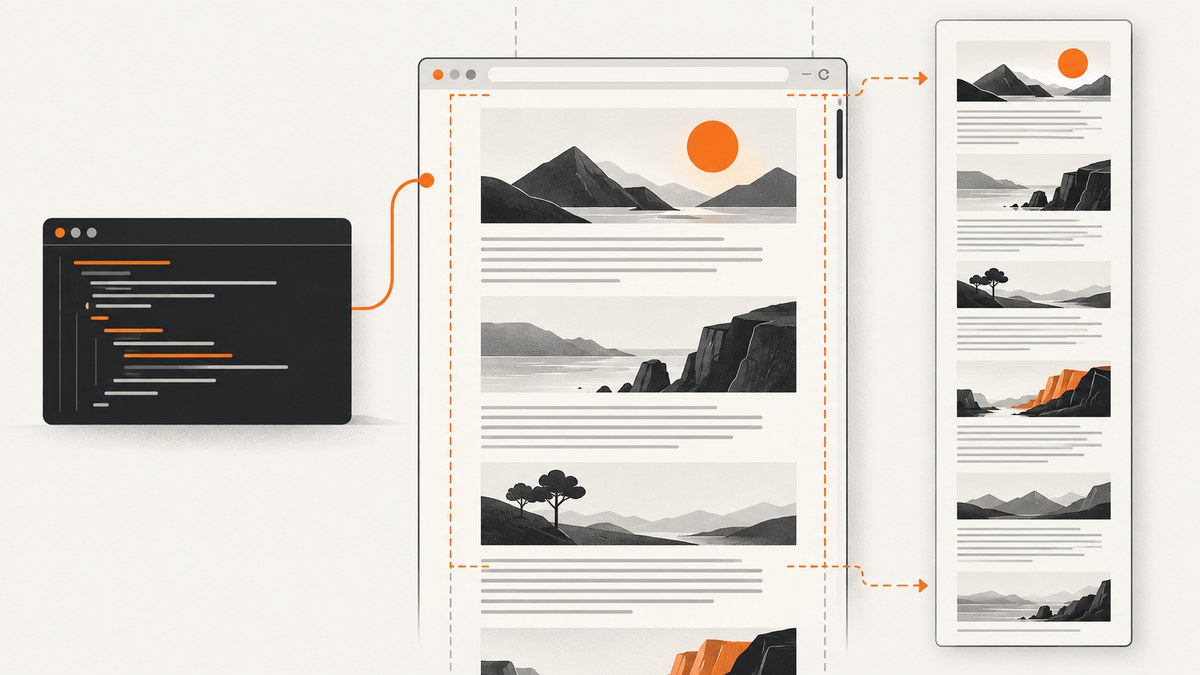
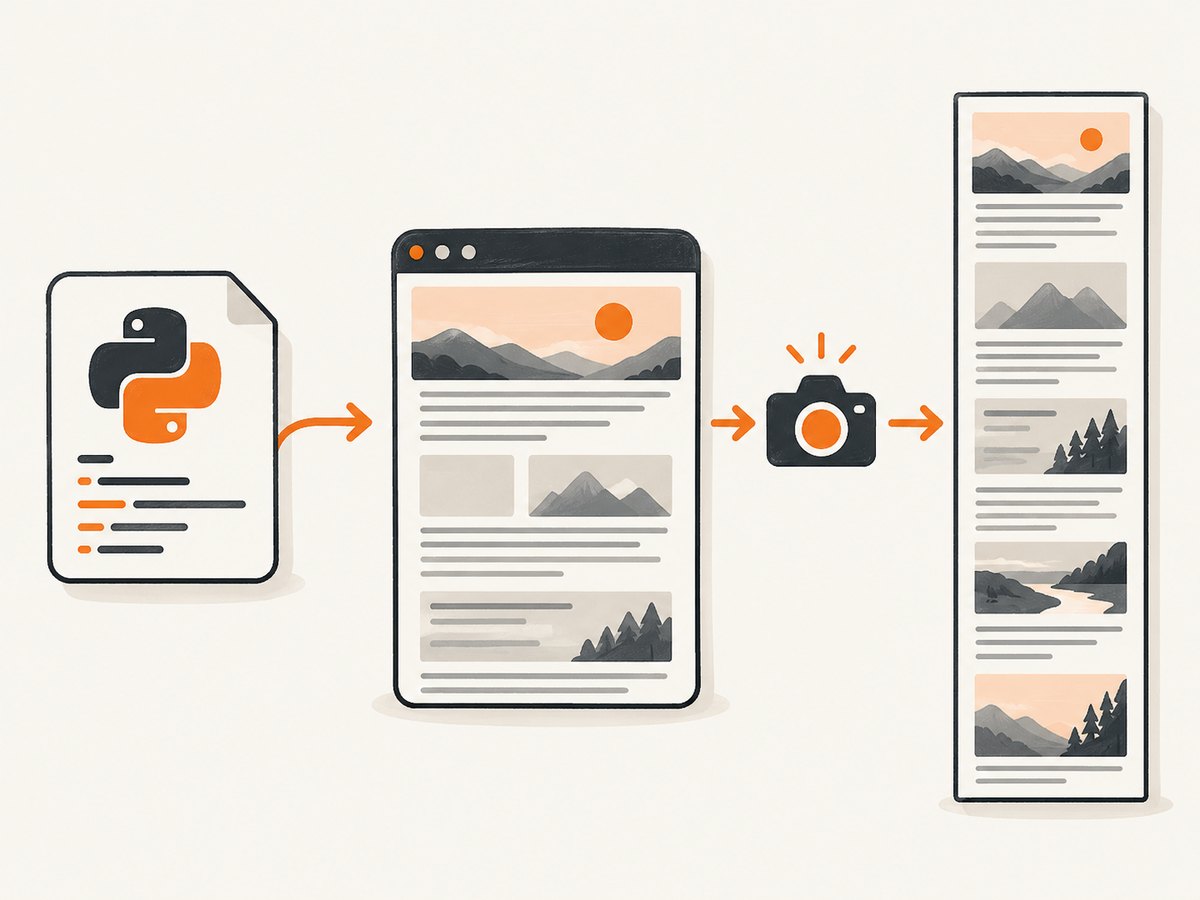
To capture an entire document in Firefox, use Selenium’s Firefox WebDriver and its full-document screenshot method. The call captures content beyond the current viewport and writes a PNG when given an absolute path. Selenium documents these methods in its Firefox Python API.
from selenium import webdriver

url = "https://example.com/long-page"
output = "/absolute/path/page.png"

with webdriver.Firefox() as driver:
    driver.get(url)
    ok = driver.get_full_page_screenshot_as_file(output)
    if not ok:
        raise OSError(f"Screenshot could not be written: {output}")
get_full_page_screenshot_as_file() returns True after a successful write and False for an I/O failure. Selenium also exposes save_full_page_screenshot(filename); both methods require a full path ending in .png. This behavior is specific to Firefox’s WebDriver implementation, which delegates to Marionette. Do not assume another browser driver offers the same method.
Install compatible Selenium, Firefox and geckodriver
- Install Firefox on the machine that will perform the capture.
- Create an isolated Python environment and install Selenium:
python -m venv .venv
source .venv/bin/activate       # Windows: .venv\\Scripts\\activate
python -m pip install --upgrade selenium
Recent Selenium releases can manage driver binaries automatically. In locked-down CI environments, install a geckodriver version compatible with Firefox and place it on PATH, or pass an explicit Service path:
from selenium import webdriver
from selenium.webdriver.firefox.service import Service

service = Service("/usr/local/bin/geckodriver")
with webdriver.Firefox(service=service) as driver:
    driver.get("https://example.com/long-page")
    if not driver.save_full_page_screenshot("/tmp/page.png"):
        raise OSError("Firefox could not save the screenshot")
When a method is missing or a session fails to start, check Selenium, Firefox and geckodriver as one compatible set. The official Selenium Firefox API and Mozilla Marionette documentation describe full-page support; ordinary WebDriver implementations can differ.
Save a full page as a PNG file
Use an absolute filename and create the destination directory first. A context manager guarantees that Firefox closes even if capture or writing raises an exception.
from pathlib import Path
from selenium import webdriver

url = "https://example.com/long-page"
out = Path("artifacts/page.png").resolve()
out.parent.mkdir(parents=True, exist_ok=True)

with webdriver.Firefox() as driver:
    driver.get(url)
    success = driver.get_full_page_screenshot_as_file(str(out))

if not success:
    raise OSError(f"Could not write {out}")
print(f"Saved {out}")
Do not confuse this with driver.get_screenshot_as_file() or driver.save_screenshot(). Those ordinary methods capture only the current viewport. Firefox’s full-document methods are separate operations.
Choose file output, PNG bytes or Base64
Use file output when another process expects a path. For an HTTP response, object-storage upload or test assertion, avoid a temporary file and request PNG bytes instead:
from pathlib import Path
from selenium import webdriver

with webdriver.Firefox() as driver:
    driver.get("https://example.com/long-page")
    png_bytes = driver.get_full_page_screenshot_as_png()
    encoded = driver.get_full_page_screenshot_as_base64()

Path("/tmp/page.png").write_bytes(png_bytes)
print(f"Base64 characters: {len(encoded)}")
The byte method is simplest when the next API expects binary PNG. Base64 is useful when a text transport requires it, but it increases payload size and memory use. Decode it only at the boundary that needs image bytes:
import base64
from pathlib import Path

Path("page-from-base64.png").write_bytes(base64.b64decode(encoded))
For very tall pages, process one capture at a time and upload or persist it promptly. Keeping both the PNG bytes and Base64 string alive duplicates memory.
Understand Marionette’s lower-level screenshot call
Marionette exposes the capability directly. Its Python client accepts a full flag and an output format:
# Requires a connected Marionette client/session
png_bytes = marionette.screenshot(format="binary", full=True)
base64_png = marionette.screenshot(format="base64", full=True)
sha256 = marionette.screenshot(format="hash", full=True)
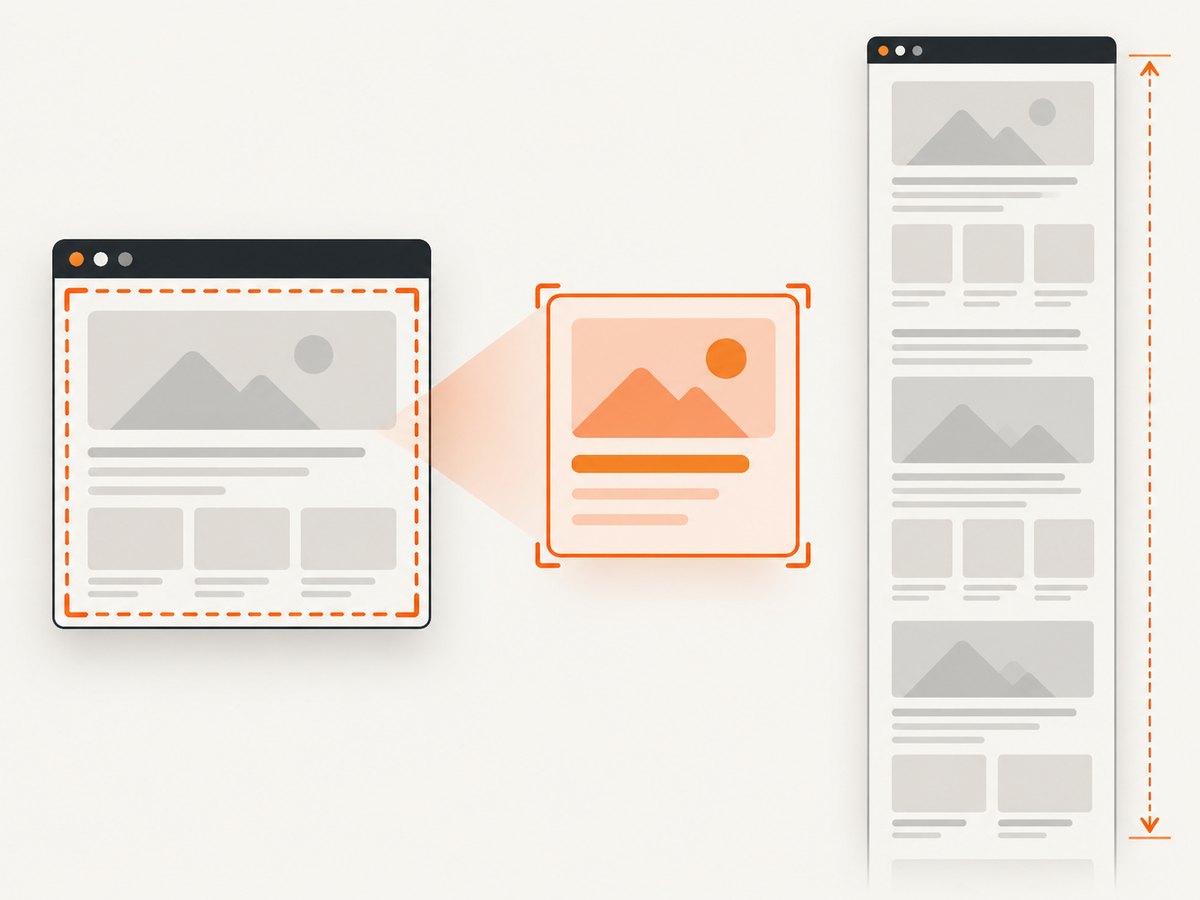
With no element supplied, full=True captures the complete frame; full=False captures only the viewport. Marionette sends a WebDriver:TakeScreenshot command containing full, scroll and an optional element id. The hash format returns a SHA-256 value instead of image data, which is useful for duplicate detection without storing another image.
Selenium’s Firefox methods are the practical choice for normal Python scripts. Use Marionette directly when you already maintain a Marionette session and need protocol-level controls.
Capture one element instead of the whole document
Element capture is bounded to the element’s rectangle. In Marionette, provide an element and choose whether it should be scrolled into view first:
# Pseudocode for an established Marionette session
card = marionette.find_element("css selector", ".pricing-card")
card_png = marionette.screenshot(element=card, format="binary", scroll=True)
scroll=True controls visibility before capture. This is different from full-page mode: it does not stitch or include the rest of the document. Selenium’s standard element screenshot methods are preferable when you are staying at the WebDriver layer.
| Goal | API | Result |
|---|---|---|
| Entire Firefox document | get_full_page_screenshot_as_file, get_full_page_screenshot_as_png or get_full_page_screenshot_as_base64 |
Complete frame |
| Current viewport | save_screenshot or get_screenshot_as_file |
Visible viewport only |
| One component | Marionette element screenshot | Element bounding box |
Wait for the page state you actually need
driver.get() follows the page’s load behavior, but JavaScript-rendered content may arrive later. Wait for an application-specific ready selector instead of sleeping for an arbitrary duration:
from selenium import webdriver
from selenium.webdriver.common.by import By
from selenium.webdriver.support.ui import WebDriverWait

with webdriver.Firefox() as driver:
    driver.get("https://example.com/dashboard")
    WebDriverWait(driver, 30).until(
        lambda d: d.find_element(By.CSS_SELECTOR, "main[data-ready='true']")
    )
    if not driver.get_full_page_screenshot_as_file("/tmp/dashboard.png"):
        raise OSError("write failed")
For pages with lazy-loaded images, verify that the interactions required by the site have completed before capture. Sticky headers, animations and cross-origin embeds can render differently between runs. Freeze animations with application-specific CSS where visual consistency matters, then validate the result on your target pages.
Common errors and fixes
| Error or symptom | Likely cause | Fix |
|---|---|---|
AttributeError: get_full_page_screenshot_as_file |
Non-Firefox driver, old Selenium or wrong object. | Use webdriver.Firefox(), upgrade Selenium and check the installed Firefox API. |
| Session fails before navigation | Firefox/geckodriver incompatibility or binary not found. | Install matching versions, put geckodriver on PATH or pass Service(path). |
Method returns False |
Directory missing, no write permission or unsuitable path. | Create the directory, use an absolute path ending in .png and check permissions. |
| Only viewport appears | Called save_screenshot() or ordinary get_screenshot_as_file(). |
Call Firefox’s full-page method. |
| Blank or partially rendered image | Capture happened before app data, fonts or images loaded. | Wait for a ready selector, increase the wait timeout and inspect the page state. |
| Element shot is clipped or wrong | Element screenshots use the bounding box and may need scrolling. | Verify the selector and choose the required scroll behavior. |
| Huge memory use or upload failure | Extremely tall document or Base64 duplication. | Prefer PNG bytes, process one page at a time and avoid unnecessary conversions. |
Reliability and performance checklist
- Pin Selenium in deployment and record Firefox and geckodriver versions.
- Use a fresh WebDriver session for isolated jobs and close it with
with. - Set an explicit wait timeout and fail clearly when the ready condition is absent.
- Use deterministic viewport, locale and timezone settings when pixel comparisons matter.
- Check the Boolean file result; do not report success solely because no exception occurred.
- Capture bytes once and upload once; converting bytes to Base64 and back wastes CPU and memory.
- Test pages containing sticky positioning, animations, lazy loading and cross-origin frames on the same compatible stack used in production.
Full-document screenshots require Firefox to render the page and encode one potentially tall PNG, so runtime and memory rise with document dimensions and image count. Selenium itself does not provide a fixed capture-time or memory guarantee for arbitrary pages.
Or skip the browser setup
If you need a screenshot endpoint instead of maintaining Firefox sessions, ScreenshotNeo accepts one GET request and returns PNG, JPEG, WebP or PDF. Before capture it accepts cookie and consent banners and removes more than 60 known consent platforms, newsletter popups and chat widgets; each step can be turned off. Bot checks, CAPTCHAs, blank pages, timeouts, failed loads and cache hits are not billed, and response headers identify the page verdict and whether the shot was billed.
See the ScreenshotNeo API docs for options. Minimal calls:
curl -G "https://api.screenshotneo.com/v1/shot" -d access_key=YOUR_API_KEY --data-urlencode url=https://example.com/long-page -o shot.webpimport requests
r = requests.get("https://api.screenshotneo.com/v1/shot", params={"access_key": "YOUR_API_KEY", "url": "https://example.com/long-page"}, timeout=90)
open("shot.webp", "wb").write(r.content)const q = new URLSearchParams({ access_key: 'YOUR_API_KEY', url: 'https://example.com/long-page' });
const res = await fetch(`https://api.screenshotneo.com/v1/shot?${q}`);ScreenshotNeo supports full-page capture with lazy images, CSS-selector element shots, dark mode, device presets, custom CSS and JavaScript, waits, blocking rules, headers, cookies, user-agent, timezone, geolocation, resizing, caching, signed links, asynchronous jobs, bulk capture and PDF controls. Its MCP server provides take_screenshot, get_page_info and capture_pdf tools for Claude, Cursor and other MCP clients. The free plan includes 1,000 screenshots a month with no card; paid plans start at $5 for 3,000 shots. Create a free ScreenshotNeo account.
Cost and operational trade-offs
Running Selenium yourself means paying for compute, browser maintenance, storage and bandwidth while handling retries and concurrency. It is a good fit when tests need browser state or custom interactions. An API shifts browser operations to a service and charges only for the clean-shot cases described above. Compare total job time, image retention, required browser control and expected volume before choosing.
FAQ
Does full-page mode include content below the fold?
Firefox’s full-document methods request the complete frame, including content outside the current viewport. Confirm lazy content and dynamic sections are ready before capture.
Can I get JPEG or WebP from Selenium?
The documented Firefox full-page methods return PNG files, PNG bytes or Base64. Convert the PNG afterward if another format is required.
Why use Marionette directly?
Direct Marionette access exposes protocol flags such as full, scroll, element targeting and hash output. Selenium’s Firefox methods are simpler for normal Python scripts.
Will this work in ChromeDriver?
The documented full-document API is for Selenium’s Firefox driver and Marionette. Other drivers may expose different or no full-page methods; check their current API.


