How to Handle Nearly Identical Images in Selenium Visual Tests
Learn how to capture stable Selenium screenshots, inspect image diffs, and set careful tolerances without hiding real UI regressions.
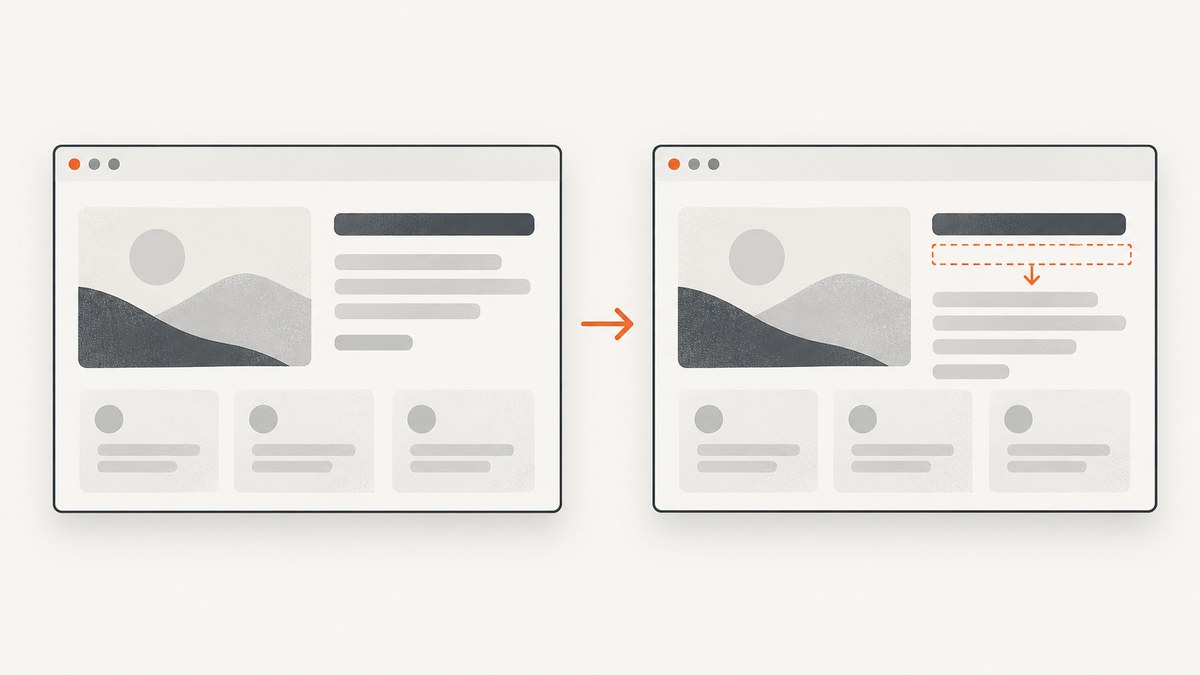
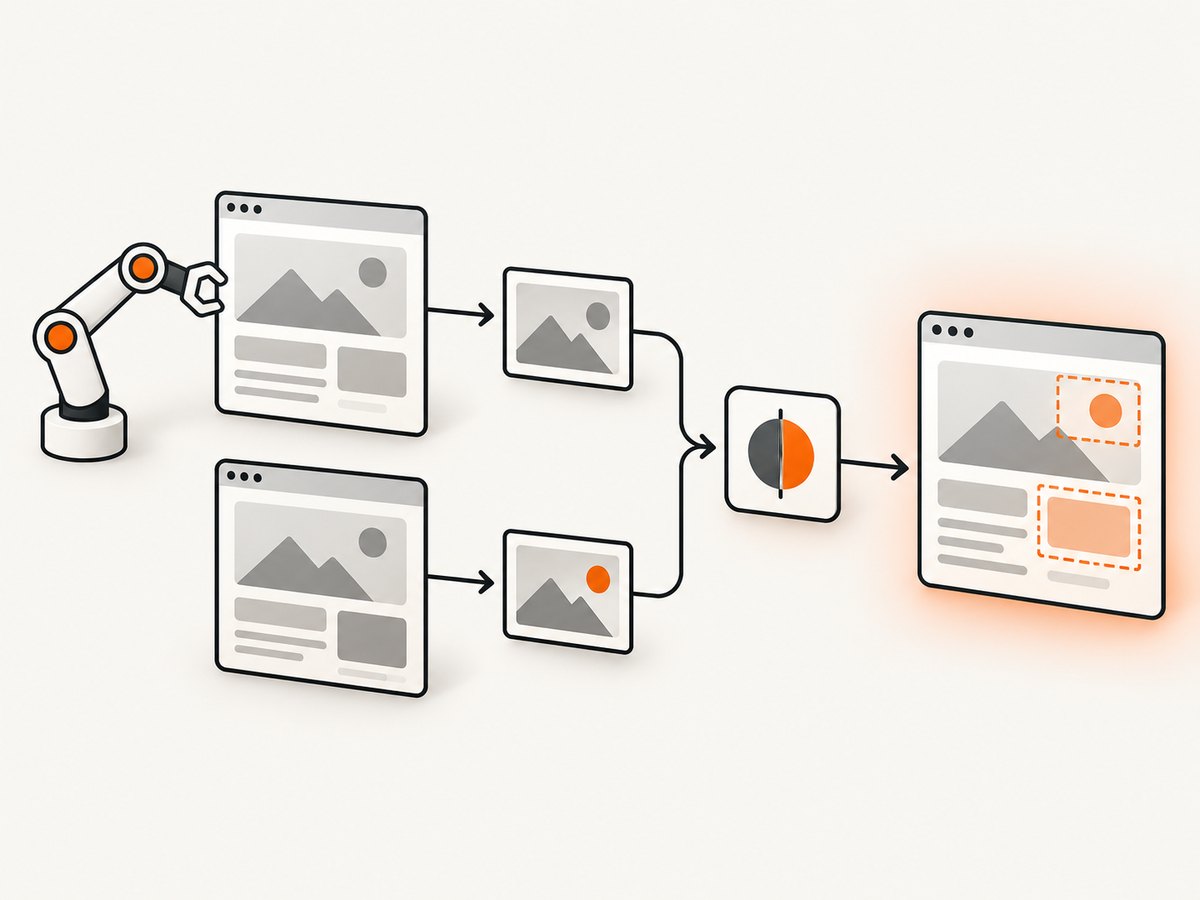
A Selenium screenshot is an image capture; deciding whether it is close enough to a baseline is a separate comparison step. Selenium’s Chromium WebDriver API documents PNG screenshots as a file, binary data, or base64 output. It does not document a built-in visual-regression threshold. To handle nearly identical images reliably, make capture conditions repeatable, inspect the original and diff, tune the comparison tool’s tolerance narrowly, and accept a new baseline only after validating the UI change. Selenium’s screenshot API documentation covers capture; your comparison library or visual testing service determines what counts as a mismatch.
1. Make Selenium captures repeatable
Visual comparison is sensitive to both application changes and changes in how the browser renders the page. Before adjusting tolerance, make the screenshot environment as consistent as you can. Use the same browser family and version, operating system or container, viewport, device scale, fonts, locale, and application state for the baseline and current capture. WebdriverIO’s visual testing guidance likewise recommends comparing screenshots from the same platform. That is useful general guidance, but its settings are not Selenium defaults.
Control page state and timing
Wait for the condition the test actually needs: an element to appear, data to finish loading, or an application-specific ready state. A fixed sleep can sometimes help with a known animation or delayed page behavior, but it is a poor replacement for a condition-based wait. If fonts load late, screenshots taken before and after the font swap can differ throughout the page. If an animation is running, capture timing can change the apparent position or color of an element. Prefer test data and page behavior that are deterministic; disable or finish animations in a test-specific environment when that is appropriate.
Personalized banners, timestamps, rotating content, and live data can cause legitimate differences. Stabilize those values in the test where possible. If a region is expected to vary and is irrelevant to the assertion, mask only that region. Keep the mask small and document its reason: hiding all text or a broad part of the page can conceal a real regression.
Capture the scope that matches the assertion
Choose a viewport, element, or full-page capture according to what the test is meant to protect. An element screenshot is useful for a bounded component when unrelated page content changes frequently. A full-page image covers more of the interface, but also includes more content that can change for reasons unrelated to the component under test. WebdriverIO documents screen, element, and full-page comparisons as supported scopes in its service; this illustrates a tool capability, not a Selenium comparison feature.
2. Capture a baseline and current screenshot with Selenium
This Python example uses Selenium WebDriver to capture a PNG of the same page at a fixed viewport. It waits for a page-specific element before saving. Install Selenium with python -m pip install selenium and make sure a compatible browser and driver are available in your environment. Selenium Manager can assist with driver management in current Selenium setups; browser and driver availability still depend on the machine.
from pathlib import Path
from selenium import webdriver
from selenium.webdriver.common.by import By
from selenium.webdriver.support import expected_conditions as EC
from selenium.webdriver.support.ui import WebDriverWait

URL = "http://localhost:8000"
OUTPUT = Path("artifacts/current.png")

options = webdriver.ChromeOptions()
options.add_argument("--headless=new")
options.add_argument("--window-size=1440,1000")

driver = webdriver.Chrome(options=options)
try:
    driver.set_window_size(1440, 1000)
    driver.get(URL)
    WebDriverWait(driver, 20).until(
        EC.visibility_of_element_located((By.CSS_SELECTOR, "main"))
    )

    # Replace this with an app-specific ready condition when needed.
    WebDriverWait(driver, 20).until(
        lambda d: d.execute_script("return document.readyState") == "complete"
    )

    OUTPUT.parent.mkdir(parents=True, exist_ok=True)
    if not driver.save_screenshot(str(OUTPUT)):
        raise RuntimeError(f"Selenium did not save {OUTPUT}")
finally:
    driver.quit()
Run this once for the baseline and store the approved file, for example as artifacts/baseline.png. Run the same capture in the test job to produce artifacts/current.png. Avoid regenerating the baseline automatically when a test fails: that would turn an unexplained difference into the new expected result.
The example uses save_screenshot, which writes a PNG file. Selenium’s Chromium API also documents returning screenshot bytes or base64 output. Select the form that fits your artifact pipeline, but keep the browser environment and capture timing consistent between runs.
3. Compare images and inspect the diff
A small mismatch count is not proof that a change is harmless. A few changed pixels around text edges may be antialiasing noise, while a small number of pixels can also represent a missing icon, a clipped label, or a shifted control. Review the baseline, current image, and diff together. Classify the location and meaning of the change before changing a threshold.
Here is a small, runnable pixel-difference script using Pillow. It compares equal-sized RGB images, counts pixels whose largest channel difference exceeds a chosen per-channel threshold, and writes a red-highlighted diff image. This is a simple exact-pixel style check with an explicit threshold; it is not a perceptual image metric and does not identify antialiasing semantically.
from pathlib import Path
from PIL import Image, ImageChops

BASELINE = Path("artifacts/baseline.png")
CURRENT = Path("artifacts/current.png")
DIFF = Path("artifacts/diff.png")
CHANNEL_THRESHOLD = 12  # Largest RGB channel delta to count a pixel as changed.
MAX_CHANGED_RATIO = 0.001  # Example project-specific budget: 0.1%.

with Image.open(BASELINE) as image:
    baseline = image.convert("RGB")
with Image.open(CURRENT) as image:
    current = image.convert("RGB")

if baseline.size != current.size:
    raise SystemExit(
        f"Image dimensions differ: baseline={baseline.size}, current={current.size}. "
        "Check viewport, browser chrome, device scale, and page layout."
    )

raw = ImageChops.difference(baseline, current)
pixels = raw.load()
changed = Image.new("RGB", baseline.size, "black")
changed_pixels = changed.load()
changed_count = 0
for y in range(baseline.height):
    for x in range(baseline.width):
        delta = pixels[x, y]
        if max(delta) > CHANNEL_THRESHOLD:
            changed_pixels[x, y] = (255, 0, 0)
            changed_count += 1

DIFF.parent.mkdir(parents=True, exist_ok=True)
changed.save(DIFF)
total = baseline.width * baseline.height
ratio = changed_count / total
print(f"Changed pixels: {changed_count}/{total} ({ratio:.4%})")
print(f"Diff image: {DIFF}")
if ratio > MAX_CHANGED_RATIO:
    raise SystemExit("Visual comparison exceeded the configured pixel budget")
Install Pillow with python -m pip install Pillow. Treat CHANNEL_THRESHOLD and MAX_CHANGED_RATIO as project-specific examples, not universal safe values. Establish them by reviewing representative diffs from your own stable environment. A percentage budget cannot tell whether a difference matters, and the script above should be paired with visual review or a comparison tool that provides useful diagnostics.
4. Choose a narrow tolerance for the mismatch
Comparison settings are specific to the library or service. WebdriverIO’s visual testing documentation describes controls for antialiasing, color, alpha, and direct Pixelmatch settings. Its ignoreAntialiasing option addresses edge rendering differences; the documentation says this solves a common source of visual-test flakiness. Other options and presets can compare images differently, so check the mode and version you use before relying on it.
Playwright’s snapshot assertions document a different model: a perceived-color threshold plus limits on changed pixels or their ratio. These are Playwright settings, not Selenium settings. Do not copy a numeric tolerance from Playwright or WebdriverIO and treat it as an appropriate default for a Selenium test.
| Difference or need | Reasonable response | What to verify |
|---|---|---|
| Speckles around glyph and shape edges | First align platform, browser, fonts, and device scale; then consider a narrow antialiasing rule in the comparison tool. | Confirm there is no changed text, weight, or geometry underneath the edge noise. |
| Colors differ broadly | Check theme, color profile, loaded styles, opacity, and dynamic state before relaxing color comparison. | Color changes may be intentional product changes or real defects. |
| Only a known live region changes | Stabilize its test data or apply a small documented mask. | Keep the excluded area limited to the irrelevant content. |
| Dimensions differ | Investigate viewport, device scale, browser chrome, and layout before any scaling. | Resizing can hide a real viewport or layout regression. |
| Many pixels differ | Inspect the diff and check page readiness and application state. | A mismatch percentage alone does not identify whether the change is significant. |
Some services provide controls to block regions or hide text, and some offer an explicit scale-to-same-size option. Treat each as a deliberate comparison choice. Scaling images just to make them match can hide a size or layout regression. Hiding text can remove precisely the content your test needs to protect.
5. Review and update a baseline deliberately
- Open all three artifacts: baseline, current screenshot, and diff. Check both the highlighted pixels and the surrounding context.
- Classify the change: decide whether it is rendering noise, expected dynamic content, or a possible UI regression.
- Reproduce when uncertain: rerun under the intended browser, platform, viewport, and application state. Compare a second capture if timing or dynamic content could be responsible.
- Fix the source or tune narrowly: stabilize data or capture conditions first. Add a small mask or comparison tolerance only when the variation is understood and irrelevant to the assertion.
- Update only an approved baseline: when the UI change is intentional, review the resulting image and update the affected baseline as part of the change. Keep the diff or review artifact available to the people approving it.
Blindly regenerating every baseline after a failure can normalize unrelated visual changes. A baseline is an expected result, so changing it should be a reviewed decision.
6. Troubleshooting common failures
| Symptom | Likely cause | Fix |
|---|---|---|
| Images differ on every CI run | Uncontrolled platform, browser version, fonts, timing, or changing page data. | Pin the capture environment where practical, stabilize fixtures and locale, wait for app readiness, and control animations. |
| Large differences appear after a font load | The capture happened before the intended web font was ready, or CI lacks the same font. | Wait for the app’s font-ready condition and make fonts available consistently in the capture environment. |
| Screenshot is blank or incomplete | Capture occurred before navigation or application rendering finished, or the page failed to load. | Wait for a meaningful element or app-specific ready signal; inspect browser logs and page state before comparing. |
| Baseline and current dimensions do not match | Viewport, device scale, browser chrome, or page layout changed. | Set the same viewport explicitly and investigate the layout. Do not scale away an unexplained size difference. |
| Only a few pixels fail, but a control is missing | A small region can encode a meaningful UI change. | Inspect location and context. Do not accept based only on a low mismatch ratio. |
| Antialiasing tolerance hides too much | The selected mode or threshold is too permissive for the page. | Review the comparison tool’s specific mode and version; narrow the rule and retain visual review. |
| Test passes despite a visible content difference | Color, text, region, or changed-pixel allowances are too broad. | Reduce the allowance, remove broad masks, and add a targeted assertion for important content if needed. |
| Driver cannot start in CI | Browser or driver is missing, incompatible, or unavailable to the runtime. | Install a compatible browser and configure driver management for the environment; inspect Selenium startup errors before blaming image comparison. |
7. Performance, reliability, and cost considerations
Screenshot capture adds browser startup, page loading, and image processing to a test. Reusing a browser session across related checks can reduce repeated startup work, but isolate page state carefully so one test does not affect another. Capturing only the element under test can reduce image size and unrelated variation. Full-page captures provide broader coverage but take more content into the comparison. The actual runtime depends on the page, browser, environment, and comparison tool; there is no universal timing figure.
For reliability, preserve the current screenshot and diff when a comparison fails. Those artifacts make failures actionable and help reviewers distinguish a true regression from environmental noise. Keep baselines tied to the environment and browser configuration that produced them. If that configuration changes, expect to review its effect rather than silently replacing all references.
Cost depends on how you run browsers and which comparison service, if any, you choose. The Selenium capture and Pillow example above use local software, but browser compute, CI minutes, artifact storage, and any hosted visual-testing plan can still have costs. Compare services by their supported capture scope, tolerance controls, region exclusions, diagnostics, environment consistency, and baseline workflow. WebdriverIO and Playwright documentation describe their own product capabilities; neither defines Selenium defaults.
Or skip the browser setup
If you need a clean website screenshot without managing a WebDriver capture, ScreenshotNeo is a website screenshot API and MCP server. One GET request returns a PNG, JPEG, WebP, or PDF. See the ScreenshotNeo API documentation for request options.
curl -G "https://api.screenshotneo.com/v1/shot" -d access_key=YOUR_API_KEY --data-urlencode url=https://stripe.com -o shot.webpimport requests
r = requests.get(
"https://api.screenshotneo.com/v1/shot",
params={"access_key": "YOUR_API_KEY", "url": "https://stripe.com"},
timeout=90,
)
r.raise_for_status()
open("shot.webp", "wb").write(r.content)const q = new URLSearchParams({ access_key: 'YOUR_API_KEY', url: 'https://stripe.com' });
const res = await fetch(`https://api.screenshotneo.com/v1/shot?${q}`);
if (!res.ok) throw new Error(`Screenshot request failed: ${res.status}`);
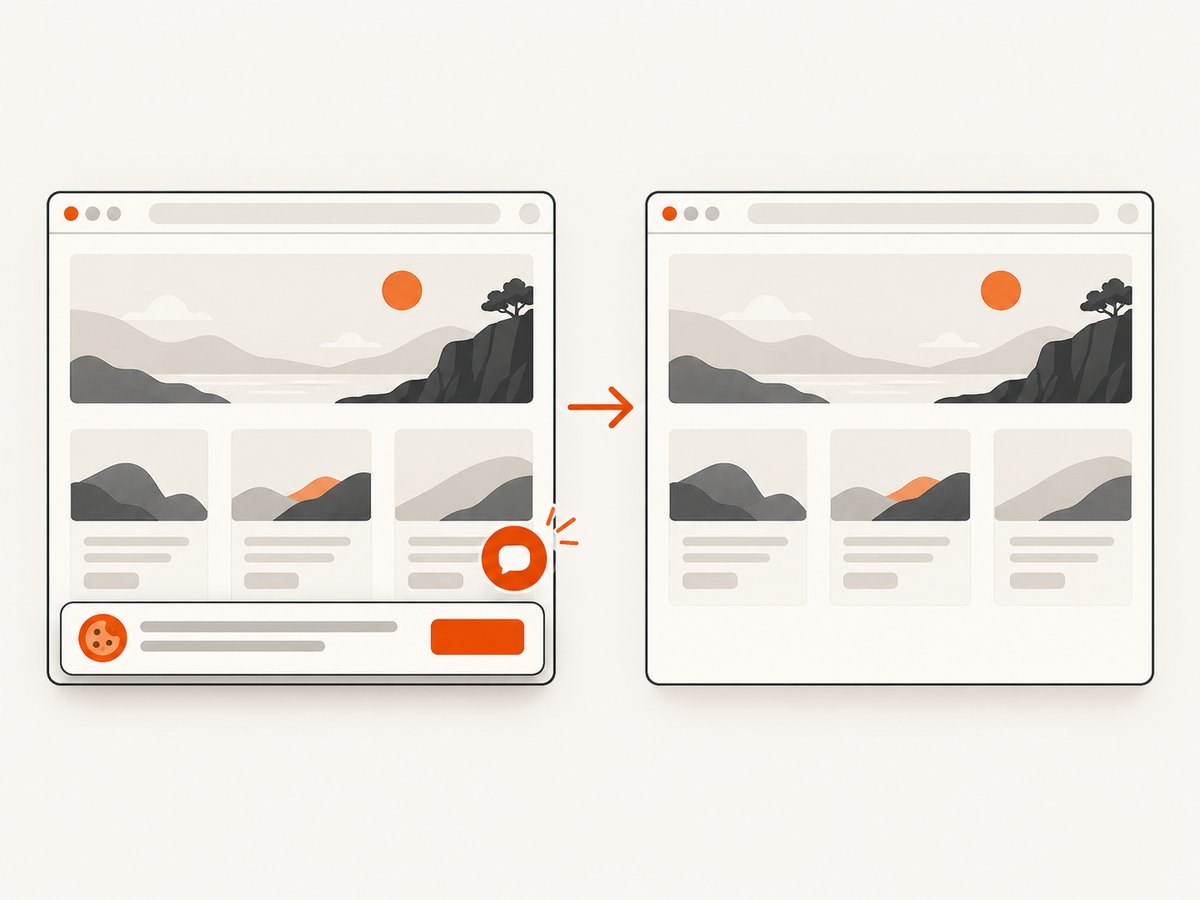
await Bun.write('shot.webp', new Uint8Array(await res.arrayBuffer()));- Cookie and consent banners, newsletter popups, and chat widgets are removed before the shot; each cleanup step can be turned off.
- Bot checks, blank pages, timeouts, failed loads, and cache hits are not billed. Responses identify the page verdict and billing status in headers.
- An MCP server gives AI agents tools to take screenshots, get page information, and capture PDFs.
- The free plan includes 1,000 screenshots a month with no card. Paid plans start at $5 for 3,000 screenshots.
Create a free ScreenshotNeo account for 1,000 screenshots a month with no card.
FAQ
Does Selenium decide whether two screenshots are similar?
The cited Chromium WebDriver API documents screenshot capture outputs. Similarity and tolerance come from the comparison library or visual-testing service you add.
What mismatch percentage is safe?
There is no universal safe percentage in the reviewed documentation. Set a project-specific allowance only after examining the kinds and locations of changes it accepts.
Should every test use a full-page screenshot?
No. Use the smallest scope that protects the behavior under test. A component test often benefits from an element capture, while a page-level layout check may need a wider capture.
Can I fix a mismatch by resizing one image?
Only after establishing why dimensions differ and confirming that resizing will not hide a layout change. Investigate the capture configuration first.
When should I accept a new baseline?
After reviewing the diff and confirming the UI change is intended. Update only the affected reference and retain the review artifact.


